When a specific time slot is unavailable, clients can add their pets to a waitlist to be notified the moment a spot opens up. This feature helps businesses fill last-minute cancellations and maximize revenue while providing clients a proactive way to secure their preferred times.
Things to know:
- To use the Service Waitlist feature, the "Enable Appointment Waitlist" company setting must be enabled
- To allow clients to add multiple pets to the waitlist simultaneously, the "Allow Online Booking for Multiple Family Members or Pets" company setting must be enabled.
- Clients must be signed in to add a pet to a waitlist. If they are not logged in and select "Join Waitlist," they will be prompted with the message: “Please sign in to join the waitlist.”
- There is no limit on how far in advance a pet can be added to a waitlist, and clients can remove their pet’s entry at any time.
- When booking online, clients will first see available time slots. If none of the available times work for them, the "Join Waitlist" option will appear below the list.
- Clients can choose to be notified when an opening becomes available during specific parts of the day:
- Morning: 8:00 AM – 12:00 PM
- Afternoon: 12:00 PM – 5:00 PM
- Evening: 5:00 PM – 9:00 PM
- Clients can select “I’m flexible. Anytime works” to receive notifications for any opening throughout the day.
- Availability Rules:
- Clients can only select dayparts that align with your business hours and staff availability. For example, if your business closes at 5:00 PM and no staff are scheduled later, the evening option will be grayed out.
- If time slots are still available within a specific daypart, the option to join that waitlist section will also be grayed out. For example, if appointments are available between 2:00 PM and 4:00 PM, the afternoon waitlist option will remain unavailable.
- When clients click "Book Now," they are redirected to the booking widget to finalize their appointment.
- If a spot opens within the client’s selected timeframe, they will receive a Waitlist Slot Available notification.
- Clients can view all waitlisted services for their pets in the Waitlisted section under Account → Bookings.
- Staff can view the total number of waitlisted pets directly from the waitlist modal in-store
- Waitlist Grouping for Multiple Appointments
- When you add multiple pets or family members to the waitlist and select the "Use same start time" option, the system groups these entries together. This grouping ensures that related appointments remain linked for easier management. You can view these grouped waitlist entries in the following locations:
- In-Store: Grouped together within the waitlist modal for staff visibility.
- Client View: Located under My Account > Booking > Waitlisted
Clients can easily add their pets to a service waitlist by following these steps:
- Navigate to your booking page using the provided booking URL or the "Book" button on your website.
- Select a Location (if your business has multiple locations, they should choose their preferred location)
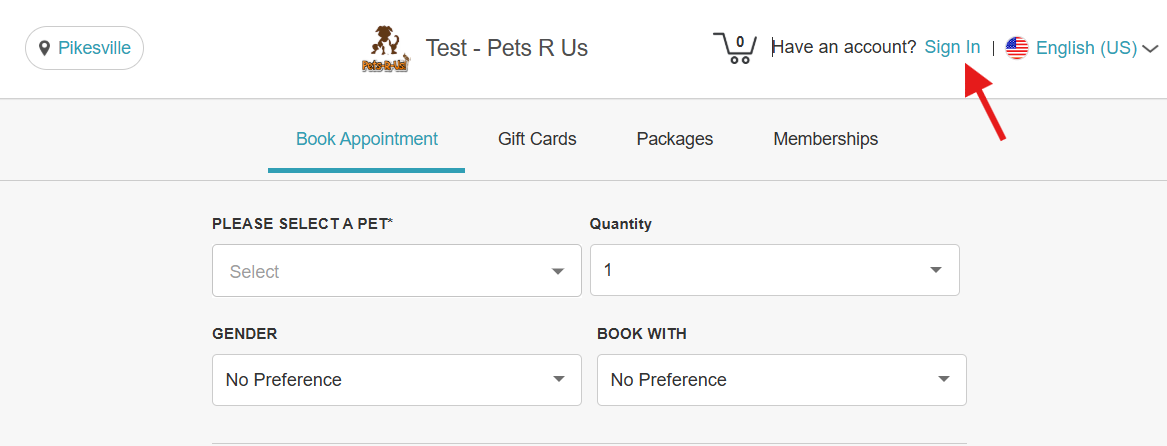
- Click Sign In at the top-right corner of the booking widget
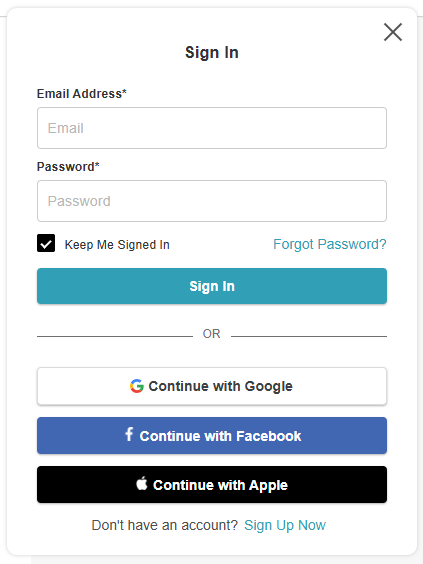
- Sign in using an existing MyTime account, Facebook, Google, or Apple ID, or create a new account
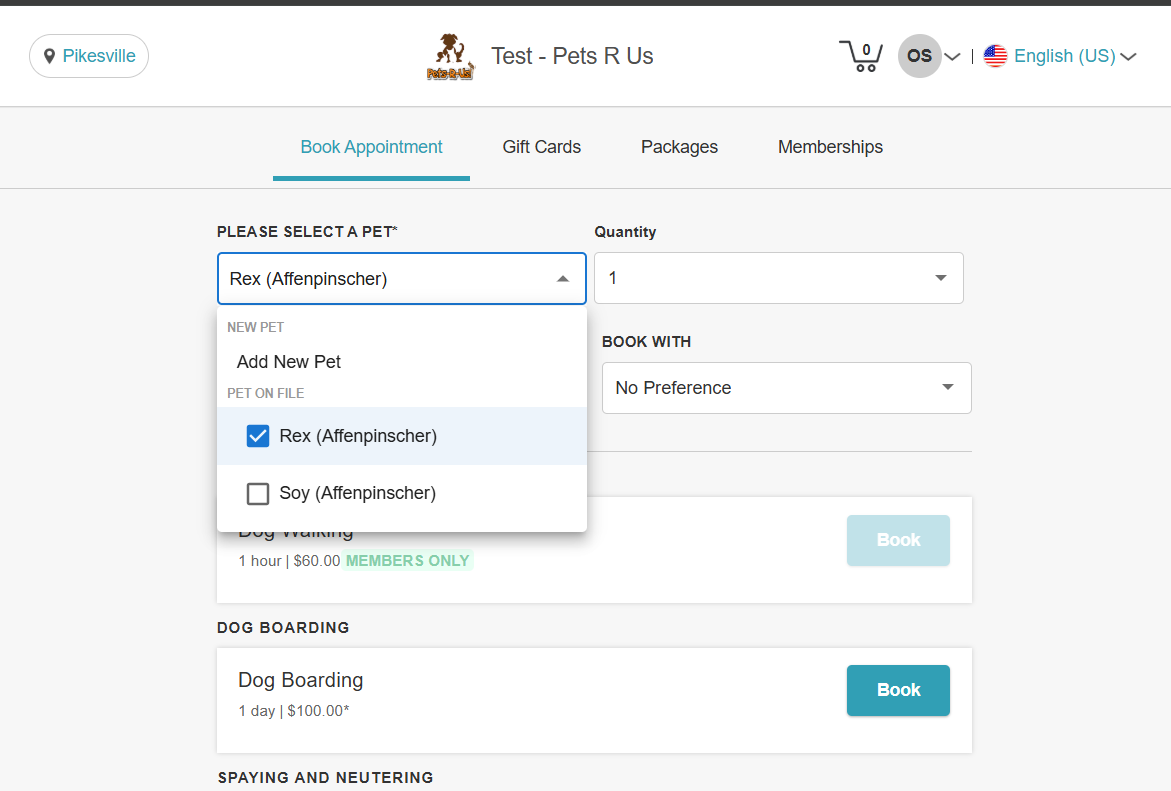
- Once signed in, if the client has existing pets on their account, they can select a pet from the list or add a new one
- Choose the desired service
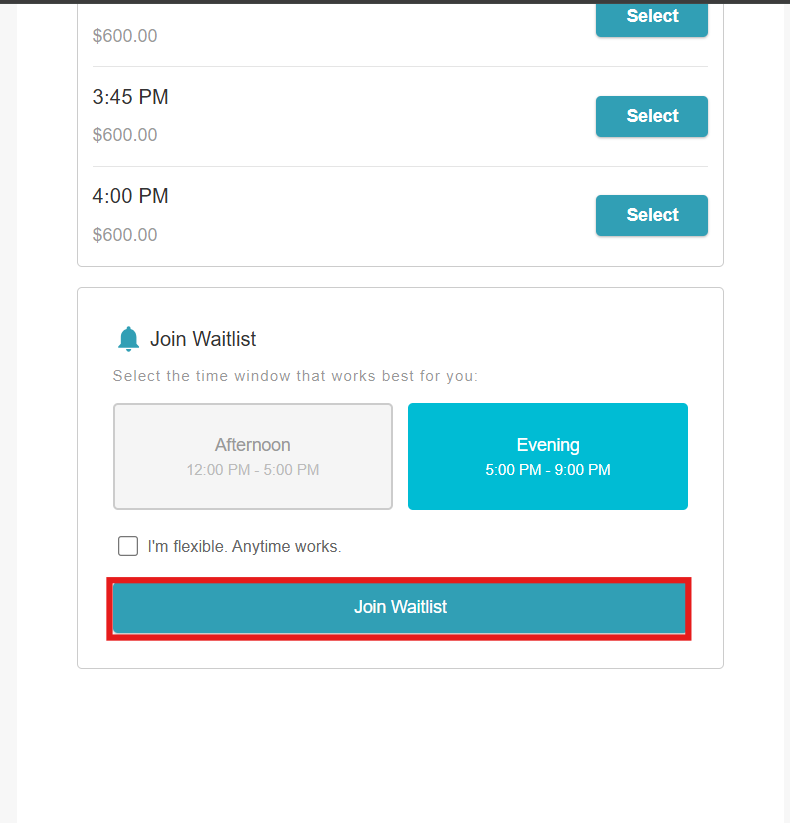
- On the Pick a Time page, if the preferred slot is unavailable, scroll down and select “None of these work?”

- Choose the preferred time of day for the waitlist
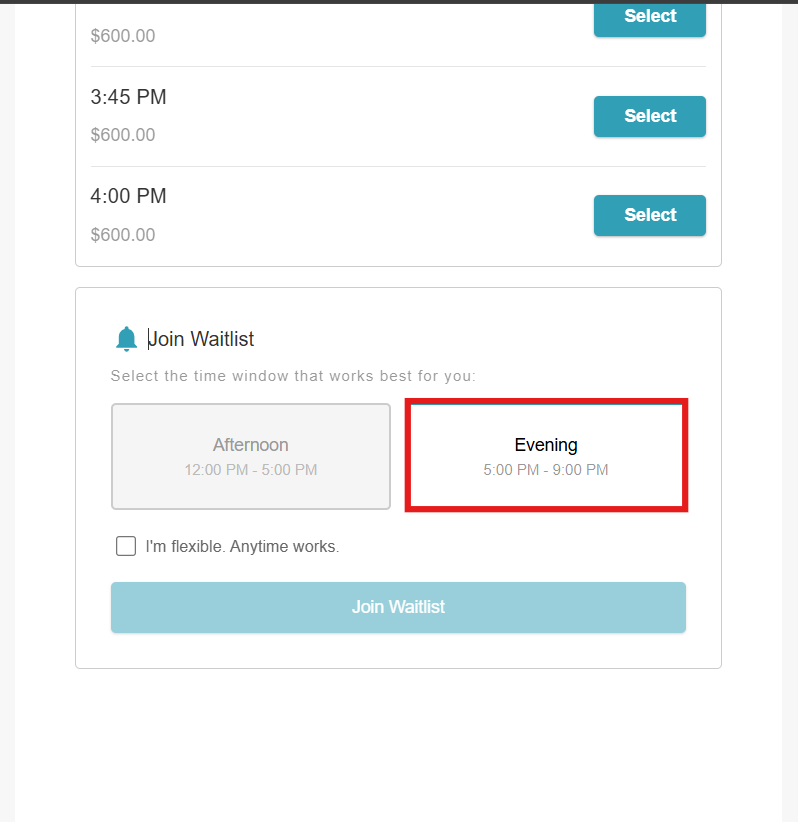
- Click "Join Waitlist"
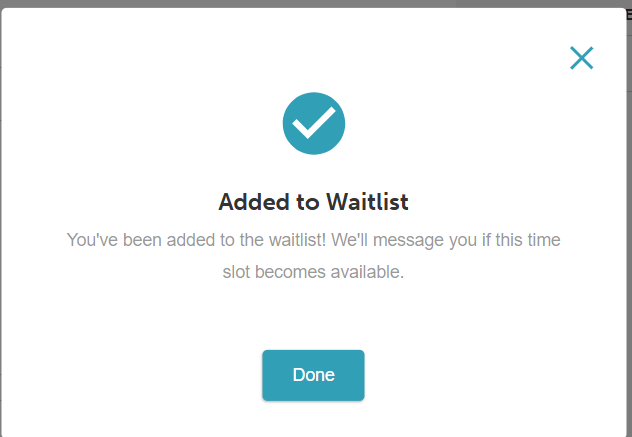
- A confirmation pop-up will appear, confirming that the pet has been added to the waitlist
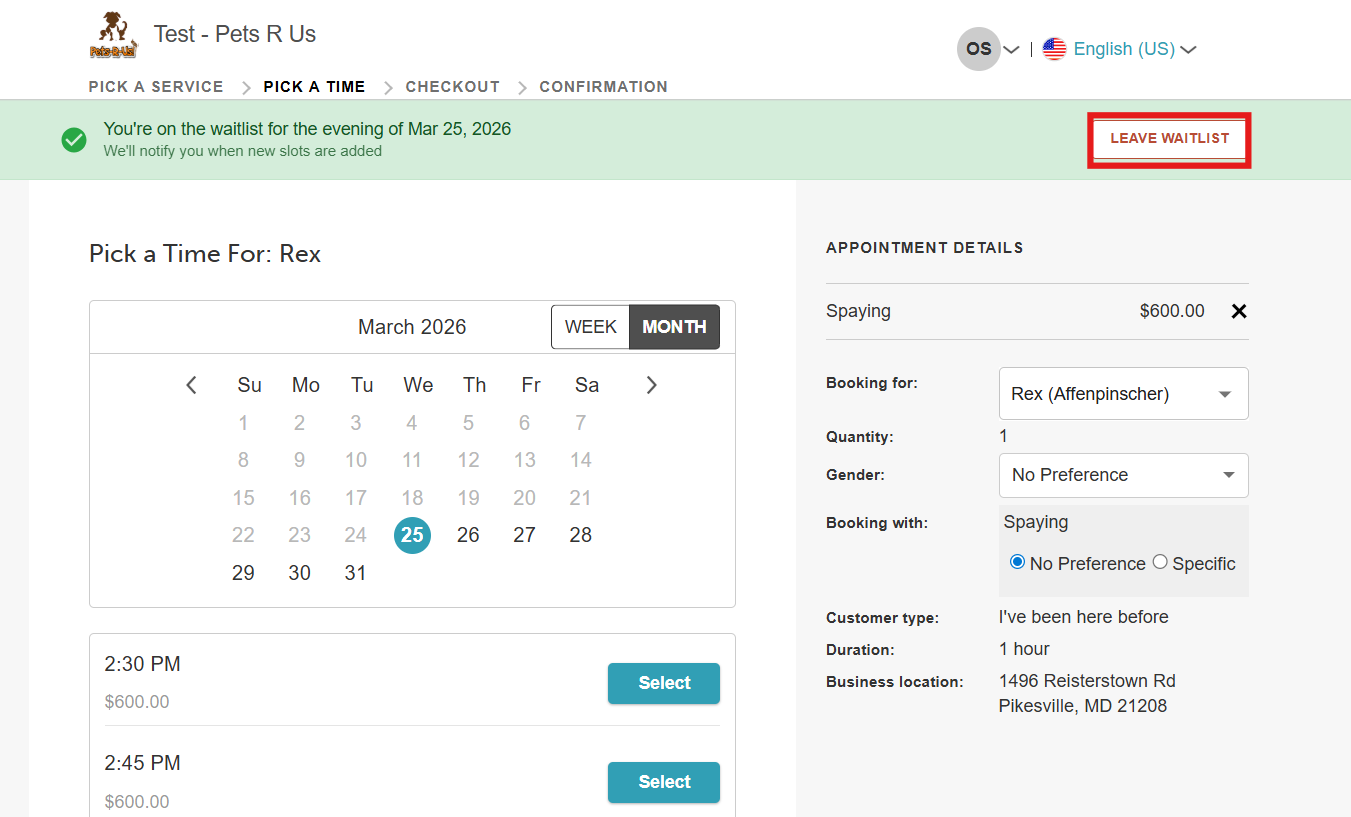
- A banner will appear at the top of the widget to remind clients that their pet was added to the waitlist. If their plans change, clients can select the 'Leave Waitlist' option within the banner at any time to remove their pet.
For more information, contact us at support@mytime.com or (385) 233-6964.
Related Articles:
Was this article helpful?
That’s Great!
Thank you for your feedback
Sorry! We couldn't be helpful
Thank you for your feedback
Feedback sent
We appreciate your effort and will try to fix the article