This article explains how to edit services on a ticket after payment has been processed, regardless of whether the appointment has been completed.
Things to know:
- The ability to edit a ticket is controlled by the "Edit/Refund Closed Tickets" access control setting.
- Once a ticket is closed, you will only be able to edit or issue a refund.
- Tickets that include services or products redeemed using package or membership credits can be edited but cannot be refunded.
- Once the prepaid ticket (an appointment booked and paid for online) is closed, it cannot be edited
- If editing a ticket results in an additional charge or a refund, the changes will appear in reports on both:
- The original ticket close date, and
- The date the edit was made.
- Example:
A ticket is closed on September 1 for $100.
On September 5, the ticket is edited, and an additional item is added, increasing the total to $120. - Reports will show:
$100 on September 1 (original close date)
$20 on September 5 (date of the edit)
- If a ticket is edited by adding an item of equal value, no refund or additional payment is required. In this case, the Done Editing button will appear, allowing you to complete the edit without further action.
Contents:
Accessing The Ticket
Accessing the closed ticket can be done from POS or the schedule.
Schedule:
- Navigate to the Schedule
- Locate the appointment you want to edit and click to open it
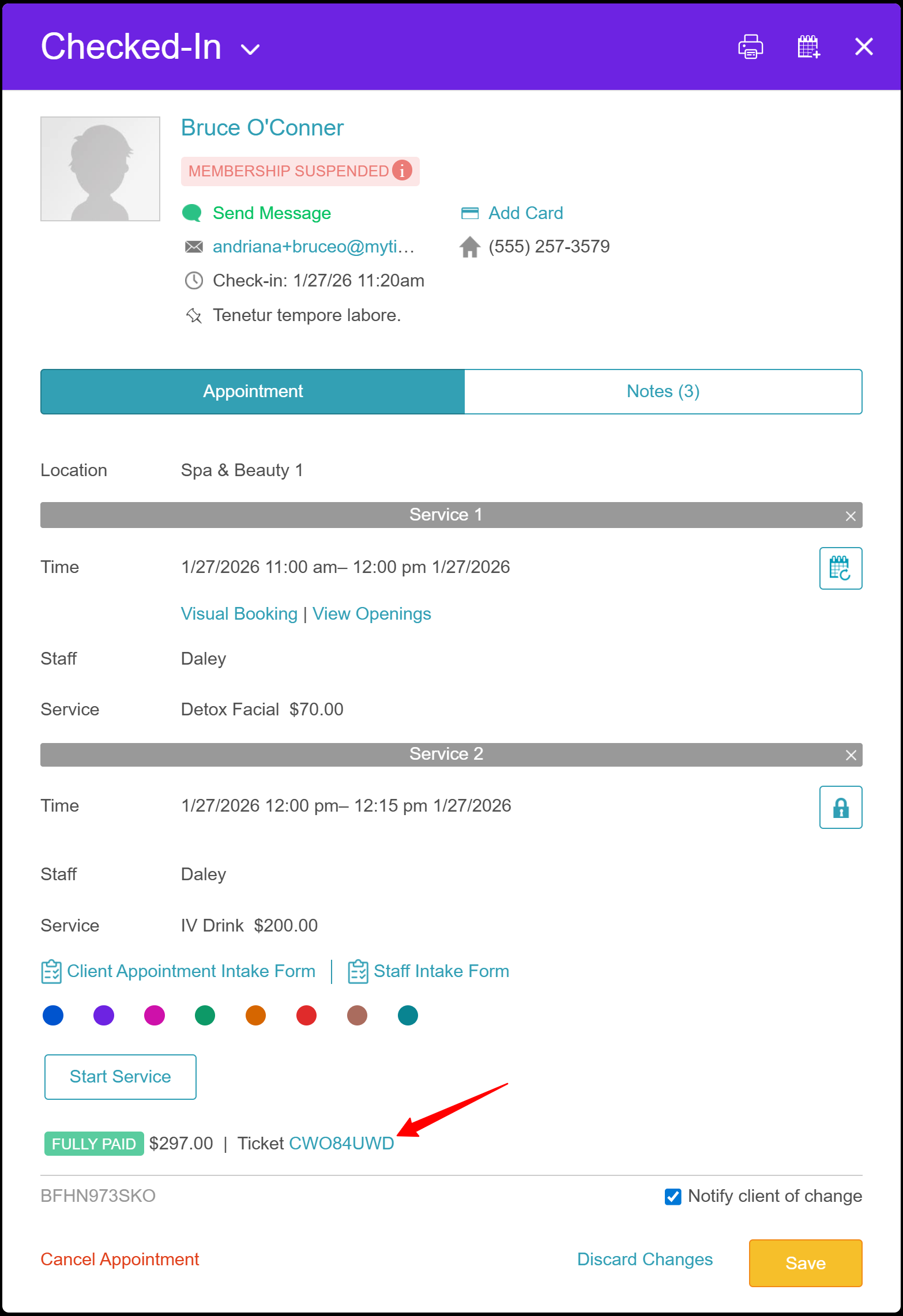
- Click the ticket at the bottom of the appointment modal
POS > Close Ticket:
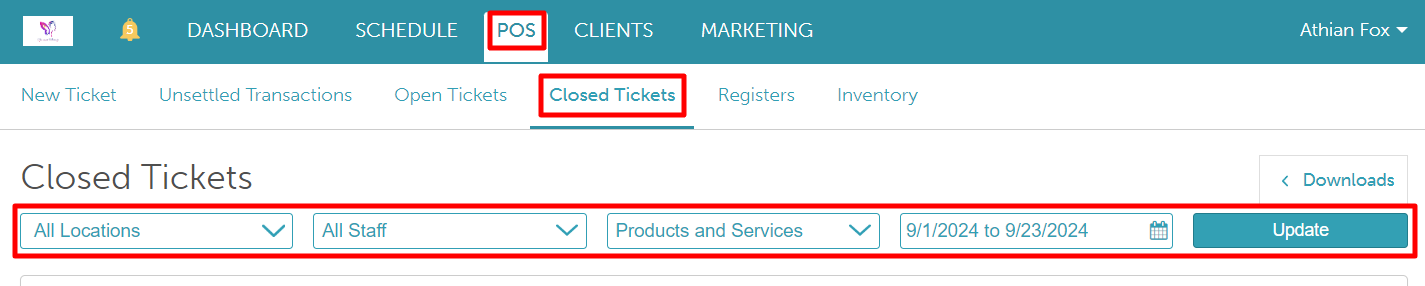
- Navigate to POS > Close Ticket
- Add desired filters and select "Update"
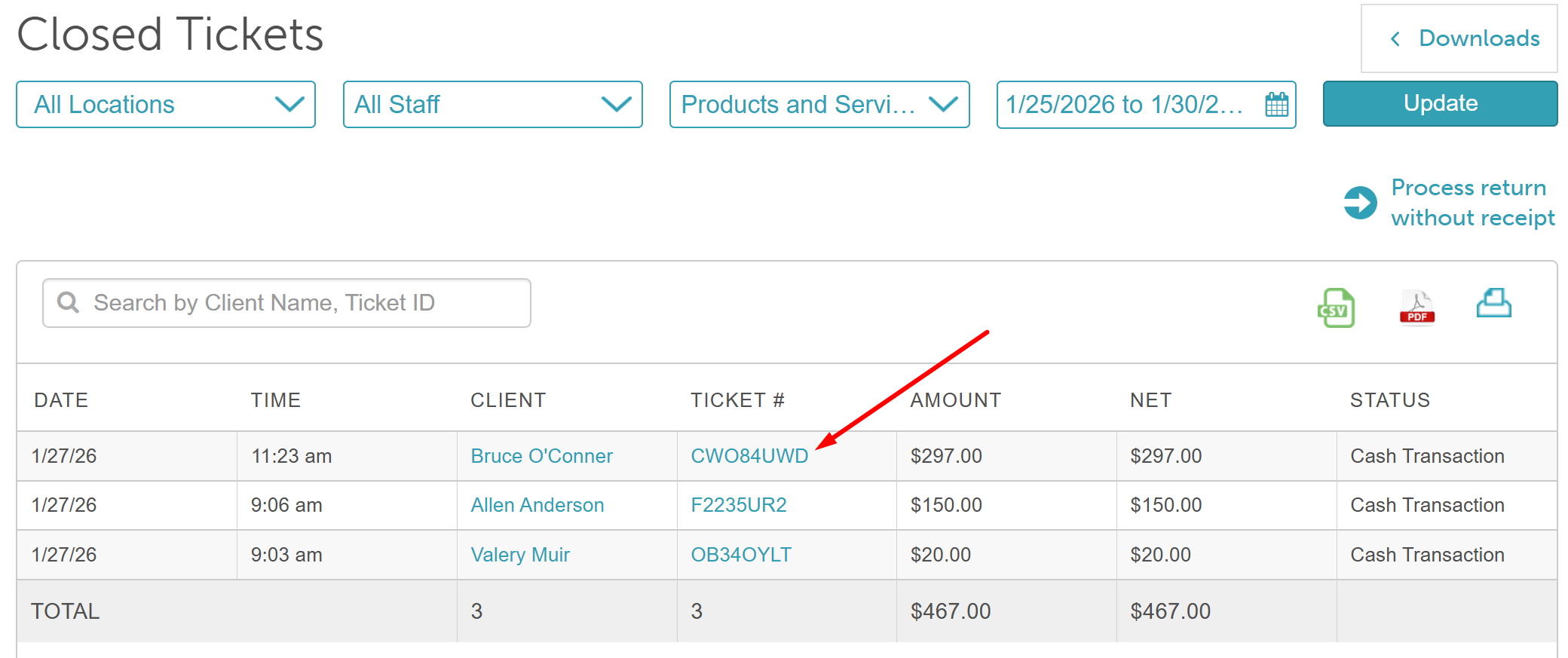
- You can enter the name of the client or the ticket ID in the "Search by Client Name, Ticket ID" field
- Select the ticket number to open the ticket
Editing The Ticket
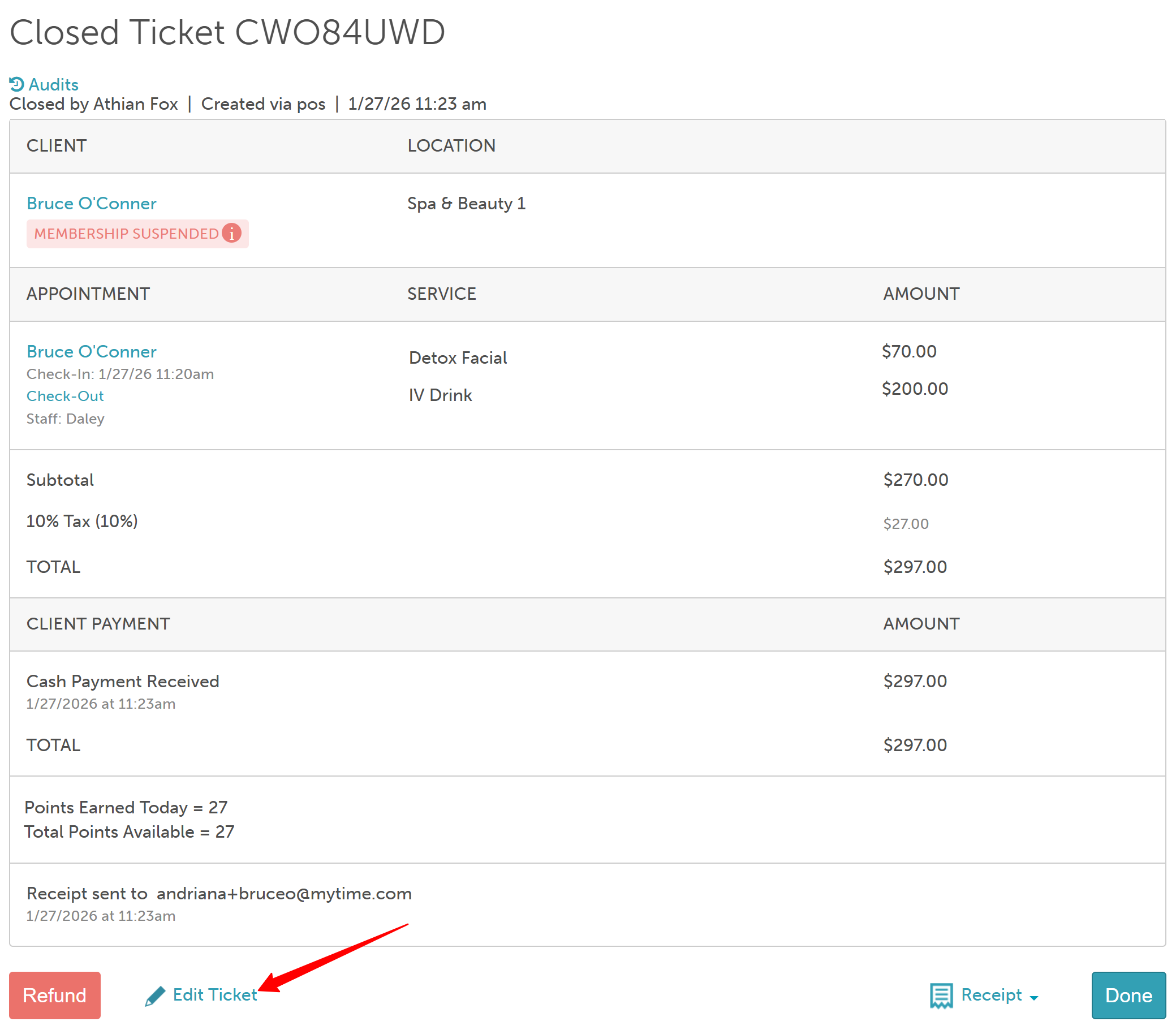
- Click 'Edit Ticket' at the bottom of the ticket
- Click 'Edit' below the service details to open the appointment modal
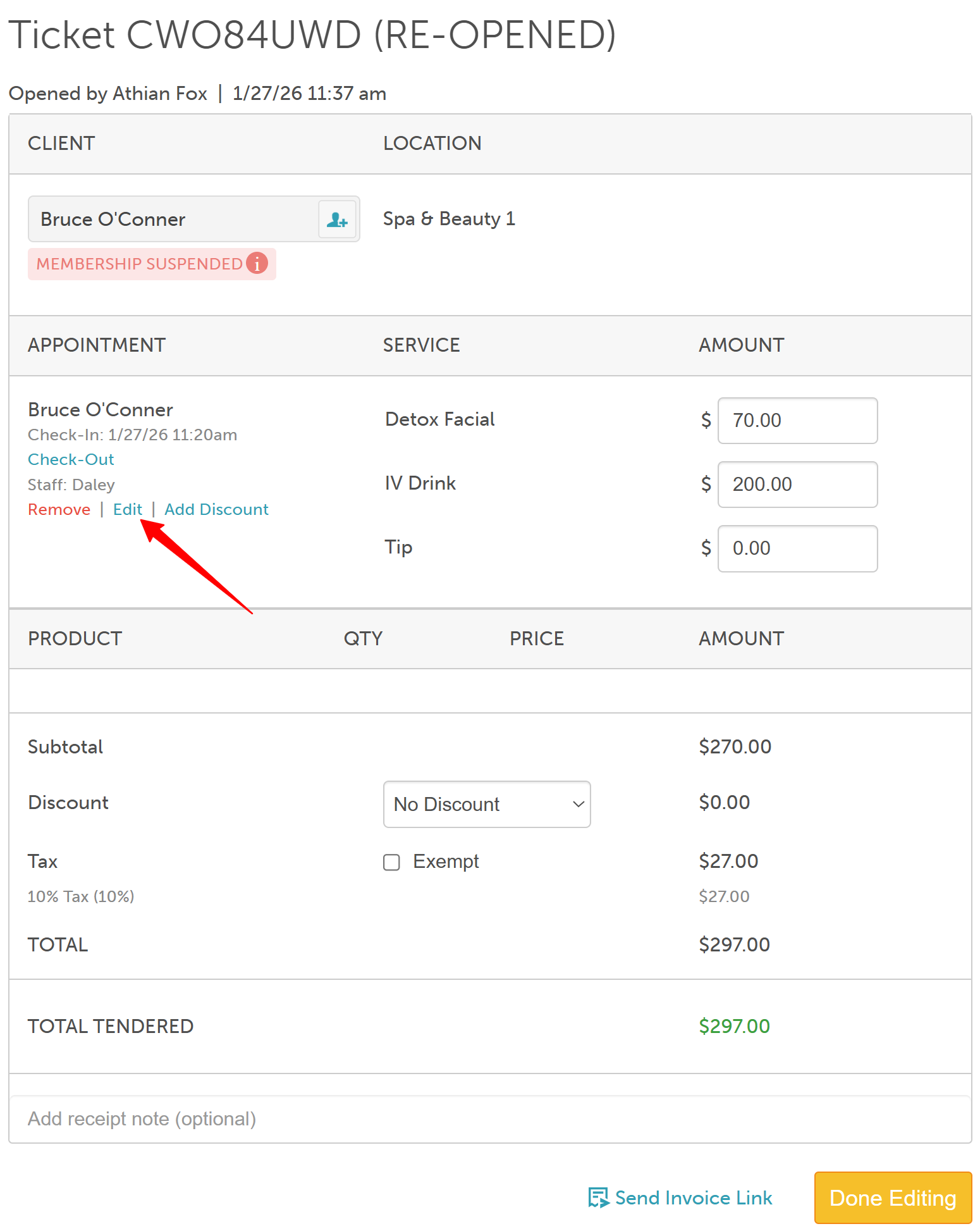
- In the appointment modal, change the service using the dropdown menu
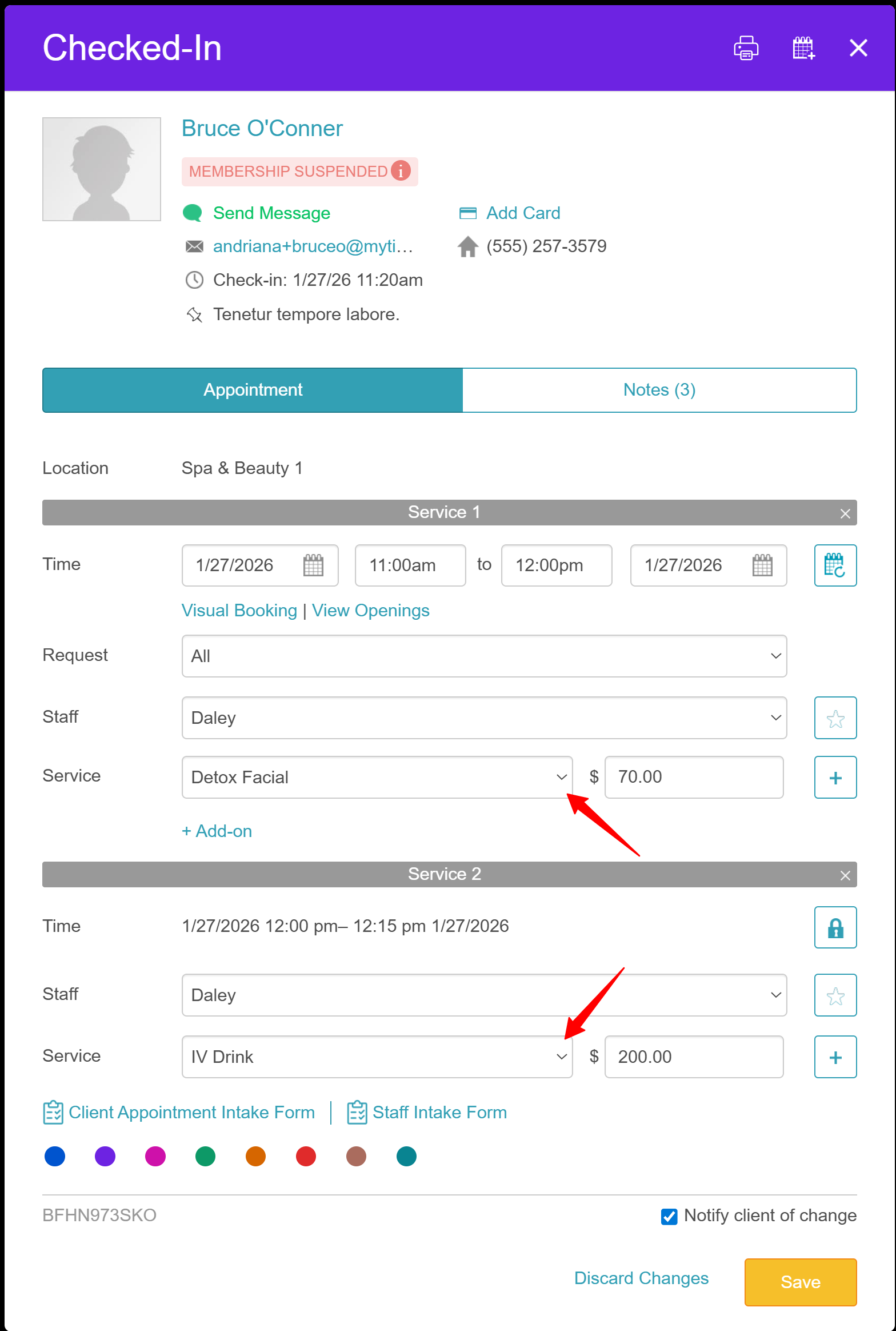
- Click 'Save'
- The updated service will be reflected on the ticket
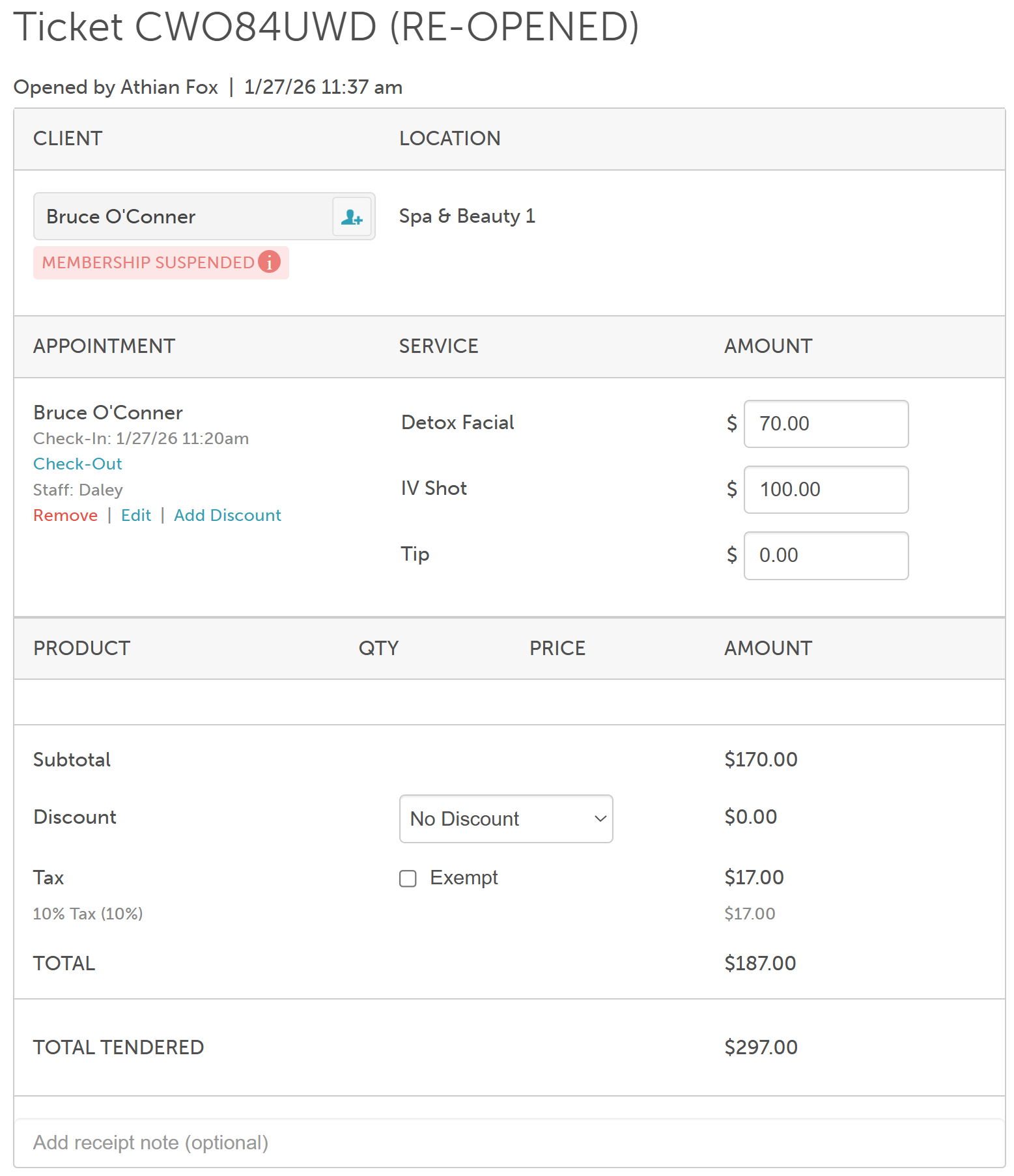
- Completing the edit:
- If the updated total is less than the original amount collected, a Refund button will appear.
- If the updated total is more than the original amount collected, a Take Payment button will appear.
- Process the refund or collect additional payment then close the ticket
For more information, contact us at support@mytime.com or (385) 233-6964.
Related Article:
Was this article helpful?
That’s Great!
Thank you for your feedback
Sorry! We couldn't be helpful
Thank you for your feedback
Feedback sent
We appreciate your effort and will try to fix the article