MyTime gives you the option to send transactional receipts to clients through email or SMS. This paperless method helps reduce waste and cut down on printing costs. In this article, we’ll walk you through how to send receipts via both email and SMS on the scheduler app.
Things to know:
- To send receipts via email or SMS, the Transaction Receipts automated message template must be enabled in your account.
- The ability to automatically send receipts by email is controlled by the “Enable auto send receipts by email” company setting.
- Email and SMS receipts count toward your monthly text and email usage. Any overage charges can be reviewed in the Billing History section under My Account.
- SMS Segment Calculation & Billing:
- SMS costs are calculated per segment, not per message. Carriers treat each segment as a separate message for delivery and billing, so every segment is counted and charged individually. This billing method is determined by carriers and is not specific to MyTime.
- Segments per message are based on length and encoding
- Encoding Standards
- GSM Encoding:
- GSM-encoded messages (standard letters, numbers, and symbols) allow up to 160 characters per segment.
- If the message is longer than 160 characters, it will be split into concatenated segments of 153 characters each.
- UCS-2 Encoding:
- UCS-2 messages (special characters, emojis, or non-Latin alphabets) allow up to 70 characters per segment.
- If the message is longer than 70 characters, it will be split into concatenated segments of 67 characters each.
- Even a single emoji forces UCS-2 encoding, reducing per-segment capacity and potentially doubling the number of segments.
- Note: Concatenation headers are hidden data that let the recipient’s phone reassemble multiple segments into a single message.
- Each recipient receives their own copy, so the number of segments per message is multiplied by the number of recipients to calculate billing. Example: A 2-segment message sent to 50 recipients counts as 100 billable segments. If each segment costs $0.02, the total cost would be 100 × $0.02 = $2.00. Learn more about SMS segments & billing here.
- The receipt ID or number shown in the emailed or SMS receipt will match the ticket ID associated with the transaction in the POS.
- You can choose to display a client’s remaining membership item credits on printed, emailed, and SMS receipts by enabling the “Show Client's Remaining Membership Item Credits on Receipts (Print, Email, and SMS)” hidden setting. To enable this setting, please contact your account manager or email our support team at support@mytime.com.
- The membership credit balance shown on the receipt reflects the combined total of all active memberships on the client’s profile. This includes both their own memberships and any memberships linked to associated family members or pets.
To send receipts Via email and SMS on the scheduler app, simply:
- Launch the MyTime Scheduler app on your device
- Choose your login method:
- Standard: Enter your registered email address and password, then tap 'Sign In'
- Social Login: Select 'Continue with Google' or 'Continue with Apple' to use your existing credentials for a faster login experience. For detailed instructions, learn more here
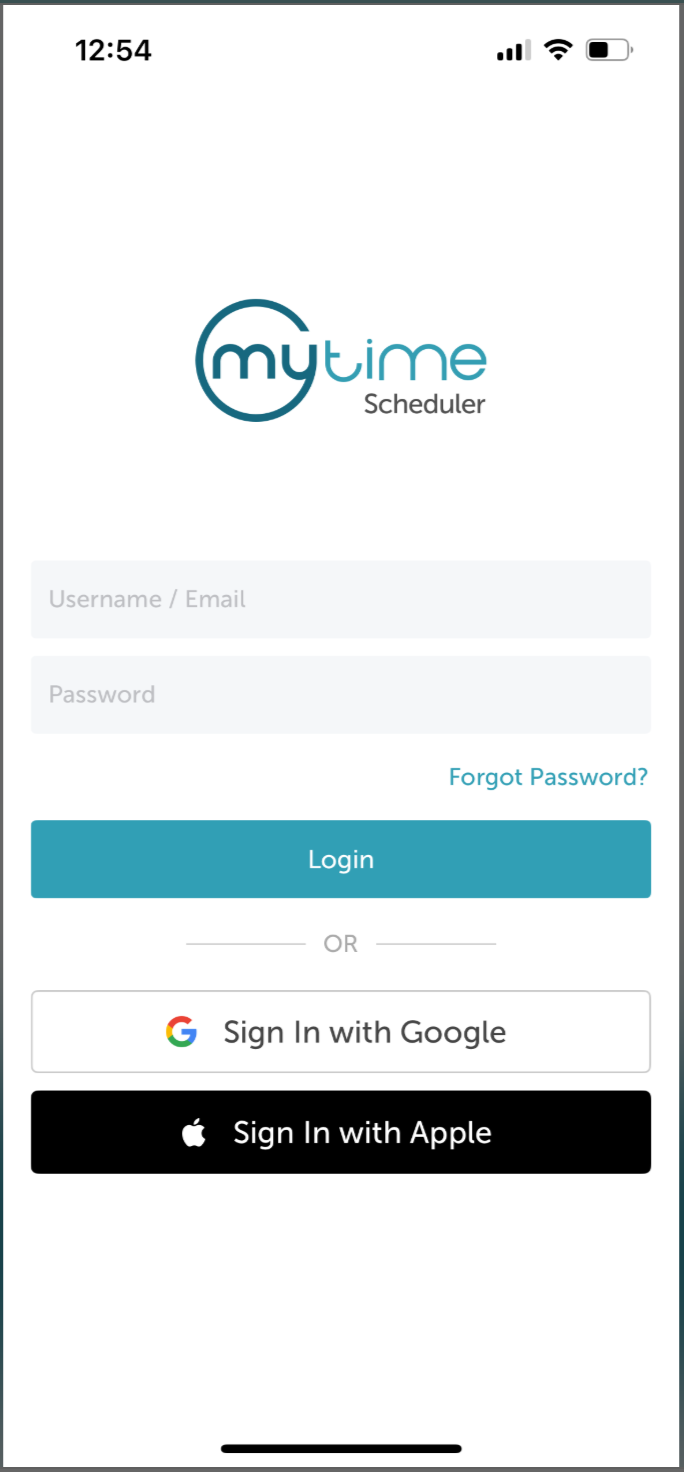
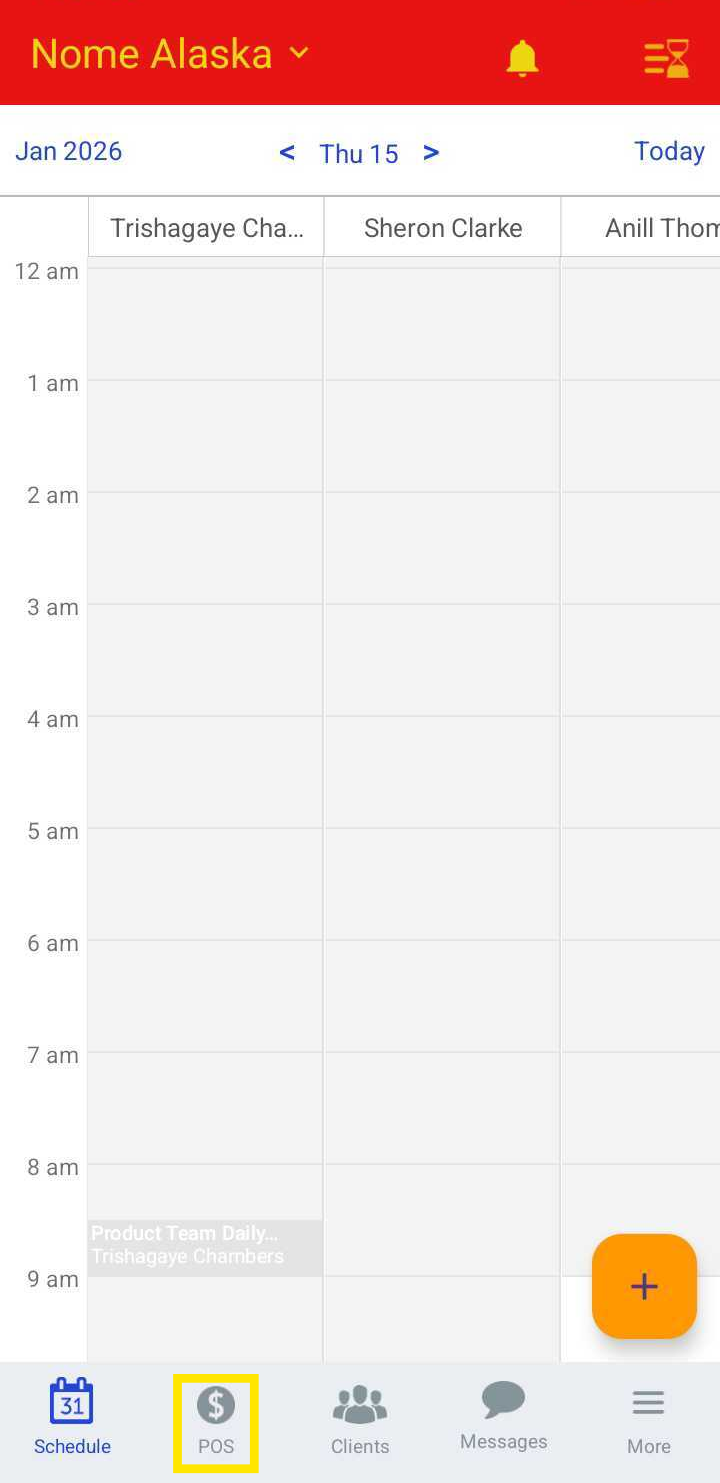
- After signing in, you will be directed to the schedule by default
- Tap the POS icon
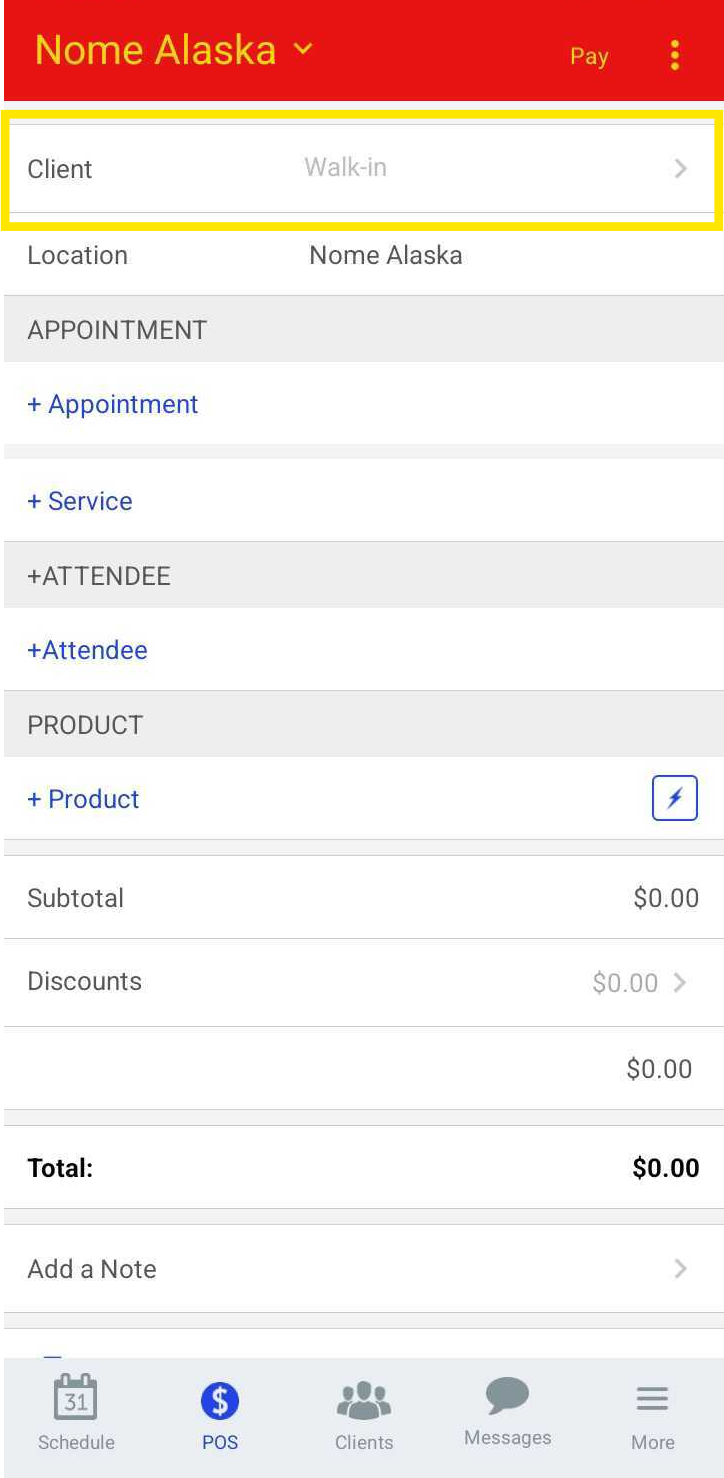
- Add a client to the ticket
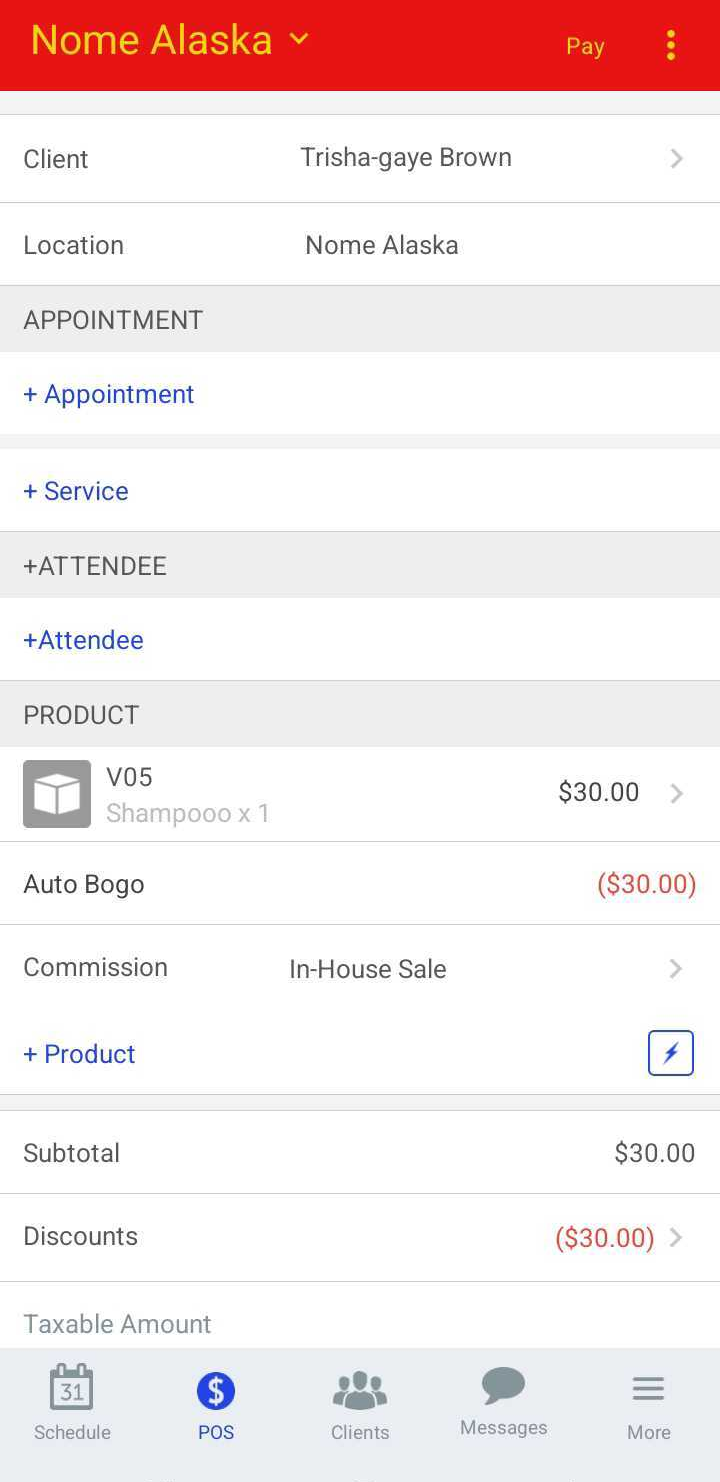
- Add an item to the ticket
- Tap Pay at the top of the screen
- Select the desired payment method
- Tap Finish at the top of the page
- On the ticket screen, choose to send the receipt via email or SMS
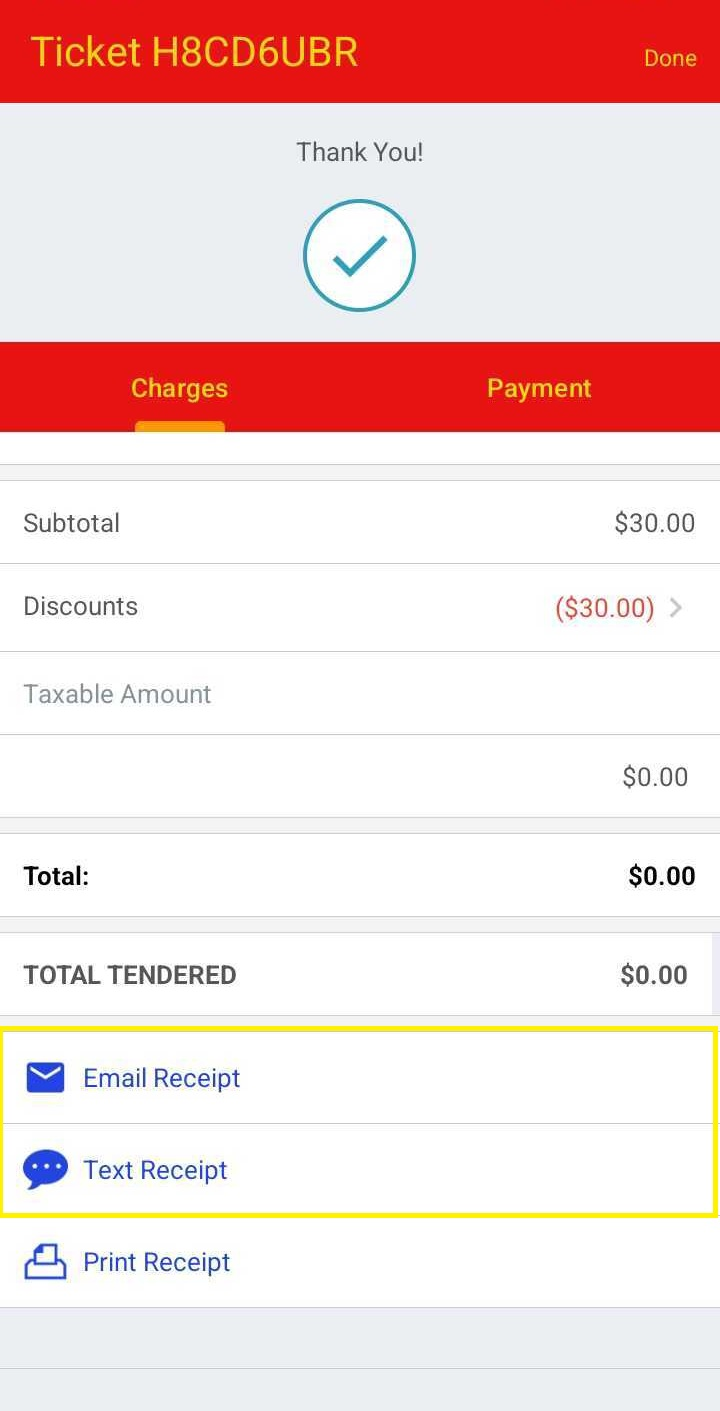
- Email Receipt: A pop-up will appear. If the client’s profile has an email address on file, it will auto-fill. If not, you can manually enter one.
- Text Receipt: A pop-up will appear. If the client’s profile has a mobile number, it will auto-fill. If not, you can manually enter one.
- Note: The system will not save the email address or phone number manually entered in this step to the client’s profile.
Text Message receipt received by the client
Once the client has received the receipt via text message, they can click on the link to view the detail.
Email receipt received by the client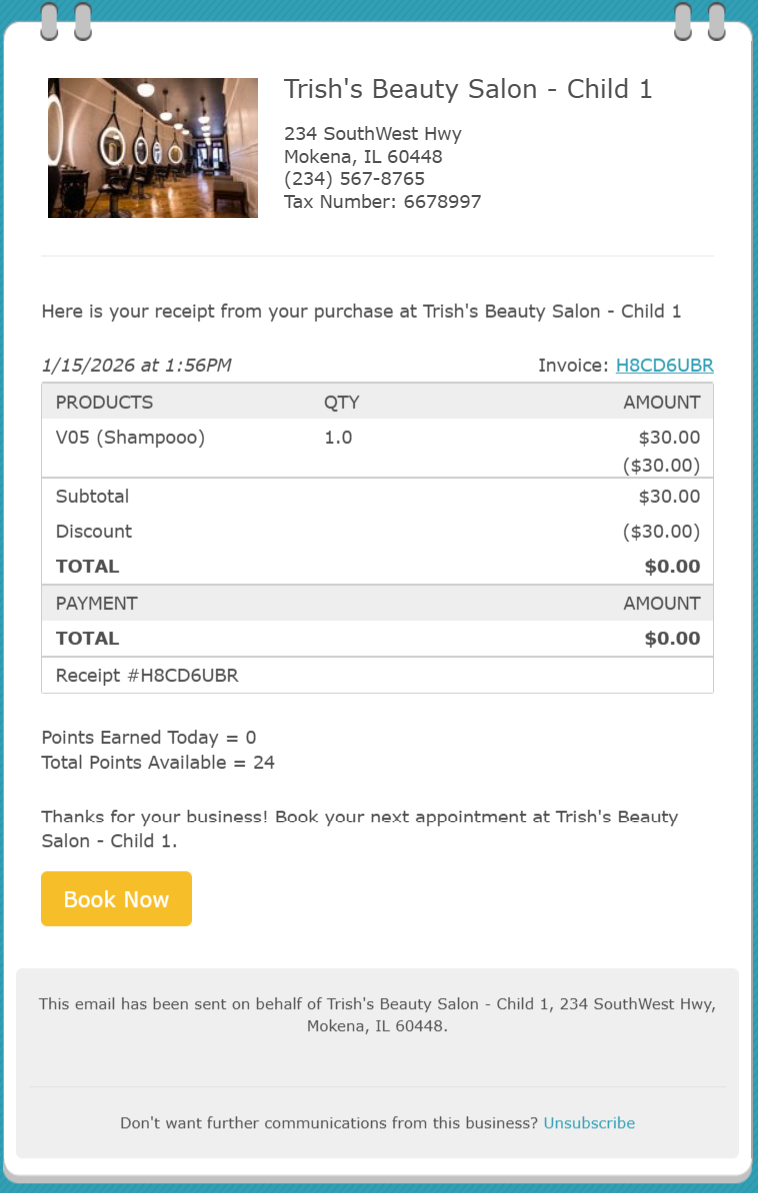
For more information, contact us at support@mytime.com or (385) 233-6964.
Related Articles:
Was this article helpful?
That’s Great!
Thank you for your feedback
Sorry! We couldn't be helpful
Thank you for your feedback
Feedback sent
We appreciate your effort and will try to fix the article