If a profile contains duplicate family members, you can consolidate the duplicate accounts from the main client's profile. In this article, we will walk through the process of merging family members.
Things to Know:
- The ability to merge family members is governed by the "Merging Clients" access control setting.
- Merging family members is a permanent decision and cannot be reversed
- Memberships
- When merging family members, the membership associated with the family member whose details you choose to keep will remain visible on the client profile.
- The other family member's membership will still exist but must be manually reassigned to a different family member if the membership is set to individual family member. Example: If Suzie has a membership and you keep Suzie’s details, the membership stays with Suzie. If you keep Karl's details (and Karl doesn’t have a membership), Suzie's membership will be reassigned to Karl.
- Packages
- Similar to memberships, the package for the family member whose details you retain will remain visible.
- The other family member's package must be reassigned to another family member if the package is set to individual family member. Example: If Suzie has a package and you retain Suzie’s details, the package stays with Suzie. If you retain Karl’s details (and Karl doesn’t have a package), Suzie’s package will be reassigned to Karl.
- Appointments
- All past and upcoming appointments for both family members will be retained during the merge.
- These appointments will be updated to reflect the details of the family member you choose to keep. Example: If Suzie has appointments and you retain Karl’s details, all of Suzie’s past and future appointments will be reassigned to Karl.
- You can determine which first name, last name, gender, date of birth, notes, etc., to keep
- If only one family member is on the account, the merge option will not be displayed
- You can only merge two family member profiles at a time
- The merge won't happen until you review and pick which family member information to keep.
- Once a merge is complete, it cannot be undone.
To merge family members:
- Go to the Clients tab and open the primary client's profile
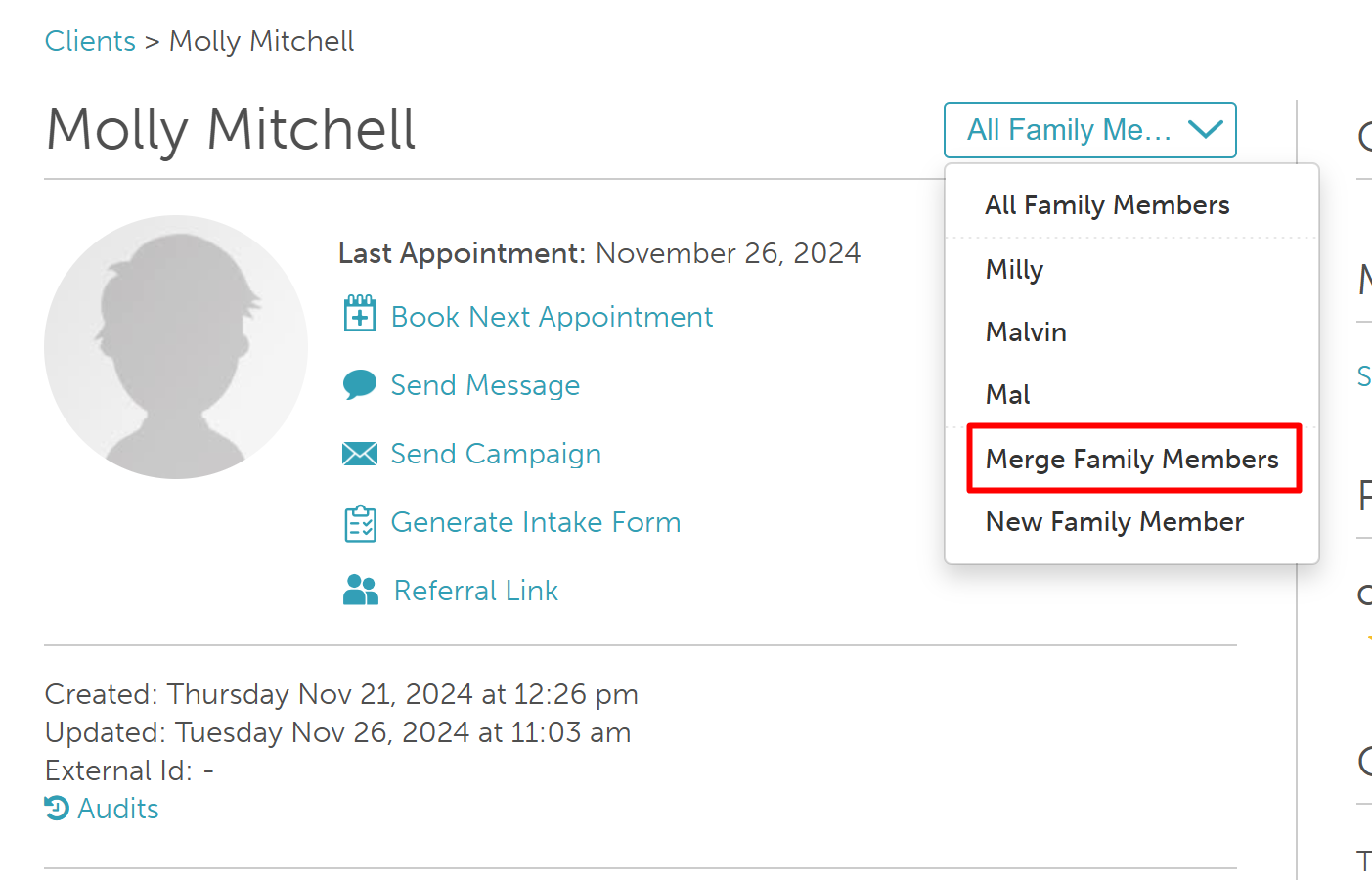
- Click the 'All Family Members' menu in the top-right corner
- Select Merge Family Members
- Select the checkboxes next to the two family members you want to combine. (Once two are selected, the remaining options lock.)
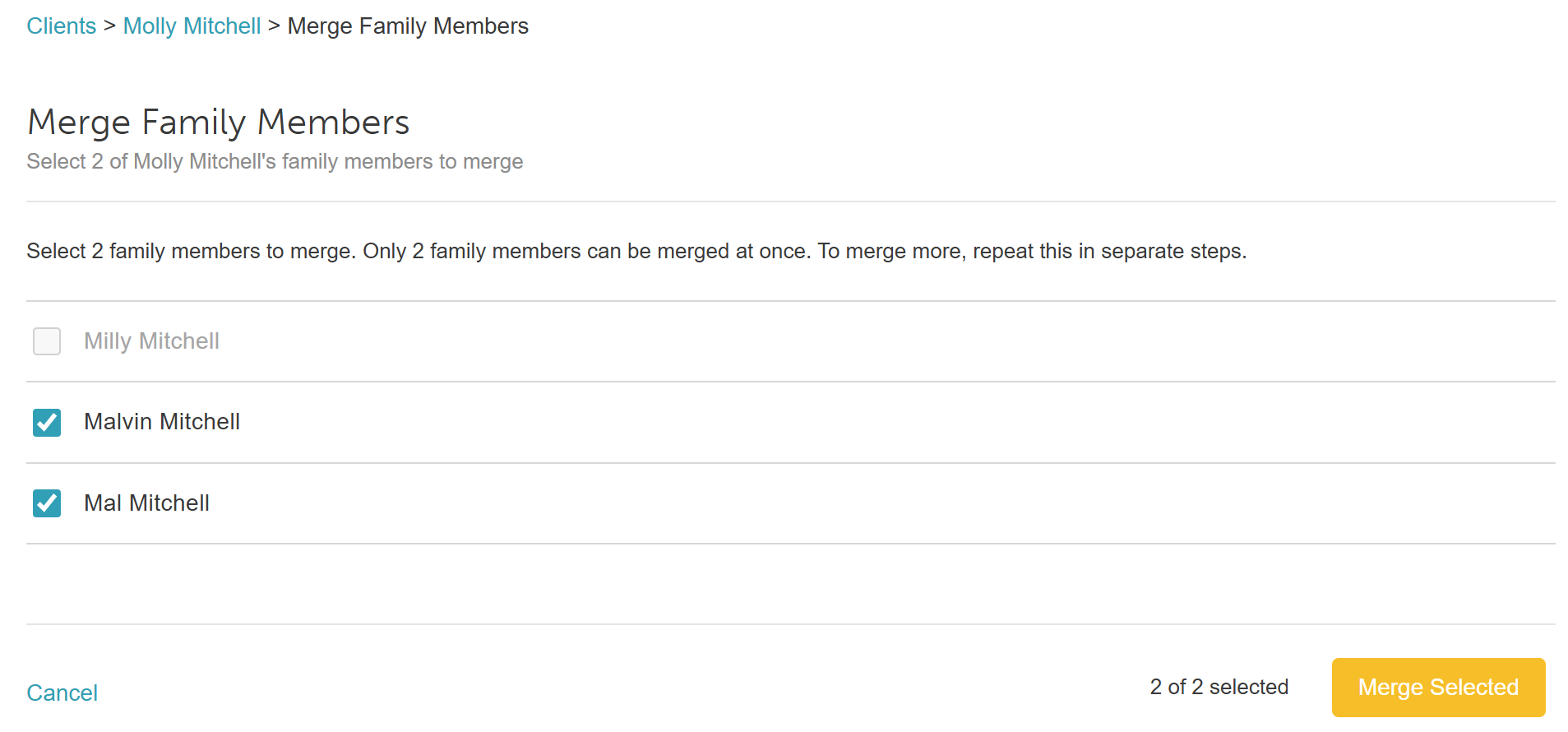
- Click the 'Merge Selected' button at the bottom right
- On the conflict resolution screen, choose which details you want to retain. An informational banner at the top of the page guides you: "X fields have conflicting values. Choose which values to keep on the merged profile. Fields without conflicts will be combined automatically."
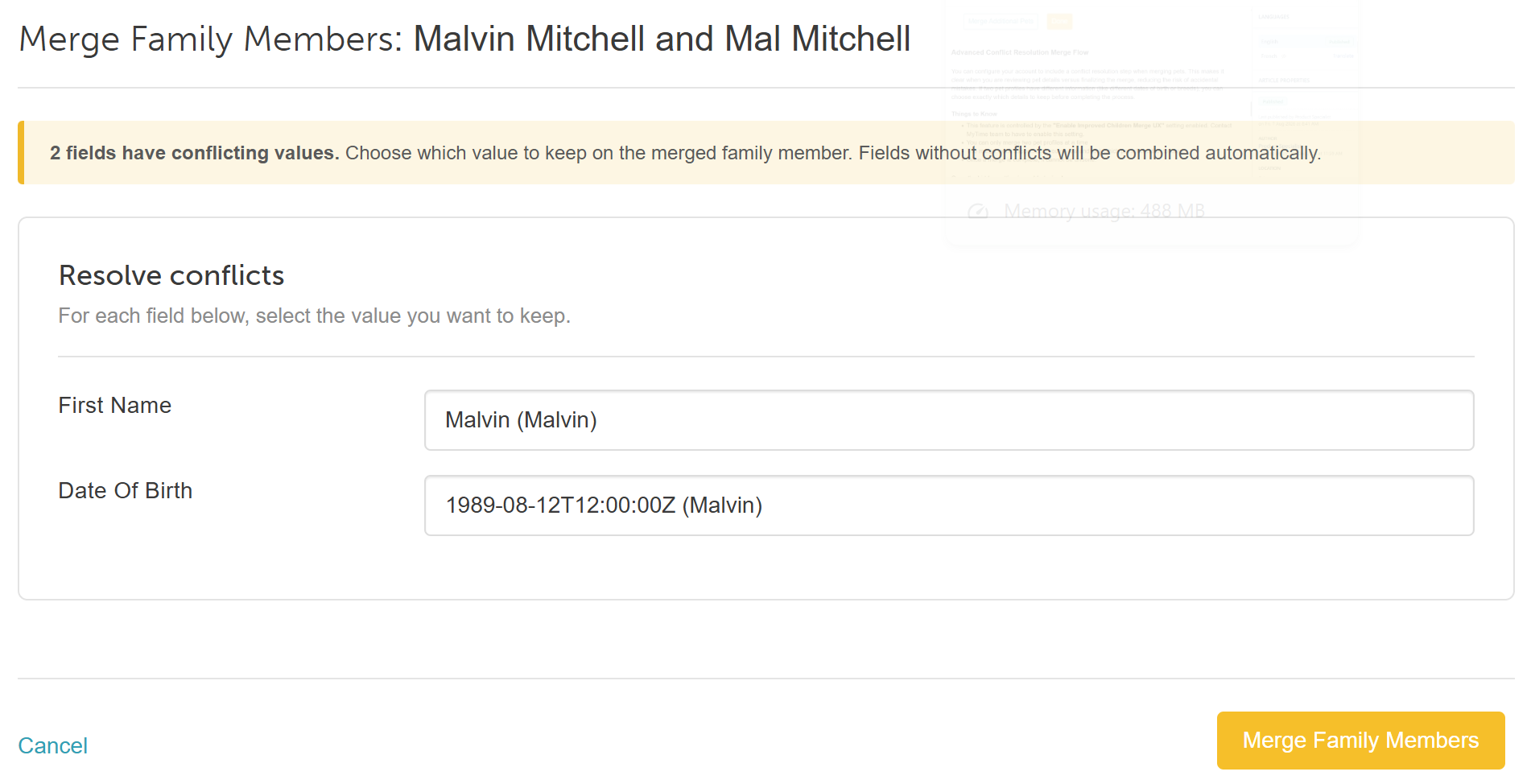
- Once your selections are finalized, click 'Merge Family Members'
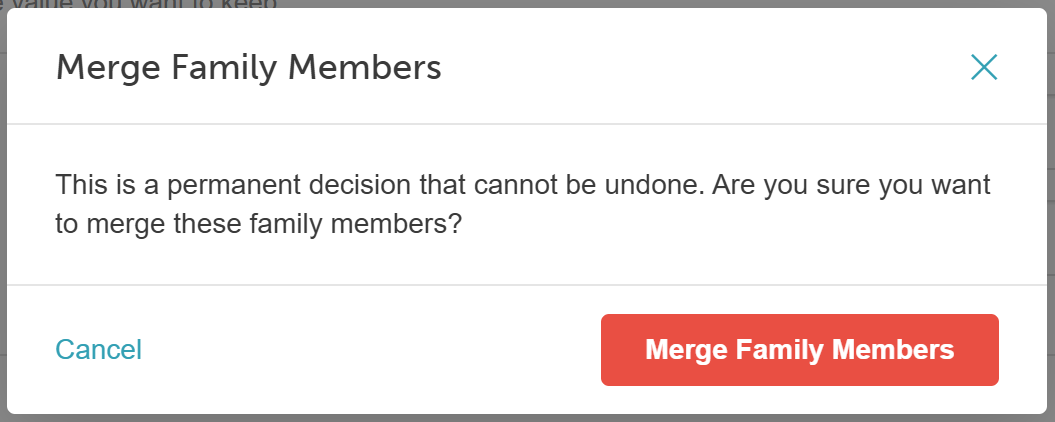
- Review the warning pop-up carefully and click 'Merge Family Members' to confirm
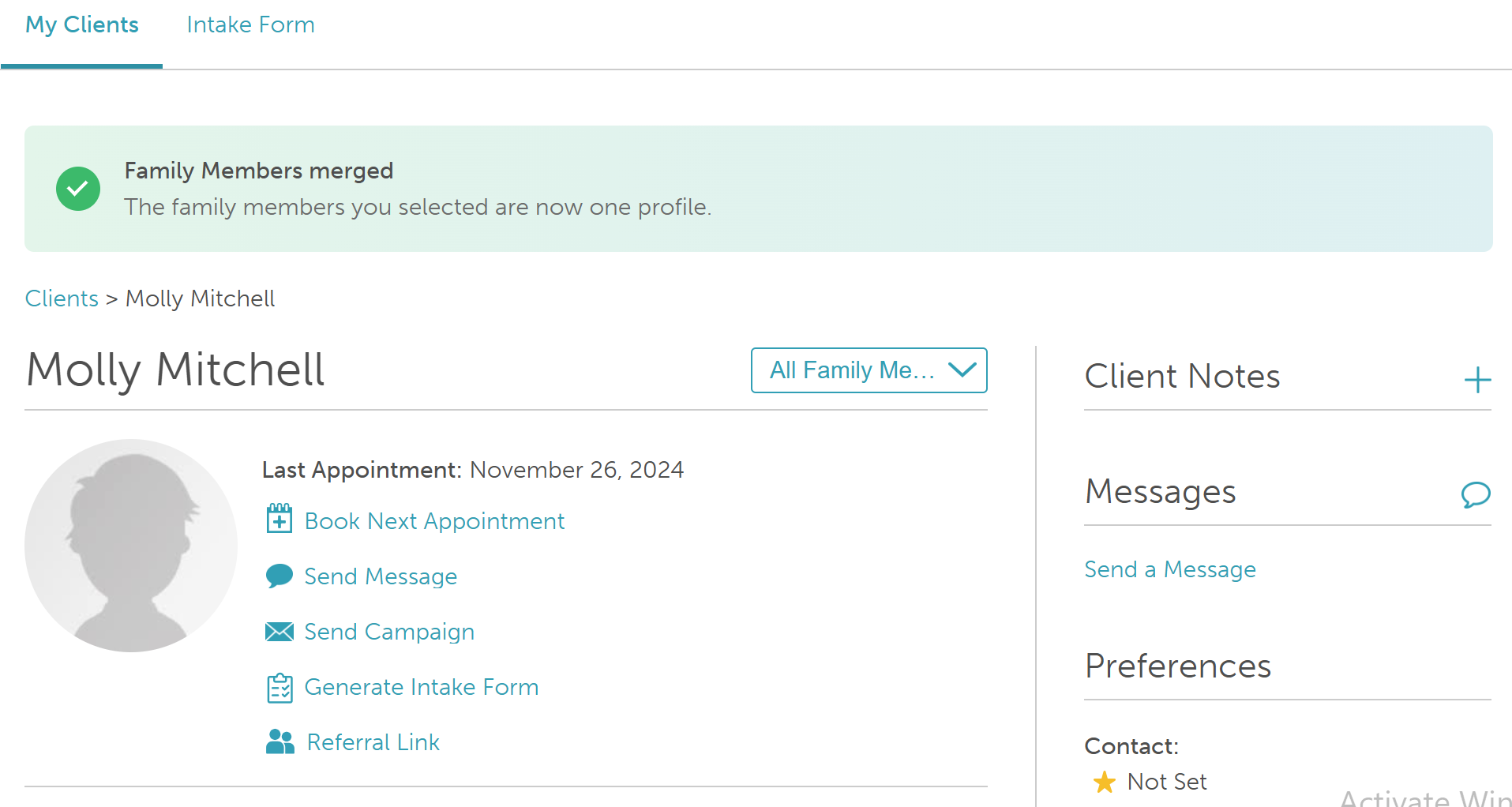
Immediately after the merge is complete, a green confirmation banner will appear, confirming that the two pet profiles have been merged into one.
For more information, contact support@mytime.com.
Related Articles:
Adding Family Members Manually
Was this article helpful?
That’s Great!
Thank you for your feedback
Sorry! We couldn't be helpful
Thank you for your feedback
Feedback sent
We appreciate your effort and will try to fix the article