If a profile contains duplicate family members, you can consolidate the duplicate accounts from the main client's profile. In this article, we will walk through the process of merging family members.
Things to Know:
- The ability to merge family members is governed by the "Accessing Client Records" access control setting.
- Merging family members is a permanent decision and cannot be reversed
- Memberships
- When merging family members, the membership associated with the family member whose details you choose to keep will remain visible on the client profile.
- The other family member's membership will still exist but must be manually reassigned to a different family member if the membership is set to individual family member. Example: If Suzie has a membership and you keep Suzie’s details, the membership stays with Suzie. If you keep Karl's details (and Karl doesn’t have a membership), Suzie's membership will be reassigned to Karl.
- Packages
- Similar to memberships, the package for the family member whose details you retain will remain visible.
- The other family member's package must be reassigned to another family member if the package is set to individual family member. Example: If Suzie has a package and you retain Suzie’s details, the package stays with Suzie. If you retain Karl’s details (and Karl doesn’t have a package), Suzie’s package will be reassigned to Karl.
- Appointments
- All past and upcoming appointments for both family members will be retained during the merge.
- These appointments will be updated to reflect the details of the family member you choose to keep. Example: If Suzie has appointments and you retain Karl’s details, all of Suzie’s past and future appointments will be reassigned to Karl.
- You can determine which first name, last name, gender, date of birth, notes, etc., to keep
- If only one family member is on the account, the merge option will not be displayed
Contents:
Standard Merge Flow
- Go to the Clients tab
- Search for the primary client
- Open the client's profile
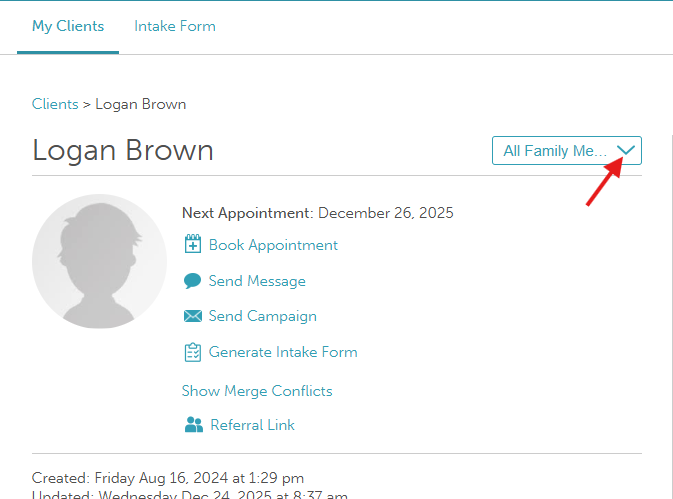
- Expand the "All Family Members" menu in the top right
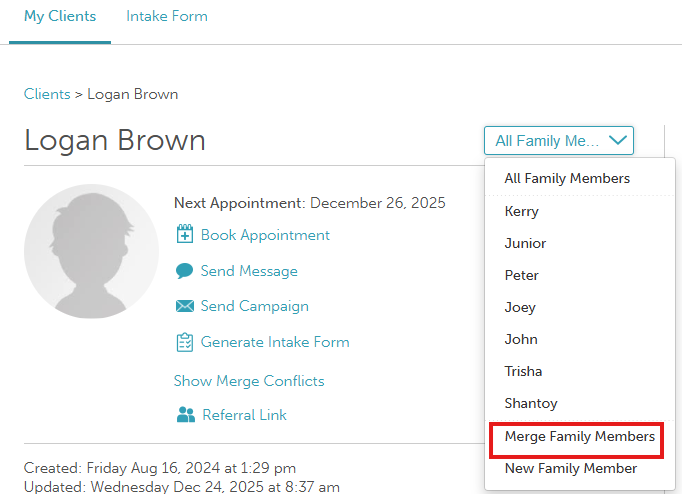
- Click on the Merge Family Member option
- From the dropdown menu, choose one of the family members you want to merge
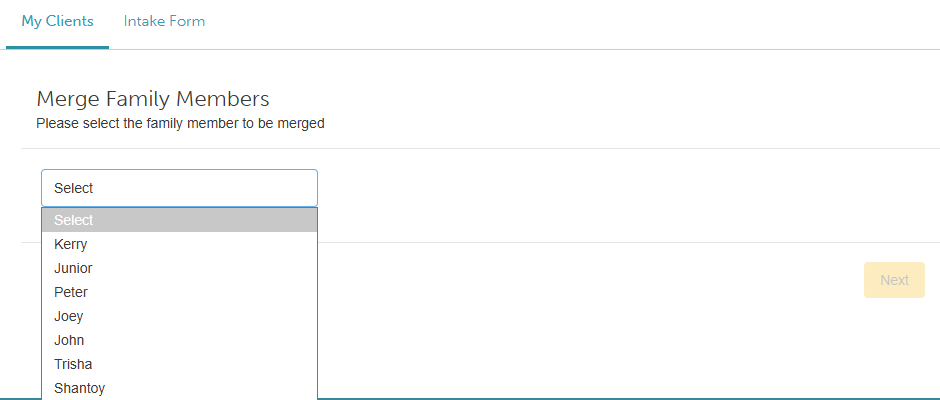
- Select the Next button
- Choose which family member you want to merge with the initially selected one

- Select the Merge Selected button at the bottom right of the page
- Select the details that you want to retain
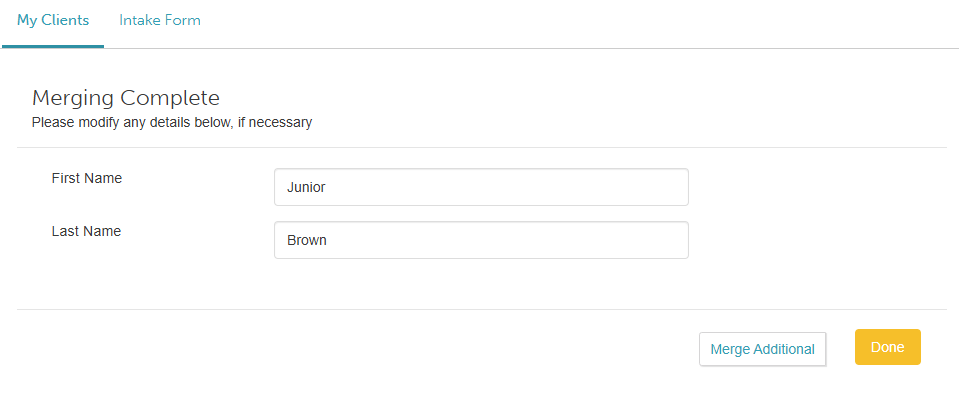
Once you're satisfied, click Done to finish the merging or select Merge Additional to include more family members in the merge.

Advanced Conflict Resolution Merge Flow
You can configure your account to include a conflict resolution step when merging family members. This makes it clear when you are reviewing family member details versus finalizing the merge, reducing the risk of accidental mistakes. If two family member profiles have different information (like different dates of birth), you can choose exactly which details to keep before completing the process.
Things to Know
- This feature is controlled by the "Enable Improved Children Merge UX" setting. Contact the MyTime team to have this setting enable.
- You can only merge two family member profiles at a time
- The merge won't happen until you review and pick which family member information to keep.
- Once a merge is complete, it cannot be undone.
Once the hidden setting is enabled, simply:
- Go to the Clients tab and open the owner's profile
- Click the All Family Members menu in the top-right corner
- Select Merge Family Members
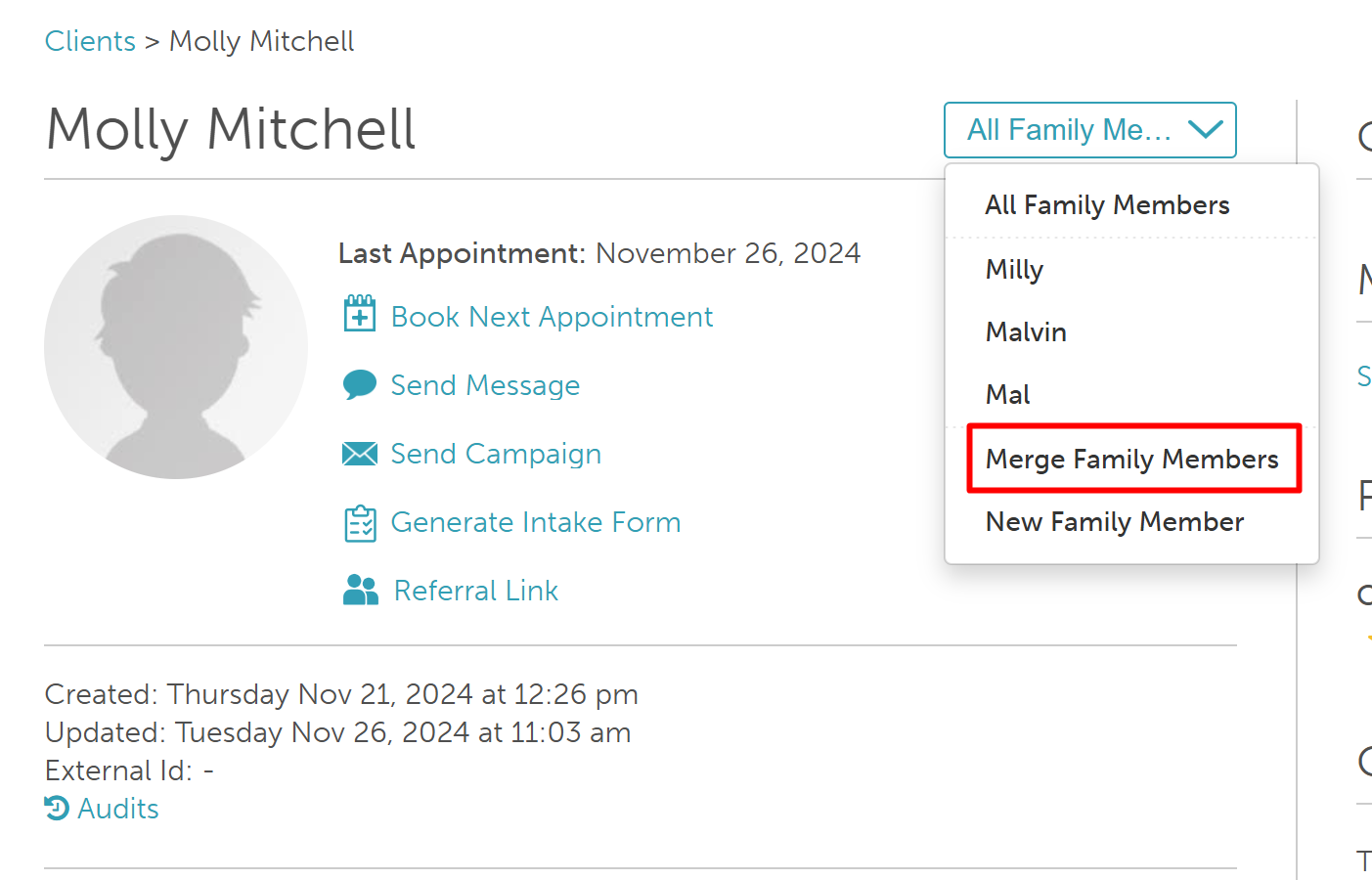
- Check the boxes next to the two family members you want to combine. (Once you pick two, the other options will lock.)
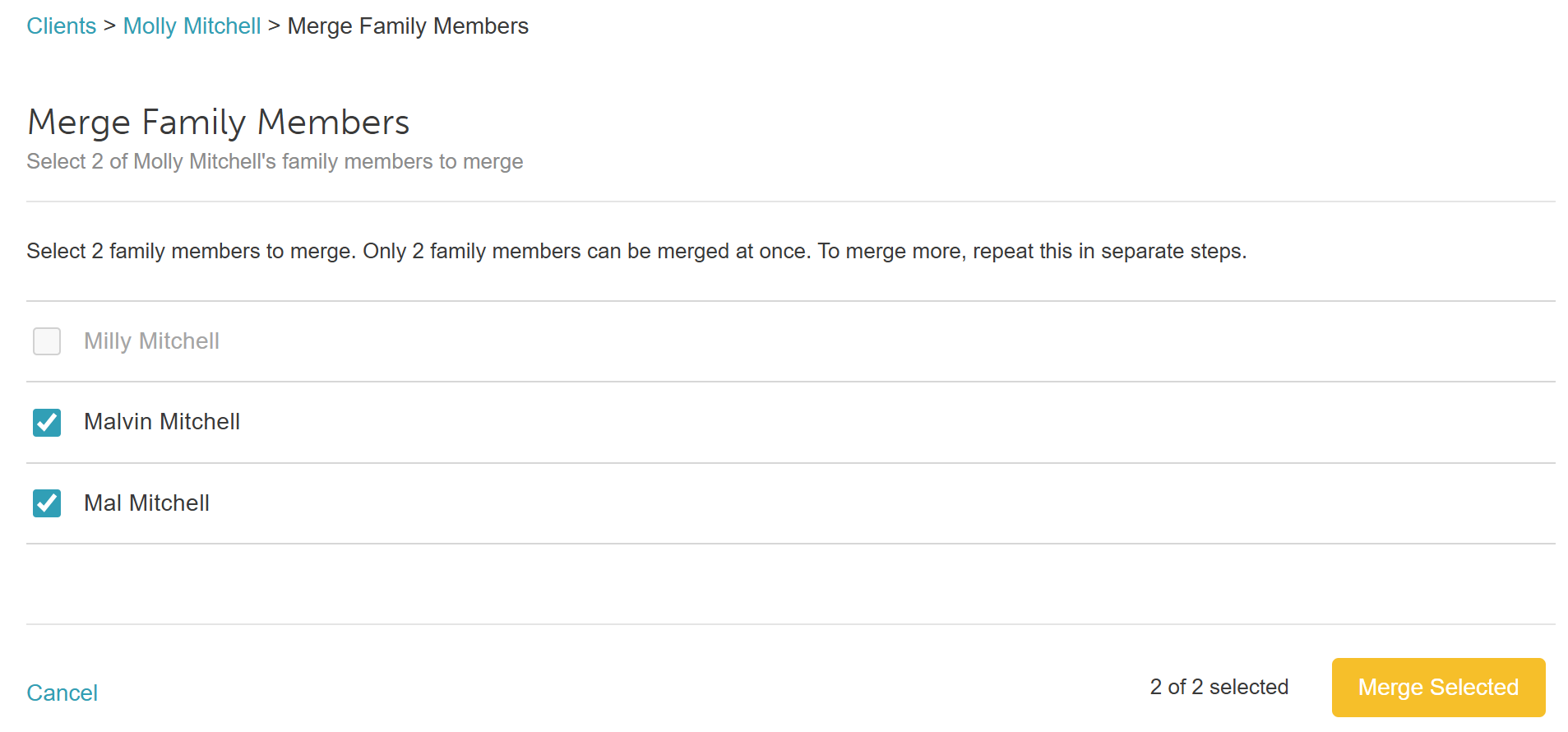
- Click the Merge Selected button at the bottom right
- On the conflict resolution screen, choose which details you want to retain. An informational banner at the top of the page will guide you: "X fields have conflicting values. Choose which values to keep on the merged profile. Fields without conflicts will be combined automatically."
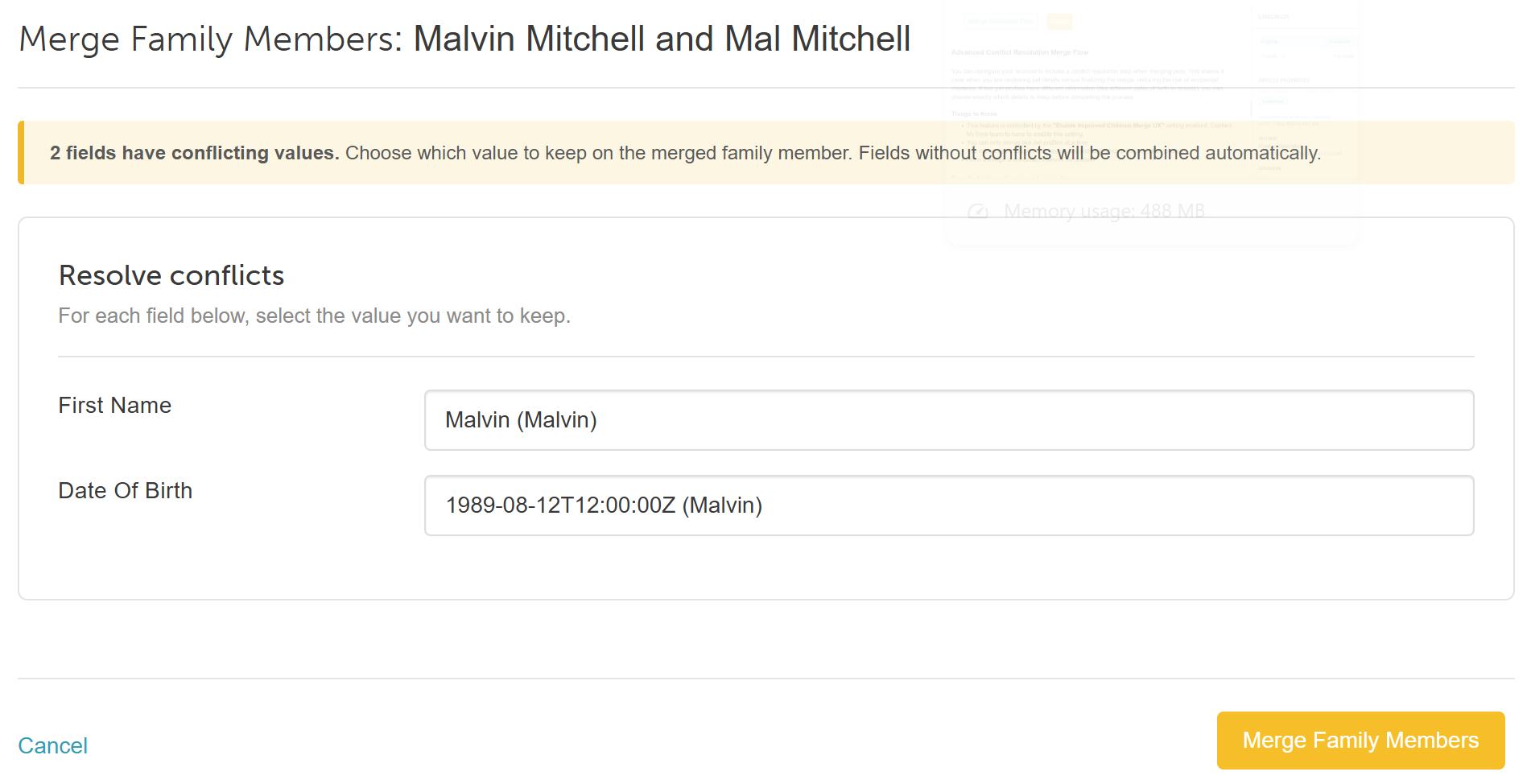
- Once your selection is finalized, click 'Merge Family Members'
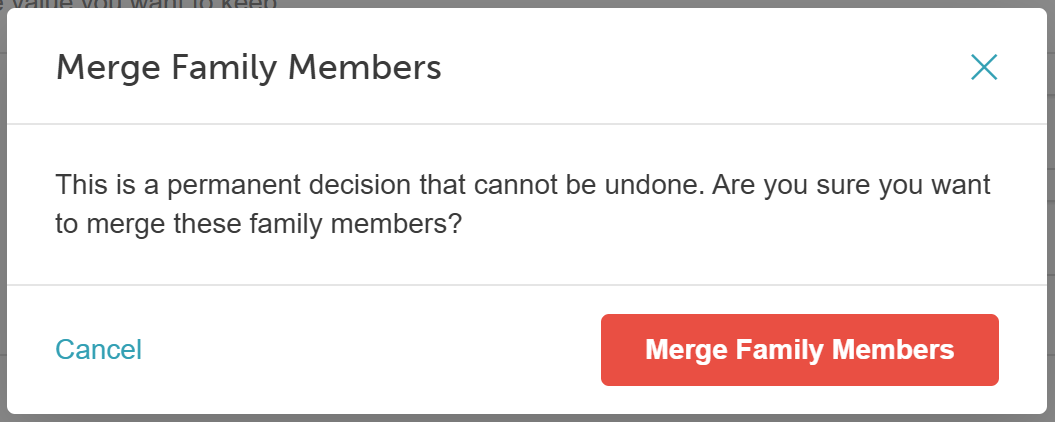
- Review the warning pop-up carefully and click 'Merge Family Members' to confirm
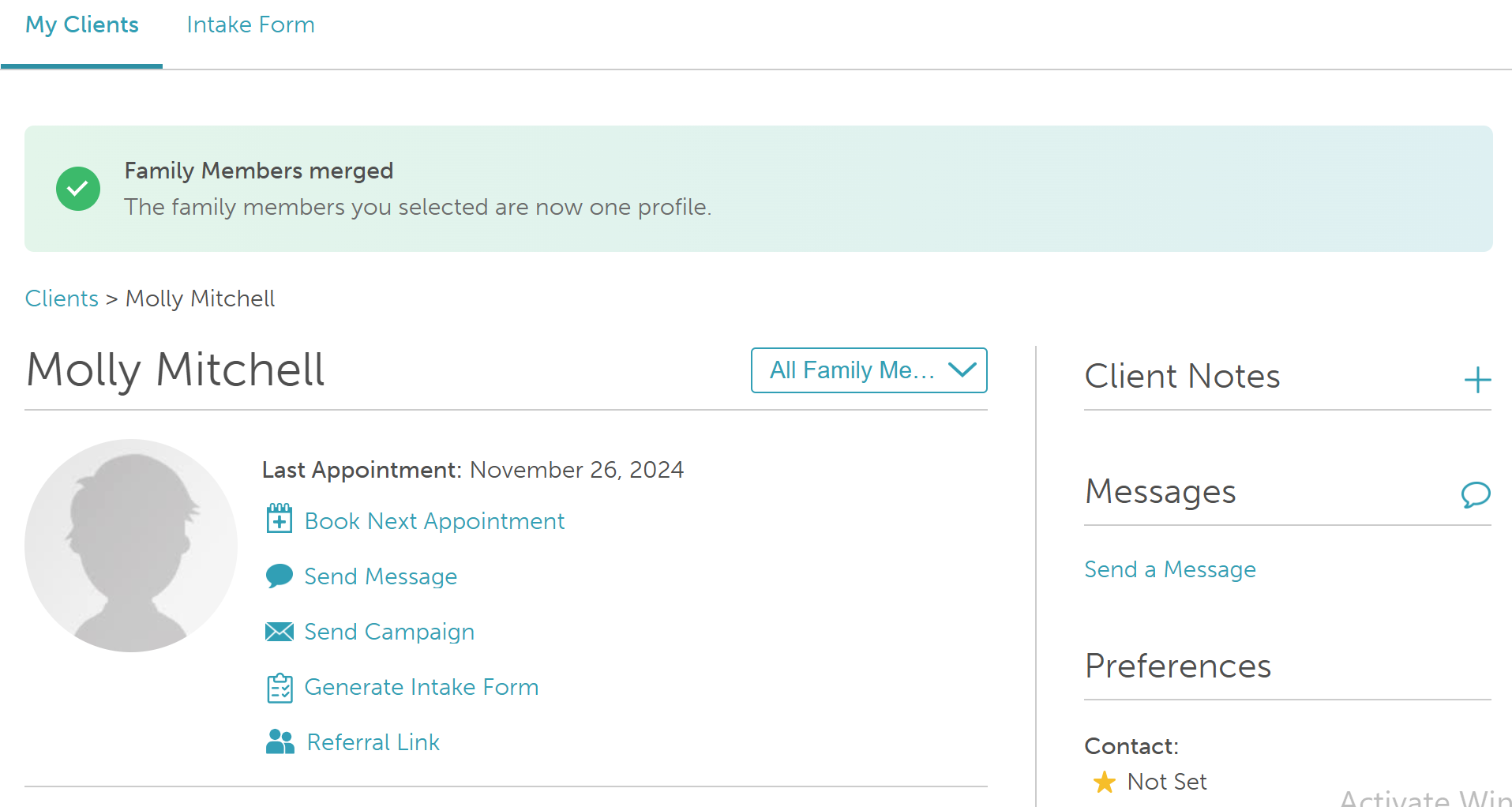
Immediately after the merge is complete, a green confirmation banner will appear, confirming that the two pet profiles have been merged into one.
For more information, contact support@mytime.com.
Related Articles:
Adding Family Members Manually
Was this article helpful?
That’s Great!
Thank you for your feedback
Sorry! We couldn't be helpful
Thank you for your feedback
Feedback sent
We appreciate your effort and will try to fix the article