In this article, we will guide you through the steps for clients to book appointments for their pets online.
Things to know
- Online booking must be enabled for the business.
- Each service must have a staff member assigned, and staff work hours must be set.
- Clients must sign in using an existing MyTime account, Facebook, Google or Apple login—or create a new account during checkout.
- Clients without a pet on file will first be prompted to select a breed before choosing a service. They will then be asked to enter the pet’s name during the final checkout step to complete the appointment.
- The same service cannot be booked multiple times in a single booking. To book the same service more than once, the client must complete the booking and then start a new one.
- If a client selects a specific staff member, only the services that can be performed by that staff member will be visible.
- No Preference option on booking widget:
- When a client selects No Preference, the system assigns a staff member using round-robin logic. Learn more here.
- If the "Can customers book a specific staff member?" setting is disabled, the "Book With" section will be hidden. In this case, appointments will be booked as if "No Preference" was selected, meaning the round-robin assignment will apply.
- Booking Appointments with Add-On Services
- Accounts with Multi-Staff Appointments Feature Enabled:
- If a staff member is selected for the core service and "No Preference" is chosen for the add-on, the same staff member will be assigned to both.
- If "No Preference" is selected for both the core service and add-on, the system will assign the same staff member to both service. However, if the assigned staff member is not eligible to perform the add-on service, a different staff member will be assigned to the add-on.
- When booking a core service with one or more add-ons online, if the “Enforce Same Staff and Resource for Add-Ons and Service” setting is enabled, both the core service and all add-ons must be assigned to the same staff member and resource.
- If there is any mismatch in staff or resource assignments between the core service and the add-ons, the system will block availability and prevent the booking from being scheduled.
- If a core service does not have a resource assigned, it will conflict with add-ons that require a specific resource (e.g., a room), resulting in no available time slots.
- Similarly, if the staff assigned to the core service is not assigned to the add-on, the booking will not be allowed.
- Accounts with Multi-Staff Appointments Feature Disabled:
- If "No Preference" is selected, the system will automatically assign the same staff member to both the core service and the add-on.
- If the selected staff member cannot perform both the core service and the add-on, the option to select an add-on will not be visible.
- Accounts with Multi-Staff Appointments Feature Enabled:
- If an appointment is booked with the staff option set to “No Preference,” the client-facing view will continue to display “No Preference” on both the appointment confirmation screen (after refresh) and the My Account > Bookings page even if a staff member is assigned later.
- If a specific staff member is selected during booking, any changes to the assigned staff will be reflected in the client-facing view on both the appointment confirmation screen (after refresh) and the My Account > Bookings page.
- An error message "Time is no longer available" may appear if any of the following conditions apply:
- There is a scheduling conflict with another appointment booked at the same time
- The staff member’s available hours have changed, making the selected time unavailable
- The selected time slot is no longer available for the chosen staff member
- By default, when clients use the "Book Again" button, appointments are prefilled with information from previous bookings. However, the option to disable this automatic prefilling is controlled by a hidden setting that can only be configured by the MyTime team. To enable this setting, please contact support at support@mytime.com.
- When adding a new pet online, pet breeds are listed alphabetically by default on the booking widget. Any custom pet breeds added will be included with the default breeds and sorted together in alphabetical order.
- For mobile businesses, services that are unavailable at the selected location are hidden in the online booking widget. When clients choose “In-Store,” any services offered only at the client’s location are not shown. Similarly, selecting “At Your Location, up to X mile(s)” hides services that are available only in-store.
- When booking a service online that requires a deposit, clients can choose to pay a partial amount using a gift card or pay the full amount using any available method.
- Pay In Person:
- If the gift card balance covers the full deposit: The client can enter their gift card code at checkout. The gift card will be applied to the deposit, and any remaining balance on the gift card can be used toward the service total when paying in-store. If needed, another payment method can be used to pay the remaining amount in person.
- If the gift card covers only part of the deposit: The system will apply the gift card for the available amount. The remaining portion of the deposit will be charged to the client’s credit card at checkout. The client can then pay any remaining service balance in person.
- Pay Online:
- If the gift card covers the deposit and the remaining service balance: The entire amount will be paid using the gift card once it is applied at checkout.
- If the gift card covers only the deposit: The gift card will be applied to the deposit, and the credit card will be charged for the remaining service balance.
- If the gift card covers only part of the deposit: The system will apply the gift card to the portion it can cover. The client’s credit card will then be charged for the remainder of the deposit and any remaining service fees at checkout.
- This feature is controlled by the 'Enable Paying Deposit via Gift Card' setting, which can only be enabled by MyTime Support.
- Pay In Person:
- When booking an appointment for one or multiple pets, selecting Add New Pet on the Services page opens the breed selection modal. If the user closes this modal without selecting a breed, adds a service to the cart, and then attempts to proceed to time selection, the booking will be blocked and the following error message will appear: “Please select a pet or pet breed to continue.”
- If the "Show Location Phone Number and Email When No Slots Are Available" setting is enabled, clients will see your location's phone number and email address when there is no availability for a specific date, allowing them to contact you directly.
- Clients can book $0 services without a credit card. However, a card will be required if you have a cancellation policy or if the "Store Client Credit Cards?" company setting is set to "Yes, and also require them to schedule appointments."
- You can configure your account to automatically attach a PDF receipt to a client's confirmation email whenever they pay a deposit online for an appointment booking. Once enabled, the receipt will be included in the Appointment Booked Online by Client template. This feature is controlled by a hidden setting, please contact the MyTime Support team to have it enabled.
Contents:
Book Appointments for Pets Online
Clients can book an appointment for their pet by following these steps:
- Navigate to your business website or booking widget
- If your business has multiple sites, select their preferred location to ensure they are viewing the correct booking calendar
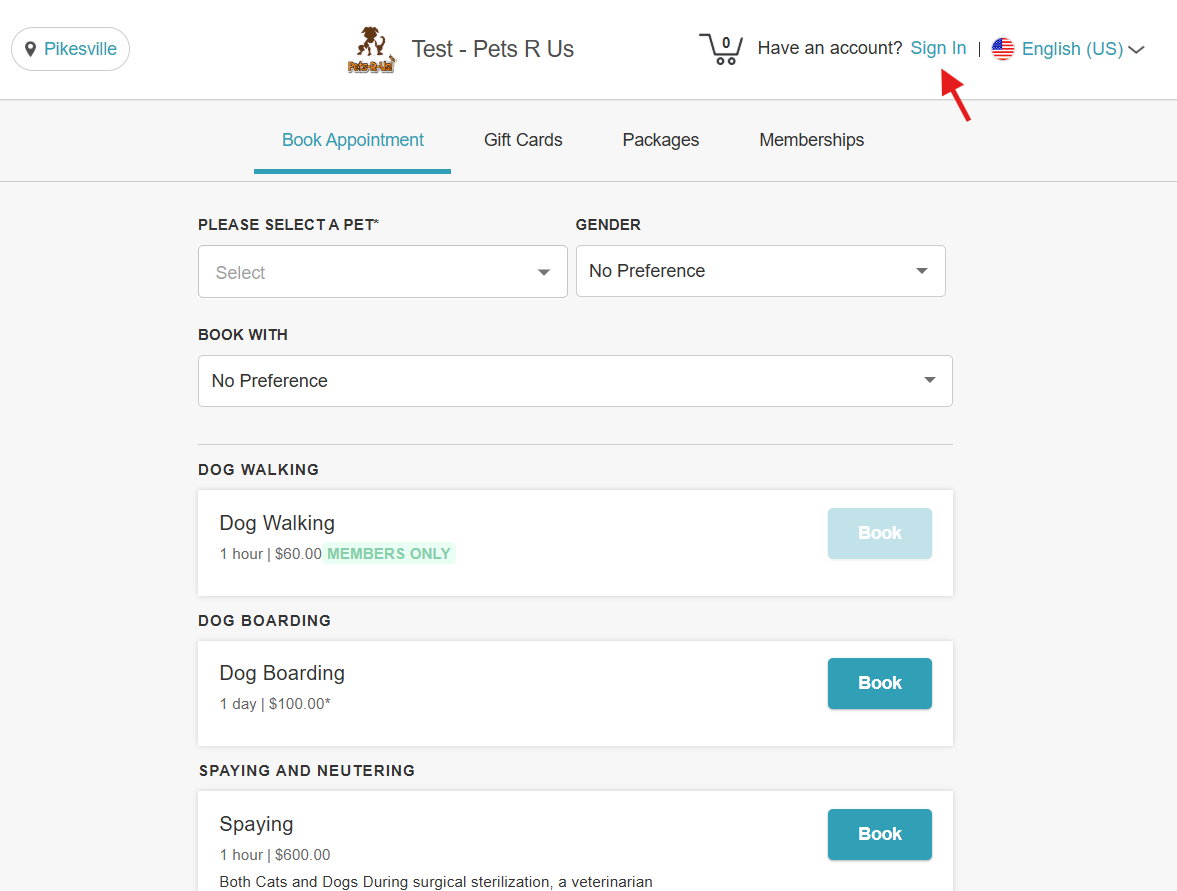
- Click the "Sign In" button at the top of the page
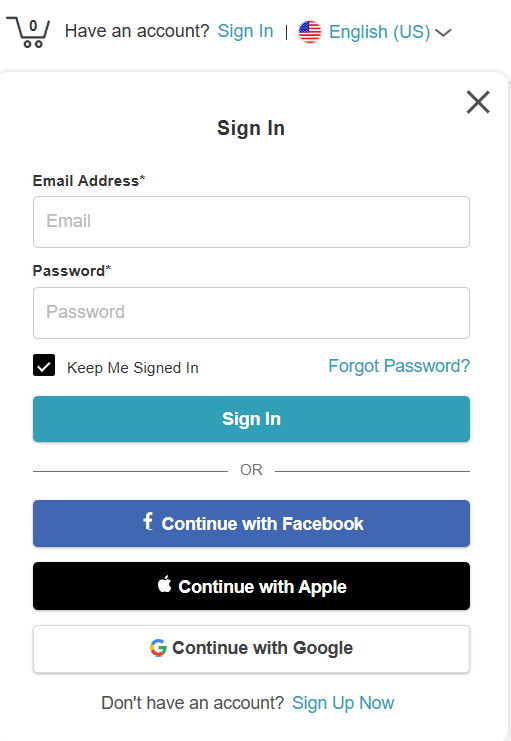
- Choose their login method:
- Standard: Enter their registered email address and password, then click 'Sign In'
- Social Login: Select 'Continue with Google,' 'Continue with Apple,' or 'Continue with Facebook' to use their existing social media credentials
- Once their credentials or social accounts are authenticated, they will be instantly logged into the booking widget and can proceed with scheduling appointments.
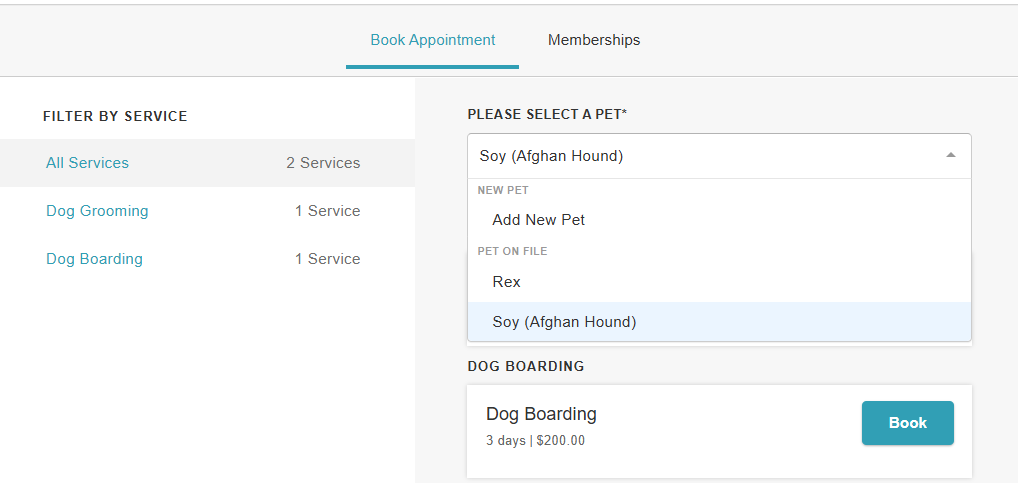
- Select an existing pet or add a new one.
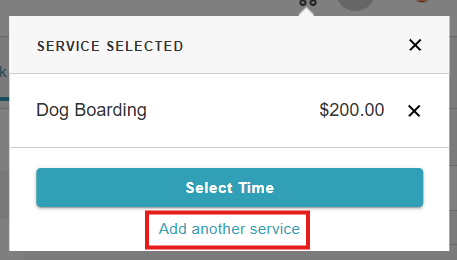
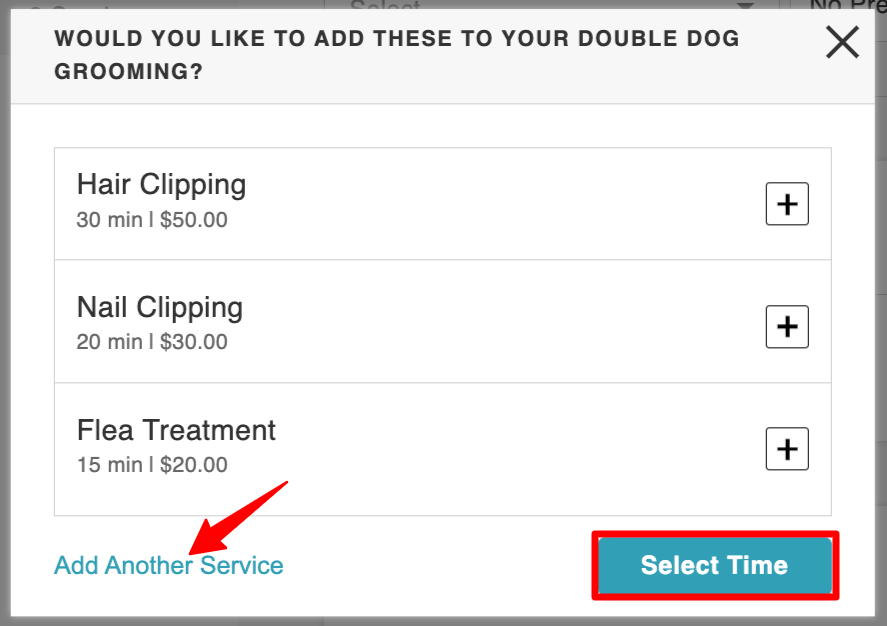
- Choose the desired service. To add additional services, click the "Add Another Service" link
- Select a preferred date and time from the calendar
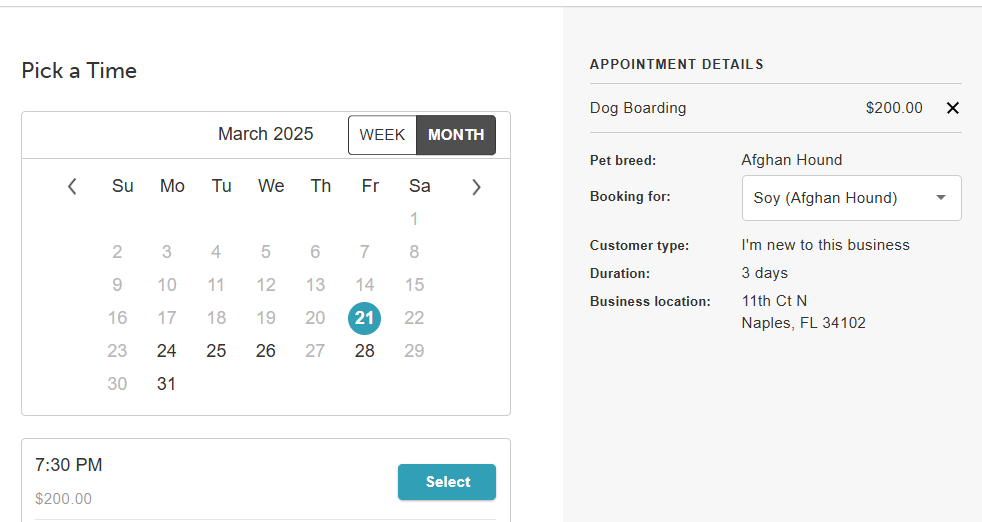
- If the client wants a specific staff member, they can select one
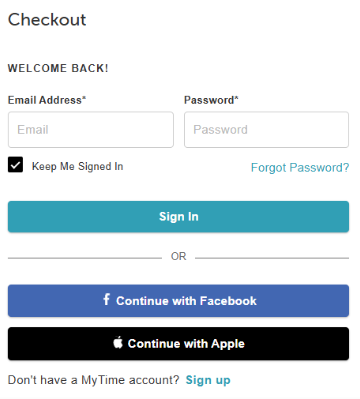
- Proceed to Checkout. At checkout, they can:
- Sign in to an existing account
- Use Facebook or Apple to log in
- Create a new account
- If they opted to add a new pet earlier, they can enter the pet's name at this stage
- Additional Options at Checkout include:
- Add notes and special requests
- Complete any required intake forms
- Provide payment details if necessary
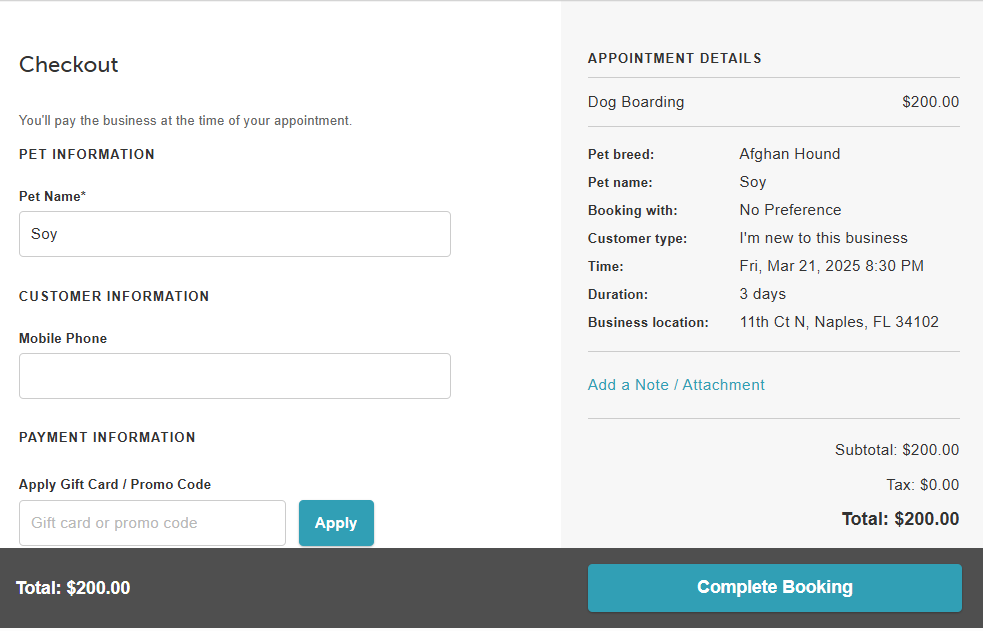
- Click on the "Complete Booking" button
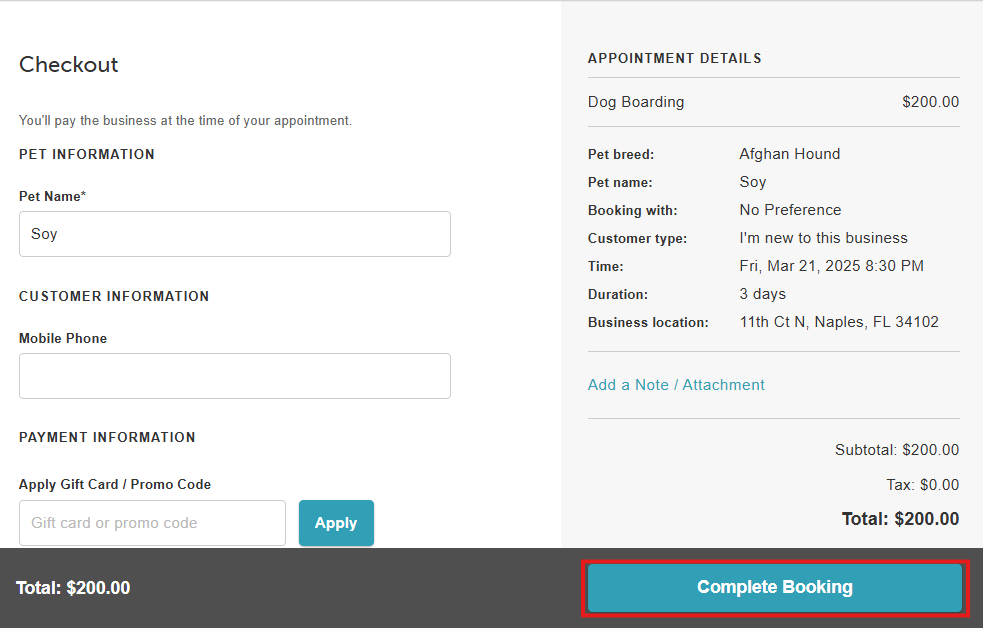
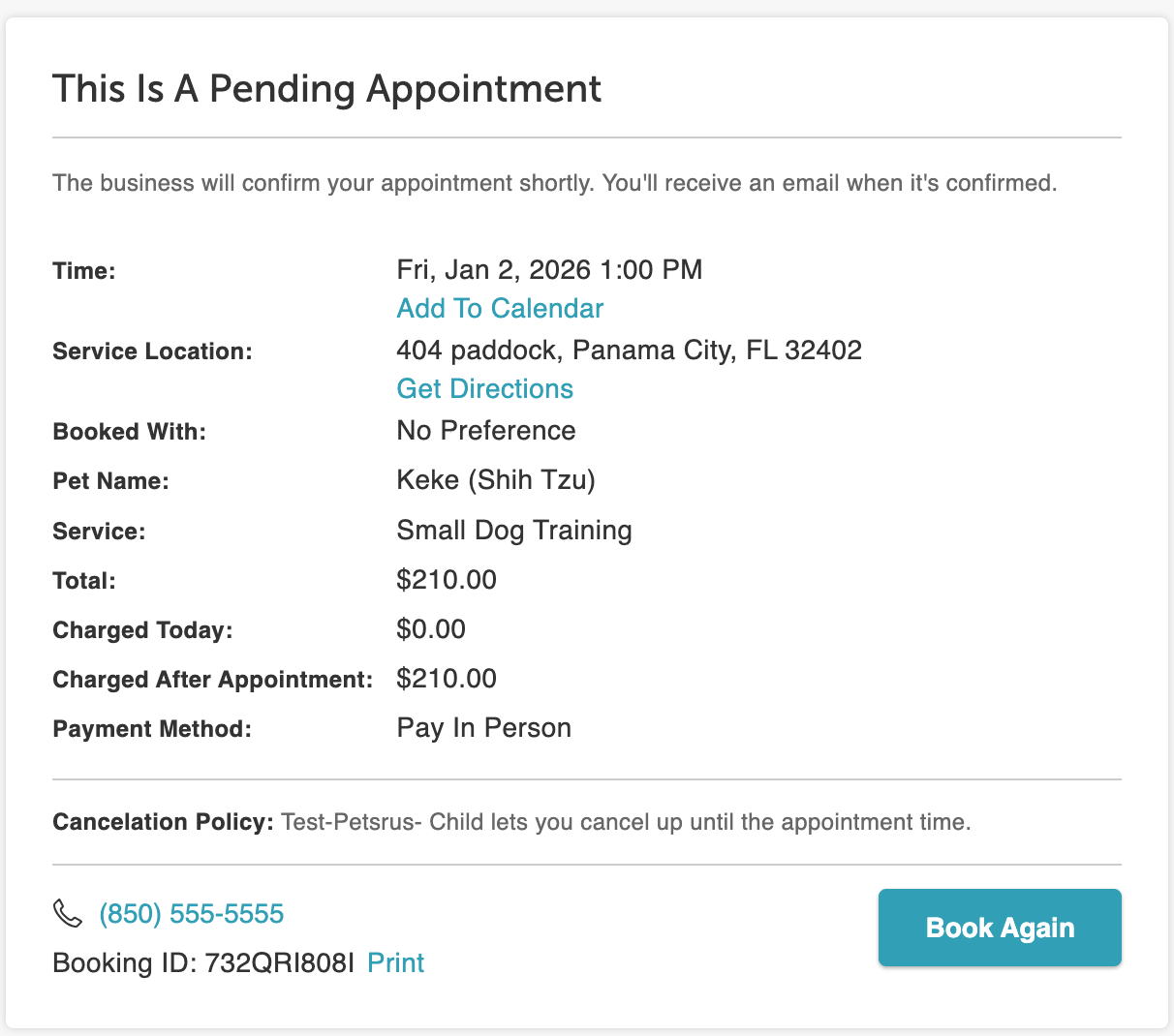
- The booking confirmation page will appear
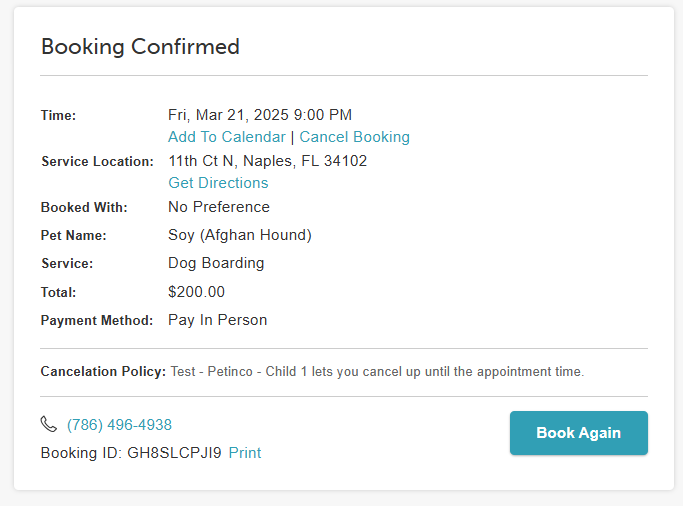
Select New or Existing Pets at Checkout
When booking appointments for pets directly on the checkout page, clients can create a new pet or select an existing one. This helps prevent duplicate profiles and ensures smooth booking.
Things to Know:
This feature is triggered when a client signs in on the checkout page.
Clients will see a modal window prompting them to either create a new pet or select an existing one.
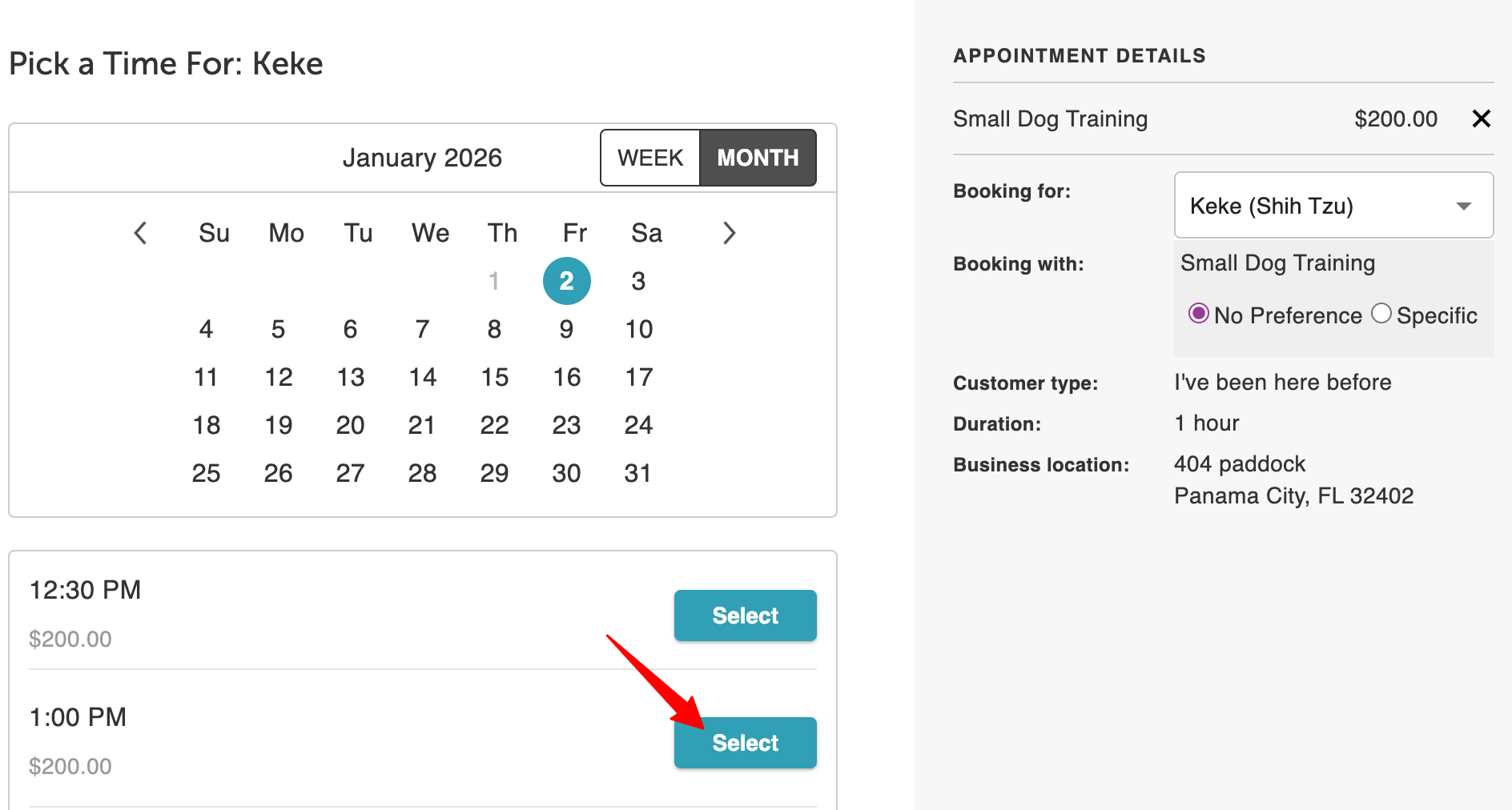
Selecting an existing pet redirects the client back to the Pick a Time page to continue booking.
If no existing pet is selected, clients can continue booking with a new pet.
How to Select a New or Existing Pet at Checkout:
1. Navigate to your booking page using the provided booking URL or the “Book” button on your website.
2. Select a Location (if your business has multiple locations, choose the preferred one).
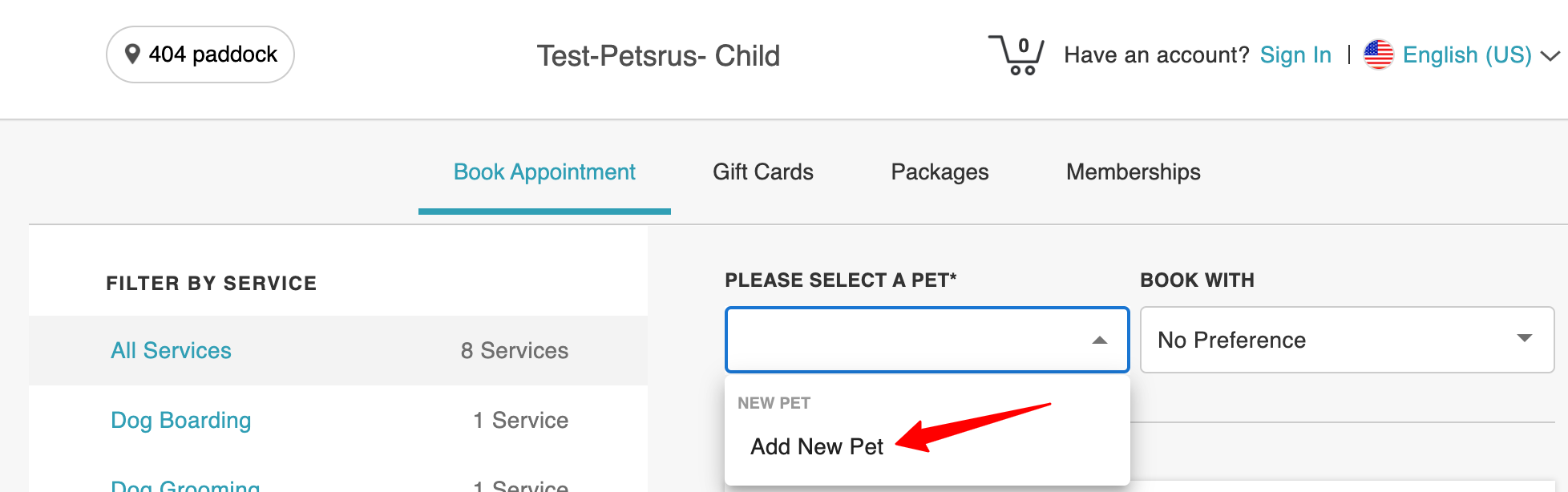
3. Click 'Add New Pet' from the 'Please Select a Pet' dropdown menu
 4. Enter pet name and select pet breed from the 'Add New Pet' modal
5. Click the 'Add' button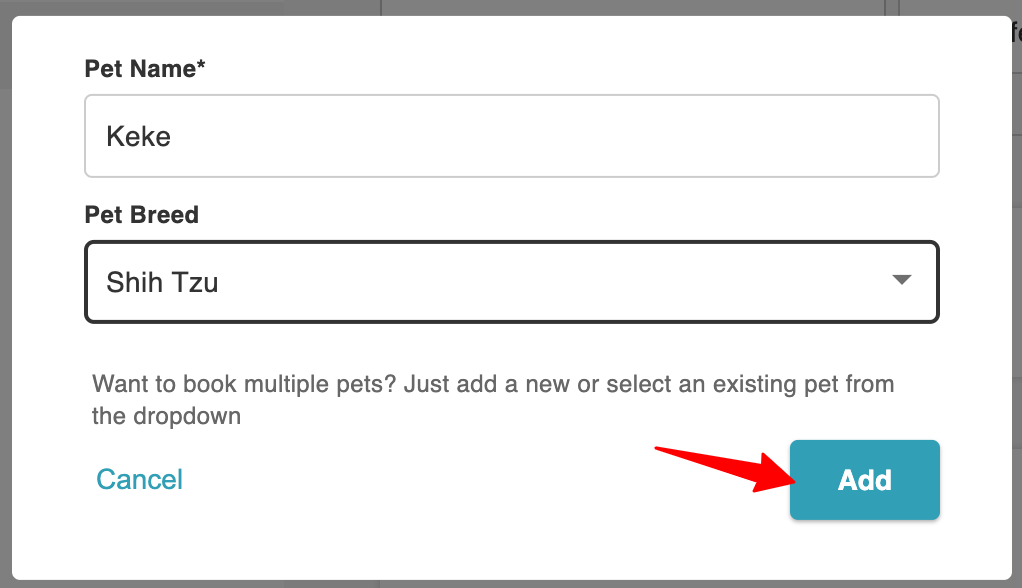 6. Choose the desired service. To add additional services, click “Add Another Service” or proceed to select a time.
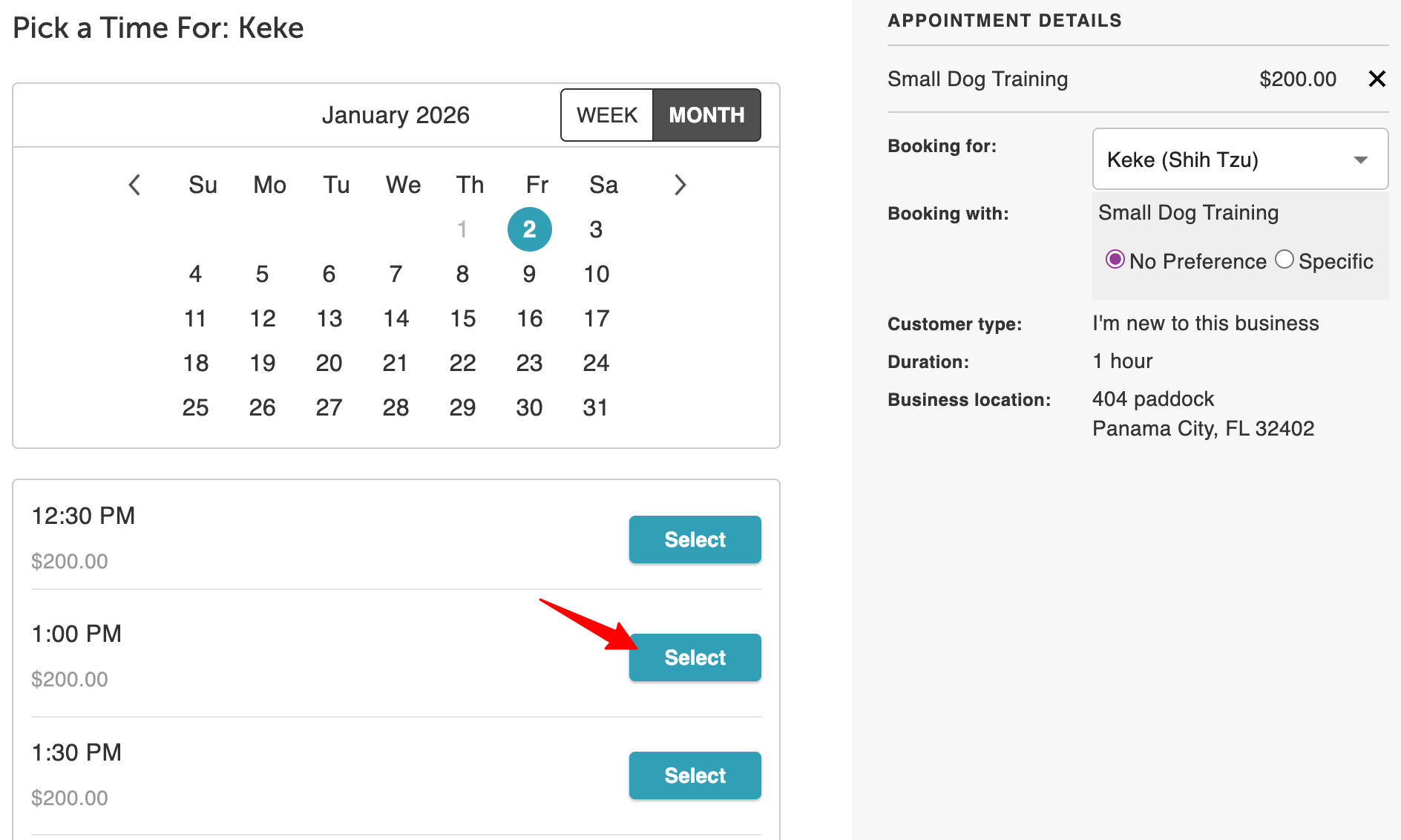
7. Select a preferred date and time from the calendar
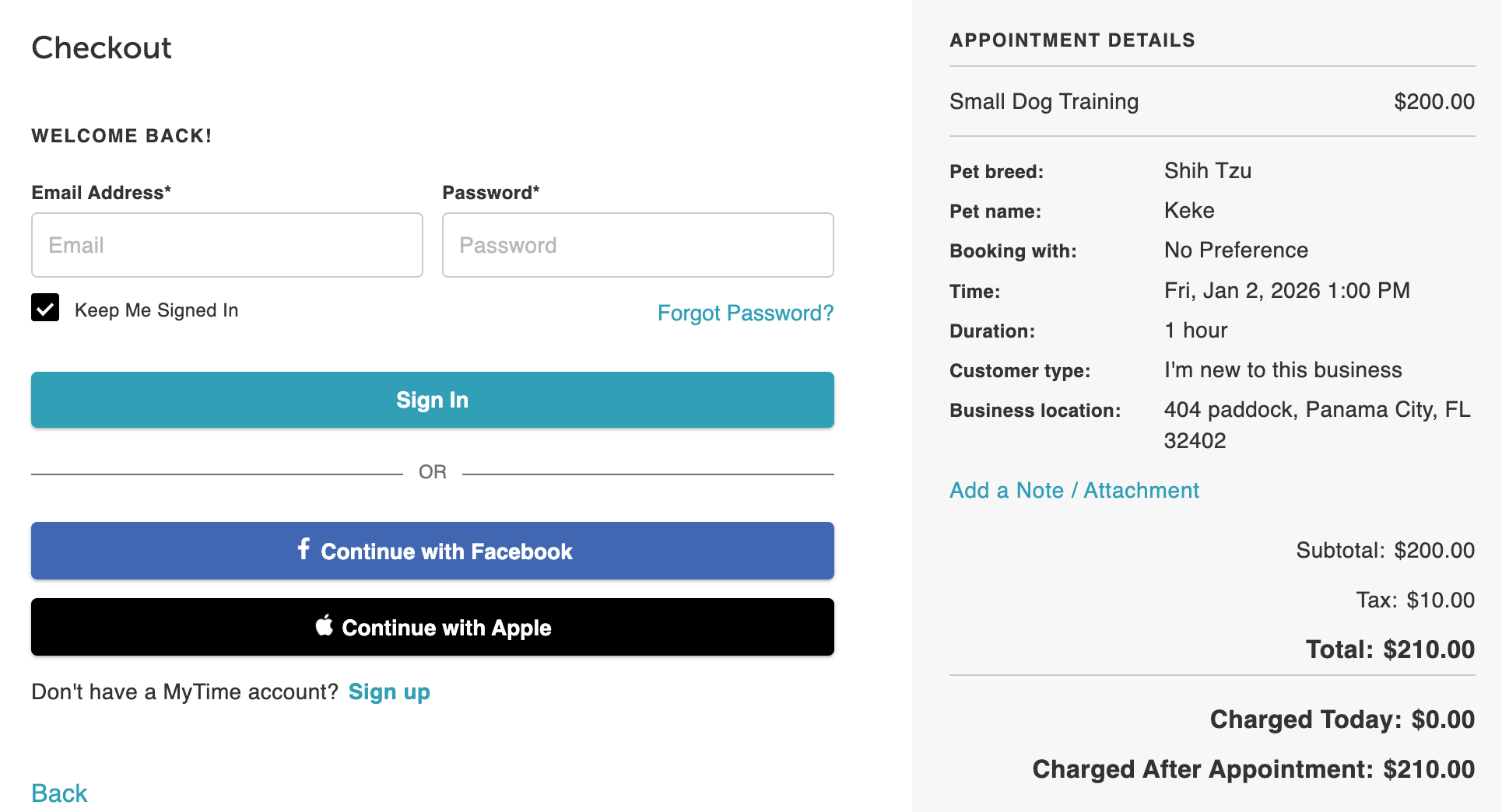
 8. At checkout, sign in to your existing account
9. In the modal window, either select an existing pet from the dropdown menu or create a new pet.
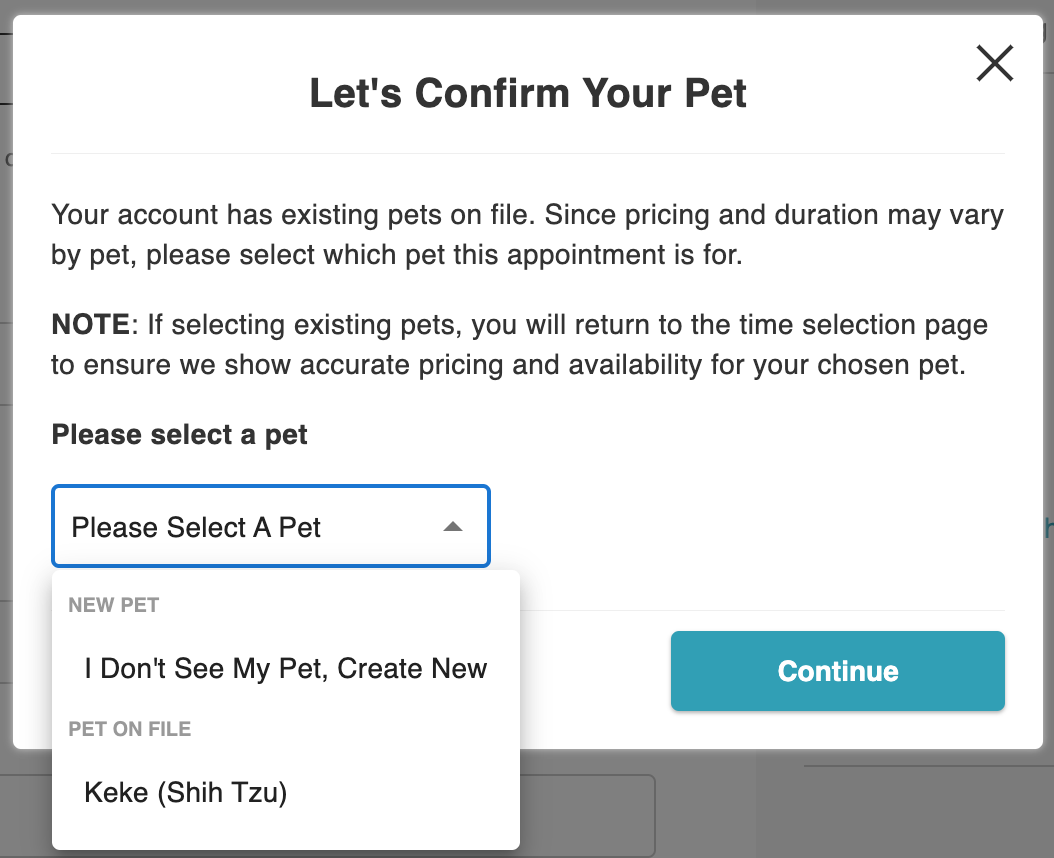
9. Click 'Continue'
10. Selecting an existing pet:
- You will be redirected to the Pick a Time page.
- Select the desired date and time.
- Complete the booking process as usual.
Creating a new pet:
- Continue the booking process directly from the checkout page.
- Complete any required intake forms.
- Provide payment details, if necessary.
- Complete the booking.
11. The booking confirmation page will appear once the process is complete
For more information, contact us at support@mytime.com or (385) 233-6964.
Related Articles:
Was this article helpful?
That’s Great!
Thank you for your feedback
Sorry! We couldn't be helpful
Thank you for your feedback
Feedback sent
We appreciate your effort and will try to fix the article