When clients book appointments online, you can choose whether they must pay online, have the option to pay online or in person, or only pay in person. This article explains each option, how to configure it, and what clients will see during booking.
Things to know:
- The payment options available to clients depend on the "Accept online payments through MyTime?" setting under Business Setup > Payments:
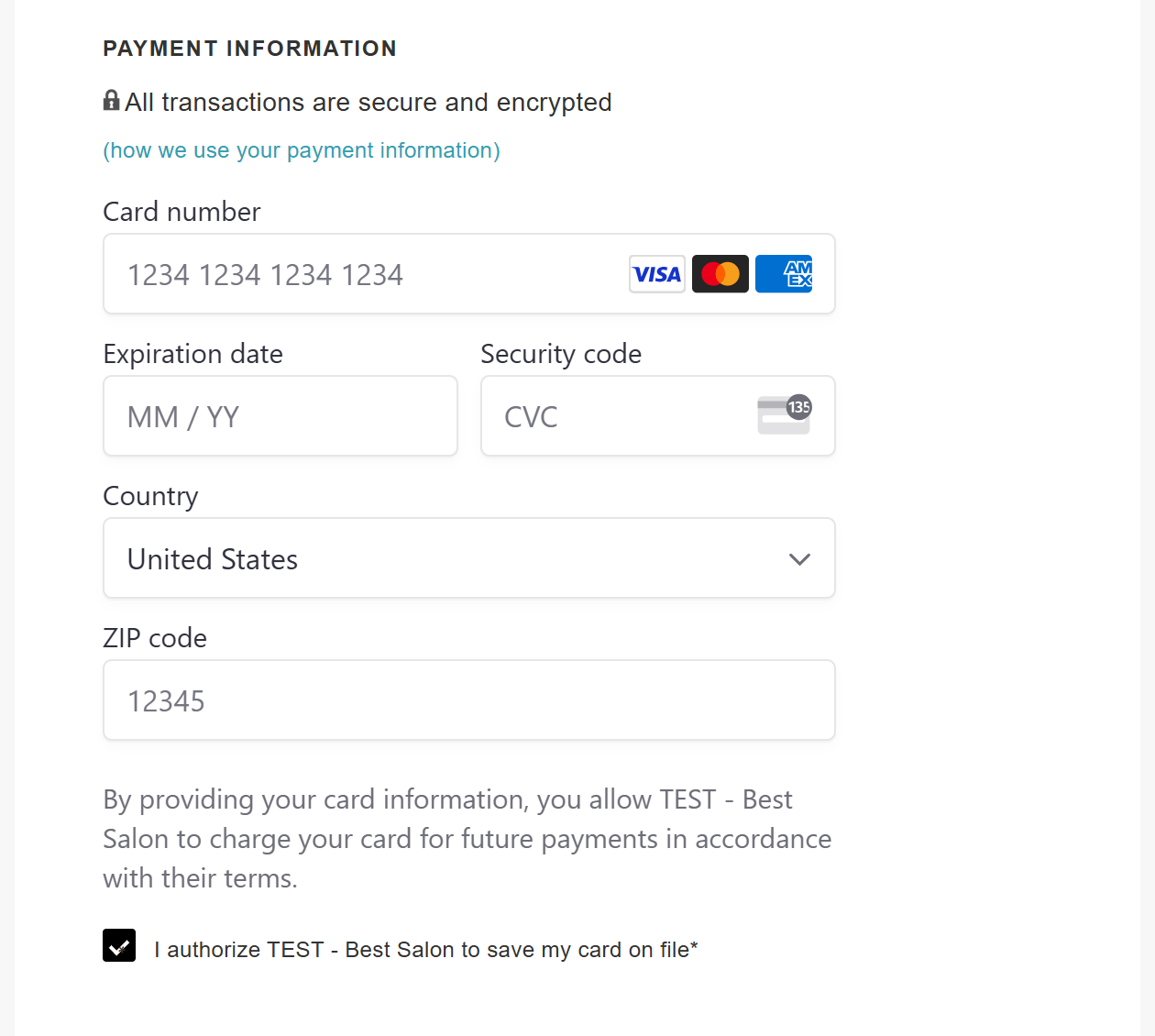
- Yes, require online payment to book online: Clients must pay at checkout when booking online.
- Let clients choose whether to pay online or in person: Clients can choose to pay at checkout or in person at the time of their appointment.
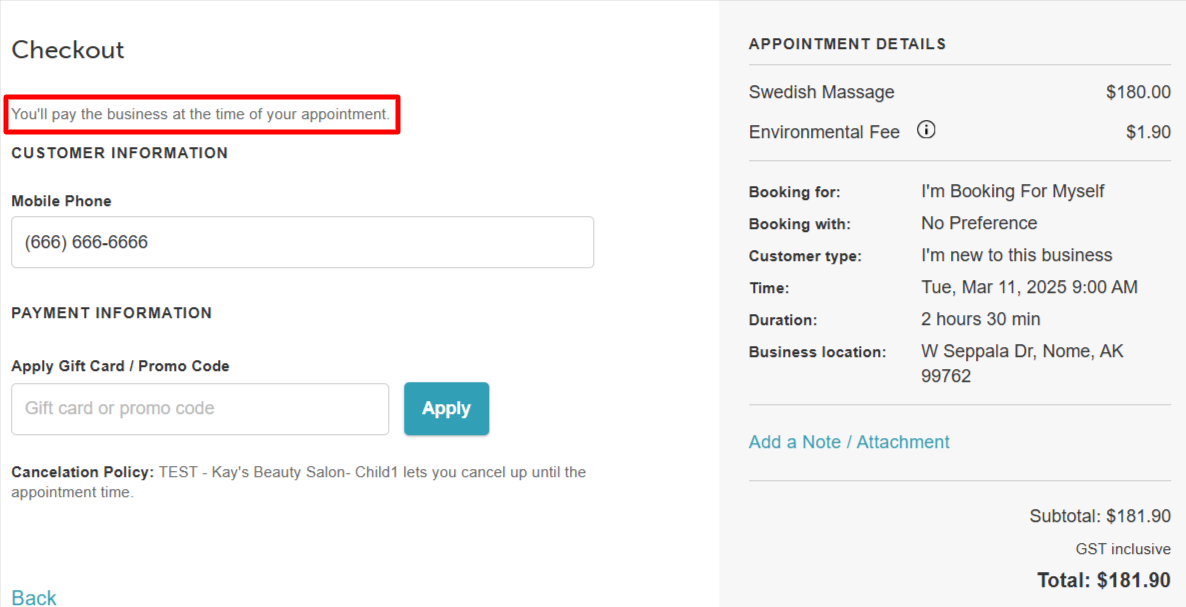
- No, only take payments in person: Clients will only pay in person at the time of their appointment.
- Online booking must be enabled for the business.
- Each service must have a staff member assigned, and staff working hours must be configured.
- Clients must sign in using an existing MyTime account, Google, Facebook, or Apple login—or create a new account during checkout.
- When an appointment is booked online, a ticket is automatically created.
- Deposits and Gift Card Payments: When booking a service that requires a deposit, clients can use a gift card or another payment method depending on the scenario.
- Pay In Person:
- Gift card covers full deposit: The client can enter their gift card at checkout. The deposit will be fully covered, and any remaining balance can be used toward the service total when paying in person. If needed, another payment method can be used in-store.
- Gift card covers part of the deposit: The gift card will be applied to the available amount, and the remaining deposit will be charged to the client’s credit card at checkout. Any remaining service balance can be paid in person.
- Pay Online:
- Gift card covers full deposit and service total: The full amount will be paid using the gift card at checkout.
- Gift card covers deposit only: The gift card will be applied to the deposit, and the credit card will be charged for the remaining balance.
- Gift card covers part of the deposit: The gift card will be applied to the available amount, and the client’s credit card will be charged for the remaining deposit and any additional service fees at checkout.
- This feature is controlled by the "Enable Paying Deposit via Gift Card" setting, which must be enabled by MyTime Support.
- Pay In Person:
- For accounts with a Cloud9 payment account configured, enabling the **"Enable reCAPTCHA on booking widget"** hidden setting will trigger a reCAPTCHA verification when clients manually enter payment information. This adds an extra layer of security to help prevent fraudulent transactions and automated submissions.
Contents:
- What Clients See On The "Checkout" Page
- How the “How We Use Your Payment Information” Message Displays
What Clients See On The "Checkout" Page
Yes, require online payment to book online
Let clients choose whether to pay online or in person

- If "Pay Online" is selected, clients will need to provide a credit card to process payment
- If "Pay In Person" is selected, clients will pay in-store at the time of their appointment.
No, only take payments in person
For more information, contact support@mytime.com.
Was this article helpful?
That’s Great!
Thank you for your feedback
Sorry! We couldn't be helpful
Thank you for your feedback
Feedback sent
We appreciate your effort and will try to fix the article