In this article, we will learn how to delete a user account from the iOS scheduler app.
Things to know:
The staff member's profile will not be deleted. This merely deactivates their user account (deletes their password). They will be unable to log in via the web or app.
To delete your user account on the iOS App:
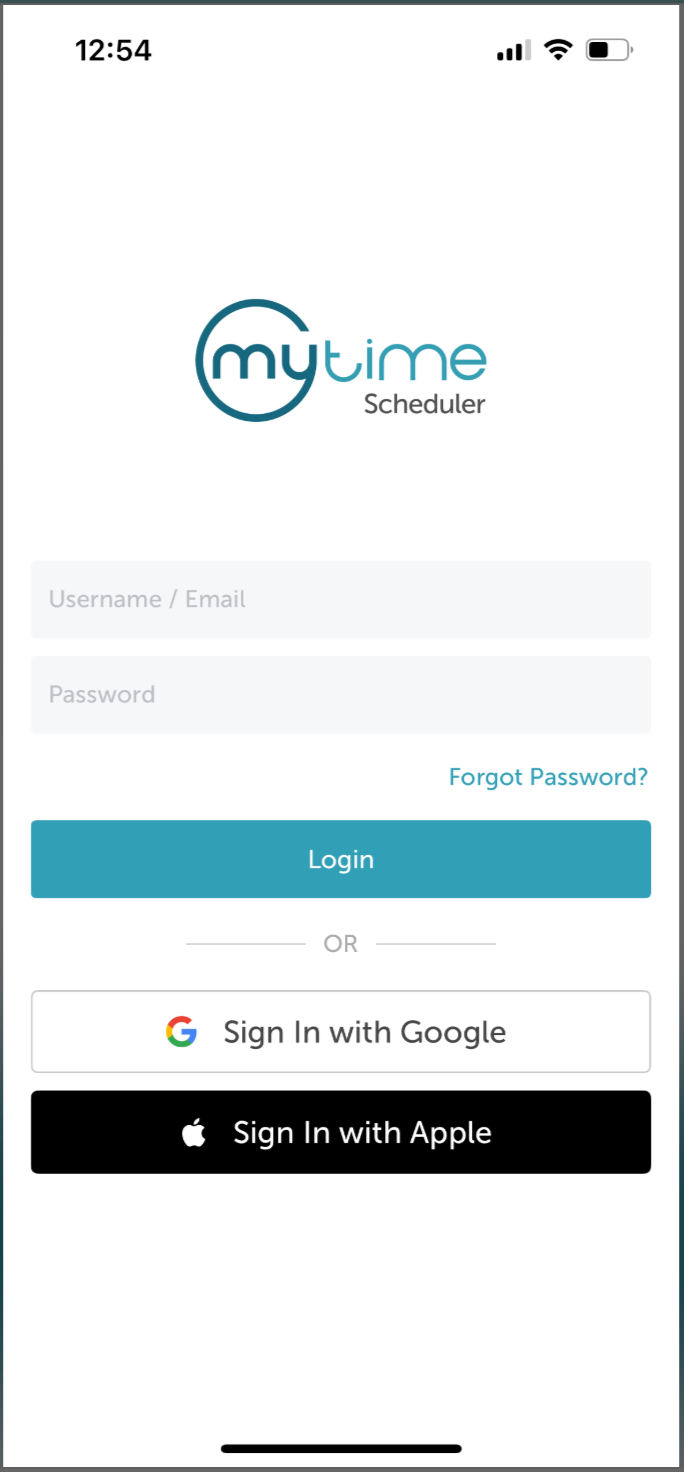
- Launch the MyTime Scheduler app on your device
- Choose your login method:
- Standard: Enter your registered email address and password, then tap 'Sign In'
- Social Login: Select 'Continue with Google' or 'Continue with Apple' to use your existing credentials for a faster login experience. For detailed instructions, learn more here
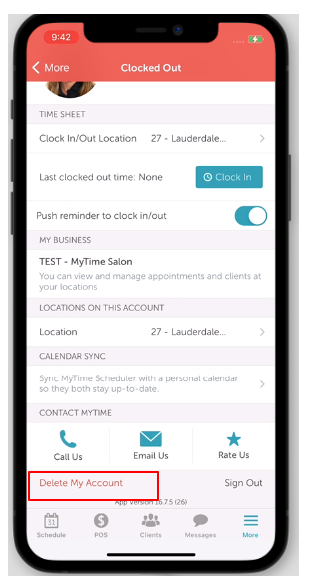
- Select the More > Account page tab
- Then select the "Delete My Account" link at the bottom
- When you click it, you'll be asked to enter your password. If the password entered is correct, a confirmation screen will appear.
- Your user account will be deleted and you will be logged out once you confirm the action.
Related Articles:
Installing MyTime on Scheduler App (Android and iOS)
Signing into MyTime on Scheduler App (Android and iOS)
Was this article helpful?
That’s Great!
Thank you for your feedback
Sorry! We couldn't be helpful
Thank you for your feedback
Feedback sent
We appreciate your effort and will try to fix the article