For businesses with a physical cash drawer connected to a receipt printer, the Open Drawer button provides immediate manual access during transactions. This button is conveniently located on the New Ticket, Take Payment, and Refund Payment pages within the POS. This article outlines how the feature functions when the button is manually clicked, as well as how it operates automatically when a cash payment is entered and change is due.
Things to know:
- The ability to utilize the cash drawer button is controlled by the “Open Cash Drawer” access control permission, which is set to Block by default.
- The Open Drawer button is not linked to the virtual register in MyTime. To open your virtual register, navigate to POS > Registers. Access to registers is controlled by the “Accessing Register” access control setting.
- On the Take Payment page, the Open Drawer button becomes available only when a cash payment method is selected. If the transaction does not include a cash payment, the button will remain disabled.
- When the Open Drawer button is clicked, the drawer action is triggered, and a print modal appears as an audit trail, displaying the date, time, and the staff member who initiated the transaction. Selecting Print sends a command to the receipt printer, which then triggers the cash drawer to open.
- Please note, for the cash drawer to open:
The receipt printer must be connected to the computer via Wi-Fi, USB, or Bluetooth
The cash drawer must be physically connected to the printer using an RJ12 cable
The feature will not function if the “Open Cash Drawer” access control permission is set to Block for the logged-in user.
You can configure your account to automatically open the cash drawer when change is due for a cash payment in POS. This feature is controlled by the “Automatically Open Cash Drawer When Change is Due with Cash Payment” setting and is disabled by default. When this setting is enabled, the system detects when the tendered cash amount exceeds the total due and automatically triggers the Open Cash Drawer action.
When refunding a ticket, the Open Drawer button will not appear if the original payment method did not involve cash.
CONTENTS
- Open the Cash Drawer from the New Ticket Screen
- Open the Cash Drawer from the Take Payment Screen
- Open the Cash Drawer from the Refund Payment Page
- Open Cash Drawer when Change is Due
Open the Cash Drawer from the New Ticket Screen
To open the cash drawer from the new ticket screen:
1. Navigate to POS > New Ticket
2. Add an item to the ticket
3. Click the 'Open Drawer' button located at the top-right corner of the page. 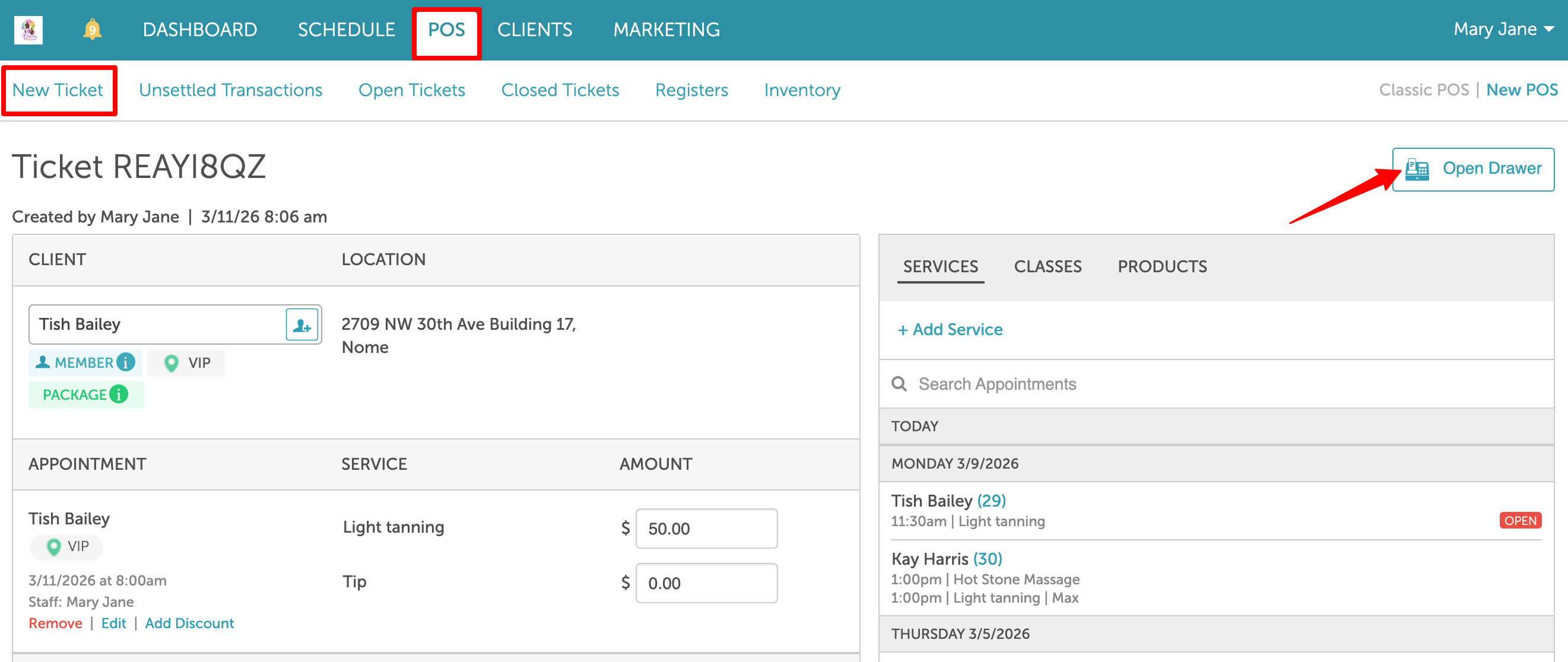
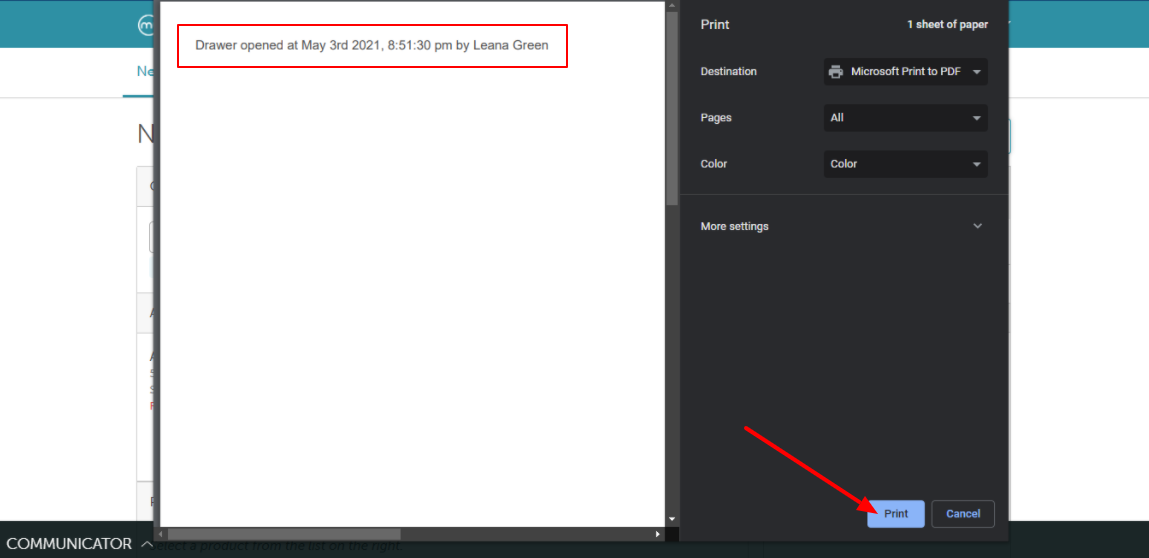
4. A print modal will appear showing the date, time, and the name of the staff member who opened the drawer (e.g., Drawer opened on May 3, 2021, at 8:55:30 PM by Leana Green).
- Click Print to generate the audit record. Sending the print command will trigger the physical cash drawer to open.
Open the Cash Drawer from the Take Payment Screen
To open the cash drawer from the take payment screen:
1. Proceed to the Take Payment screen
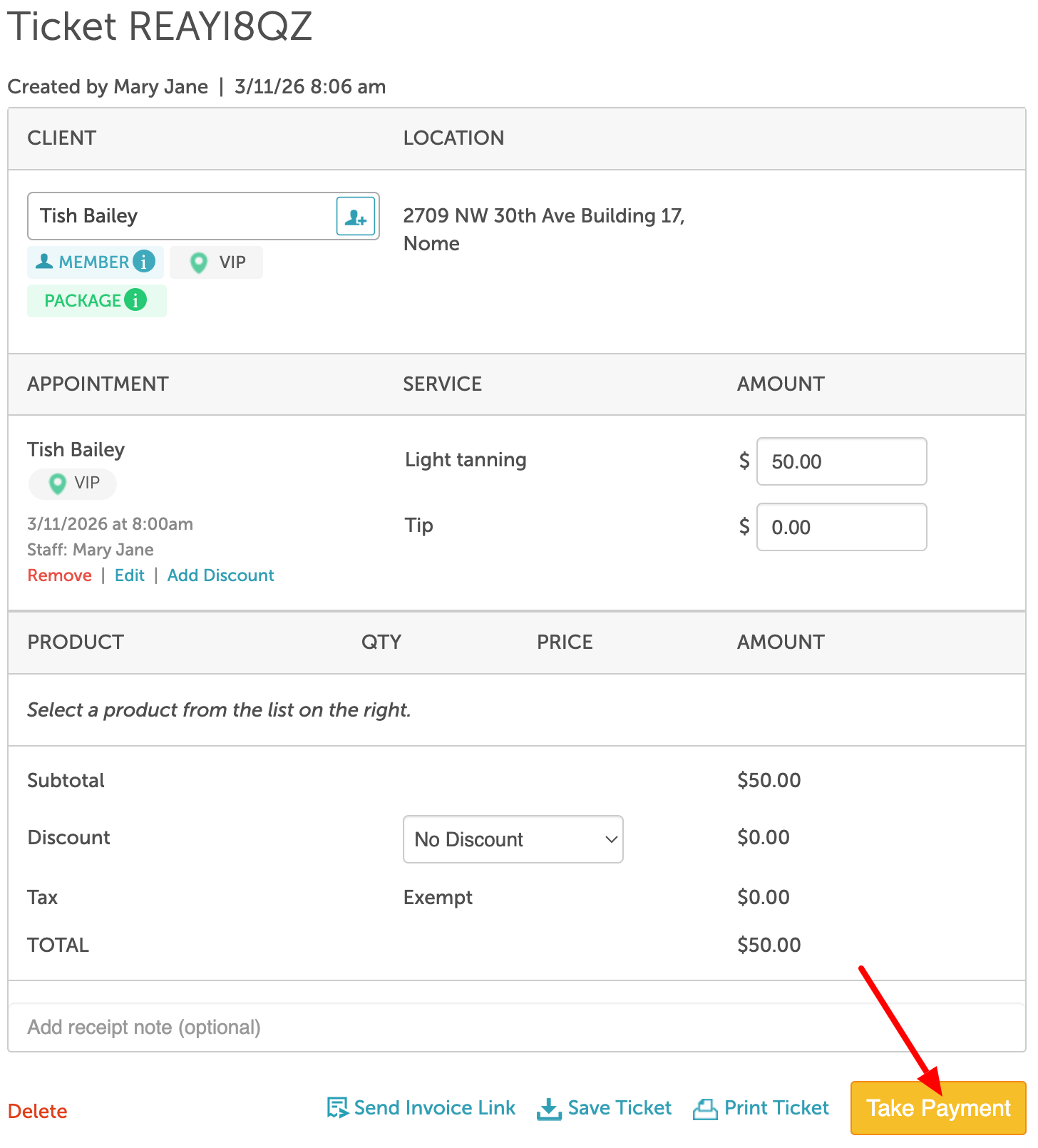
2. Add a Cash payment method. The Open Register button will become available once a cash payment method is selected.
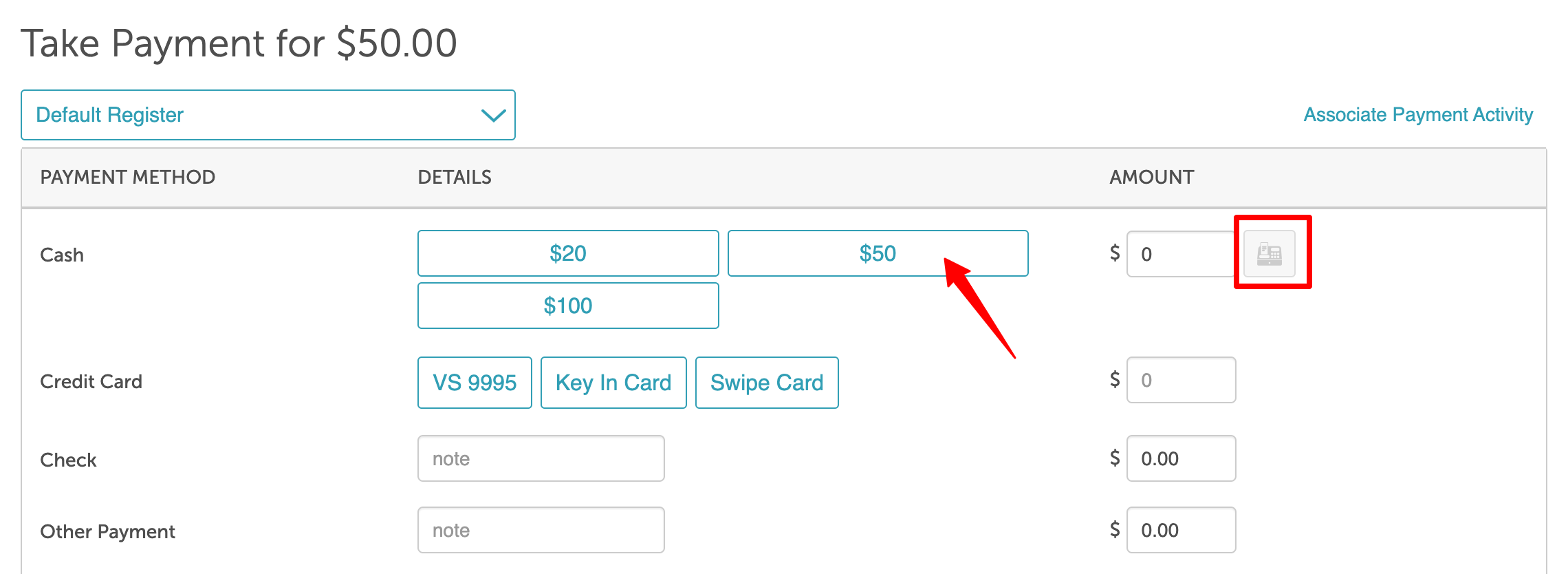
3. Click the Open Drawer button.
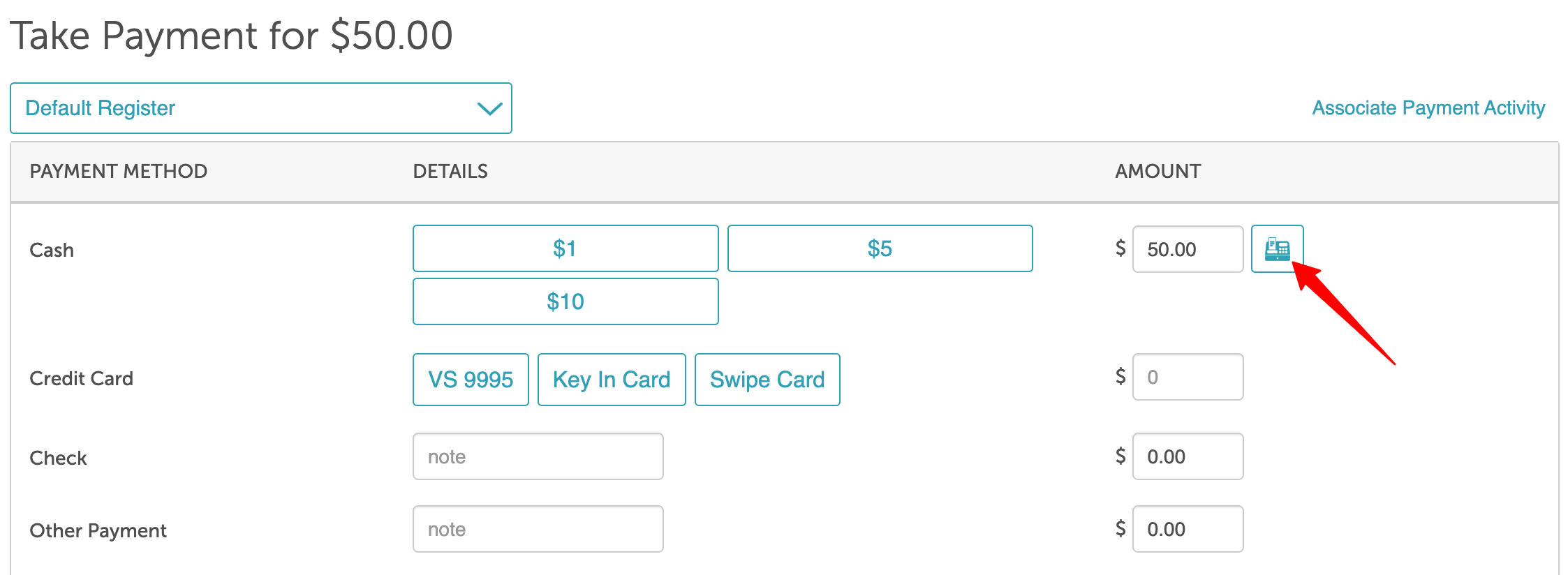
4. A print modal will appear. Click Print to generate the audit trail. Sending the print command will also trigger the physical cash drawer to open.
5. Complete the transaction and close the ticket.
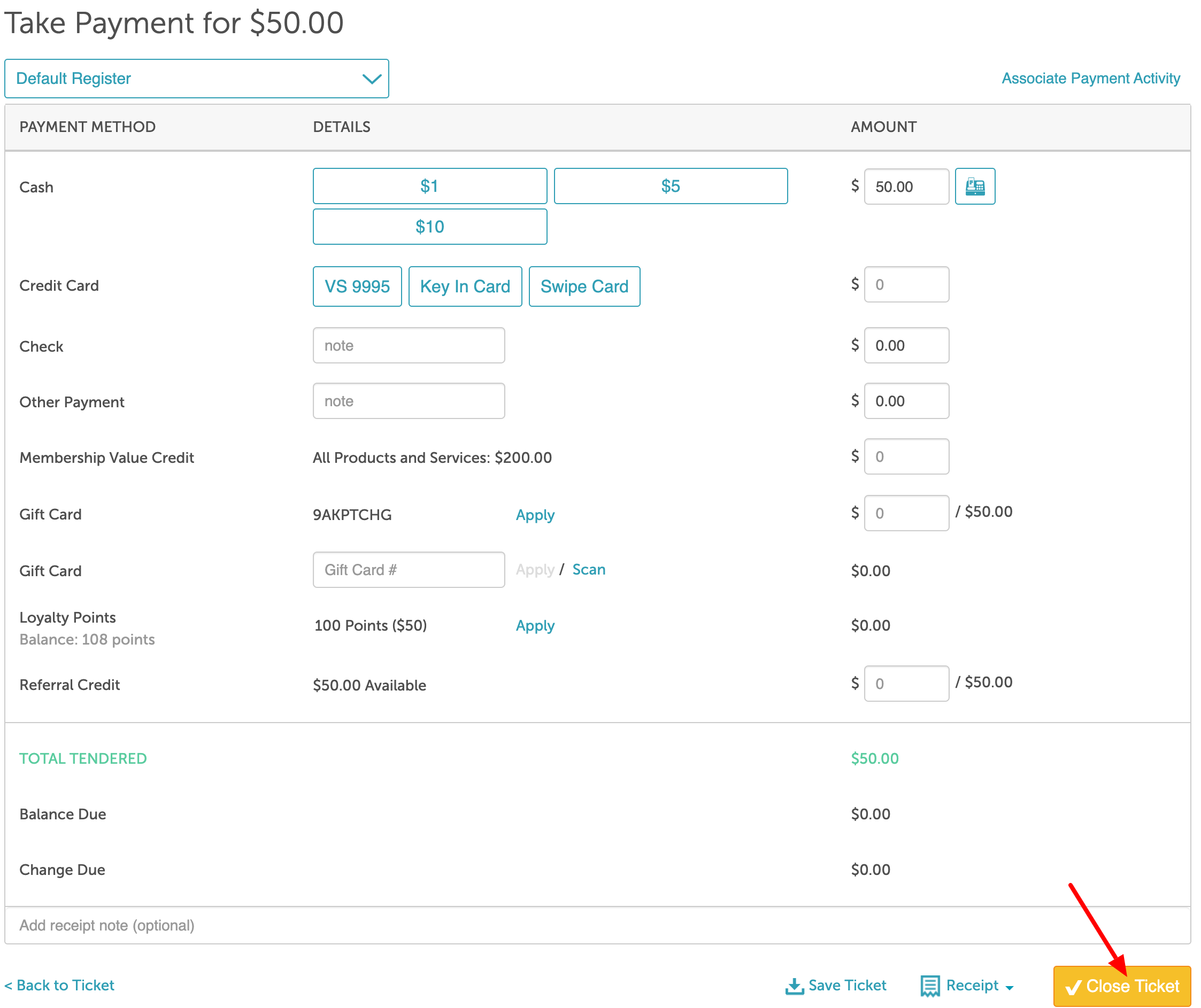
6. A confirmation will be displayed at the top of the screen once the ticket is closed.

Open the Cash Drawer from the Refund Payment Page
To open the cash drawer from the refund payment page:
1. Navigate to POS > Closed Tickets
2. Locate and select the ticket you wish to refund
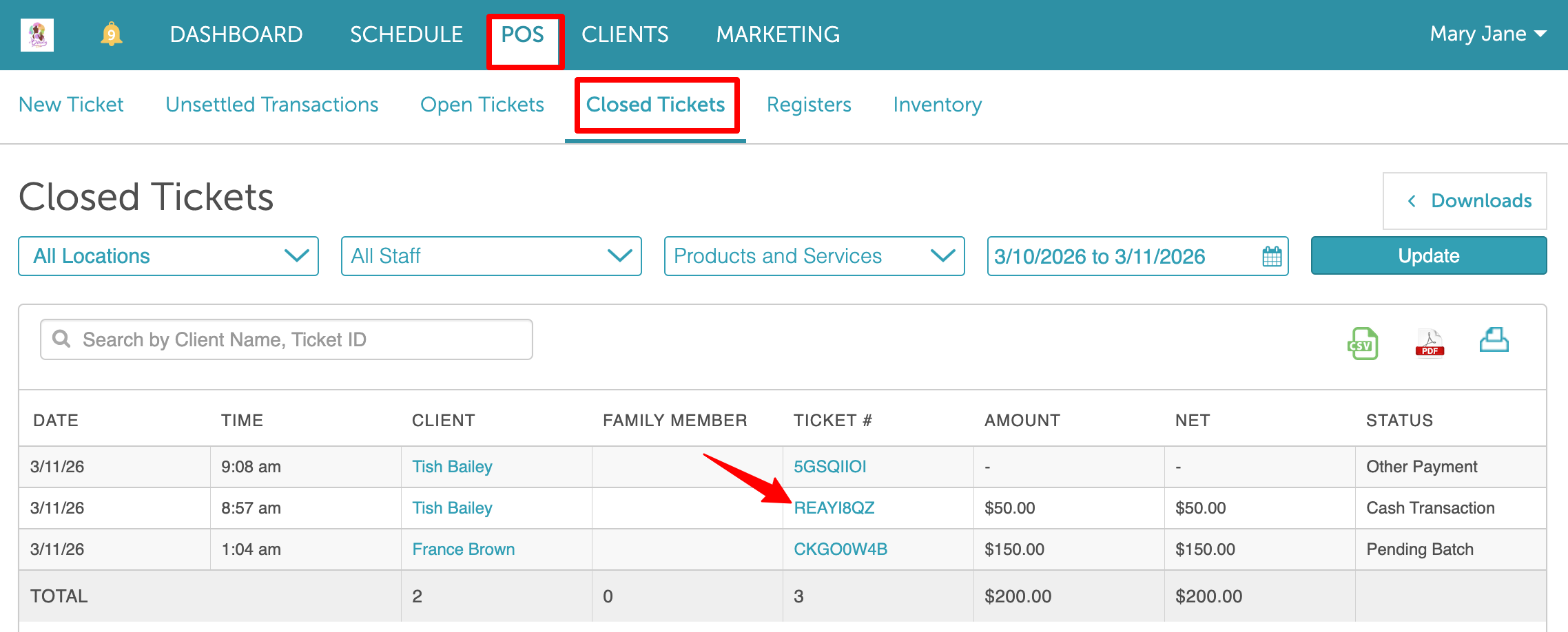 3. Once the ticket opens, scroll to the bottom of the screen and click the "Refund"
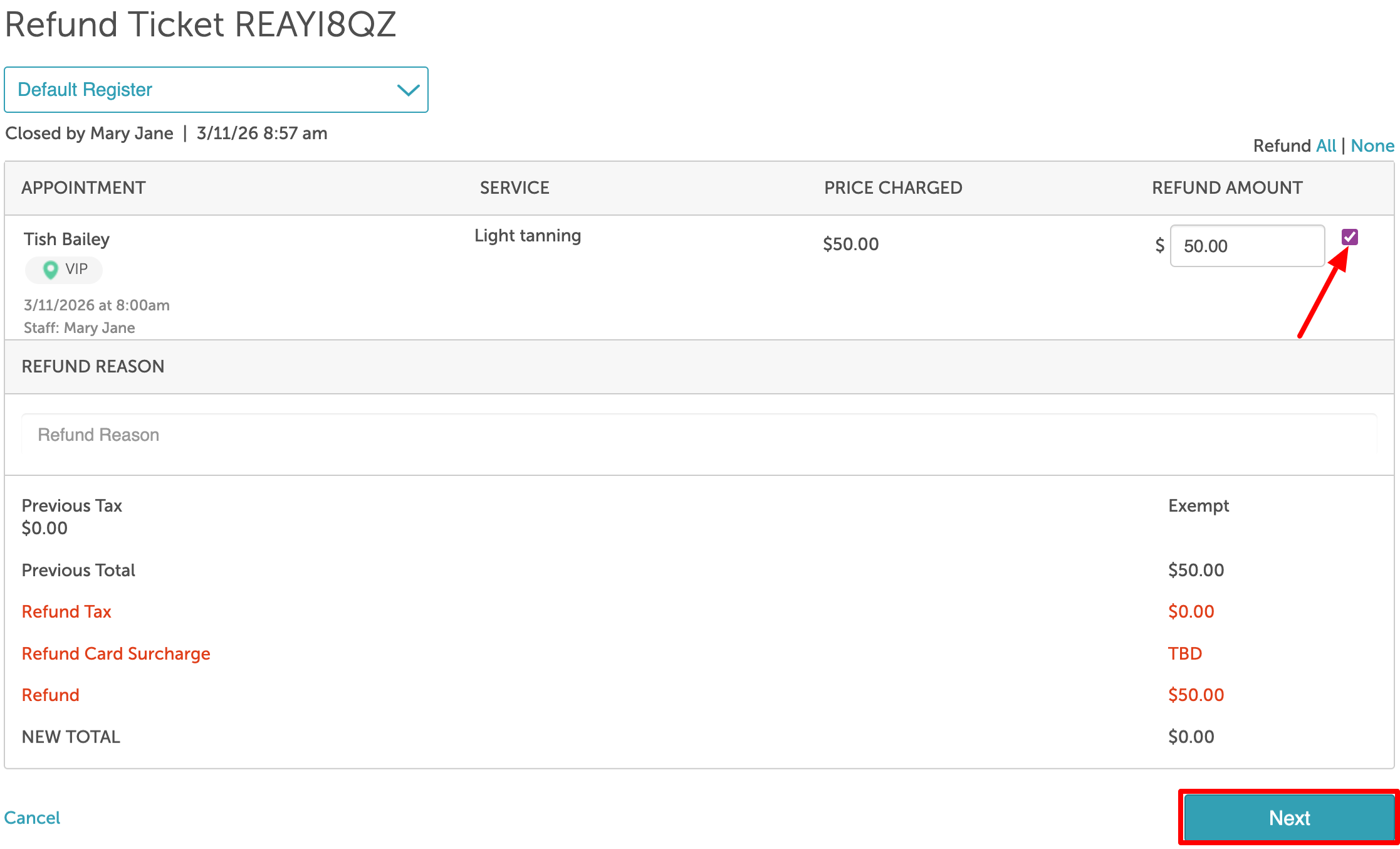
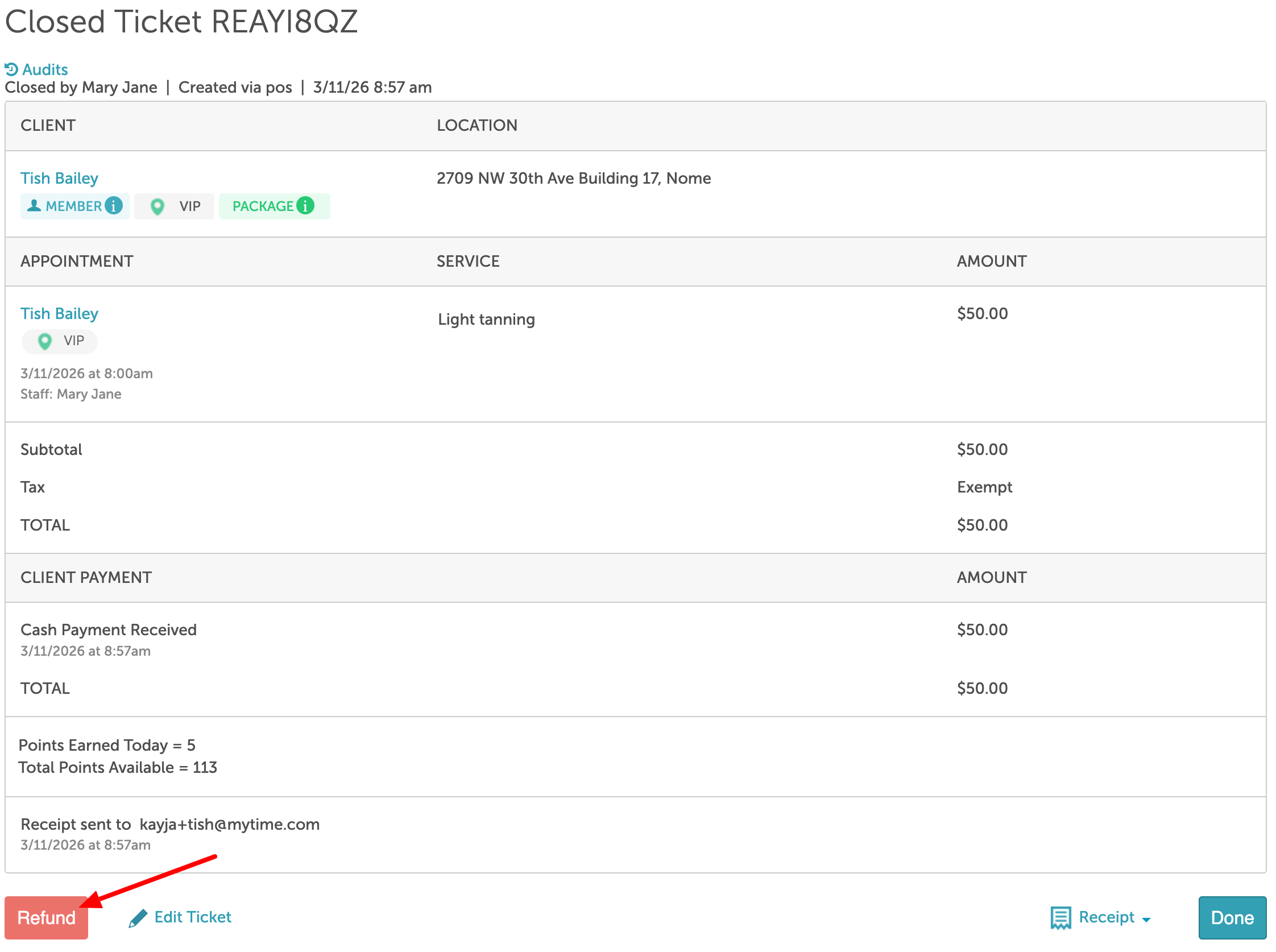 4. Select the item(s) to be refunded
5. Click Next at the bottom of the screen
6. Enter the refund amount
7. Click the Open Drawer button
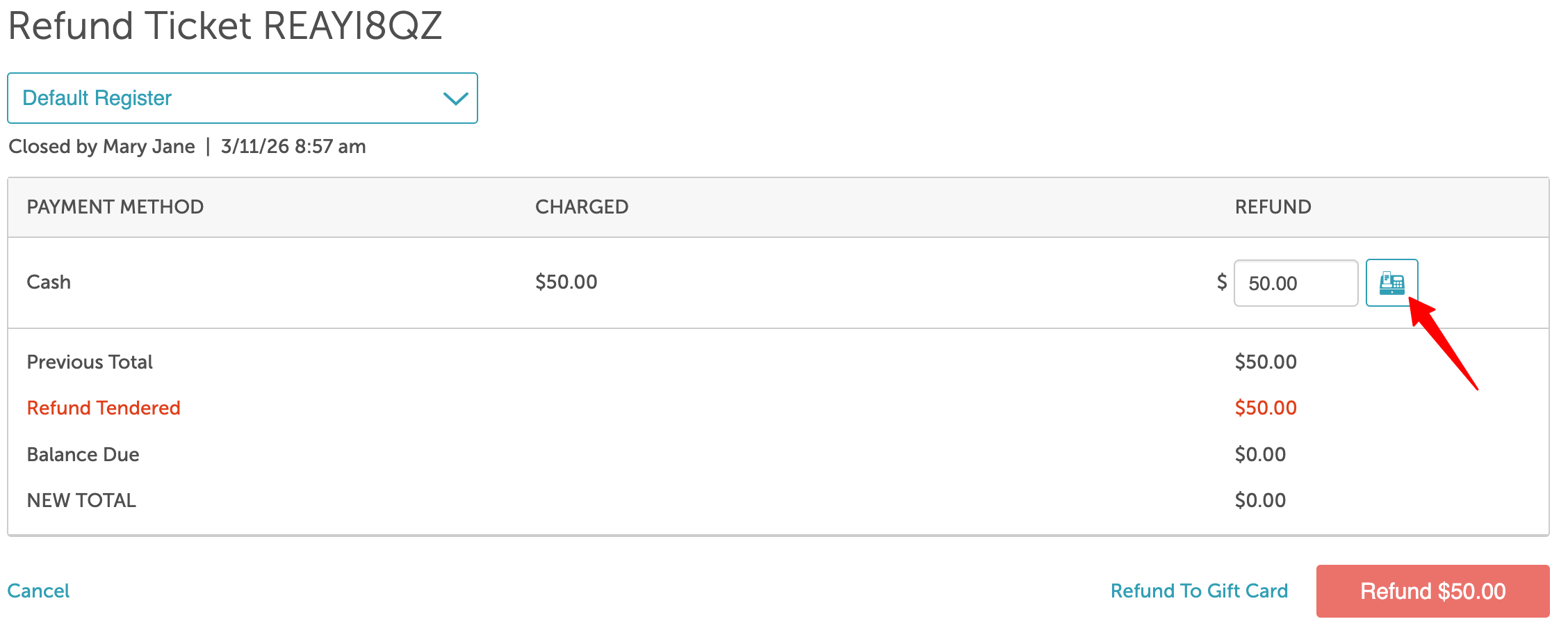
8. A print modal will appear. Click Print to generate the audit trail. Sending the print command will also trigger the physical cash drawer to open.
9. Proceed with processing the refund
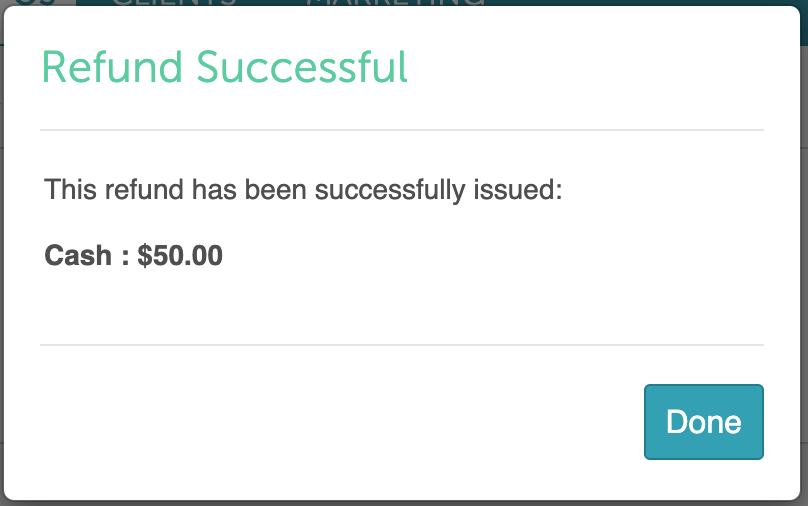
10. Once the refund is completed, a confirmation message will appear.
Open Cash Drawer when Change is Due
Once the "Automatically Open Cash Drawer When Change is Due with Cash Payment" setting is enabled, use the following steps to process cash transactions:
1. Navigate to POS > New Ticket
2. Add items to the ticket. Then proceed to the Take Payment screen.
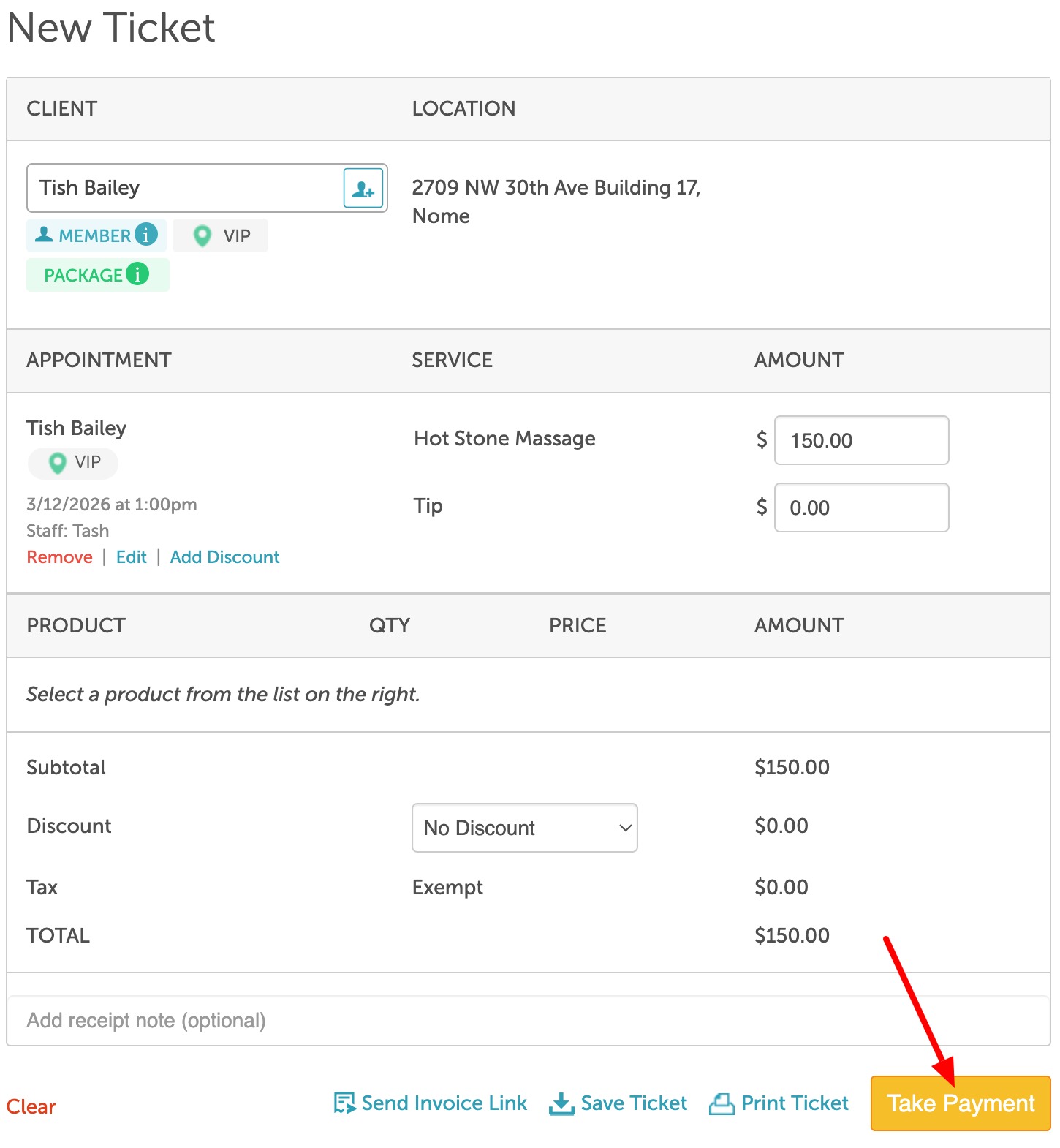 3. Enter the cash amount tendered. If the amount exceeds the total due, the "Open Cash Drawer" button will be automatically triggered.
4. A print modal will appear, click Print to generate the audit trail. Sending the print command will also trigger the physical cash drawer to open.
5. Complete the transaction and close the ticket.
6. A confirmation message will be displayed at the top of the screen once the ticket is closed.
If you have any questions, please contact Customer Support at support@mytime.com.
Related Articles:
- Flow from Open Ticket to Closed Ticket
- New Ticket Screen Overview
- Editing Tickets for Prepaid Services
- Deleting Tickets in POS
Was this article helpful?
That’s Great!
Thank you for your feedback
Sorry! We couldn't be helpful
Thank you for your feedback
Feedback sent
We appreciate your effort and will try to fix the article