This article outlines how to set up the Parent Booking Widget and Express Checkout Link in MyTime to create a faster, more seamless booking and checkout experience. The MyTime online booking experience includes:
- A modern, responsive design that looks great on any device and helps maximize conversion rates.
- Customization options for colors and styles to blend seamlessly with your website or mobile app.
Things to Know:
- The ability to configure the parent booking widget and express checkout link is governed by the "Accessing Website Tools" access control.
- To enable online bookings for services, the following steps must be followed:
- A payment account must be set up to process card payments. If you do not have a payment account, please email processing@mytime.com for help.
- Your account must be live.
- Online booking must be enabled. Learn more here
- Staff members must be assigned to services and have work hours set up.
- The parent widget will display only child accounts that are live/active.
- When a client uses the parent booking widget and goes to the Payments tab, they are prompted to select a location. This lets the client choose a specific location where they can add or remove a payment method.
- Child accounts that are inactive or not enabled for online booking will not appear.
- If you update the configuration, you must re-embed the widget on your website.
- Each child account manages its own booking settings and availability. When a client chooses a location from the parent widget, the booking flow follows that location’s specific configuration, ensuring that services, staff, availability, and rules are correctly applied for that particular child account.
CONTENTS
Configure the Parent Booking Widget
To configure the parent booking widget:
1. Log on to the Parent Account https://www.mytime.com/users/sign_in
2. Go to Marketing > Website Tools

3. Select the Setup button next to Add Appointment Booking & Purchases to Your Website

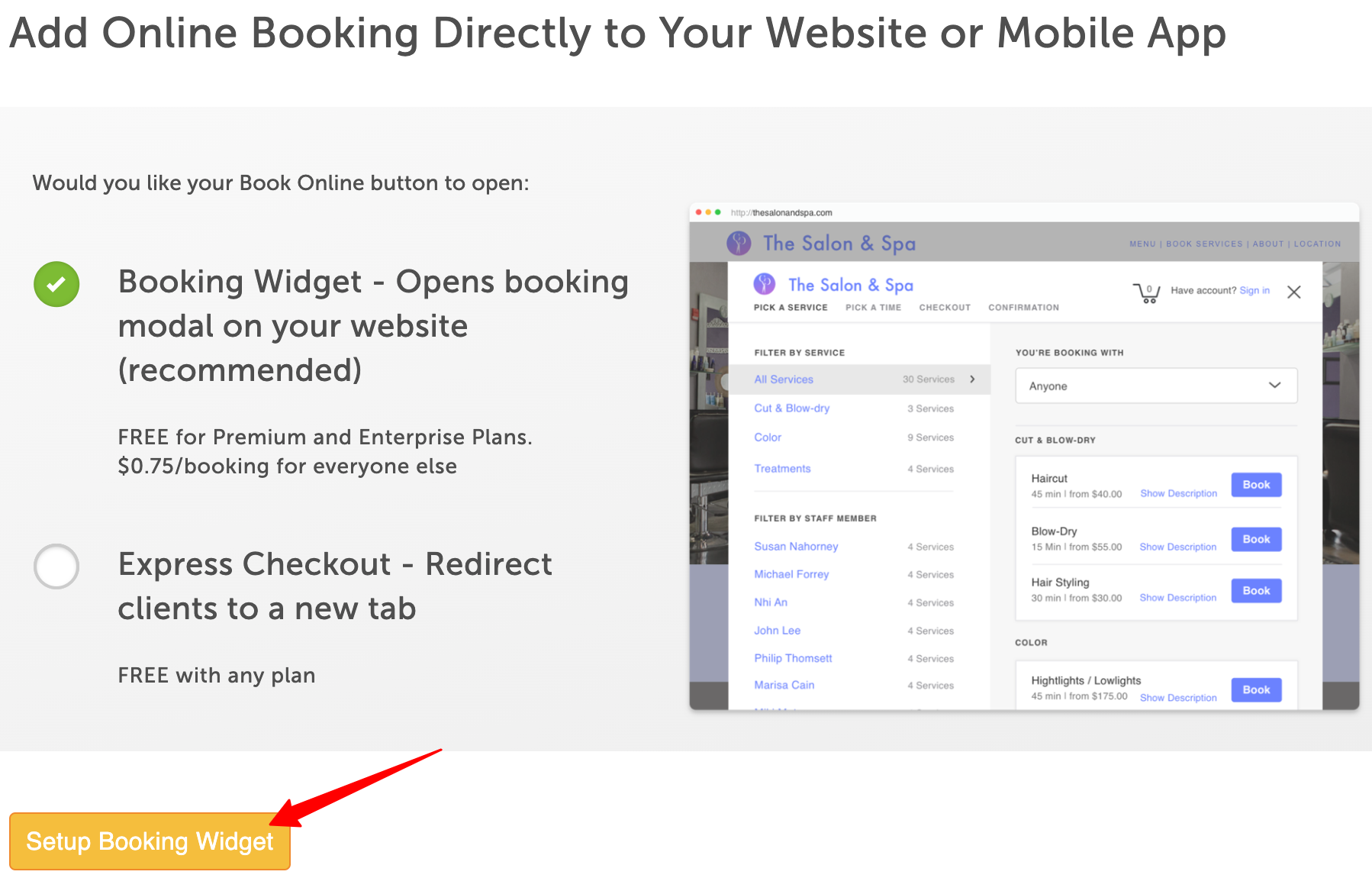
4. You can choose to install a widget or express checkout link
- Booking Widget: Clients book directly on your website. A pop-up appears, allowing them to complete the booking.
- Free for Premier and Enterprise MyTime subscriptions.
- $0.75 per transaction for businesses without a Premier subscription.
- Customize Your Booking Widget
- Express Checkout: Clients click the Book Now button and are redirected to your MyTime booking page. Available for free to all MyTime accounts
- Booking Widget: Clients book directly on your website. A pop-up appears, allowing them to complete the booking.
5. Select the Booking Widget option then proceed to set up the widget
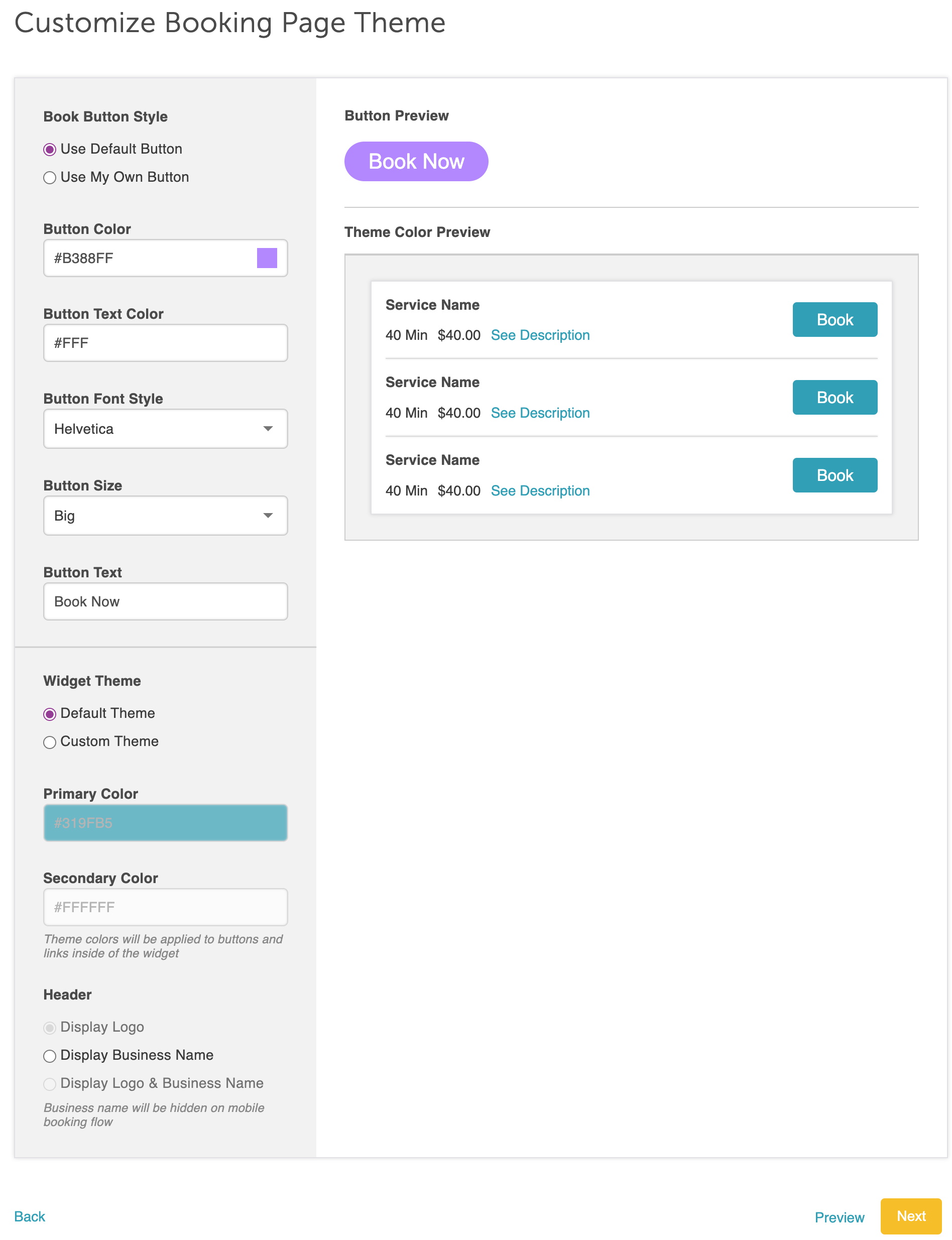
 6. On the Customize Booking Page Theme page, set up your button and widget theme, then select next to proceed to the installation page
7. From there, configure the following:
- In the left panel
- Default Location: For the service embed flow to function, you must select either a specific location or “All Locations.” Locations are required to search for services correctly.
- If "All Locations" is selected, clients will be prompted to choose a location from the 'Pick A Location' page when accessing the embedded widget.
- If a single location is selected, the embedded widget will default to that location, and the 'Pick A Location' page will not appear.
- Widget Includes: Select “Services” from the Widget Includes dropdown menu; multiple selections can be made to include memberships, packages, gift cards, etc
- Default To: Select “Book Services”
- Meta CAPI: Learn more here
- Default Location: For the service embed flow to function, you must select either a specific location or “All Locations.” Locations are required to search for services correctly.
- Google Tag Manager: Learn more here
- Google Analytics 4 ID: Learn more here
- Facebook Pixel: Learn More here
- Custom CSS: Customize your widget by adding CSS instructions
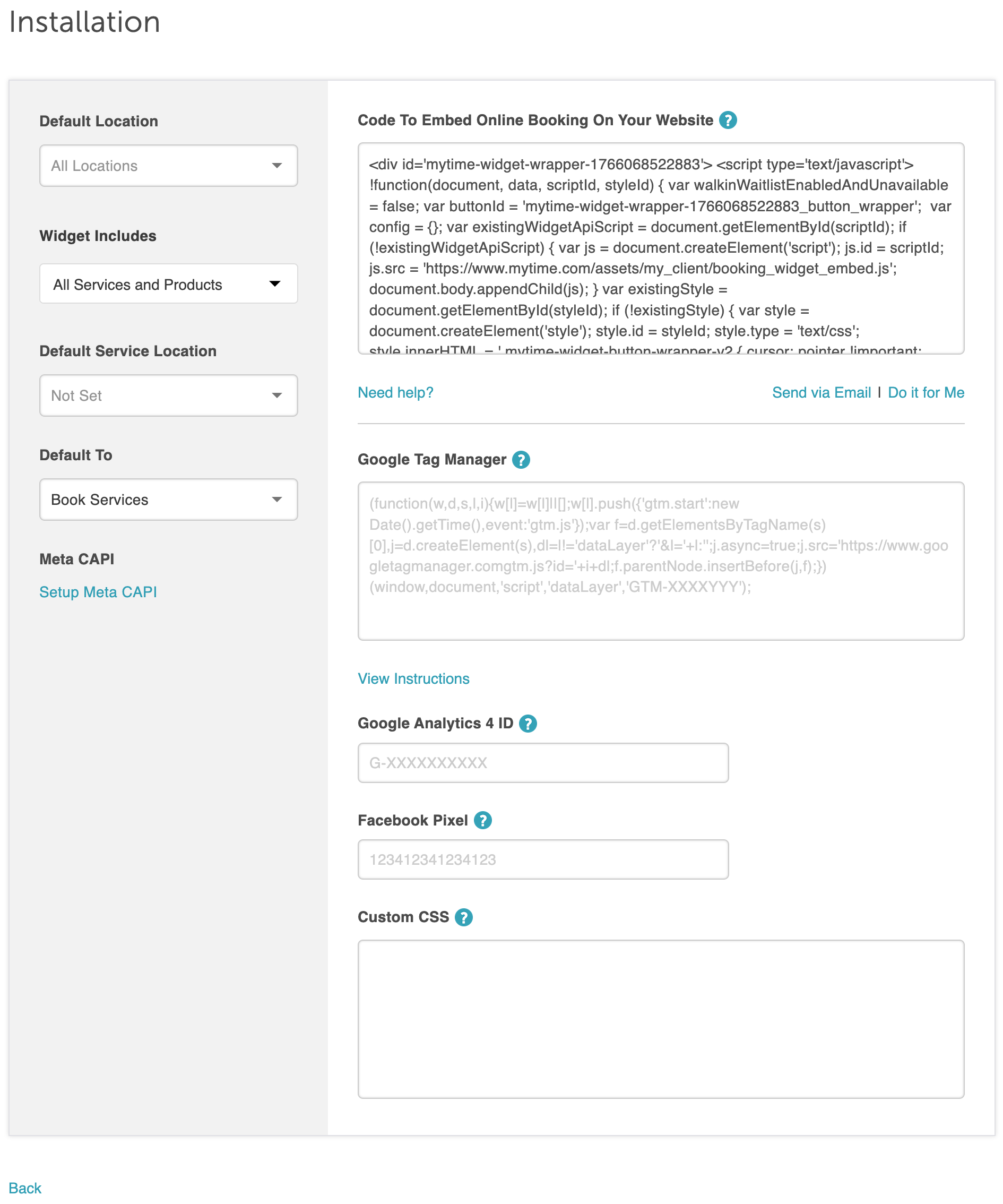
8. Copy the code and embed it on your website
Configure the Parent Express Checkout Link
To configure the parent express checkout link:
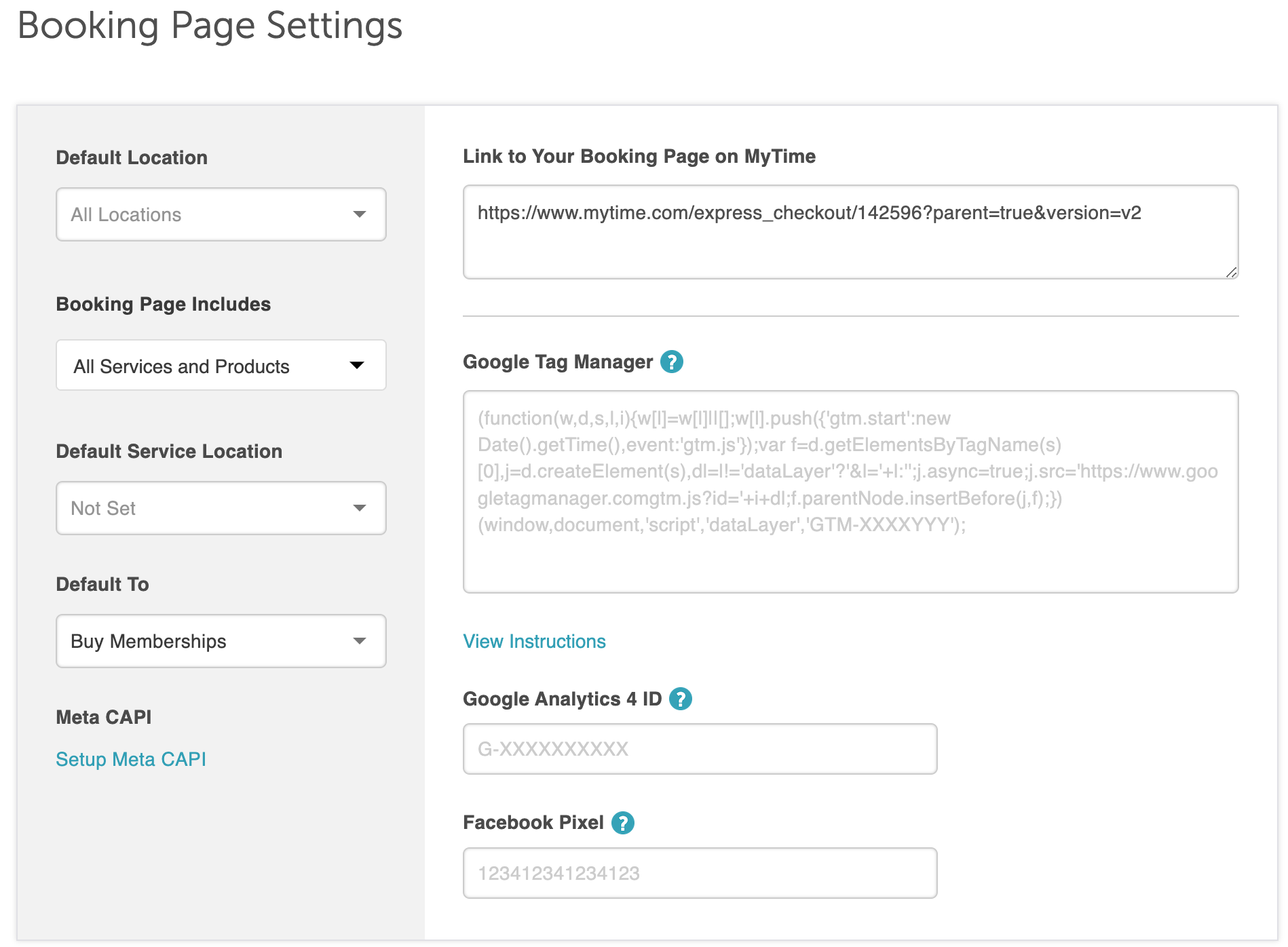
1. Select Express Checkout, then proceed to the Booking Page Settings
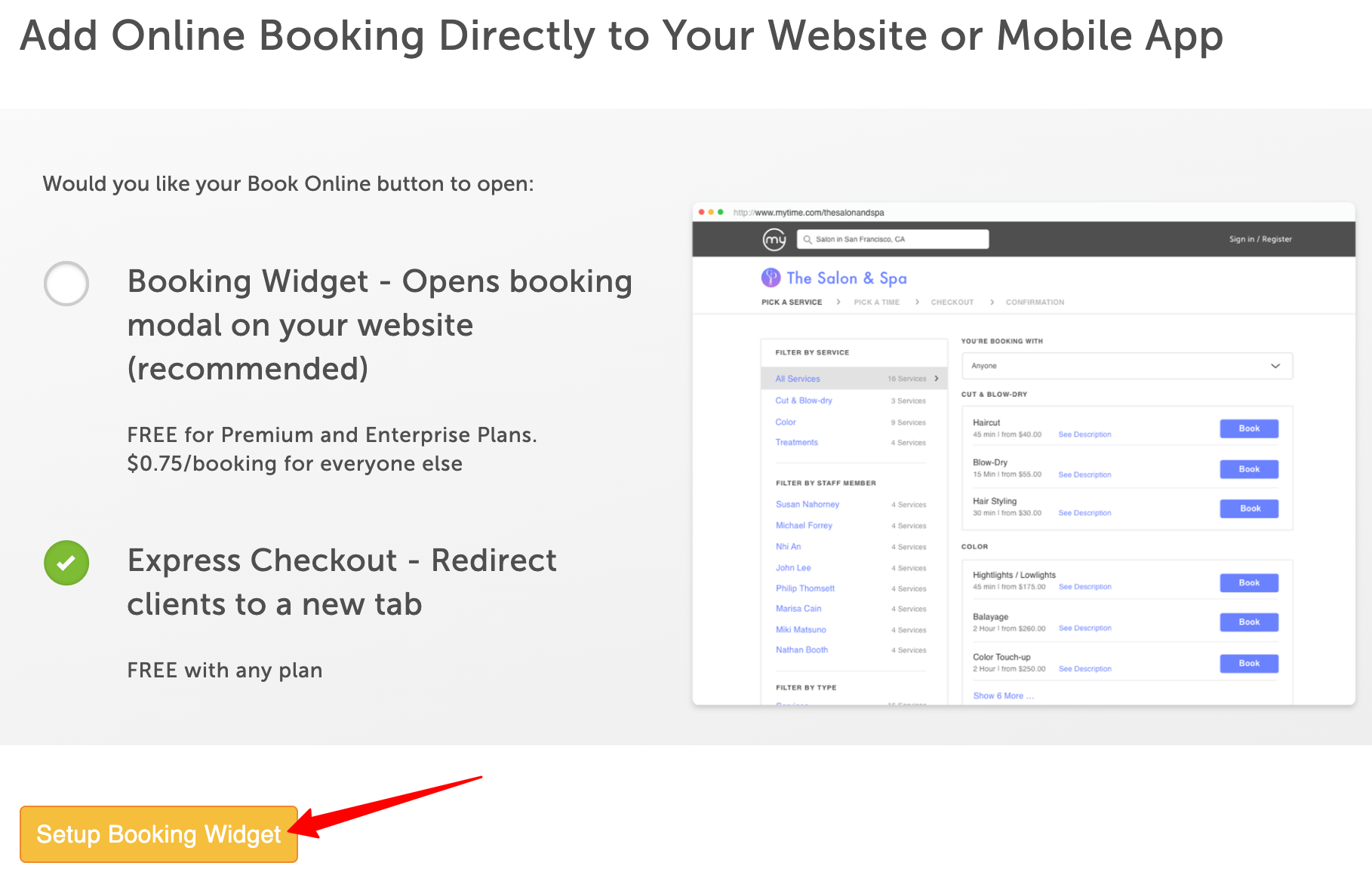
2. On the Booking Settings page, you can customize the booking page theme, set up your button and widget themes, and choose what you'd like the layout of your button to look like
- In the left panel
- Default Location: For the service embed flow to work, you must choose a location. The location is required to search for the services correctly
- Booking Page Includes: Select “Services” from the Widget Includes dropdown menu; multiple selections can be made to include memberships, packages, gift cards, etc
- Default Service Location: You can then decide if the widget should default to in-store or the client's location
- Default To: Select “Services”
- Meta CAPI: Learn more here
- Google Tag Manager: Learn more here
- Google Analytics 4: Learn more here
- Facebook Pixel: Learn More here
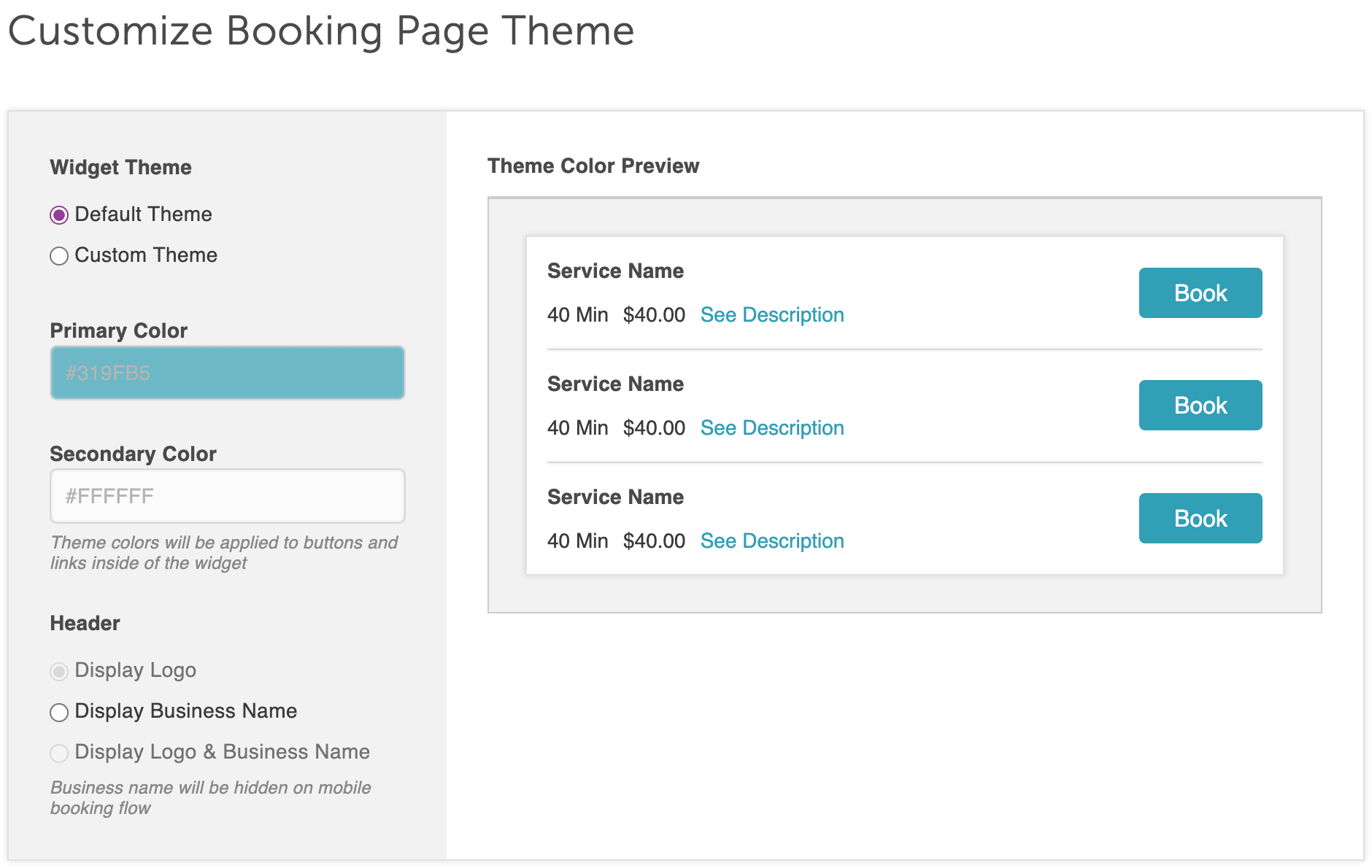
3. Scroll down to the "Customize Booking Page Theme" section to adjust widget themes and specify what should be displayed in the header when booking an appointment online
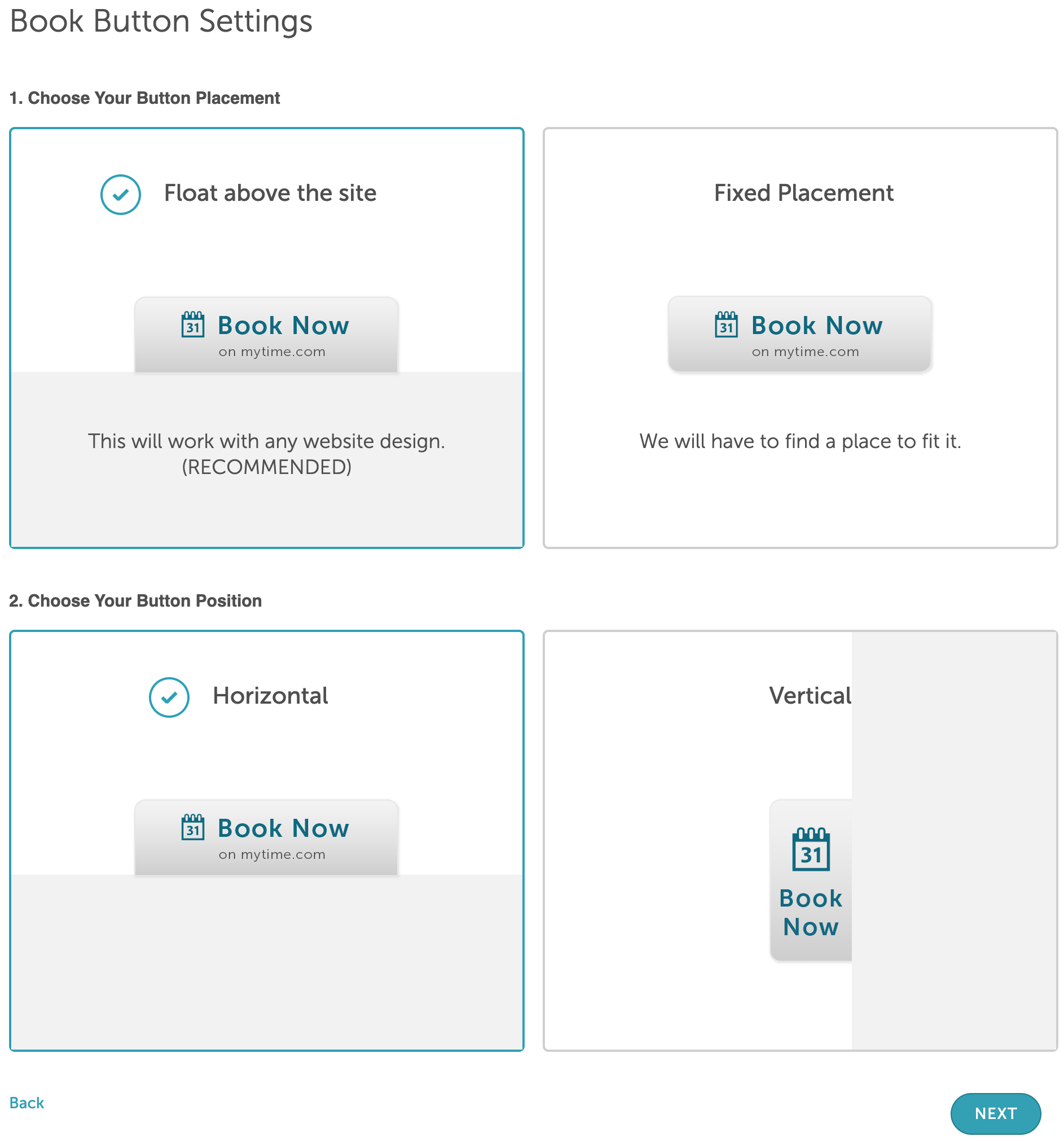
4. Under the Book Button setting:
- Your button can hover over your website or have a fixed placement
- You can also choose the button position and it will appear either horizontally or vertically on your page
- You will also be able to choose the default location, then select next to proceed to the installation page.
5. Copy the code and embed it on your website
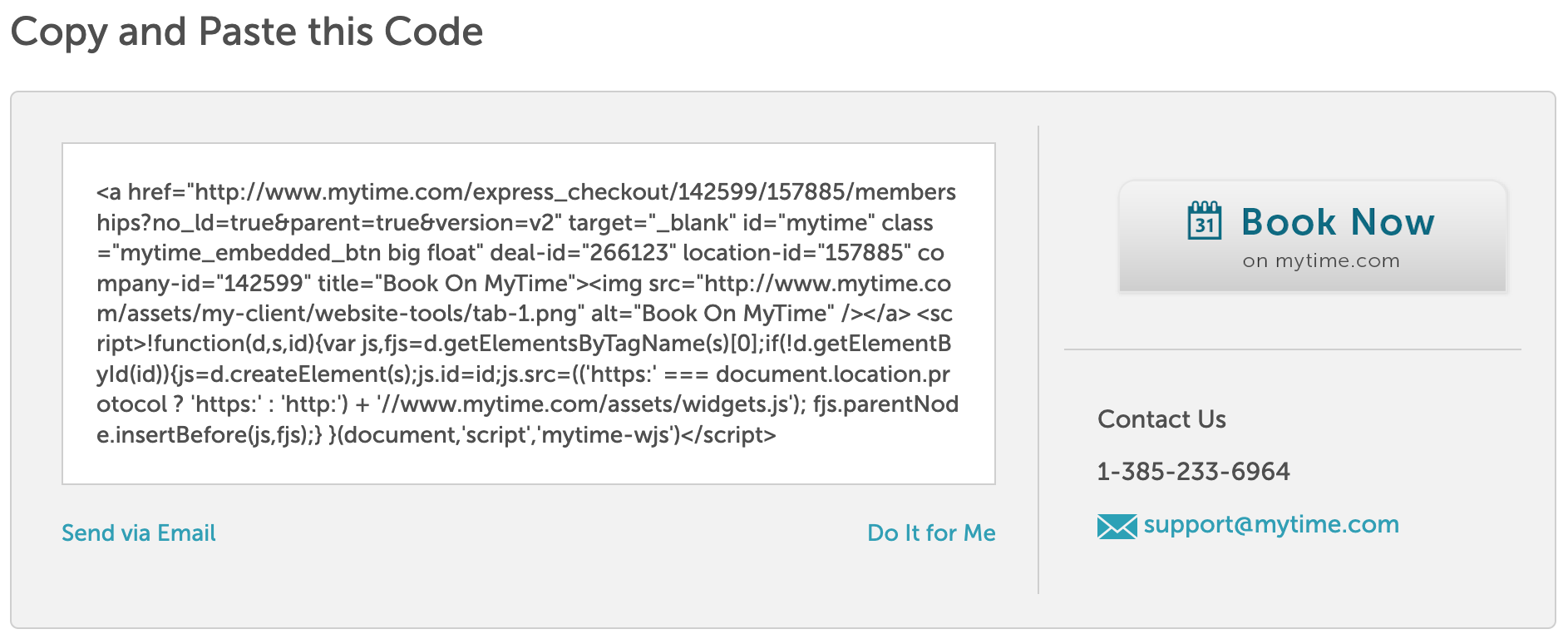
**It is important to note that you will need to re-embed the widget on your website once you update the settings.**
Installing the Widget
Once configured, your appointment bookings can be embedded on your website as a button or an entire page without a pop-up.
1. Copy the generated embed code
2. Paste the iframe code into your website’s HTML. You can add it to a dedicated booking page or within an existing page
3. A web developer can help adjust size, width, or positioning to fit your site layout.
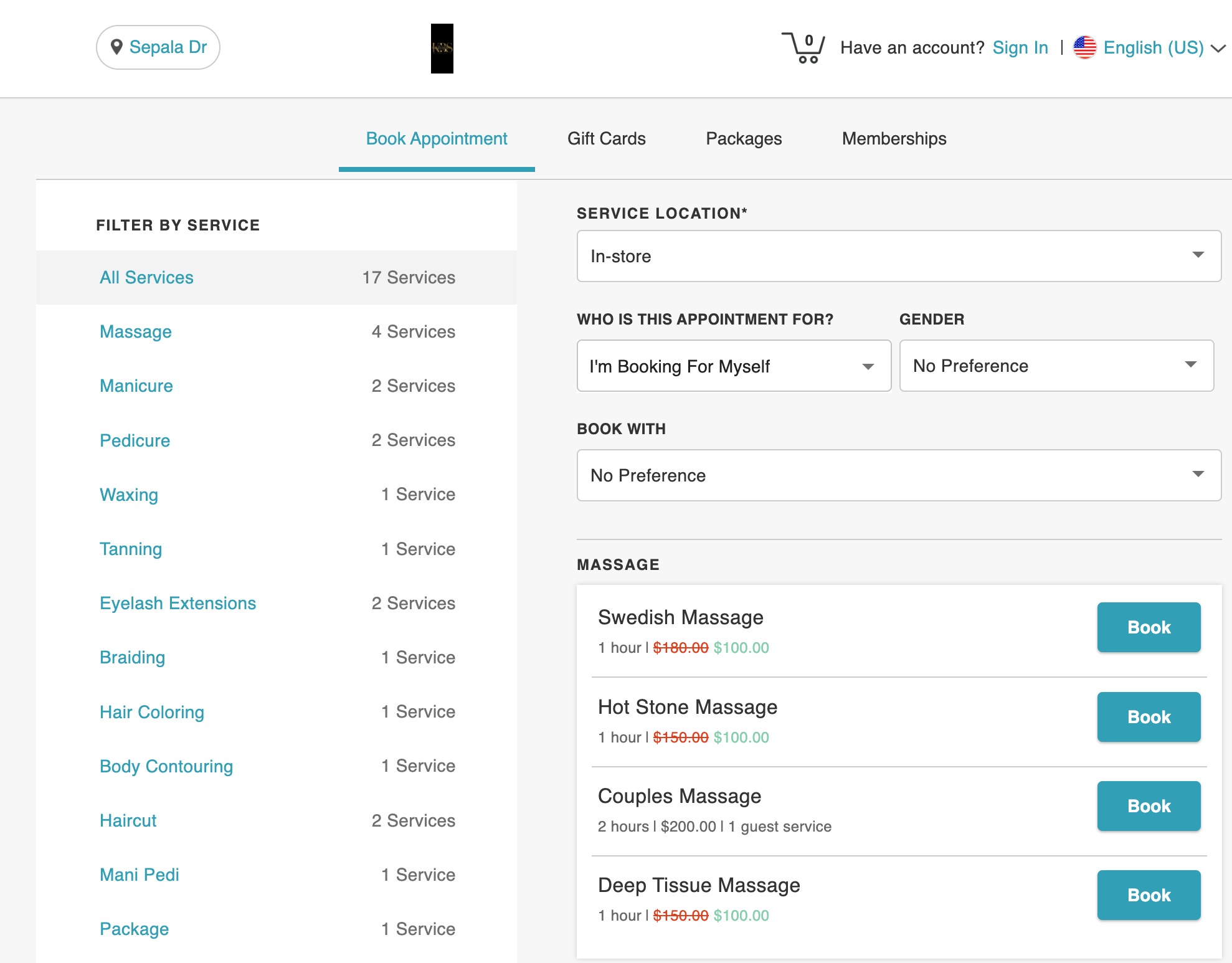
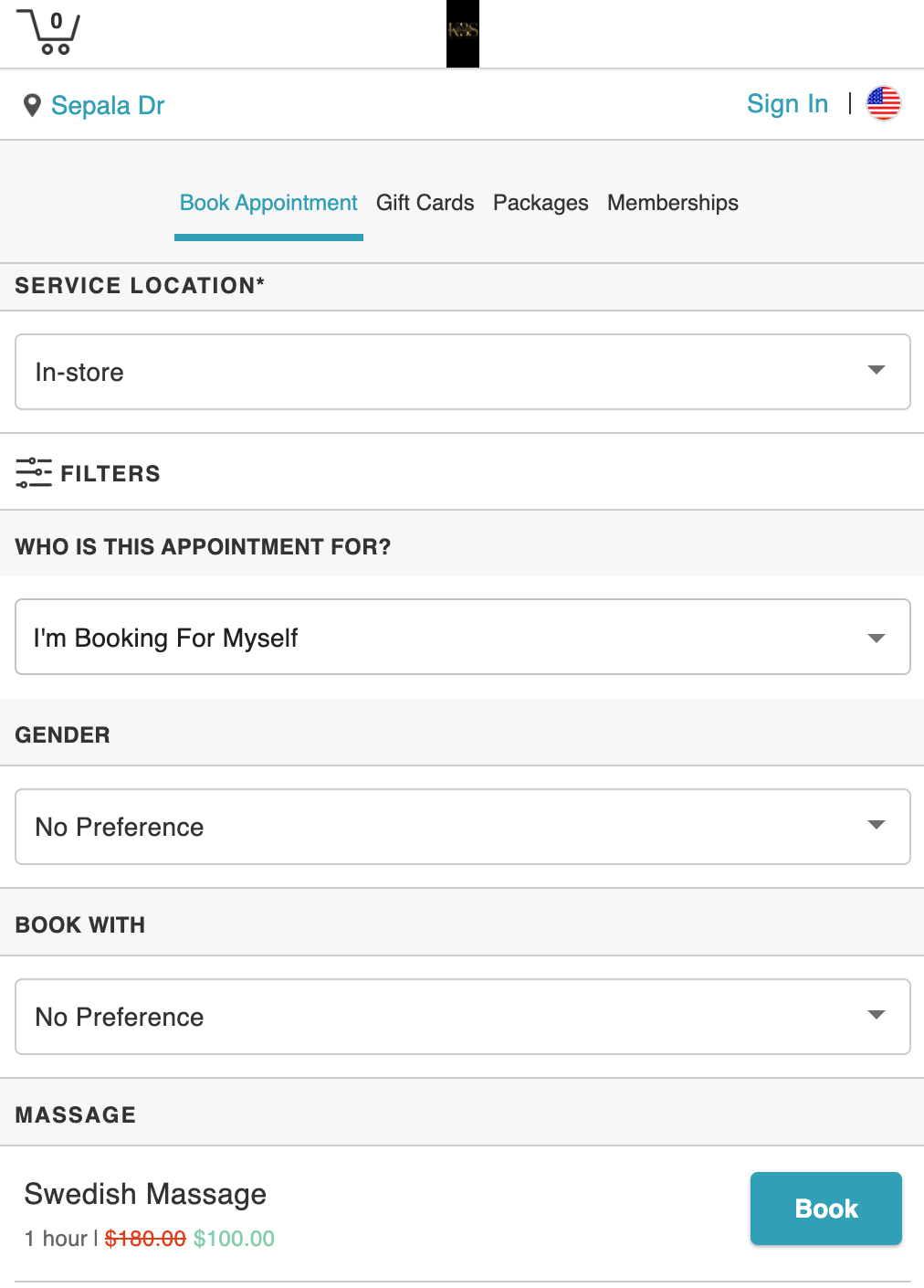
On Tablet/Mobile: The widget automatically adjusts to fit narrower screen sizes.
If you update the widget settings later (e.g., add Google Analytics, Facebook Pixel, or Custom CSS), a new URL may be generated. In that case, you’ll need to re-embed the updated code.
Congratulations! Clients can now book your appointments and make purchases directly from your website.
For more information, contact us at support@mytime.com.
Related Articles
Add Class / Event Booking on the Booking Widget & Express Checkout Page
Add Membership Purchases on the Booking Widget & Express Checkout Page
Add Appointment Booking on the Booking Widget & Express Checkout Page
Add Gift Cards Purchases on the Booking Widget & Express Checkout Page
Deep Linking Classes on the Booking Widget & Express Checkout
Deep Linking Services on the Booking Widget & Express Checkout Page
Deep Linking Packages on the Booking Widget & Express Checkout
Deep Linking Memberships on the Booking Widget & Express Checkout Page
Booking Appointments Online for Family Members
Was this article helpful?
That’s Great!
Thank you for your feedback
Sorry! We couldn't be helpful
Thank you for your feedback
Feedback sent
We appreciate your effort and will try to fix the article