This report shows the reviews provided by each verified client for services provided.
Things to know:
- The ability to access this report is governed by the "Accessing Reports" access control setting
- All star ratings (1–5) are tracked and recorded within MyTime
- The MyTime Feedback Report captures data from various sources, but the level of detail displayed depends on where the review was originally posted:
- Private MyTime Feedback: If a client submits a review through the internal MyTime feedback form, the full text of their comment is captured and visible directly within the report.
- External Reviews (Google, Facebook, etc.): For reviews left on third-party platforms via the "Request Review" email, MyTime tracks the star rating to help you monitor your reputation. However, the specific review text from these platforms is not pulled into the report due to the privacy policies of those external sites.
- Exports are limited to a summary view, which consolidates data by category (such as location, staff member, etc). This format is designed for high-level analysis of performance metrics rather than individual transaction tracking.
- Internal Tracking
- Private MyTime Feedback: Every star rating and written comment submitted via the private MyTime feedback loop is automatically logged and saved in full within your Reviews & Staff Ratings report.
- External Reviews (e.g., Google, Facebook): For reviews left on external sites, only the star rating is captured in the client and staff rating reports. The written text from external reviews is not displayed in these internal reports.
To access this report:
- Navigate to Dashboard
- Select the Reports tab
- Under the Clients section, select the Reviews report

When the report loads, you can filter by a specific location, staff, and date. You can choose to view the report by date or location. If the By Location button is used at the top of the report, you will be able to easily compare metrics across locations and location groupings to see which locations are doing better or worse on that dimension.
Below the By Location button, you have the option to download the report as a CSV, PDF, or print version.
Once you have selected your filters, click on the UPDATE button to generate the desired data.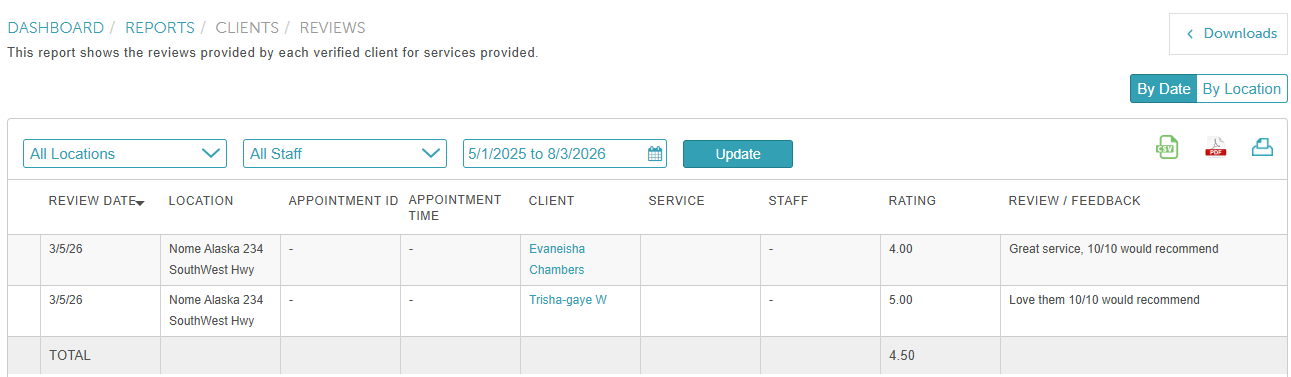
Report Filters
| Filter | Description |
| Location | The location the review is associated with
|
| Staff | The staff member who performed the service during the date range and location selected. |
| Date | This range will determine the date range the review was made. |
Report Columns
| Column | Description |
| Review Date | The date the review was left |
| Location | The location the review is associated with |
| Appointment ID | The classifying number associated with an appointment. Clicking this link opens the appointment modal in Scheduler. |
| Appointment Time | The date and time the appointment took place. |
| Client | The name of the client who left the review. Clicking this link opens the client's profile. |
| Service | The name of the service associated with the review. |
| Staff | The staff member who performed the service during the date range and location selected. Clicking this link opens the staff member's profile. |
| Rating | The ranking of the review. This can be between 1 and 5 stars. |
| Review / Feedback | Displays feedback submitted by the client through the MyTime feedback form. Feedback left on external platforms (such as Google) is not included in this report. |
Related Articles:
Was this article helpful?
That’s Great!
Thank you for your feedback
Sorry! We couldn't be helpful
Thank you for your feedback
Feedback sent
We appreciate your effort and will try to fix the article