Once tipping is enabled on the account, you will be given the option to add tips to POS tickets. In this article, we will walk through the steps on how to add tips using the Scheduler app.
Things to know:
- To enable the option to add a tip, the "Allow Clients to Leave Tips?" setting must be turned on in your account.
- The +Tip option only appears when a service is added to the ticket
- You have the option to split the tip with multiple staff members
- The split tip option will only appear once you have added a tip to the ticket
- If the "Allow clients to leave tips?" setting is enabled and a tip is added to a ticket, disabling the setting later will make the tip amount visible on the ticket, but it cannot be edited.
- If the "Allow clients to leave tips?" setting is disabled, any tips added to tickets prior to this change will not affect the ability to process refunds for those tips on the ticket
- The Tips report will show appointment details, the tip amount given in both percentage and dollar amounts, and whether the tip was removed from the register.
Contents:
Adding Tips
- Launch the MyTime Scheduler app on your device
- Choose your login method:
- Standard: Enter your registered email address and password, then tap 'Sign In'
- Social Login: Select 'Continue with Google' or 'Continue with Apple' to use your existing credentials for a faster login experience. For detailed instructions, learn more here
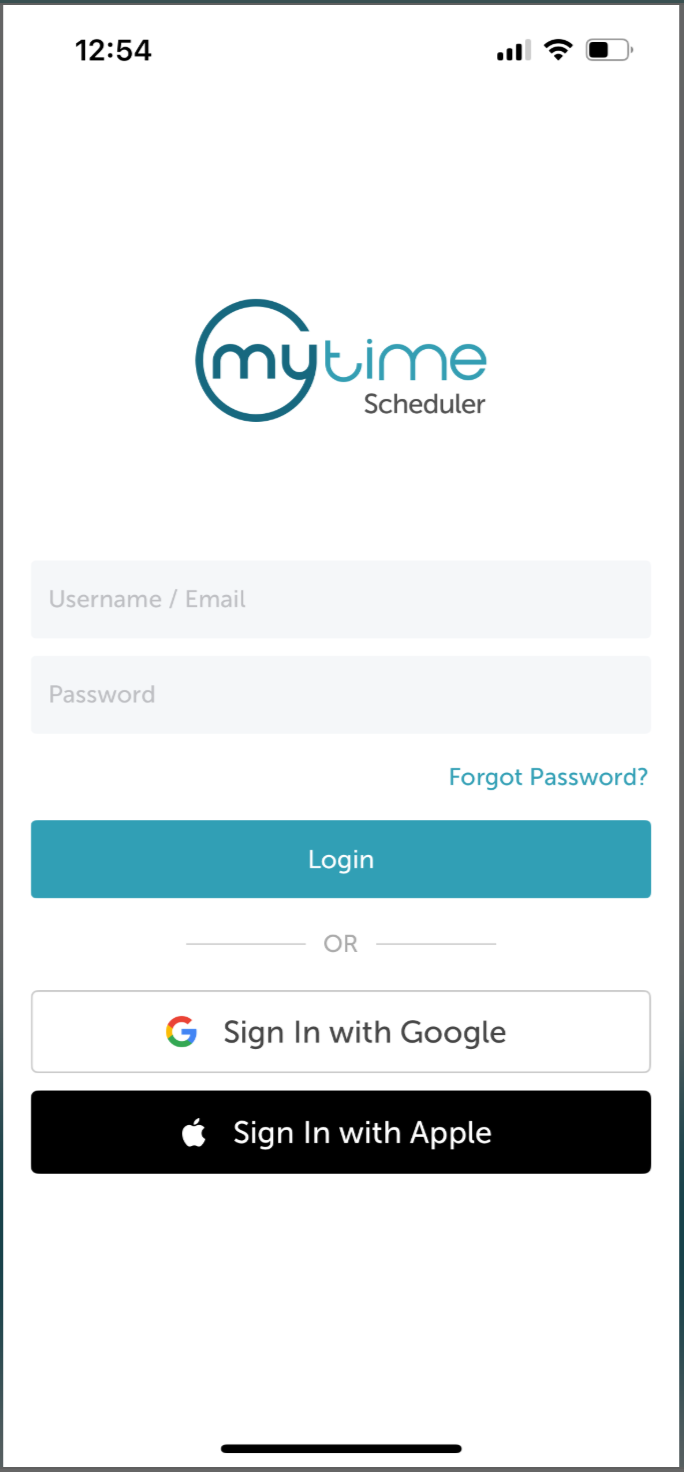
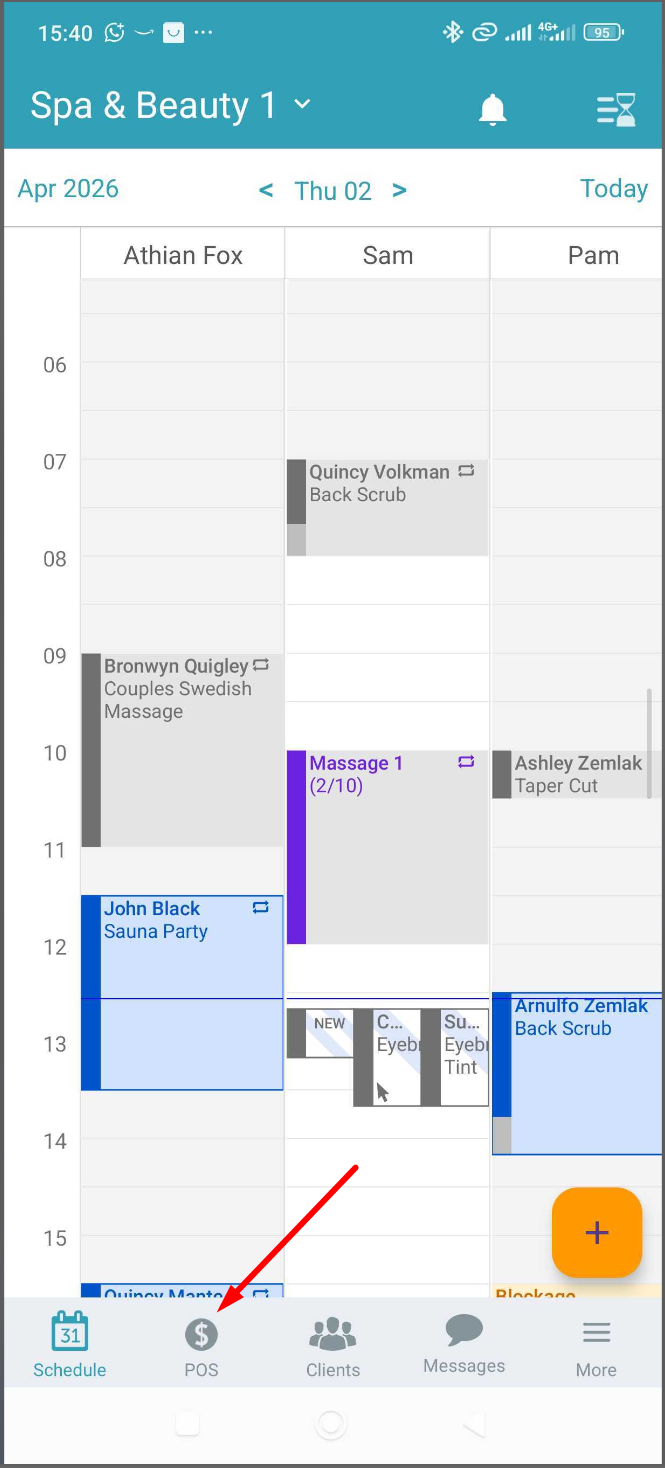
- Once signed in, you will be directed to the schedule by default
- On the navigation menu, click the POS icon to be directed to the New Ticket screen to add tips then checkout
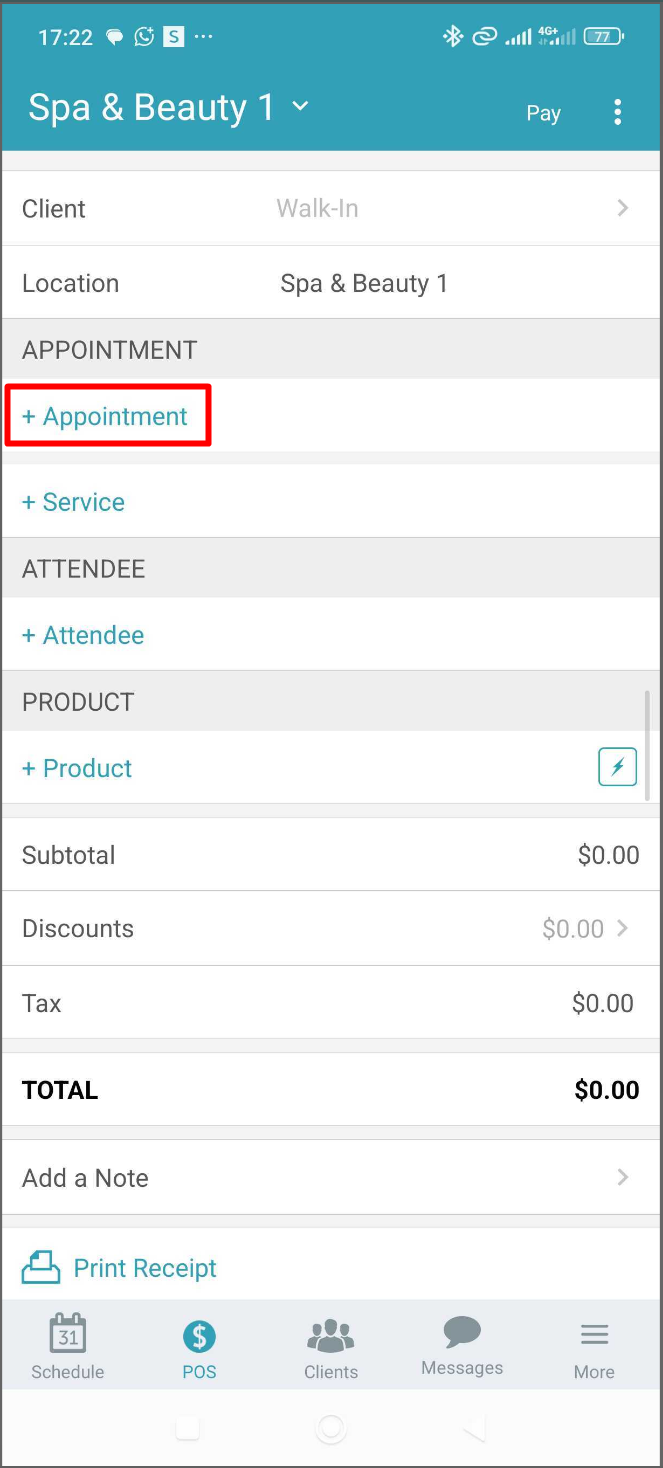
- Click '+Appointment'
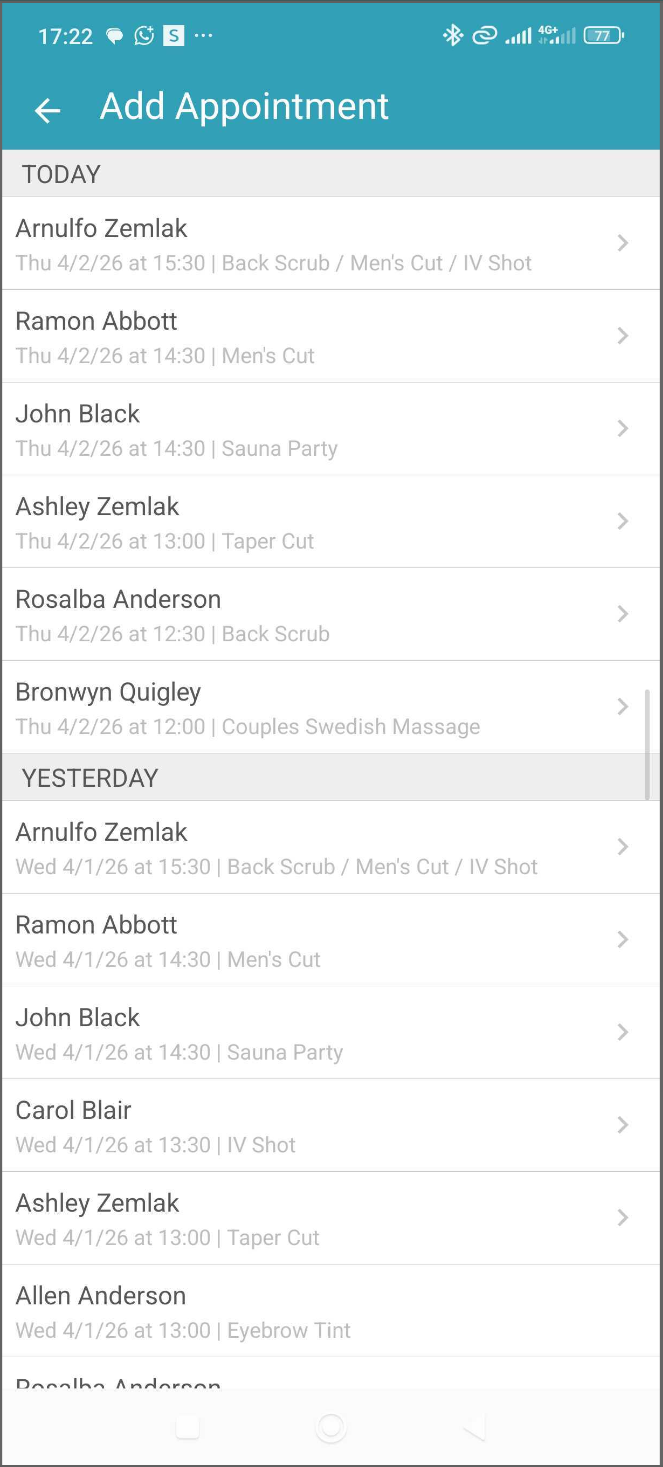
- Tap on the desired appointment to check out
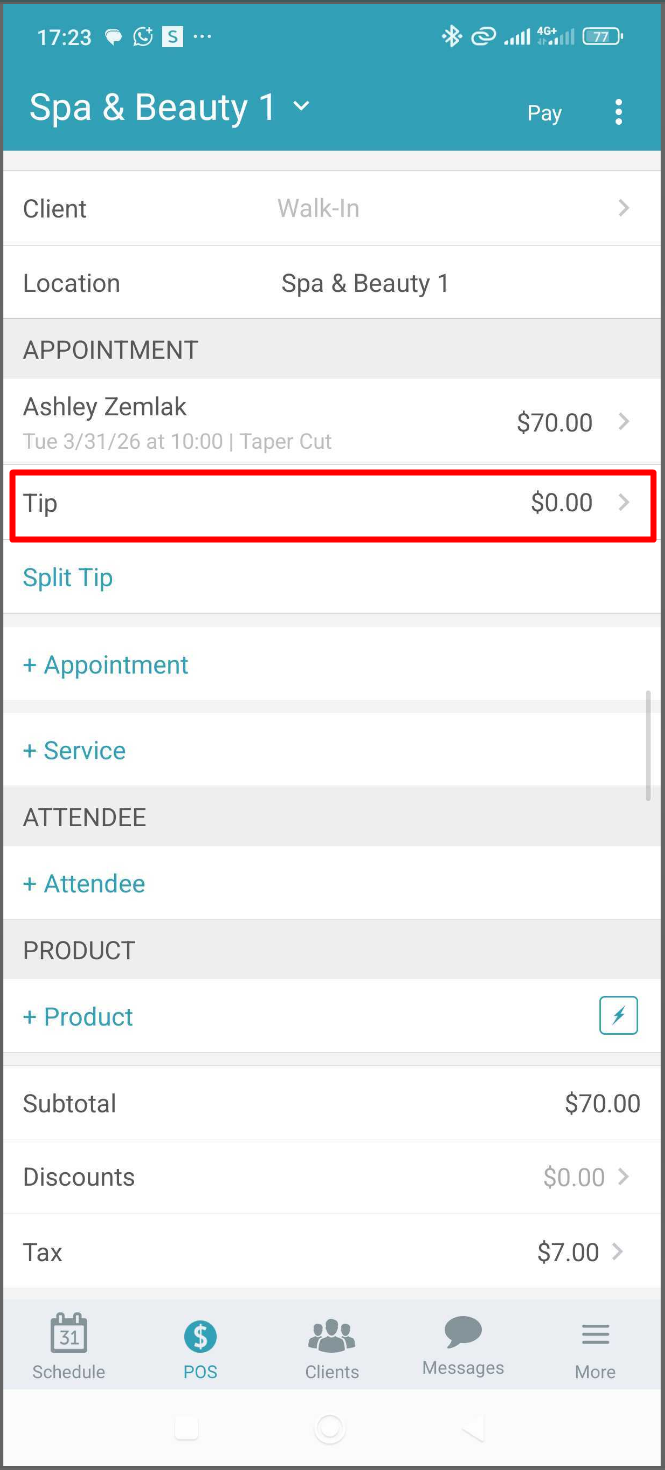
- Once the appointment is added to the ticket, tap 'Tips'
- You will then be directed to a page where the service revenue is displayed at the top, along with tip options for you to choose from. The default tip options provided are determined by the settings "Default Tip Buttons"
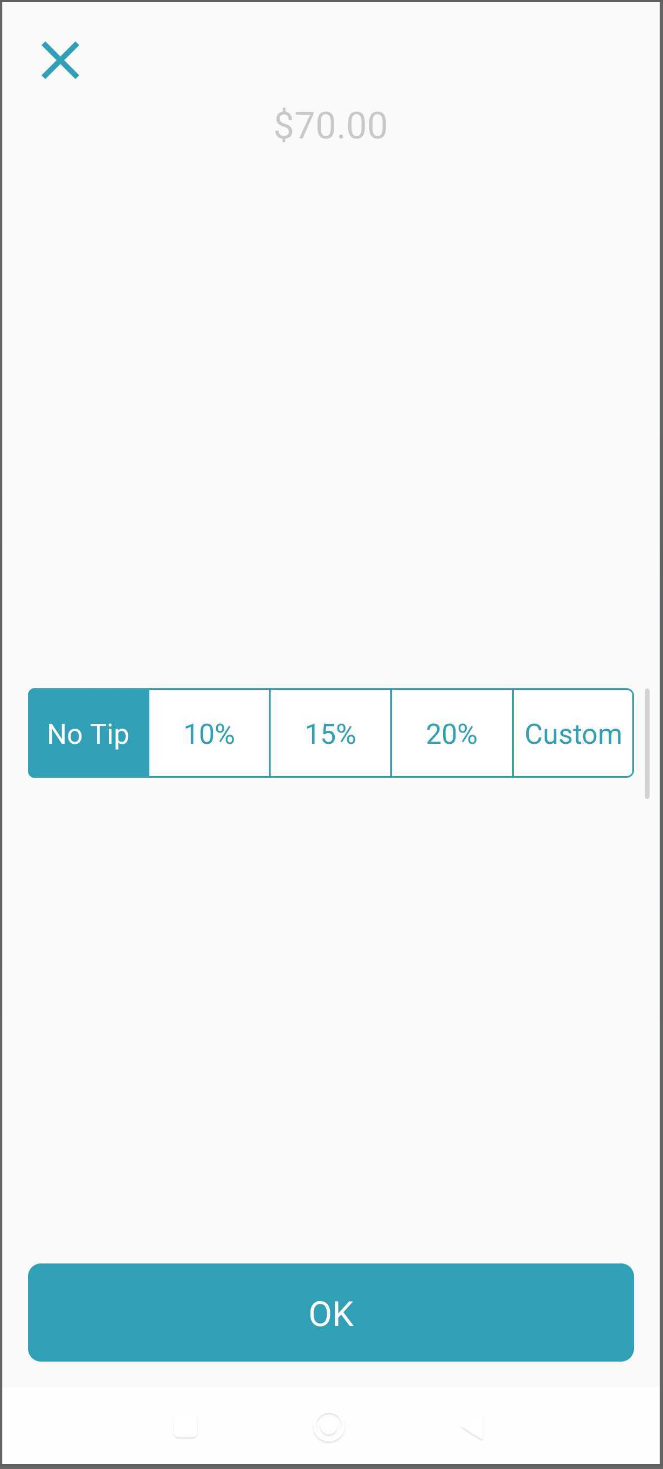
After selecting the desired amount, click "OK"
You will be redirected to the ticket, where you can choose to split the tip
Splitting Tips
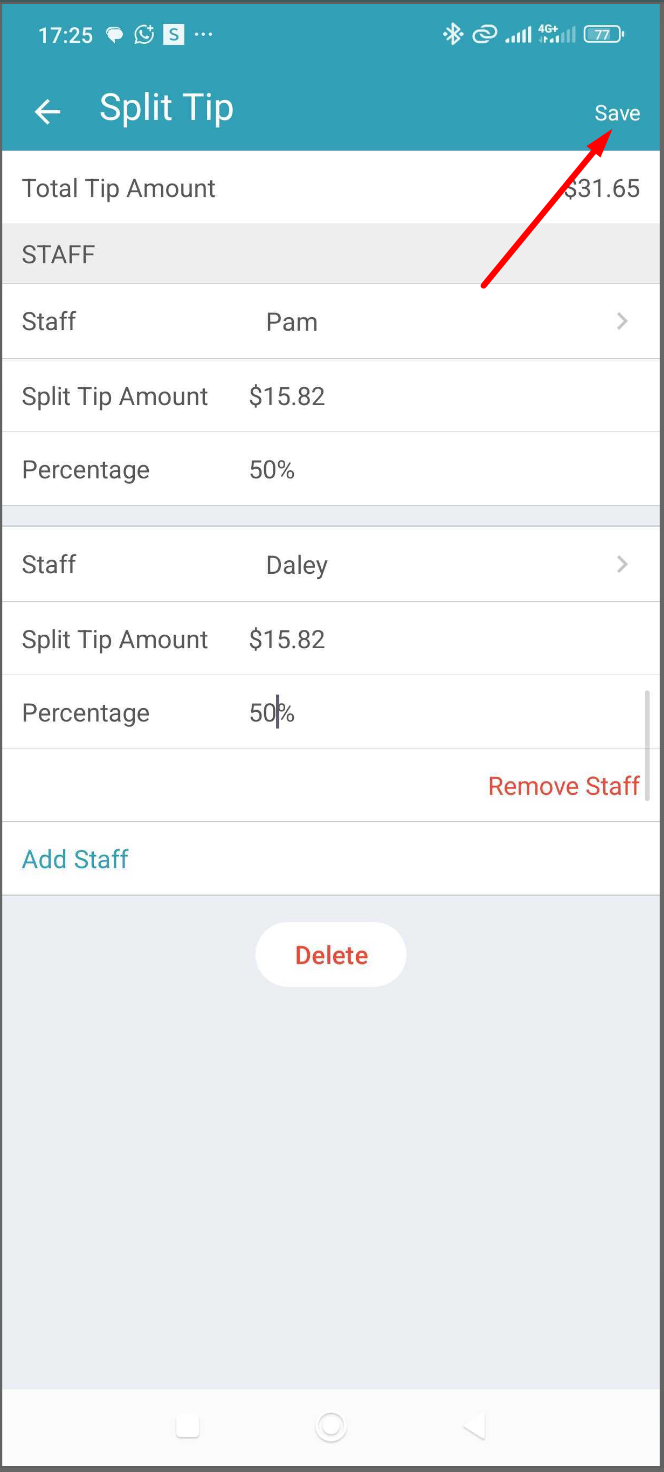
- Tap on the "Split Tip" hyperlink
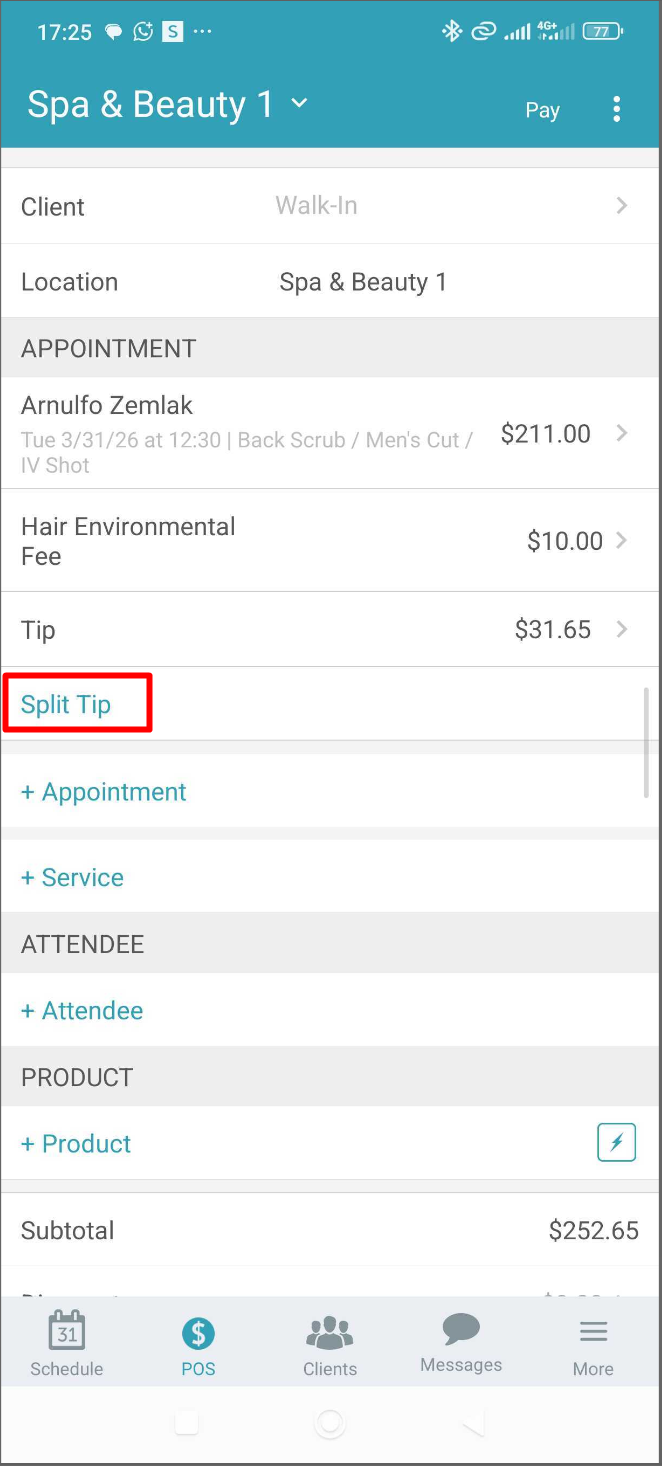
- You will see the tip amount reflected
- Click on "Add Staff" to include the staff member(s) you wish to split the tip with
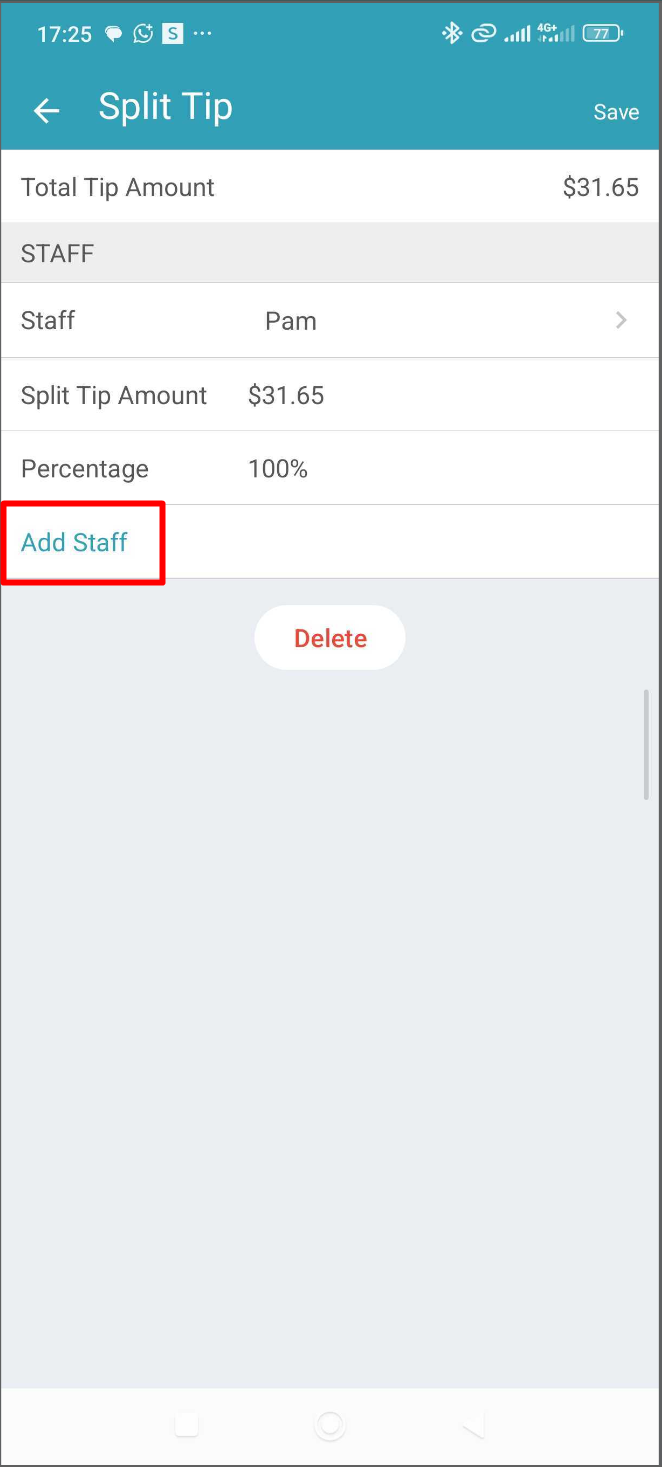
- Enter the percentage each staff member should receive
- Click "Save"
Once the tip is added, you have the option to tap on "Pay" to take payment. Once payment is received, you can close the ticket, where you will receive a ticket number and see the details of the ticket.
For more information, contact us at support@mytime.com.
Related Articles:
Installing MyTime on Scheduler App (Android and iOS)
Signing into MyTime on Scheduler App (Android and iOS)
Scheduling Appointments on Scheduler App
Was this article helpful?
That’s Great!
Thank you for your feedback
Sorry! We couldn't be helpful
Thank you for your feedback
Feedback sent
We appreciate your effort and will try to fix the article