MyTime allows clients to book classes and events online using the booking widget, which offers a convenient and efficient way for clients to reserve their spots in upcoming sessions. This article will walk through the steps your clients would take to book classes or events on the widget.
Things to know:
- When a class is booked online, a ticket is automatically created
- The date picker displays the current month but highlights an entire week from the current date. Once a week is selected, all classes scheduled during that period will be displayed to the right.
- Classes that are fully booked will remain visible in the list of classes provided by the business. However, when clients click the "Select" button, a modal will appear to notify them that the class is at capacity and booking is unavailable.
- When a client books a class session for multiple attendees, the main client will receive separate confirmation emails for each associated attendee. For example, if the main client books for themselves and 4 additional attendees (5 total), 5 confirmation emails will be sent. However, you can configure your account to ensure that the main client receives only one notification. This functionality is controlled by the 'Send only one campaign per client for a group booking' hidden setting that can only be enabled by the MyTime team. To enable this setting, please contact us at support@mytime.com.
- You can configure your account to automatically attach a PDF receipt to a client's confirmation email whenever they pay a deposit online for a class booking. Once enabled, the receipt will be included in the Class Booked Online by Client template. This feature is controlled by a hidden setting, please contact the MyTime Support team to have it enabled.
- Once the hidden setting to hide the attendee type for classes with only one type is enabled, clients booking such a class will not see a quantity selection option. Instead, the class will be automatically added to their cart with one attendee, and they will be redirected straight to the checkout page.
- Promotions can be applied to lower the total cost of online class bookings, including bookings with multiple attendees.
- When booking a class online that requires a deposit, clients can choose to pay a partial amount using a gift card or pay the full amount using any available method.
- Pay In Person
- If the gift card balance covers the full deposit: The client can enter their gift card code at checkout. The gift card will be applied to the deposit, and any remaining balance on the gift card can be used toward the class total when paying in-store. If needed, another payment method can be used to pay the remaining amount in person.
- If the gift card covers only part of the deposit: The system will apply the gift card for the available amount. The remaining portion of the deposit will be charged to the client’s credit card at checkout. The client can then pay any remaining class balance in person.
- Pay Online
- If the gift card covers the deposit and the remaining class balance: The entire amount will be paid using the gift card once it is applied at checkout.
- If the gift card covers only the deposit: The gift card will be applied to the deposit, and the credit card will be charged for the remaining class balance.
- If the gift card covers only part of the deposit: The system will apply the gift card to the portion it can cover. The client’s credit card will then be charged for the remainder of the deposit and any remaining class fees at checkout.
- This feature is controlled by the 'Enable Paying Deposit via Gift Card' setting, which can only be enabled by MyTime Support.
- The ability for clients to remove applied gift cards or promo codes (via an 'X' icon) during online checkout, the "Separate promotion and gift card codes" hidden setting must be enabled. If this feature is not currently active on your account, please contact the MyTime Support team to have it enabled.
- The widget is fully accessible to all clients, including those using screen readers, keyboard-only navigation, voice commands, or other assistive technologies.
- Screen Reader Compatibility: Fully compatible with desktop screen readers, including NVDA, JAWS, and VoiceOver. Every button, menu, calendar date, checkout field, and saved payment method includes descriptive labels for clear audio feedback.
- Keyboard Navigation: Navigate and complete the entire booking process using only the Tab, Shift + Tab, Enter, and Space keys.
- Live Announcements: Screen readers automatically announce status updates, such as confirming your selected date or highlighting required fields.
- Platform Availability: Currently optimized for desktop web browsers.
- Need Direct Assistance? If you experience any difficulty booking online, please contact the business directly. Their team will be happy to assist you and schedule your appointment over the phone.
- During checkout, if a client is not signed into their account, they will be prompted to log in. If they do not have an account, they can click the "Sign Up" link to create one.
- You can prevent clients from booking a specific class or all classes online by disabling the "Allow Online Booking" setting when scheduling a class session in-store.
- At checkout, you can adjust the number of attendees by selecting the desired quantity from the Attendee drop-down in the Booking Summary. After updating the number, fill in the details for each additional client. The total price will automatically update to reflect the new attendee count.
To book a class on the booking widget, clients can:
- Navigate to your business website or booking widget
- If your business has multiple sites, select their preferred location
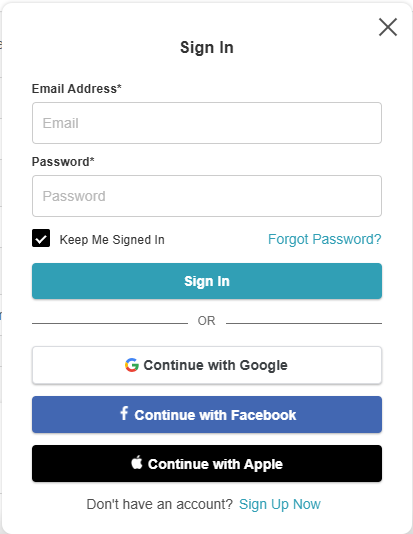
- Click the "Sign In" button at the top of the page
- Choose their login method:
- Standard: Enter their registered email address and password, then click 'Sign In'
- Social Login: Select 'Continue with Google,' 'Continue with Apple,' or 'Continue with Facebook' to use their existing social media credentials
- They will redirect them to the "Book Class" tab
- Pick a date using the Date Picker. Only days that have class sessions scheduled will be highlighted; all other days will be greyed out.
- Select the desired staff member and class category
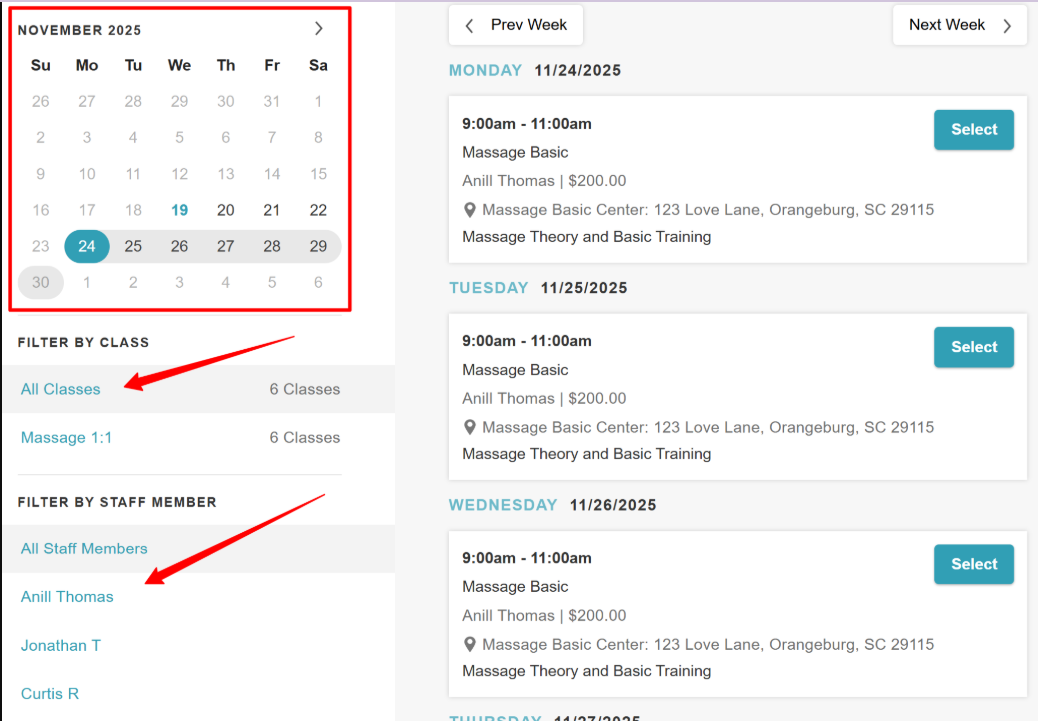
- Click "Select" next to the preferred class
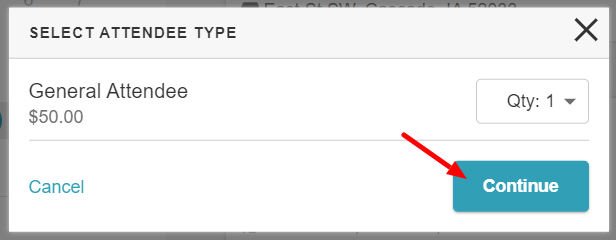
- Select the attendee type if there is more than one option available, and click the "Qty" dropdown to add multiple attendees. Then, click the "Continue" button to proceed to the checkout page
- Complete any required intake form and payment details via card, Google Pay/Apple Pay (if applicable), and adjust attendee type quantities if needed.
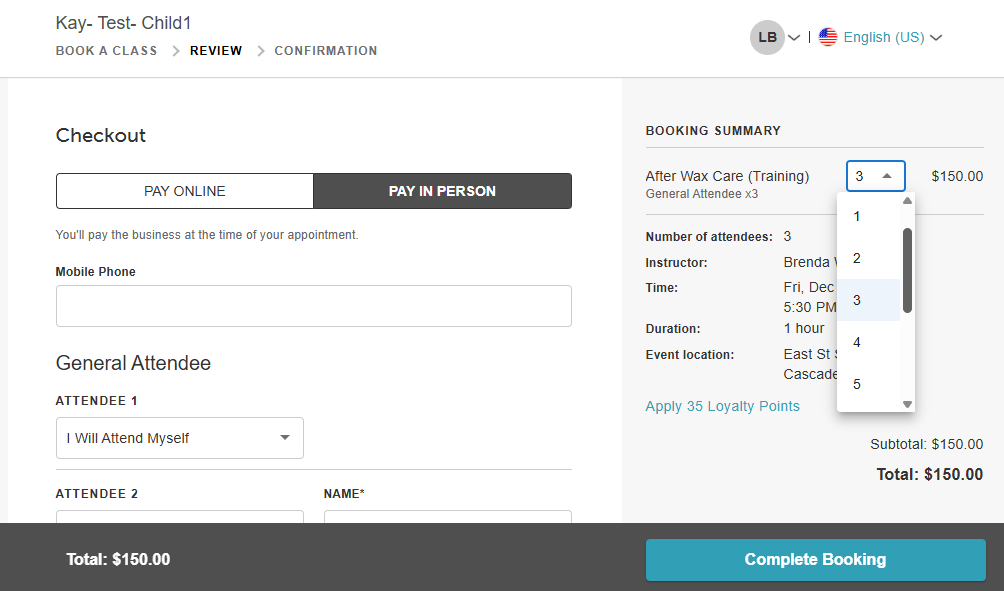
- Click "Complete Booking"
- On the confirmation page, the information for the class/event booked will be displayed


Once the class session is booked, the client can:
- Use the 'Book Again' button to navigate to the time picker to book another class session
- Add the booked class session to your personal Google, Yahoo, Outlook, or Apple calendar
- Get directions to the business using the 'Get Directions' link
- Print a copy of the class session confirmation using the 'Print' link at the bottom left of the screen


For more information, contact us at support@mytime.com.
Related Articles:
Was this article helpful?
That’s Great!
Thank you for your feedback
Sorry! We couldn't be helpful
Thank you for your feedback
Feedback sent
We appreciate your effort and will try to fix the article