For accounts with the family member feature enabled, you can add a family member to a client's profile and you also have the option to schedule appointments for family members. In this article, we will provide step-by-step instructions on how to book appointments for family members.
Things to know:
- The ability to schedule appointments for family members is controlled by the "Accessing Appointments" access control permission.
- If a client doesn't have a family member on their profile, you can add family member(s) directly from the appointment modal
- If a family member has a last name configured, both their first and last names will appear on the appointment tile and within the appointment modal. Any updates made to the family member’s last name in their profile will be reflected on the schedule immediately.
- Appointments scheduled using + Another Family member (in-store) or booked online for multiple family members are automatically grouped and combined into a single POS ticket.
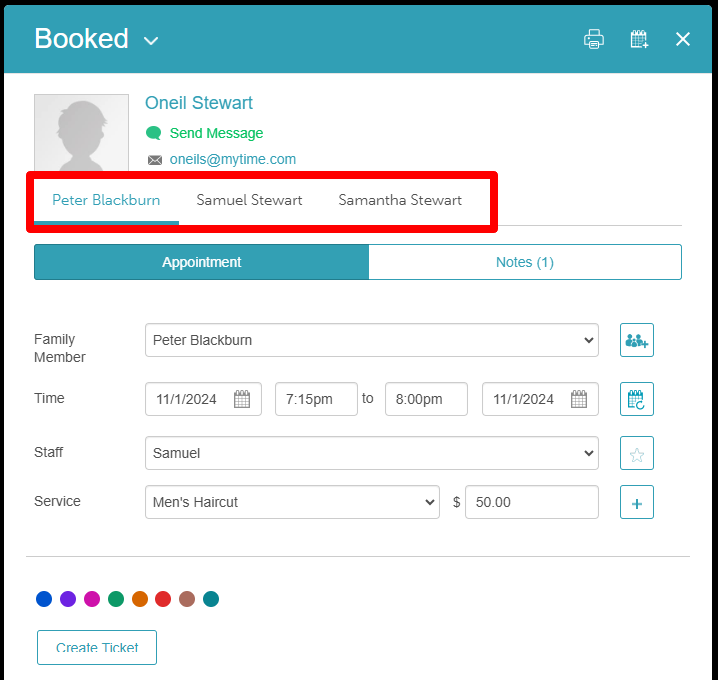
- Each family member has its own tab in the appointment modal
- Changes made under one tab are automatically saved when switching tabs
- Save – Saves changes across all tabs (all family members)
- Discard Changes – Clears all changes across every tab
- When changing the date or time of an appointment that is part of a multi-family member group, you will be prompted to select one of two options:
- Current family member only: Updates the date or time for only the selected family member, leaving the remaining group appointments at their original times.
- All family members in this appointment: Automatically syncs the new date and time across all family members in the group.
- When cancelling a group appointment, you can choose:
- Current: Proceeds through the standard cancellation flow (including reasons and fee prompts) for that specific individual only.
- All: Simultaneously cancels every appointment within the group.
- The + Another Famiily Member option is available in the appointment modal during appointment creation once a family member has been selected. This option is no longer available after the appointment is created.
- You can disable online booking for add-on services by selecting the dropdown menu next to "Online Booking Enabled" and choosing "Disable Online Booking."
- When an add-on is added to an appointment in the Scheduler, it is automatically locked to the base service and scheduled to begin when the base service ends. If unlocked, the add-on can be scheduled independently with any start time.
- You can click the lock icon at any time to re-lock the add-on to the base service. When re-locked, the add-on's start time will automatically adjust to begin at the end of the base service. Example: A haircut (base service) is scheduled from 2:00 PM to 2:30 PM with a blow dry add-on. When locked, the blow dry automatically starts at 2:30 PM. If you unlock it, you can schedule the blow dry to start at any time (e.g., 2:45 PM). If you re-lock it, the blow dry will return to starting at 2:30 PM.
Locked add-ons are displayed in chronological order based on their scheduled start times.
Unlocked add-ons with custom start times are displayed at the top of the add-on list.
- Ticket Management
- A ticket is created only when:
- You click Create Ticket in the appointment modal, or you check out through POS
- Once created, the ticket includes all appointments in the group
- Clicking “Remove” on an individual appointment will remove only that specific appointment from the ticket.
- Clicking “Remove All” will remove all appointments from the ticket at once.
- If the "Enable Invoicing Clients" setting is enabled and the "Change Status to Completed" option is set to either "Automatically Based on Service Duration" or "Manually by Updating Status", the system will automatically mark the appointment as completed and generate a ticket once the service time has ended or when the appointment is manually marked as completed.
- If some services require a deposit and others do not:
- Non-deposit services display $0
- Deposit-required services display the applicable amount
- When clicking + New Appointment, the start time defaults to the next available time slot based on your account’s time picker interval. Example: If you click at 6:10 PM and your interval is 15 minutes, the appointment will default to 6:15 PM.
- If the same family member is booked for multiple appointments at the same time, the following alert appears: “{Family member’s name} is already booked at this time.” This is only a warning and does not prevent saving the appointment.
- A family member’s profile photo can be displayed when hovering over the schedule. This feature is controlled by a hidden setting that is enabled by default. If you wish to deactivate this feature, please contact support@mytime.com
- Clients receive a notification listing all services booked:
- Booked by Business – Sent for in-store bookings
- Booked by Client – Sent for online bookings
- For franchise businesses with global client sharing enabled, you can only access appointments and tickets associated with the location you are currently logged into. Appointments and tickets belonging to a different location will not be clickable. Example: If you are logged into Franchise A and viewing a client's profile, you can click into appointments and tickets created at Franchise A. Appointments and tickets from Franchise B will appear on the profile but will not be clickable
- When you open an appointment from the schedule modal, the system displays all applicable, active memberships and packages for that client, rather than just showing the first one available. Depending on the client's profile, here is how different scenarios will display:
- Multiple different memberships/packages: All unique, active options will be listed.
- Multiple purchases of the same membership/package: Each distinct purchase appears as its own separate row, complete with its own remaining session count.
- A single membership/package: Only that specific row is displayed.
- No memberships/packages: No package information or sections will be shown.
- Pro-Tip: Clicking on any membership or package label directly inside the appointment modal will instantly reveal the full, detailed list of the client's active memberships and packages.
- For accounts with the Consume package and membership credits for the cancellation/no show policy hidden setting enabled, when cancelling a group appointment where only some family members hold an active membership or package:
- Eligible Services: Services covered by an individual membership or package will consume one available credit instead of triggering a cancellation fee.
- Standard Services: Services for family members without an active membership or package are charged standard cancellation fees (minus any deposit already paid). Learn more here.
- When searching for a client, recently booked clients at the current location automatically appear at the top of the results. This behavior applies whether you are searching from the Scheduler or the Clients tab.
- Search results include any family members associated with a client. If multiple clients have a family member with the same name, each will appear separately, ordered by most recently booked. To help you identify the right person quickly:
- The family member's name appears next to the primary account holder (e.g., "Jane Smith (Tommy)").
- When scheduling appointments for multiple family members, the system automatically prevents duplicate assignments across concurrent or sequential services. Once a specific family member is selected for a service in a booking, they are removed from the selection dropdown for any additional services within that same appointment, preventing accidental overlaps.
Contents:
Scheduling an Appointment for a Single Family Member
Scheduling an Appointment for Multiple Family Members
Scheduling an Appointment for a Single Family Member
- Navigate to the Schedule
- Filter by the desired location
- Click on the "New Appointment" button below the calendar on the left-hand side of the schedule, or on a specific time slot directly in the schedule
- The appointment modal will appear
- Add the client you are booking the appointment for. If the client is new, click on the "Add Client" button and enter the personal information for the client
- If client “Quick-Add” is enabled, then clicking the client icon will populate the option to add the client’s basic information, such as name, phone number, and email.
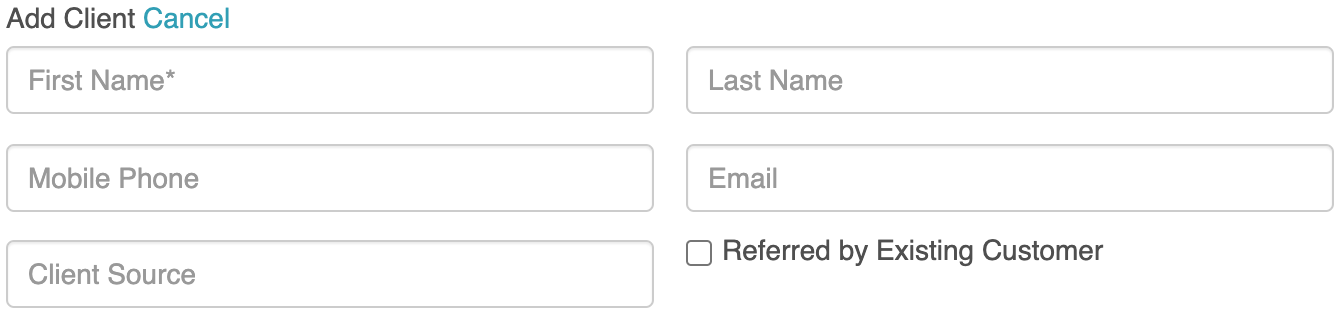
- If the “Quick-Add” option is disabled, then clicking the icon will redirect you to the Clients tab and open the Add a Client page. After you save the client, you must click on the Schedule and create a new appointment. The client can then be found in the client search.
- If client “Quick-Add” is enabled, then clicking the client icon will populate the option to add the client’s basic information, such as name, phone number, and email.
- Select the desired family member from the family member dropdown menu. If none are listed in the client's profile, click the "Add New Family Member" button to add a family member to the appointment.
- Select a date and time for the appointment
- You can configure the appointment to be recurring by clicking on the "Recurring" button
- Select a staff member
- Select a service. To add multiple services to the appointment, click on the "Add a Service" button
- Click the "Save" button located at the bottom of the modal
- Once saved, the appointment can be viewed on the scheduler
- To edit the appointment, click on the appointment in the scheduler. The appointment modal will open, and you can make the necessary changes.


Scheduling an Appointment for Multiple Family Members
- Navigate to the Schedule
- Filter by the desired location
- Click on the "New Appointment" button below the calendar on the left-hand side of the schedule, or on a specific time slot directly in the schedule
- The appointment modal will appear
- On the appointment modal, when scheduling an appointment, click the "+Another Family Member" hyperlink to add additional family members to the appointment
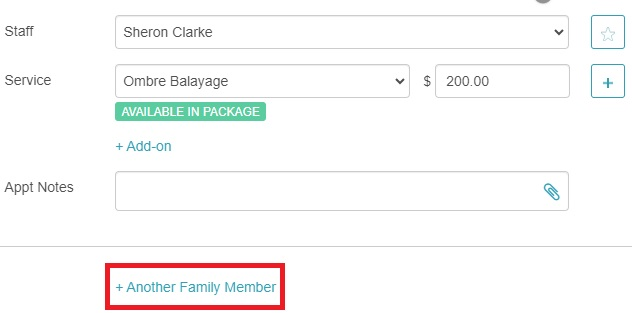
- The appointment details for the additional family member(s) will be displayed below. You have the option to schedule the additional family member(s)' appointments concurrently (at the same time) or sequentially (following the first family member's appointment).
- If the client does not have multiple family members on the account, you can click the "Add New Family Member" button to add another family member to the appointment
- Once you have entered the required fields, select "Save"

By following the steps provided in this article, you will be able to book appointments for a single family member and multiple family members.
Viewing Appointment Groups
- Navigate to the schedule and locate and open one of the appointments scheduled
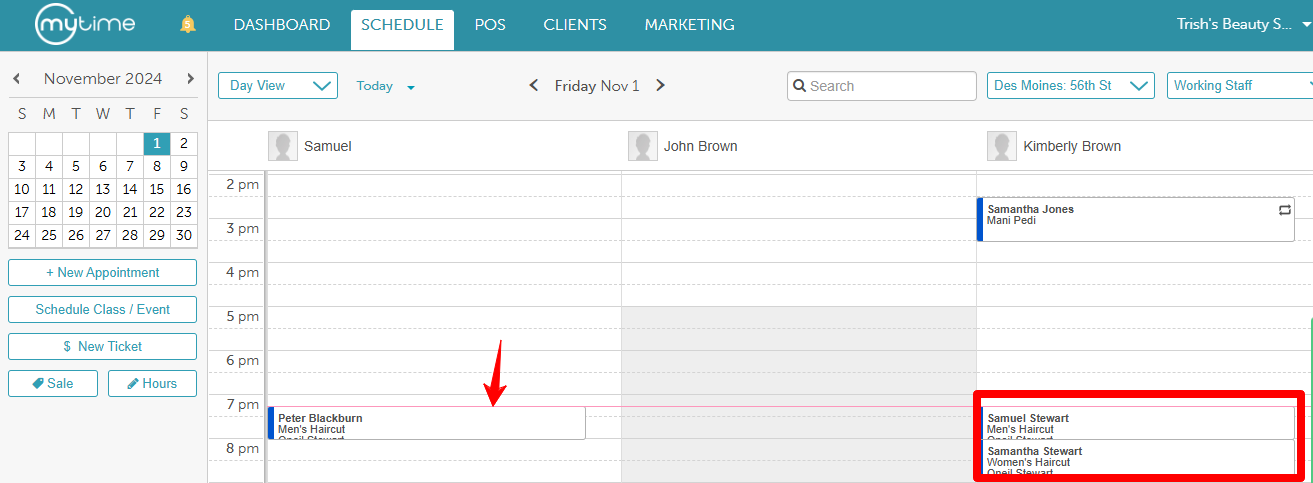
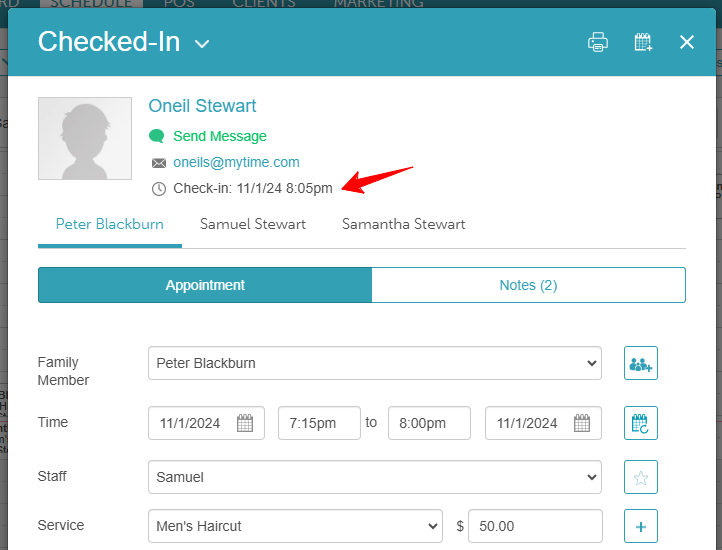
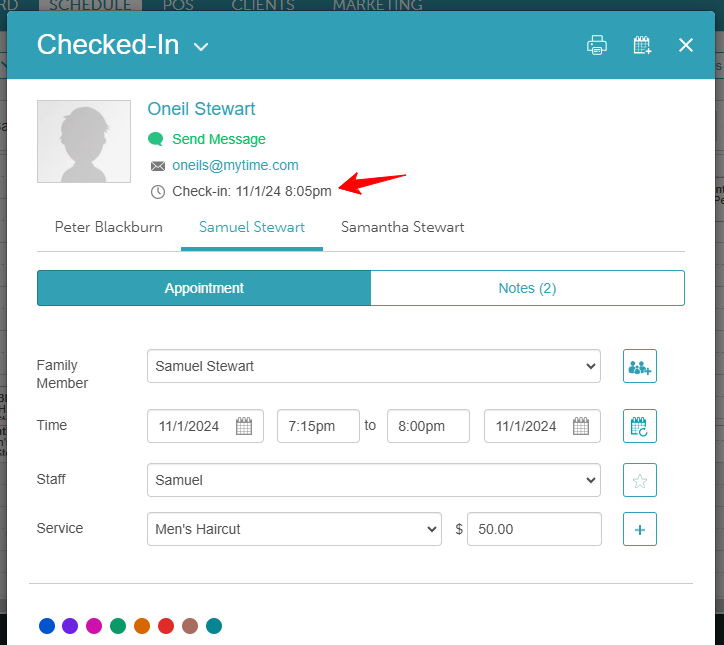
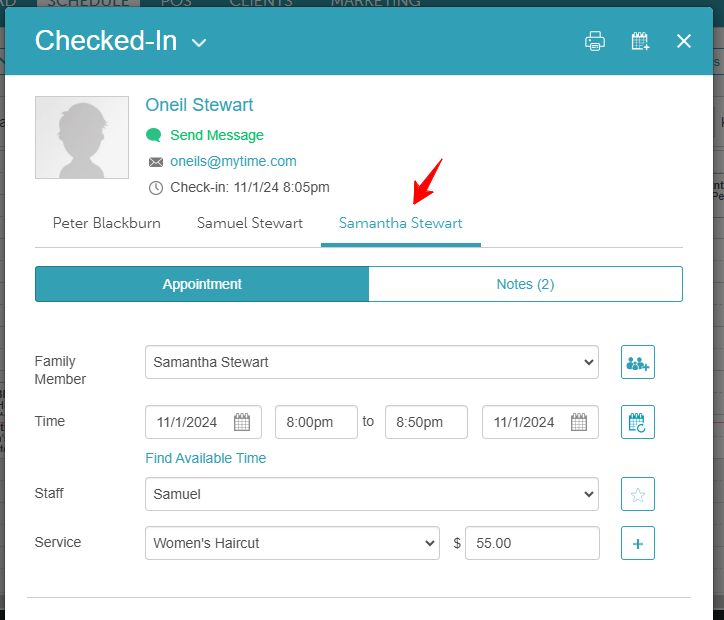
- The appointment modal will display the appointment tabs at the top labeled with the names of each family member
- When updating the status of the appointment, a message will appear asking if you would like to update the current appointment or all grouped appointments
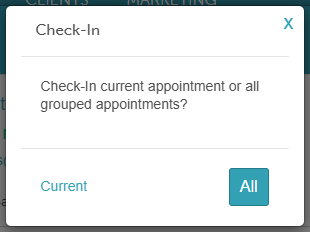
- If you select to update all appointments, the updated status will be reflected across all related appointments
- Peter
- Samuel
- Samantha
- Peter
For more information, contact us at support@mytime.com.
Related Articles:
Scheduling Appointments for Clients
Scheduling Appointment for Pets
Scheduling Multi-Staff Appointments
Scheduling Recurring Appointments
Appointments / Bookings Report
Booking Appointments for Multi-Client Services In-store
Booking Multi-Client Appointments Online
Booking Appointments for Multiple Pets Online
Was this article helpful?
That’s Great!
Thank you for your feedback
Sorry! We couldn't be helpful
Thank you for your feedback
Feedback sent
We appreciate your effort and will try to fix the article