Astro Loyalty is a rewards platform specifically designed for pet retailers. This integration allows MyTime to sync client data and product purchases directly with Astro Loyalty for seamless reward tracking and redemption.
Things to know:
- Eligibility: This feature is exclusively available for pet-focused businesses.
- Requirements: You must have an active Astro Loyalty plan. For franchise organizations, Astro is configured at the child account level. Learn more about Astro Loyalty plans here.
- The visibility of the Astro Loyalty integration is controlled by a hidden setting that can only be enabled by the MyTime team. To enable this setting, please contact support@mytime.com
- POS Workflow: When a product is added to a POS ticket, an Astro Loyalty link appears. Clicking this opens the Astro Loyalty checkout page in a new tab, automatically transferring client info, items, and totals.
The Astro Loyalty V2 integration syncs client rewards, automates point tracking, and applies discounts directly within your MyTime POS tickets:
One-Click Reward Redemption: Clicking Astro Loyalty Sync fetches the client’s available rewards from Astro and applies them directly as discounts on the MyTime ticket.
One-Time Location Pairing: MyTime links each client to their corresponding Astro profile per location, requiring client accounts to be paired only once.
Automated Point Tracking: Closing a ticket automatically transmits purchase details to Astro so the client earns loyalty credit. Ticket deletions or product returns automatically update Astro to keep balances aligned.
Exact Barcode Matching: Rewards and offer discounts are applied exclusively to products that share identical barcodes in both MyTime and Astro.
Quick Profile Access: Includes a direct View in Astro Loyalty link next to the client's name on the ticket for immediate access to their full Astro profile.
- Example: A client purchases a product priced at $100 with a 10% tax rate and redeems a $20 Astro reward:
- Before tax (default): $100 – $20 = $80 → $80 × 10% = $88 total.
- After tax (with setting enabled): $100 × 10% = $110 – $20 = $90 total.
- If the "Post-Tax" setting is not, loyalty points will only apply pre-tax via a sync button on the New Ticket page.
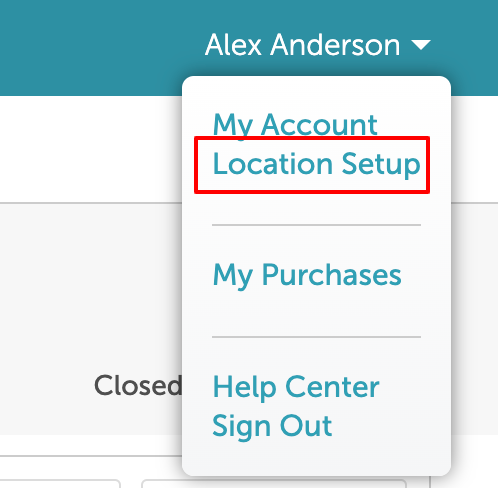
- The setup option displayed in the top-right user menu depends on how you access the account and your assigned role:
- When navigating from the Parent Account (Location Management tab):
- Admin: Displays Business Setup when viewing the location account.
- Login As: Displays Location Setup when viewing the location account.
- When logged in directly at the Location Level:
- Location Owners & Location Managers: Display Location Setup.
- Service Providers & All Other Roles: Display Profile Setup.
Contents:
- Adding Astro Loyalty Credentials on MyTime
- Sending Ticket Details to Astro Loyalty in POS
- Astro Loyalty As a Payment Method
Adding Astro Loyalty Credentials on MyTime
Before you get started, contact Astro Loyalty to obtain your API Username and Password. (If you have multiple locations, ensure you request API credentials for each location).
- Log in to your MyTime account and select Business Setup / Location Setup from the menu under your name
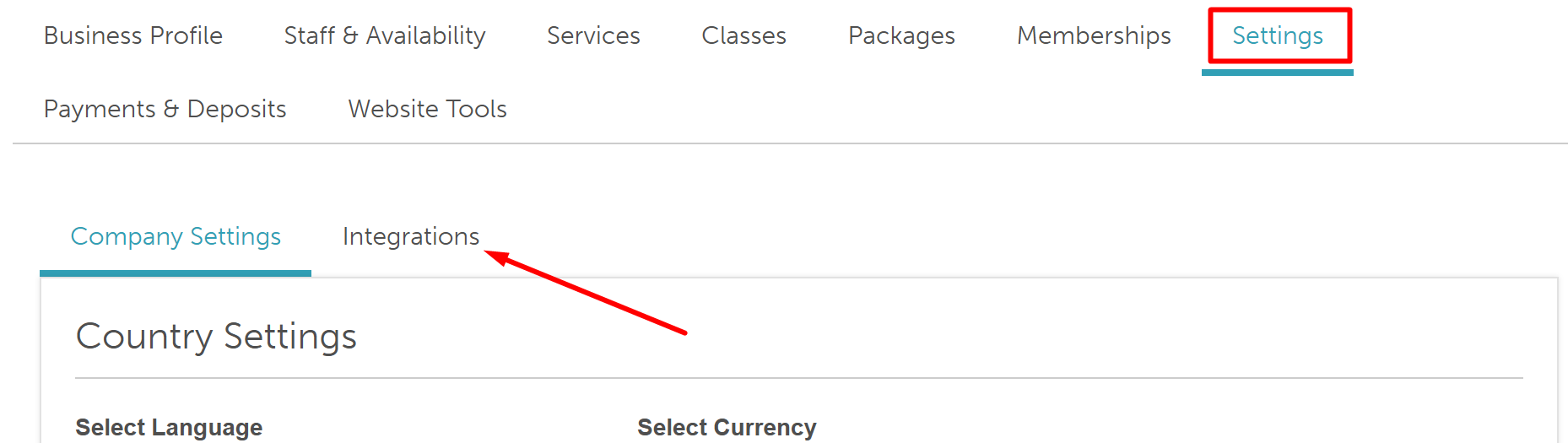
- Navigate to the Settings page and select the Integrations tab
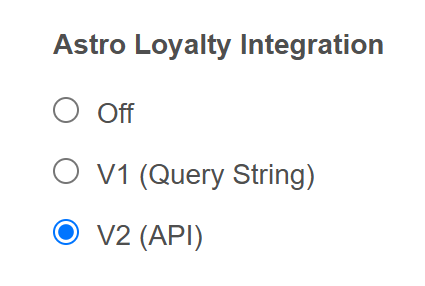
- Select the integration version
- Off: Disables the feature
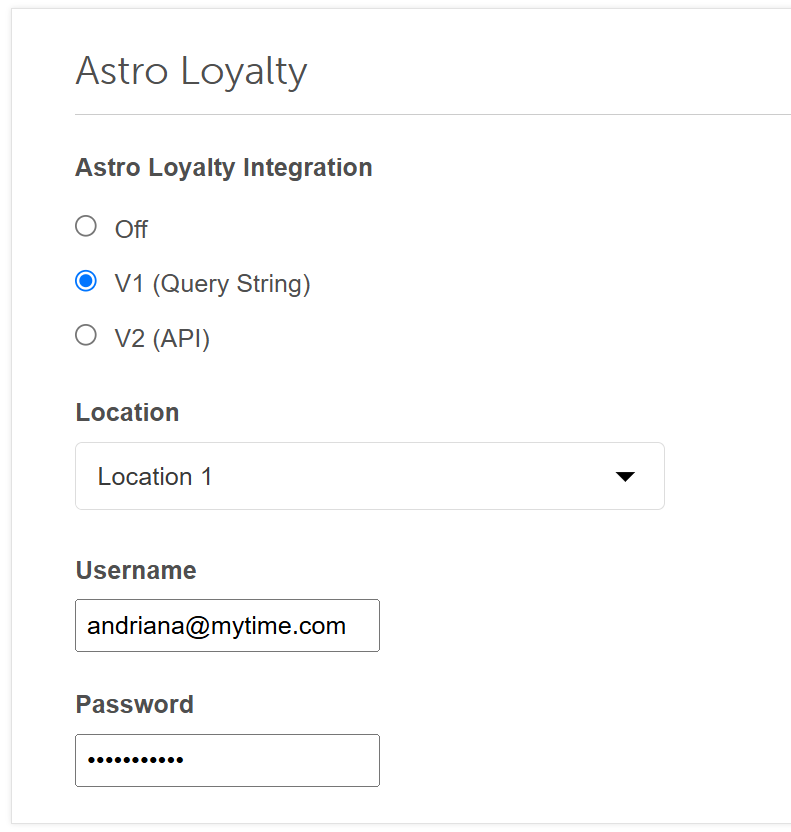
- V1 (Query String): Opens the Astro website in a browser with the client’s details pre-filled.
- V2 (API): Creates a direct, automated connection between MyTime and Astro Loyalty.
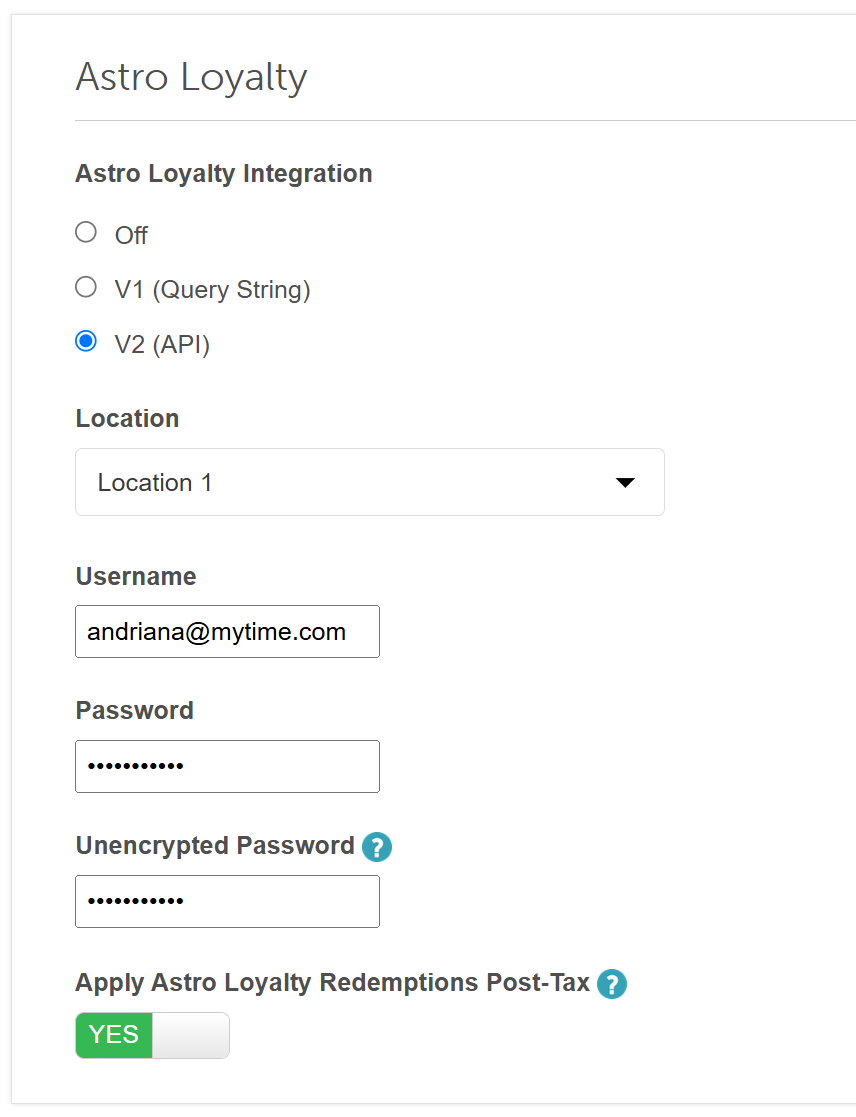
- Select a location and enter your Astro Loyalty API username and password (Repeat for each location if managing multiple locations).
- If V2 is selected, you will see the post-tax setting. Toggle the "Apply Astro Loyalty Redemptions Post-Tax" setting to have redemptions be applied after taxes are calculated.
Click Save at the bottom of the page
Sending Ticket Details to Astro Loyalty in POS
- Navigate to POS > New Ticket and select your client
- Under the Products tab, search for and add the desired items to the ticket.
- Click the Astro Loyalty hyperlink at the bottom of the page.
- A new tab will open, routing you to the Astro Loyalty checkout page.
- The client will be automatically linked (or you will be prompted to add them if they are new).
- If the client is not found, you will be prompted to add the client to Astro Loyalty
- All products will appear under "Today's Purchases."
- Return to the MyTime POS tab and click Take Payment.
- Finalize the transaction and close the ticket


Astro Loyalty As a Payment Method
Once the 'Apply Astro Loyalty Redemptions Post-Tax' setting is enabled, you can apply these redemptions after tax:
- Navigate to POS > New Ticket and add products
- Click 'Take Payment'
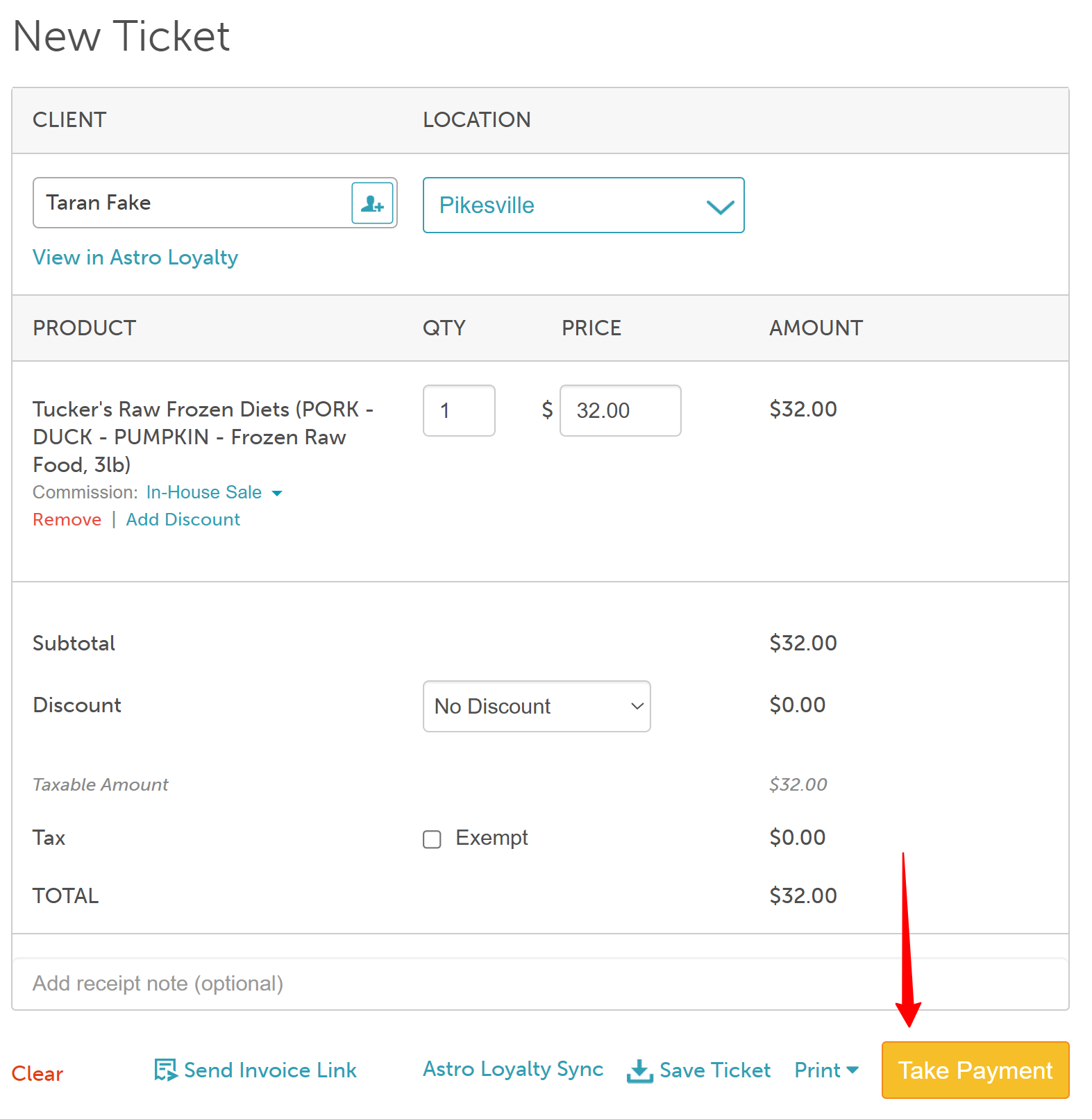
- On the payment screen, you will see two options:
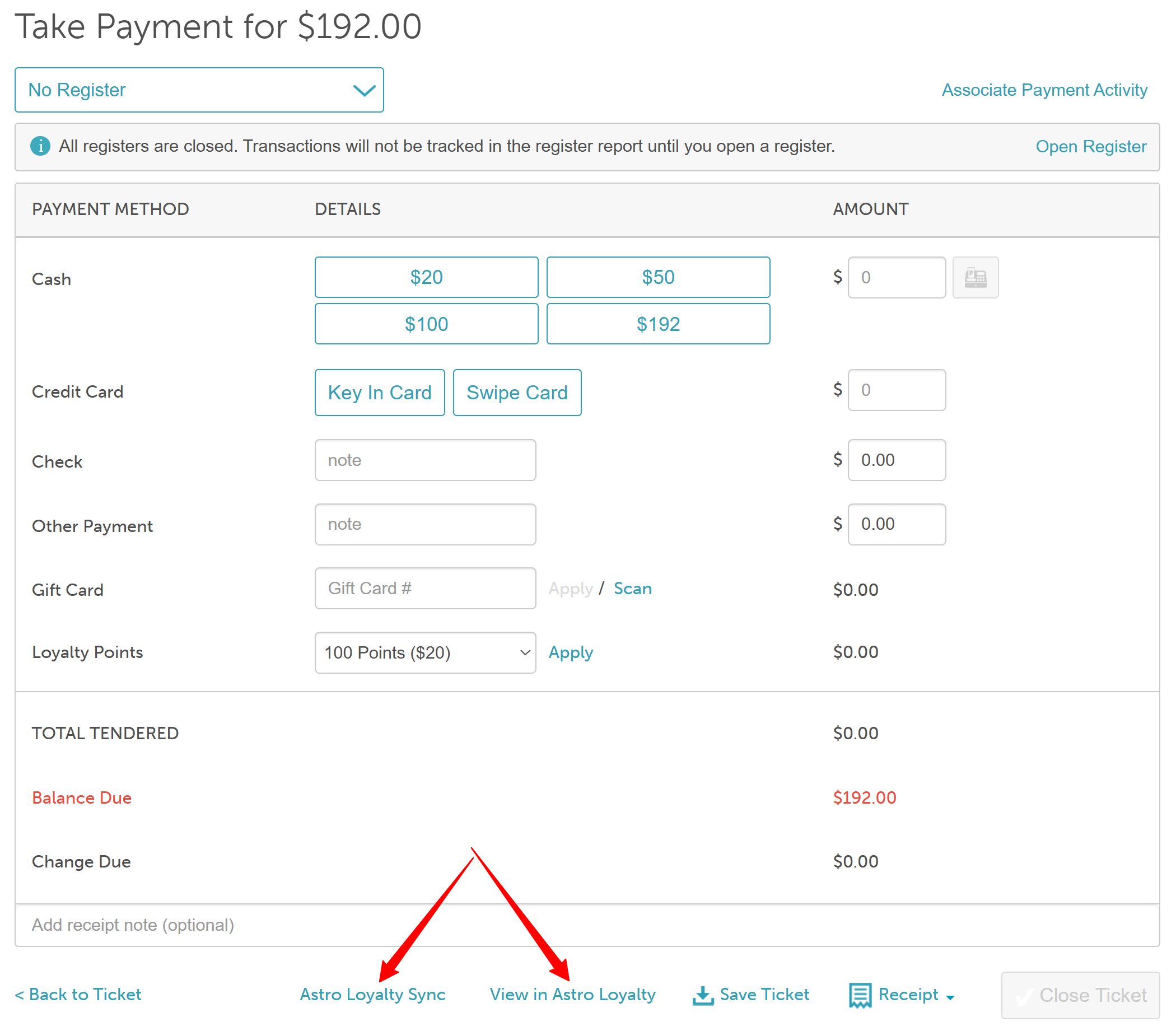
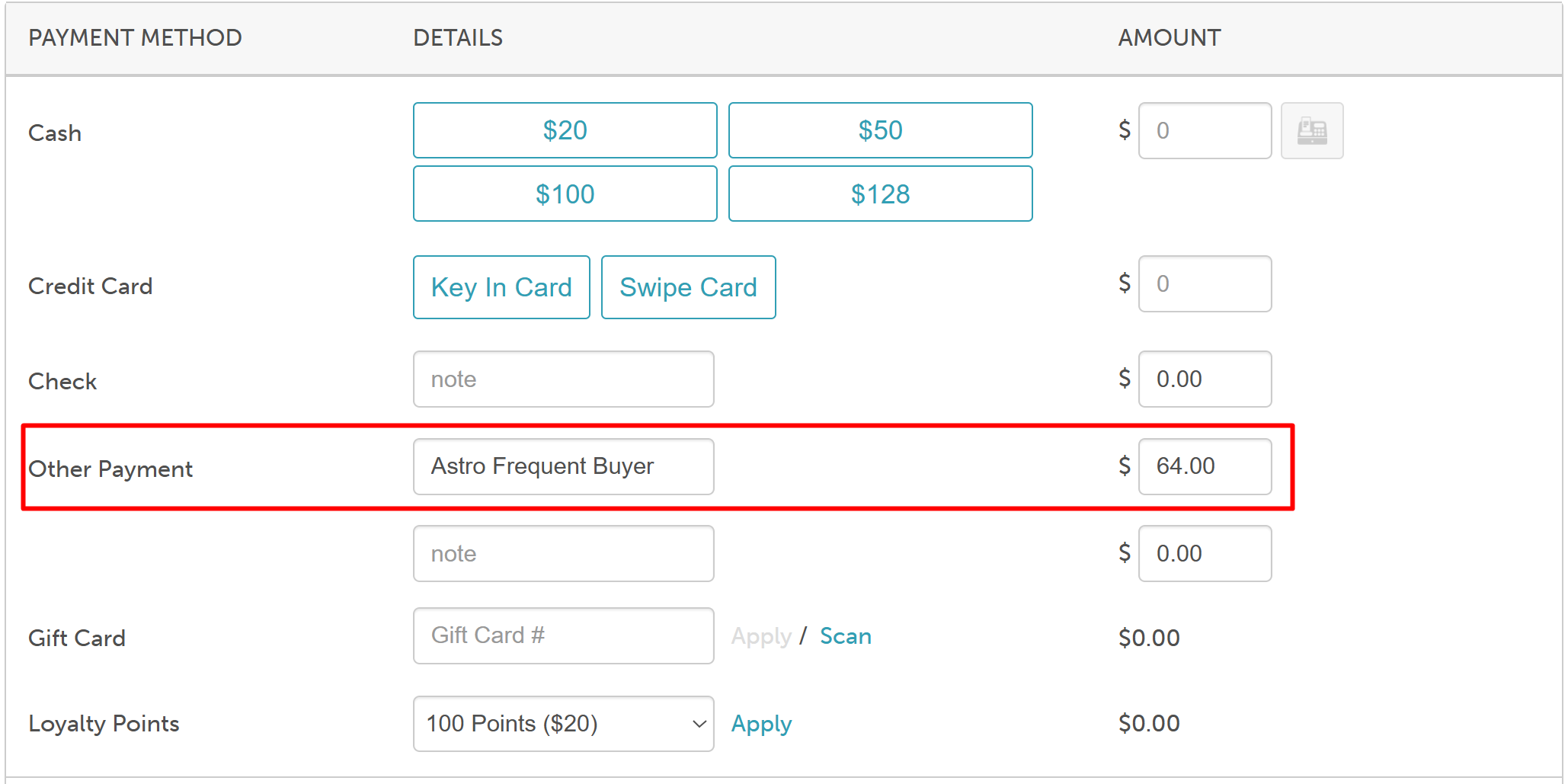
- Astro Loyalty Sync: Refreshes the client reward. Available points will be displayed under the Other Payment section.
- View in Astro Loyalty: Opens the Astro portal in a browser to view the client's detailed rewards history.
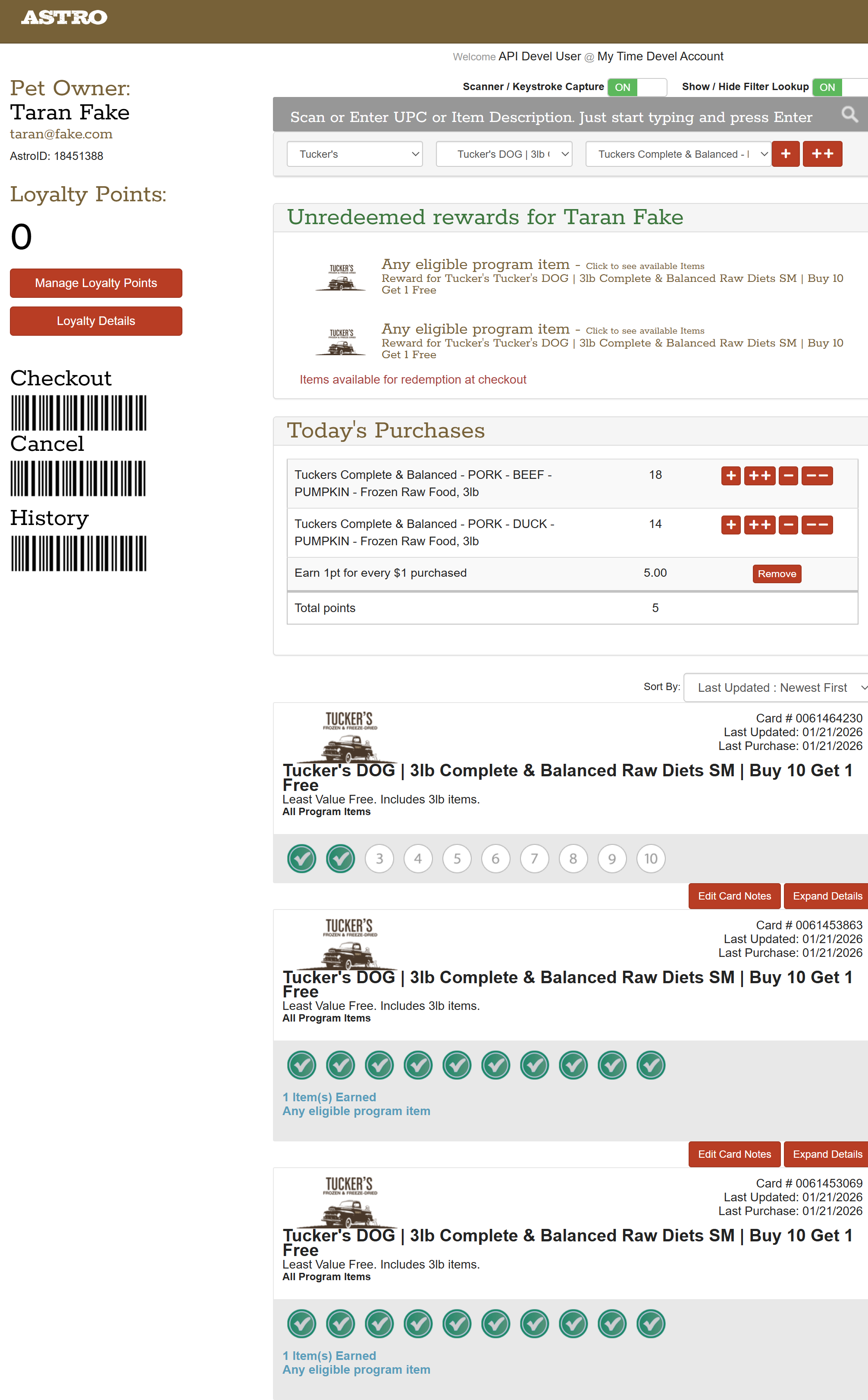
- Astro Loyalty Sync: Refreshes the client reward. Available points will be displayed under the Other Payment section.
- Select and apply the redemption from the Other Payment section to reduce the balance.
- Collect any remaining balance and close the ticket.
For more information, contact us at support@mytime.com or (385) 233-6964.
Was this article helpful?
That’s Great!
Thank you for your feedback
Sorry! We couldn't be helpful
Thank you for your feedback
Feedback sent
We appreciate your effort and will try to fix the article