A gift certificate functions as a payment method, covering the specific services, classes, or products in a booking. Once purchased, clients can redeem it in the guest app by entering the code into the Apply Gift Card field at checkout.
Things to know:
- Online gift certificate redemption is controlled by a hidden setting. Please contact Support if you would like this feature enabled for your account.
- To simplify checkout, you can display separate input fields for gift cards/gift certificates and promo codes. This feature is controlled by a hidden setting, contact support@mytime.com to activate it
- Gift certificates cannot be used to pay for taxes
- Checkout Pricing & Split Payments:
- Services and classes initially display at full price during online booking.
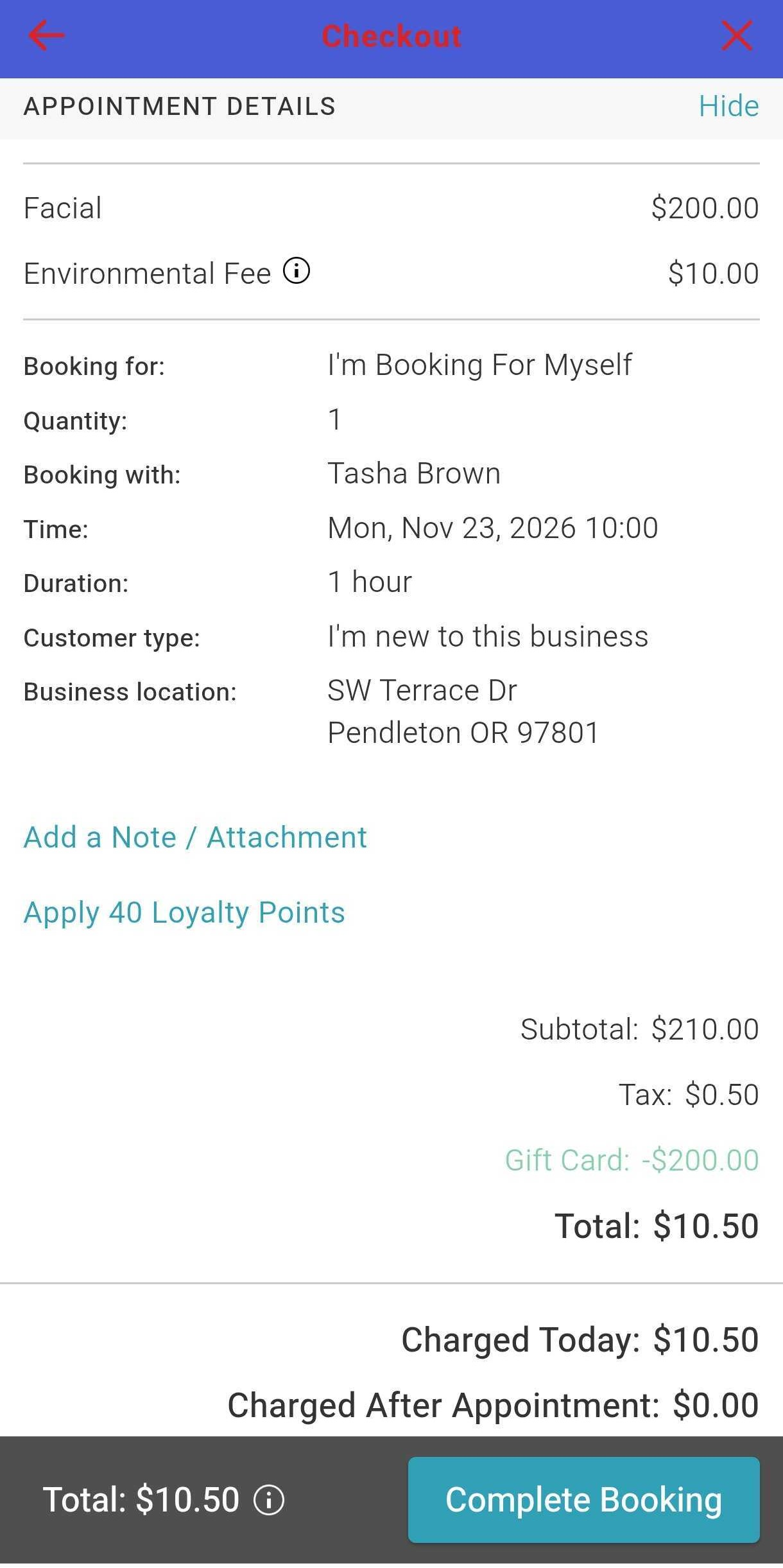
- At checkout, clients enter their gift certificate code to apply it toward their total.
- If the certificate covers the entire booking, the amount due drops to $0. If it covers only part of the booking (for example, one of two services), the client pays the remaining balance out of pocket.
- The Gift Cards section on a client’s profile displays the remaining balance for each of their gift certificates.
- Audit Trail: Located directly on the gift certificate, this shows its detailed usage history and redemption activity.
- Gift Card Balances Report: Lists the current remaining balance for all active gift certificates.
- Gift Card Activity Report: Provides a complete record of all gift certificate transactions and usage details.
To redeem gift cards on the guest app:
- Download the guest app from either the Google Play Store (for Android users) or the Apple Store (for iOS users)
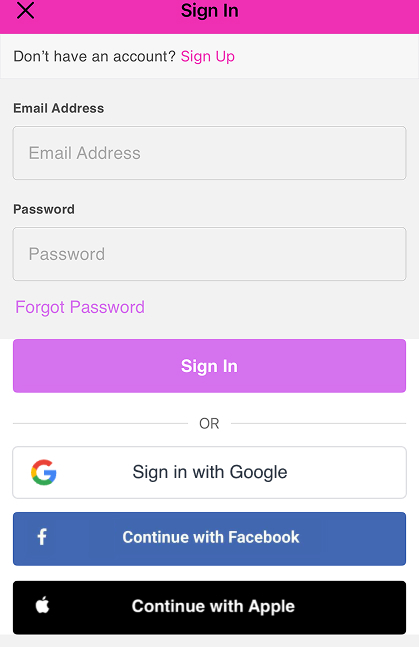
- Upon downloading, navigate to the home screen and tap on the account icon located in the top right corner, tap sign in.
- Choose their login method:
- Standard: Enter their registered email address and password, then click 'Sign In'.
- Social Login: Select 'Continue with Google,' 'Continue with Apple,' or 'Continue with Facebook' to use their existing social media credentials.
- Once signed in, select Home at the bottom of the screen.
- Select Book Appointment.
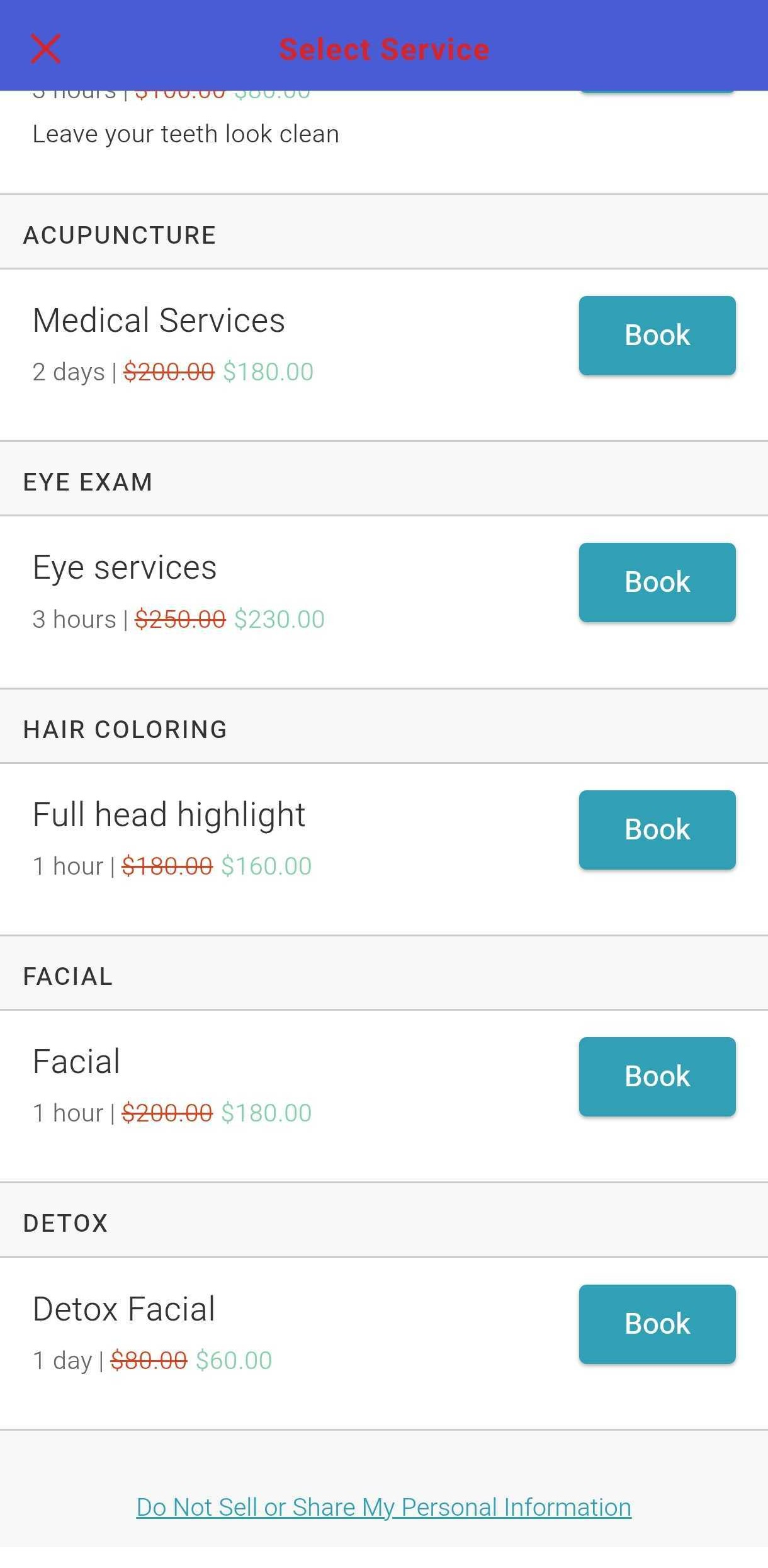
- Select the desired service.
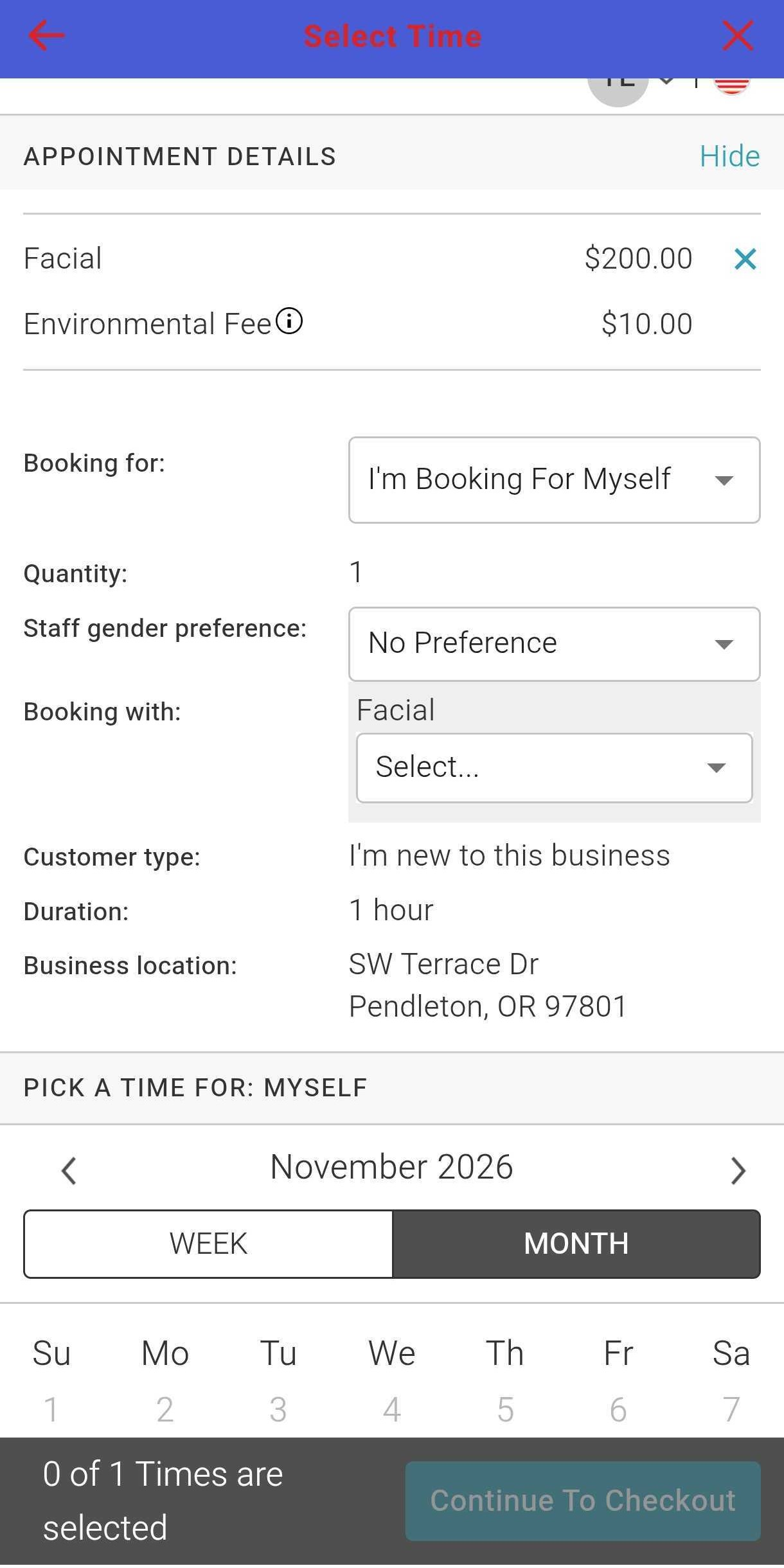
- Choose a date and time.
- On the checkout page, enter the gift card code in the Apply Gift Card / Promo Code field.
- Select Apply.
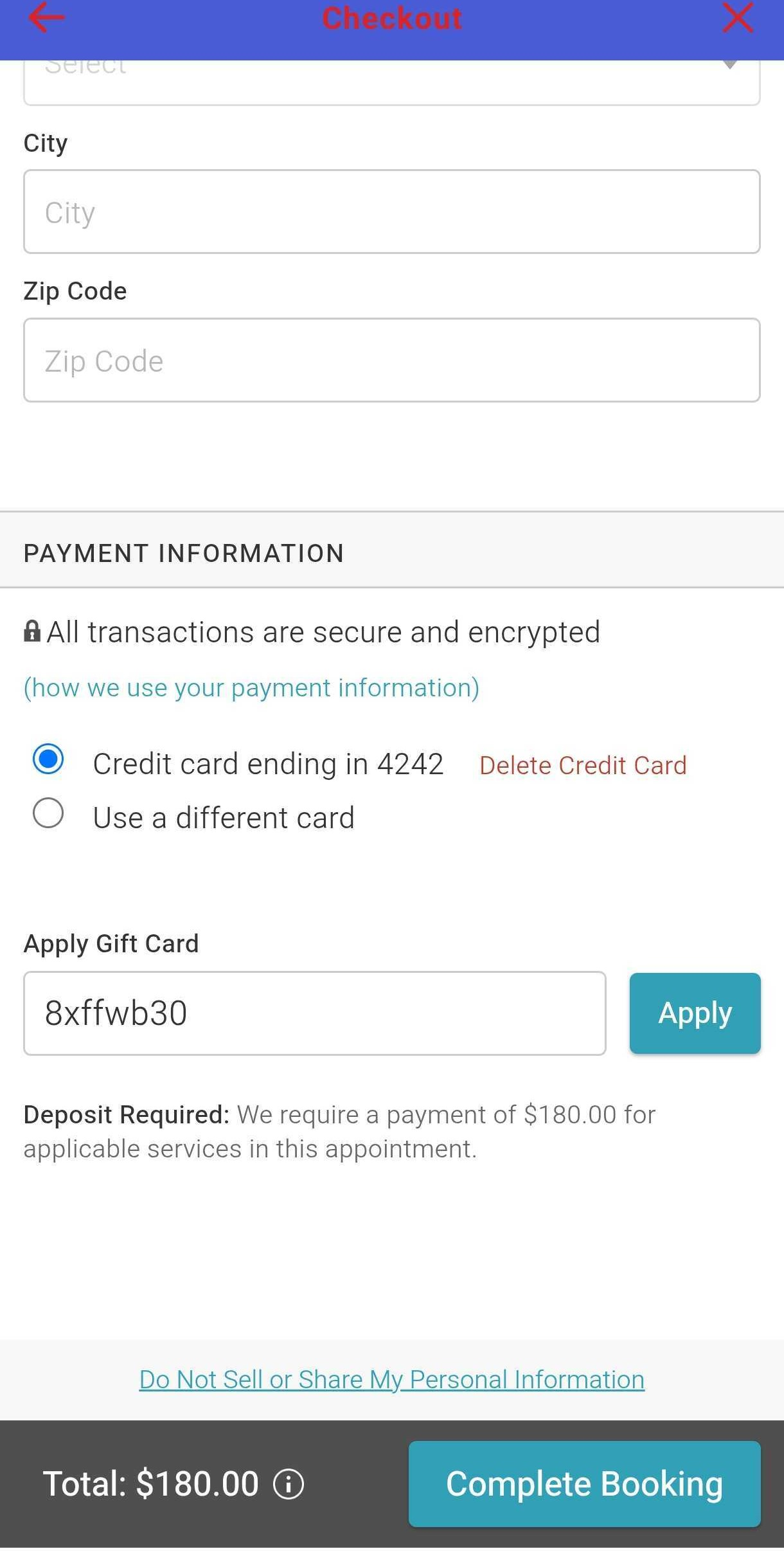
- Select Complete Booking.
Was this article helpful?
That’s Great!
Thank you for your feedback
Sorry! We couldn't be helpful
Thank you for your feedback
Feedback sent
We appreciate your effort and will try to fix the article