A gift certificate functions as a payment method, covering the specific services, classes, or products on the booking. Once purchased, clients can redeem it online by entering the gift certificate code into the "Apply Gift Card" field at checkout.
Things to know:
- Online gift certificate redemption is controlled by a hidden setting. Please contact Support if you would like this feature enabled for your account.
- To simplify checkout, you can display separate input fields for gift cards/gift certificates and promo codes. This feature is controlled by a hidden setting, contact support@mytime.com to activate it
- Gift certificates cannot be used to pay for taxes
- Checkout Pricing & Split Payments:
- Services and classes initially display at full price during online booking.
- At checkout, clients enter their gift certificate code to apply it toward their total.
- If the certificate covers the entire booking, the amount due drops to $0. If it covers only part of the booking (for example, one of two services), the client pays the remaining balance out of pocket.
- The Gift Cards section on a client’s profile displays the remaining balance for each of their gift certificates.
- Audit Trail: Located directly on the gift certificate, this shows its detailed usage history and redemption activity.
- Gift Card Balances Report: Lists the current remaining balance for all active gift certificates.
- Gift Card Activity Report: Provides a complete record of all gift certificate transactions and usage details.
Contents
Redeeming via Email
Open the gift certificate email and click Book an Appointment at the bottom.
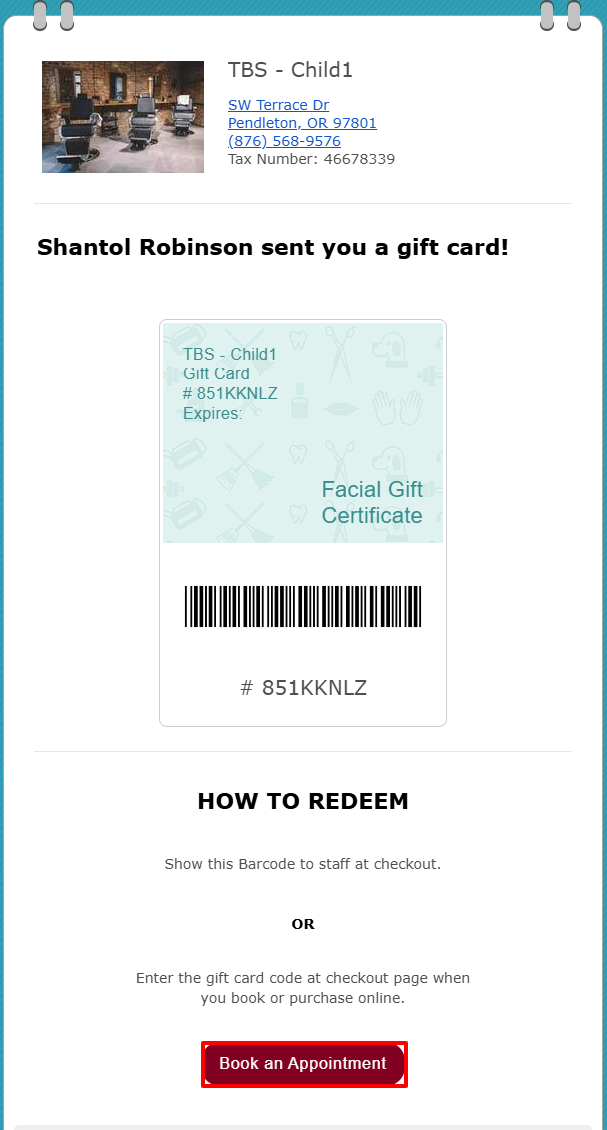
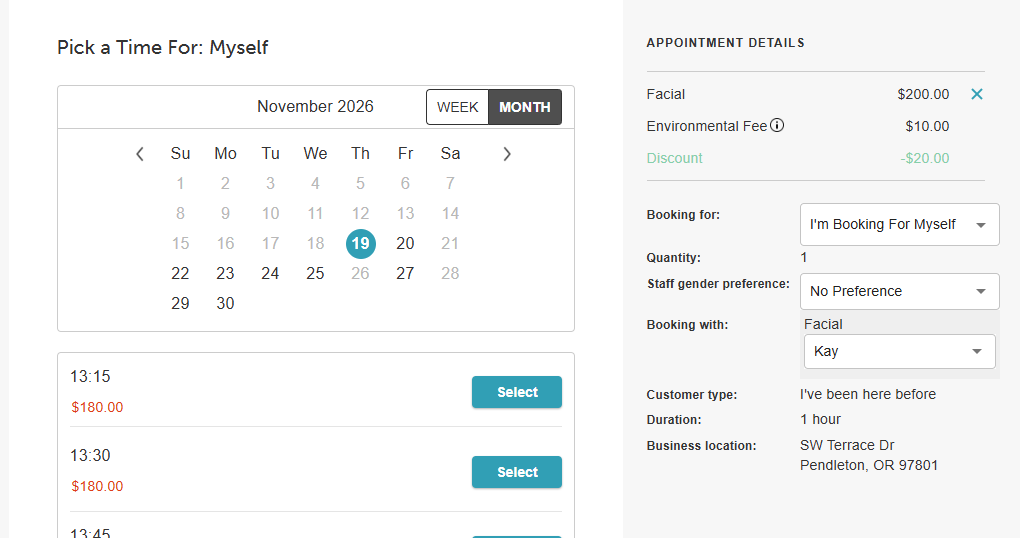
You will be redirected to the booking widget to schedule an appointment. Learn more here.
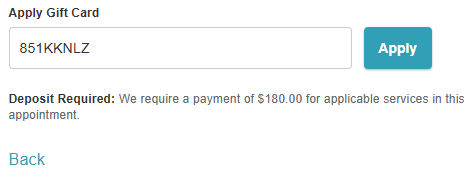
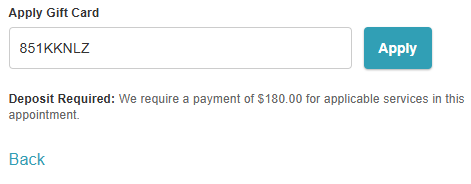
On the checkout page, enter the gift certificate code into the Apply Gift Card field and click Apply.
Complete the booking.
Redeeming via Booking Widget / Express Checkout
- Navigate to your business website or booking widget
- If your business has multiple sites, select their preferred location to ensure they are viewing the correct booking calendar
- Click the "Sign In" button at the top of the page
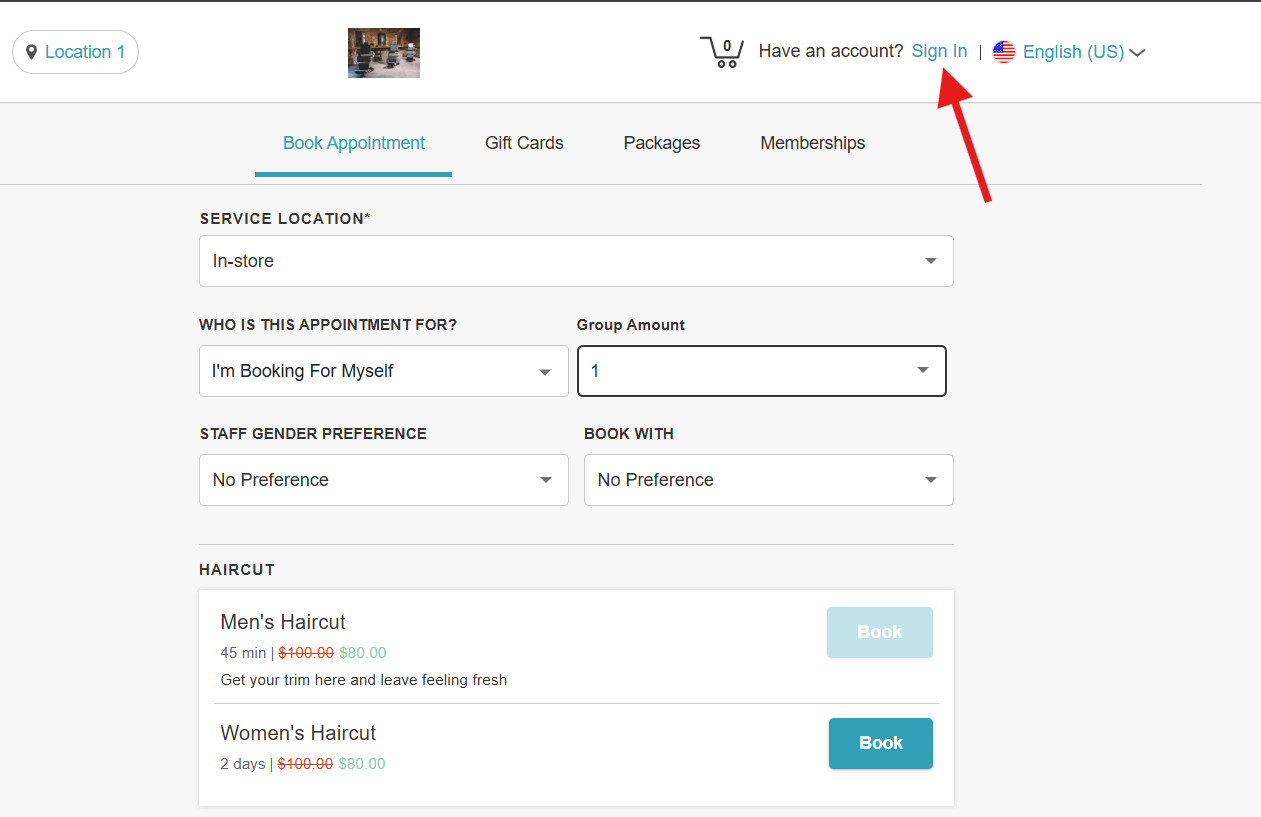
- Choose their login method:
- Standard: Enter their registered email address and password, then click 'Sign In'
- Social Login: Select 'Continue with Google,' 'Continue with Apple,' or 'Continue with Facebook' to use their existing social media credentials
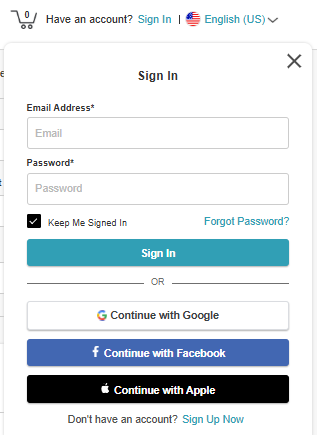
- Once their credentials or social accounts are authenticated, they will be instantly logged into the booking widget and can proceed with scheduling appointments.
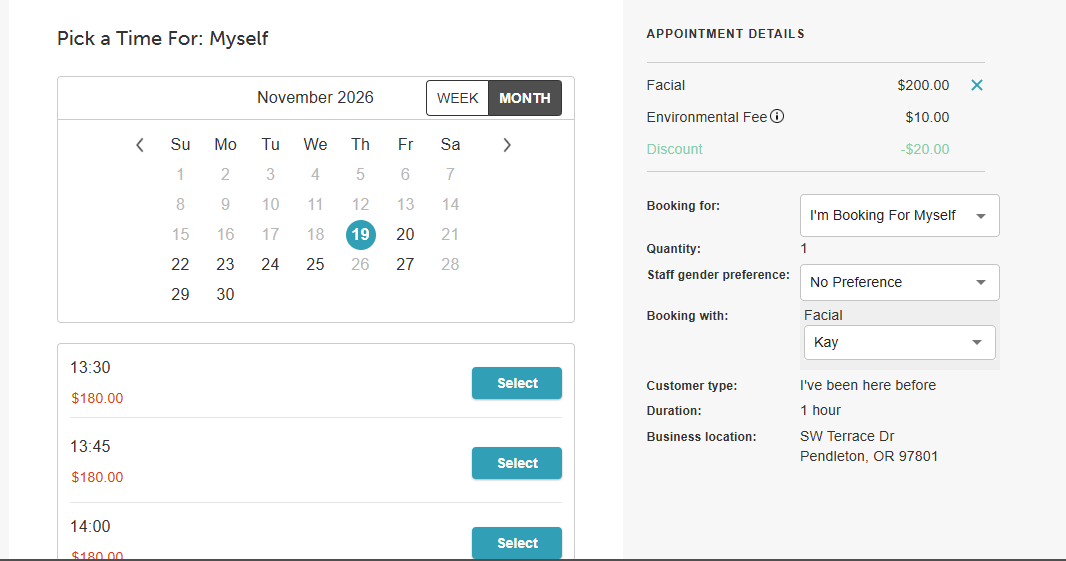
- Select a service, staff member, and time to schedule an appointment.
- On the checkout page, enter the gift certificate code into the Apply Gift Card field and click Apply.
- Complete the booking.
For more information, contact support@mytime.com.
Related Articles:
Purchasing Gift Certificates Online
Was this article helpful?
That’s Great!
Thank you for your feedback
Sorry! We couldn't be helpful
Thank you for your feedback
Feedback sent
We appreciate your effort and will try to fix the article