You can sell gift certificates for specific services, classes, products, or a combination of items alongside standard dollar-value gift cards. Once purchased, clients can redeem their unique code at the POS, during online booking, or through an invoice link. In this article, we'll show you how your clients can purchase gift certificates on the guest app.
Things to know:
- To enable purchases for gift certificates, the following steps must be completed:
- A payment account must be set up to process card payments. If you do not have a payment account, please email processing@mytime.com for help.
- Your account must be live.
- Online booking must be enabled. Learn more here
- The "Enable Gift Card Purchase" company setting must be enabled
- Selling gift certificates requires a hidden setting to be enabled by MyTime Support. Once enabled, you'll need to configure your gift certificates before clients can buy them online—click here to learn how.
- Purchasers can buy a gift certificate for someone else by entering the recipient's name, email address, and an optional message. The certificate is then delivered directly to the recipient via email.
- If you delete a gift certificate, any previously shared links for it will redirect visitors to your booking site's general services list instead.
- Purchased gift certificates appear under the Gift Cards section of the client's profile.
To purchase gift certificates on the guest app, your client should:
- Download the guest app from either the Google Play Store (for Android users) or the Apple Store (for iOS users)
Upon downloading, navigate to the home screen and tap on the account icon located in the top right corner, tap sign in - Choose their login method:
- Standard: Enter their registered email address and password, then click 'Sign In'.
- Social Login: Select 'Continue with Google,' 'Continue with Apple,' or 'Continue with Facebook' to use their existing social media credentials.
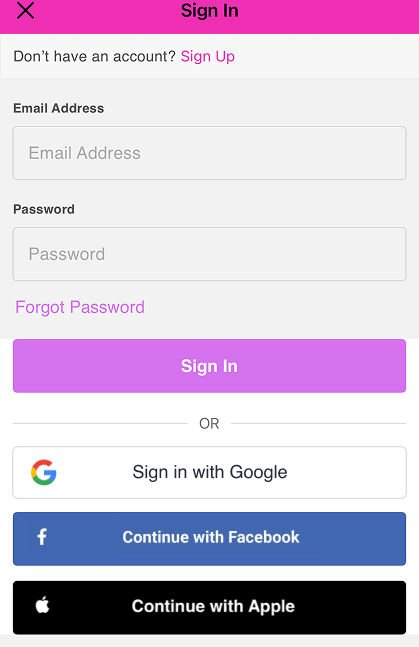
- Once signed in, they will be redirected to the home screen
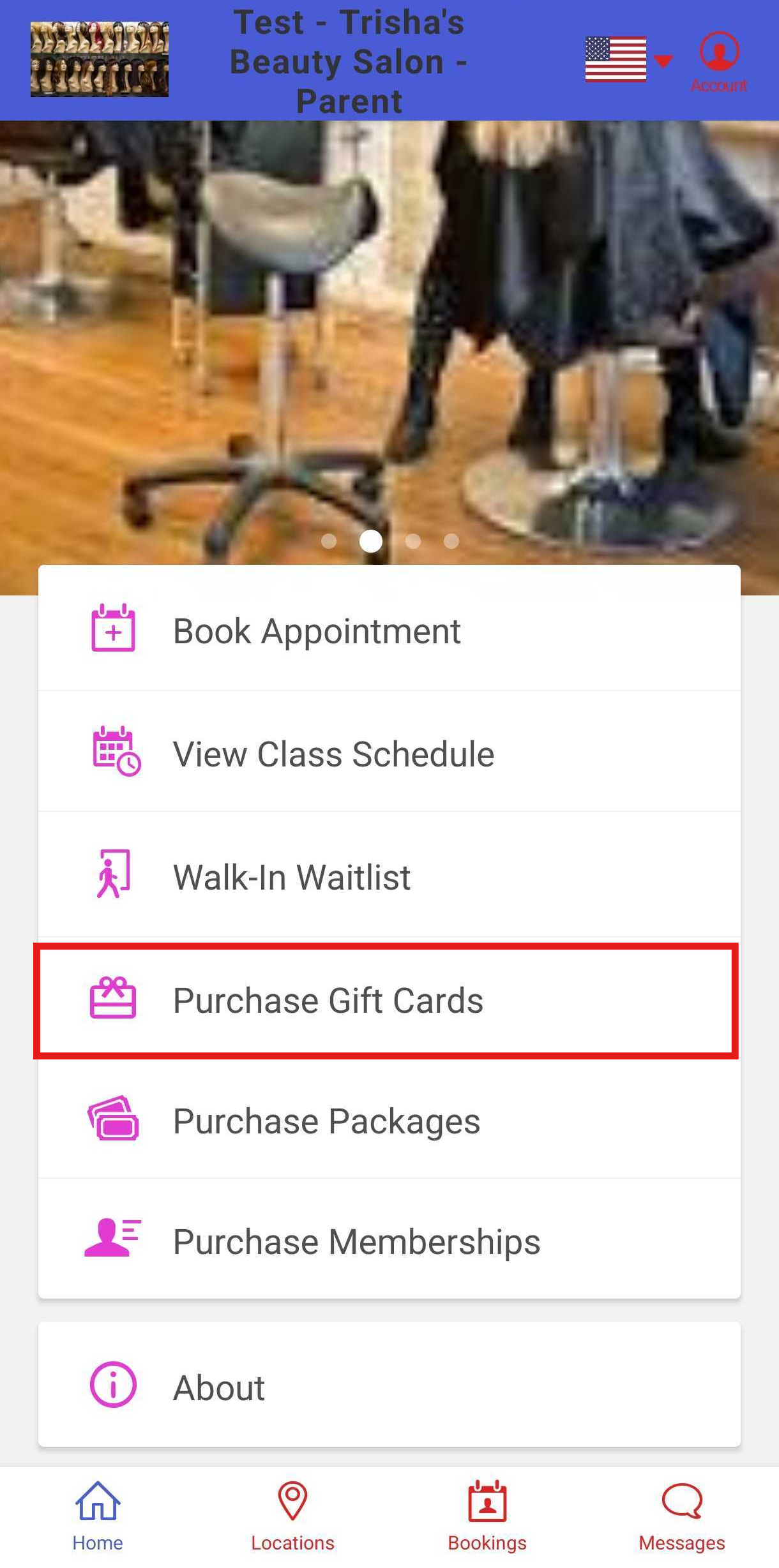
- Select the Purchase Gift Cards button
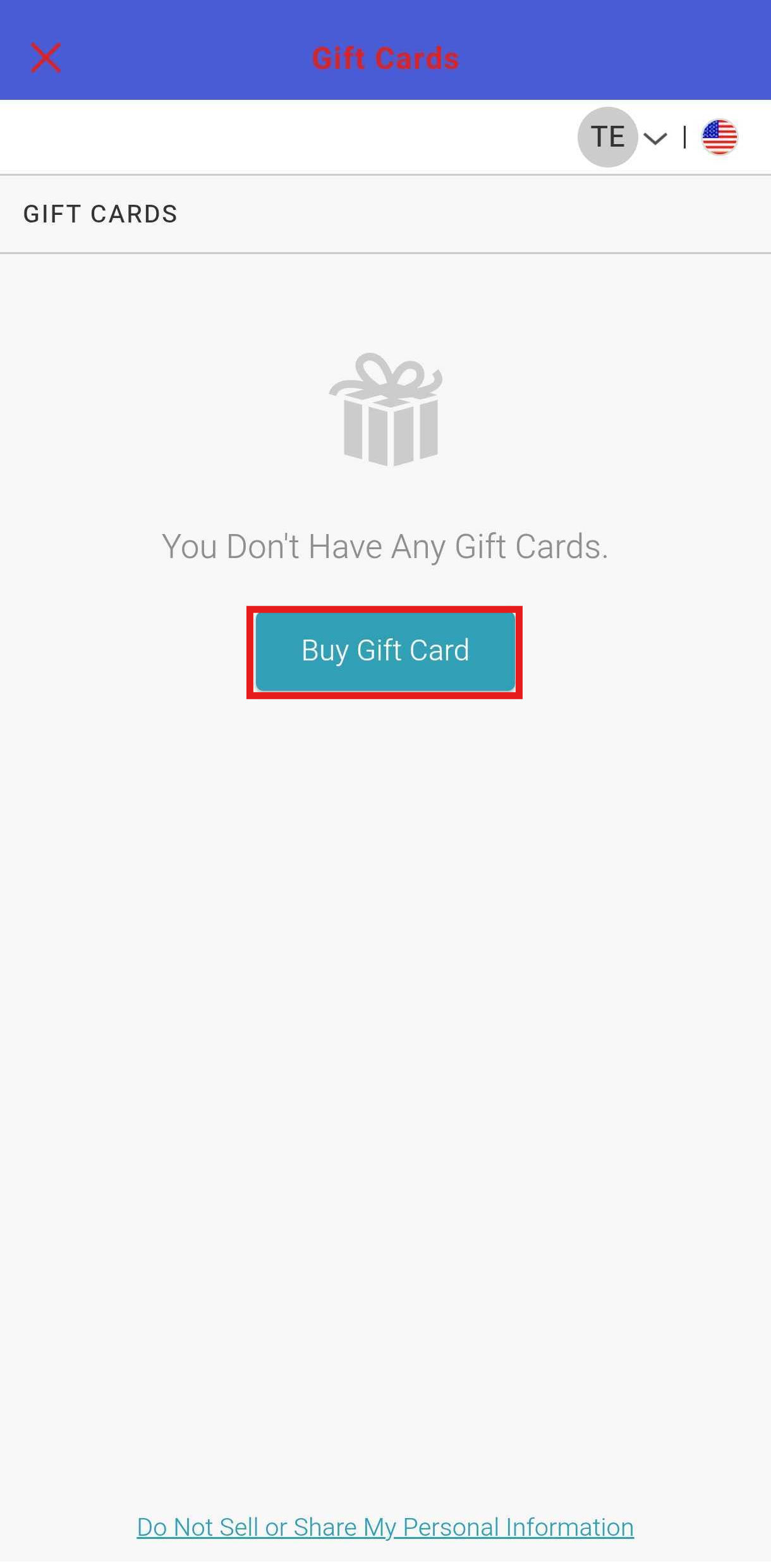
- On the gift cards page, select Buy Gift Card.
- Enter the purchase details:
- Gift Card: Select a specific gift certificate or choose Any Amount.
- Send to Myself: (Visible only when signed in) Check this box to automatically fill in your details for the From, To, and Recipient Email fields.
- From: Enter the sender's name.
- To: Enter the recipient's name.
- Recipient Email: Enter the recipient's email address.
- Message to recipient (Optional): Add a personal note to include with the gift certificate.
- Send Later: Check this box to open a date and time picker to schedule when the gift certificate is emailed.
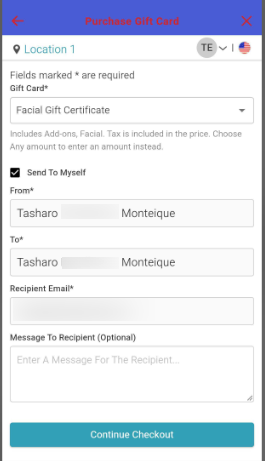
- Select Continue Checkout.
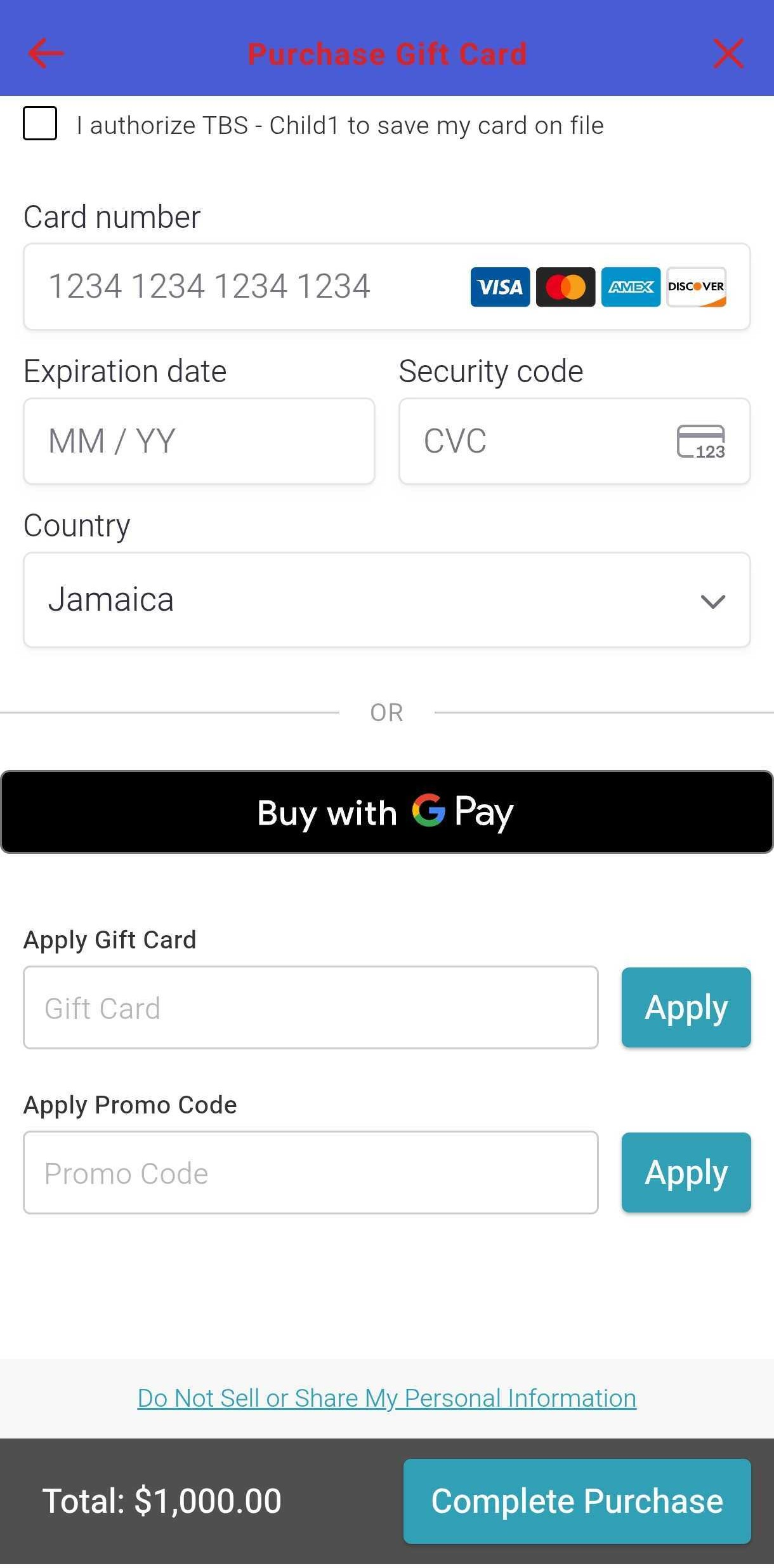
- On the checkout page, enter your payment information and complete the purchase.
The recipient will receive an email with the gift certificate details and can redeem or manually apply the code at checkout when booking online or in-store.
Related Articles:
Redeeming Gift Certificates via Guest App
Was this article helpful?
That’s Great!
Thank you for your feedback
Sorry! We couldn't be helpful
Thank you for your feedback
Feedback sent
We appreciate your effort and will try to fix the article