Exporting family member data is essential for businesses to manage family member information efficiently. Whether for data analysis or maintaining up-to-date records, the ability to export family member information can streamline various aspects of your operations. This article will guide you through the process of exporting family member data from our platform, ensuring a smooth and efficient experience.
Things to Know:
- The ability to export family members is controlled by the "Manage Client Setup" access control setting.
- When exporting family members, the system exports all default fields as well as any custom fields.
- For franchise businesses with global clients activated, the family member list cannot be exported at the parent level.
- When exporting family members, you have the option to export either all family members or only those that meet certain filtering criteria:
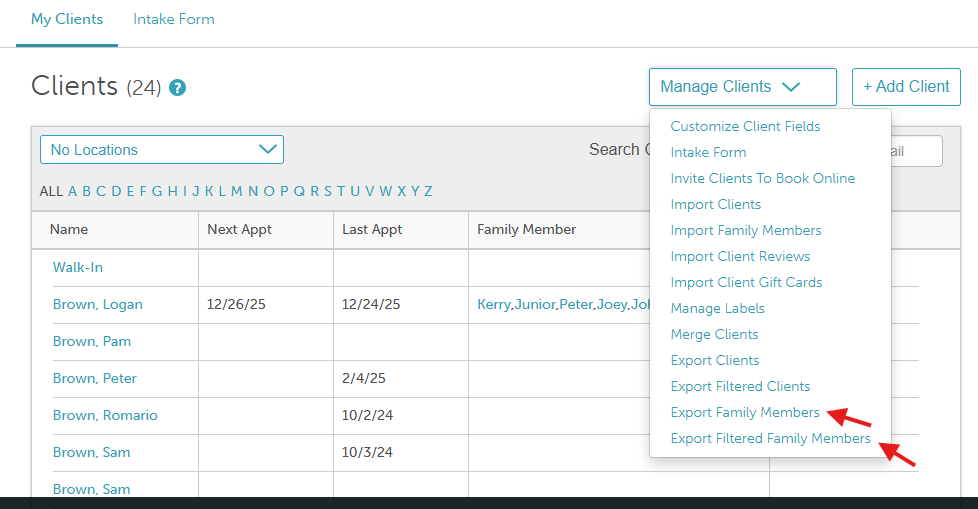
- Export Family Members: Returns all family members associated with the current company
- Export Filtered Family Members: Returns only family members matching your applied filters (e.g., location, membership label). Example: A franchise has 2 child accounts: Franchise A and Franchise B. With the global client database enabled, all locations share the same overall family member list.
- Total family members across the franchise: 12,000
- Franchise A: 6,500 family members
- Franchise B: 5,500 family members
- At Franchise A, you apply a filter for Location 1 and a Membership label, resulting in 2,000 matching family members.
- Export Family Members → Returns all 6,500 family members associated with Franchise A (the current company).
- Export Filtered Family Members → Returns only the 2,000 family members who belong to Location 1 and meet the applied filter criteria.
- Note: If no location is selected, the export will include clients from all locations under the current company.
Contents:
Exporting Family Members
- Navigate to the Clients tab
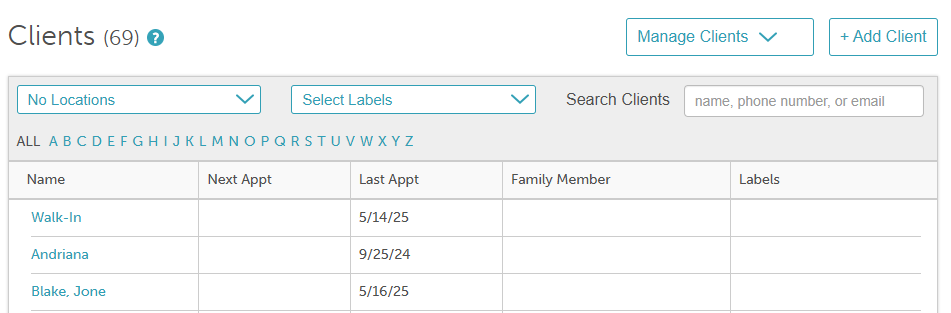
- Open the Manage Clients drop-down menu and click Export Family Members or Export Filtered Family Members
- A CSV file will be downloaded and saved to your device
Exported Data Columns
Column | Description |
| child_id | The unique external ID from the import spreadsheet. If the family member was added manually, this will be blank. |
| client_id | The unique external ID from the import spreadsheet for the client. Blank if the client was added manually. |
| deleted | Indicates if the family member should be deleted: "FALSE" means do not delete; "TRUE" means delete. |
| mytime_child_id | The unique internal MyTime ID assigned to the family member. This ID is generated by MyTime and visible in the profile URL. |
| mytime_client_id | The unique internal MyTime ID assigned to the client. Visible in the client’s profile URL. |
| date_of_birth | The family member’s birthdate. |
| first_name | The family member’s first name. |
| gender | The family member’s gender. |
| last_name | The family member’s last name. |
| custom_field X | Displays the name of the custom field created at Manage Client > Customize Client Fields |
notes | Notes found on the family member’s profile. |
For more information contact us at support@mytime.com
Related Articles:
Adding Family Members Manually
Marking a Staff Member as Preferred on a Family Member Profile
Was this article helpful?
That’s Great!
Thank you for your feedback
Sorry! We couldn't be helpful
Thank you for your feedback
Feedback sent
We appreciate your effort and will try to fix the article