Clients can book group appointments online by selecting the desired quantity of resources or participants. If minimum and maximum quantities are set for a service, the service will only appear when the selected quantity falls within that range.
Things to know.
- The ability to book group appointments is controlled by a hidden setting. Learn more here
- Online booking must be enabled for the business
- Enabling the group appointment feature overrides the existing multi-client feature
- The selected quantity determines which services appear as available. Example, if a client select a quantity of 3, only services that allow 3 or more clients will appear as available to book.
- Additional customization options (enabled by MyTime Support upon request):
- Add additional clients without email or phone: Allows bookings without requiring contact details for extra clients at checkout.
- Add additional clients not required: Allows partial entry of additional client details during booking, with the option to complete later.
Disable notifications for additional clients: Prevents automatic booking notifications from being sent to added clients.
When a booking includes multiple clients, the behavior of the "Intake Form" section is determined by the following:
If no fields are required: The guest forms are collapsed by default. The header will display: "Additional Guest Information is optional but appreciated."
If fields are required: The guest forms are expanded by default. The header will display: "Additional Guest Information is required—please provide it to complete your booking."
The filters in the left sidebar remain hidden when only one service is available in the menu. The filters will automatically appear once multiple services are available for selection.
- How Privacy Protection Works
- Automatic Opt-Out (GPC): If a client uses a privacy-focused browser (such as Brave or DuckDuckGo) or has Global Privacy Control (GPC) turned on (e.g., in Firefox), MyTime automatically detects the signal and opts them out immediately upon page load.
- One-Click Manual Opt-Out: Visitors can opt out at any time by selecting "Do Not Sell or Share My Personal Information" in the footer of any booking step or express checkout. Once clicked, the text immediately updates to confirm: "Opt-Out Request Honored."
- Remembered Across Browsers & Devices:
- Browser Storage: The opt-out choice is saved locally on the visitor's device/browser for one year across all booking widgets.
- Cross-Device Syncing: When a client signs into their consumer account, their opt-out status syncs and applies across any device where they log in. (Note: This applies to consumer accounts only; it does not sync for staff or business logins).
- Marketing Trackers Blocked vs. Analytics Retained:
- Blocked: Third-party advertising and marketing trackers—including the Meta/Facebook Pixel (fbevents.js), Google Tag Manager (gtm.js), and Google ad conversion tracking—are completely blocked from loading.
- Retained: Essential performance reporting through standard Google Analytics continues to operate normally, and required functional scripts (such as Facebook Social Login) remain available so clients can still sign in.
- Full Operational Continuity: Appointments, express checkouts, purchases, payment processing, and transactional notifications function seamlessly without disruption.
- Global Privacy Control: MyTime automatically honors consumer privacy preferences across booking widgets, express checkouts, and client-facing pages to comply with privacy regulations without interrupting your operations. Learn more here.
When booking a service online that requires a deposit, clients can choose to pay a partial amount using a gift card or pay the full amount using any available method.
- Pay In Person
- If the gift card balance covers the full deposit: The client can enter their gift card code at checkout. The gift card will be applied to the deposit, and any remaining balance on the gift card can be used toward the service total when paying in-store. If needed, another payment method can be used to pay the remaining amount in person.
- If the gift card covers only part of the deposit: The system will apply the gift card for the available amount. The remaining portion of the deposit will be charged to the client’s credit card at checkout. The client can then pay any remaining service balance in person.
- Pay Online
- If the gift card covers the deposit and the remaining service balance, the entire amount will be paid using the gift card once it is applied at checkout.
- If the gift card covers only the deposit: The gift card will be applied to the deposit, and the credit card will be charged for the remaining service balance.
- If the gift card covers only part of the deposit: The system will apply the gift card to the portion it can cover. The client’s credit card will then be charged for the remainder of the deposit and any remaining service fees at checkout.
- This feature is controlled by the 'Enable Paying Deposit via Gift Card' setting, which can only be enabled by MyTime Support.
- When the "Align staff online booking times to their interval" setting is enabled, all available start times on the booking widget strictly stick to the staff member's designated booking intervals (e.g., every 15, 30, or 60 minutes).
- How it works: Start times will only appear on standard interval slots. Even if an availability-blocking event—such as an existing appointment, personal blockage, or class session—ends between standard slots, the booking widget will ignore that exact end time and only offer start times that align with the staff member's set interval.
- Example: If a staff member is configured with a 30-minute booking interval (offering slots at 2:00, 2:30, 3:00, etc.). If a personal blockage ends at 2:10 PM, the staff member becomes free at 2:10 PM, but because 2:10 PM is not a standard 30-minute start time, the widget skips 2:10 PM and offers 2:30 PM as the next available slot.
- The ability for clients to remove applied gift cards or promo codes (via an 'X' icon) during online checkout, the "Separate promotion and gift card codes" hidden setting must be enabled. If this feature is not currently active on your account, please contact the MyTime Support team to have it enabled.
- A ticket is automatically generated once the appointment is booked online.
- If the "Show Location Phone Number and Email When No Slots Are Available" setting is enabled, clients will see your location's phone number and email address when there is no availability for a specific date, allowing them to contact you directly.
To book group appointments online, your client should:
- Navigate to your business website or booking widget
- If your business has multiple sites, select their preferred location to ensure they are viewing the correct booking calendar
- Click the "Sign In" button at the top of the page

- Choose their login method:
- Standard: Enter their registered email address and password, then click 'Sign In'
- Social Login: Select 'Continue with Google,' 'Continue with Apple,' or 'Continue with Facebook' to use their existing social media credentials
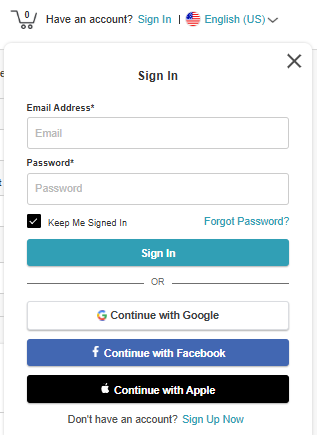
- Once their credentials or social accounts are authenticated, they will be instantly logged into the booking widget and can proceed with scheduling appointments.
- On the Book Appointment page, use the Quantity drop-down menu (custom field) to choose the desired number of participants. If a minimum or maximum quantity is set for the service, only quantities within that range will display the service.

- Click Book next to the desired service and choose a time on the Pick a Time page

- On the Checkout page, the selected quantity will appear with the appointment details

- Complete any required intake form and payment details via card, Google Pay/Apple Pay (if applicable)
- Click Complete Booking to finalize the appointment

Related Articles:
Was this article helpful?
That’s Great!
Thank you for your feedback
Sorry! We couldn't be helpful
Thank you for your feedback
Feedback sent
We appreciate your effort and will try to fix the article