Depending on your settings, commissions for products and services can be based on net or gross revenue.
Things to know:
- The following pre/post-discount commission settings can be found under Business Setup > Settings > Staff section:
- Calculate Product Commissions Post-Discount?: This setting affects products, gift cards, packages, and membership sales.
- Calculate Service Commissions Post-Discount?: This setting affects services and appointments.
- Calculate Class Commissions Post-Discount?: This setting affects class enrollments.
- Custom Discounts (Manually Applied to the Ticket): The commission is calculated based on the pre-discount or post-discount setting on the Business Setup > Settings page.
- Promotions (Manually or Automatically Applied to the Ticket): When a promotion is applied to a ticket, the commission is calculated according to the pre/post-discount setting configured on the promotion itself.
- Membership Discounts: If a membership discount is applied to the ticket, the commission is calculated based on the pre/post-discount setting configured within the membership template.
- One-Time Sale Discounts: If a one-time sale discount is applied to the ticket, the staff commission will be calculated based on the pre-discount or post-discount setting on the Business Setup > Settings page.
- Flash Sale Discounts: If a flash sale discount is applied to the ticket, the staff commission will be calculated based on the pre-discount or post-discount setting on the Business Setup > Settings page.
- The setup option displayed in the top-right user menu depends on how you access the account and your assigned role:
- When navigating from the Parent Account (Location Management tab):
- Admin: Displays Business Setup when viewing the location account.
- Login As: Displays Location Setup when viewing the location account.
- When logged in directly at the Location Level:
- Location Owners & Location Managers: Display Location Setup.
- Service Providers & All Other Roles: Display Profile Setup.
CONTENTS
- Enable Pre/Post Discount on Settings Page
- Set Pre/Post Discount on Promotions Page
- Set Pre/Post Discount on Membership Template
- SCENARIOS
Enable Pre/Post Discount on Settings Page
To adjust the pre/post discount option in settings:
- Navigate to Business Setup / Location Setup > Settings
- Locate the Staff section
- Locate the following three settings (all are off by default):
- Calculate Service Commissions Post-Discount
- Calculate Class Commissions Post-Discount
- Calculate Product Commissions Post-Discount
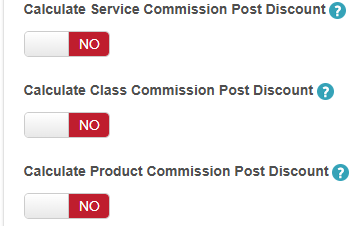
- To calculate commissions pre-discount, leave these settings disabled (set to NO)
- To calculate commissions post-discount, toggle the relevant settings to YES
- Save
Set Pre/Post Discount on Promotions Page
The pre/post discount setting can be configured per promotion on the promotions page, allowing it to vary by promotion. Here are the steps:
- Navigate to Marketing > Promotions
- Select the “Create Promotion” button
- Scroll down to “Calculate Staff Commissions”
- Expand drop-down menu
- The option is shown to calculate staff commissions pre-discount or post-discount


Set Pre/Post Discount on Membership Template
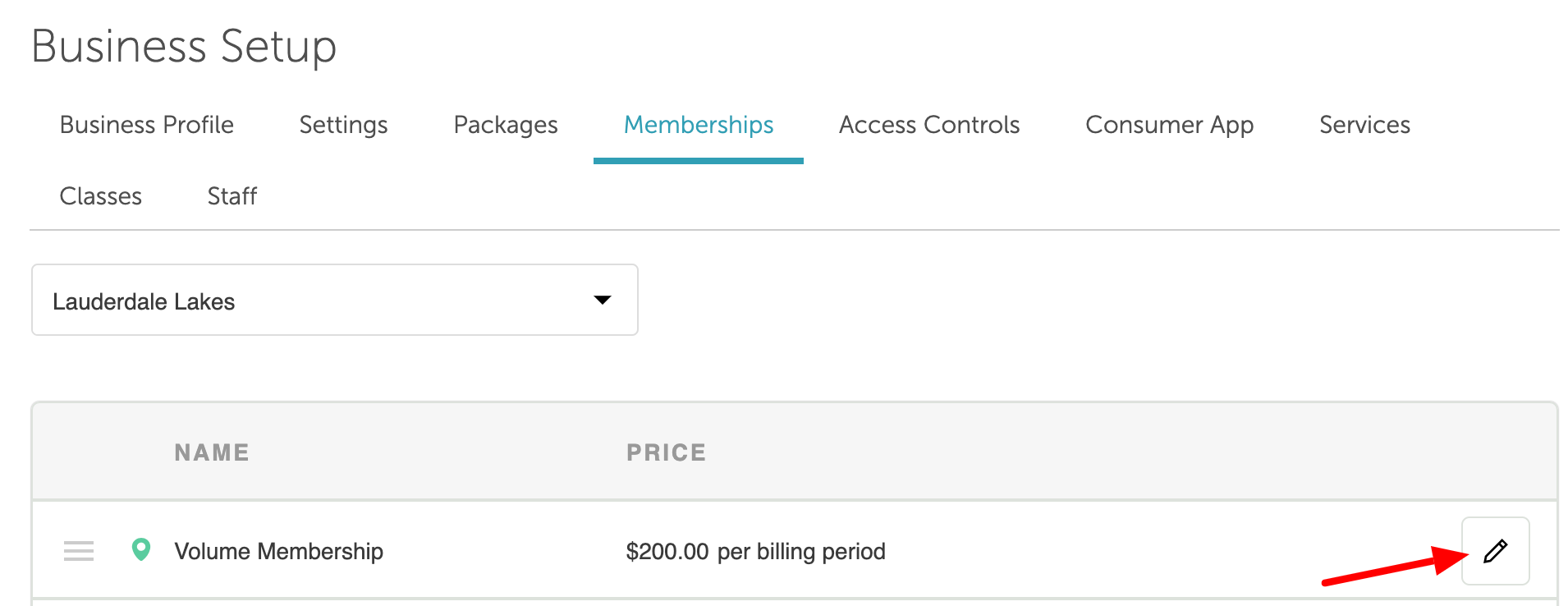
- Navigate to Business Setup / Location Setu > Memberships
- Select the desired location
- Locate the membership you want to update
- Click the Edit (pencil) icon
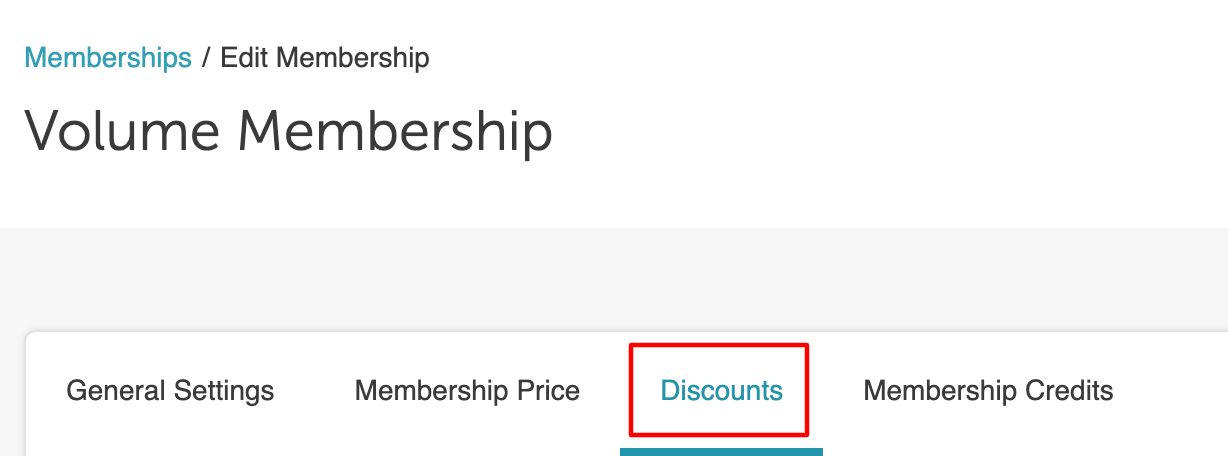
- Go to the Discount tab
- After configuring the membership discount, expand the "Calculate Staff Commissions" dropdown
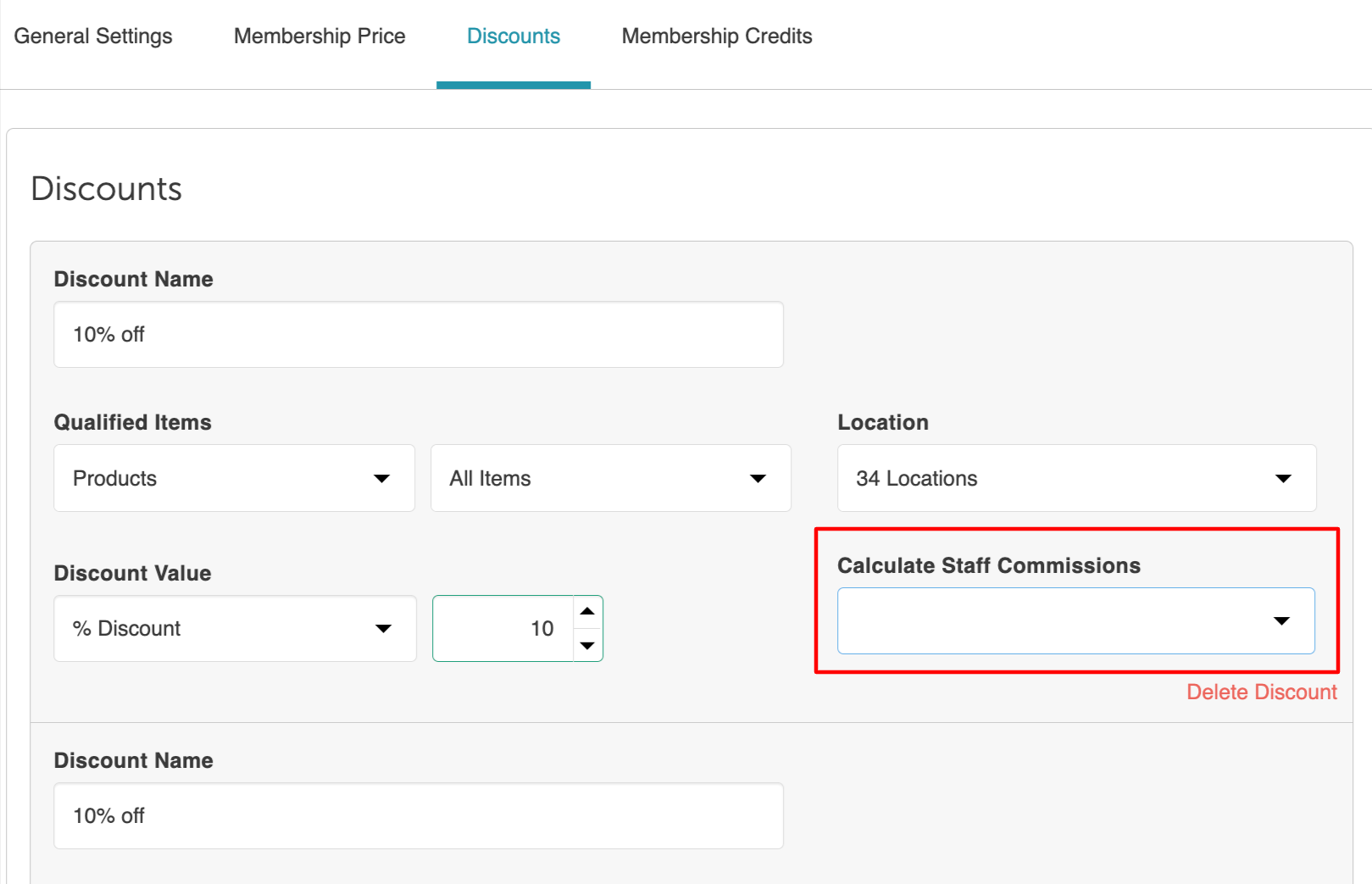
- Select either Pre-Discount or Post-Discount
- Click Publish Membership to save your changes
SCENARIOS - (Affects Compensation Report)
Scenarios | Account Setting | Promotion Setting | Membership Setting | Revenue & Commission Basis |
| Scenario 1 | Pre-Discount | Post-Discount | N/A | Post-discount value |
| Scenario 2 | Post Discount | Pre-Discount | N/A | Pre-discount value |
| Scenario 3 | Pre-Discount | N/A | Post-Discount | Post-discount value |
| Scenario 4 | Post-Discount | N/A | Pre-Discount | Pre-discount value |
For more information, contact us at support@mytime.com or (385) 233-6964.
Related Articles
Was this article helpful?
That’s Great!
Thank you for your feedback
Sorry! We couldn't be helpful
Thank you for your feedback
Feedback sent
We appreciate your effort and will try to fix the article