At times, you may need to transfer appointments from one staff member to another or reschedule them to a different date or time. This can be done for individual appointments or in bulk for multiple appointments. In this article, we will walk through the steps to reassign and reschedule individual appointments or multiple appointments in bulk.
Things to know:
- The ability to reassign or reschedule appointments is controlled by the "Accessing Appointments" access control setting.
- This feature is only visible to owners and location managers
- Reassigning and/or rescheduling appointments applies only to future appointments, including recurring ones
- Appointments can only be rescheduled or reassigned to staff members who have the service provider role
- Bulk Reassignments/ Bulk Rescheduling cannot be undone
- Bulk Reassigning:
- When Reassign is selected, only the first upcoming appointment of a recurring series will show in the appointments list. If that appointment is selected, all future series appointments will be reassigned
- Bulk Rescheduling:
- Once you reschedule a recurring appointment from the recurring series, that appointment is removed from the recurring series and becomes just a standalone appointment
- When 'Reschedule To' is chosen, all future appointments in any recurring series will be listed. Selecting one appointment from the series for rescheduling will detach it from the recurring series and reschedule it independently, and the remaining instances in the series will remain unchanged.
- After completing the bulk reassignment/rescheduling, a notification will be sent to the owner or location manager who performed the task. However, if the location manager does not have an email in their profile, the notification will be sent to the owner.
- Bulk reassignment is not possible for appointments that include services with the service multiplier feature assigned.
- Filtering Upcoming Appointments by Date Range: When reassigning staff or rescheduling visits, you can filter a client’s upcoming appointments to show either all future visits or only those within a specific timeframe.
- All Future Appointments (Default): By default, the list shows All Future Appointments.
- Recurring appointment series are grouped together as a single row, and reassigning or rescheduling that row moves the entire series moving forward.
- Date Range Filter: Switching the filter to Date Range opens a From/To date picker.
- Selecting a specific date window breaks recurring series apart, listing each individual visit as its own separate row.
- If you reassign multiple visits from a series within this view, you will see a warning in the confirmation modal letting you know these specific dates will be separated from the main series. Once saved:
- The selected visits move to the new staff member.
- Any future visits outside of your "To" date stay with the original staff member and continue repeating normally.
- No duplicate appointments are created, and a confirmation email is automatically sent.
- Date Validation & Errors:
- If your From date is set after your To date, a red error message will display: "Start date must be on or before the end date."
- If there are no visits scheduled during your chosen dates, the list will display: "No upcoming appointments found."
- Rescheduling Visits: You can use the exact same Date Range filter on your Reschedule list. The only difference is that moving appointments in this view will not trigger the series-separation warning modal.
- All Future Appointments (Default): By default, the list shows All Future Appointments.
Contents:
Bulk Reassigning Appointments
- Navigate to the Scheduler
- Filter by Day View
- Click on the name of the staff member you wish to reassign the appointments to
- From the dropdown menu, click "Bulk Reassign"
You will be directed to the ''Bulk Reassign" page, which shows all future appointments scheduled for the staff on that day, as well as upcoming recurring appointments
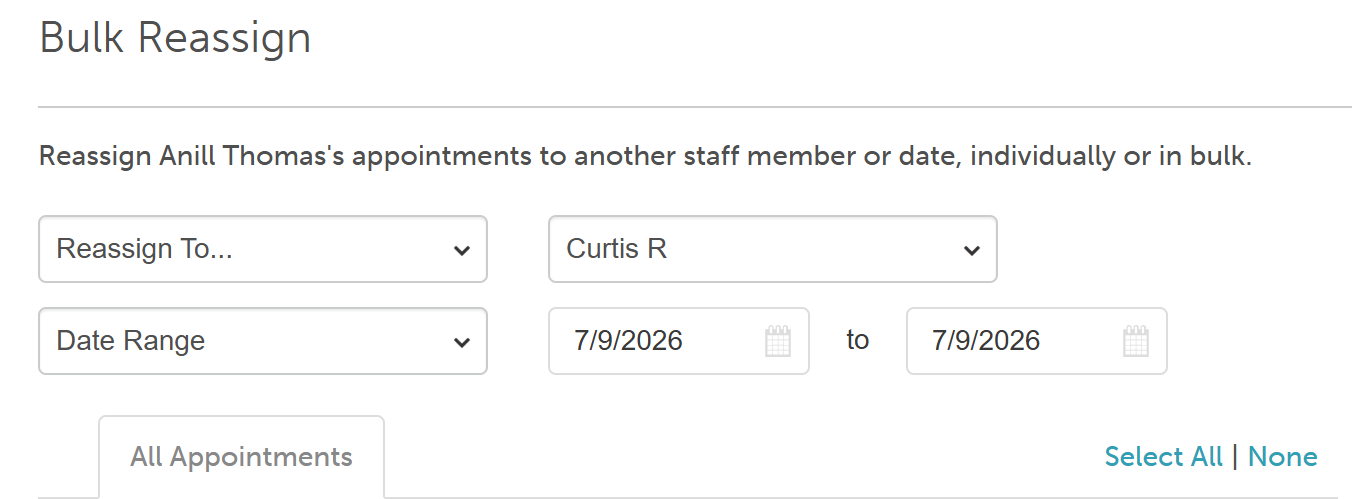
- By default, the "Reassign To" option will be selected. Here you can:
- Choose a staff member to reassign the appointments to
- Filter the client's upcoming appointments by a specific date range:
- By default, the dropdown is set to "All Future Appointments." Leaving it as-is will list all future appointments.
- Switching to "Date Range" exposes a 'From/To' date pickers to select the desired date range for upcoming appointments.
- Select the appointments you wish to reassign by using the 'Select All' option or by checking the boxes individually
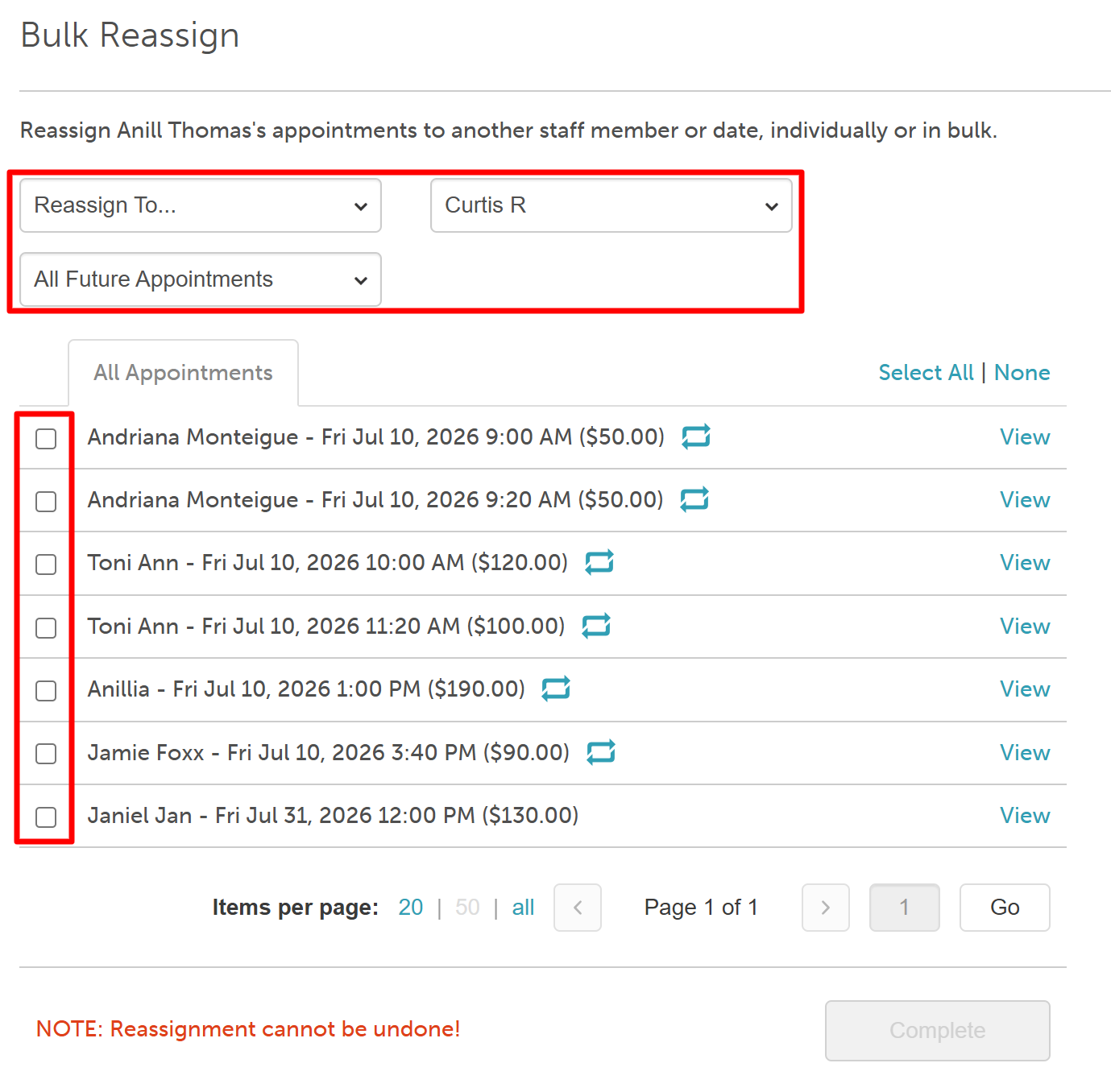
- After making your selection, click 'Complete'
- Type 'Reassign' in the text box on the confirmation pop-up then Save
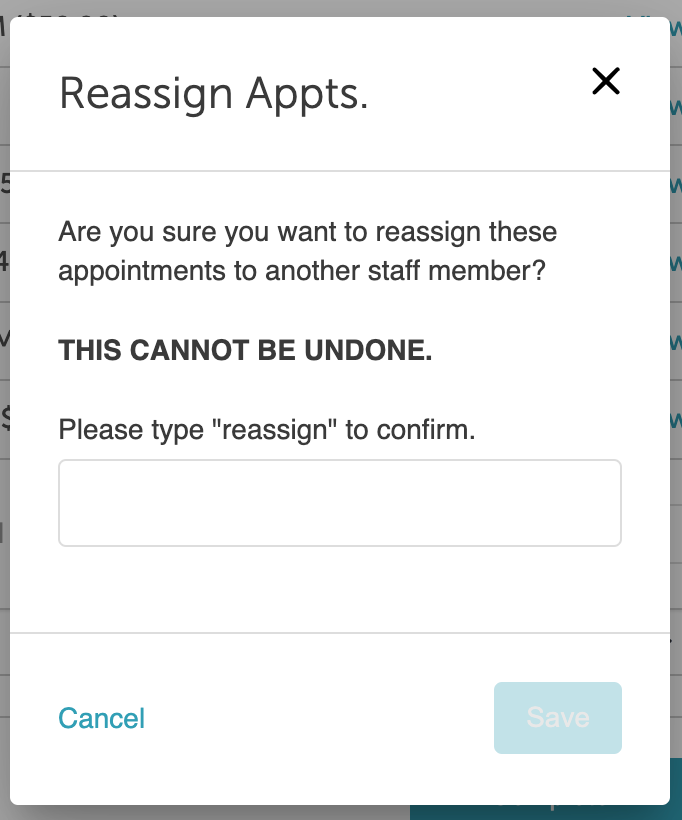

Congrats! You have successfully reassigned your appointments from one staff member to another.
Bulk Rescheduling Appointments
- Navigate to the Scheduler
- Filter by Day View
- Click on the name of the staff member you wish to reschedule the appointments to
- From the dropdown menu, click "Bulk Reassign"
You will be directed to the 'Bulk Reassign' page, which shows all future appointments scheduled for the staff on that day, as well as all appointments in any recurring series
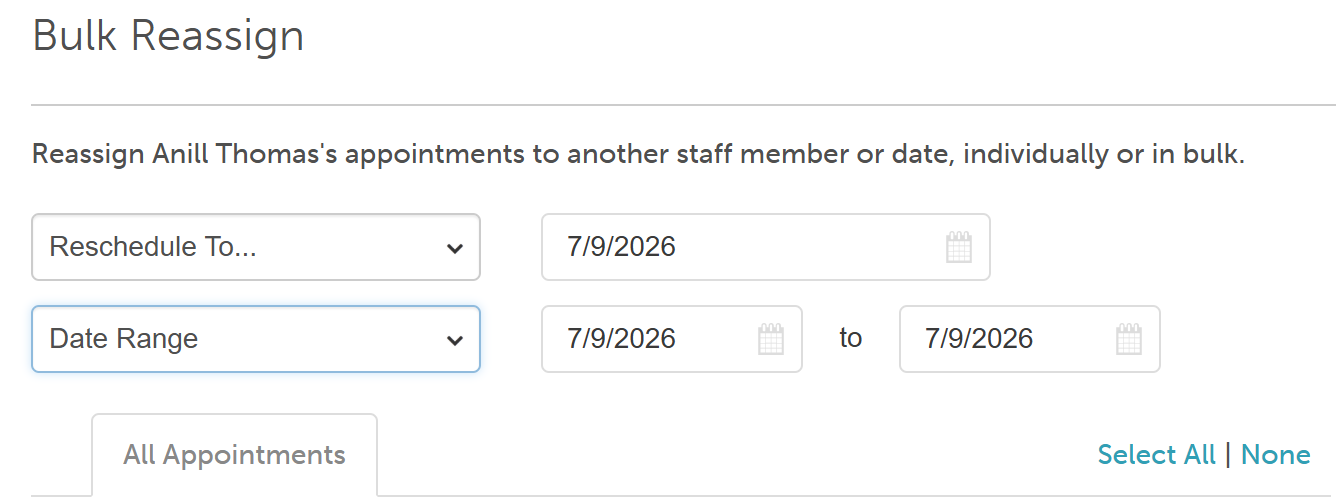
- From the 'Reassign' dropdown, select 'Reschedule To'. Here you can:
- Choose the desired date to reschedule the appointments to
- Filter the client's upcoming appointments by a specific date range:
- By default, the dropdown is set to "All Future Appointments." Leaving it as-is will list all future appointments
- Switching to "Date Range" exposes a 'From/To' date pickers to select the desired date range for upcoming appointments.
- Select the appointments you wish to reassign by using the 'Select All' option or by checking the boxes individually
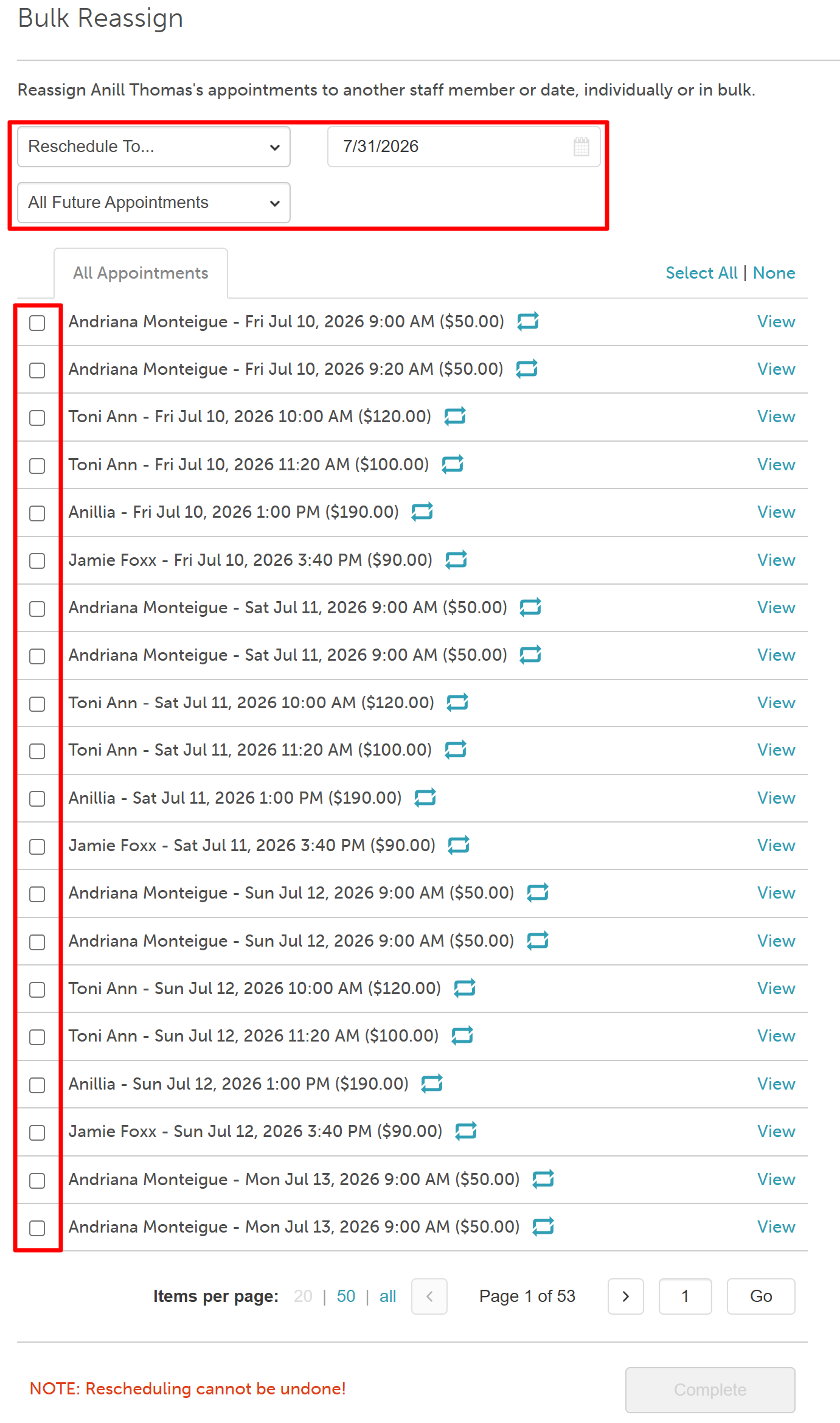
- After making your selection, click 'Complete'
- Type 'Reschedule' in the text box on the confirmation pop-up then Save

Congrats! You have successfully rescheduled your appointments from one staff member to another.
For more information, contact us at support@mytime.com or (385) 233-6964.
Related Article:
Rescheduling Appointments on Scheduler App
Drag Appointments Between Staff Members
Scheduling Multi-Staff Appointments
Scheduling Recurring Appointments
Appointments / Bookings Report
Booking Appointments for Multi-Client Services In-store
Booking Multi-Client Appointments Online
Booking Appointments for Multiple Pets Online
Was this article helpful?
That’s Great!
Thank you for your feedback
Sorry! We couldn't be helpful
Thank you for your feedback
Feedback sent
We appreciate your effort and will try to fix the article