In this article, we will walk through the steps on how to close your register at the end of the day on the scheduler app.
Things to Know:
- The ability to close registers is controlled by the "Accessing Register" access control setting.
- The system records the staff member who closes the register, along with the date and time of closure.
- If the entered cash float amount exceeds the actual cash in the register, the system will prompt you to deposit additional cash to cover the difference.
- If the register is not closed by the end of the business day, the system will automatically close it at 11:59 PM.
- Negative values are not permissible for any count when closing the register, and attempting to input such figures will result in a validation message being displayed, Invalid Quantity
To close the register on the scheduler app:
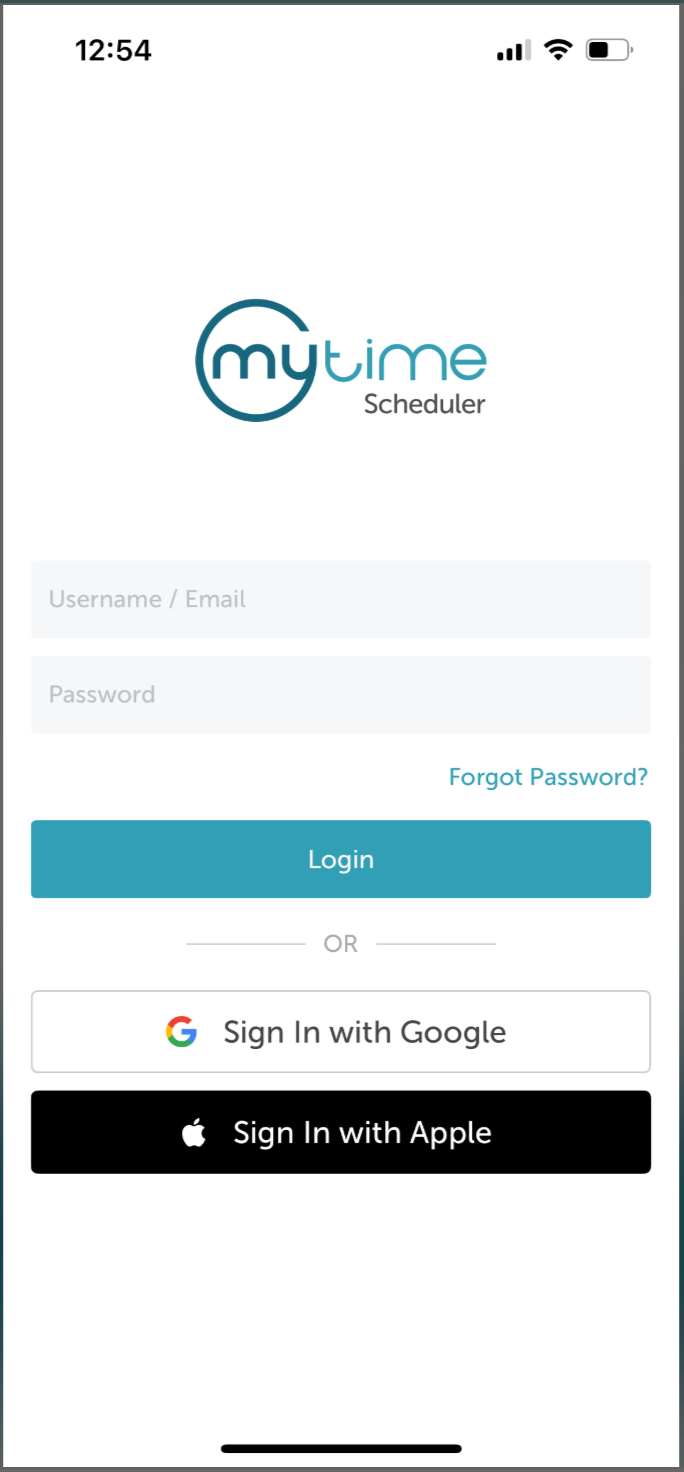
- Launch the MyTime Scheduler app on your device
- Choose your login method:
- Standard: Enter your registered email address and password, then tap 'Sign In'
- Social Login: Select 'Continue with Google' or 'Continue with Apple' to use your existing credentials for a faster login experience. For detailed instructions, learn more here
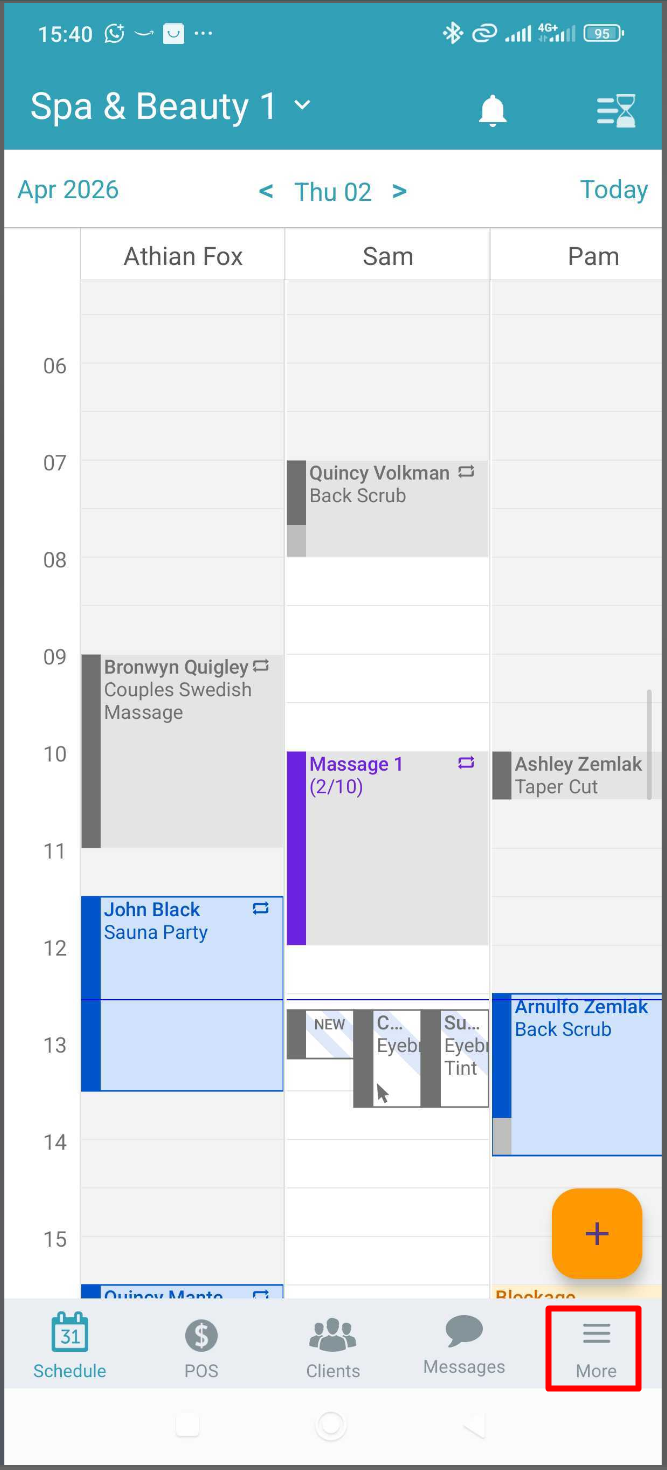
- Navigate to "More" at the bottom of the screen
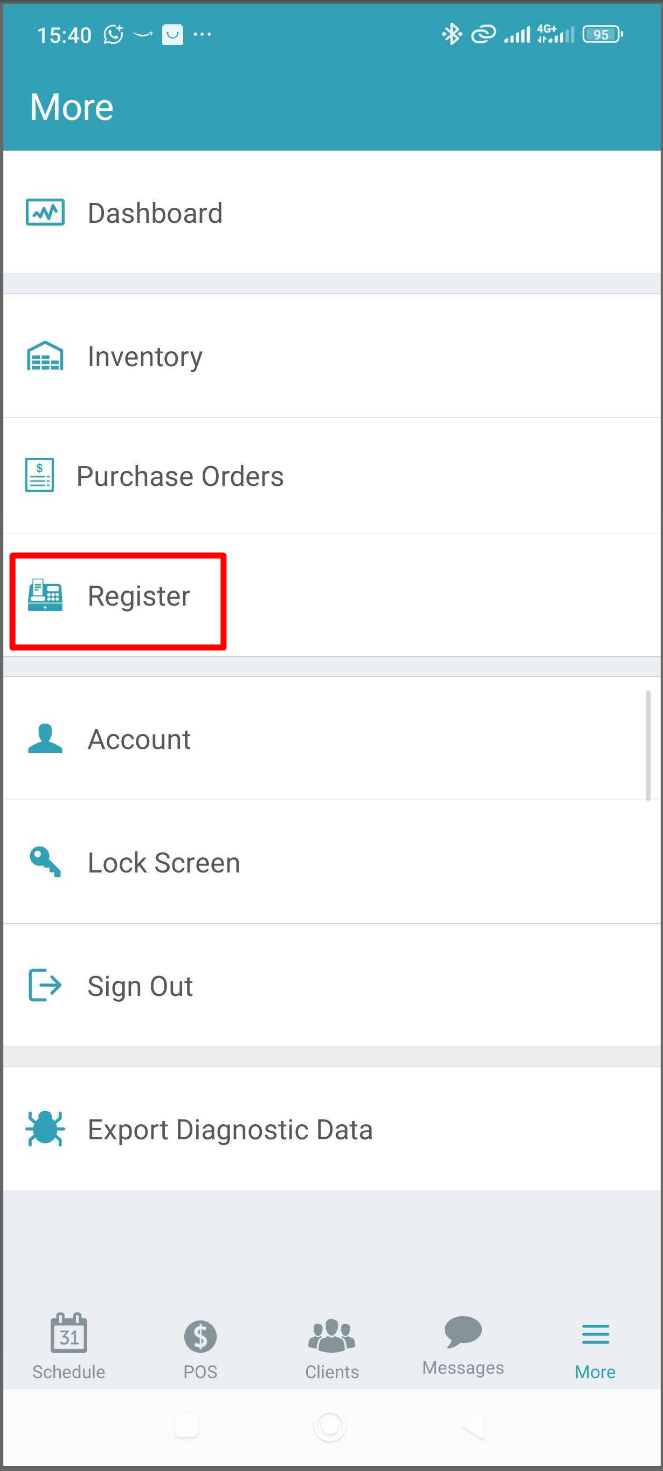
- Tap on "Register"
- A screen will appear displaying all the registers linked to your account
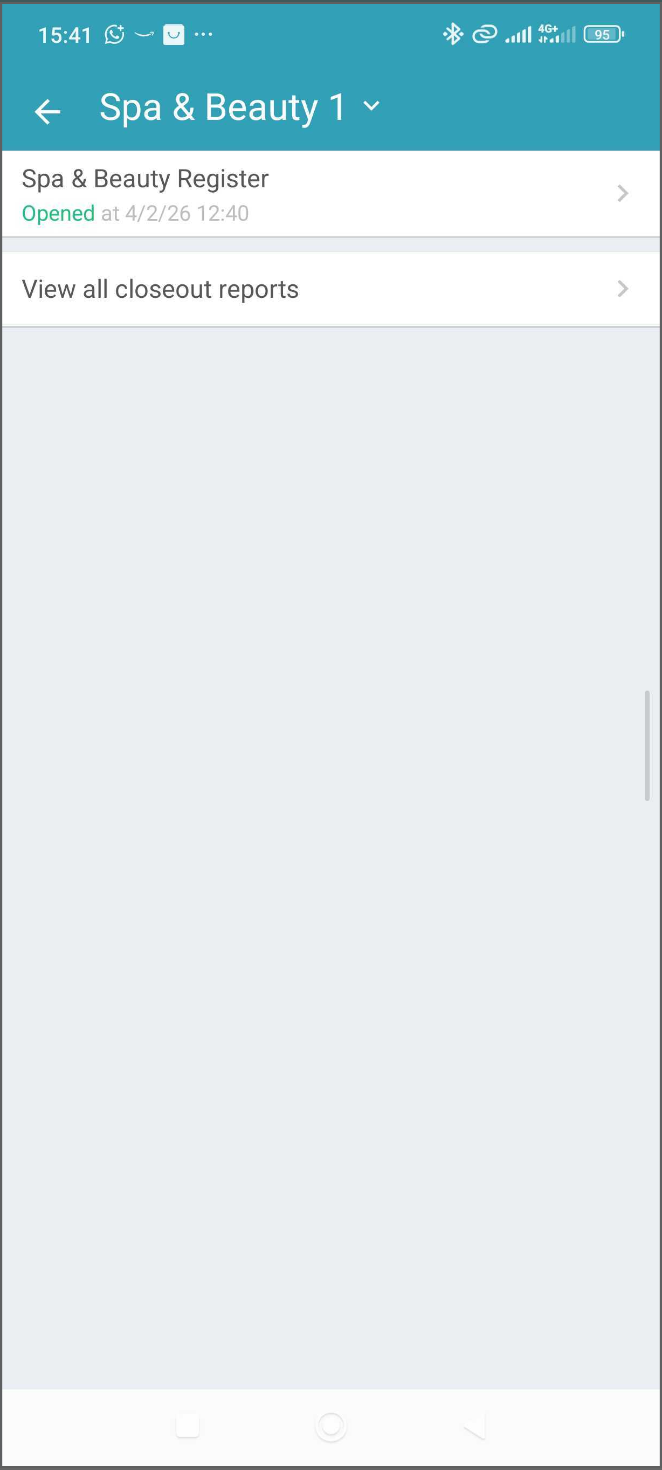
- Select the register you wish to close then tap 'Close'
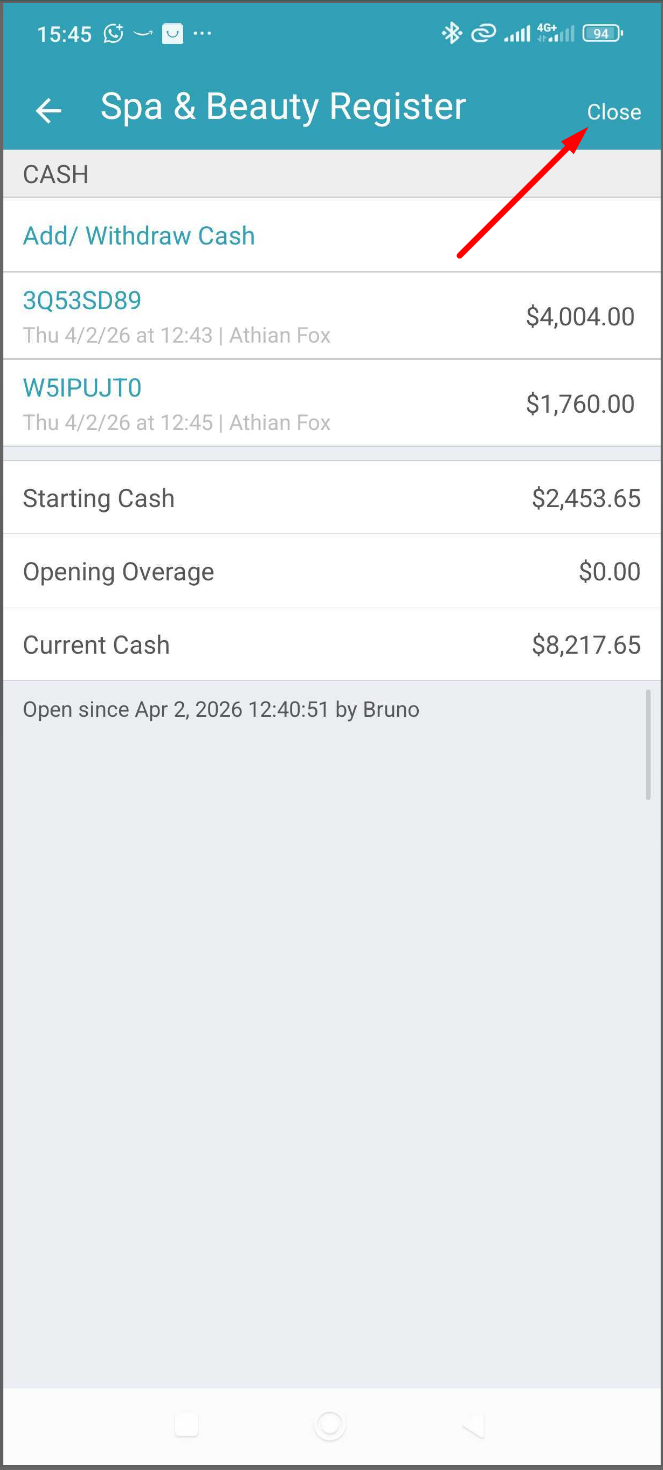
- Enter the cash amount at the end of the day in the "closing cash" section
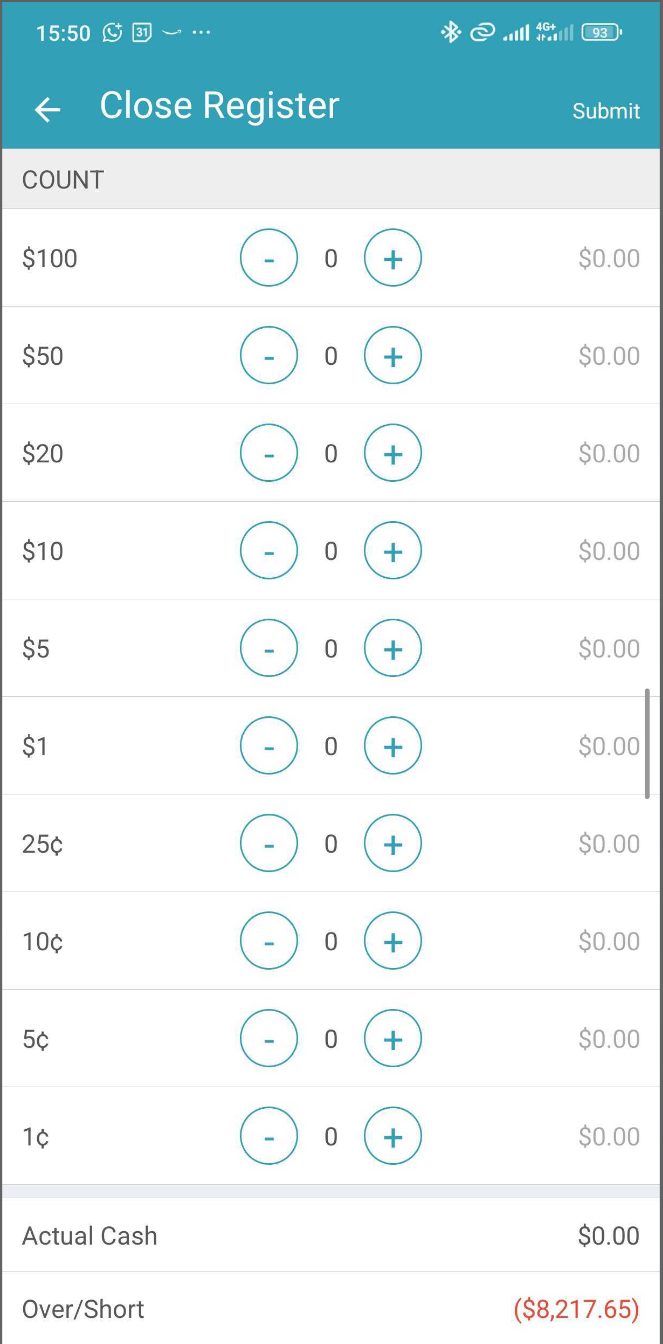
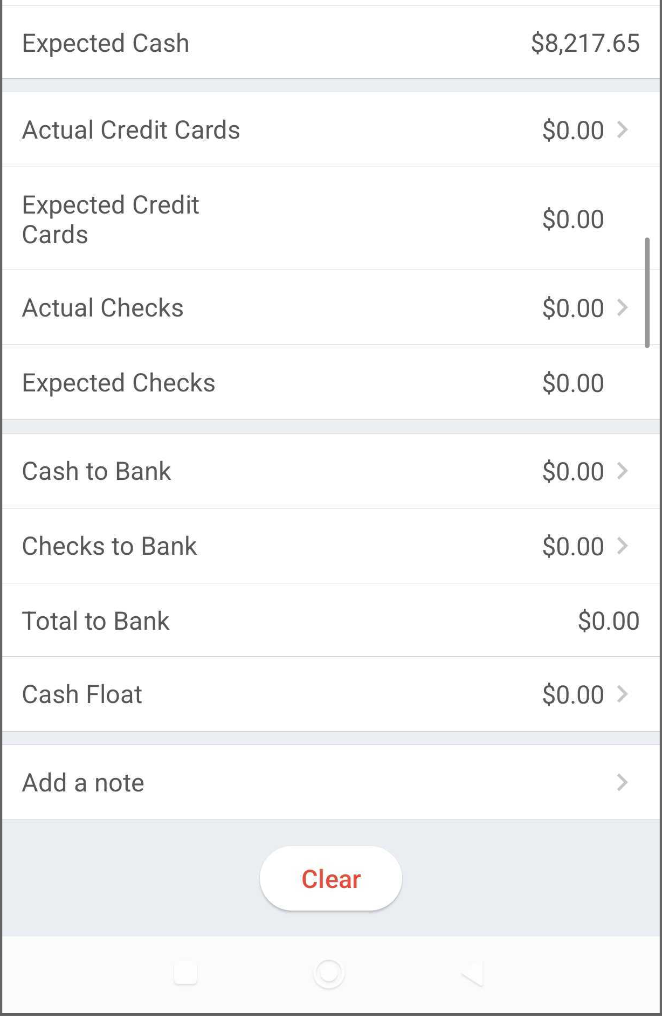
- The expected card, credit card and check values will be prefilled
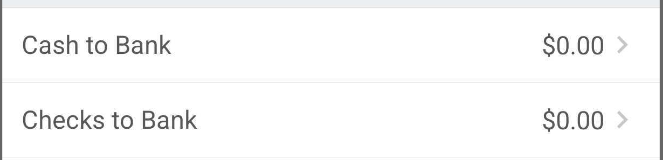
- You can enter the check and/or cash amount that you want to move to your bank account in the Cash to Bank or Check to Bank section
- If you enter an amount for the cash float that is larger than the amount of cash in the register, you will be prompted to deposit cash into the register to ensure you have enough cash on hand
- Select "Deposit Cash"
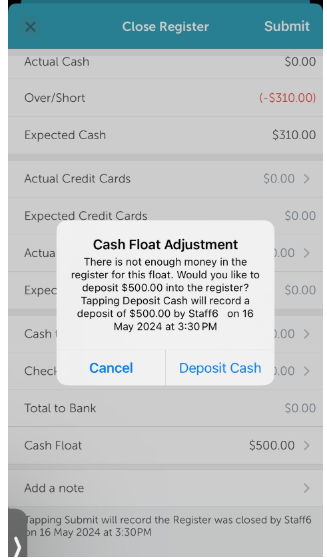
- The deposited amount will be added to the closing cash
- Once you confirm the deposit amount, the register will be closed
You can click "Back" to view registers on the account. There, you will see the register you have just closed, marked with the "closed" status, along with the date and time when the register was closed
For more information, contact us at support@mytime.com.
Related Articles:
Was this article helpful?
That’s Great!
Thank you for your feedback
Sorry! We couldn't be helpful
Thank you for your feedback
Feedback sent
We appreciate your effort and will try to fix the article