In this article, we will guide you through the process of selling products via POS.
Things to know:
- To facilitate product sales via POS, products must be added to the inventory. This can be accomplished either manually or by using an inventory spreadsheet.
- A product is eligible for sale to clients only if the "Sell to Clients (And Apply Taxes)" checkbox is selected in the edit product details interface in the inventory
- A staff member is eligible for commission on a product sale if the "Commission Eligible" checkbox is selected in the edit product details interface in the inventory
- Commission is determined by the staff member selected in the Commission dropdown on the ticket. This dropdown includes all available staff members.
- By default, the system assigns a staff member based on the "Default product commission to" setting, which can be configured to either "In-House" or "the logged-in staff member". Learn more here.
- A commission does not need to be configured on a staff member’s profile for them to appear in the commission dropdown on the POS ticket. Service providers, location managers, support staff, and any custom roles can be selected to receive commissions for product, membership, package, or gift card sales in the POS. However:
- If the Track Compensation checkbox is not selected on their profile, they will not appear in compensation reports.
- If no commission rate is set on their profile, no commission amount will be calculated or displayed in the reports for that sale.
- The locations shown in the location dropdown when creating a new ticket (to add a product) in POS are dependent on the following:
- Create Tickets for Their Location(s) and Block for All Locations access control enabled
- If the staff member is assigned to only one location, only that location will appear
- If the staff member is assigned to multiple locations:
- All associated locations will be displayed in the location filter
- The default location will be the one they last filtered to
- They can choose a different location if needed
- Block/Create Ticket for Their Location(s) and Create Ticket for All Locations in POS access control enabled
- All locations will be displayed in the location filter
- The default location will be the one the staff member last filtered to
- To add products to a ticket, you can search by name, select directly from your product list, or use a barcode scanner.
- When the "Enable Shared SKU Barcodes" hidden setting is enabled, multiple distinct SKUs can share the same barcode. When scanning a barcode in POS:
- Unique Barcodes: If the scanned barcode is associated with only one SKU, the item is automatically added to the ticket.
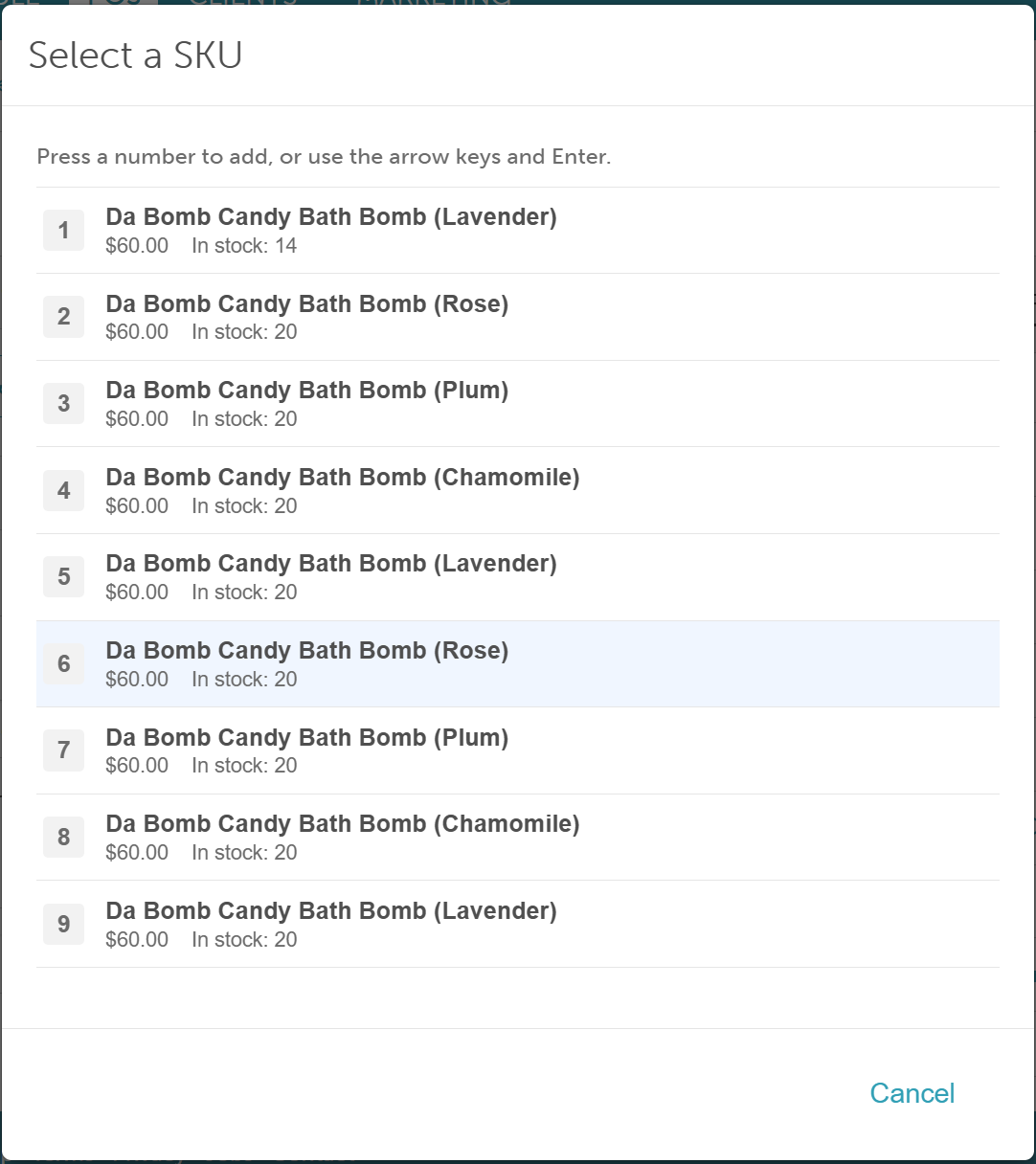
- Shared Barcodes: If the scanned barcode is associated with multiple SKUs, an item selection modal will appear, allowing you to choose the correct product.
- Note: If a barcode is assigned to a large number of items, only the first 9 matching SKUs will be displayed in the selection modal.
- By default, the system uses an alphanumeric code for ticket numbers (e.g., R0T4TX5P). However, you can configure your account to use chronological and sequential ticket numbers instead. With this setup, the system will display the suffix of the Tax Number (found under Business Info > Edit Location) along with receipt numbers in sequential order — for example, 062-00002. This feature is controlled by the hidden setting "Show Sequential Receipt Number on Tickets", which can only be enabled by the MyTime team. To activate this setting, please contact support@mytime.com
- By default, payment buttons may lack visual prominence, making it difficult for staff to quickly identify the primary payment method. This can lead to selecting incorrect options or improper transaction processing. You can request a layout change that reorders the buttons and highlights the primary action in blue for better visibility.
- Default Display:
- No Card on File: [Key In Card] [Swipe Card]
- Card on File: [Visa ****1234] [Key In Card] [Swipe Card]
- Enhanced Display (High Visibility):
- No Card on File: [Swipe/Tap Card] (Highlighted) [Manual Entry]
- Card on File: [Visa ****1234] (Highlighted) [Swipe/Tap] [Manual Entry]
- Important: This is controlled by a hidden setting that must be enabled by the MyTime team. If you would like to switch to the high-visibility payment buttons, please contact us at support@mytime.com
- Default Display:
- On the Take Payment page, a "Max" button is available next to the Other Payment field. Clicking this button automatically fills the field with the remaining balance due. Example: If a client’s total is $100 and $60 has already been paid by credit card, clicking "Max" will automatically enter the remaining $40 in the Other Payment field.
To sell products via POS:
- Navigate to POS > New Ticket
- Add a client
- Select a location from the location dropdown menu
- From the Products tab, you can add items to a ticket in the following ways:
- Select or Search for Products: Browse the product list or use the search bar to find a product by name.
- Scan Product Barcodes: Scan a product's barcode to add it to the ticket. If the "Enable Shared SKU Barcodes" hidden setting is enabled and the scanned barcode is associated with multiple SKUs, a modal will appear allowing you to select the correct product.
- Select or Search for Products: Browse the product list or use the search bar to find a product by name.
- To assign a commission, choose the commissionable staff member from the drop-down list in the Commission field
- The name will be updated to reflect the assigned staff member to receive the commission
- You can apply a discount if you wish to do so. Learn more here
- Take payment
- Select a payment method
- Close the ticket


For more information, contact us at support@mytime.com.
Related Articles:
Was this article helpful?
That’s Great!
Thank you for your feedback
Sorry! We couldn't be helpful
Thank you for your feedback
Feedback sent
We appreciate your effort and will try to fix the article