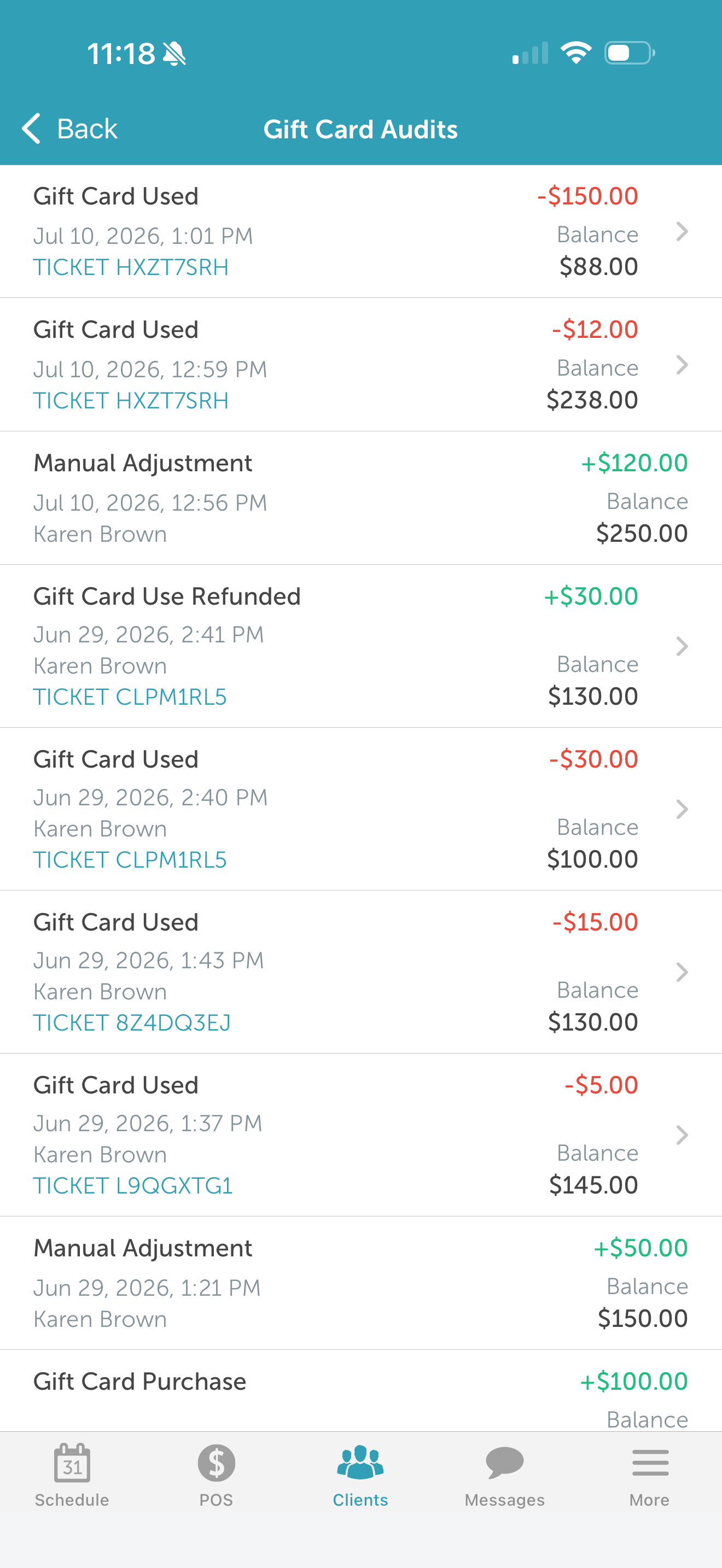
The gift card audit trail on a client's profile provides transparency and accountability by displaying a complete history of gift card activity—including the initial purchase, redemptions, refunds, reloads, and manual adjustments—along with the name of the staff member who made each change. This article explains how to access the gift card audit trail and what information is displayed on the Scheduler app.
Things to know:
- The ability to access gift card audit trail on a client’s profile is governed by the "Accessing Gift Cards" access control setting.
- Actions are listed in reverse chronological order, with the most recent entry displayed first.
- Tapping an audit entry opens the associated ticket (when available)
To access the gift card audit trail:
1. Launch the MyTime Scheduler app on your device
2. Choose your login method:
- Standard: Enter your registered email address and password, then tap 'Sign In'
- Social Login: Select 'Continue with Google' or 'Continue with Apple' to use your existing credentials for a faster login experience. For detailed instructions, learn here
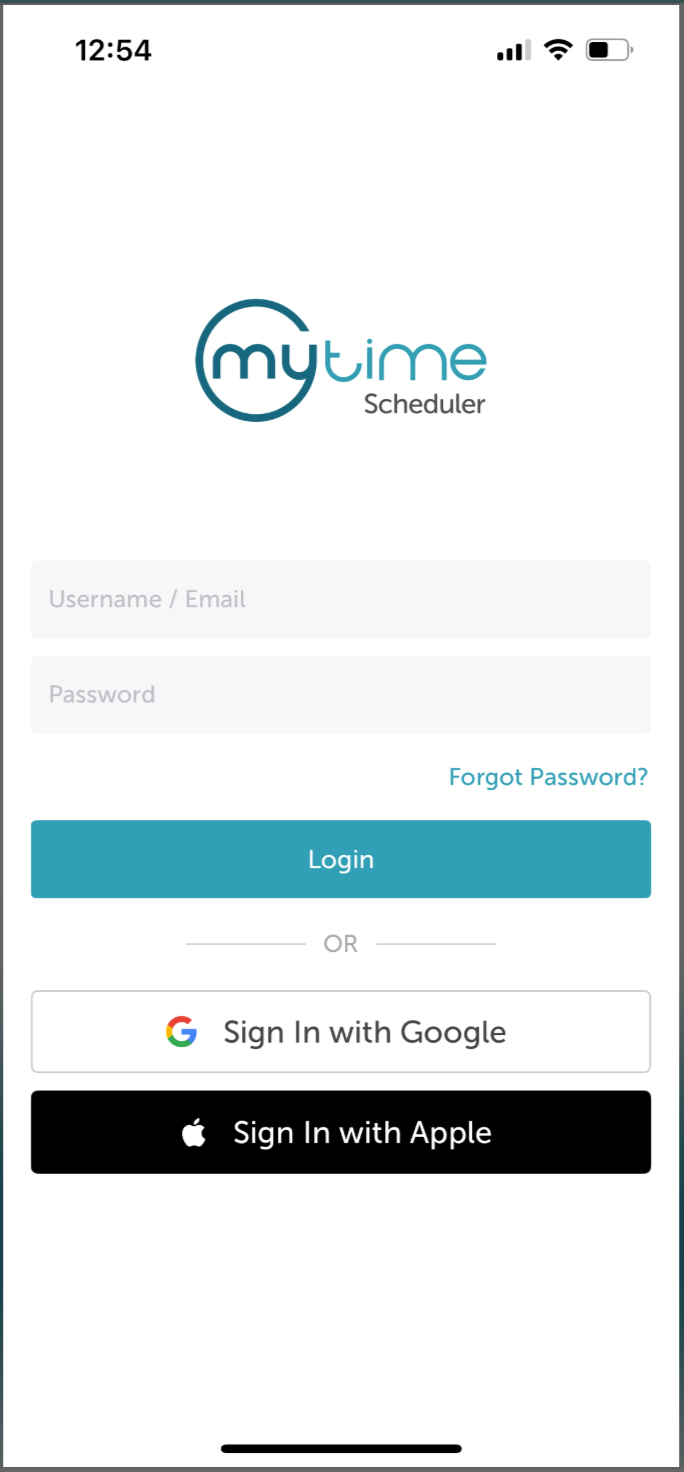
3. After signing in, you will be directed to the Schedule by default
4. Tap the "Clients" icon at the bottom of the screen 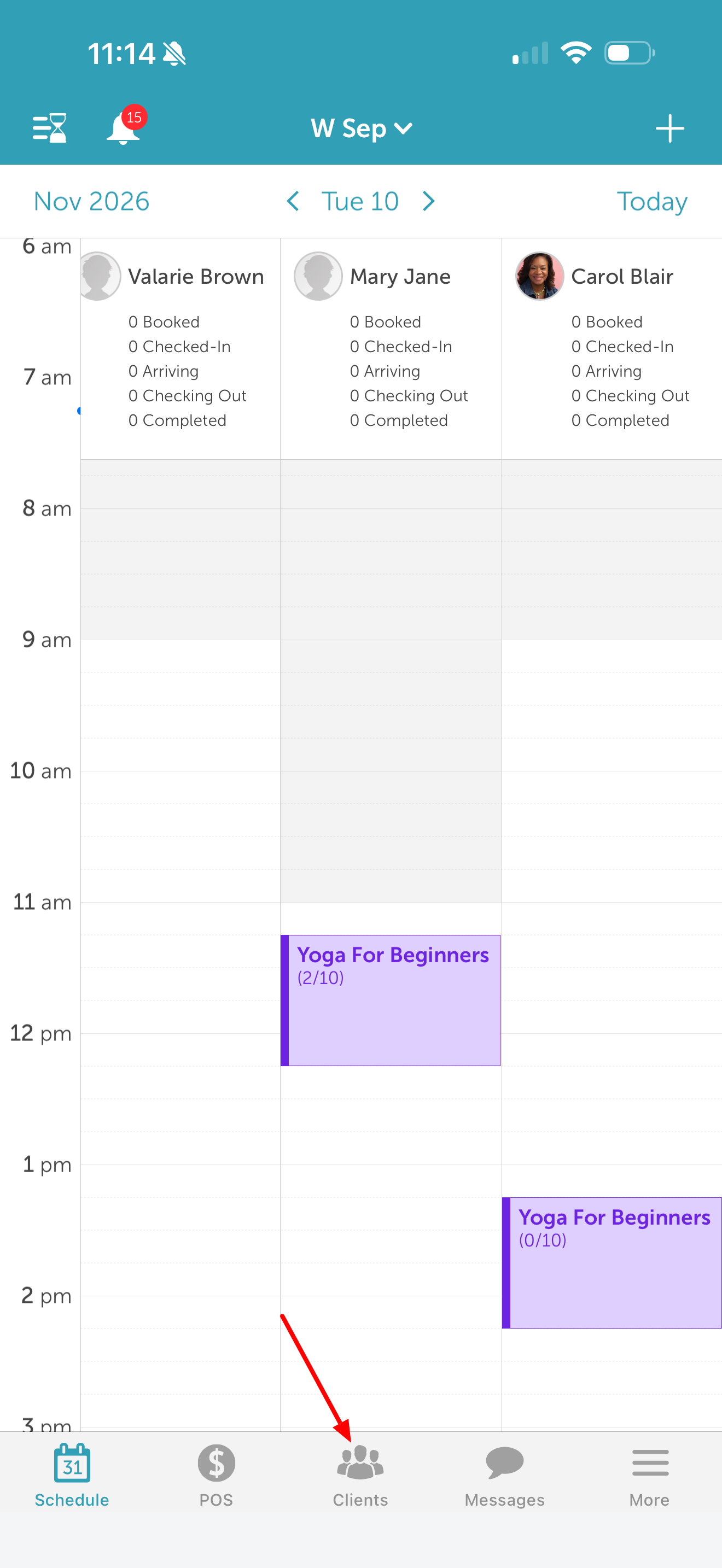
5. Search for and tap the desired client to open their profile 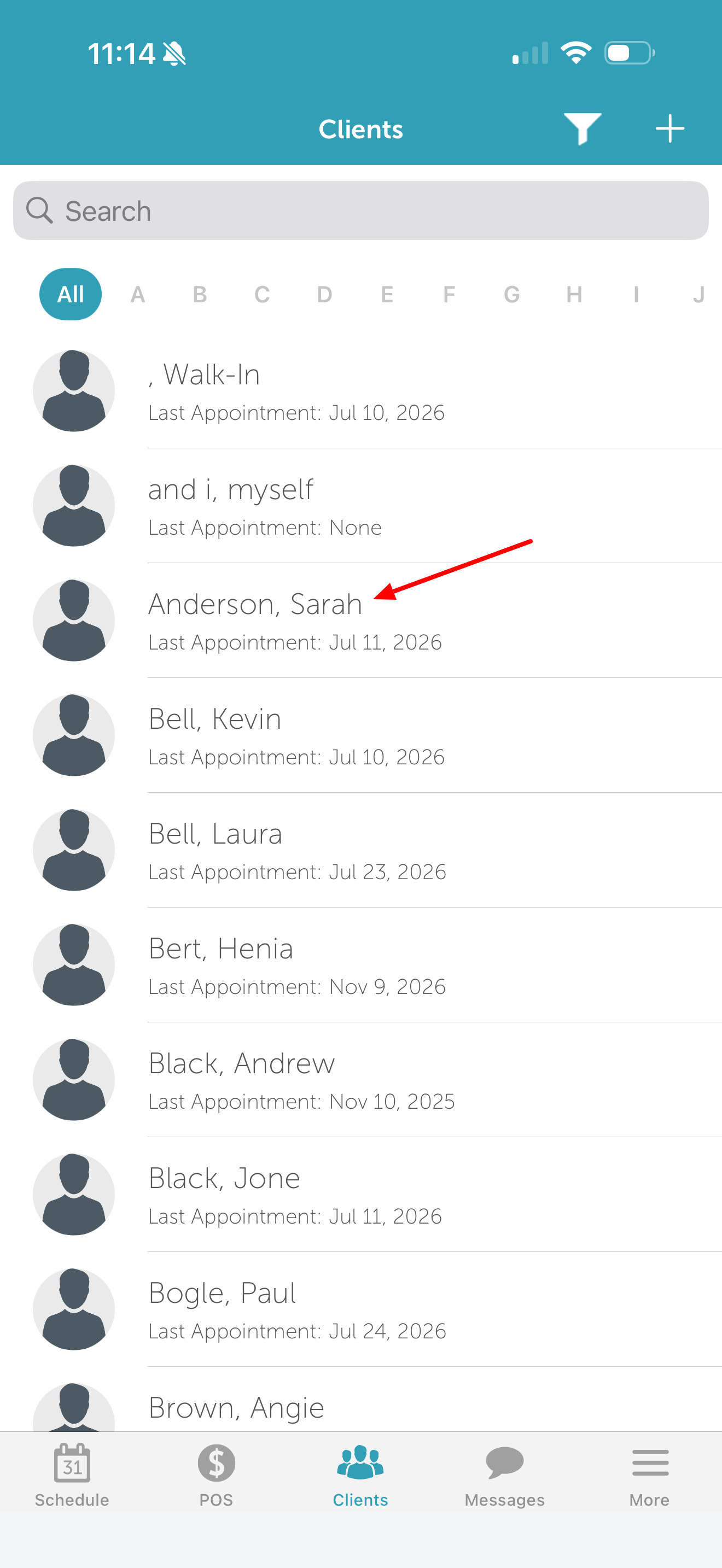
6. Scroll down to the "Gift Cards Purchased" section
7. Tap the gift card row to view its details 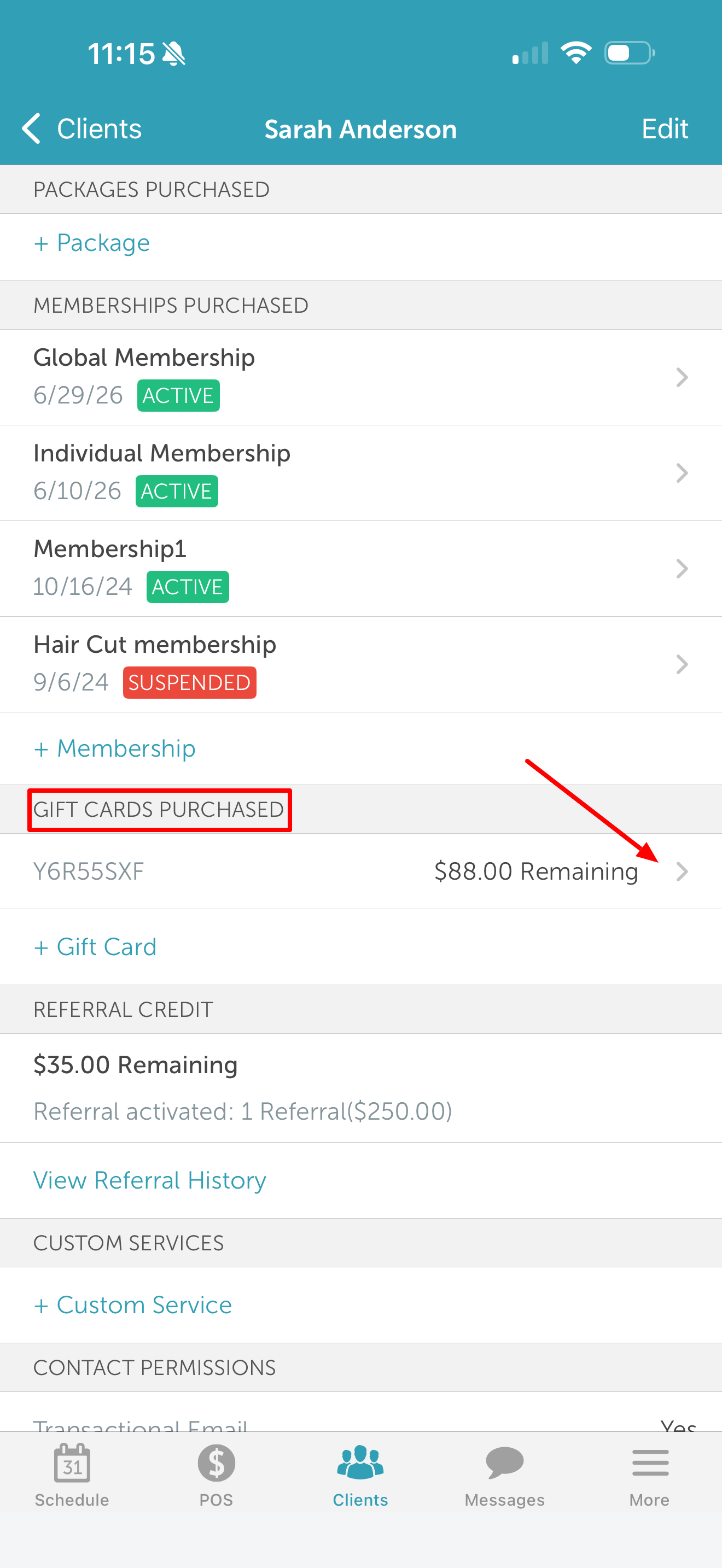
8. Tap "View Audit Trail" to open the history modal 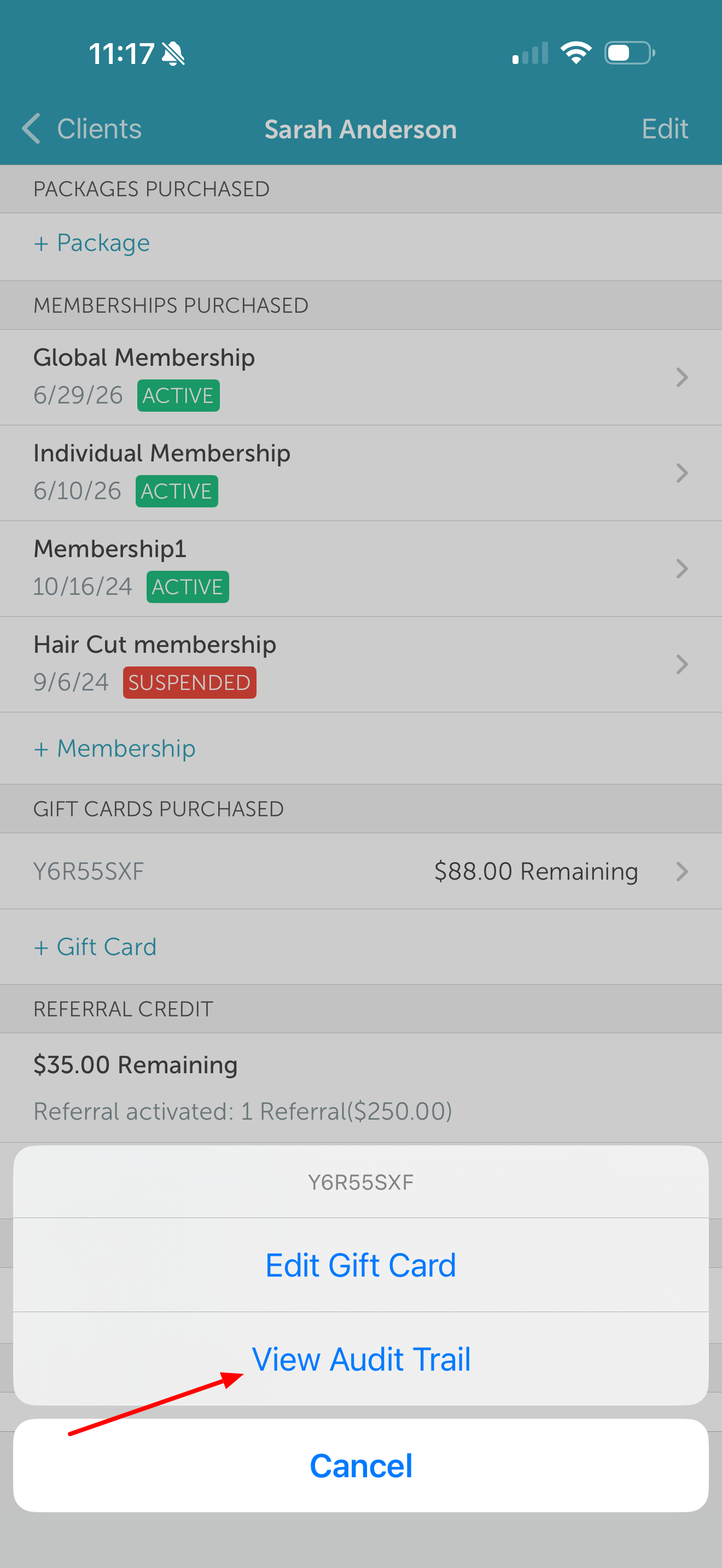
Information Displayed in the Audit Trail:
- Action Type: The specific activity performed (Gift Card Purchase, Gift Card Used, Gift Card Use Refunded, Gift Card Reloaded, Gift Card Expired or Manual Adjustment).
- Date & Time: When the transaction or adjustment occurred.
- Amount & Remaining Balance: The value added or deducted and the updated card balance.
- Staff Member: The name of the team member who processed the action.
- Associated Ticket: A link to the related checkout ticket, when applicable.
For more information, contact support@mytime.com.
Related Articles:
Installing MyTime on Scheduler App (Android and iOS)
Signing into MyTime on Scheduler App (Android and iOS)
Was this article helpful?
That’s Great!
Thank you for your feedback
Sorry! We couldn't be helpful
Thank you for your feedback
Feedback sent
We appreciate your effort and will try to fix the article