The Upsell Report tracks conversion performance for automated sales prompts configured across the appointment booking and checkout workflows. It measures how effectively staff capitalize on contextual recommendations—such as service add-ons, retail cross-sells, packages, memberships, or time-based adjustments (e.g., late fees)—triggered directly from the appointment modal or the POS ticket page based on ticket items, scheduled appointment times, and client purchase histories.
Things to know:
- The ability to access this report is governed by the "Accessing Reports" access control settings
- The report only displays data for closed tickets (open, voided, or deleted tickets, as well as removed items, are excluded).
- Refunds are excluded from this report
- If the Amount and Suggested Amount columns differ, a discount or price adjustment was applied to the upsell item. For example, if an upsell add-on has a suggested amount of $50, and the staff member applies a $10 discount at checkout, the Amount column will display $40 while the Suggested Amount remains $50.
- Closed Location Visibility: Upsell data is retained for closed or deleted locations, allowing staff to filter and view historic promotional data seamlessly.
To access this report:
Navigate to Dashboard
Select the Reports tab
Under the Point Of Sale section, select the Upsell report
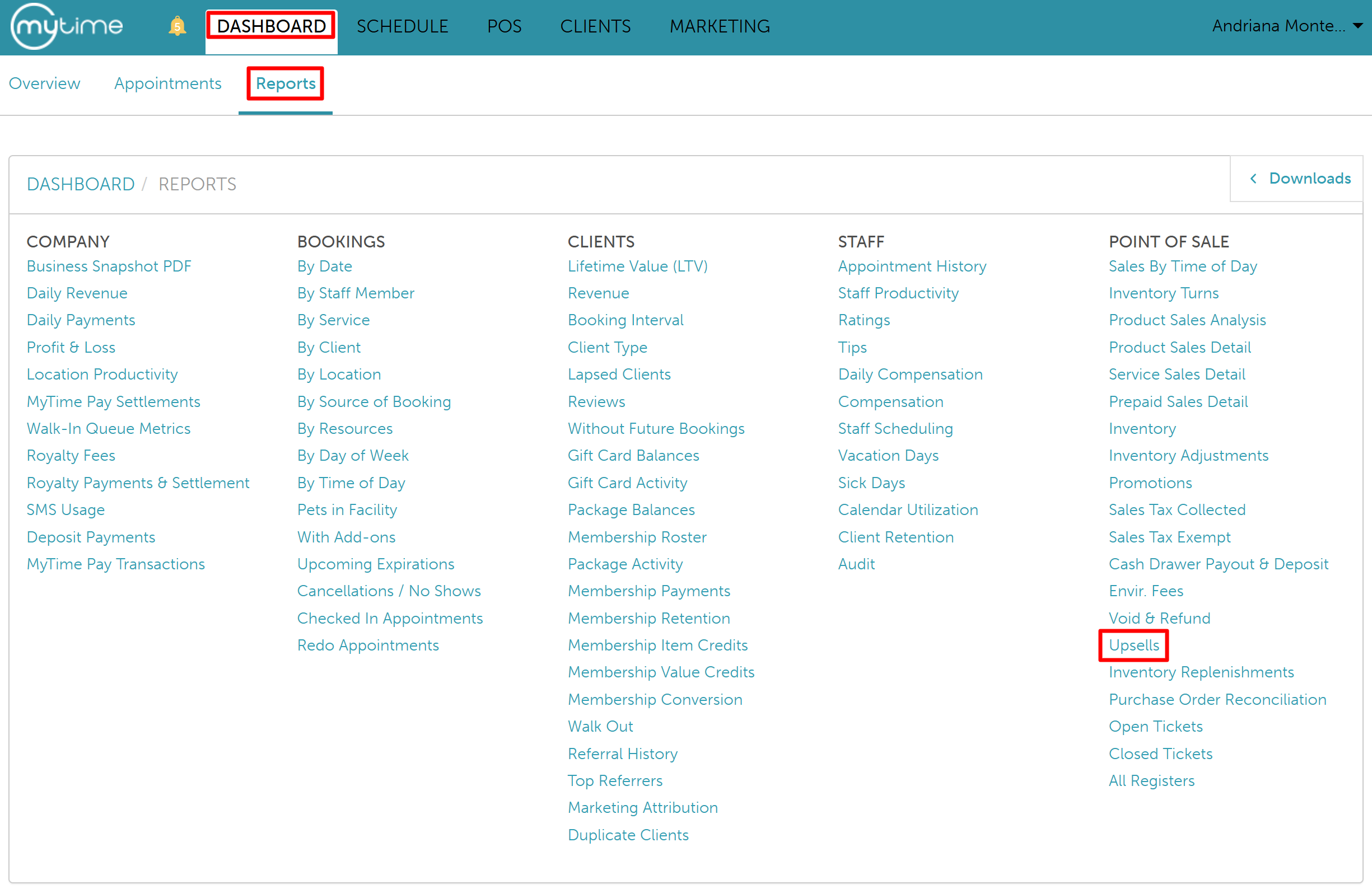
When the report opens, you can narrow the results by modifying the filters. You can filter by location, the staff member, the date the upsell suggested item was added to the appointment or ticket, and the upsell source. Once you have selected your filters, click on the UPDATE button to generate the desired data. 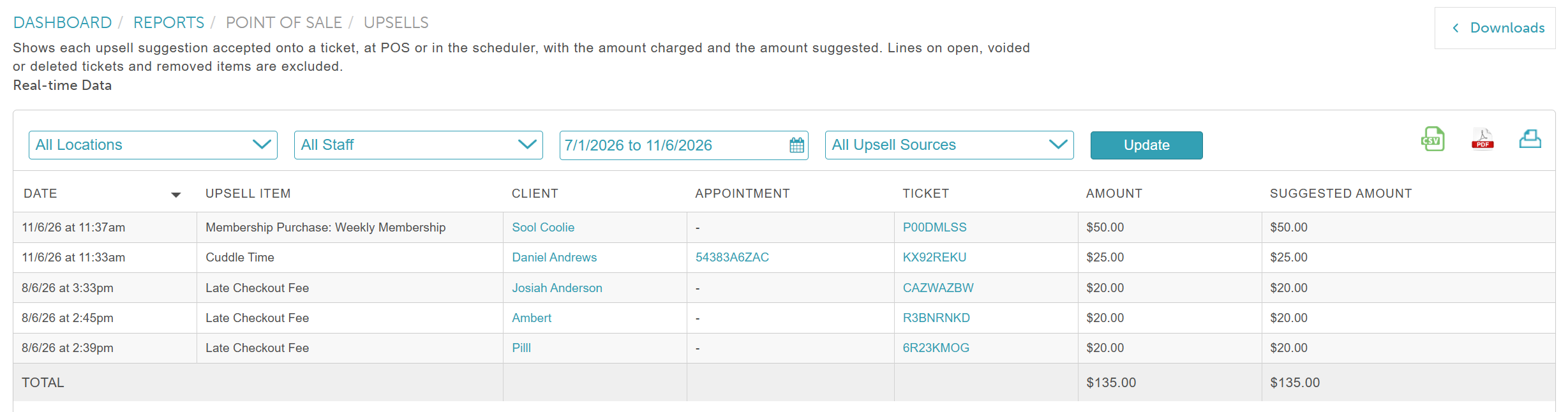
Report Filters
| Filter | Description |
| Location | Shows upsells from a specific location or all locations.
|
| Staff Member | The staff member who added the upsell item (accepted the suggestion), not the staff member who closed the ticket or performed the service. |
| Date | The date the ticket was closed OR the date the suggested upsell item was added to the appointment or ticket. |
| Upsell Source | The type of upsell prompt that triggered the suggestion. |
Report Columns
| Column | Description |
Date | The date and time the upsell suggested item was added to the appointment or ticket. |
Upsell Item | The suggested upsell item that was added to the appointment modal or POS ticket |
Client | Client associated with the appointment or purchase. Clicking this link opens the client's profile. |
Appointment | A unique alphanumeric code generated for each scheduled appointment. The ID is displayed at the bottom of the appointment modal and included in client confirmation emails. Clicking the Appointment ID opens the appointment directly on the Schedule. |
Ticket | A unique alphanumeric code generated for each ticket associated with the appointment. The ID is displayed in receipts and reports. Clicking this link opens the ticket in MyTime POS. |
Amount | The actual price charged for the suggested upsell item |
Suggested Amount | The standard retail price of the suggested upsell item. |
For more information, contact us at support@mytime.com or (385) 233-6964.
Related Articles:
Was this article helpful?
That’s Great!
Thank you for your feedback
Sorry! We couldn't be helpful
Thank you for your feedback
Feedback sent
We appreciate your effort and will try to fix the article