The Membership Retention Report provides an instant, reliable view of your recurring revenue health without requiring you to cross-check multiple reports. It displays key metrics—including sold, active, continued, and cancelled memberships—allowing you to track growth trends with complete clarity.
Things to know:
- The ability to access this report is governed by the "Accessing Reports" access control settings
- Manually Added & Imported Memberships: Memberships created directly on a client profile without a POS ticket will not appear in the Sold column.
- You can group your data by time period to evaluate short-term changes or analyze long-term business trends:
- Daily View: Displays your membership metrics day by day (sales, cancellations, renewals, and active members).
- Best for: Spotting day-to-day fluctuations and immediate operational shifts.
- Note: Selecting the Daily view automatically defaults to displaying the Last 30 Days.
- Weekly View: Consolidates your membership data week by week.
- Best for: Tracking week-over-week progress and evaluating recent promotions or sales campaigns.
- Monthly View: Aggregates your membership data month by month.
- Best for: Identifying big-picture business growth and monitoring overall retention trends over time.
- Daily View: Displays your membership metrics day by day (sales, cancellations, renewals, and active members).
- The numbers displayed depend on whether you are viewing data by Day, Week, or Month:
- Sold: The total number of new memberships purchased during that specific period.
- Cancelled: The total number of memberships that expired or were cancelled during that specific period.
- Continued: Active memberships with a successful or pending payment during that specific period.
- Active: The total number of active memberships remaining at the end of that period (as of the final day, week, or month cutoff).
- If a client has a weekly or bi-weekly membership that bills multiple times within a single month, it is counted only once in the Continued column for that month to maintain accurate member counts.
- When you enable the View by Location toggle, the report breaks down your metrics location by location for each selected time period (day, week, or month):
- Row Display: Each row displays metrics for a single location during one specific time period.
- Location Totals: Summing the individual location rows equals your overall business metrics for Sold, Cancelled, Continued, and Active memberships.
- Sorting & Order: Results are grouped chronologically by time period (newest first) and sorted alphabetically by location name within each period.
- Local Time Zone Cutoffs: When viewing Daily data, midnight cutoffs automatically follow each location's local time zone, ensuring daily figures align with local business operating hours. For example, if you have locations in New York (EDT) and Los Angeles (PDT), a transaction made at 10:00 PM PDT on October 1st in Los Angeles will correctly count toward LA's October 1st daily total rather than rolling into October 2nd Eastern Time.
- When a membership renews, the expiring term is recorded under Cancelled and the new term is recorded under Continued.
- Continued: Counted once per period after a successful or pending payment. A membership that pays and then cancels in the same period shows in both Continued and Cancelled.
- Failed Payments: Pending payments (like ACH) count as Continued. If the payment later fails, the membership suspends and is removed from Continued.
- Frozen or Suspended: Counted as Active, but not Continued.
- When viewing the report at the parent level, data from all child locations is automatically combined.
- The report can only be exported in Summary View, which consolidates data by category such as location, staff member, or service type. This view is ideal for high-level analysis, allowing you to review total revenue and overall performance metrics without displaying individual transactions.
- Totals in the summary footer are displayed only for the Sold and Cancelled columns; the Continued and Active columns remain blank.
To access this report:
- Navigate to Dashboard
- Select the Reports tab
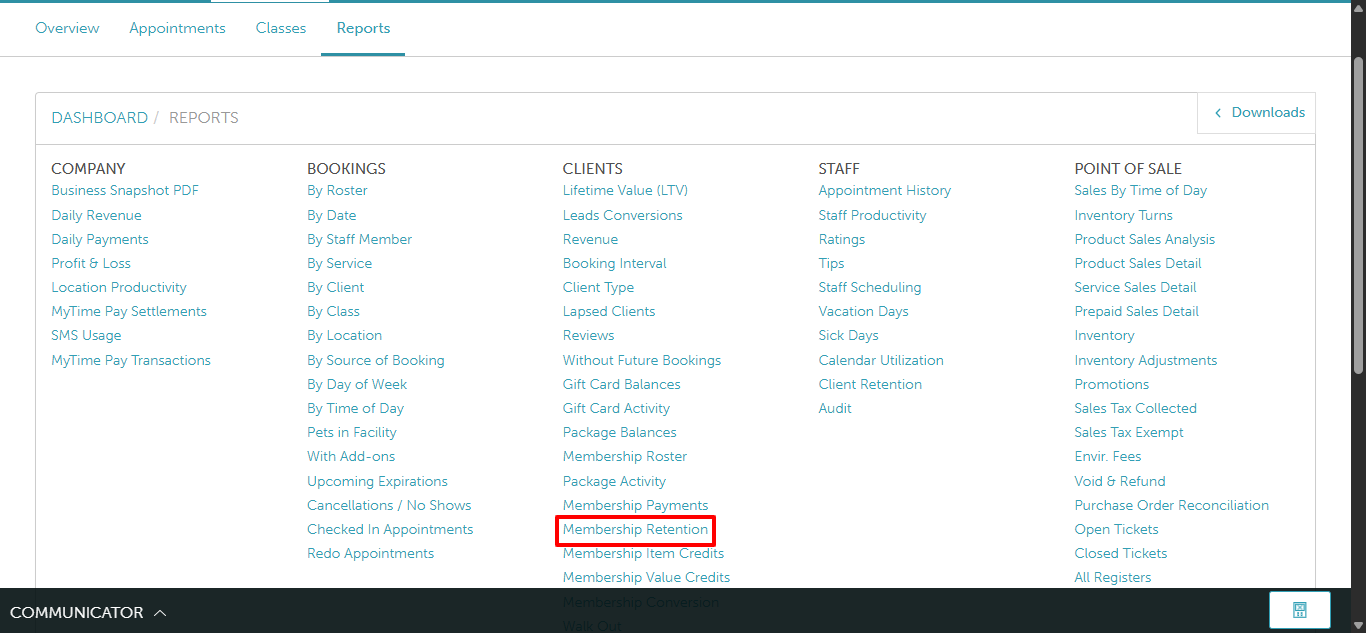
- Under the Clients section, select the Membership Retention report
Filter the report by location and date range, then click Update to generate your data. You can also export the results as a CSV or PDF, or print them directly.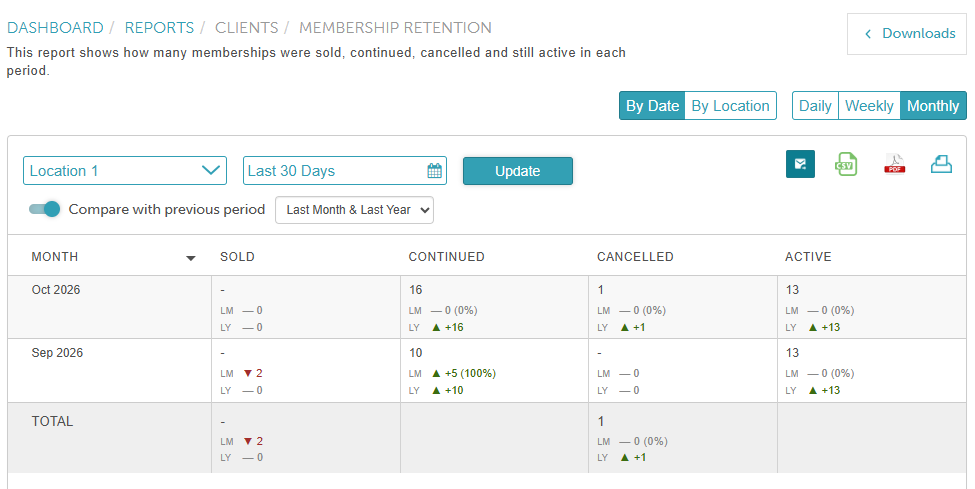
Report Filter
| Filter | Description |
| Location | Displays memberships tied to the selected location.
|
| Date | The date range during which the membership transition occurred. |
| Compare with [Past Periods] | This toggle allows you to benchmark your current metrics against the same period in the previous month or previous year. When enabled, select 'Last Month,' 'Last Year,' or 'Last Month & Last Year' from the dropdown.
How Date Matching Works: 1. By Date Comparisons: When this option is selected, the system matches your report rows strictly by calendar dates.
|
Report Column
| Column | Description |
| Day | Appears in the Daily view to track daily membership retention trends. |
| Month | Appears in Monthly view to track monthly membership retention trends. |
| Week Of | Appears in Weekly view to track weekly membership retention trends. |
| Sold | Displays memberships purchased during the selected period. |
| Continued | Displays active memberships that successfully billed during the period. (Note: Clients billed weekly or bi-weekly are counted only once per month for an accurate headcount). |
| Cancelled | Displays all membership cancellations and expirations during the selected period. |
| Active | Displays total memberships active on the last day of the selected period. The Active count includes memberships in any of the following statuses:
|
Related Articles:
Was this article helpful?
That’s Great!
Thank you for your feedback
Sorry! We couldn't be helpful
Thank you for your feedback
Feedback sent
We appreciate your effort and will try to fix the article