You can add prompts to show staff members what they can upsell to a client. These upsell prompts can be configured to appear at booking time (on the appointment modal) or at checkout time (from the POS ticket page). This feature can be used to promote service add-ons, packages, memberships, product cross-sells, or late fees based on appointment time, ticket items, and even the client’s own purchase history.
Things to know:
- The ability to configure your account to allow schedule and POS checkout prompts is controlled by the "Access Account Settings" access permission.
- The ability to have checkout prompts on the Schedule is controlled by a hidden setting that can only be enabled by the MyTime team. To enable this setting, please contact support@mytime.com.
- Consolidated Upsell Prompts:
Schedule & POS Prompts (Service-Based): When a service is added to an appointment, all triggered upsell recommendations are consolidated into a single suggestion modal across both the Schedule and POS.
POS-Only Prompts (Item-Based): When items added to a ticket trigger multiple upselling rules, all suggested items automatically consolidate into a single prompt within the POS.
This unified approach allows staff to review and present all relevant recommendations to the client at once during checkout.
- Rule Details: Hover over the tooltip icon next to "Based on this ticket, we recommend adding:" to view the specific service or product rules that triggered each recommendation.
- The setup option displayed in the top-right user menu depends on how you access the account and your assigned role:
- When navigating from the Parent Account (Location Management tab):
- Admin: Displays Business Setup when viewing the location account.
- Login As: Displays Location Setup when viewing the location account.
- When logged in directly at the Location Level:
- Location Owners & Location Managers: Display Location Setup.
- Service Providers & All Other Roles: Display Profile Setup.
Contents:
Configuring Prompt Rules
Follow these steps to build conditional upselling rules:
- Navigate to Business Setup / Location Setup > Settings
- Scroll to the POS settings section and locate the 'Staff Upsell Prompts' setting
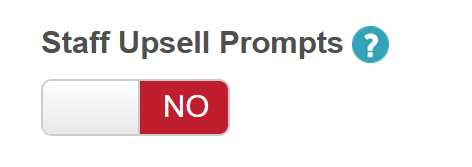
- Toggle the setting to 'Yes'
- The configuration "Manage prompt rules" hyperlink will be visible
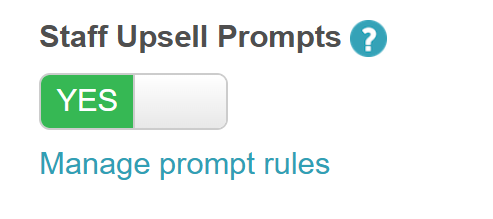
- Click 'Manage prompt rules' to open the 'Checkout Prompts' modal
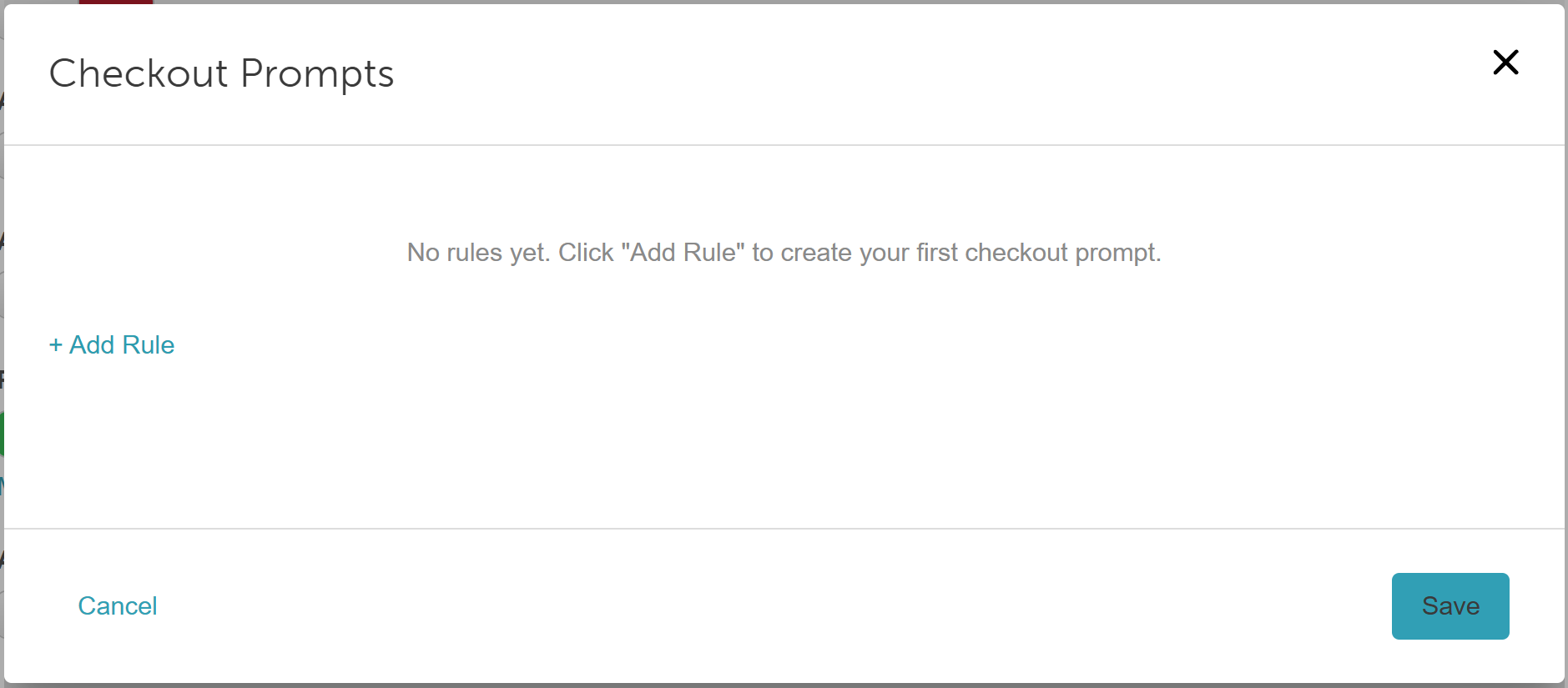
- Click '+ Add Rules' and configure your parameters:
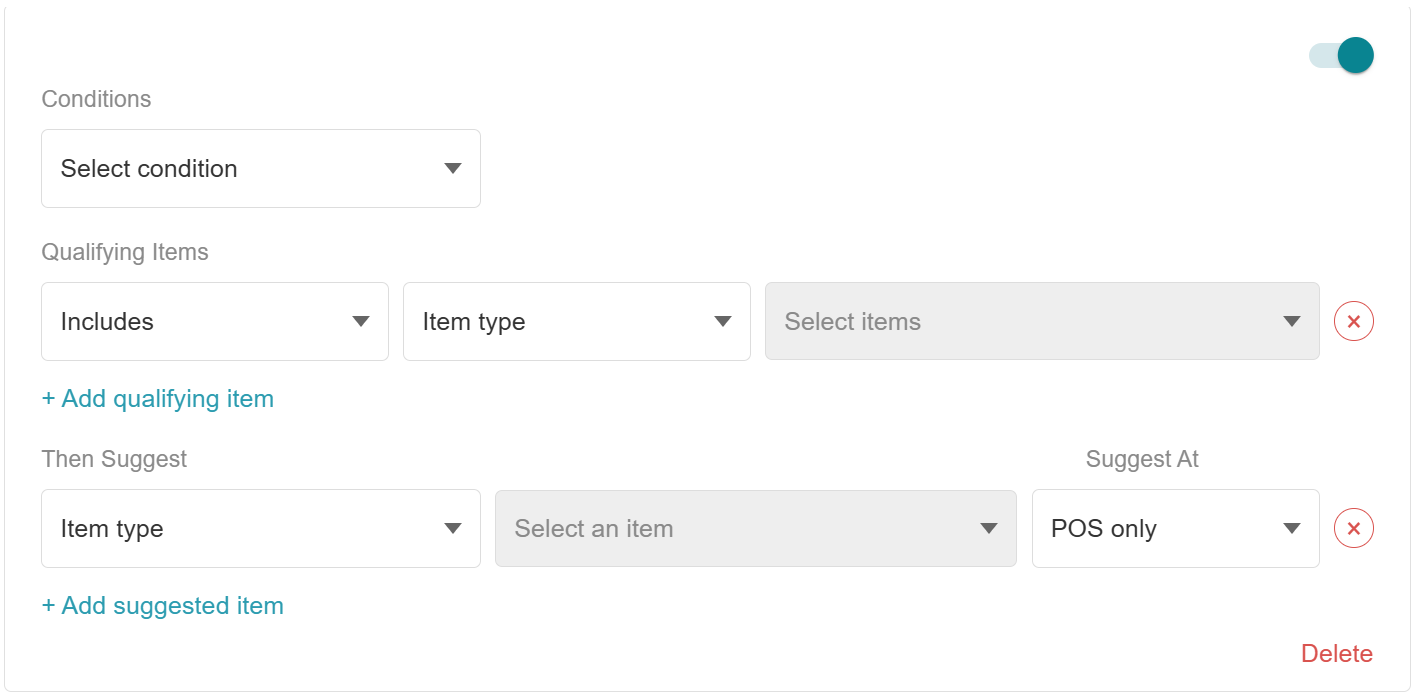
- Condition (Set Your Triggers): Define exactly when this prompt should appear by selecting parameters from the dropdown menus:
- The time of day after: Select the desired time between 12:00 am and 11:45 pm (15-minute intervals)

- The day of the week: Select the specific day(s) the rules apply

- Ticket total is over: Set a minimum dollar threshold that the ticket must exceed

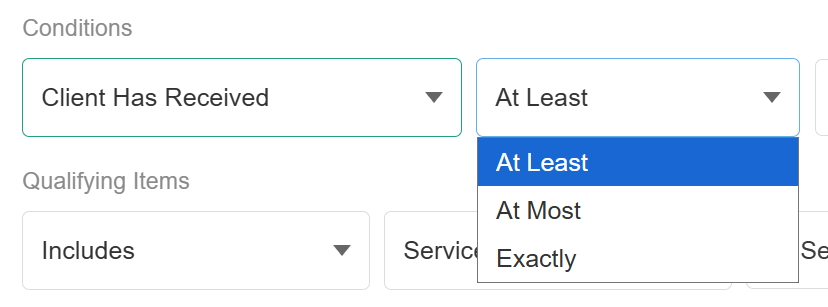
- Client Has Received: Enter the required number, then choose whether it represents a minimum threshold (At Least), an exact match (Exactly), or a maximum threshold (At Most). Note: This condition applies exclusively to 'Services' as qualifying items
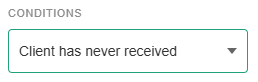
- Client Has Never Received: Requires no additional configuration. Note: This condition applies exclusively to 'Services' as qualifying items.
- The time of day after: Select the desired time between 12:00 am and 11:45 pm (15-minute intervals)
- QUALIFYING ITEMS:
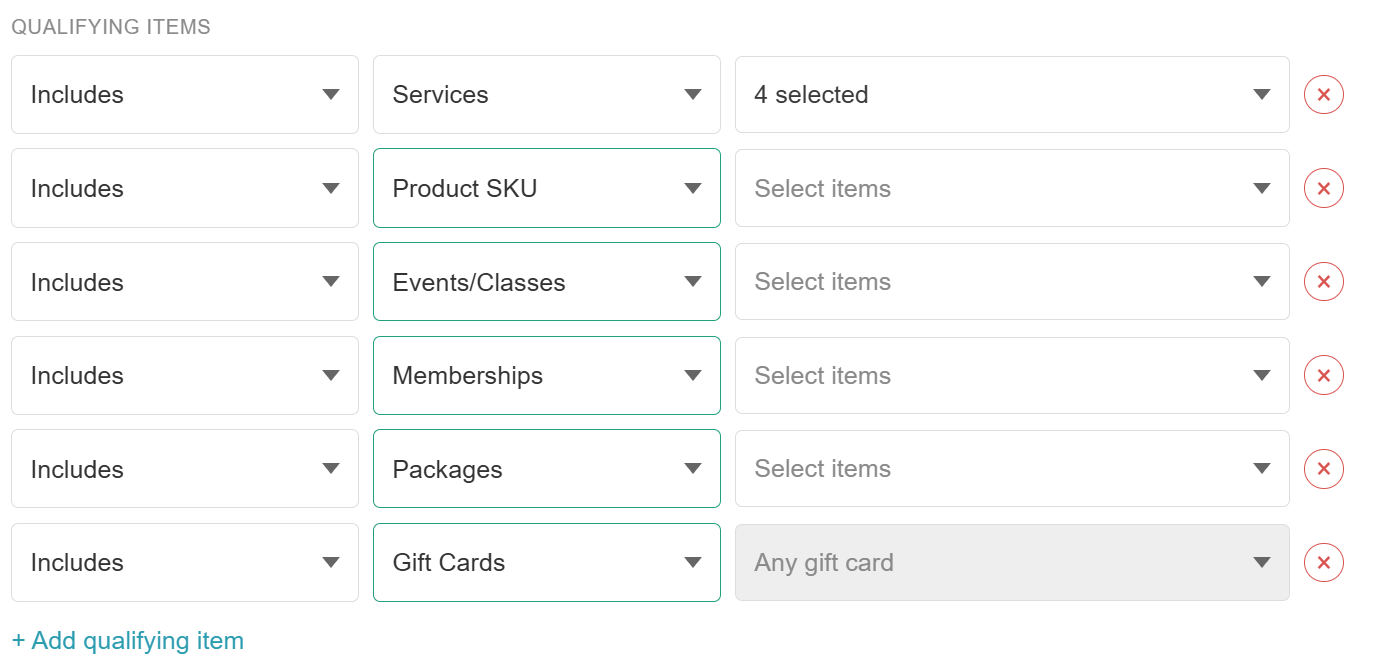
- Include/Exclude: Choose whether the rule applies only to selected items or ignores them entirely.
- Item Type: Target specific services, products (SKUs, categories, or brands), classes, memberships, packages, or gift cards. You can add multiple qualifying groups.
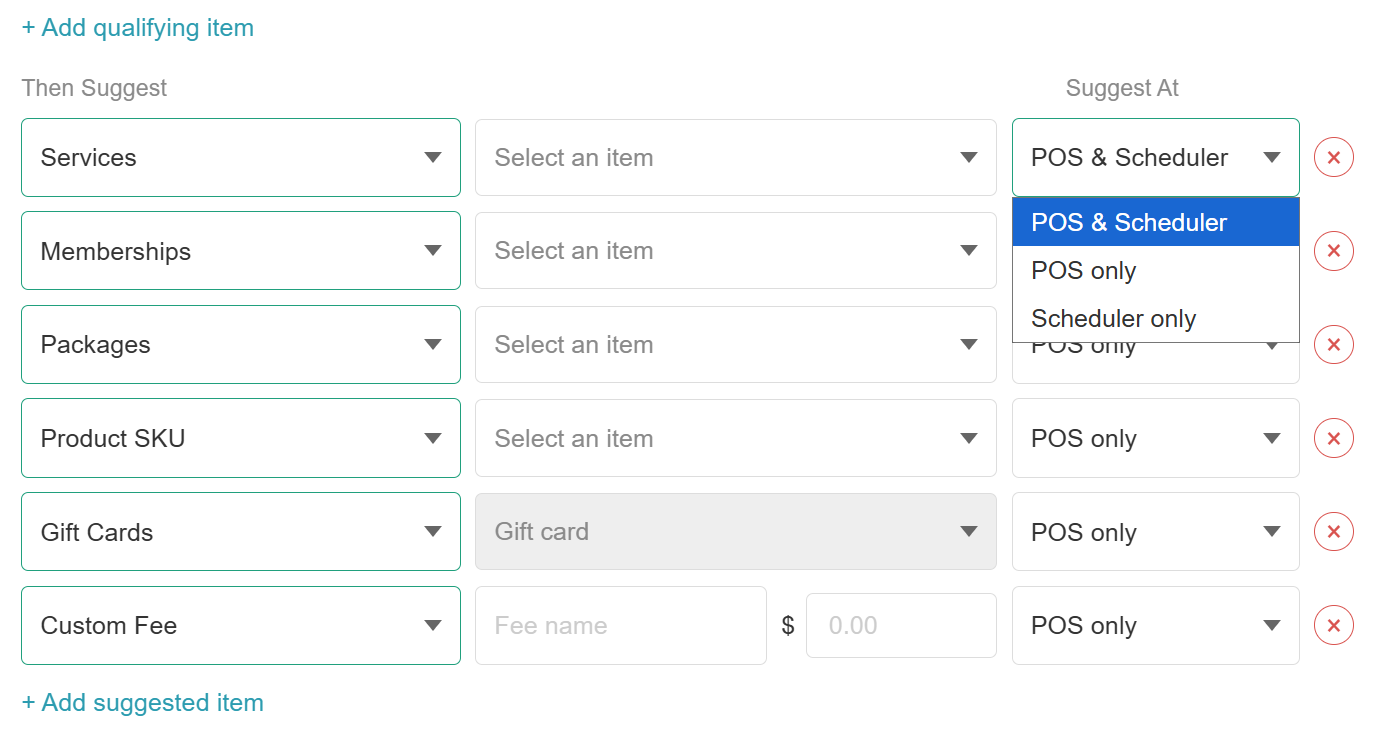
- THEN SUGGEST (Select Your Recommendations): Add the specific item(s) or custom fee to recommend, then decide where the prompt should be initiated: POS only, the Schedule only, or both. You can configure multiple suggested items for a single prompt. Please note: The POS & Scheduler and Scheduler Only options are available for service suggestions. Additionally, the options are not shown if 'Ticket Total is over' is selected for the trigger
- Condition (Set Your Triggers): Define exactly when this prompt should appear by selecting parameters from the dropdown menus:
- All rules can be added, edited, or deleted directly from this modal. Use the Enabled/Disabled toggle in the top-right corner of any rule to pause it without deleting
- Scroll to the bottom of the settings page and save the changes
Checkout Prompt in POS
- Navigate to POS > New ticket
- Add any qualified items to the ticket and click 'Take Payment'
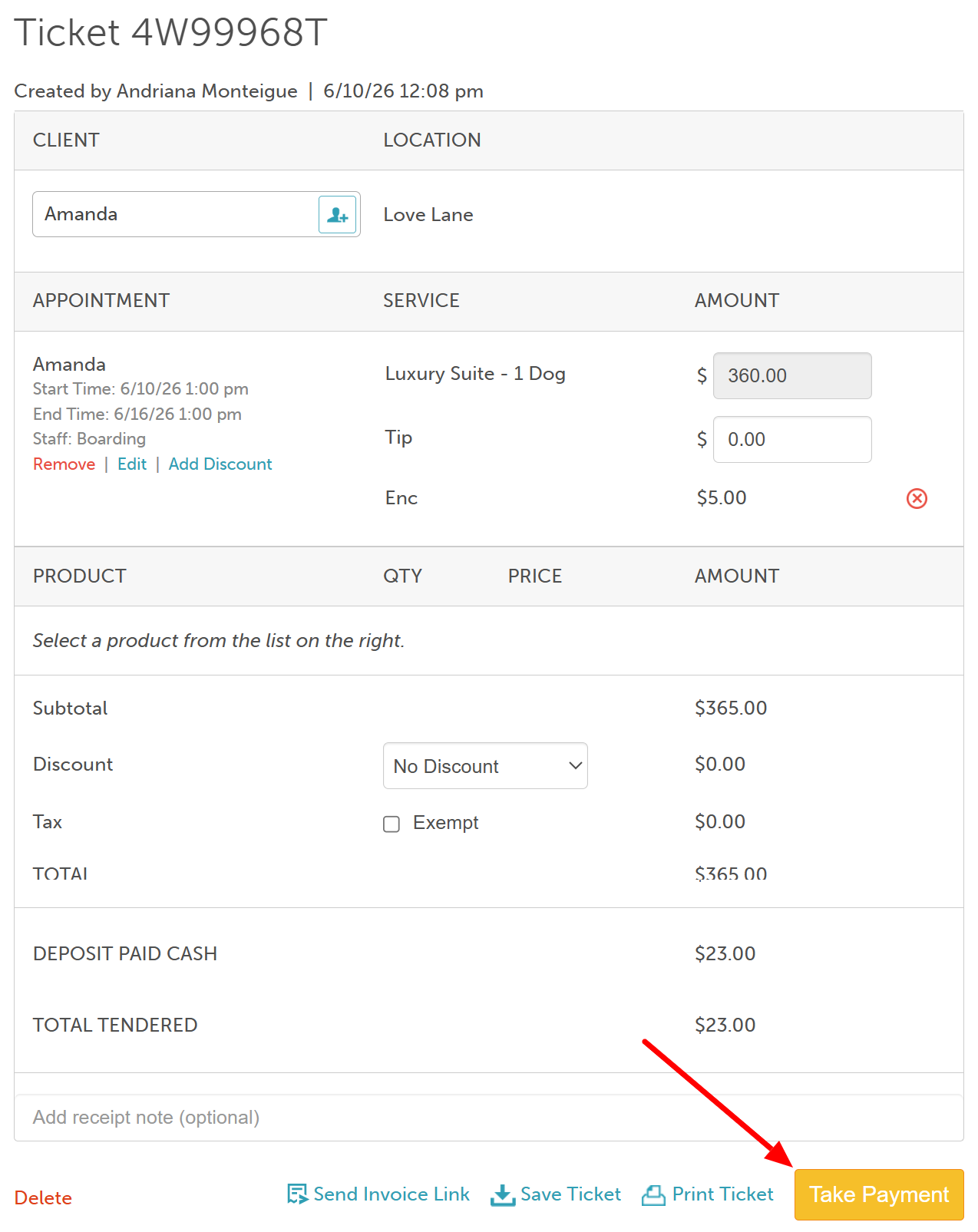
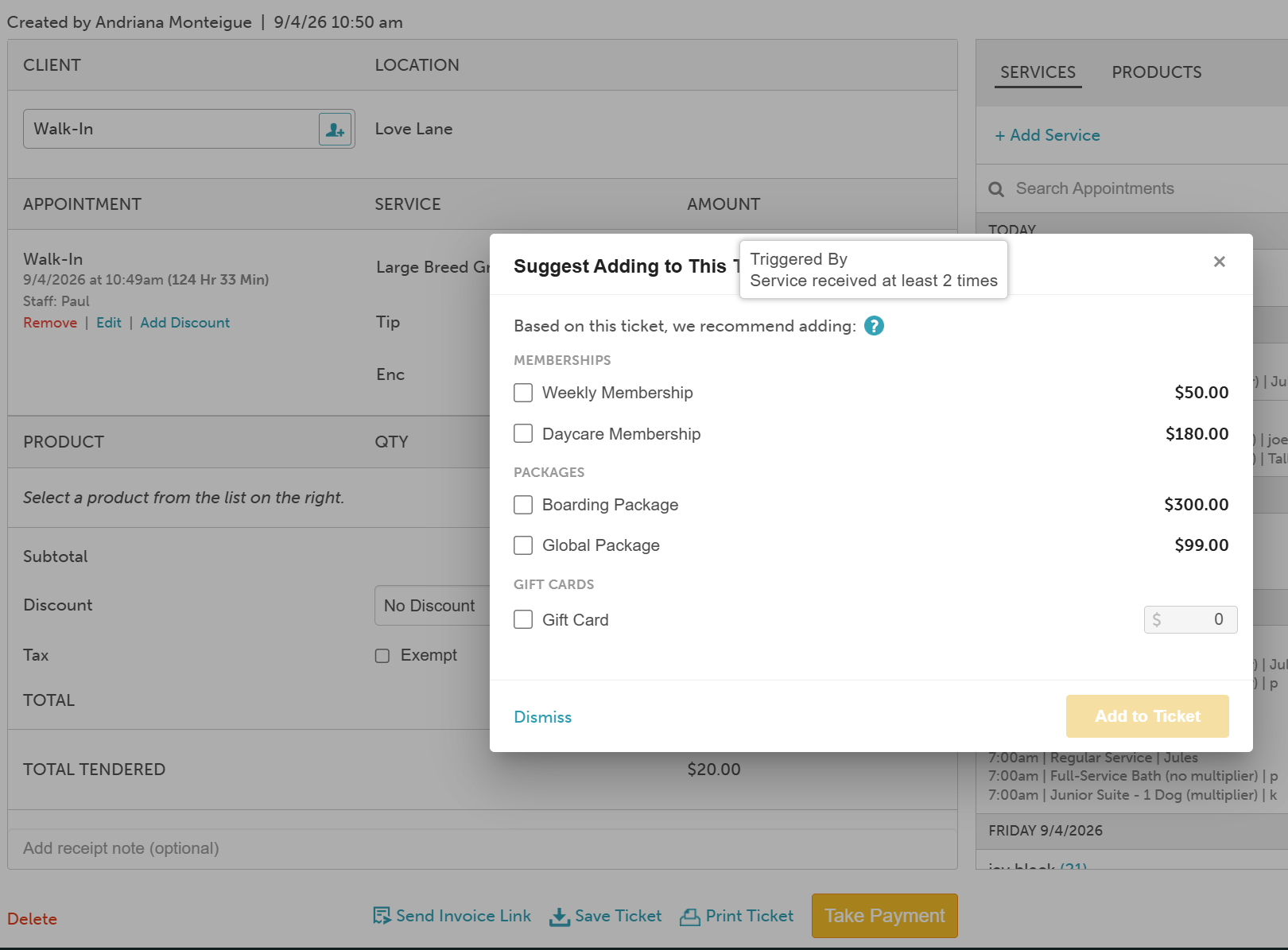
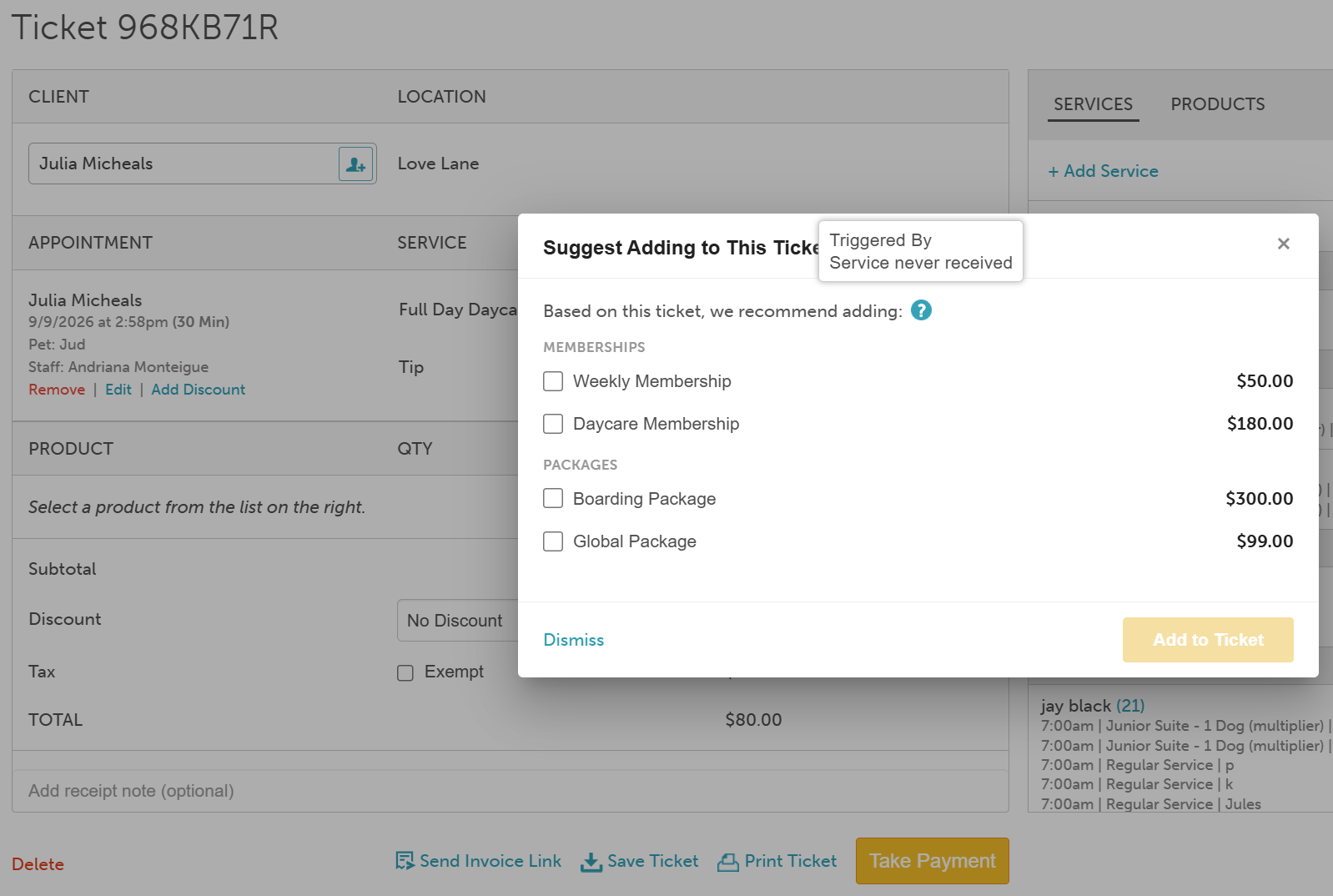
- The 'Suggest Adding to This Ticket?' pop-up will then be displayed, prompting you to add the selected suggested item to the ticket before taking payment. Staff members can hover over the tooltip icon next to the "Based on this ticket, we recommend adding:" note to see exactly which conditional rule triggered the recommendation
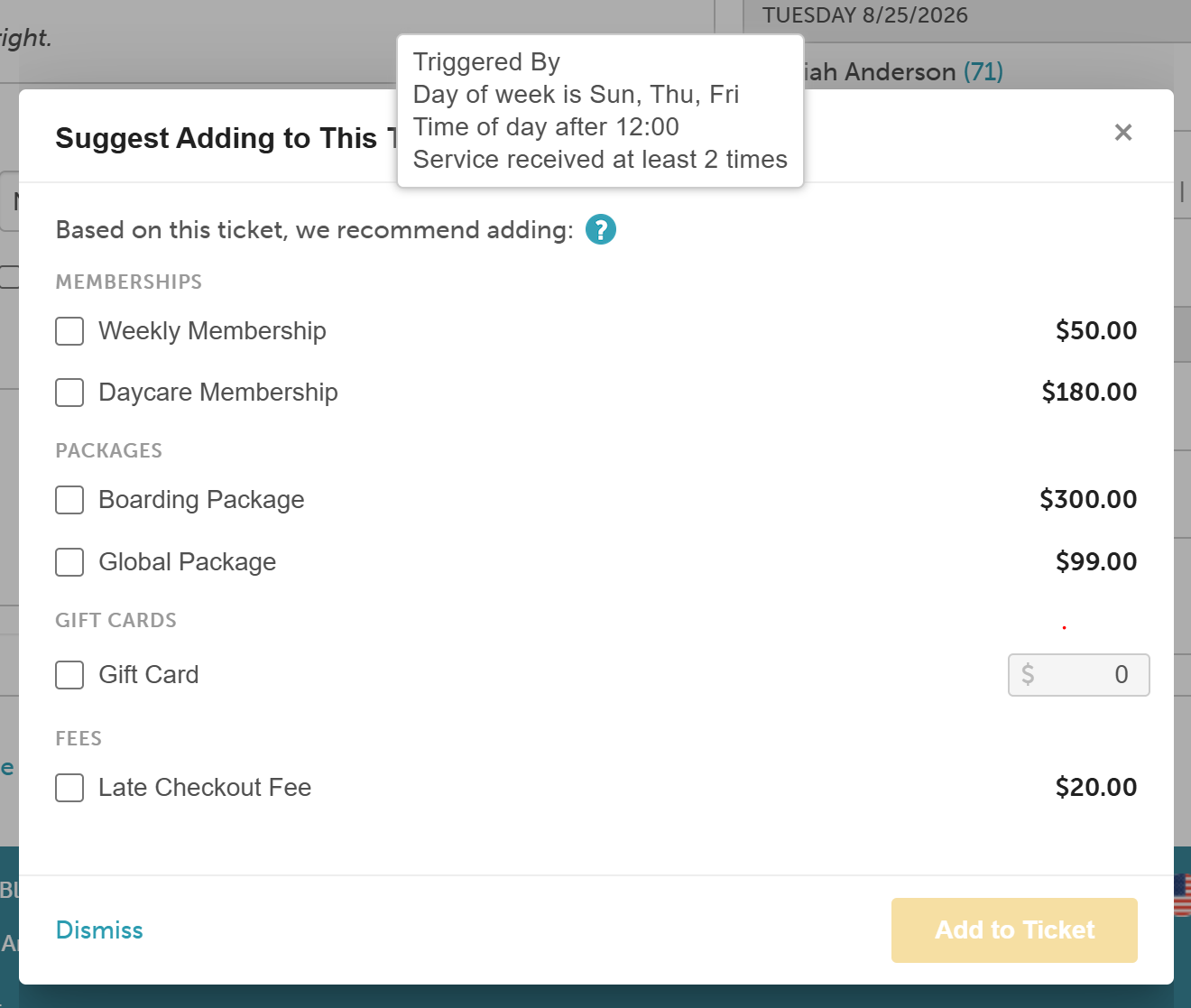
- Accept or Decline:
- To accept: Select the checkbox next to the item(s) and click Add to Ticket. The cart price will update automatically.
- To decline: Click Dismiss to close the prompt and take you to the Take Payment screen
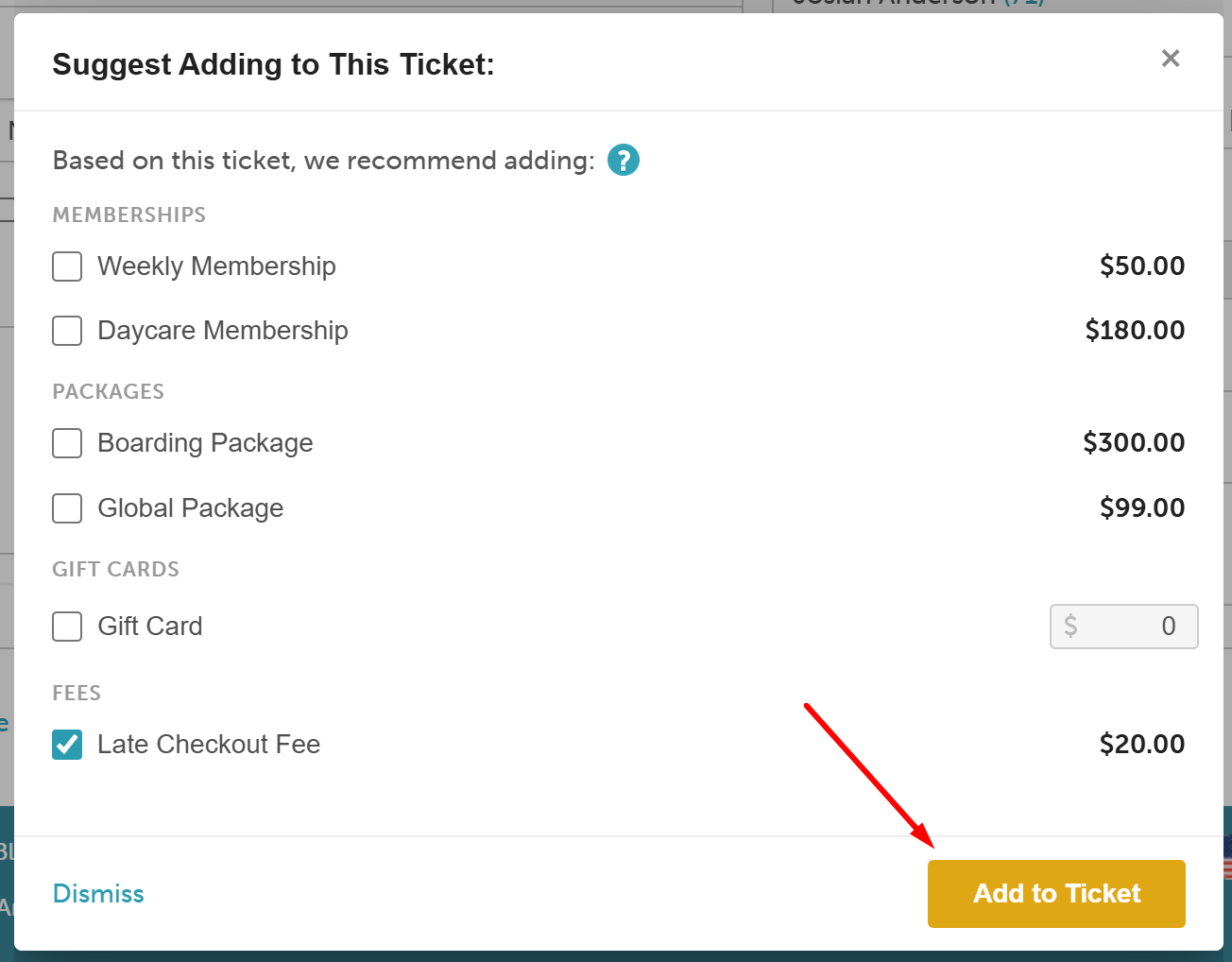
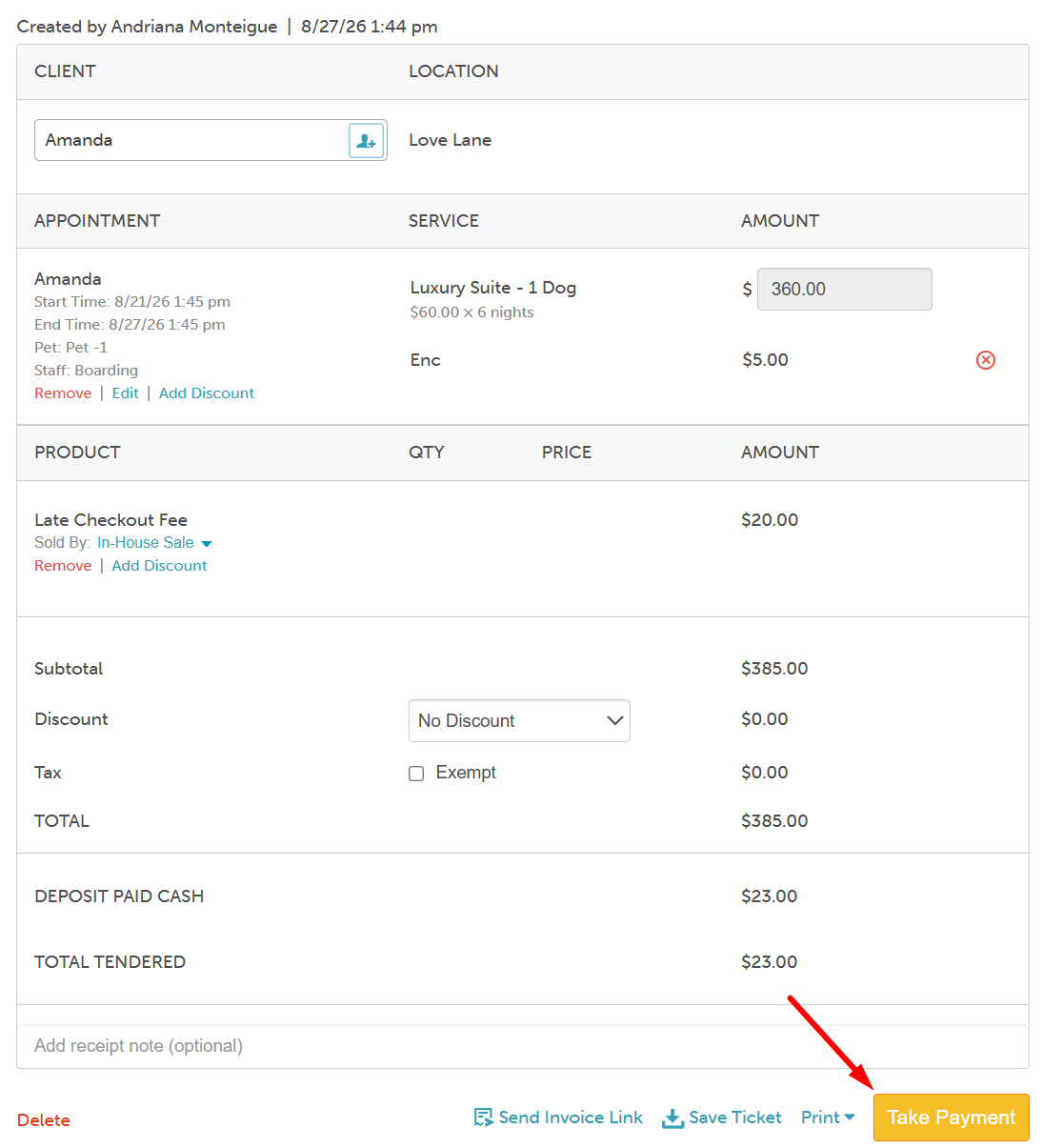
- If items were added, the cart will dynamically update with the new pricing. Click 'Take Payment' once more to collect the final balance and close out the ticket normally
Checkout Prompt on the Schedule
- Navigate to the Schedule
- Filter by the desired location
- Click on the "New Appointment" button below the calendar on the left-hand side of the schedule, or on a specific time slot directly in the schedule
- Add your client and pet or family member, then the desired service
- The Suggestions modal will display any recommended add-on services configured for that selection
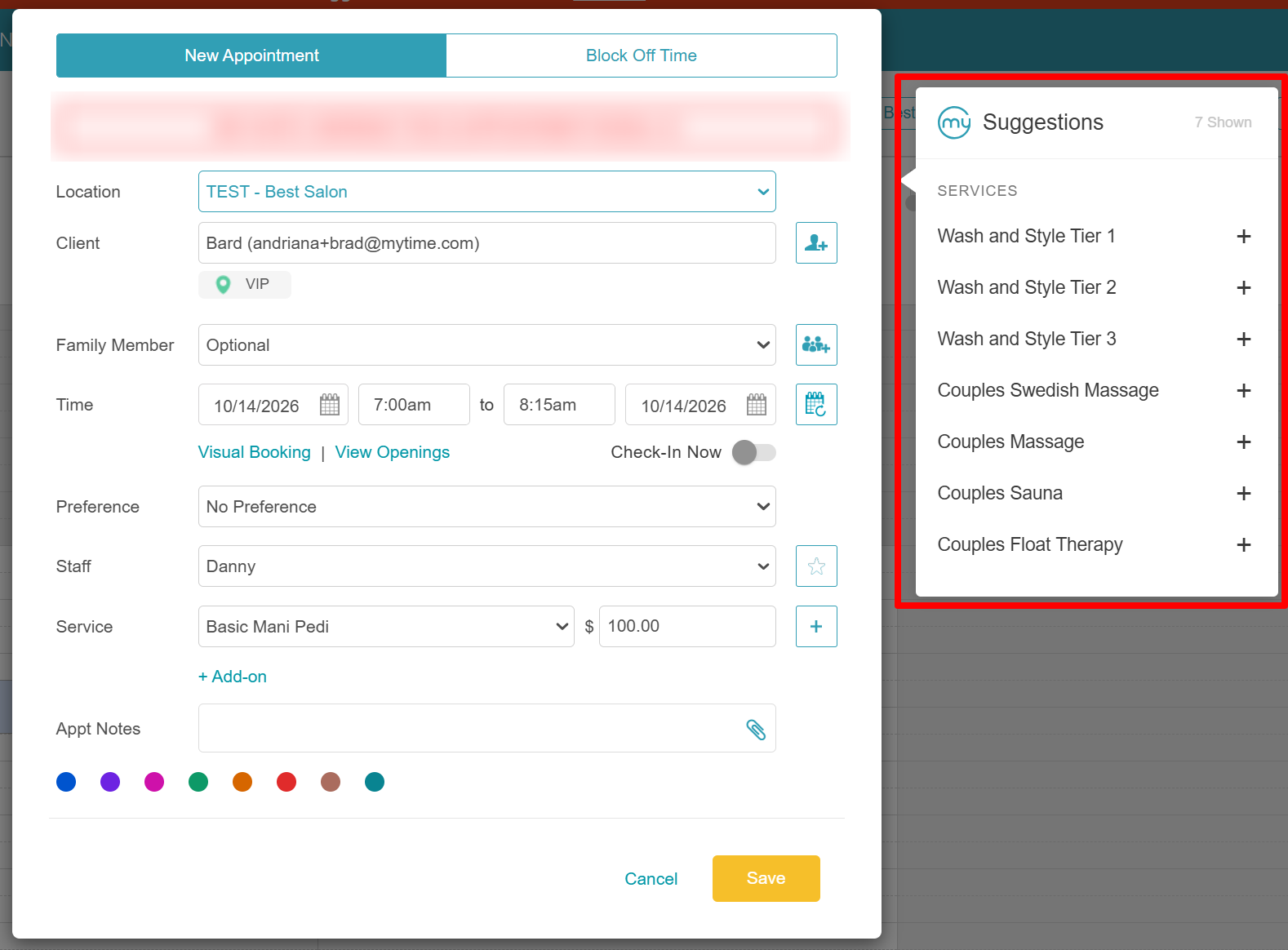
- Choose to accept or decline the suggestion:
- To accept: Click the plus (+) icon or click the service name to add it to your appointment.
- To decline: Disregard or close the suggestions modal.
- Once accepted, the suggested service will appear in the appointment details
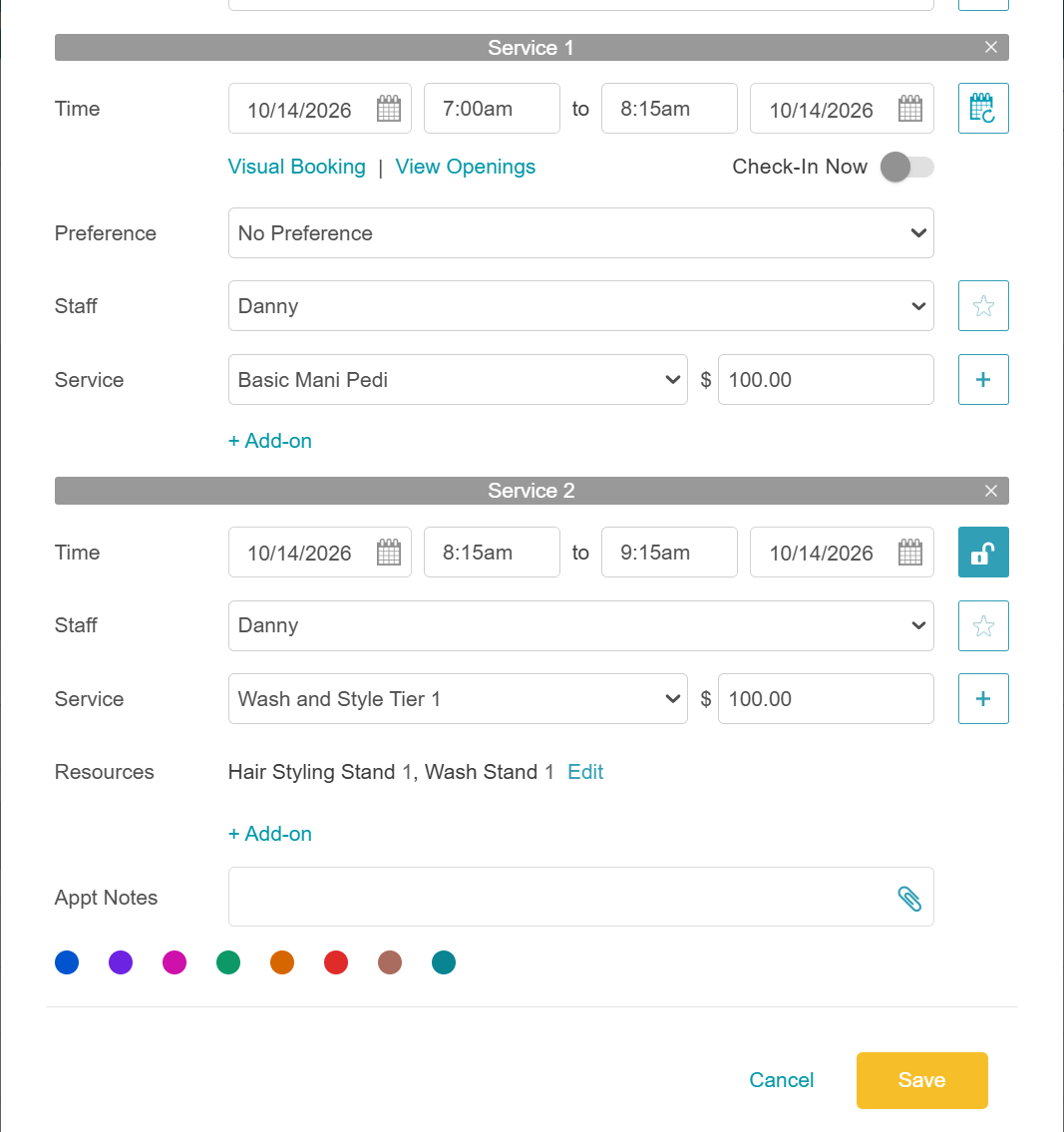
- Click 'Save' to complete the appointment
Scenarios
'The time of day after' trigger
Prompt Configuration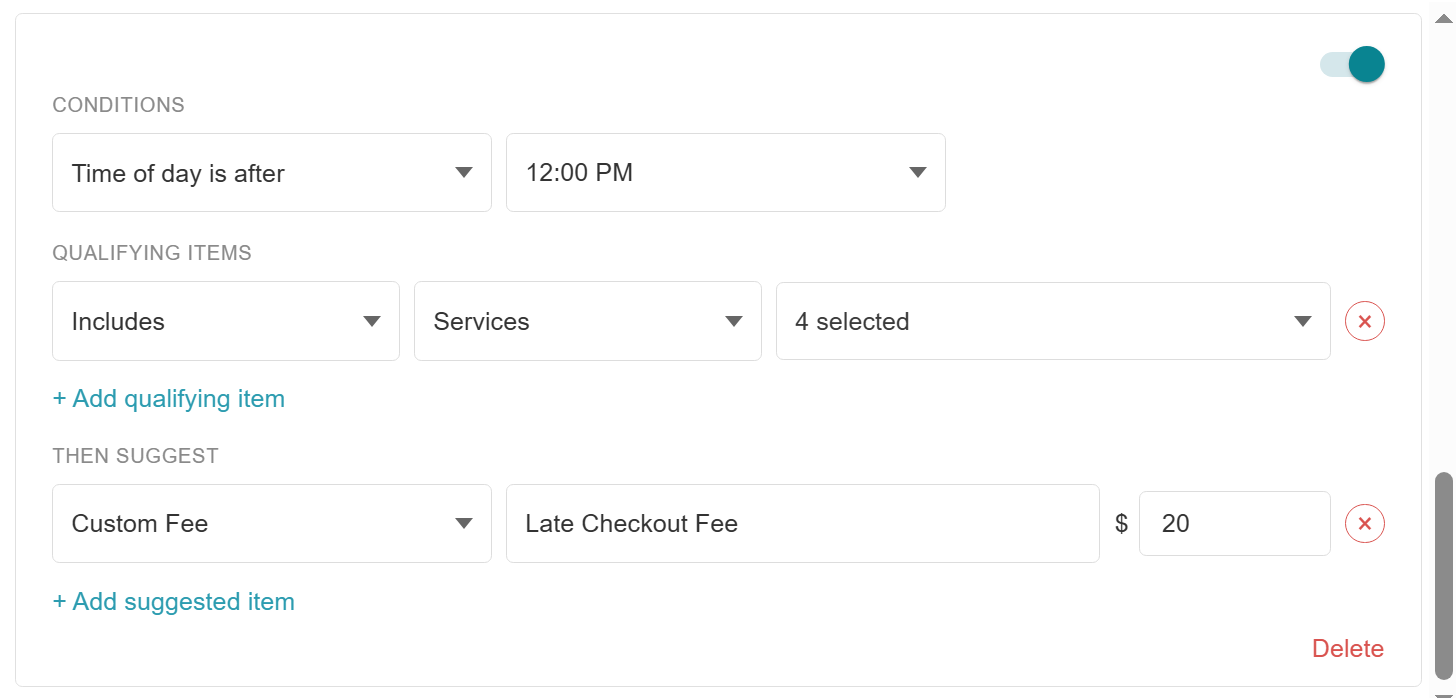
Ticket Example: When a staff member checks out a boarding service past the configured cutoff time (such as after 12:00 PM), the system will automatically display a prompt suggesting adding the late checkout/pick-up fee to the ticket. 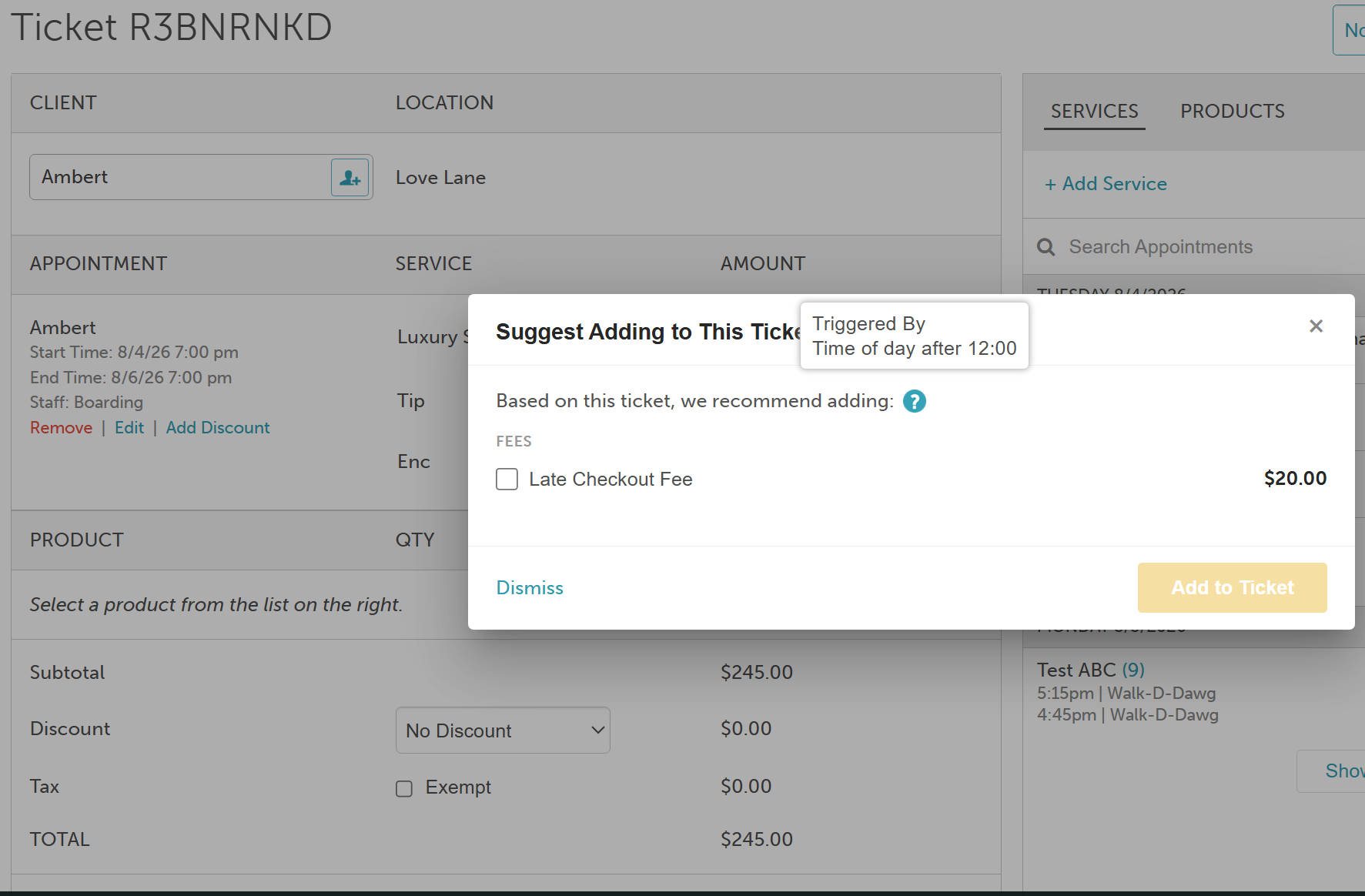
'The day of the week' trigger
Prompt Configuration
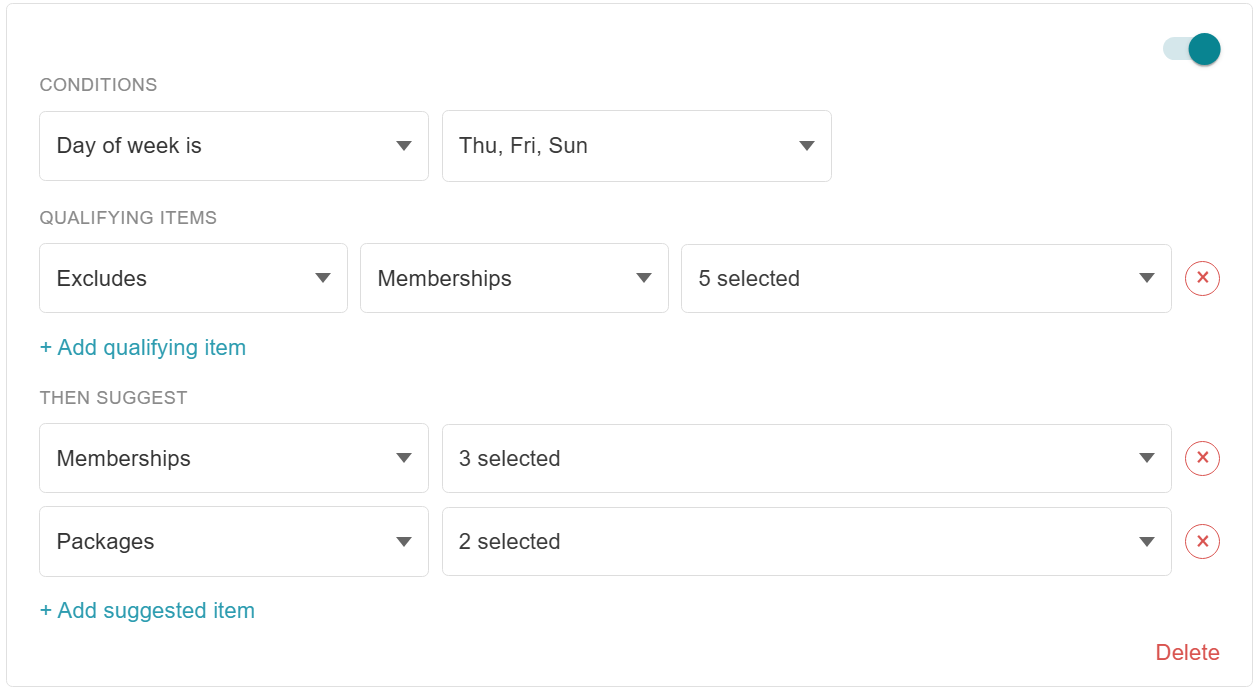
Ticket Example: When a staff member checks out any items except memberships on a Thursday, Friday, or Sunday, service, the system will automatically display a prompt suggesting adding memberships or packages to the ticket. 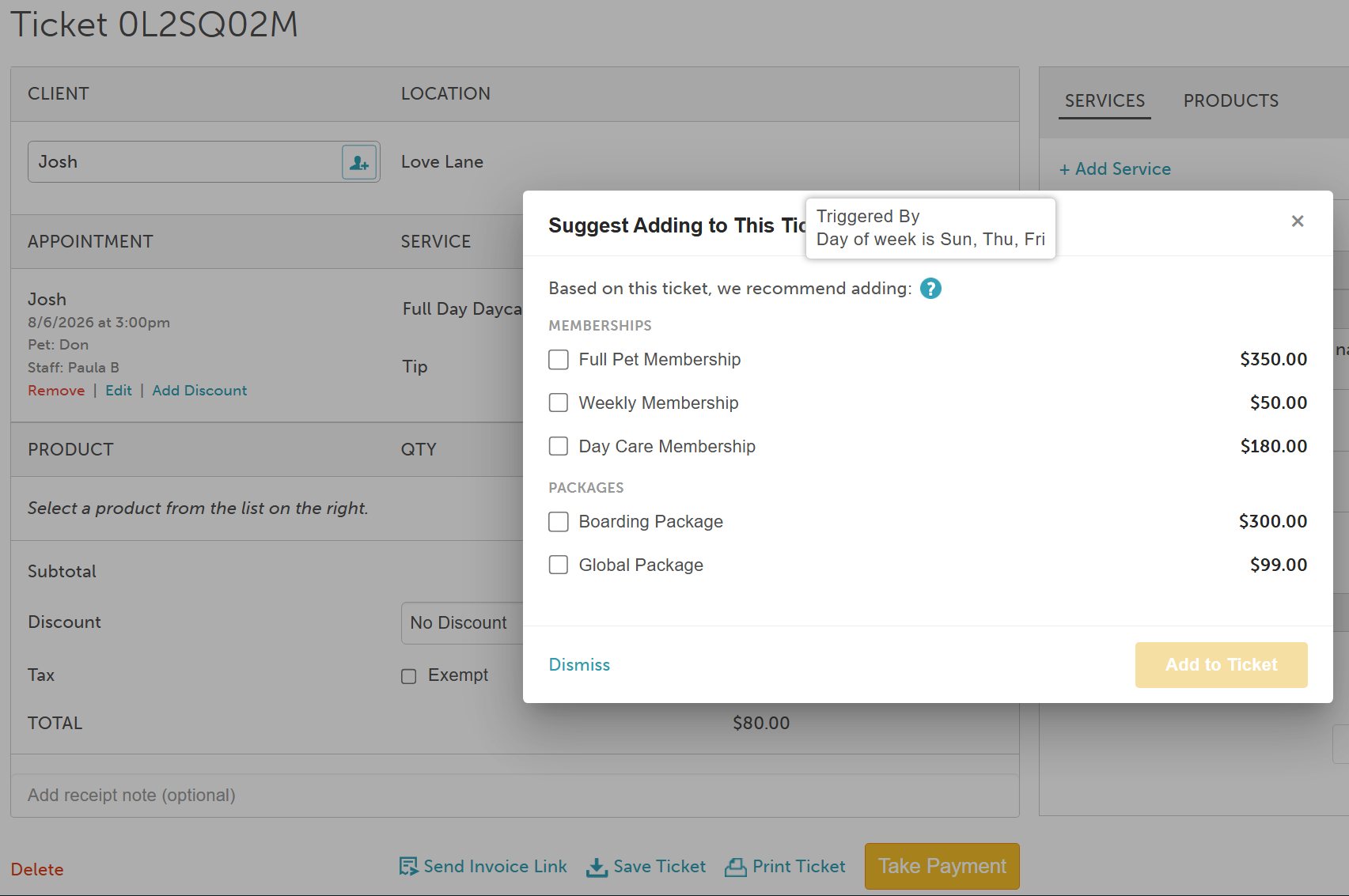
'Ticket total is over' trigger
Prompt Configuration
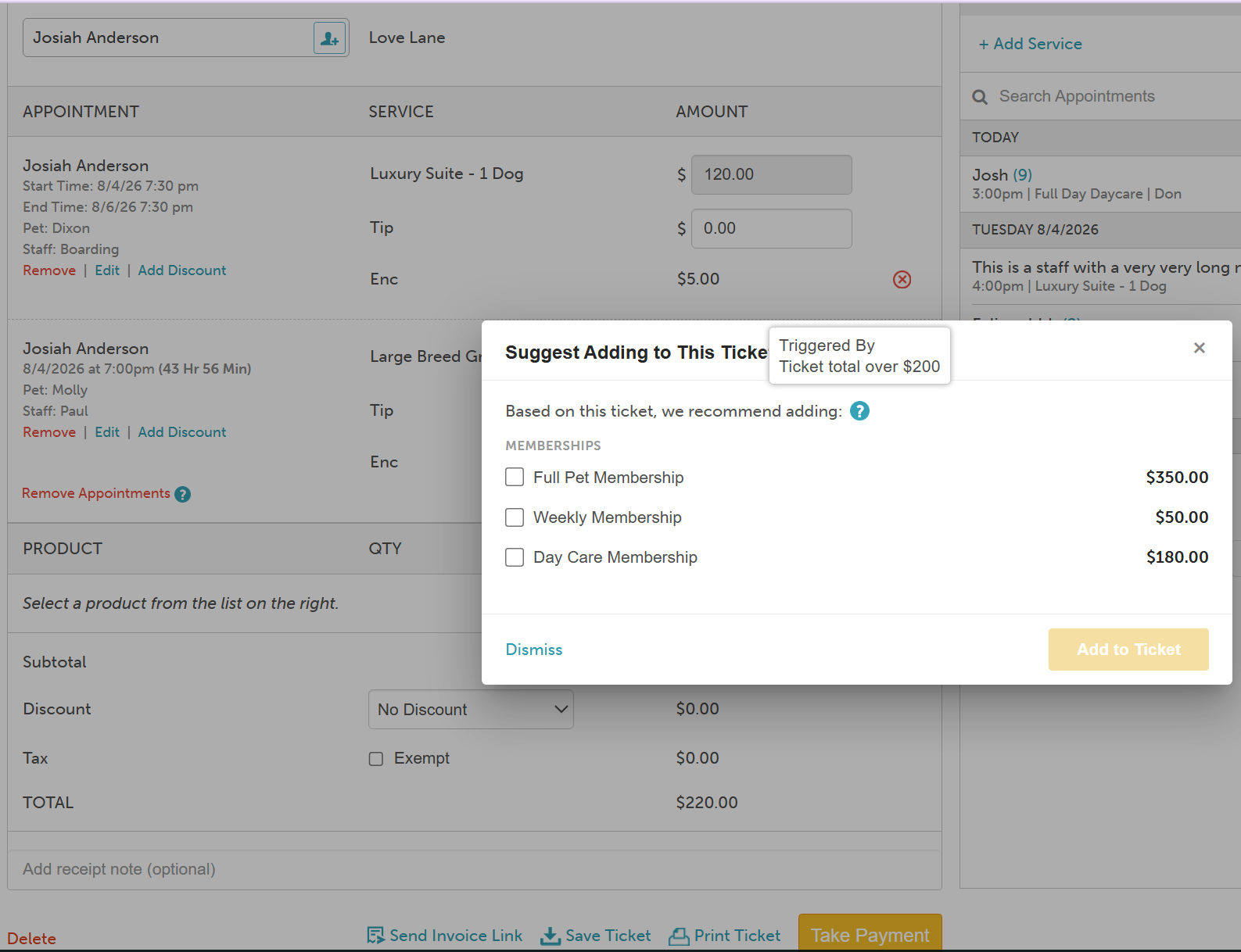
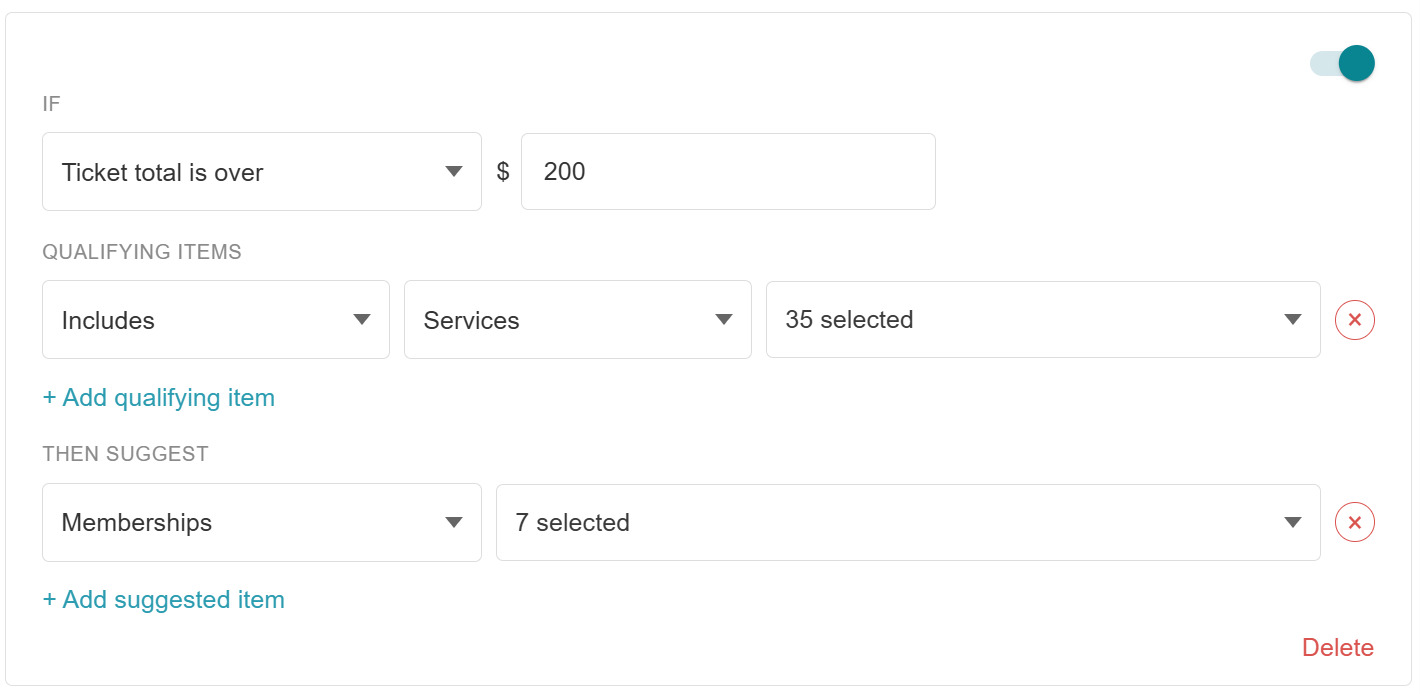 Ticket Example: When a staff member checks out any ticket, including services with the total value over $200, the system will automatically display a prompt suggesting adding memberships to the ticket.
'Client Received .... at least... 2' trigger
Prompt Configuration
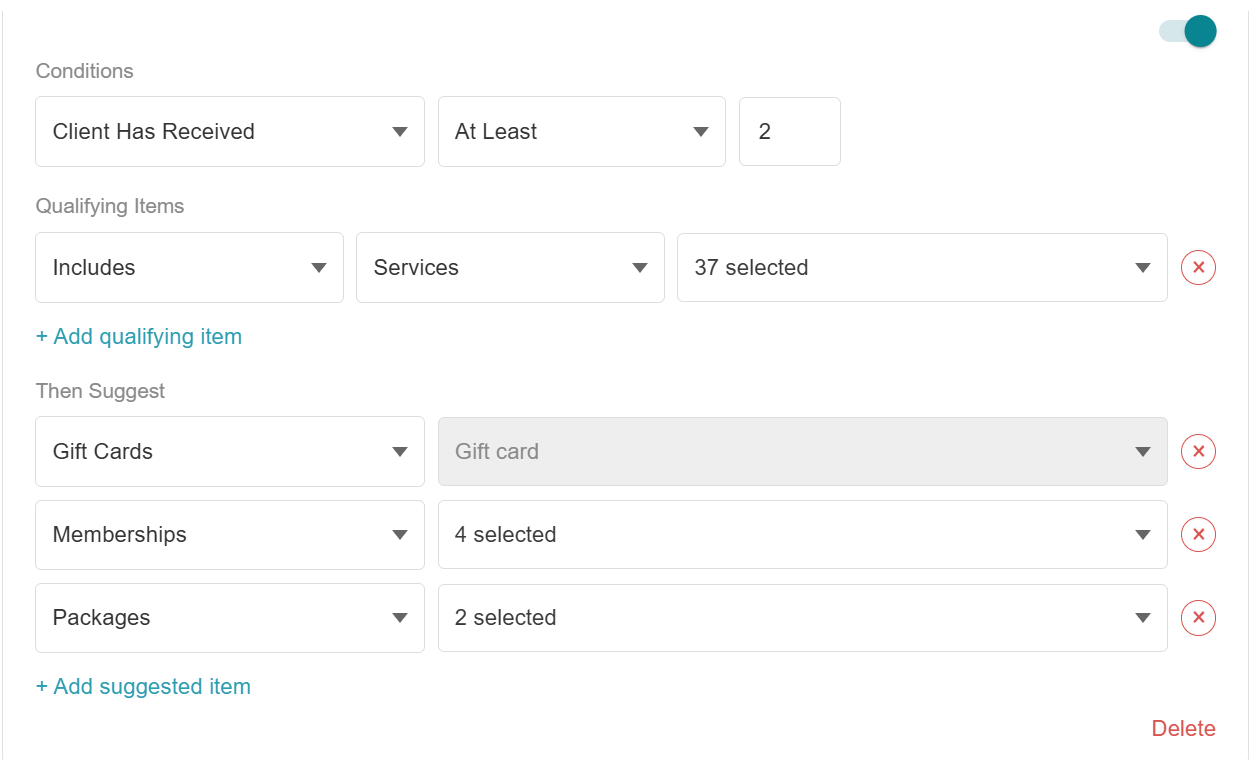
Ticket Example: When a staff member checks out any ticket for a client that received any eligible service 2 or more times in the past, the system will automatically display a prompt suggesting adding memberships, packages, and/or gift cards to the ticket.
'Client has never received' trigger
Prompt Configuration
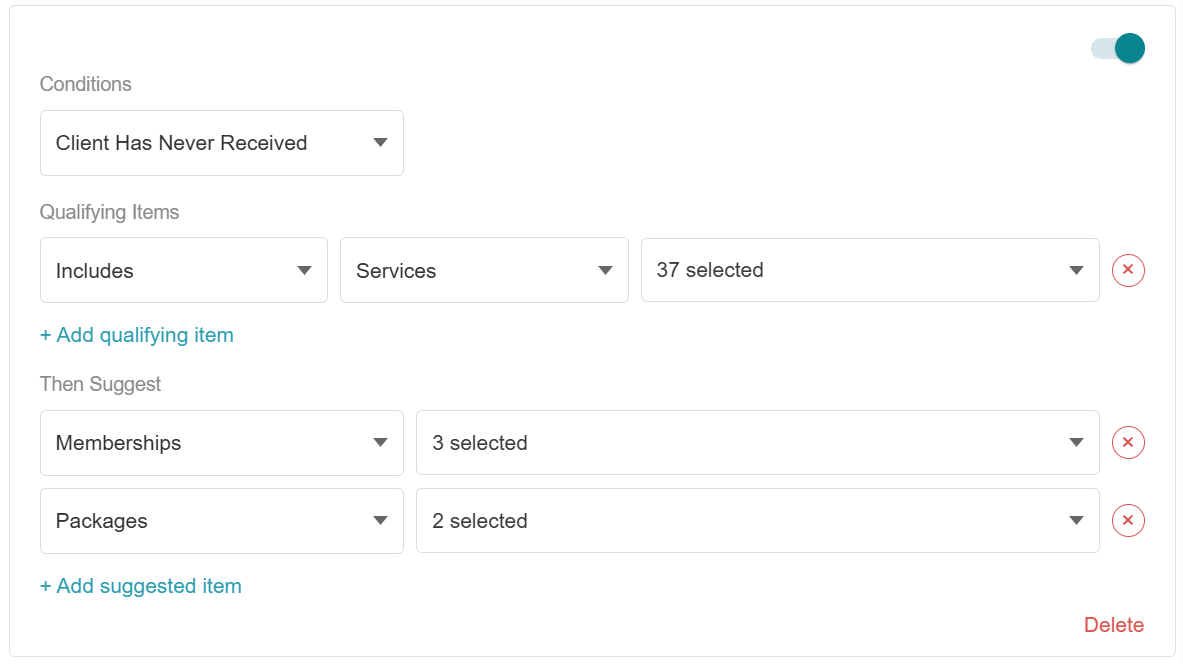
Ticket Example: When a staff member checks out any ticket with a client who has never received any of the eligible services, the system will automatically display a prompt suggesting adding memberships and/or packages to the ticket.
For more information, contact us at support@mytime.com or (385) 233-6964.
Was this article helpful?
That’s Great!
Thank you for your feedback
Sorry! We couldn't be helpful
Thank you for your feedback
Feedback sent
We appreciate your effort and will try to fix the article