The AI Campaign Assistant is designed to help you write, optimize, and refine your marketing content directly inside your campaign builder. Operating as a convenient side panel, the assistant analyzes your live drafts, generates creative variations, and updates your content with a single click.
Things to know:
- To use the AI Campaign Assistant, your account must meet the following criteria:
- The "Enable Marketing Campaign AI Assistant" hidden setting must be enabled. Contact your account manager or support@mytime.com to request activation.
- The 'Accessing Email/SMS Campaigns' permission must be enabled.
- The assistant automatically reads your current draft's subject line, body copy, and campaign parameters to generate relevant ideas.
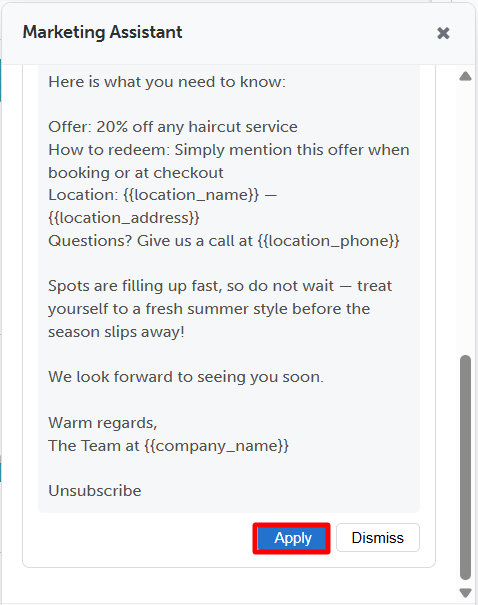
- Clicking Apply on any AI suggestion updates your text in real time, acting exactly like a manual edit.
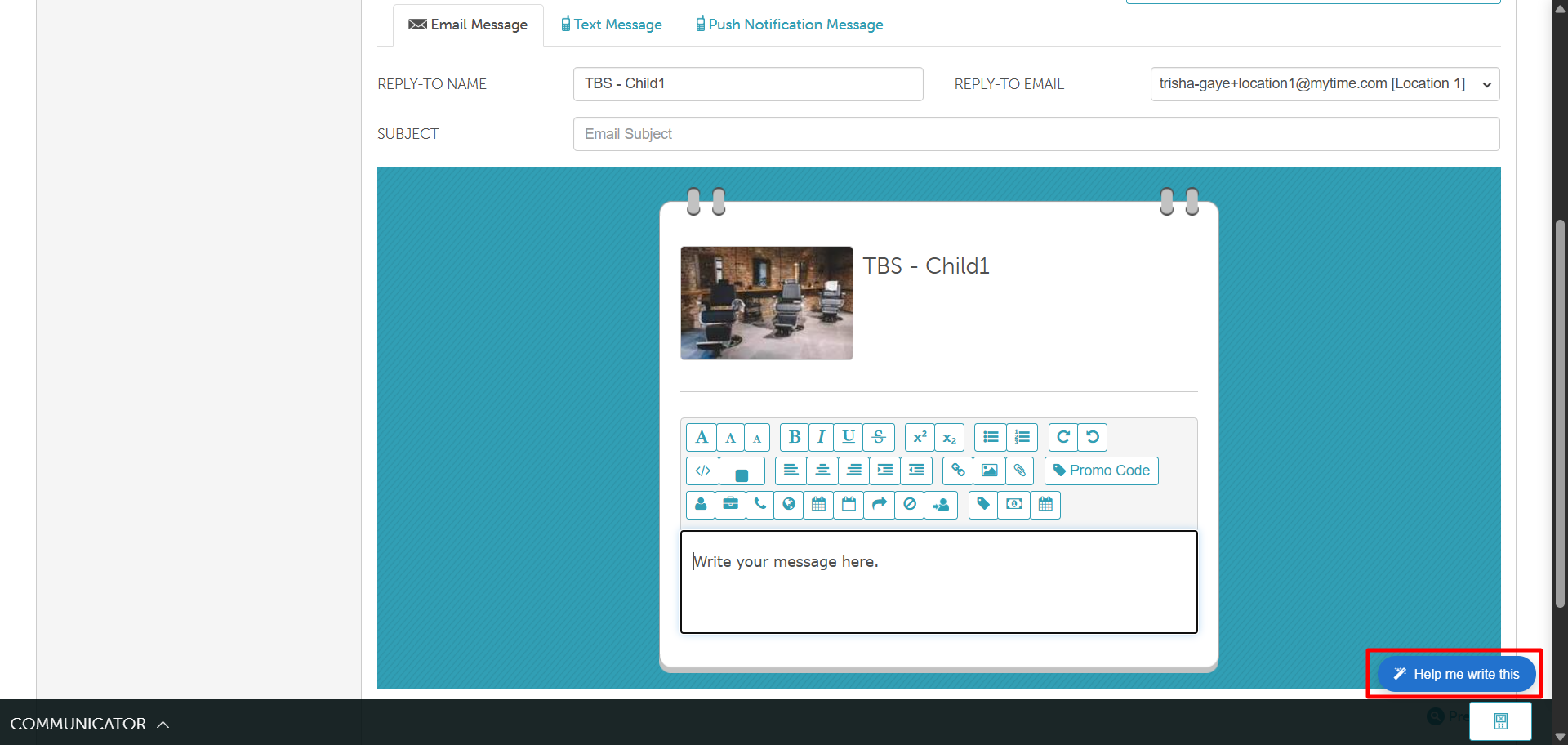
- The AI Assistant button automatically appears in the corner of your screen whenever you are working on marketing content. This applies to both brand-new campaigns and updates to existing ones.
- The AI cannot save or launch a campaign on its own. All changes must be manually saved by a team member.
- While the assistant helps you draft multiple versions of a message, it does not automatically A/B test them against each other to track performance.
- When drafting text messages (SMS), the AI is restricted to automatically inserting exactly four specific fields to ensure proper delivery: First Name, Company Name, Location Name, and Location Phone.
Follow these simple steps to start optimizing your marketing content with the assistant:
- Navigate to Marketing > Campaigns
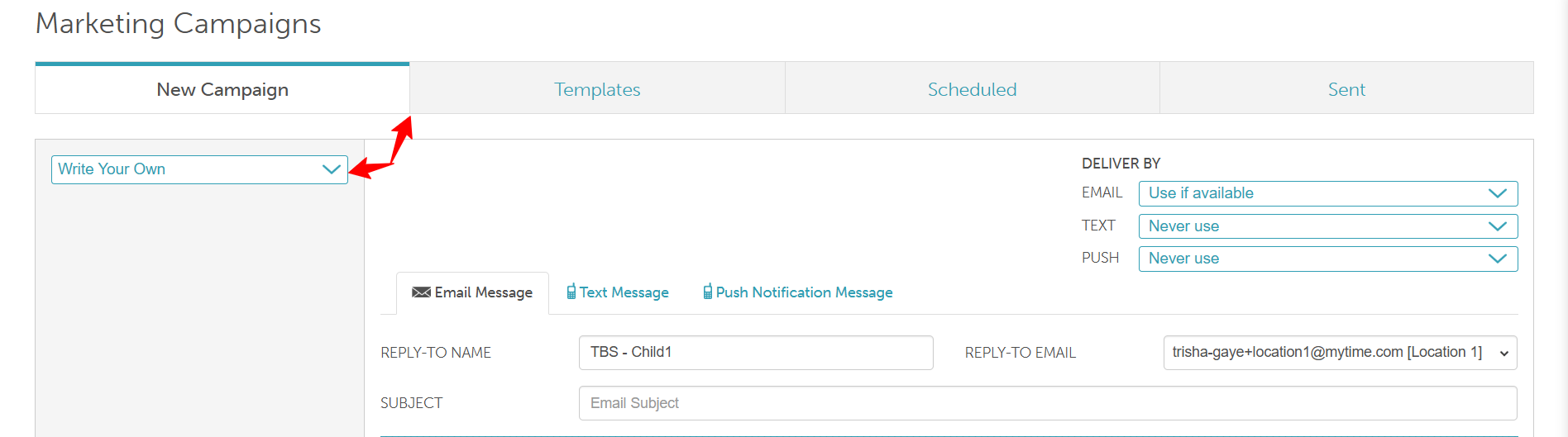
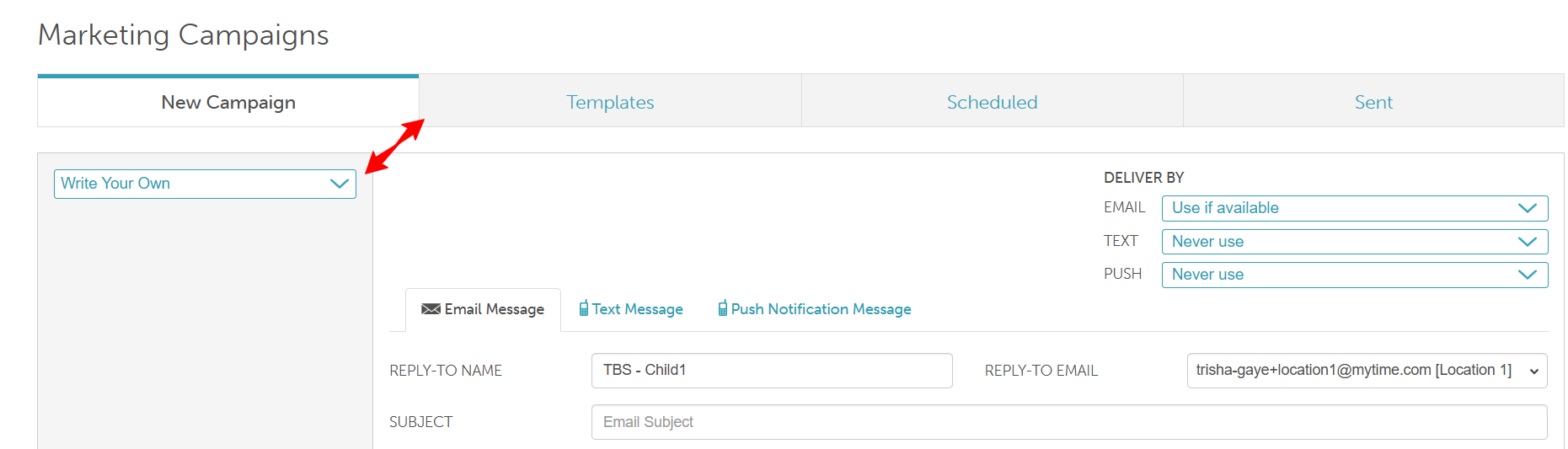
- Select an existing email template to update, or click "Write Your Own" to create a brand-new campaign
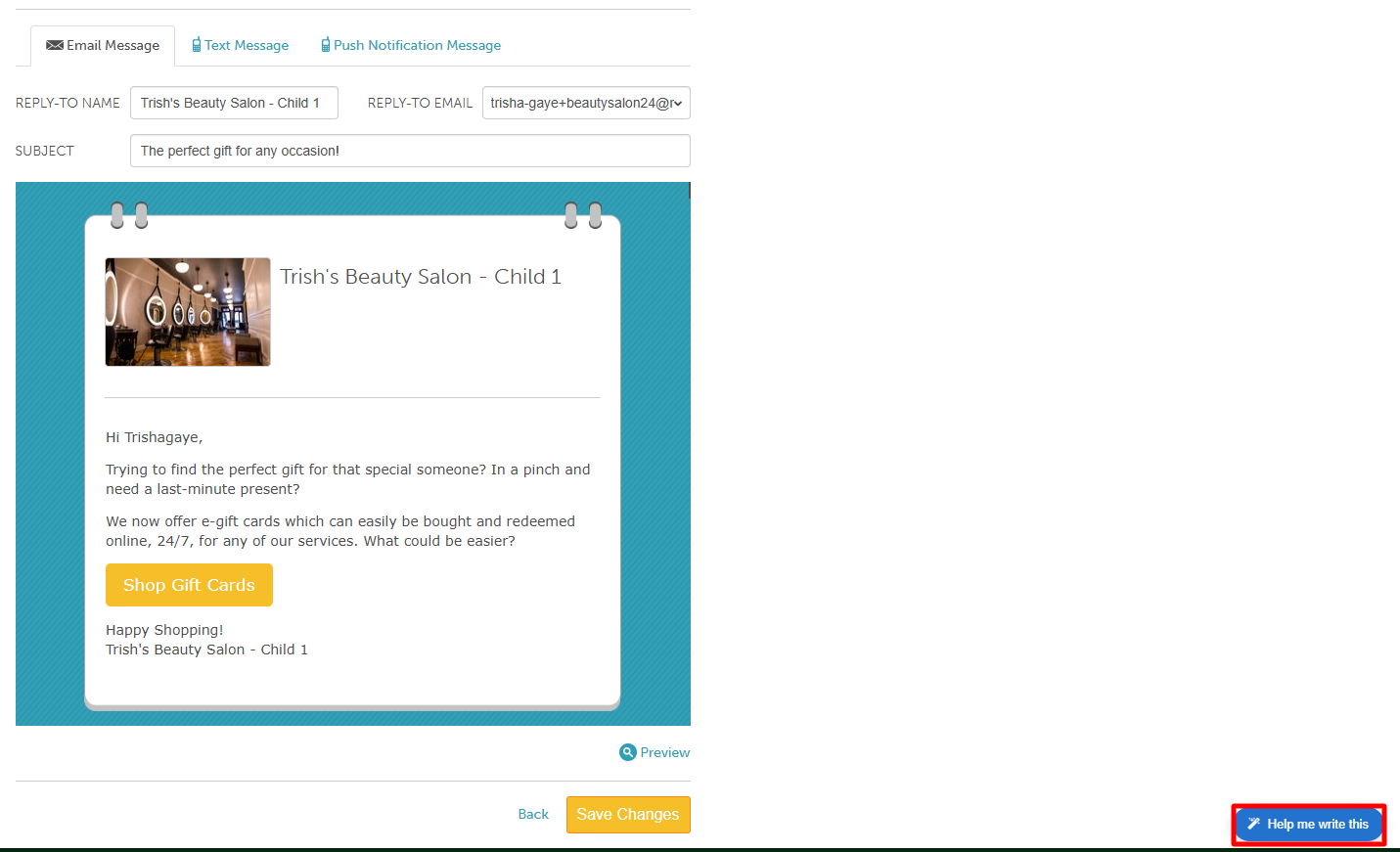
- Click the "Help me write this" button located in the bottom-right corner of your screen
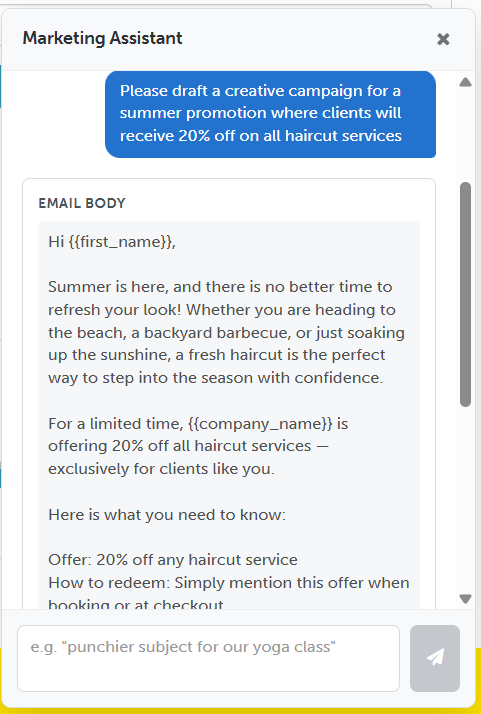
- Type your request directly into the prompt chat box. Example: "Make the subject line punchier" or "Draft an upbeat, 3-paragraph body for a summer promotion."
- Review the AI-generated response to preview your new subject line and body text.
- Click "Apply" on the recommendation to instantly insert the new text into your campaign message.
Generating Images for Marketing Campaigns using AI Assistance
Things to know
- This feature is strictly for email campaigns.
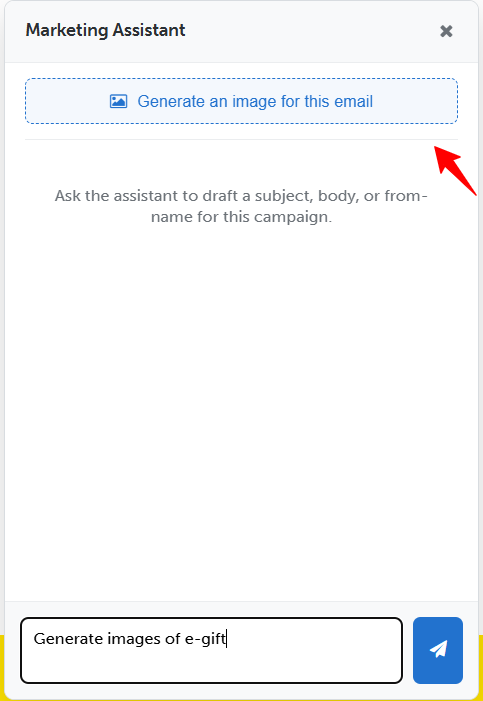
- The "Generate an Image" button is located in the AI Assistant panel.
- What you get: Enter a description, and the AI will create 3 image options in about 10 seconds.
- If you don't like the first set of images, select the Regenerate button and type a new description to generate a fresh set of options.
- Selecting an image automatically places it at the top of your email at 50% width. If you change your mind and select a different image, it will replace the old one rather than stacking them.
- To manage system usage, each company can generate up to 50 images per day.
- You cannot crop, filter, or edit the generated images
How to generate an image using ai
- Go to Marketing > Campaigns
- Open an existing email template, or click Write Your Own to start from scratch
- Click the Help me write this button in the bottom-right corner to open the AI Assistant
- Type a description of the image you want to create, then select the Generate an image for the email option
- Review the 3 options and click on your favorite one to automatically insert it into the top of your email
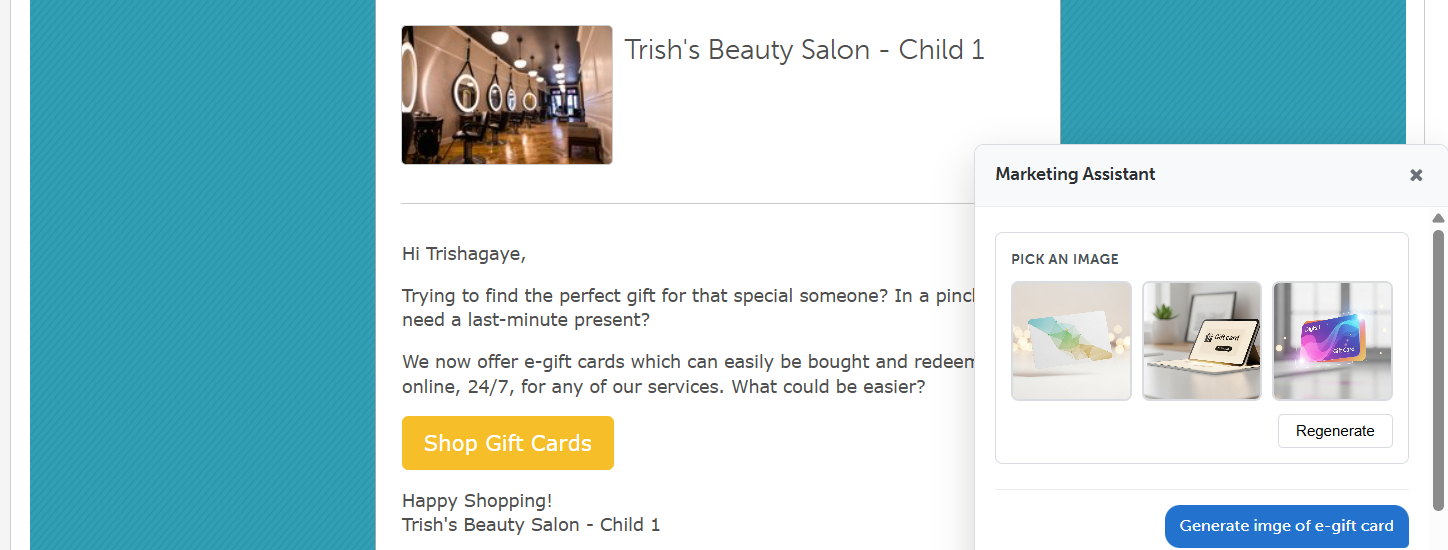
Examples of AI Images in Received Emails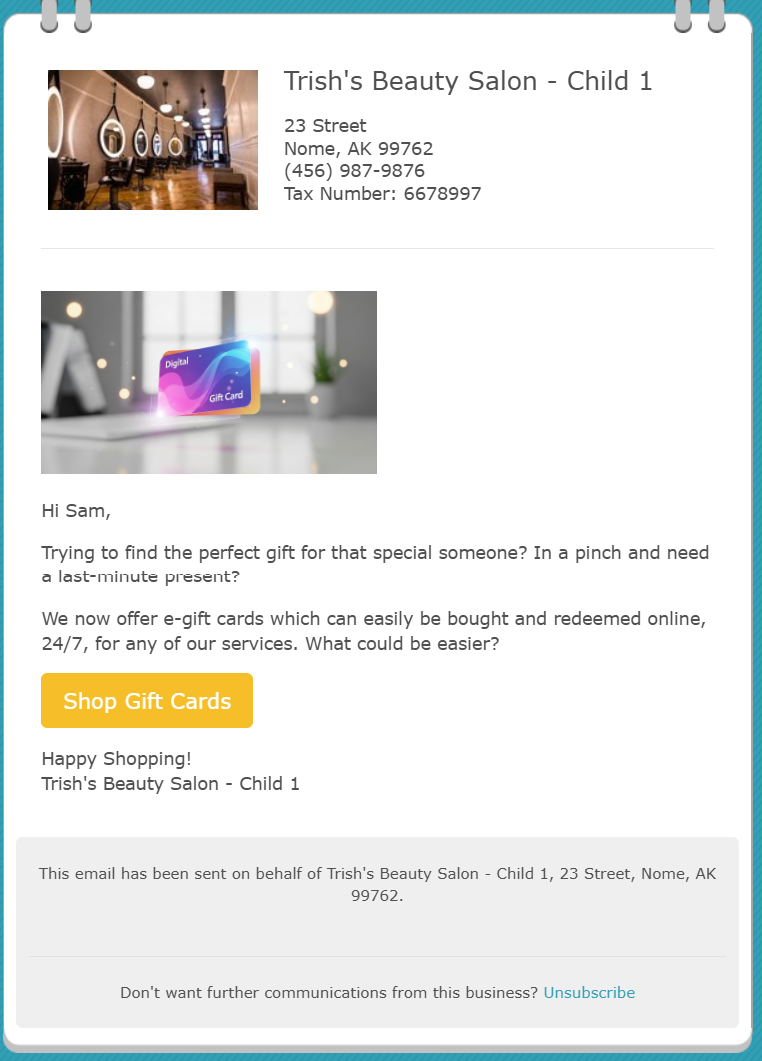
For more information, contact us at support@mytime.com or (385) 233-6964.
Related Articles:
Was this article helpful?
That’s Great!
Thank you for your feedback
Sorry! We couldn't be helpful
Thank you for your feedback
Feedback sent
We appreciate your effort and will try to fix the article