Online rescheduling allows clients to easily modify their bookings through your booking widget, express checkout, or Branded Guest App. This feature lets clients update their appointment date, time, or preferred staff member directly from their post-booking confirmation page or account booking history.
Things to know:
- Online rescheduling is managed by a hidden setting. To enable this feature for your account, please contact the MyTime Support team at support@mytime.com.
- Note: Clients cannot transfer an appointment to a different client, family member, or pet profile during a reschedule.
- To reschedule online, an appointment must meet all of the following requirements:
- Eligible Appointment Status: Only future appointments that are currently Booked, Confirmed, or Pending can be rescheduled. Past appointments or those marked as Completed, Cancelled, or No-Show cannot be changed.
- Cancellation Policy Compliance: Rescheduling is governed by your Cancellation Policy settings (Up until appointment, Never, or custom timeframes such as 24 or 48 hours). Clients cannot reschedule within a restricted window to bypass late-cancellation rules.
- Advance Notice Requirements: The system enforces your standard advance notice rules (e.g., if you require 4 hours advance notice for bookings, a client cannot reschedule to a time slot less than 4 hours away).
- Multi-Staff Availability: If a service requires two staff members, the system ensures both are available before offering a time slot.
- Service Location: Online rescheduling is available for both in-store and house-call/mobile services.
- The system automatically manages price changes and deposit balances during a reschedule:
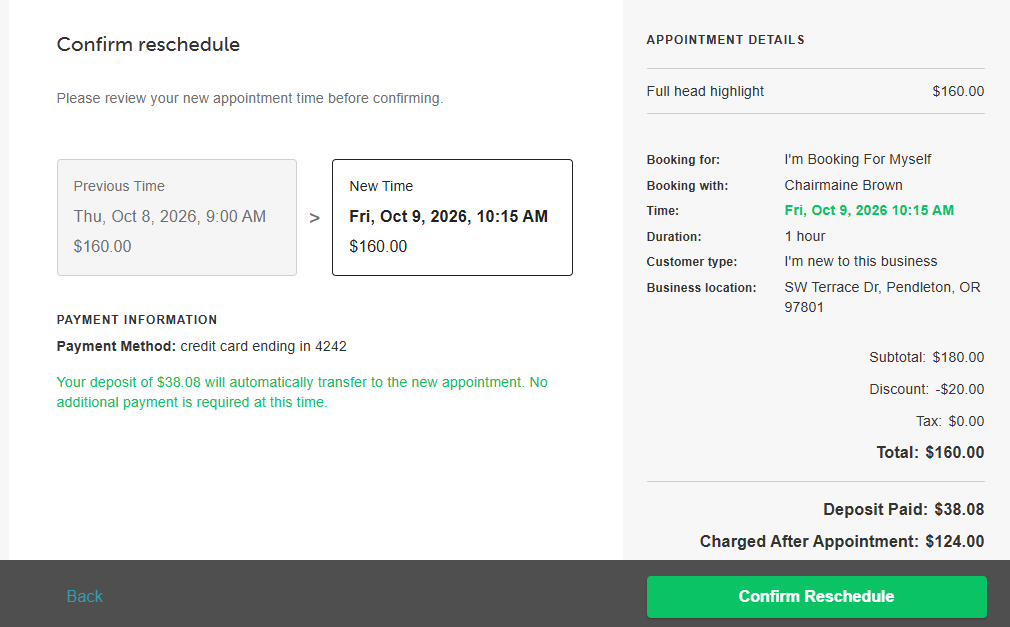
- Deposits: Automatically transfer to the new appointment. Clients see a notification confirming their deposit has been applied to the updated time slot.
- Higher Price: If the new time slot costs more and online payment was required, the system pre-authorizes the client's card for the remaining balance. If payment is collected in-store, the ticket total updates automatically for checkout.
- Lower Price: If the new time slot costs less, the ticket total updates automatically, and the reduced balance is collected at checkout.
- Packages & Memberships: The system re-verifies that the original package or membership credit remains active and valid for the new appointment date.
- Expired Rewards, Promotions, or Gift Cards: If promotional code, loyalty points, or gift cards applied to the original booking expire before the new appointment date, they can no longer be applied. The client must provide an alternative payment method to cover the remaining balance, where applicable.
- Staff-Specific Pricing & Duration: If service pricing or duration varies by provider, switching staff members during a reschedule automatically adjusts the total price and duration to reflect the new staff member’s settings.
- Additional Rules & Behavior
- Closed Tickets: Clients can reschedule an appointment online even if the ticket was already checked out/closed, provided it meets your cancellation and advance notice requirements.
- Intake Forms: If mandatory custom fields were added to an intake form after the original booking was made, the client is not forced to fill out the new fields during a reschedule.
- Client App & Web Account Status: Rescheduled bookings display with a Rescheduled label under My Account > Bookings in the client app and website account history.
- Concurrent Booking Safety: If another user books a selected time slot before the client finishes rescheduling, the system displays a "Time is no longer available" prompt and asks them to choose another slot.
- Online rescheduling is unavailable for multi-day services (such as boarding) or multi-client/pet appointments
Contents
Reschedule Immediately After Booking
If you just completed a booking and need to pick a different time right away:
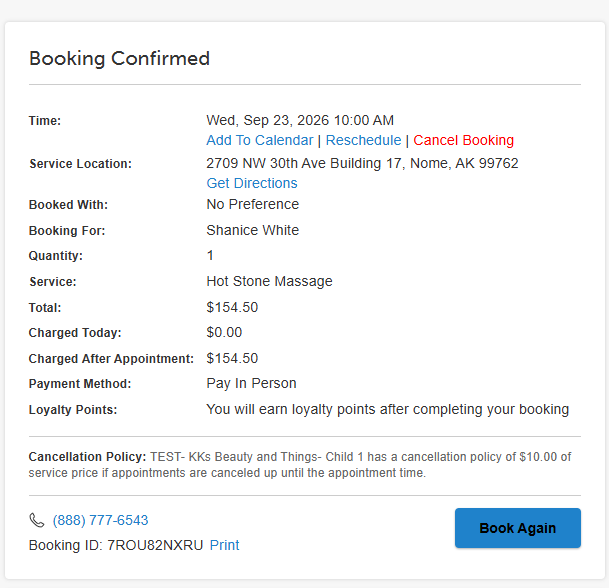
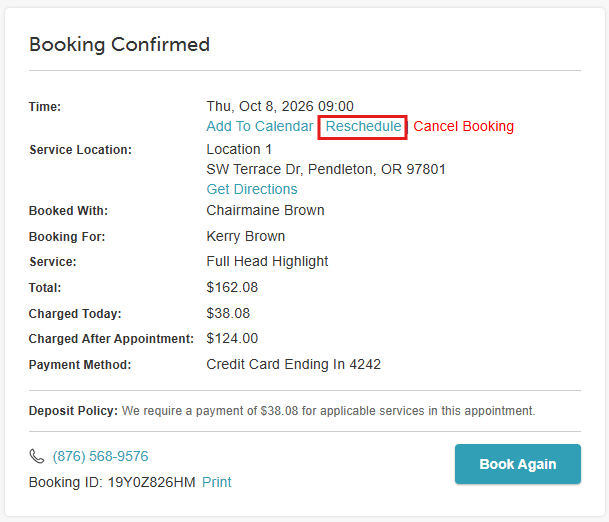
- On your appointment confirmation page, click Reschedule (located next to Cancel Booking).
- When the time picker opens, your service, staff member, and family/pet selection will be pre-filled. A confirmation banner will appear at the top displaying: "Rescheduling: on [Date at Time]".
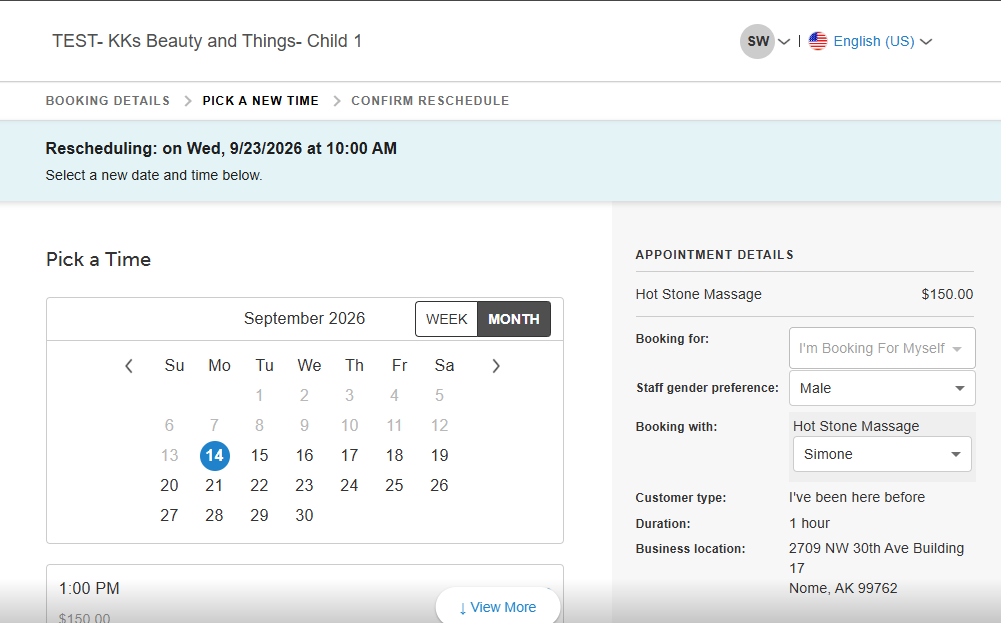
- Select a new date and time from the available time slots.
- Review the confirmation screen to compare your original booking against your new selected time, including any price adjustments or deposit transfers.
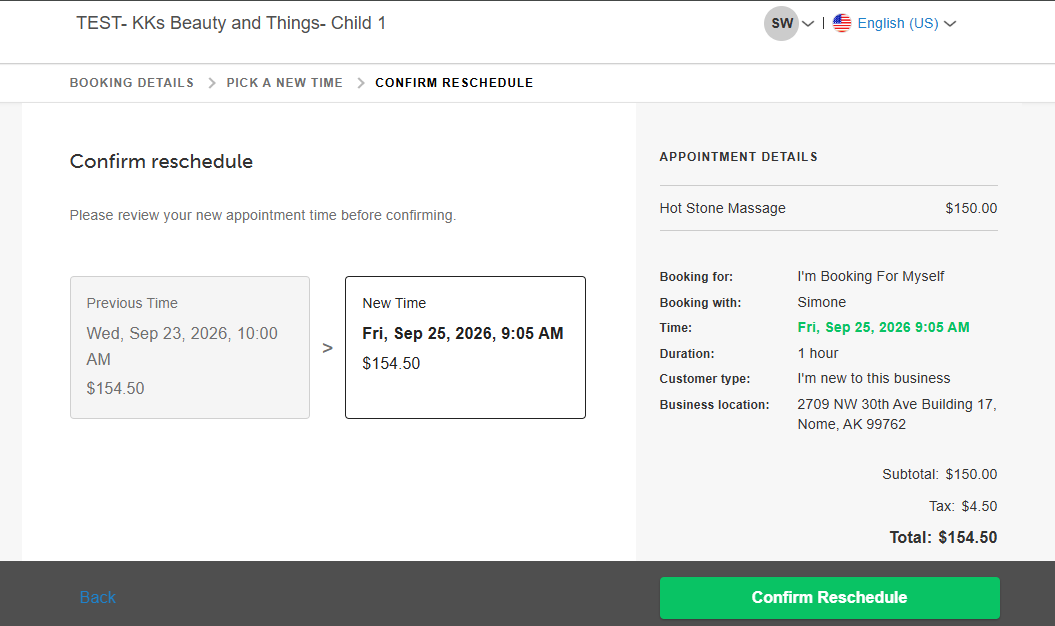
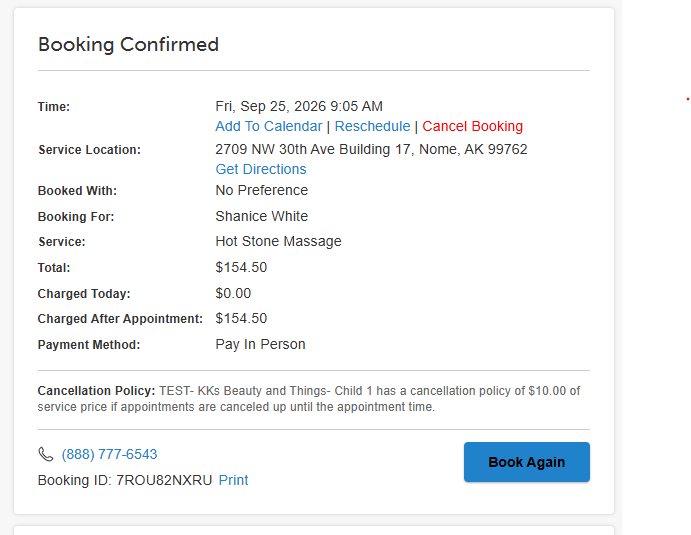
- Click Confirm Reschedule to finalize. You will be redirected to your updated confirmation page.
Reschedule from Your Booking History
If you need to change an appointment at a later date:
- Navigate to your business website or booking widget
- If your business has multiple sites, select their preferred location to ensure they are viewing the correct booking calendar
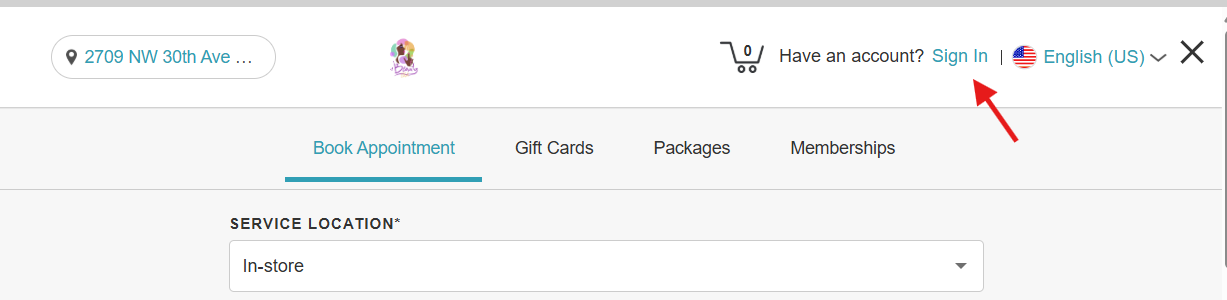
- Click the "Sign In" button at the top of the page
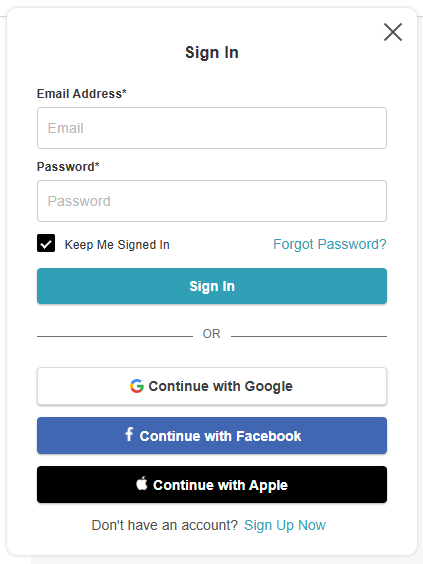
- Choose their login method:
- Standard: Enter their registered email address and password, then click 'Sign In'
- Social Login: Select 'Continue with Google,' 'Continue with Apple,' or 'Continue with Facebook' to use their existing social media credentials
- Click the dropdown next to your initials and select Account
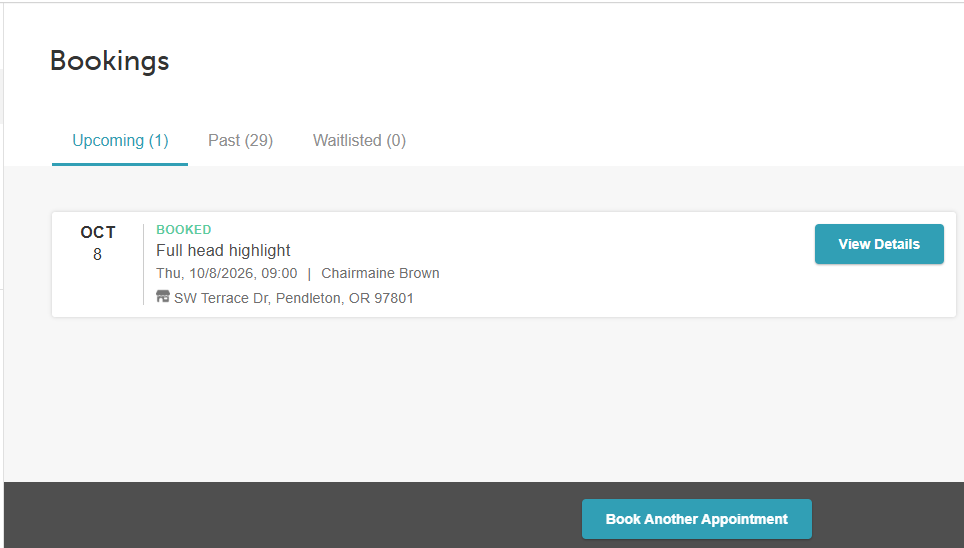
- From the left sidebar menu, select Bookings.
- Find your appointment and click View Details.
- Click Reschedule.
- When the time picker opens, your service, staff member, and family/pet selection will be pre-filled. A confirmation banner will appear at the top displaying: "Rescheduling: on [Date at Time]".
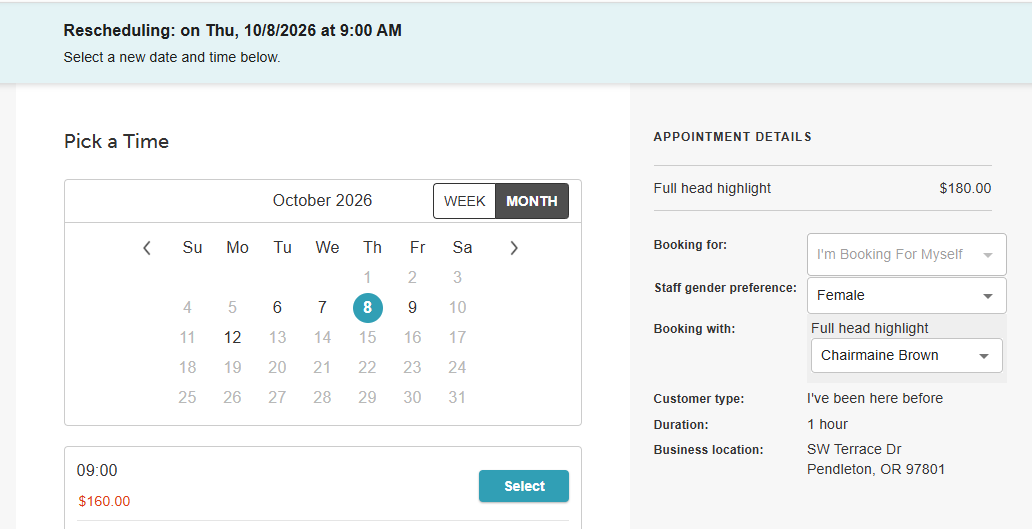
- Select a new date and time from the available time slots.
- Click Confirm Reschedule to finalize. You will be redirected to your updated confirmation page.
For more information, contact us at support@mytime.com or (385) 233-6964.
Related Articles:
Bulk Reassigning/Rescheduling Appointments
Rescheduling Appointments on Scheduler App
Was this article helpful?
That’s Great!
Thank you for your feedback
Sorry! We couldn't be helpful
Thank you for your feedback
Feedback sent
We appreciate your effort and will try to fix the article