With MyTime’s Zapier integration, you can automate your multi-location business expansion and data management by automatically creating, updating, and deleting locations in MyTime whenever changes occur in your external systems (such as a franchise management portal, real estate database, or a central Google Sheet) or vice versa.
Things to know:
- For franchise businesses:
- Webhooks and partner APIs enabled on both the parent and child accounts.
- Learn more about webhooks, view here and partner APIs, here
- Using API Keys When Connecting MyTime to Zapier: The API key you choose depends on whether you’re creating Zap triggers or actions:
- Triggers: Use the parent account API key to ensure Zapier detects events across all locations.
- Actions (e.g., search, update, or delete records):
- Use the parent API key to apply actions across all locations, or
- Use a child location API key if you want the action to apply only to that specific location.
- For details on how to connect your Zapier profile with MyTime, learn more here
- A Zap is an automated workflow that links your apps and services. Each Zap includes a trigger and one or more actions. Once activated, the Zap will carry out the action steps each time the trigger event happens.
- An action is what happens after the trigger—the "effect" that Zapier performs in response to the trigger. Once the trigger event occurs, the action is executed in another app
To create a new Zap for managing staff member profiles:
- On the Zapier home page, you can create a new Zap by:
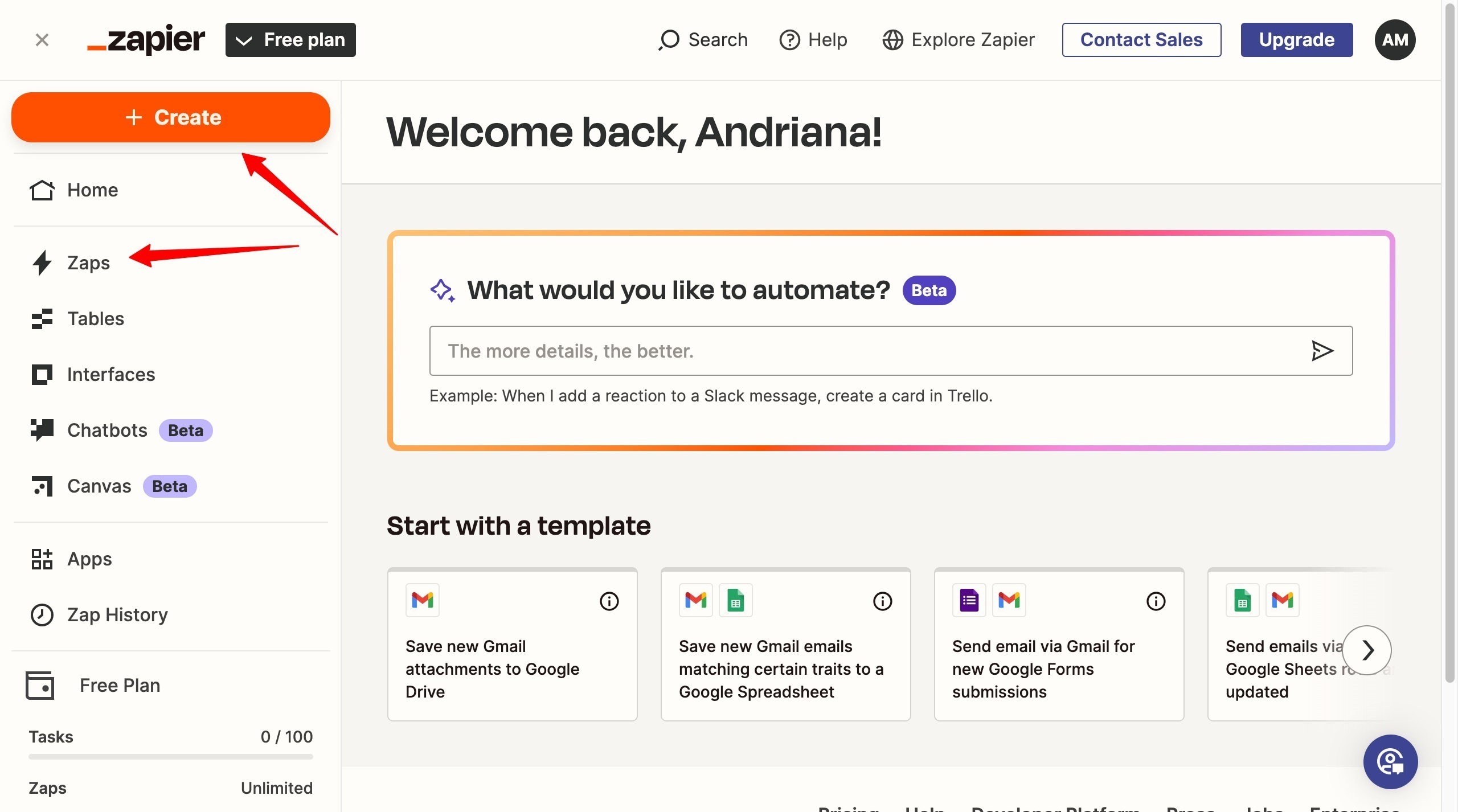
- Clicking + Create → Zaps, which takes you directly to the Zap creation page.
- Clicking Zaps in the left panel opens the “My Zaps” page, where you can add a new Zap.
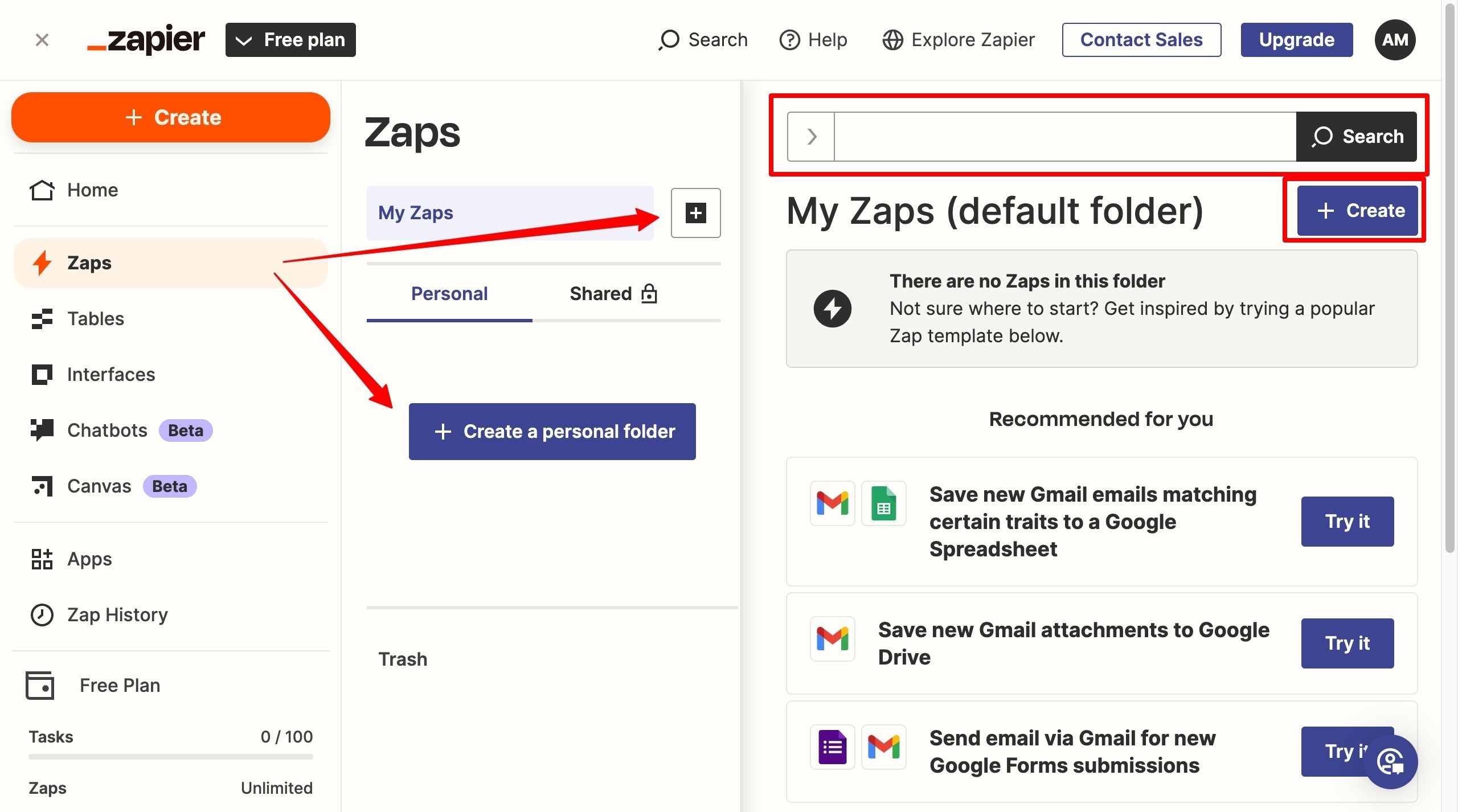
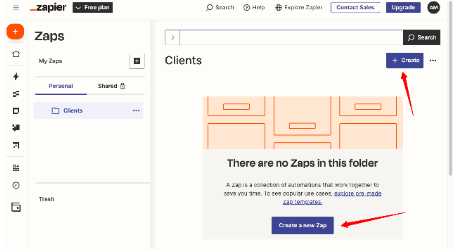
- Create a personal folder by clicking + Create a personal folder or the + next to My Zaps, entering a folder name, then clicking Done.
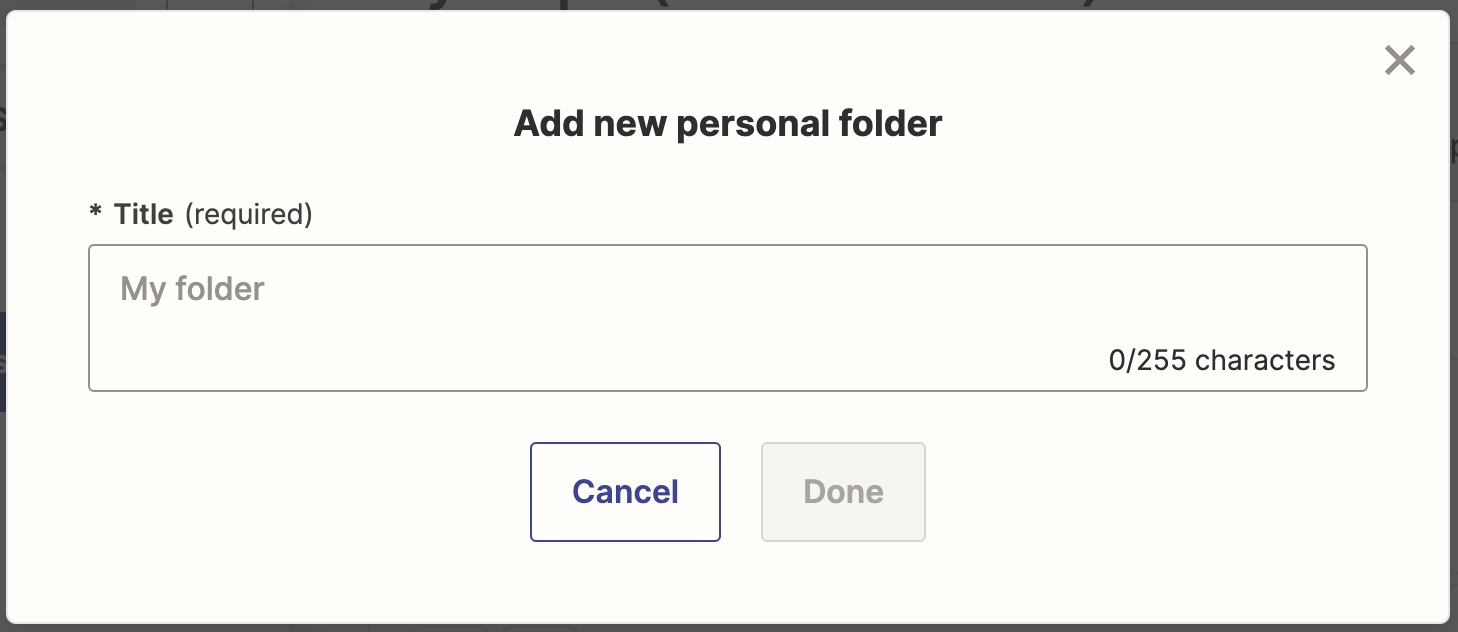
- Once done, choose any of the highlighted options on the screen to start creating a Zap.
- Create a personal folder by clicking + Create a personal folder or the + next to My Zaps, entering a folder name, then clicking Done.
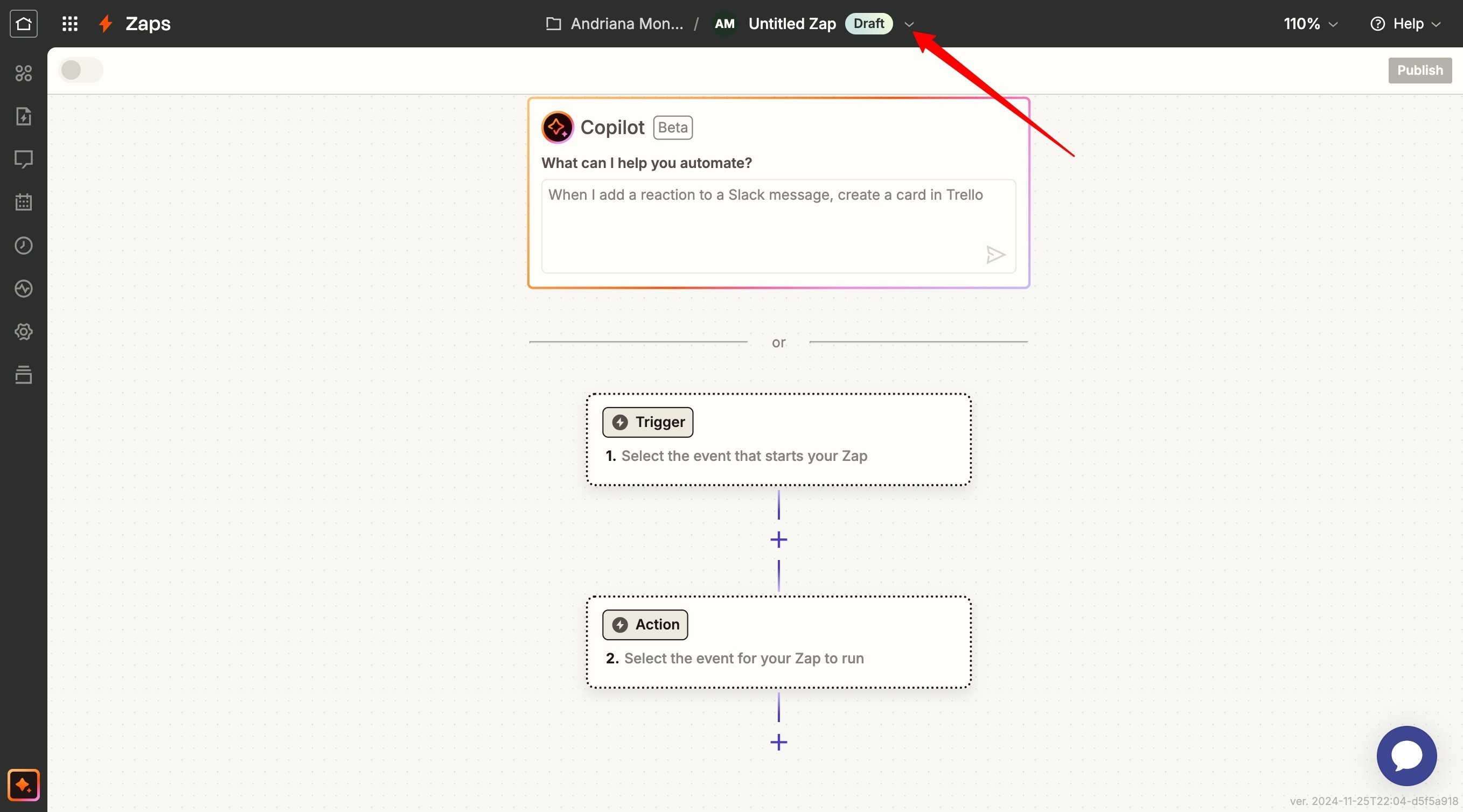
- On the “Untitled Zap” page, click the dropdown at the top to name your Zap.
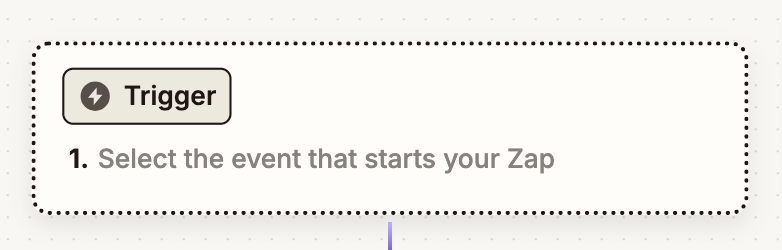
- Click 'Trigger' to add a trigger event.
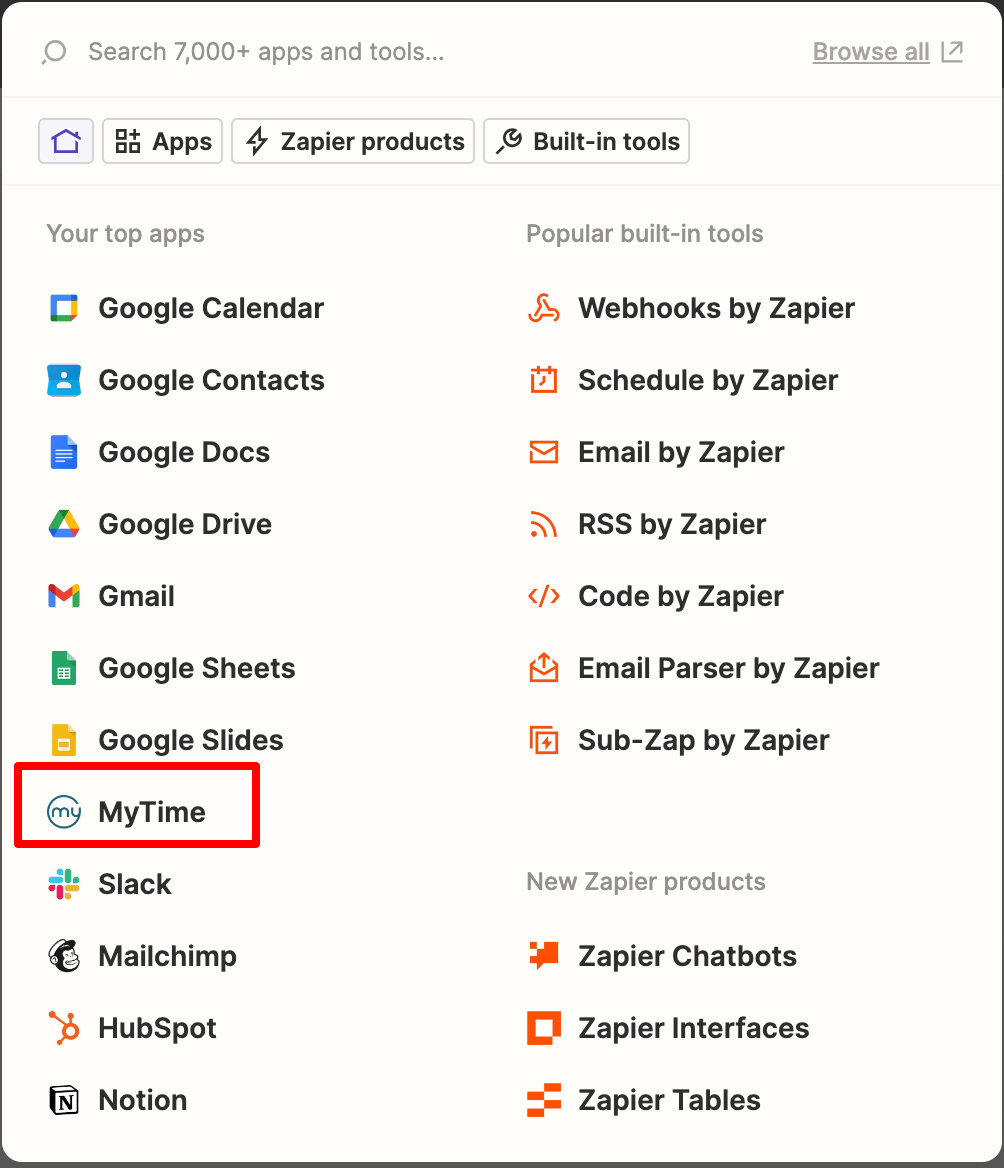
- Select 'MyTime' from the list of apps
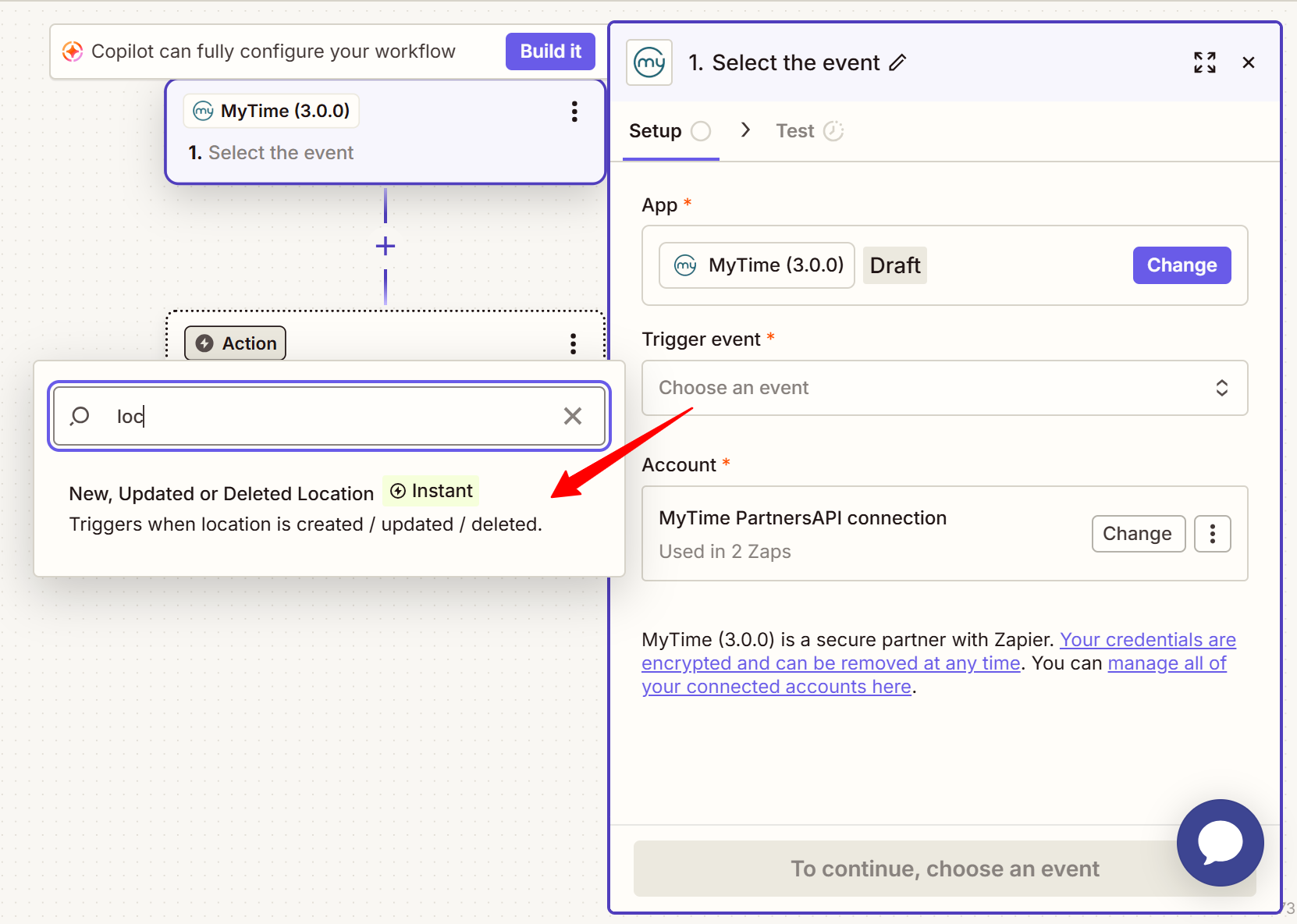
- Select the 'New, Updated or Deleted Employee' trigger event
- Select your account
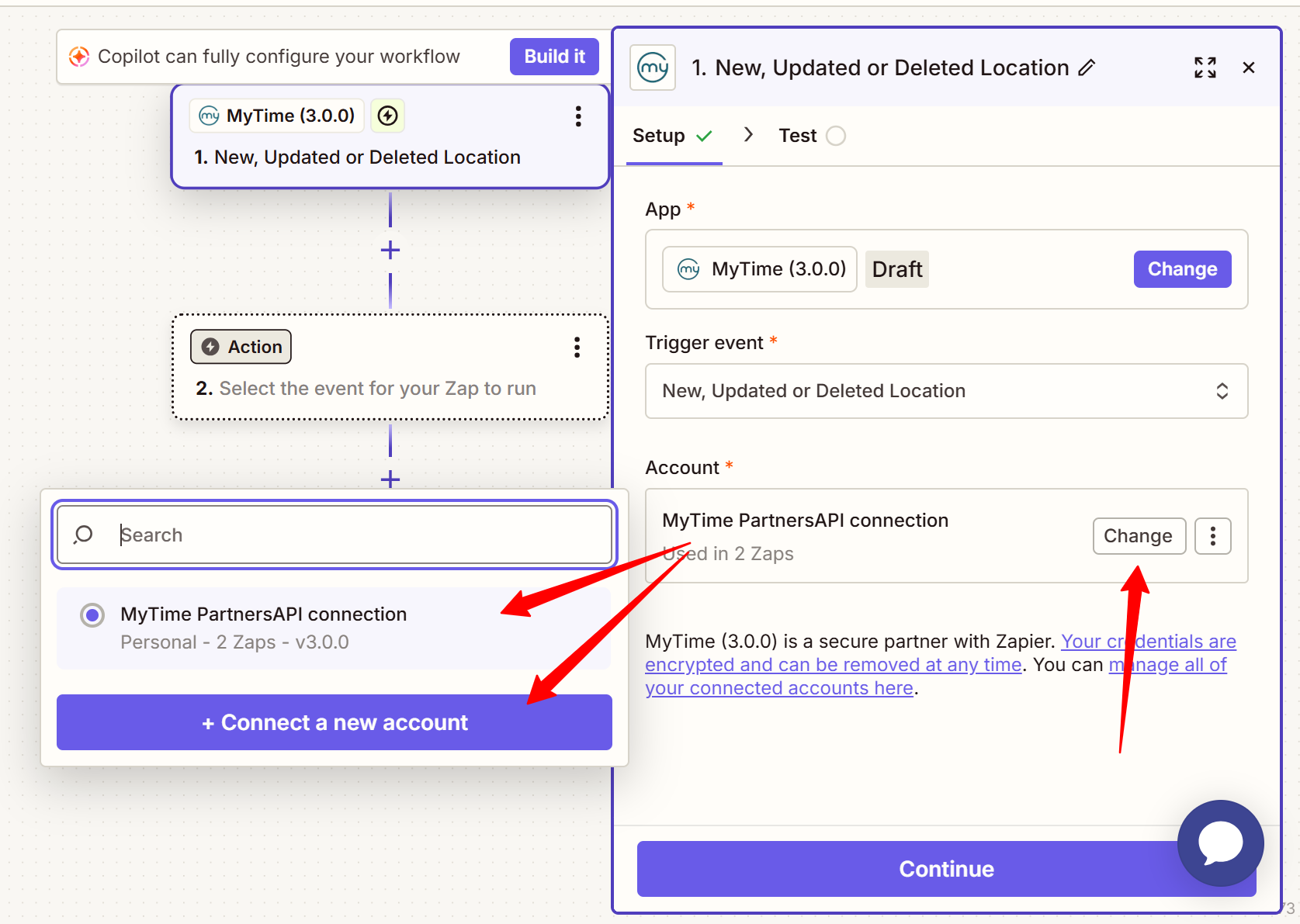
- If you have never connected a MyTime account, click 'Connect a new account,' and a new page will open. Enter your MyTime API partner key. Click the 'Yes, Continue to MyTime' button to connect your MyTime account.
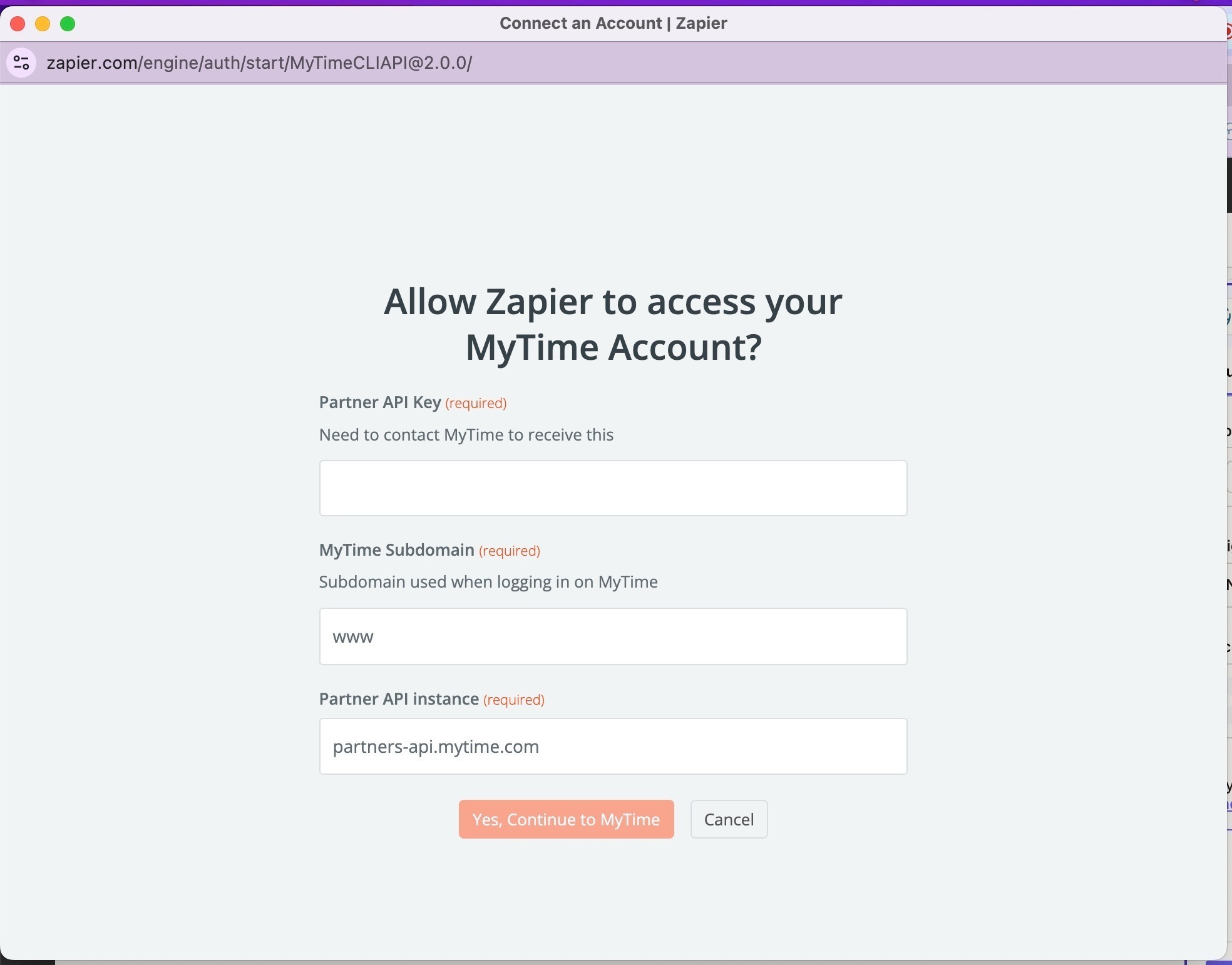
- If you have never connected a MyTime account, click 'Connect a new account,' and a new page will open. Enter your MyTime API partner key. Click the 'Yes, Continue to MyTime' button to connect your MyTime account.
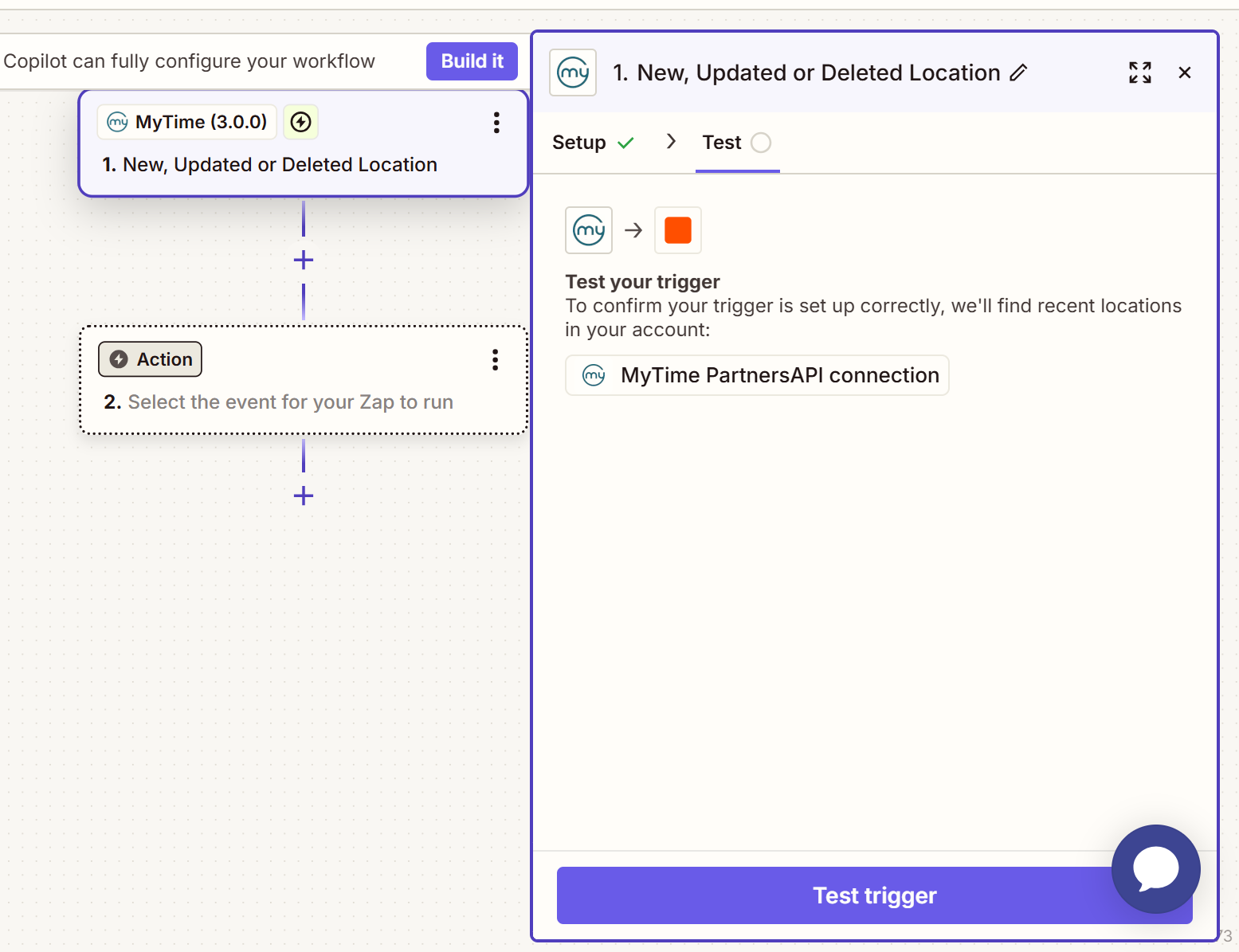
- Click 'Continue' then click Test Trigger
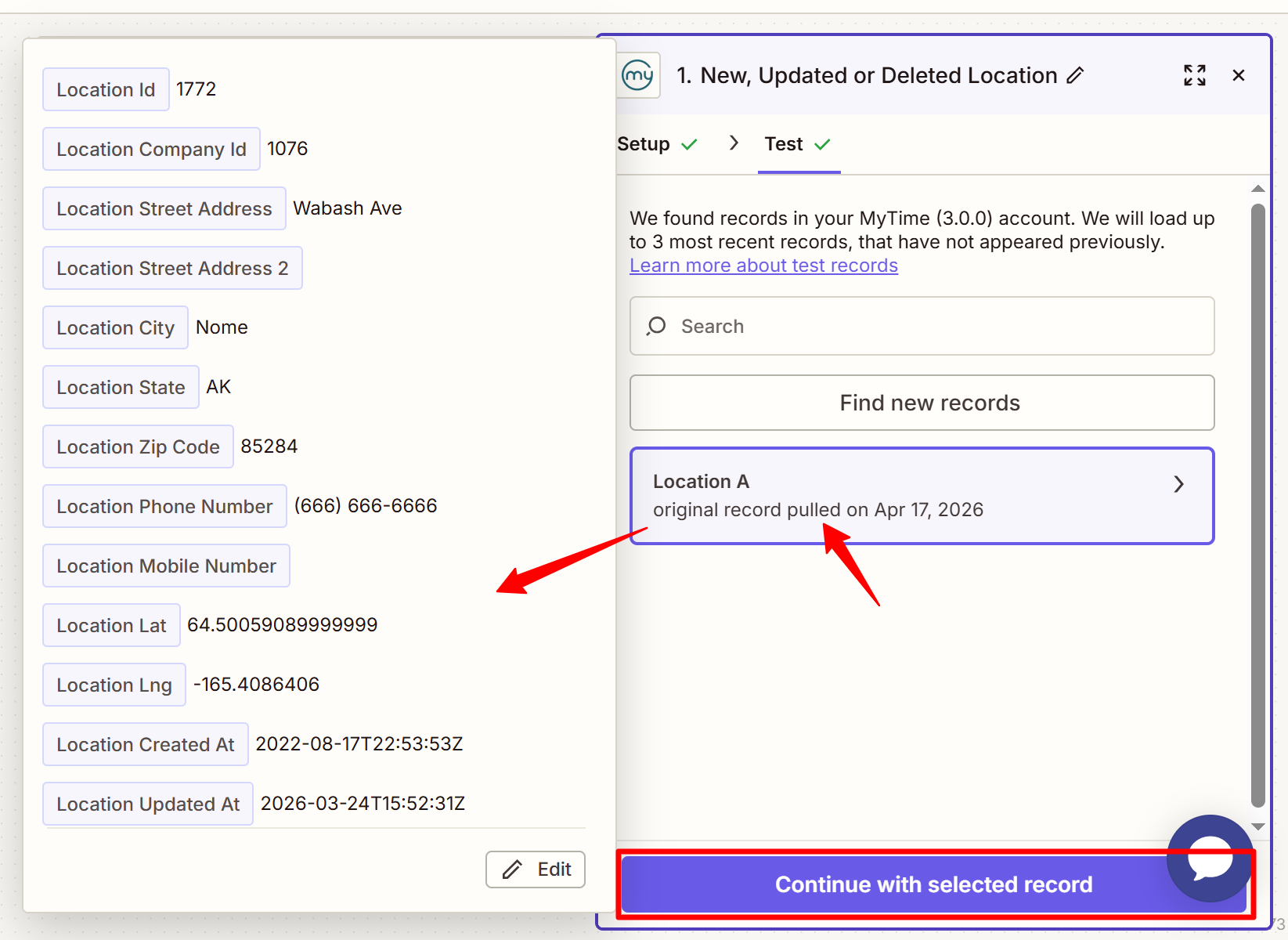
- Zapier will pull sample data from your MyTime account. The information pulled can be matched with the data displayed on the 'Edit Location' modal found on the Business Setup > Business Profile page. Click to review or select one, if multiple, then 'Continue with Selected Record'
- Next, Zapier will now prompt you to select an app for your action
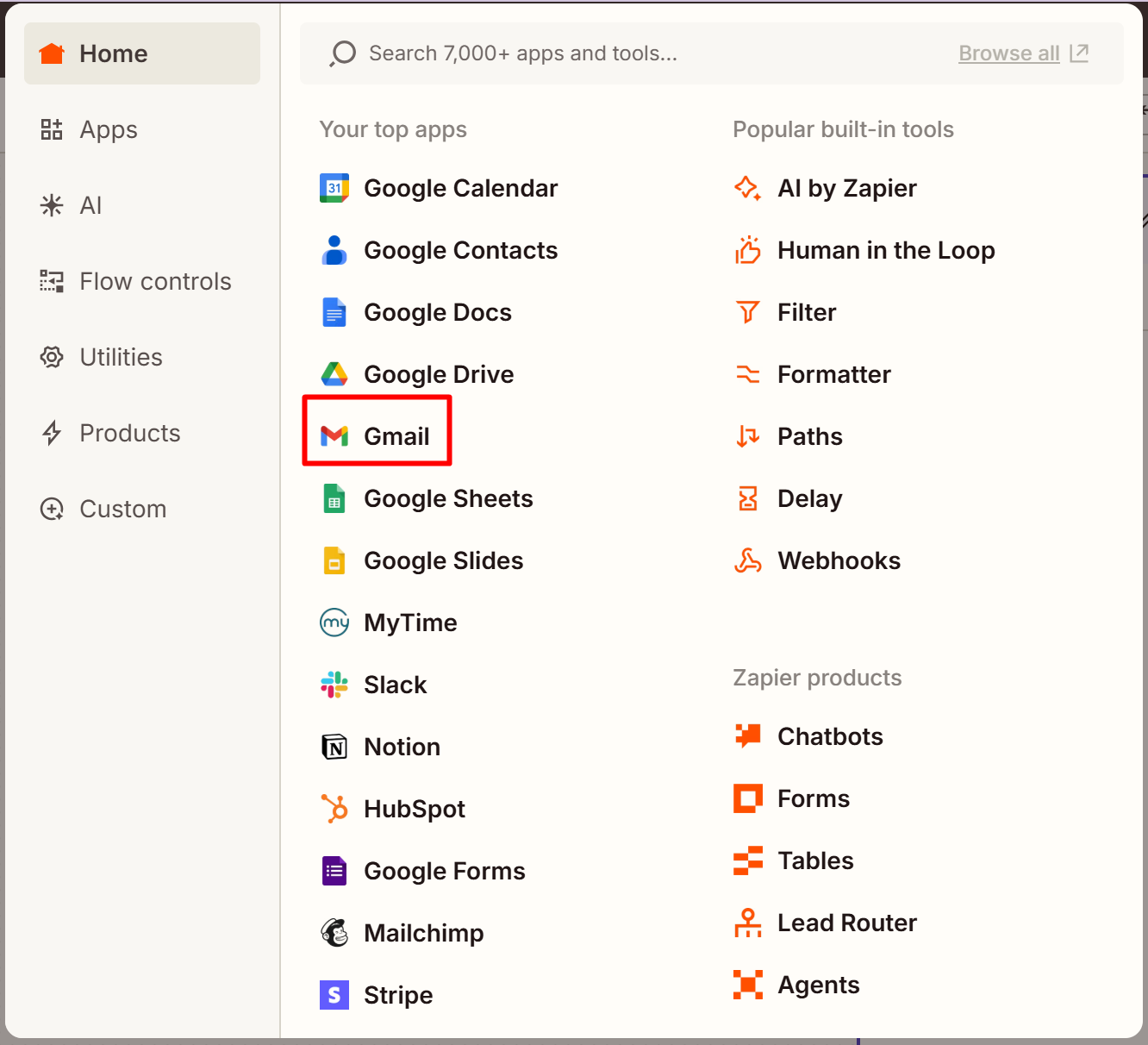
- Select 'Send Email' action
- Click Account then 'Yes, Continue to Gmail' on the pop-up to connect your email
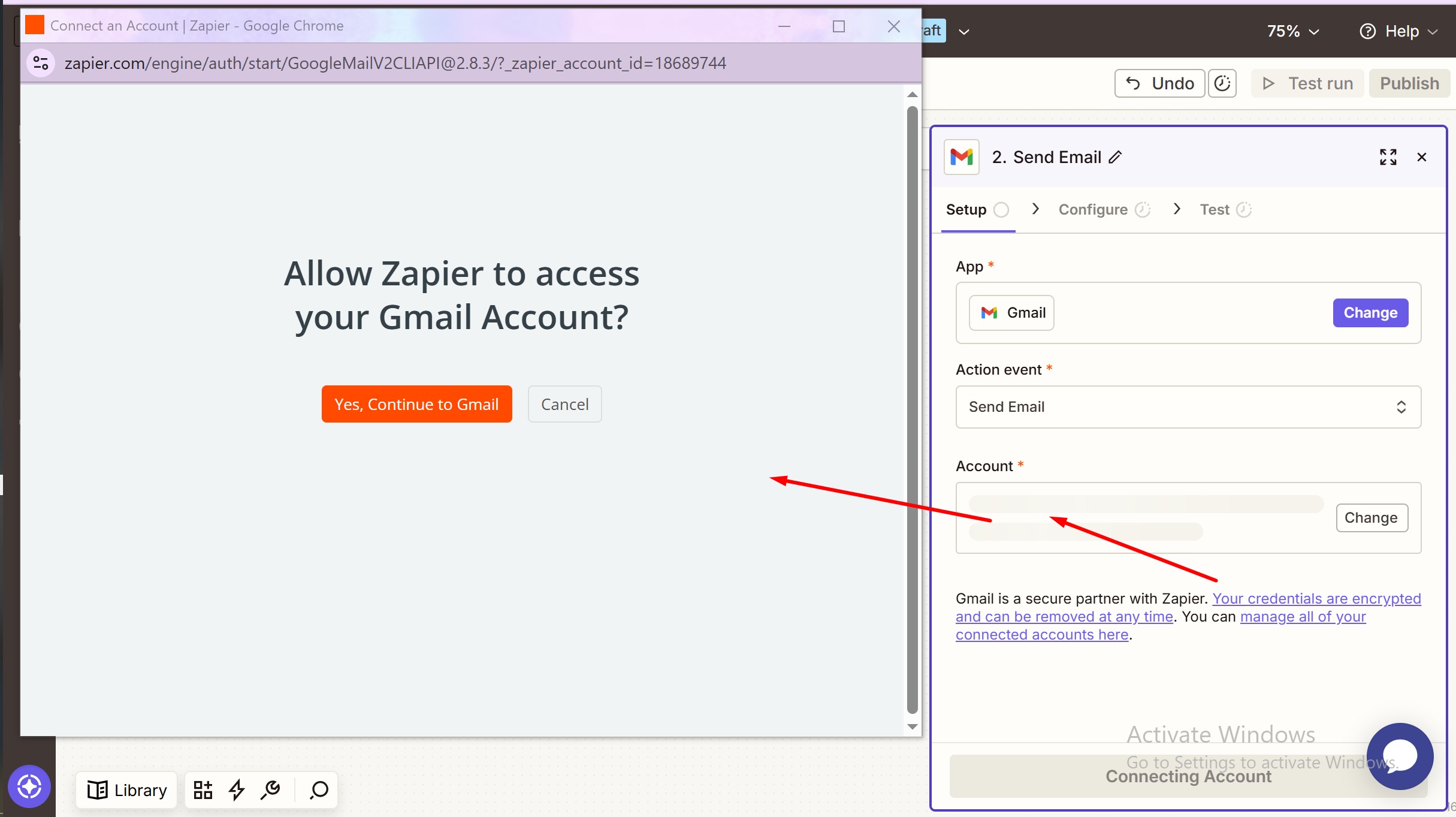
- Follow the steps to log into your gmail account
- Click Continue
- Configure your email using the fields presented
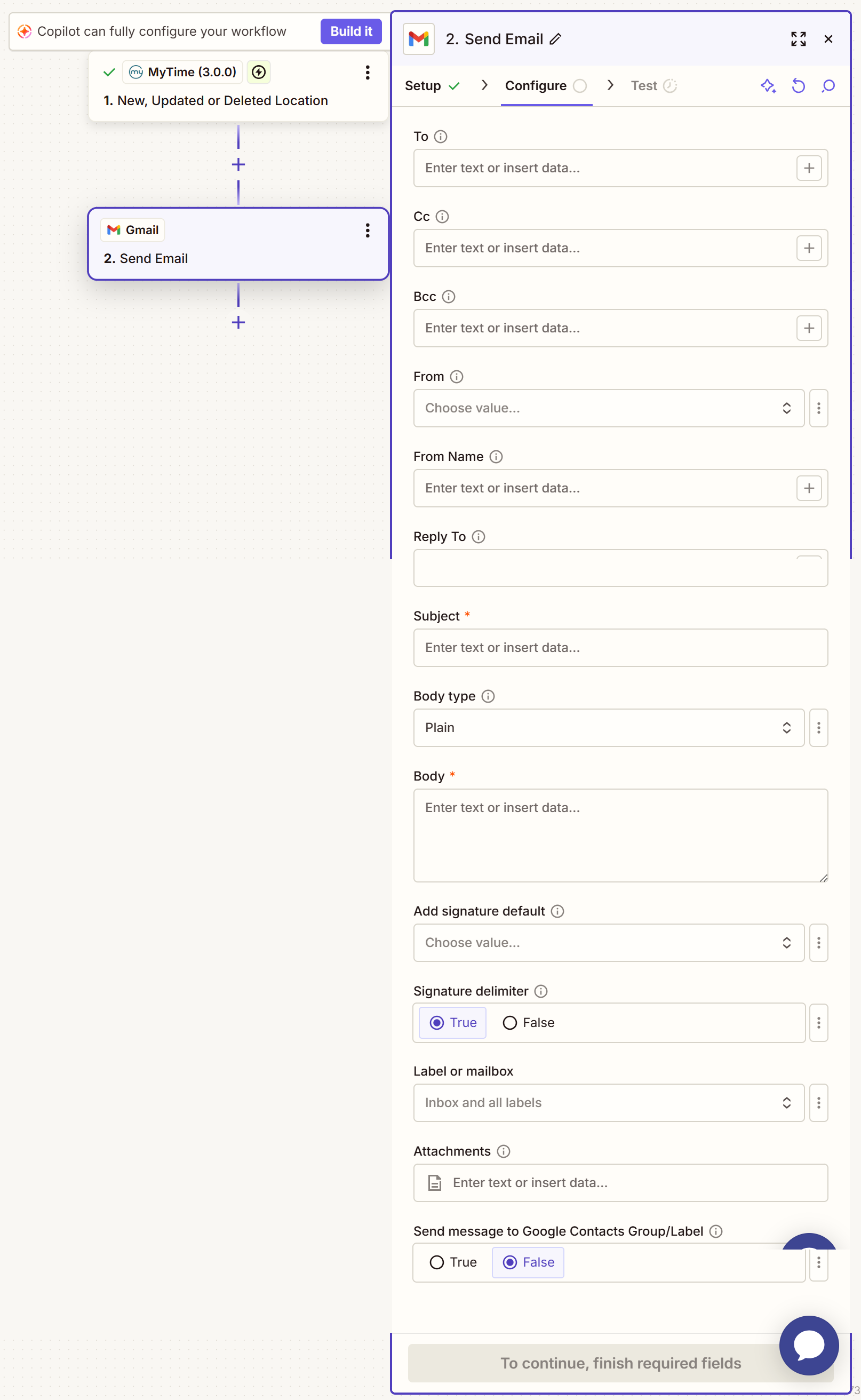
- Click 'Continue'
- Zapier will display the data in detail. Click Test Step, or skip the test if preferred.
- Click 'Publish' to activate the Zap
Once the Zap is active, data will automatically transfer between MyTime and your Gmail without the need to maintain servers or write code.
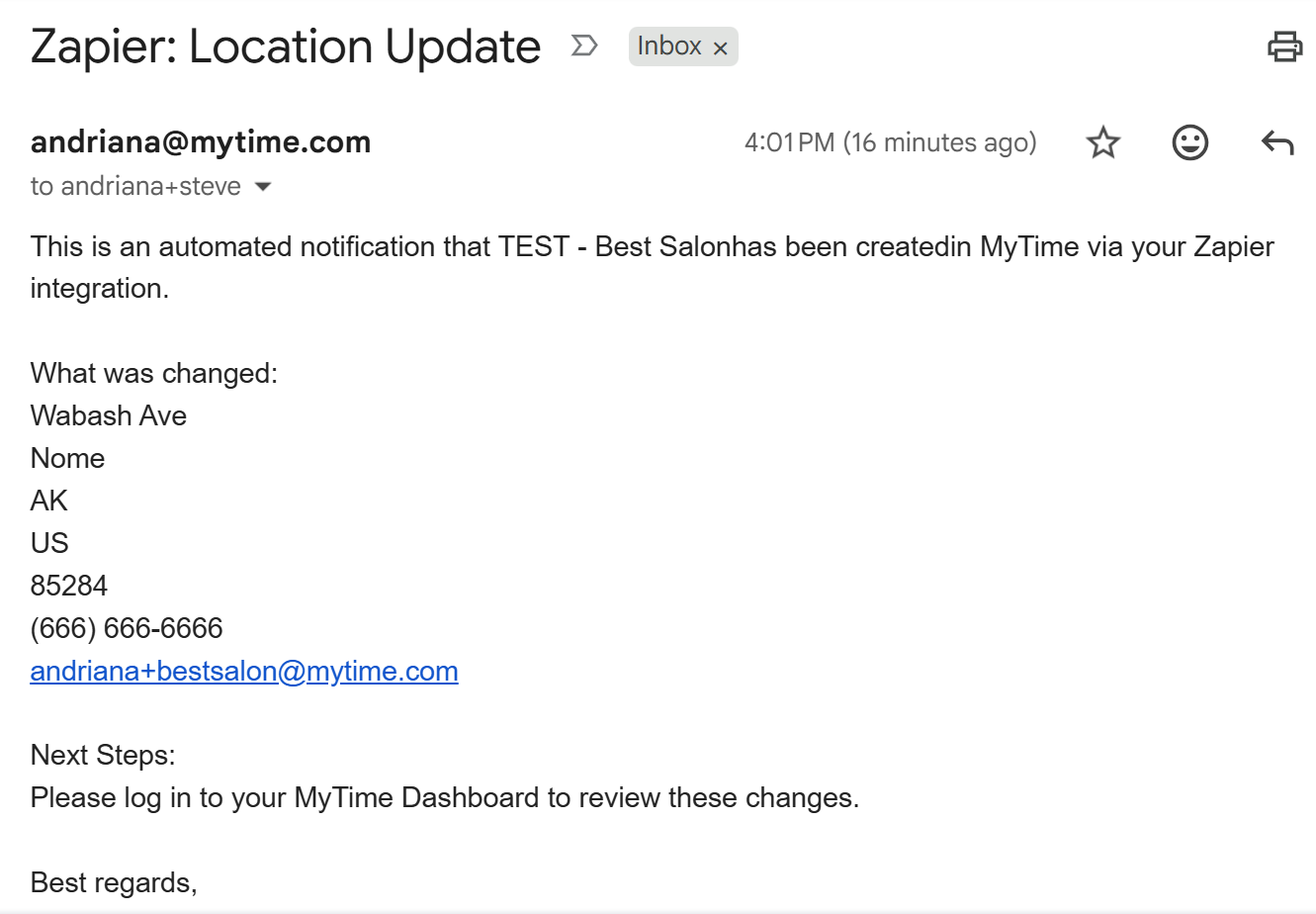
In the example above, for any update or deletion made to a location or if a new one was created, the Zap will send an email to you automatically.
Email Received
For more information, contact us at support@mytime.com or (385) 233-6964.
Related Articles:
Was this article helpful?
That’s Great!
Thank you for your feedback
Sorry! We couldn't be helpful
Thank you for your feedback
Feedback sent
We appreciate your effort and will try to fix the article