A UUID is a permanent internal identifier used to uniquely reference a specific data point. When using Zapier actions such as Create/Update Client, Family Member, or Pet, MyTime may require a UUID to correctly map data to a custom field. This is because standard field names may not be unique or could change over time. This article explains how to retrieve custom field UUIDs using Zapier.
To extract custom field UUIDs via Zapier:
- Log in to Zapier
- From the home page, create a new Zap by:
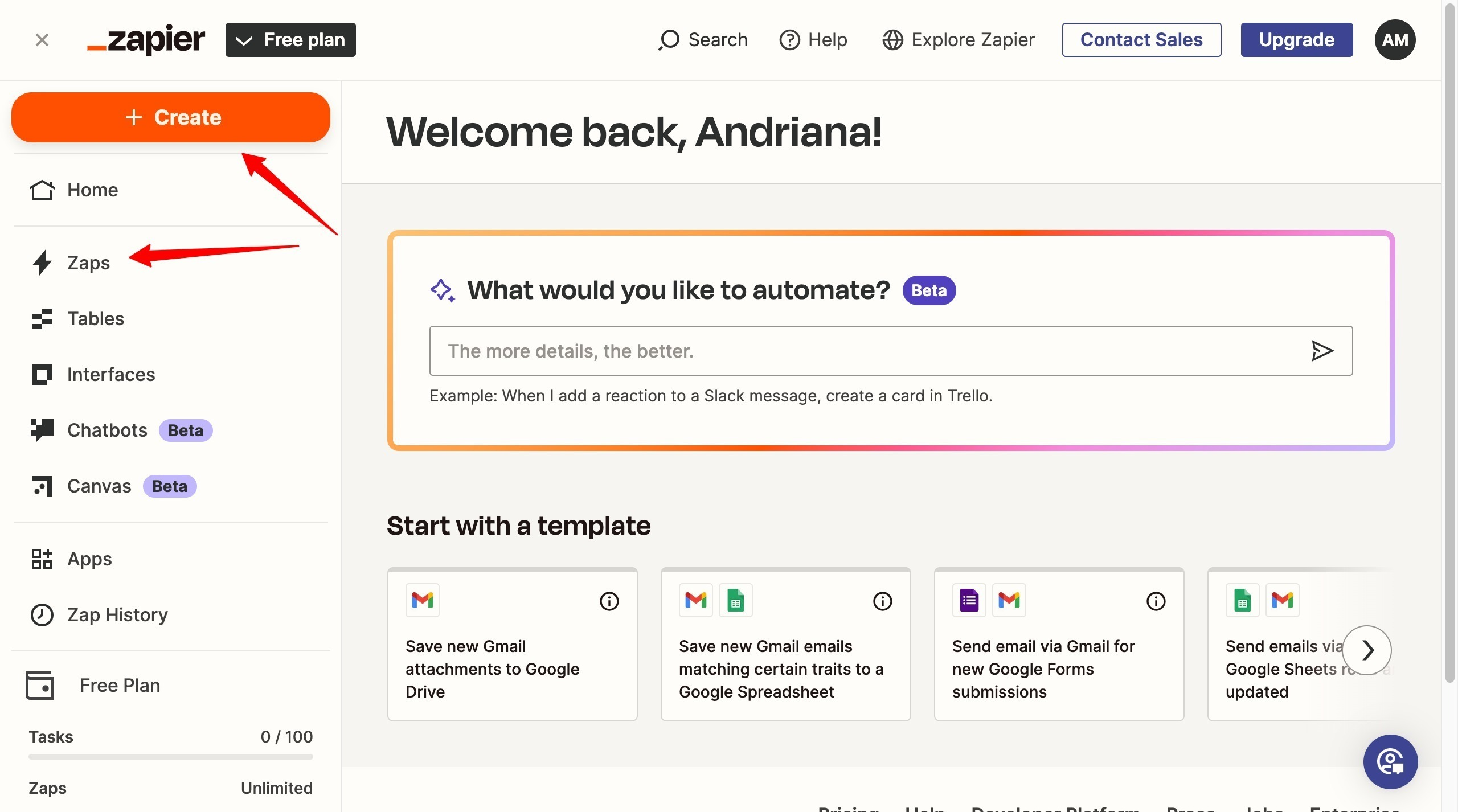
- Clicking + Create → Zaps, or
- Selecting Zaps from the left panel, then clicking Create Zap
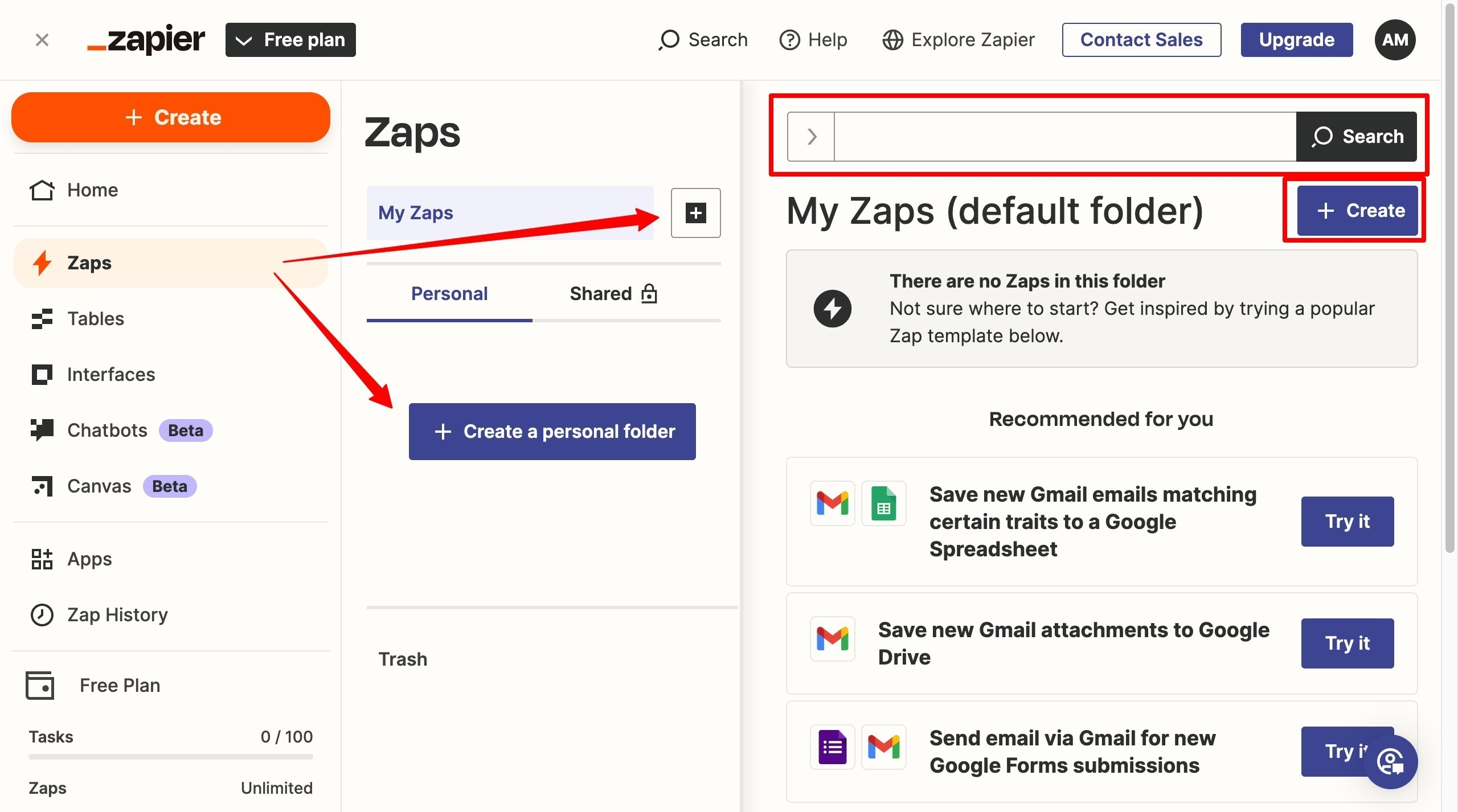
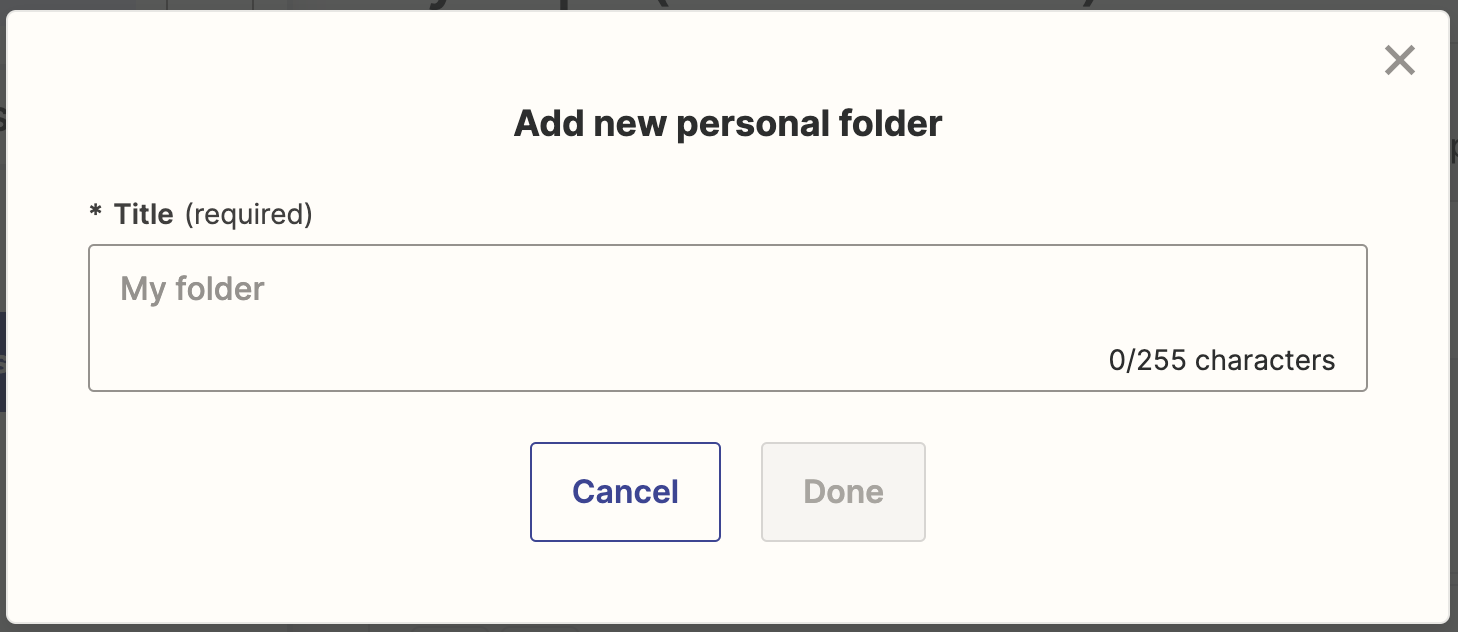
- (Optional) Create a personal folder by clicking + Create a personal folder or the + next to My Zaps, enter a folder name, then click Done
- On the Untitled Zap page, click the dropdown at the top to rename your Zap
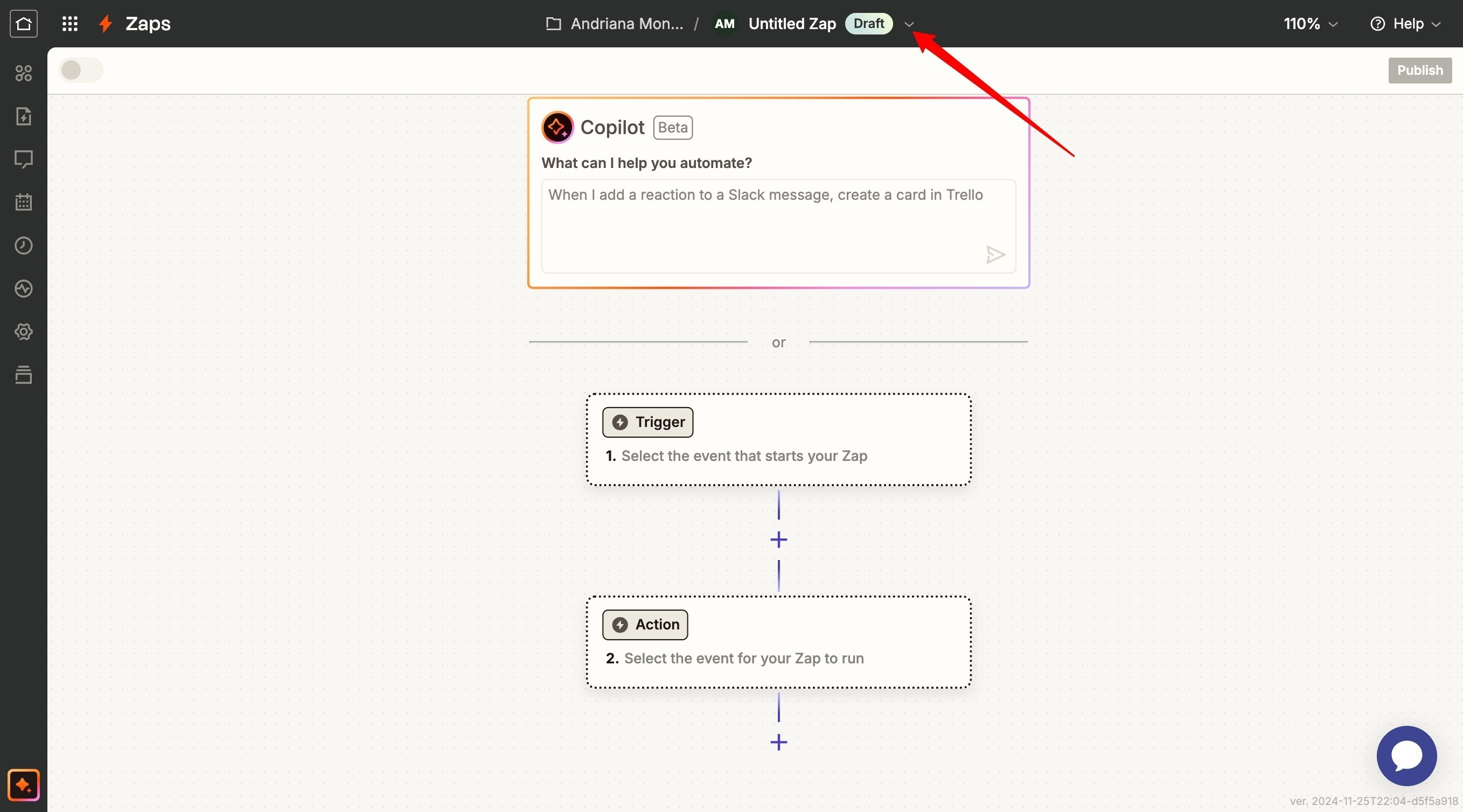
- Click Action
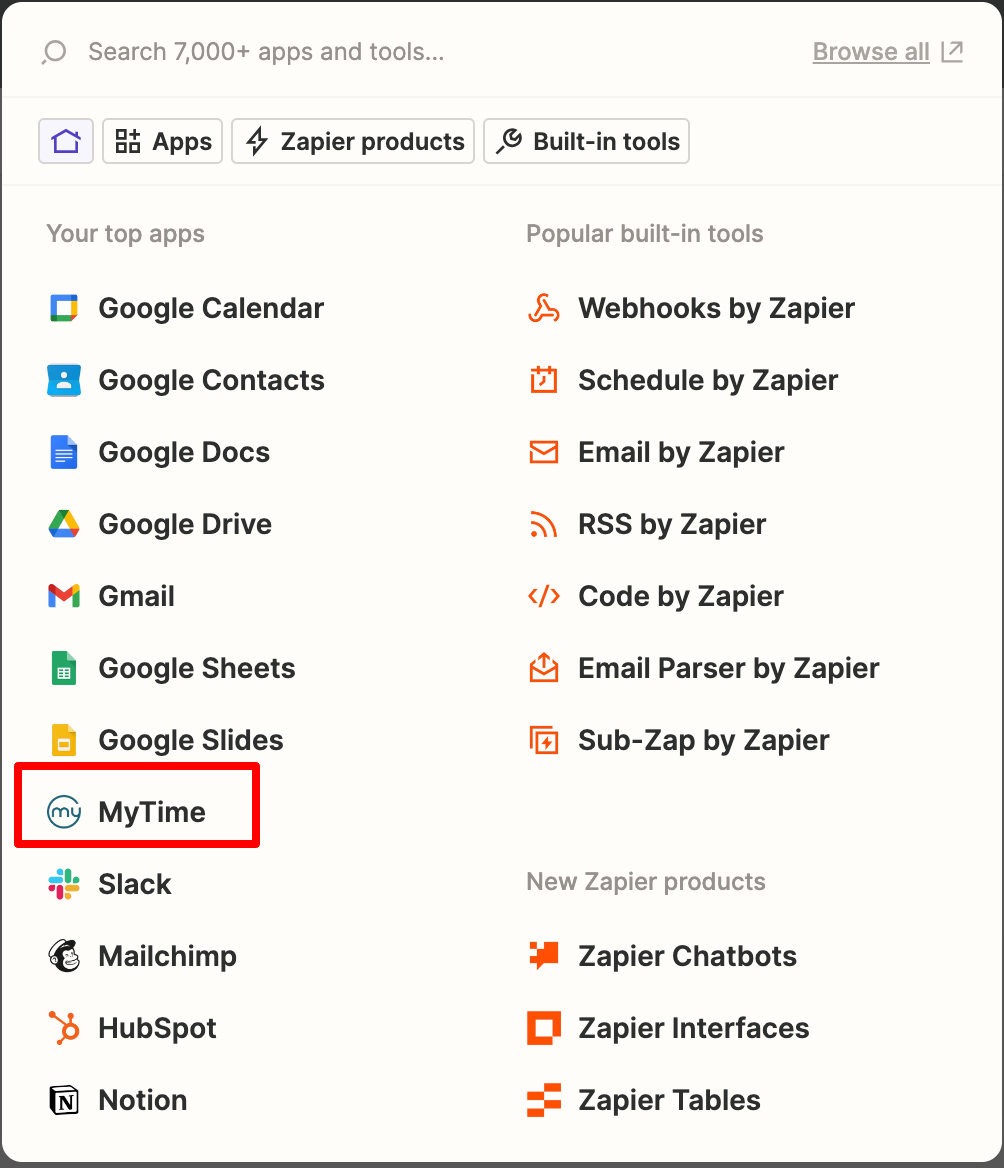
- Search for and select MyTime as the app
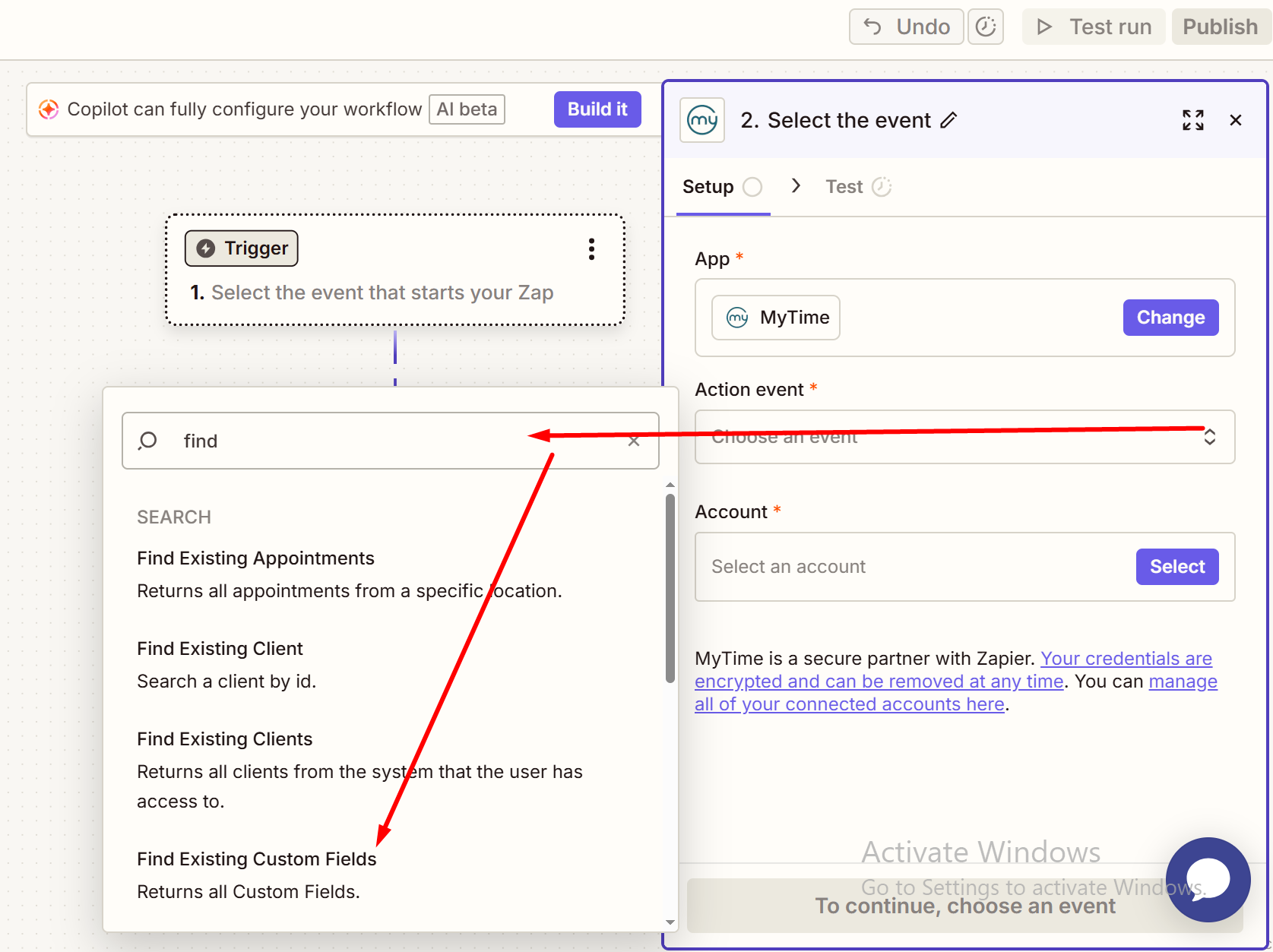
- In the Action Event field, select Find Existing Custom Field
- Choose your MyTime account
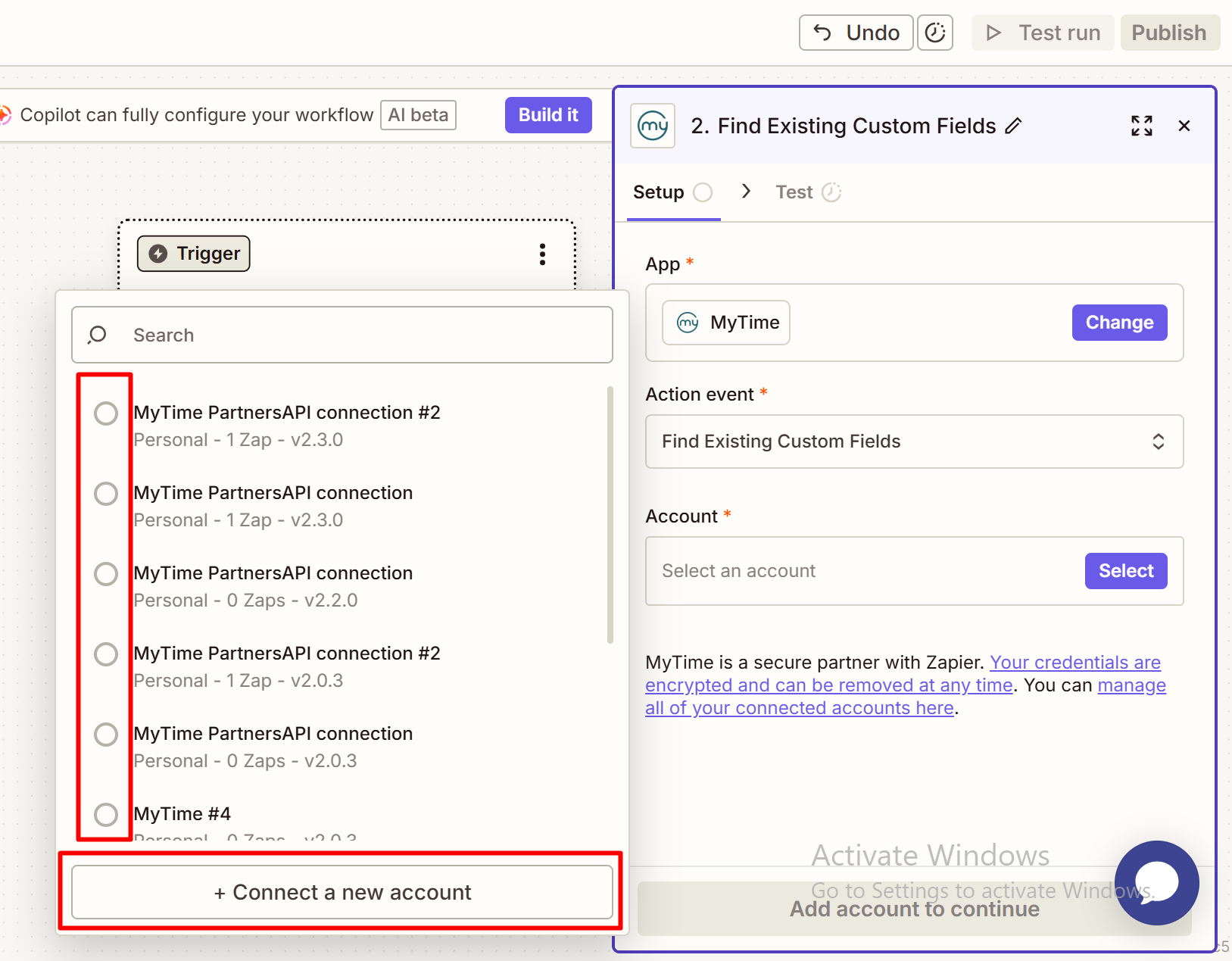
- If your account is not yet connected, click Connect a new account
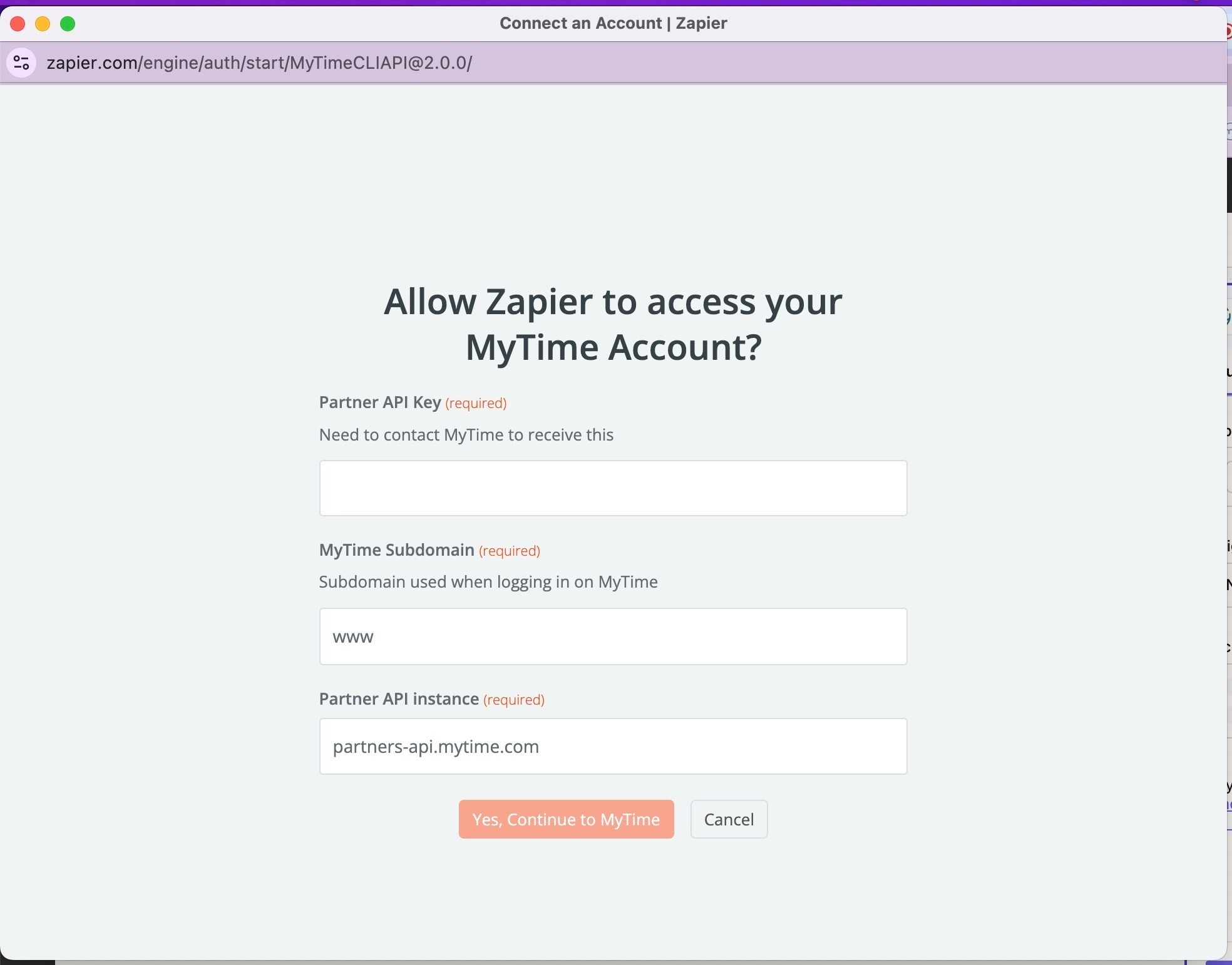
- Enter your MyTime API Partner Key
- Click Yes, Continue to MyTime to complete the connection
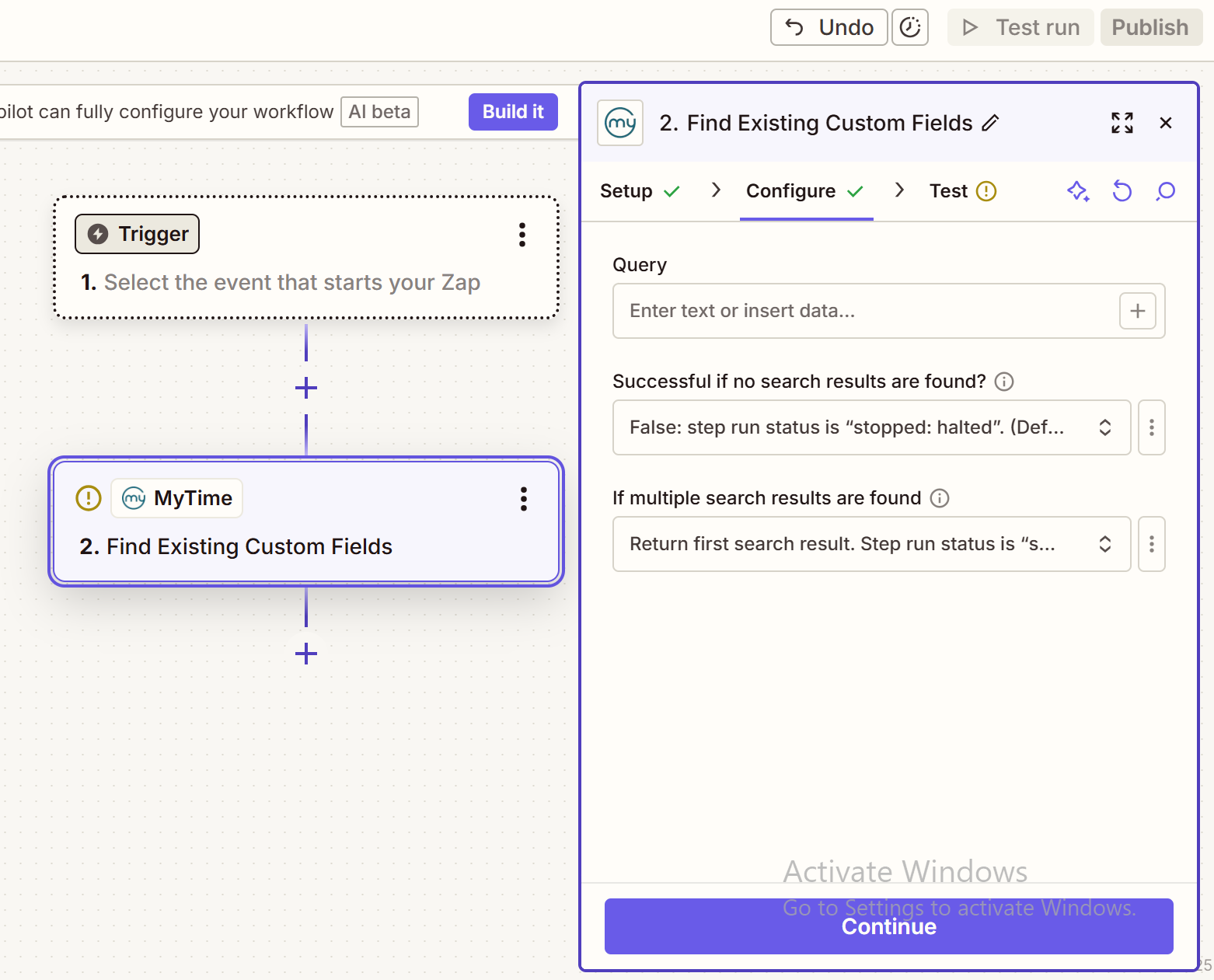
- Click Continue
- Leave the configuration fields unchanged
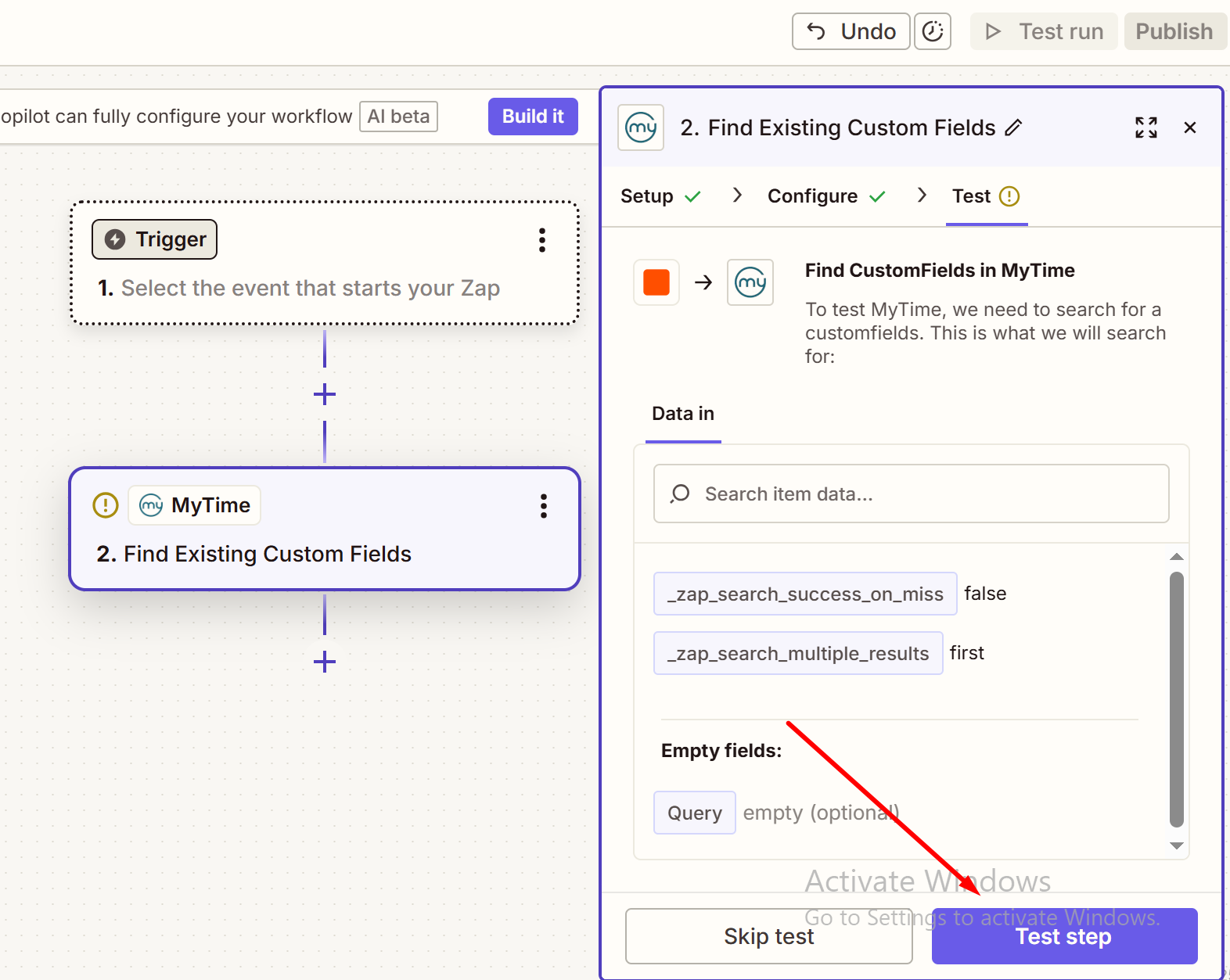
- Click Test Step
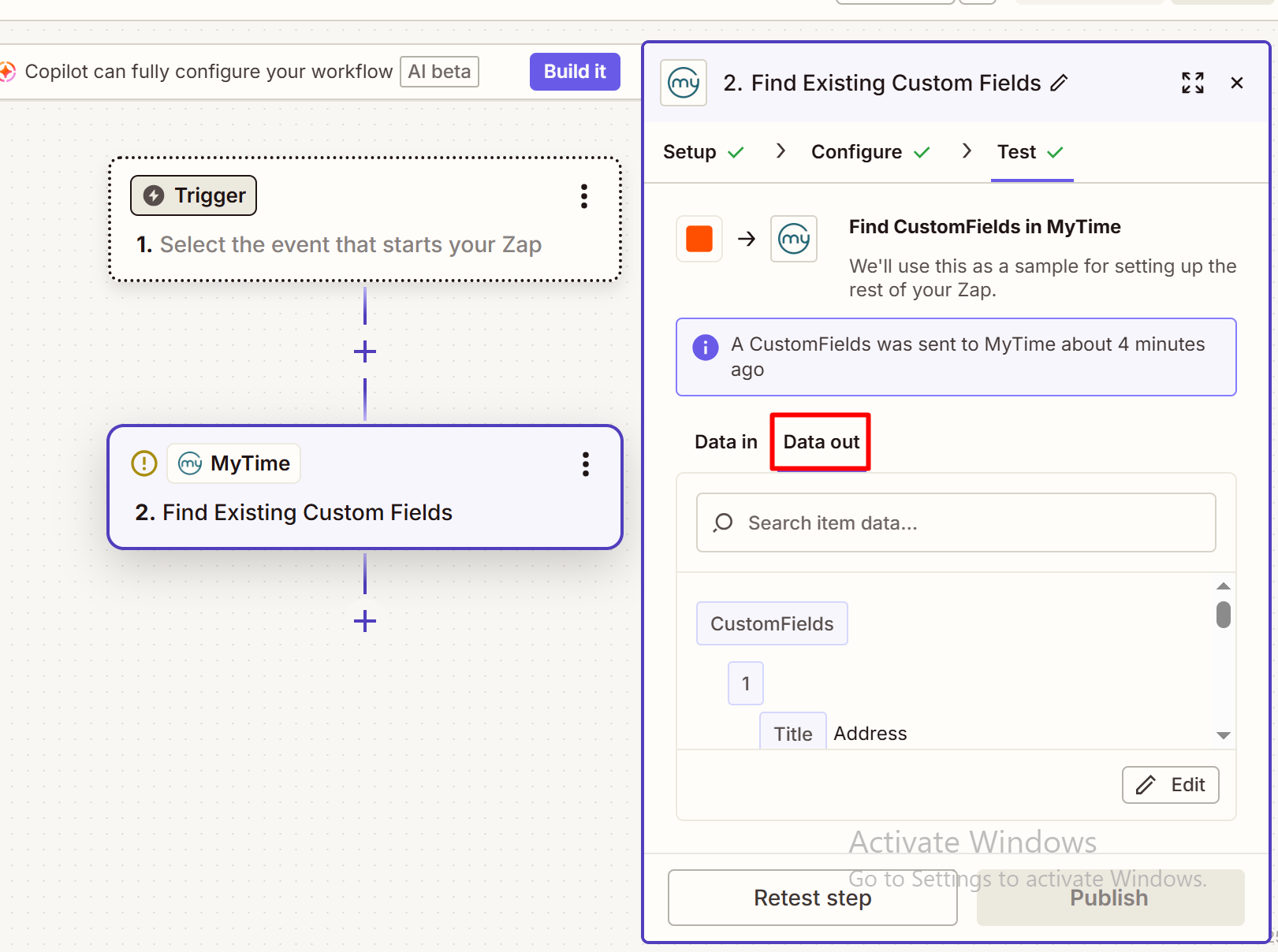
- The custom fields configured for your account will appear in the Data Out section
- Scroll through the results to locate the desired custom fields and their associated UUIDs
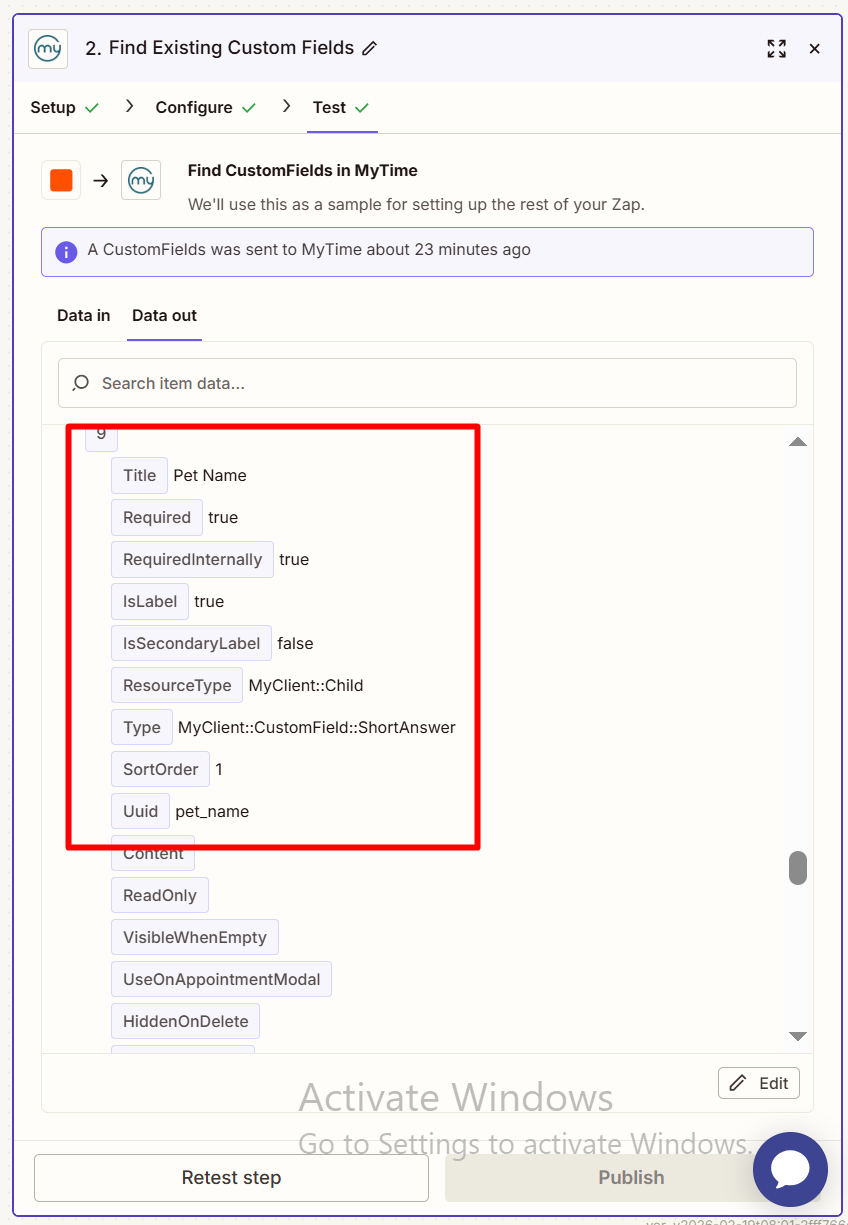
- Copy and save the UUIDs for use in other Zaps that require them, such as creating or updating clients, family members, or pets in MyTime
Related Articles:
Was this article helpful?
That’s Great!
Thank you for your feedback
Sorry! We couldn't be helpful
Thank you for your feedback
Feedback sent
We appreciate your effort and will try to fix the article