Force activation allows you to manually apply referral credits to a client’s account without requiring the usual triggers (such as a completed purchase). This is helpful when referral credits were not applied automatically due to unmet conditions, but you still want to honor the referral reward. This article walks through how to force activate referral credits using the Scheduler App.
Things to know:
- The ability to force activate referral credits is controlled by the “Accessing Referral Credits” access control setting.
- Clients will not receive an automated email when referral credits are force activated.
- Force-activated credits cannot be undone once confirmed.
To force activate referral credits:
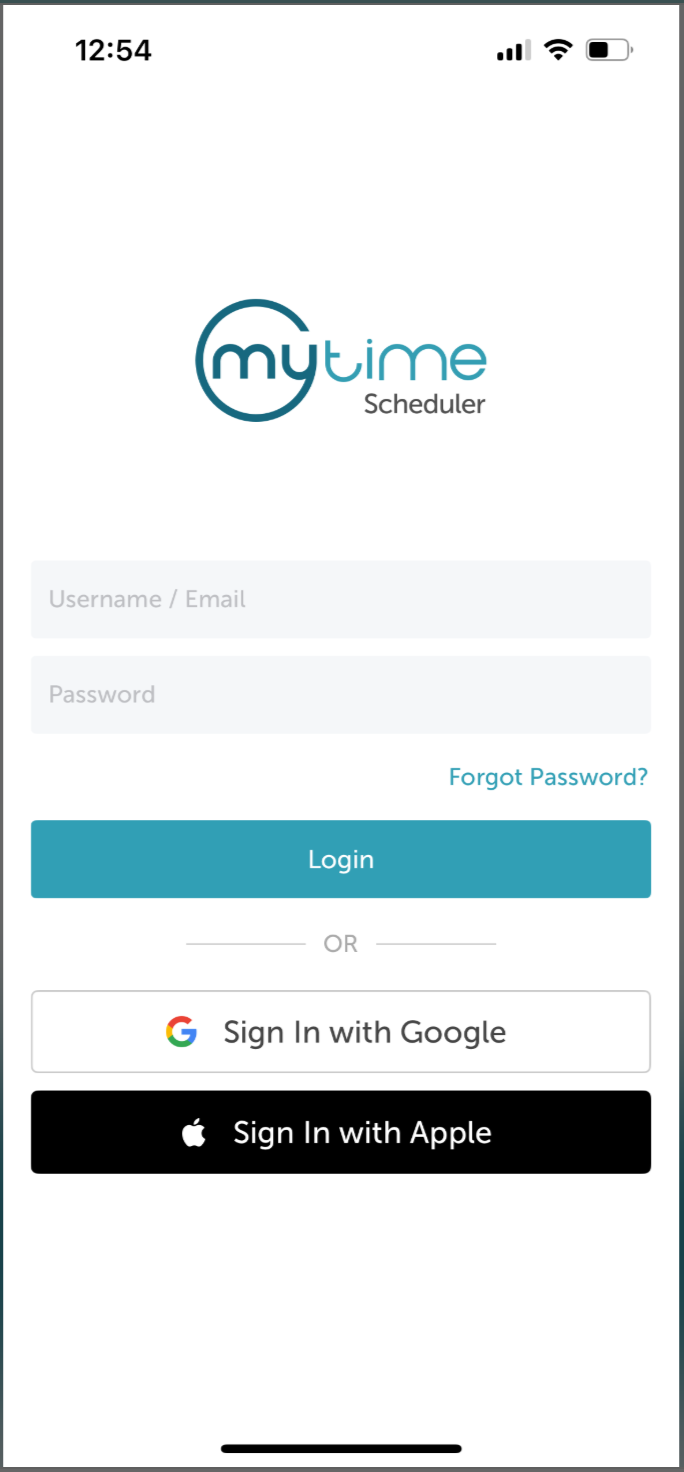
- Launch the MyTime Scheduler app on your device
- Choose your login method:
- Standard: Enter your registered email address and password, then tap 'Sign In'
- Social Login: Select 'Continue with Google' or 'Continue with Apple' to use your existing credentials for a faster login experience. For detailed instructions, learn here
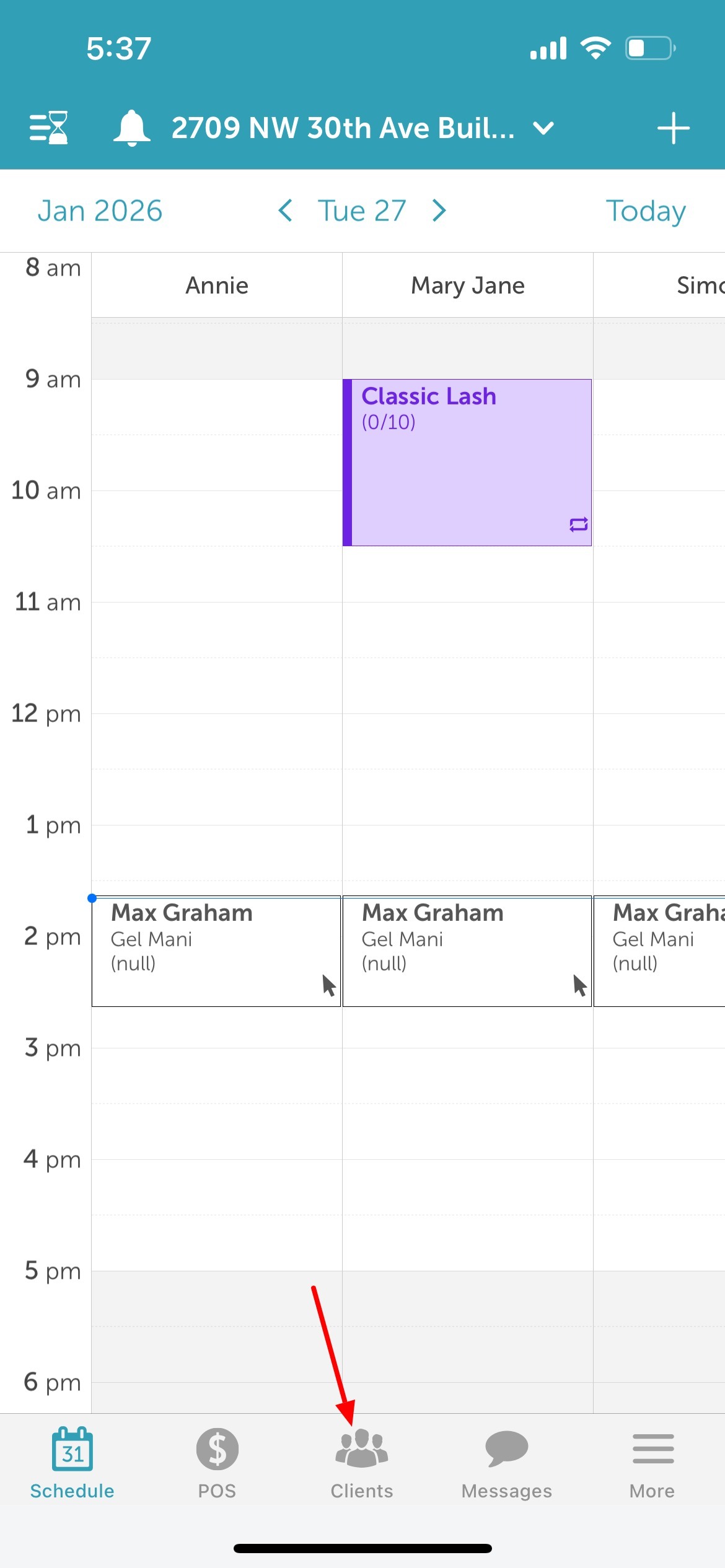
- After signing in, you will be directed to the Schedule by default
- Tap the Clients icon located at the bottom of the screen
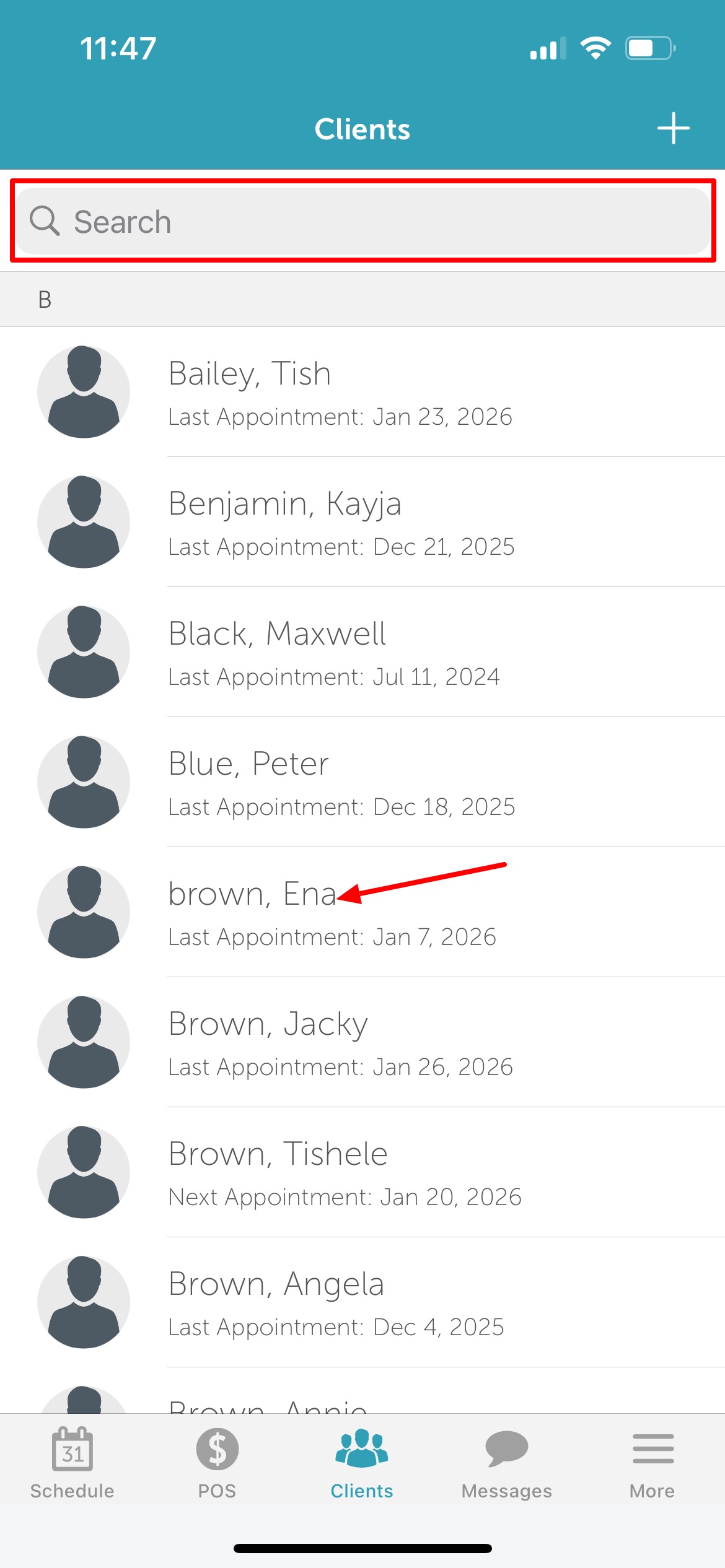
- Search for the client by name or select them from the client list
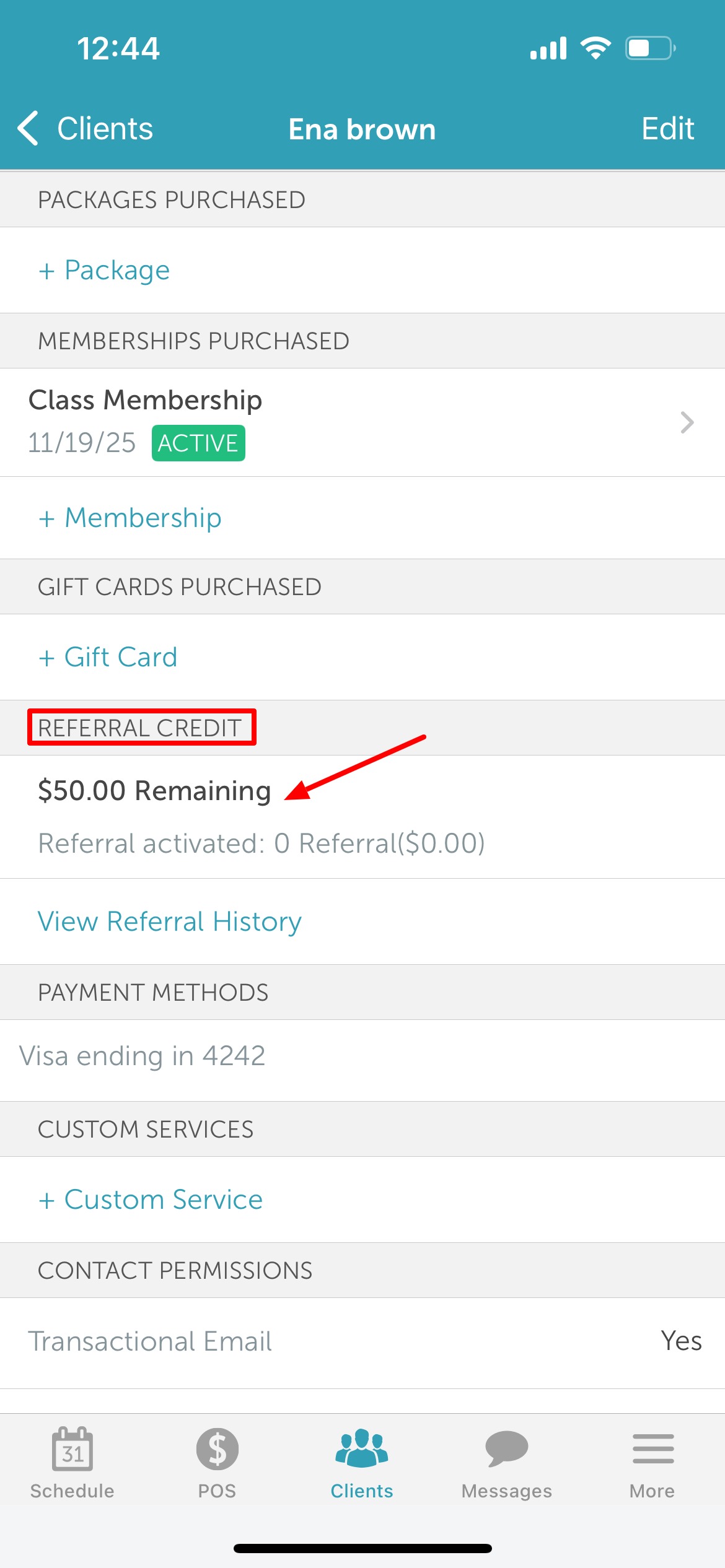
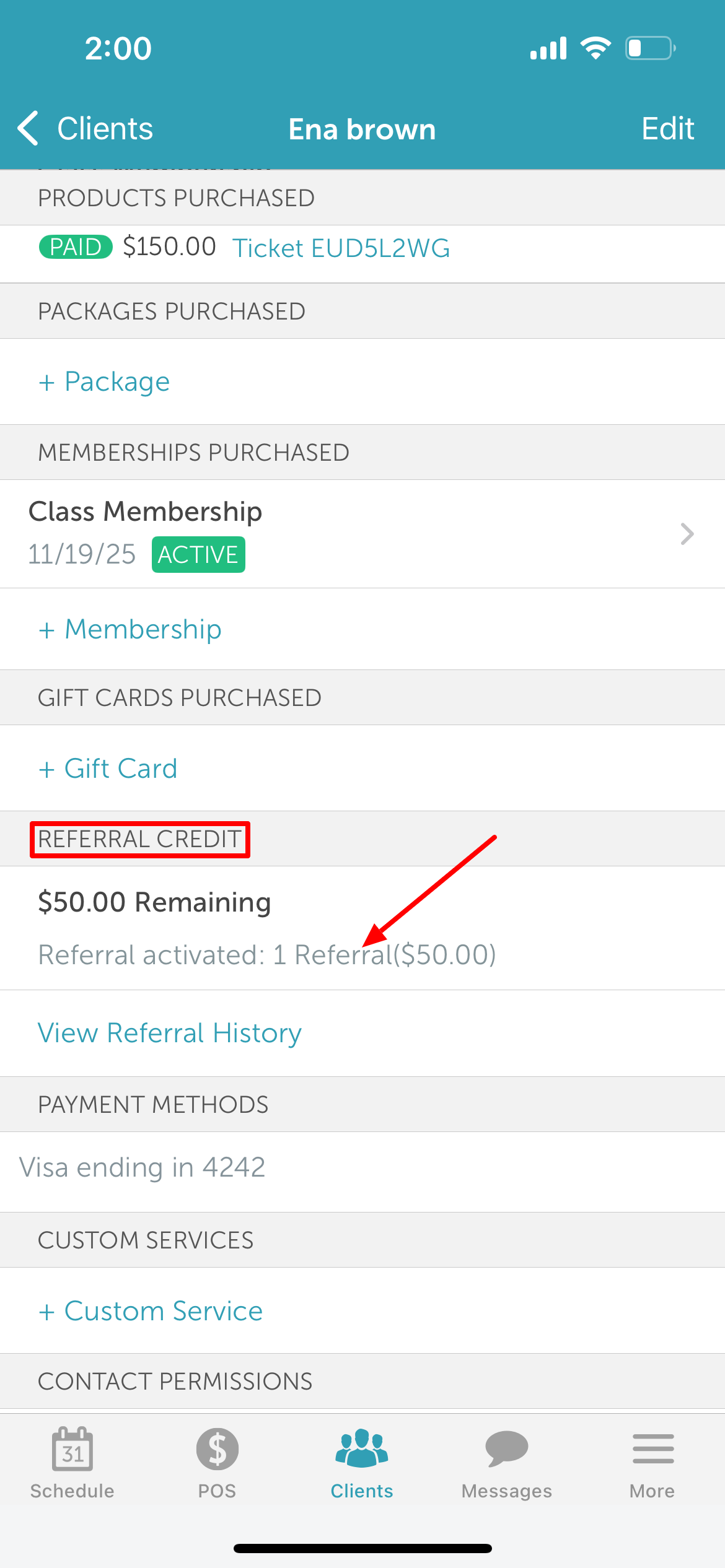
- Open the 'Referral Credit' section on the client profile
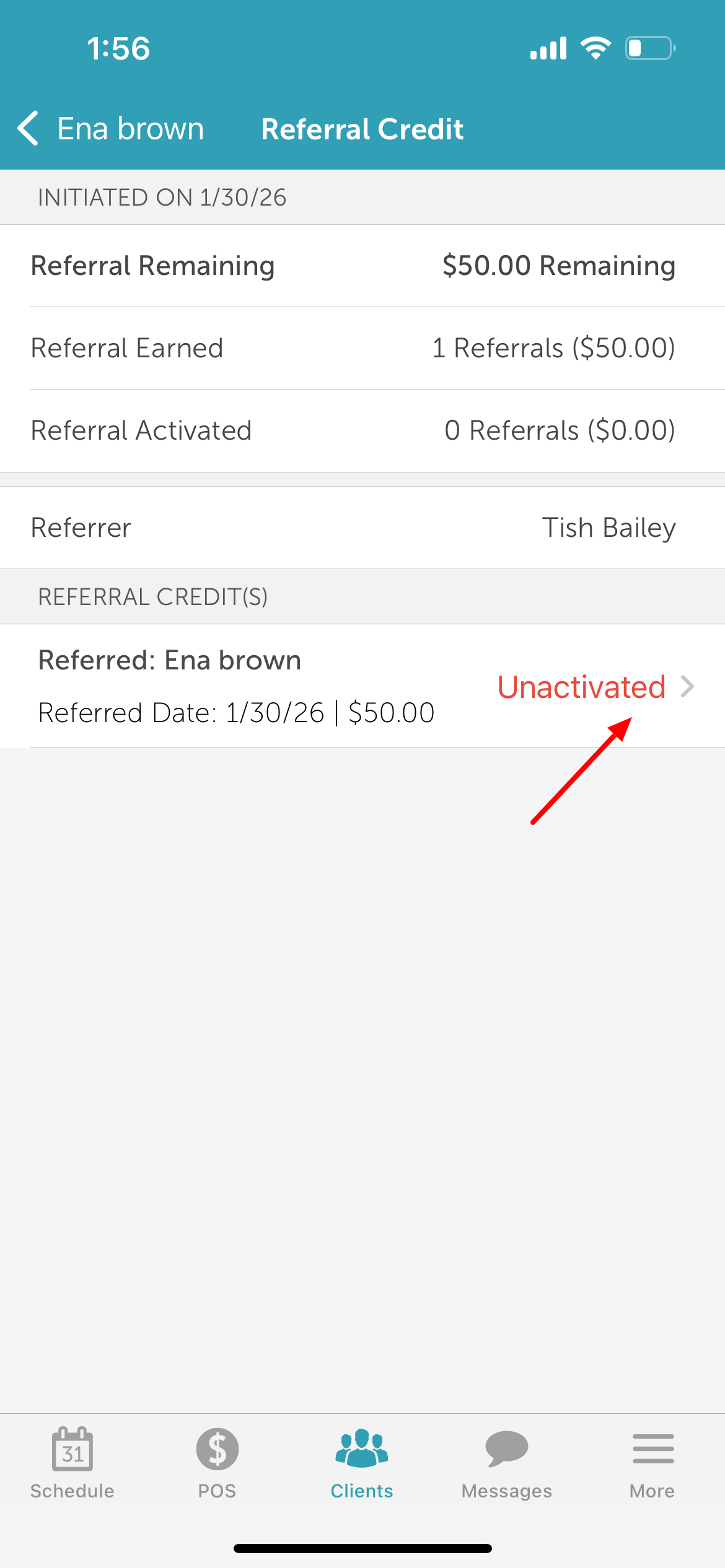
- Select the referral credit you want to activate
- From the 'Referral Credit(s)' section, tap the desired credit
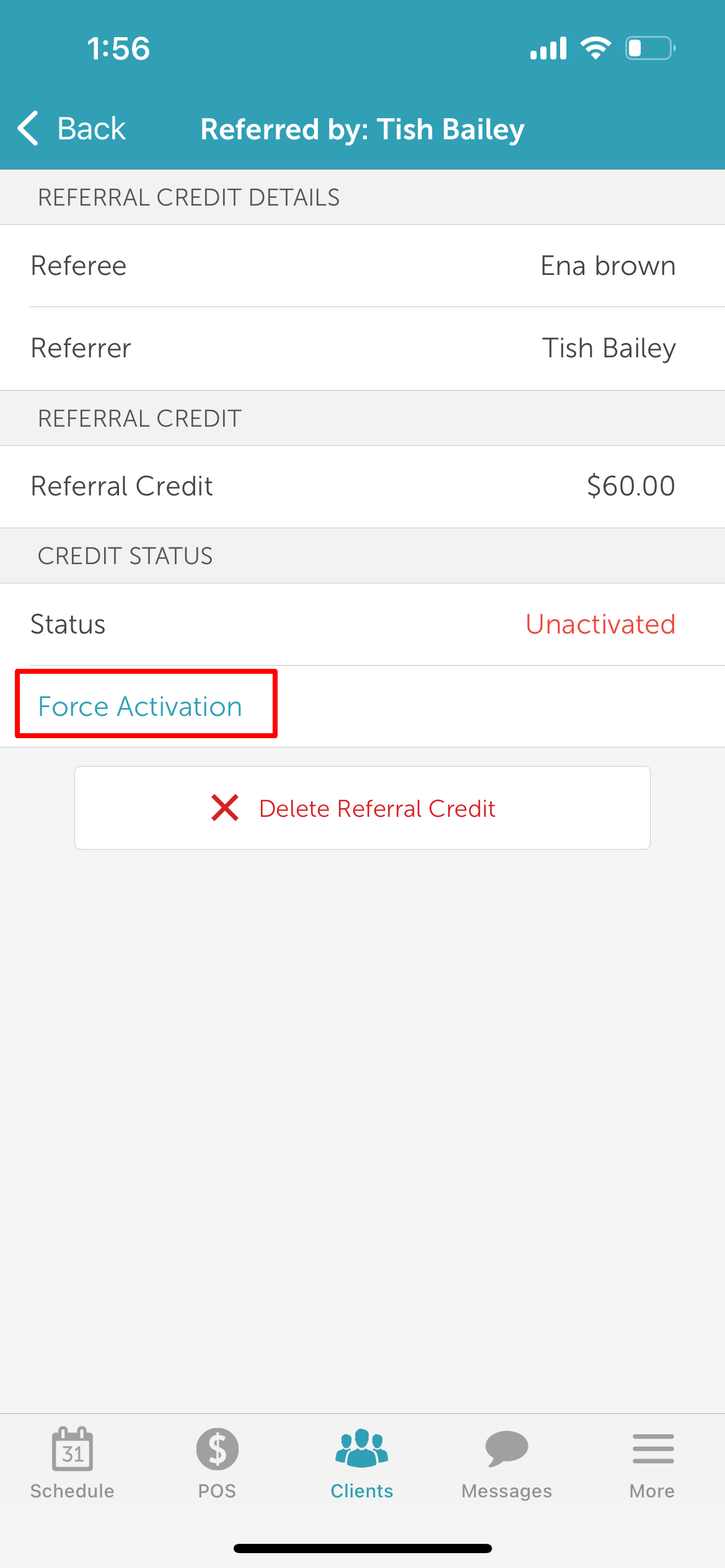
- Tap 'Force Activation'
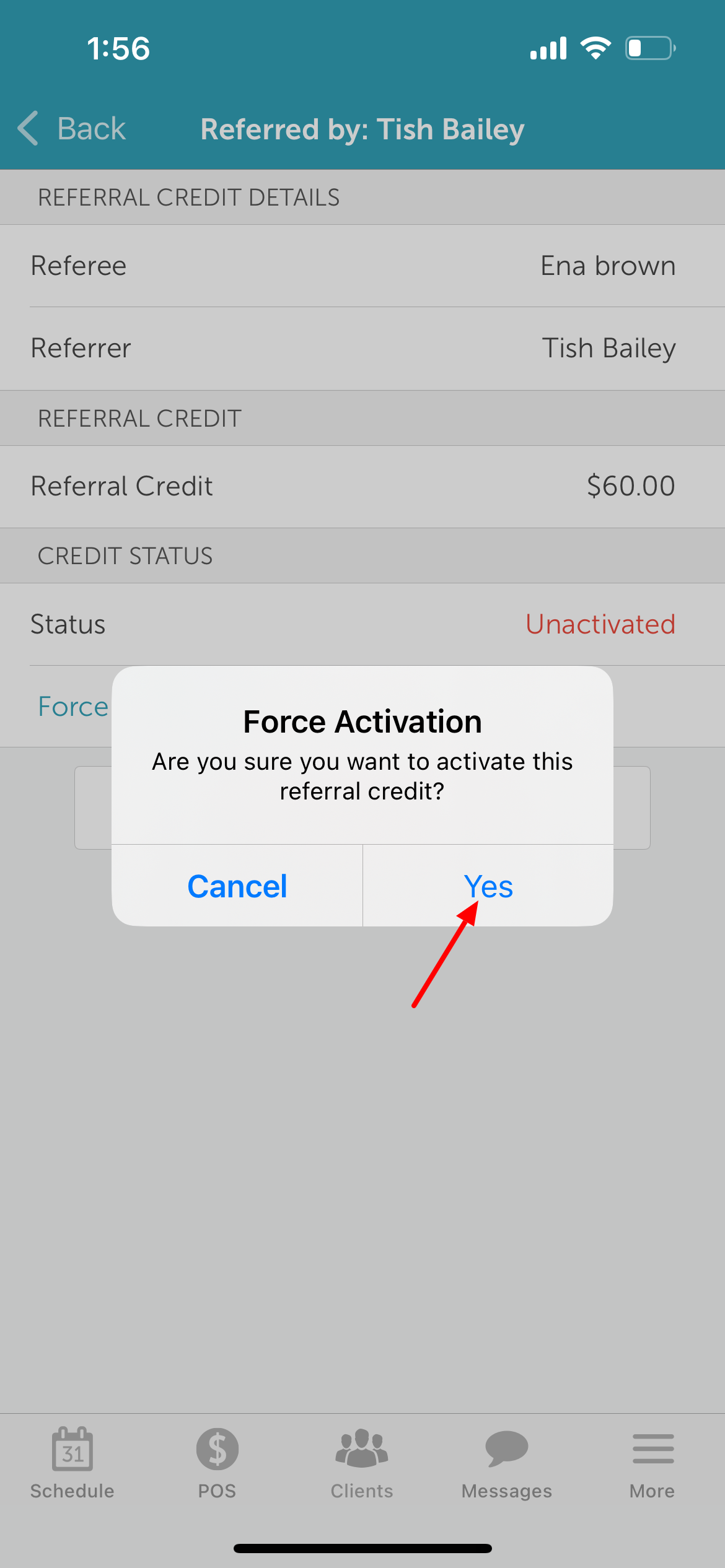
- Confirm the action by tapping 'Yes'
- Once confirmed, the credit status will update to 'Activated'.
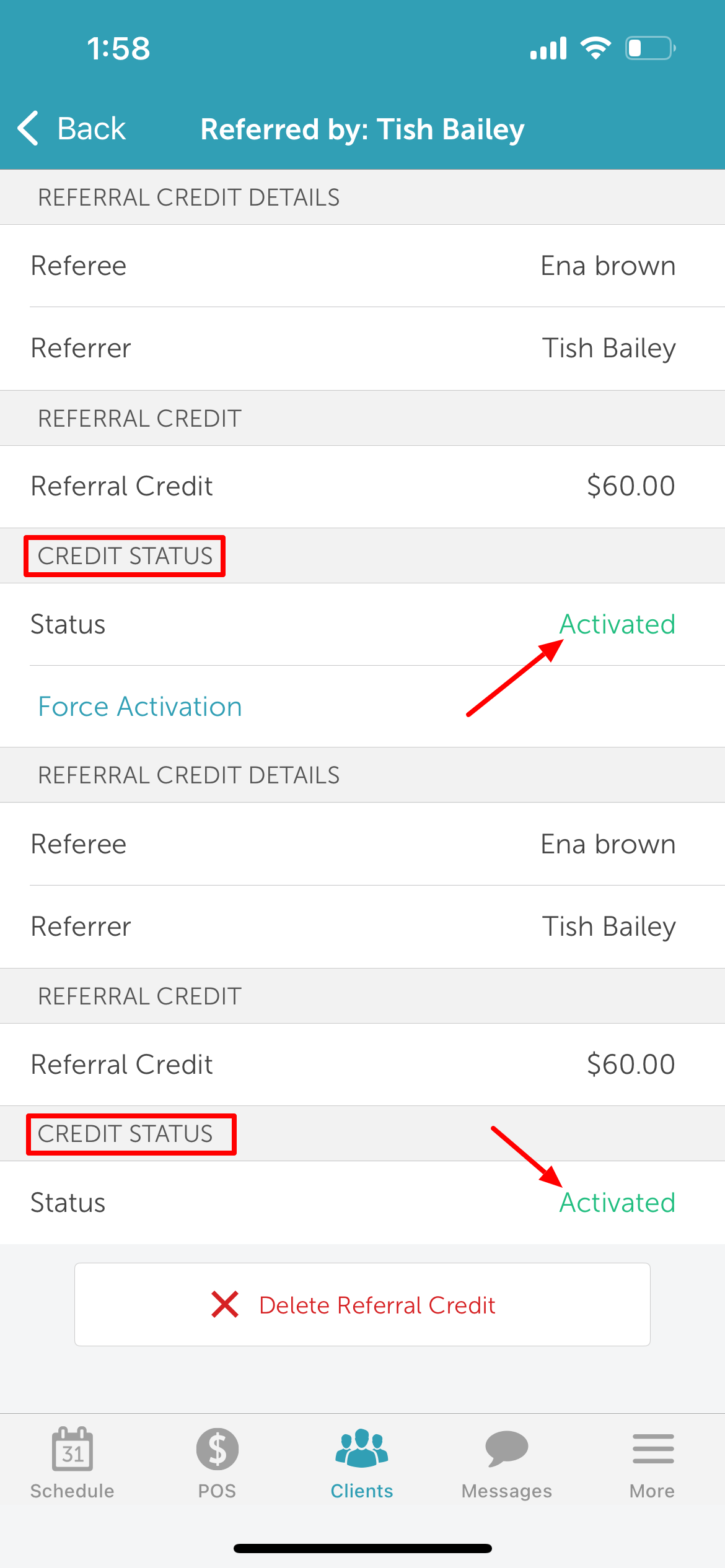
- The activated referral credit will appear on the client profile.
For morinformation,on contact support@mytime.com.
Related Articles:
Installing MyTime on Scheduler App (Android and iOS)
Was this article helpful?
That’s Great!
Thank you for your feedback
Sorry! We couldn't be helpful
Thank you for your feedback
Feedback sent
We appreciate your effort and will try to fix the article