You can effectively handle refunds for returned or defective items, regardless of whether customers are unhappy with their purchase or the product does not live up to expectations. In this article, we will guide you through the steps to refund products on the scheduler app.
Things to Know:
- The ability to refund a ticket is controlled by the "Edit/Refund Closed Tickets" access control
- You cannot refund an amount higher than the amount for the product(s)
- Refunds and edits cannot be processed for tickets linked to a deleted location or account.
- If a child account is deleted, the associated tickets will no longer be accessible.
- If a single location is deleted from a child account that still has other active locations, the tickets will remain accessible from the client profile and reports but cannot be edited or refunded.
- Once a ticket is fully refunded it cannot be reopened
- Tickets closed with a credit card as the payment method must be refunded to the same credit card and cannot be refunded using alternative methods, such as cash. However, for tickets closed with cash payments, refunds can be processed to gift cards if the 'Enable Refund to Gift Card' setting is activated.
- Registers that appear during a refund:
- By selecting a location, the staff member is establishing their current/default location.
- The most recently selected location register will be selected by default first because we assume that is where the staff member is currently located.
- All applicable registers will be displayed in the register drop-down menu: the one that was selected as well as the register at the ticket's location.
- By selecting a location, the staff member is establishing their current/default location.
- Processing a refund for a product with a value of $0 will result in the item being restocked into the inventory.
- When processing a refund, no items will be selected by default
- When processing a refund for a products covered by membership credits, the refunded credits will be returned to the original credit allotment. However, if the original credit allotment has expired, the refunded credits will be added to the next credit allotment created after the most recent successful charge. For example, if a client has a monthly membership that is charged on the first of each month and has credits that don't roll over, and they have used credits from June, issuing a refund on September 7th would return the credits to the allotment created after the most recent successful charge (September 1st).
- If no other credit allotment is applicable for the same items as the refunded credits, you will receive an error message stating that the credits cannot be refunded. However, you can manually adjust your client's membership credits or offer a discount for the same amount.
- It is not possible to refund credits from one membership to another, even if the credits are applicable for the same items and are still active. For example, you cannot refund credits used from a Volume Tier 1 Membership to a Volume Tier 2 Membership, even if both memberships offer credits for the same items."
- When a ticket is fully refunded, the commission will be removed. If the ticket is only partially refunded, the commission will be adjusted based on the remaining amount.
To refund products:
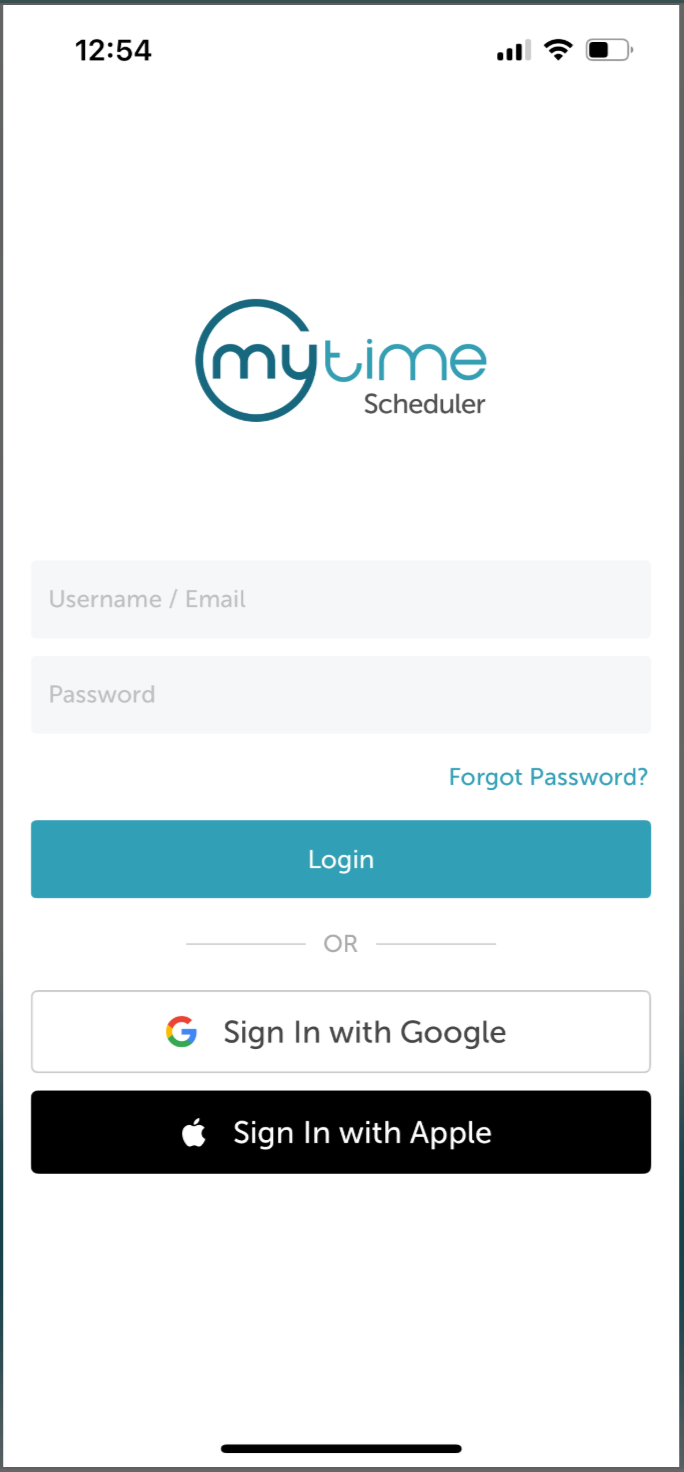
1. Launch the MyTime Scheduler app on your device
2. Choose your login method:
- Standard: Enter your registered email address and password, then tap 'Sign In'
- Social Login: Select 'Continue with Google' or 'Continue with Apple' to use your existing credentials for a faster login experience. For detailed instructions, learn more here
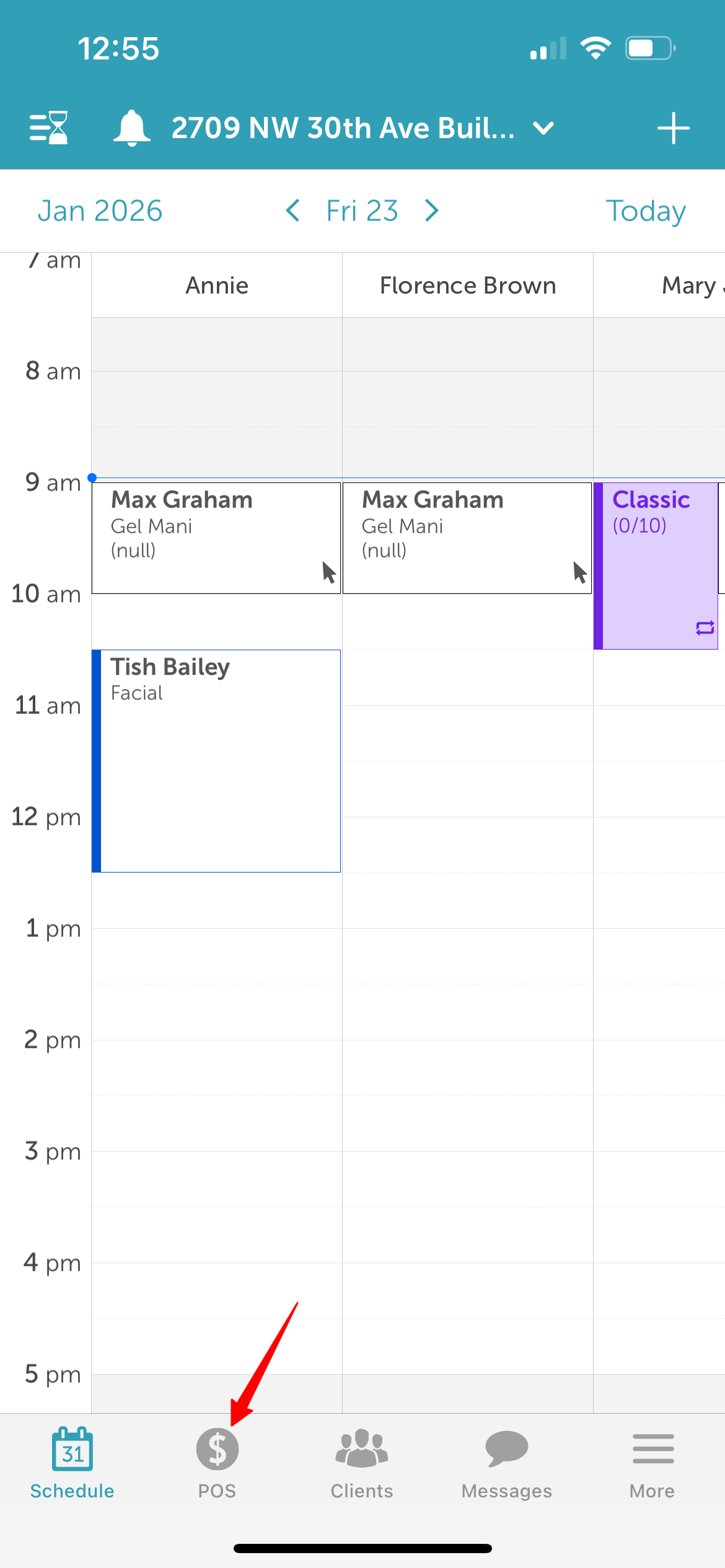
3. By default, you’ll be directed to the schedule
4. Tap 'POS' at the bottom of the screen
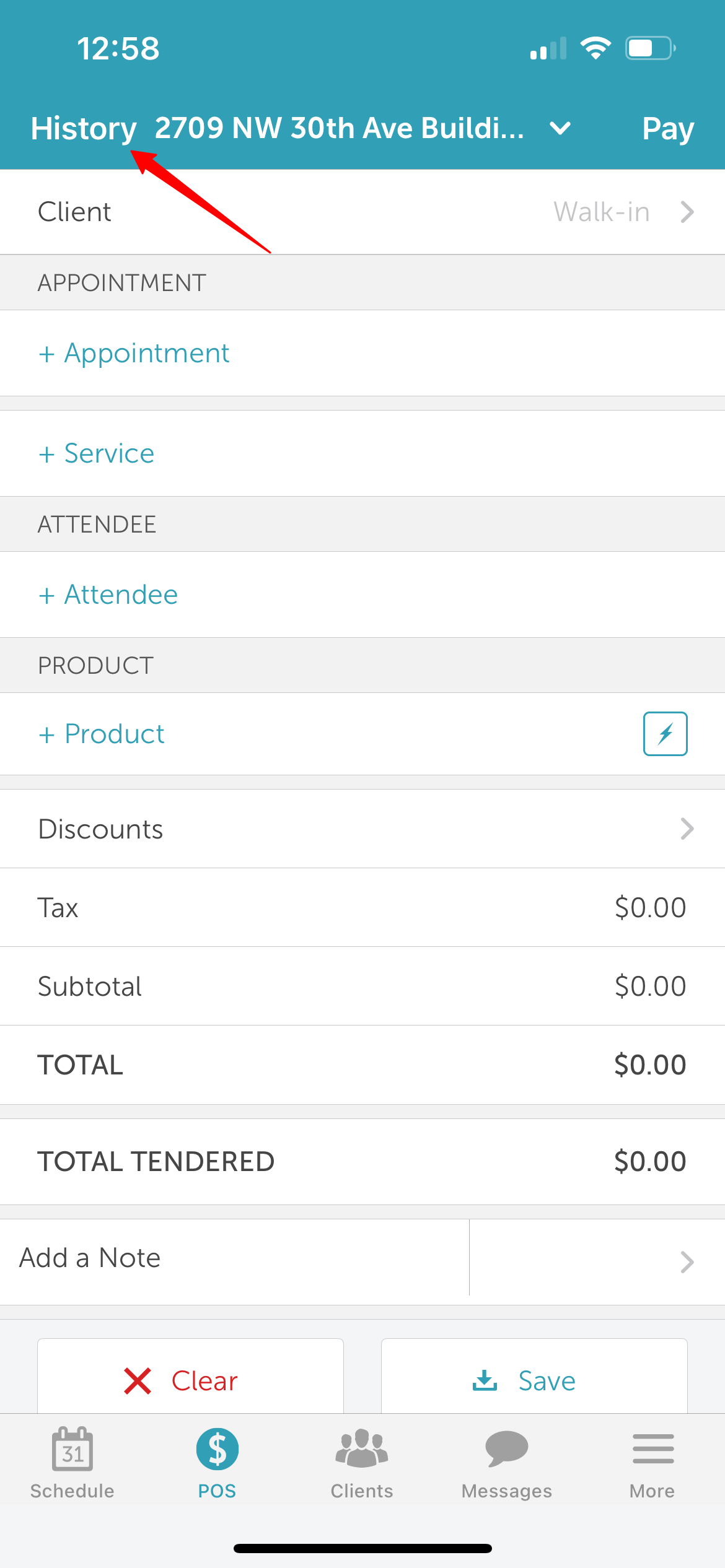
5. On the 'New Ticket' screen, tap "History" at the top left of the screen
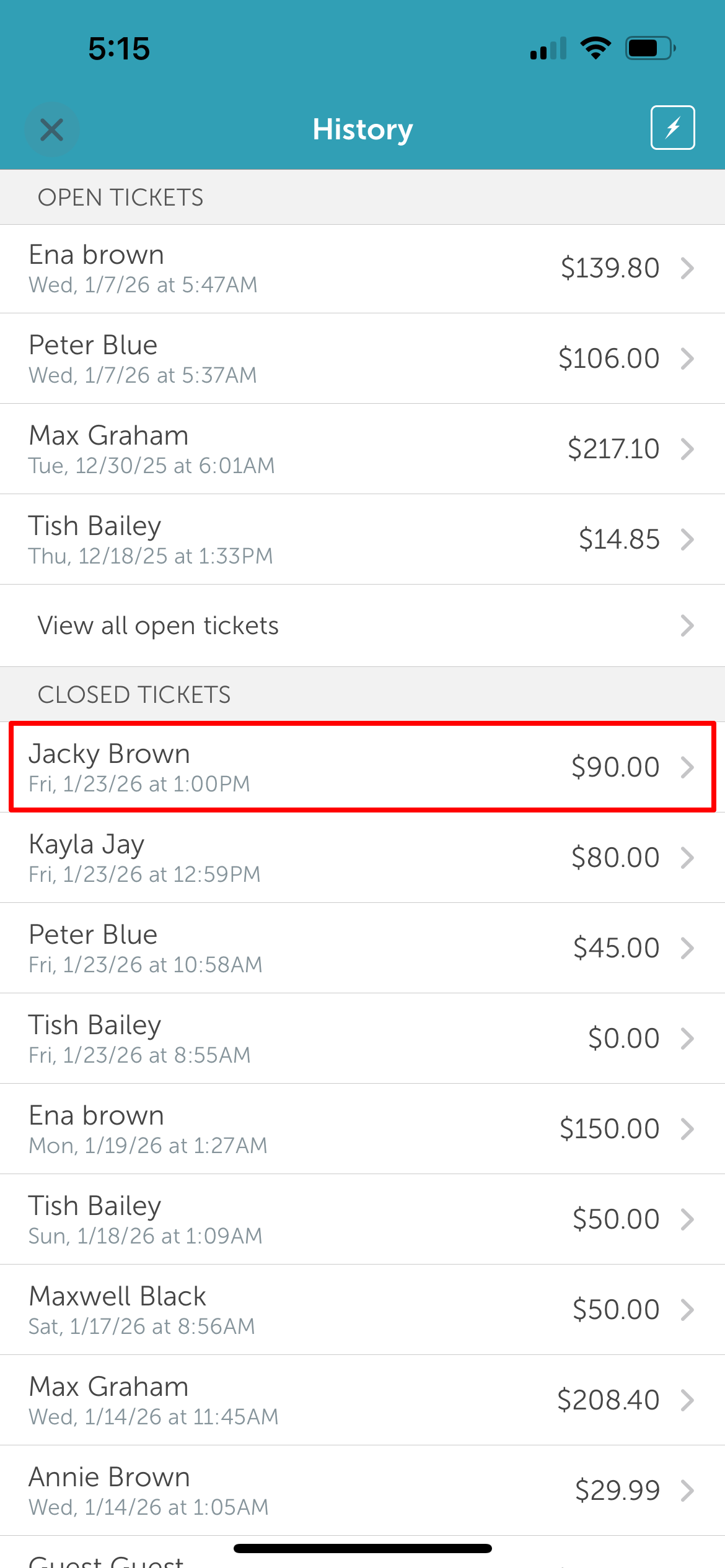
6. Locate and select the closed ticket you want to refund
7. Go to the 'Payment' tab
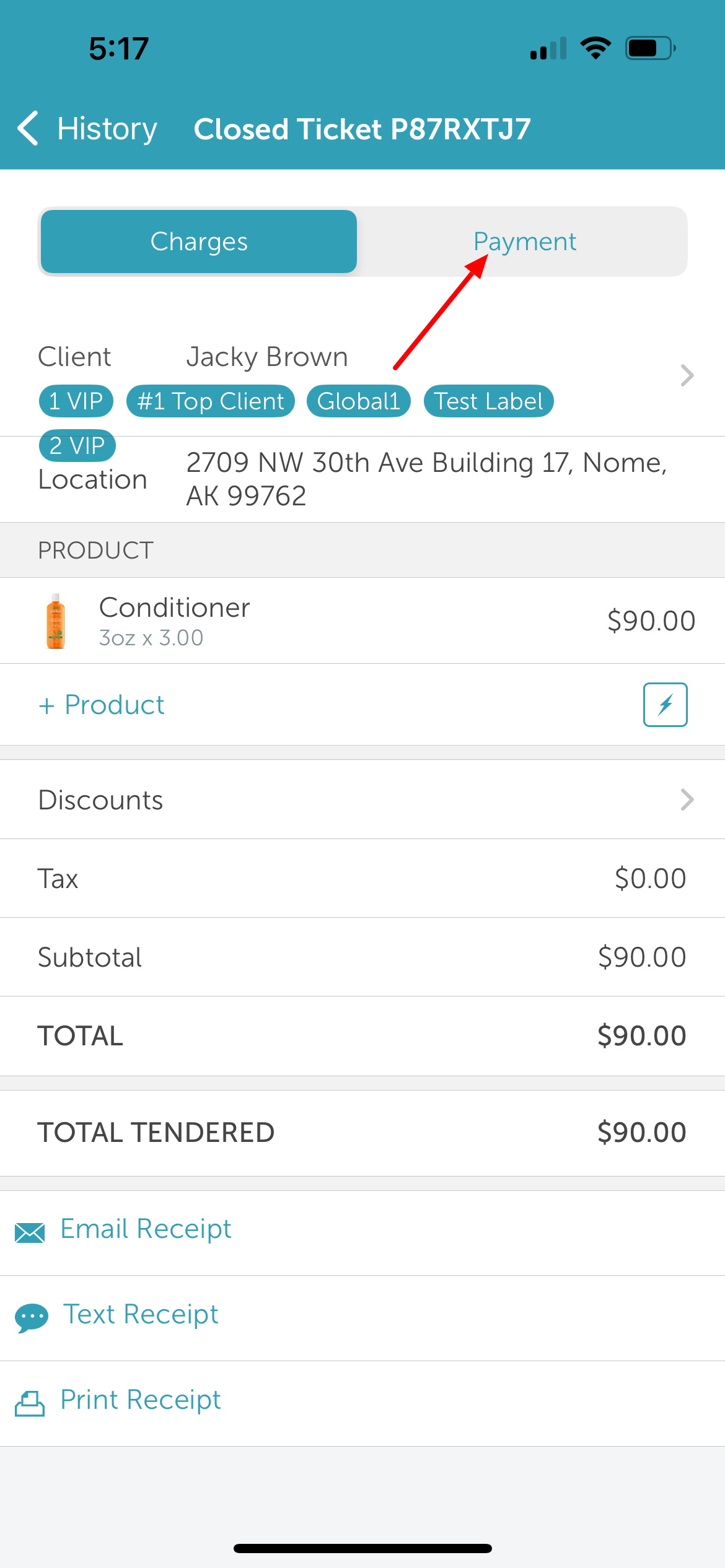
8. Tap "Refund" at the bottom of the page
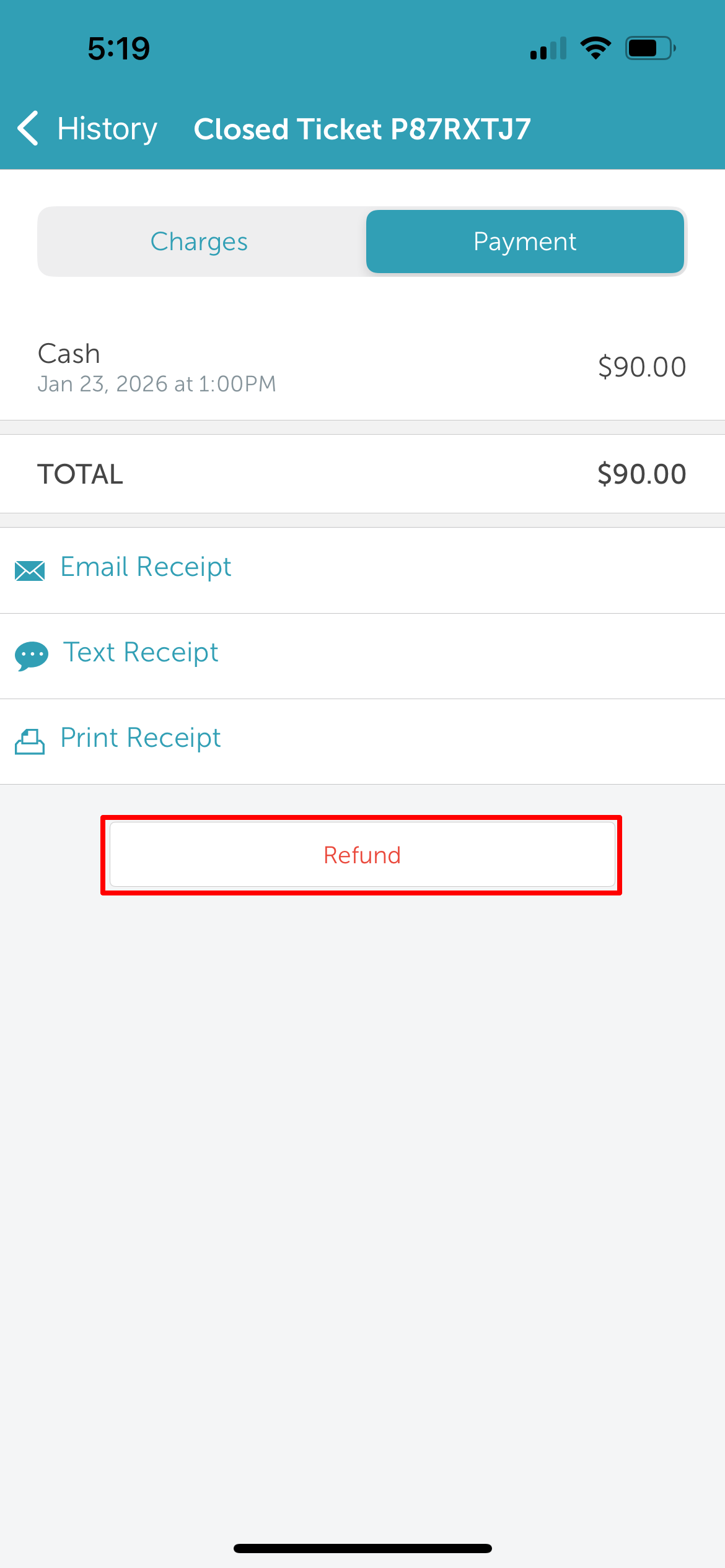
9. Choose to refund all products or select specific products by checking the boxes. Enter a full or partial refund amount as needed.
10. Tap 'Next' at the top right of the screen
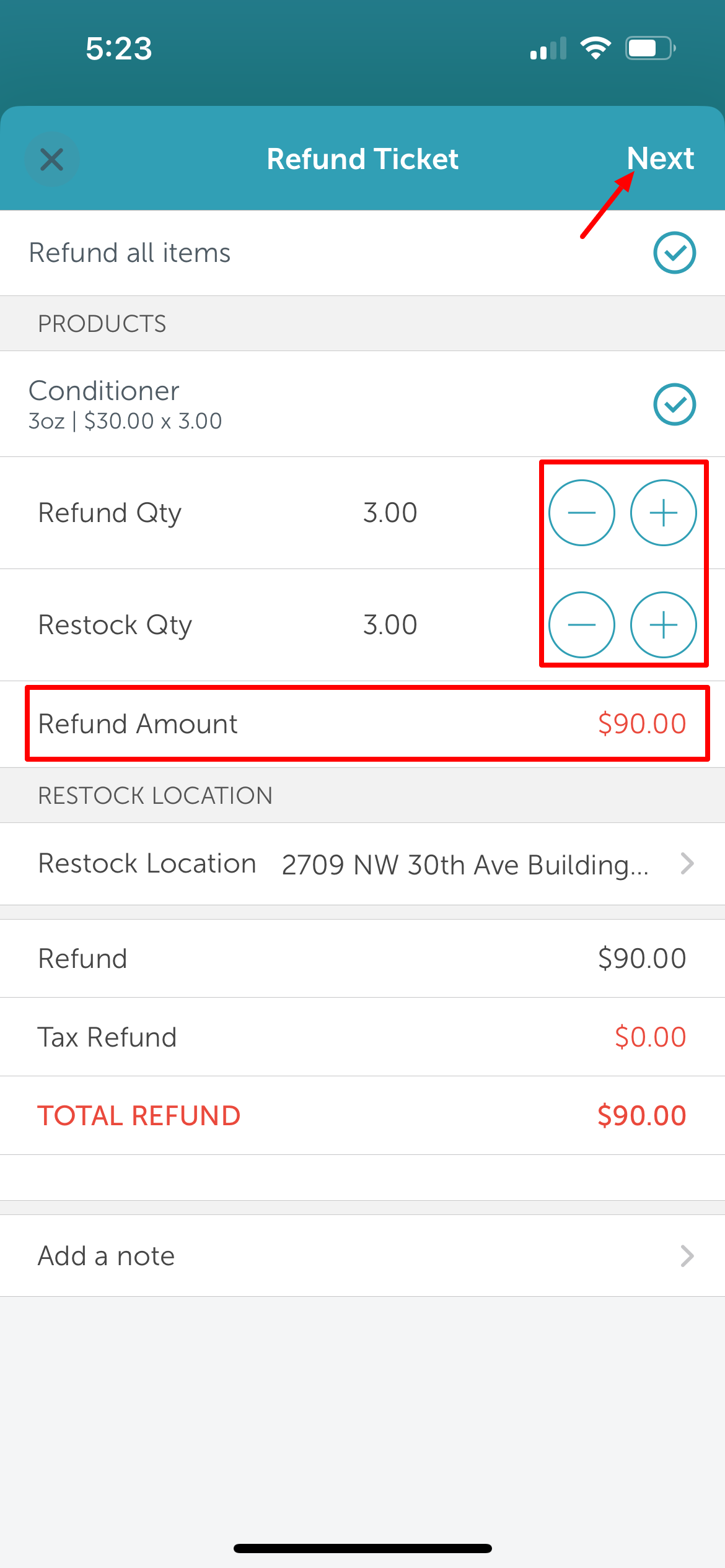
11. Tap Refund to issue the refund.
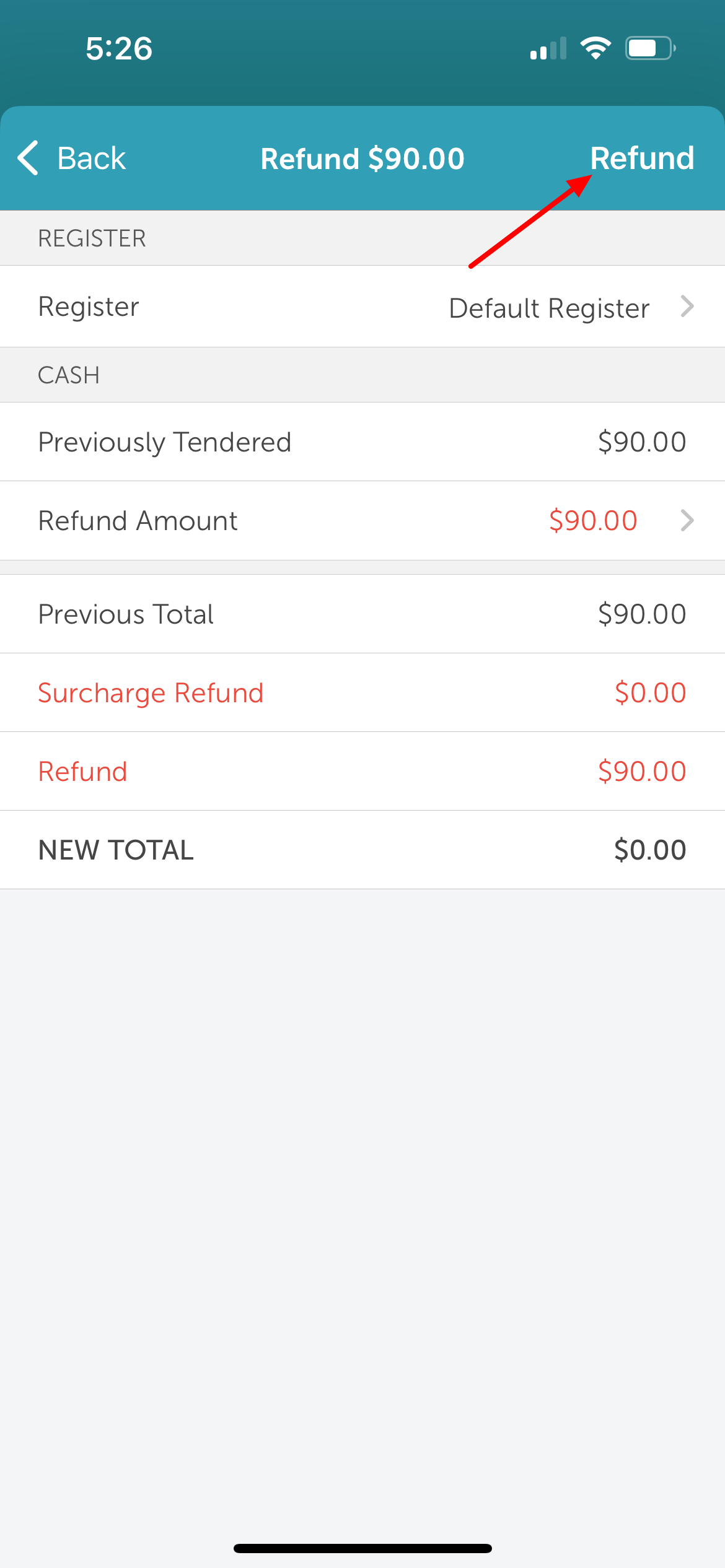
12. A confirmation message will display once the refund is processed
13. Tap 'Done' at the top right of the screen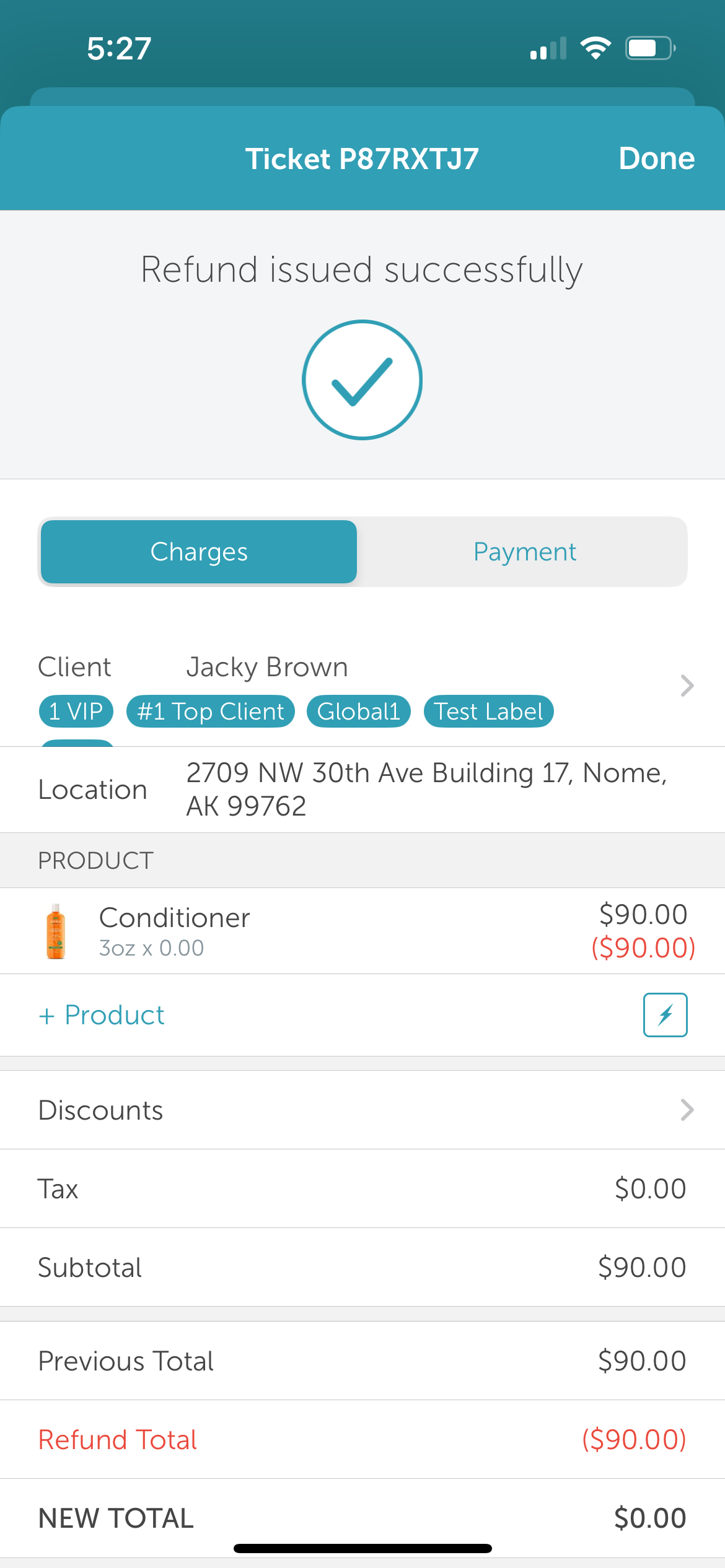
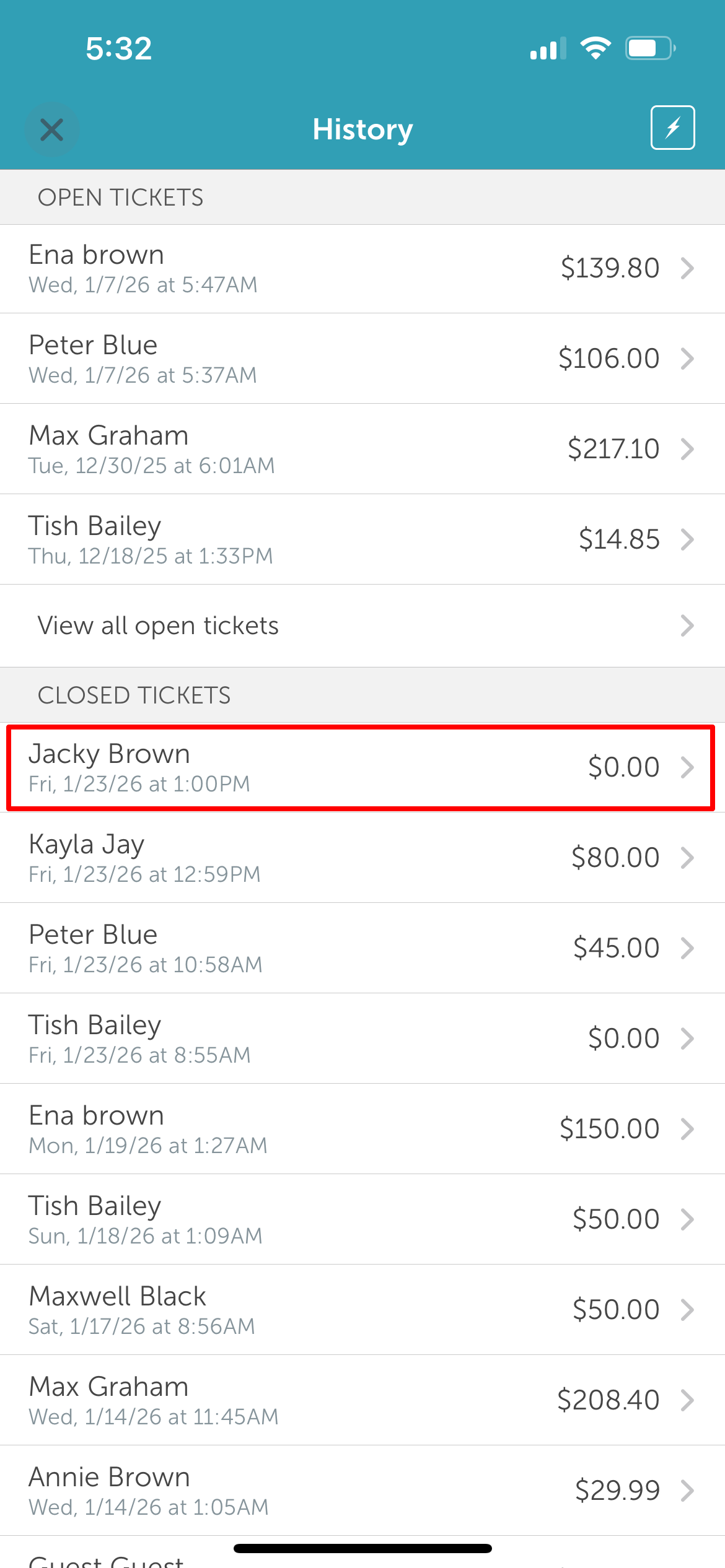
14. Refunded tickets will remain visible in the Closed Ticket section of the ticket history
For more information contact us at support@mytime.com.
Related Articles:
Installing MyTime on Scheduler App (Android and iOS)
Was this article helpful?
That’s Great!
Thank you for your feedback
Sorry! We couldn't be helpful
Thank you for your feedback
Feedback sent
We appreciate your effort and will try to fix the article