Whether due to schedule changes, cancellations, or other circumstances, classes can be refunded promptly and efficiently, ensuring a seamless experience for clients. In this article, we will guide you through the steps to refund classes.
Things to know:
- The ability to refund a ticket is controlled by the "Accessing Closed Tickets" access control
- Once a ticket is closed, you can only edit or issue a refund
- You cannot refund an amount higher than the amount for the class
- Once a ticket is fully refunded, or partially refunded, it cannot be reopened
- Tickets closed with a credit card as the payment method must be refunded to the same credit card and cannot be refunded using alternative methods, such as cash. However, for tickets closed with cash payments, refunds can be processed to gift cards if the "Enable Refund to Gift Card" setting is activated.
- When processing a refund for a class covered by membership credits, the refunded credits will be returned to the original credit allotment. However, if the original credit allotment has expired, the refunded credits will be added to the next credit allotment created after the most recent successful charge. For example, if a client has a monthly membership that is charged on the first of each month and has credits that don't roll over, and they have used credits from June, issuing a refund on September 7th would return the credits to the allotment created after the most recent successful charge (September 1st).
- If no other credit allotment is applicable for the same items as the refunded credits, you will receive an error message stating that the credits cannot be refunded. However, you can manually adjust your client's membership credits or offer a discount for the same amount.
- It is not possible to refund credits from one membership to another, even if the credits are applicable for the same items and are still active. For example, you cannot refund credits used from a Volume Tier 1 Membership to a Volume Tier 2 Membership, even if both memberships offer credits for the same items.
- When a class ticket is fully refunded, the commission will be removed. If the ticket is only partially refunded, the commission will be adjusted based on the remaining amount.
To refund class enrolment:
- Navigate to POS > Closed Tickets
- Add desired filters and select "Update "
- Enter the client’s name or ticket ID in the "Search by Client Name, Ticket ID" field
- Select the ticket number to open the ticket
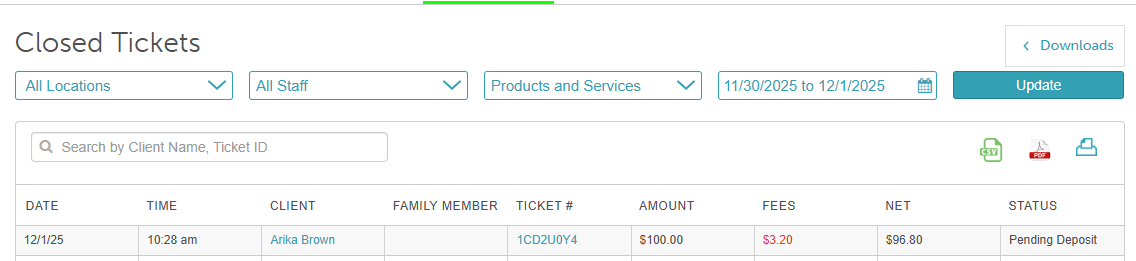
- Once the ticket opens, scroll to the bottom of the screen and click the "Refund" button

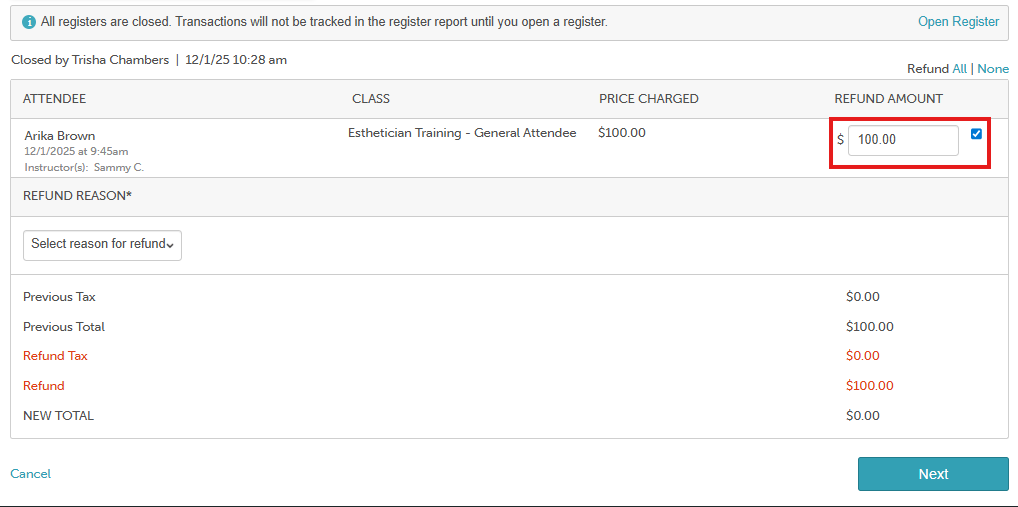
- Select the checkbox next to the class enrollment you want to refund
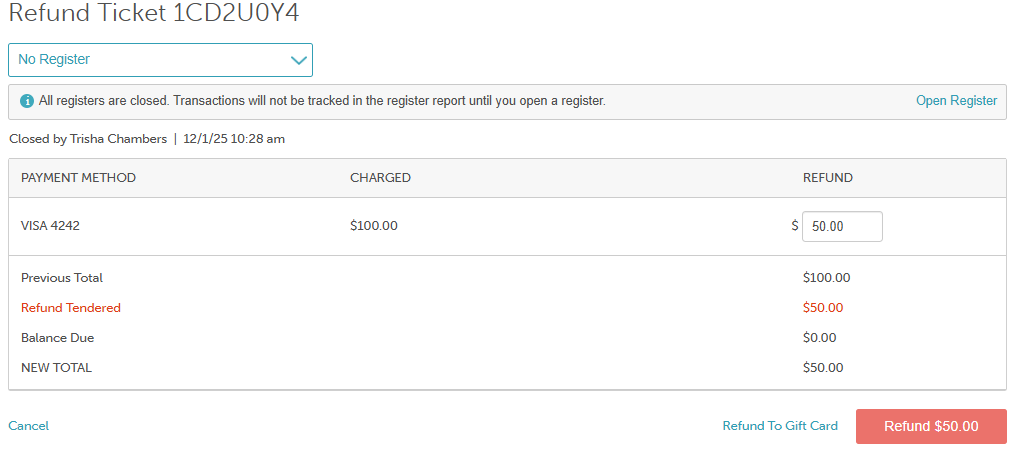
- By default, the system displays the full amount available for refund. To issue a partial refund, enter the amount you would like to refund
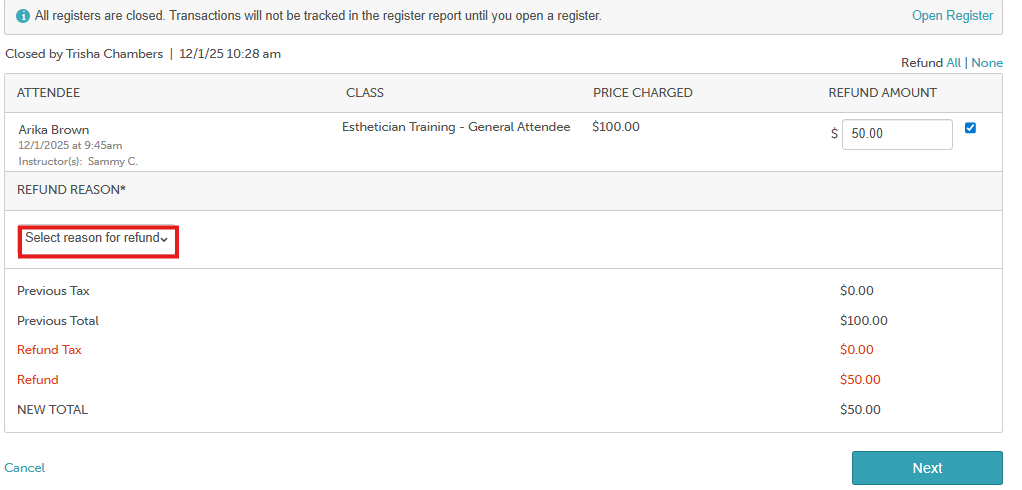
- If configured in your settings, select a refund reason
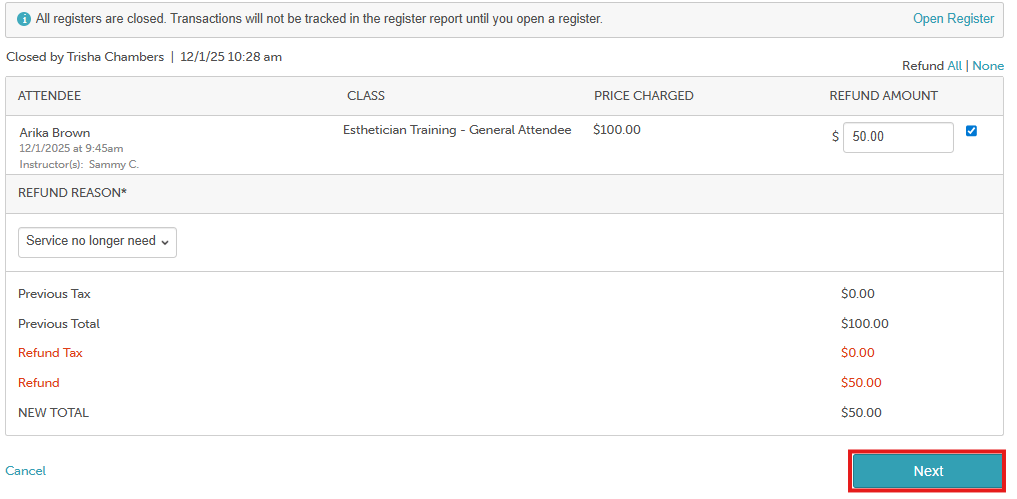
- Click the "Next" button
- Select the "Refund x amount" button to complete the refund
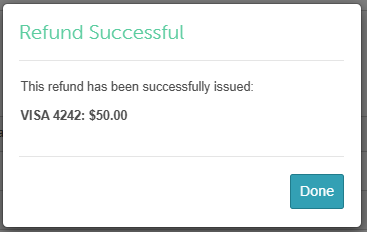
- Click "Done"
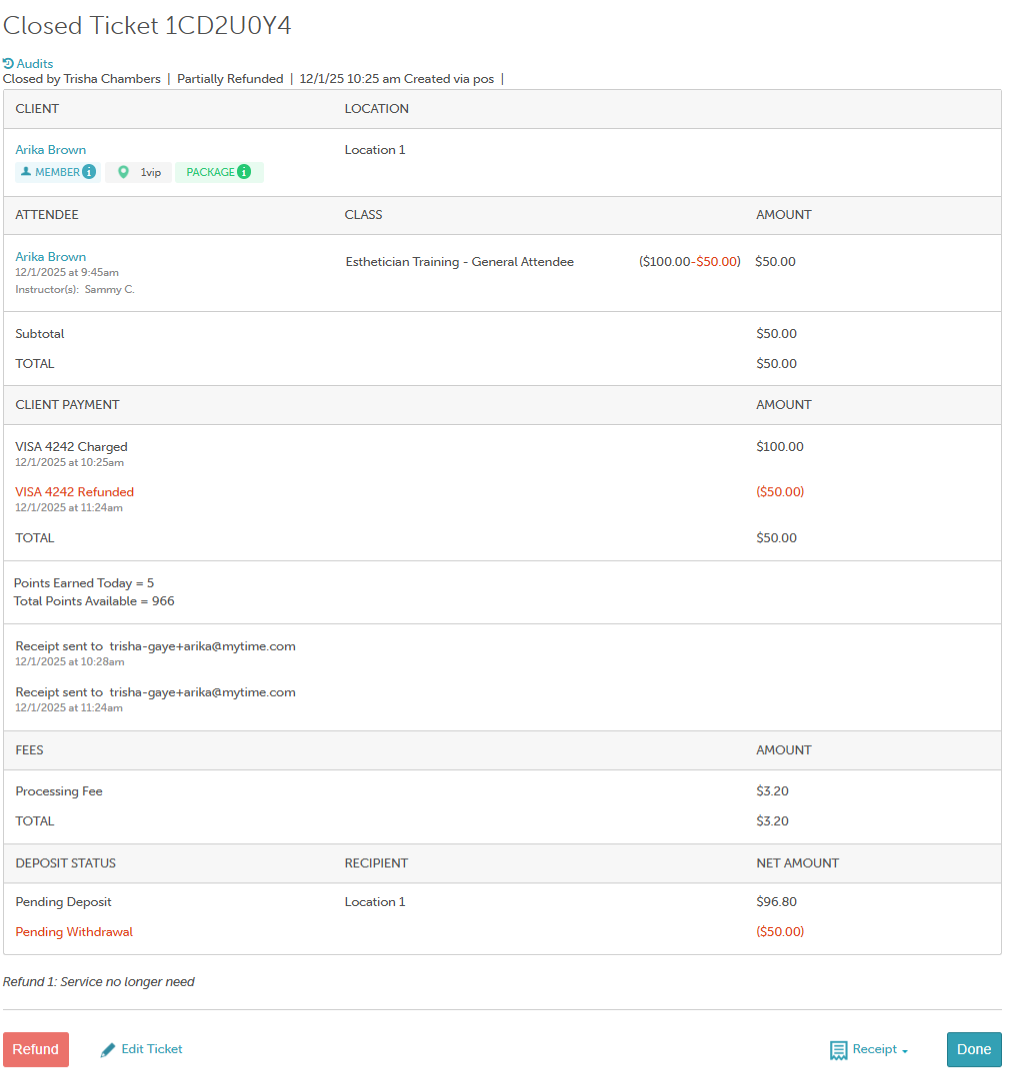
- You will then be directed to view the ticket with the refund details
For more information, contact us at support@mytime.com or (385) 233-6964.
Related Articles:
Canceling Class Sessions/Events
Canceling Classes on Scheduler App
Canceling Classes/Events via the Guest App
Was this article helpful?
That’s Great!
Thank you for your feedback
Sorry! We couldn't be helpful
Thank you for your feedback
Feedback sent
We appreciate your effort and will try to fix the article