Appointments for pets can be seamlessly checked out directly from the POS, ensuring a streamlined workflow. During checkout, you can review the services provided during the appointment and process payment. This article explains how to check out pet appointments in POS.
Things to Know:
- The ability to create tickets is controlled by the "Creating Tickets" access control setting.
- You can check out an appointment for a single pet or multiple pets on the same ticket, even if they belong to different clients.
- For multi-day appointments, the appointment appears in the Services tab on the end date, not the start date. Example: If a pet’s appointment is booked from June 8–12, it will appear in the Services tab on June 12 (if unpaid).
- If a service is covered by a membership or package, you’ll see an “In Membership” or “In Package” label next to it on the ticket.
- The locations shown in the location dropdown when creating a new ticket in POS (to schedule an appointment) depend on the following:
- Create Tickets for Their Location(s) and Block for All Locations access control enabled:
- If assigned to only one location, only that location appears.
- If assigned to multiple locations, all associated locations appear in the location filter.
- The default location is the last one filtered to
- Staff can select a different location if needed
- Block/Create Ticket for Their Location(s) and Create Ticket for All Locations in POS access control enabled:
- All locations appear in the location filter
- The default location is the last one filtered to
- By default, payment buttons may lack visual prominence, making it difficult for staff to quickly identify the primary payment method. This can lead to selecting incorrect options or improper transaction processing. You can request a layout change that reorders the buttons and highlights the primary action in blue for better visibility.
- Default Display:
- No Card on File: [Key In Card] [Swipe Card]
- Card on File: [Visa ****1234] [Key In Card] [Swipe Card]
- Enhanced Display (High Visibility):
- No Card on File: [Swipe/Tap Card] (Highlighted) [Manual Entry]
- Card on File: [Visa ****1234] (Highlighted) [Swipe/Tap] [Manual Entry]
- Important: This is controlled by a hidden setting that must be enabled by the MyTime team. If you would like to switch to the high-visibility payment buttons, please contact us at support@mytime.com
Contents:
Checking Out Pet Appointments From POS
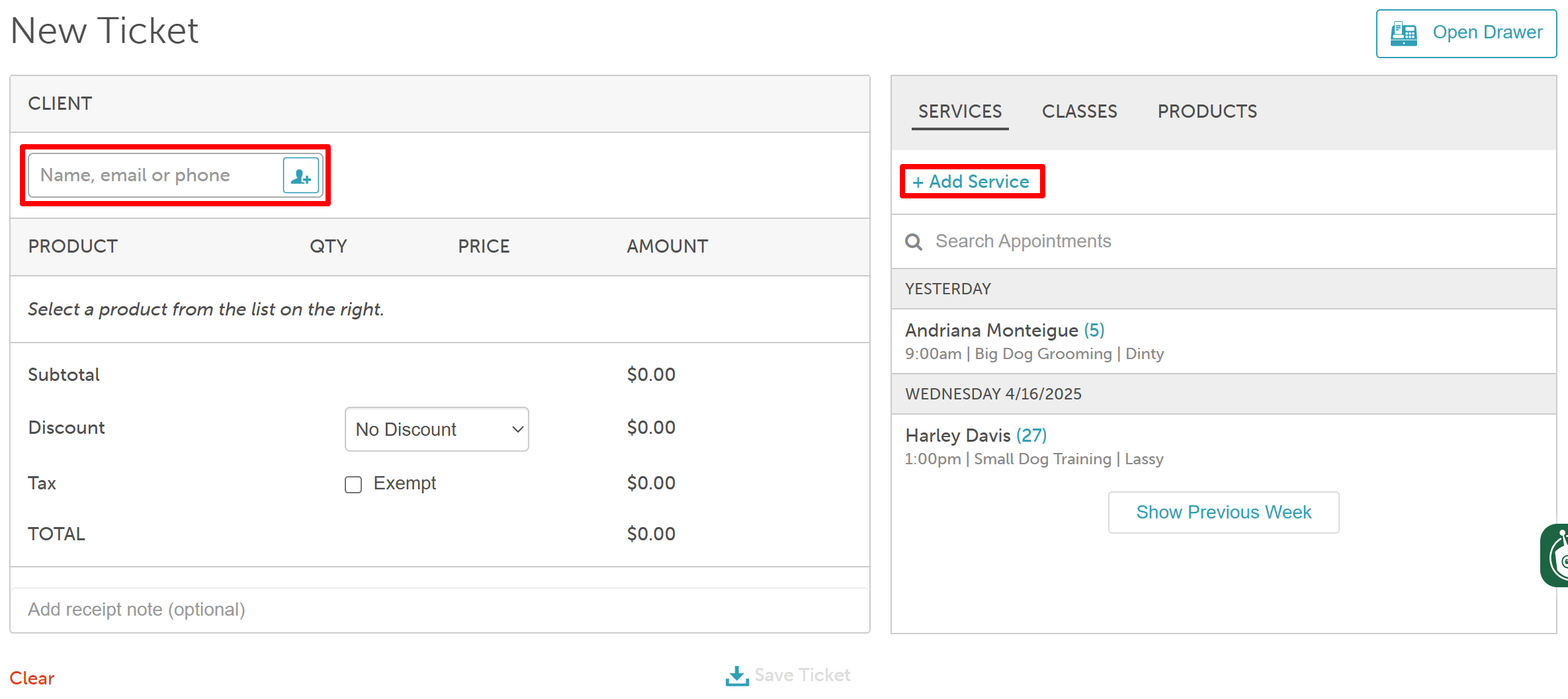
- Navigate to POS > New Ticket
- Add the client and choose the desired location (if applicable)
- Click the "Services" tab to the right side of the ticket
- Select "+Add Service"
- In the "Add Service to Ticket" modal, enter the appointment details
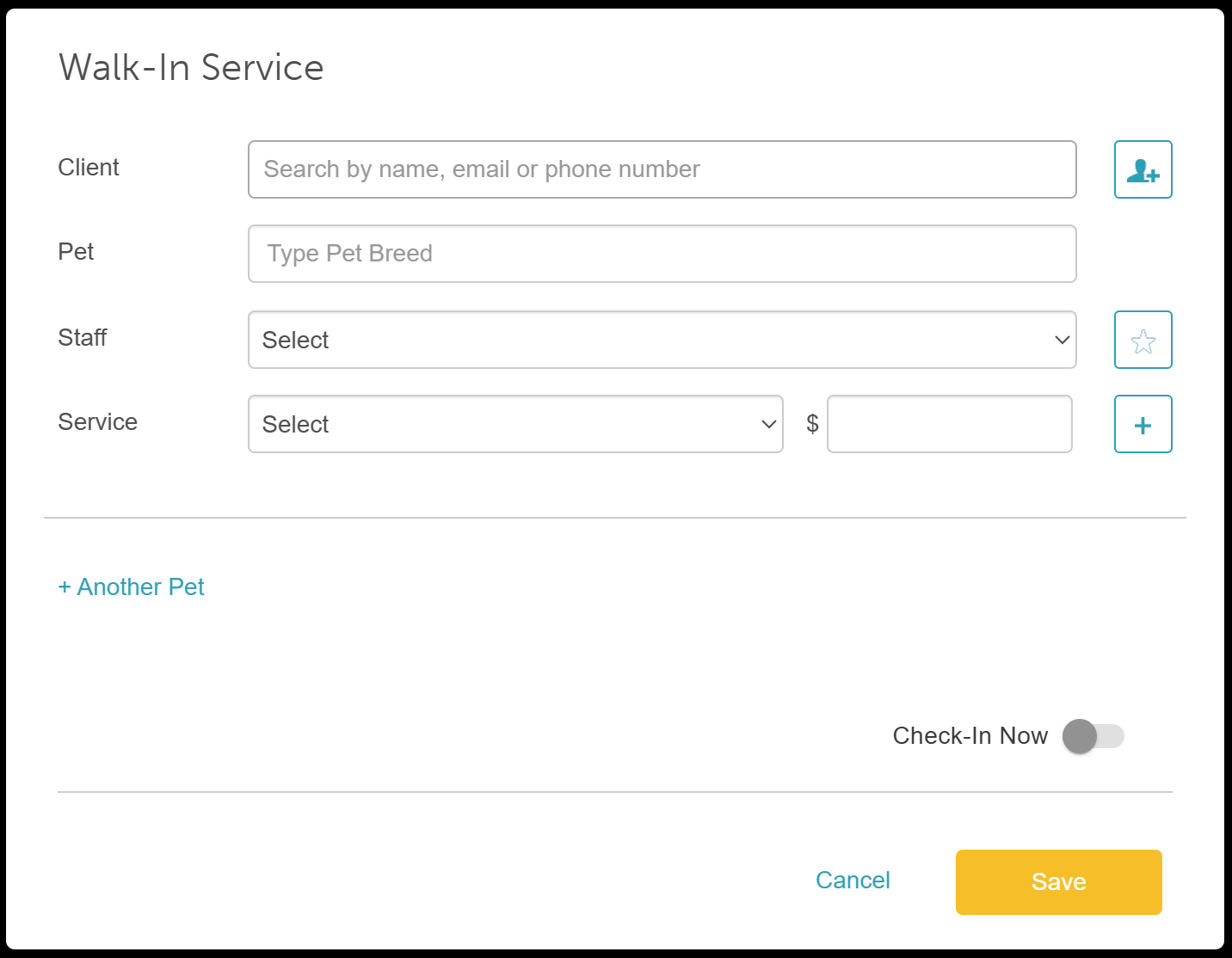
- Click 'Save'
- If the appointment was already booked, use the search bar to find it by the pet’s or client’s name
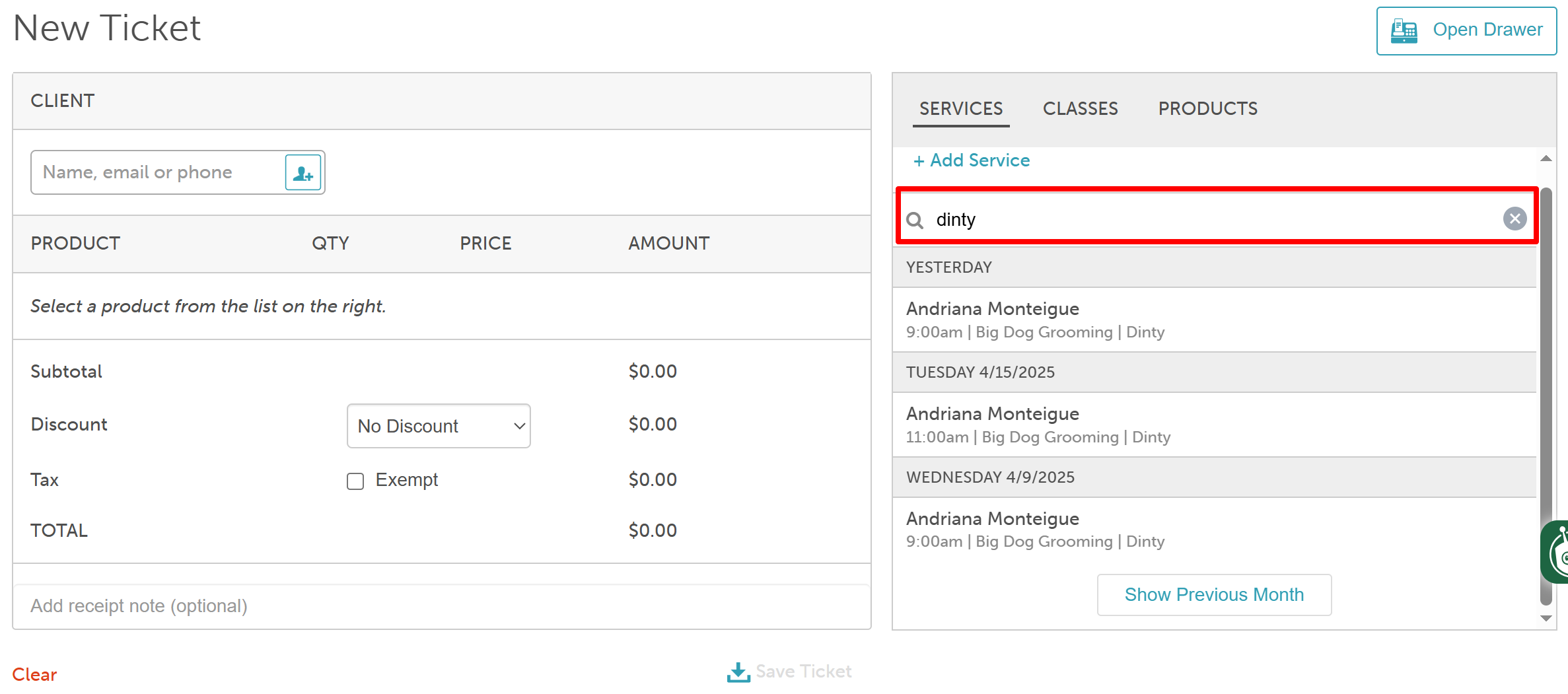
- Once saved, the appointment will be added to the ticket
- Click "Take Payment"

- Enter the client's payment method and select 'Close Ticket'
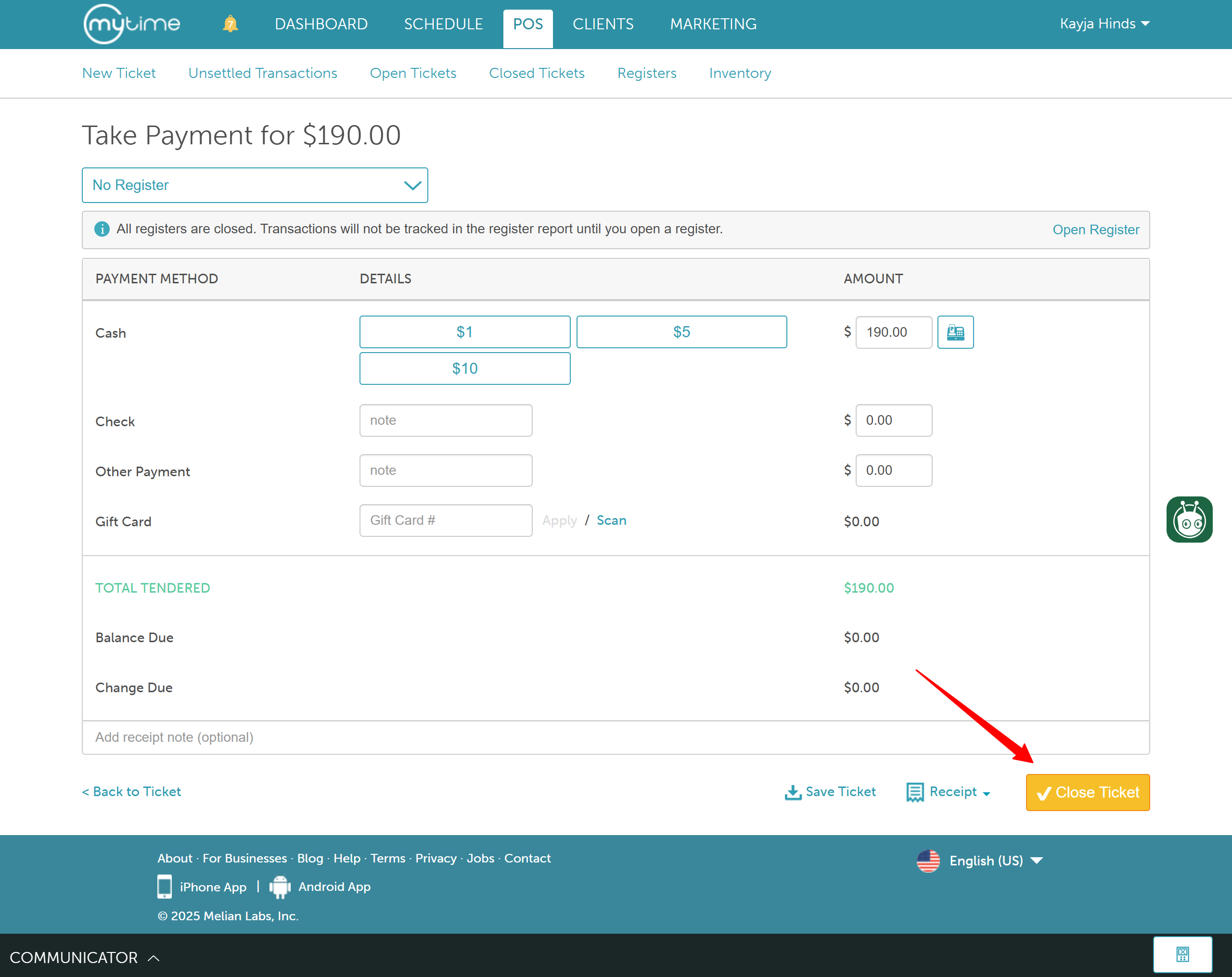
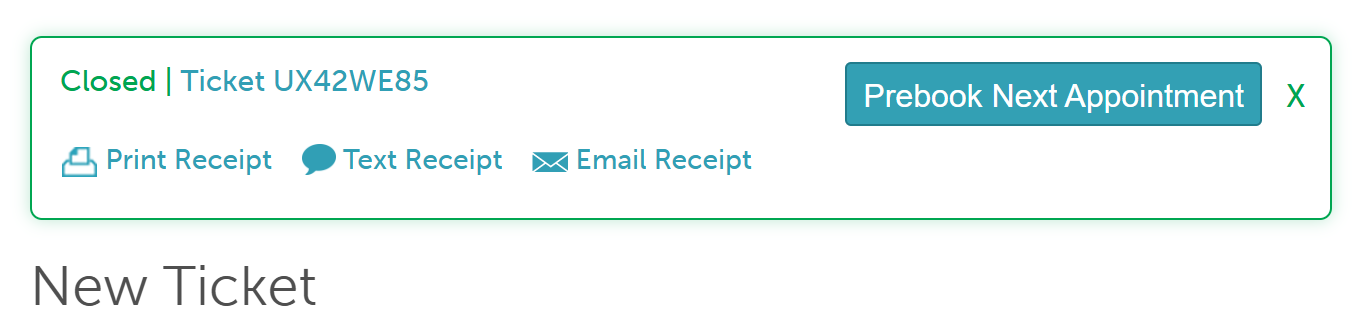
A confirmation banner will appear at the top of the screen once the ticket is successfully closed.
Checking Out Pet Appointment From The Schedule in POS
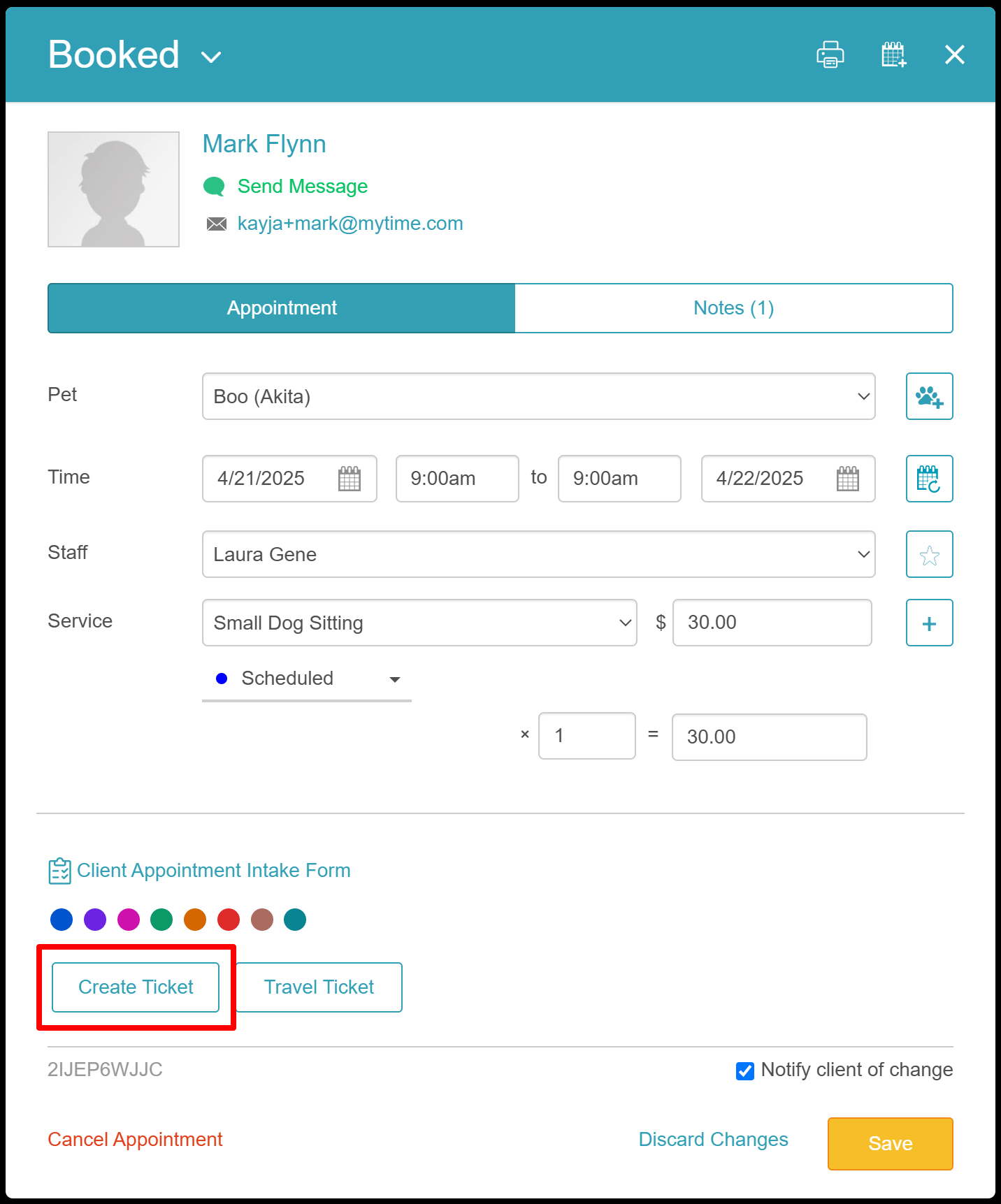
- In the Schedule, locate and select the appointment you want to check out
- Click 'Create Ticket' at the bottom of the appointment modal
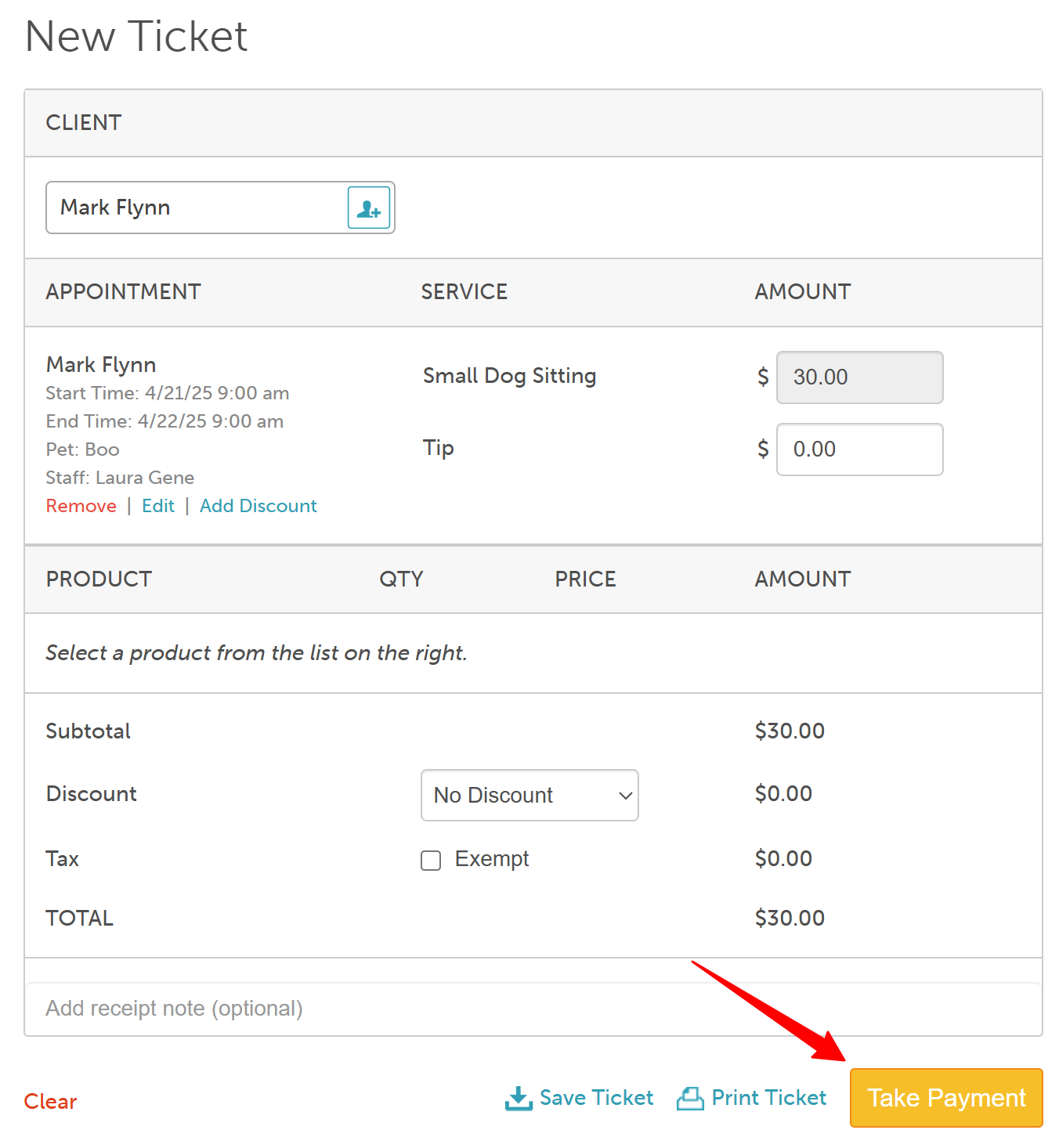
- On the New Ticket screen, select the 'Take Payment' button at the bottom
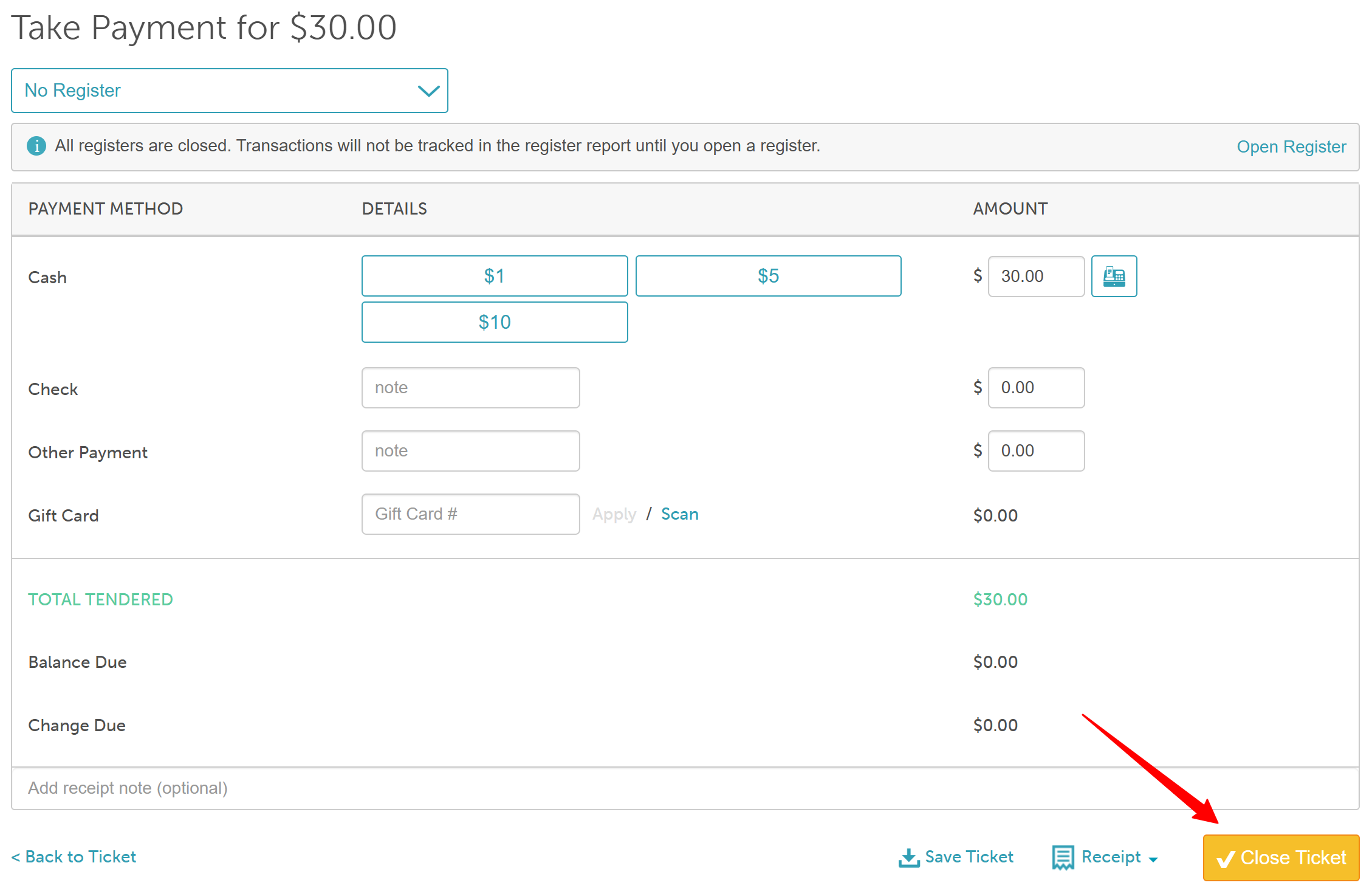
- Enter the client's payment method and click 'Close Ticket'
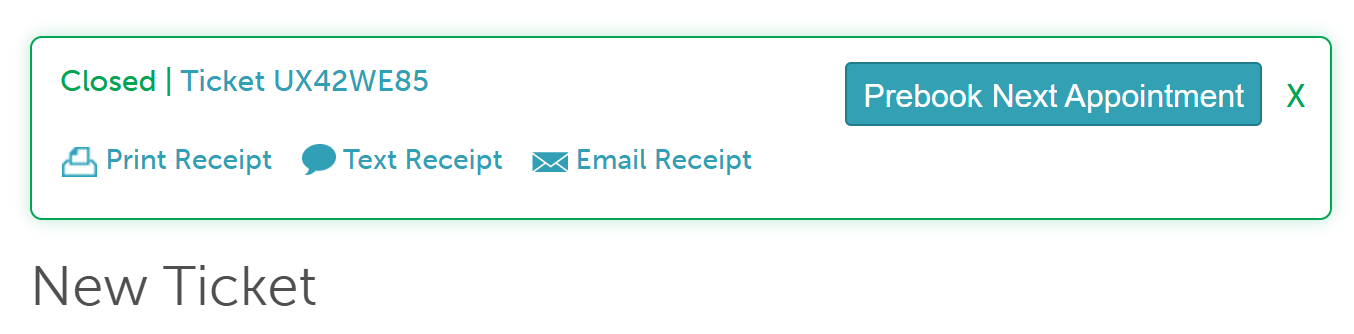
A confirmation banner will appear at the top of the screen once the ticket is successfully closed.
For more information, contact us at support@mytime.com or (385) 233-6964.
Related Articles
- Checking Out Appointments in POS
- Checkout Services and Products in POS
- Checking Out Service Group Appointments in POS
- Checking Out Multi-Staff Appointments in POS
Was this article helpful?
That’s Great!
Thank you for your feedback
Sorry! We couldn't be helpful
Thank you for your feedback
Feedback sent
We appreciate your effort and will try to fix the article