Enabling in-store pickup, also known as Buy Online, Pick Up In Store (BOPIS) on your Shopify store gives clients the flexibility to shop online and collect their purchases at your physical location. This guide explains how to set up and manage Shopify pickup orders in MyTime.
Things to know:
- You must have an active Shopify plan (learn more about Shopify plans here), and your Shopify locations must have local Pick-up enabled.
- This feature applies only to orders placed with the Pick up delivery method.
- The "Auto Fulfill" setting must be turned off for BOPIS workflows to function properly.
- To display a customer's past Shopify purchases on their MyTime Client Profile, ask MyTime Support to enable the corresponding setting.
- What Happens When an Order Is Fulfilled:
- MyTime Inventory: Decreases the product quantity in MyTime
- Shopify Inventory: Decreases the product quantity in Shopify
- Reporting: Records the deduction in the Inventory Adjustment report
Shopify Status Syncing:
Marking an order as Picked Up directly in Shopify automatically removes it from the active BOPIS modal in MyTime.
Placing an order's fulfillment on hold in Shopify sets its status to On Hold and grays it out in MyTime. Its status cannot be changed until the hold is released in Shopify.
To view and manage BOPIS orders in MyTime
- Navigate to POS > New Ticket or Open Tickets page
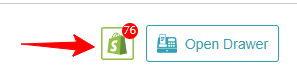
- Click the Shopify icon in the top-right corner of the page to open the Shopify In-Store Pickup modal
- Select your location from the Location Filter (the modal displays Unfulfilled orders by default)
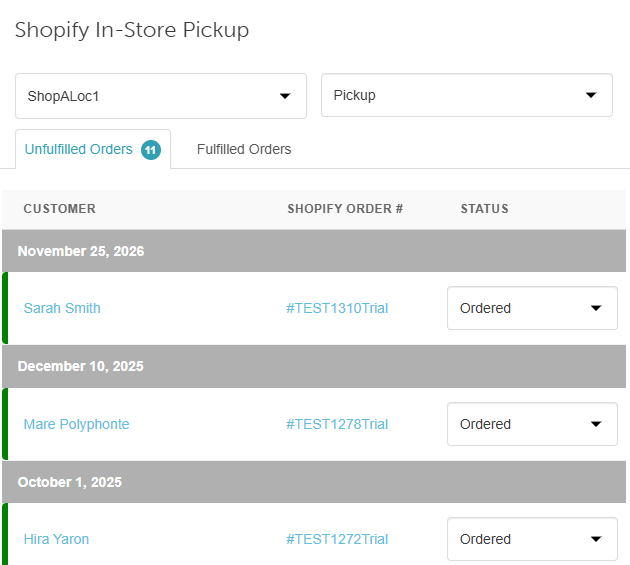
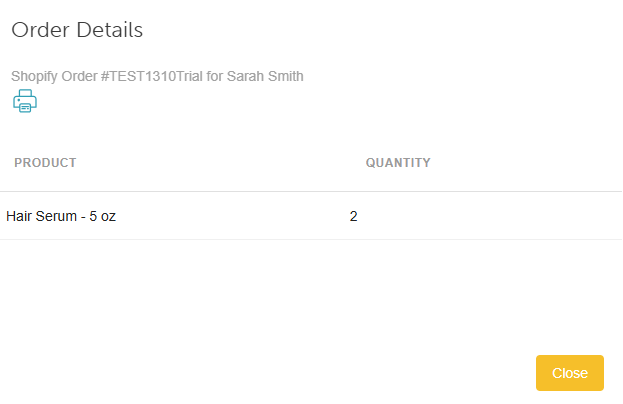
- Locate the order you want to fulfill and click the Shopify Order Number to verify the purchased items and quantities
- Update the order's Status dropdown as you prepare it (for example, to Preparing or Ready for Pickup).
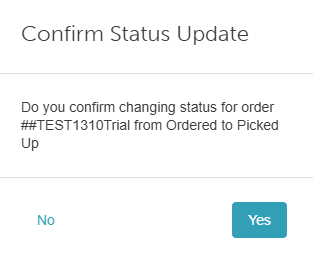
- When the customer collects their order, change the status to Picked Up
- Confirm the action to complete the pickup process
- The order moves to the Fulfilled filter in MyTime, and its status updates to Fulfilled in Shopify

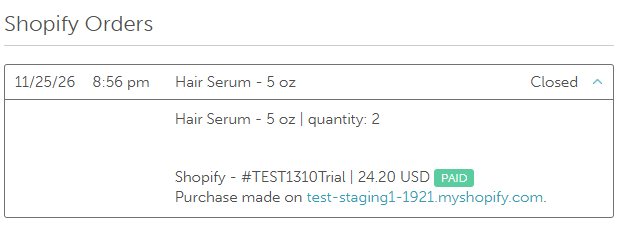
- The fulfilled order will also display on the customer's Client Profile under Shopify Orders if the "Show Past Shopify Purchases on Client Profile" hidden setting is enabled (contact MyTime Support to enable this setting).
Was this article helpful?
That’s Great!
Thank you for your feedback
Sorry! We couldn't be helpful
Thank you for your feedback
Feedback sent
We appreciate your effort and will try to fix the article
