Shopify is an eCommerce platform that allows you to create and manage an online store to sell your products. Learn how to keep your MyTime and Shopify product inventory synchronized in real time—eliminating the need for manual updates. This guide covers matching products using SKUs or UPCs, pushing stock quantities, and syncing product photos and descriptions across both platforms.
Things to know:
- Product Matching Identifier: By default, the SKU number is the primary identifier used to link products between MyTime and Shopify, product names and other details do not establish a connection. To ensure accurate syncing, the SKU in MyTime must match the SKU in Shopify exactly. If your account is configured to sync using UPC codes instead of SKUs (enabled via MyTime Support), the product's UPC code must match exactly between MyTime and Shopify.
- Once your Shopify integration is configured, inventory quantities update automatically across both platforms in the following scenarios:
- Sales on the Shopify Online Store: When an order is created and fulfilled in Shopify, the quantity is deducted in both systems (for example, if you have 55 glass bottles and a customer orders 10, the quantity updates to 45 in both systems once the order is fulfilled).
- Sales in MyTime POS: When an employee sells a product on a MyTime POS ticket, the quantity is deducted in both MyTime and Shopify.
- Manual Inventory Adjustments: Updating a product's quantity in MyTime automatically updates the quantity in Shopify. Manually updating a quantity in Shopify does not sync back to MyTime.
- Location-Based Pricing: Shopify does not natively support multiple prices for a single product based on location. See Pricing per Location below for a workaround.
- Unavailable Products: A product is sent to Shopify as disabled if it has zero stock at the assigned location or a retail price of $0.
CONTENTS
- Define SKUs on MyTime and Shopify
- Refresh Products & Push Quantities
- Push Product Images and Descriptions (Optional)
Define SKUs on MyTime and Shopify
Once your Shopify integration is connected, ensure each product shares the exact same matching identifier across both systems:
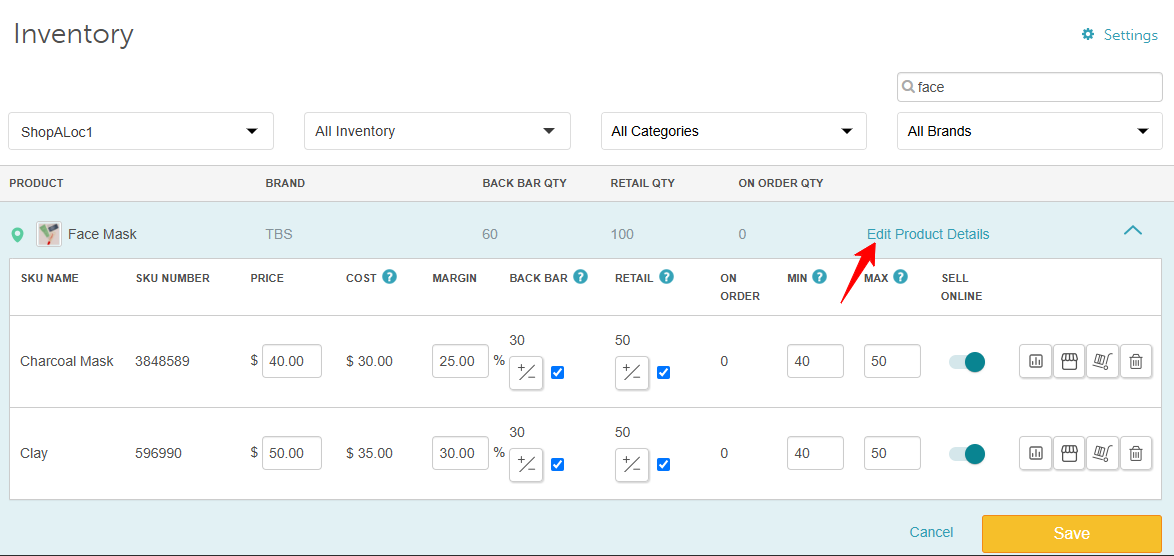
- In MyTime, navigate to POS > Inventory
- Search for the desired product
- Click the downward arrow next to the product and select "Edit Product Details"
- Enter a Manufacturer SKU (or UPC if UPC matching is enabled)
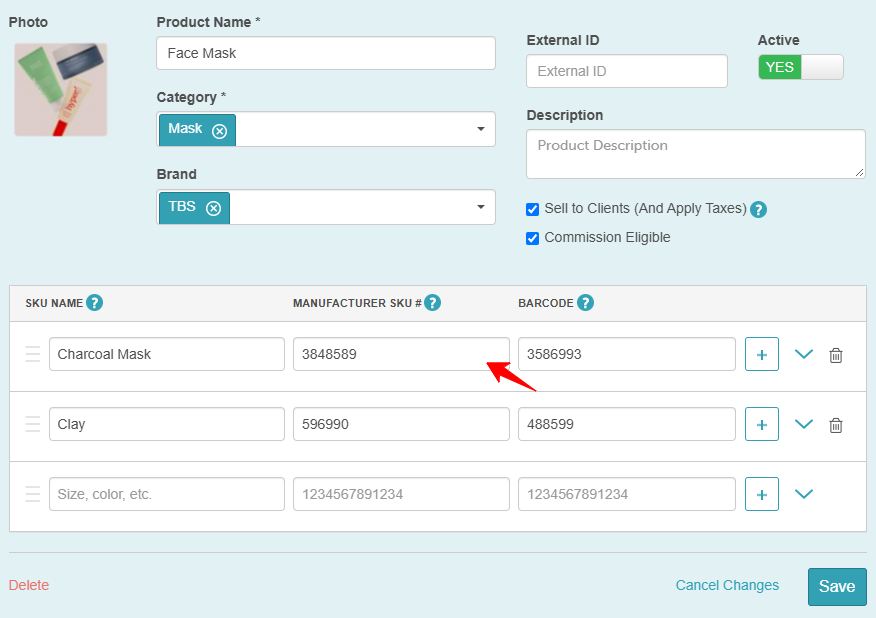
- Click Save
- Log in to your Shopify store
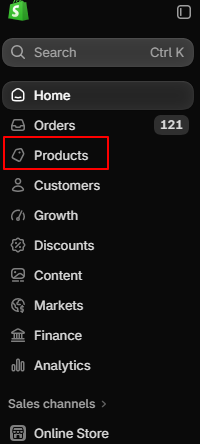
- Select Products from the left panel
- Open the matching product, enter the exact same SKU (or UPC) from MyTime
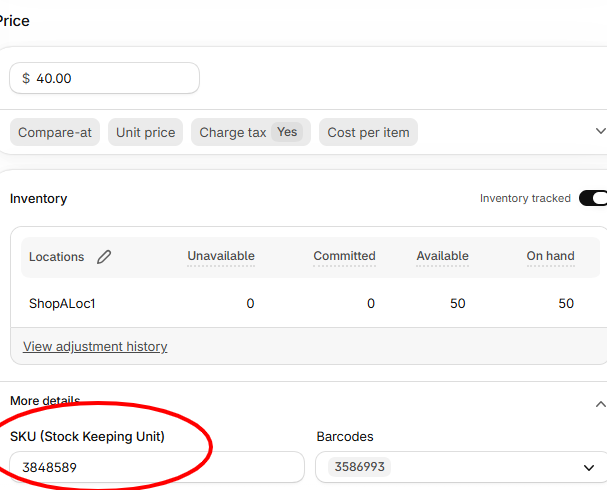
- Click Save
Refresh Products & Push Quantities
After adding your products and matching their identifiers in both systems, run a refresh and push to initiate the sync. Refresh Quantities links products with matching SKUs or UPCs between MyTime and Shopify, while Push Quantities updates Shopify's stock counts to match MyTime.
Note: You can complete this step once after setting up multiple products rather than repeating it for each individual item. Depending on the size of your catalog, the sync may take a few moments to finish.
- In MyTime, navigate to Business Setup > Settings > Partner Integrations
- Click the arrow next to your location to expand its settings
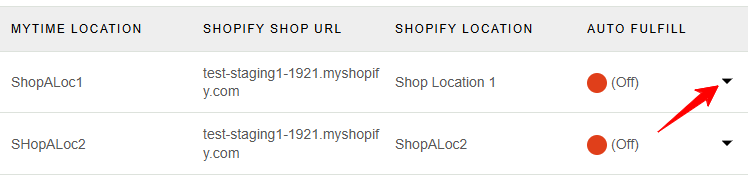
- Click Refresh Products
- Click Push Quantities
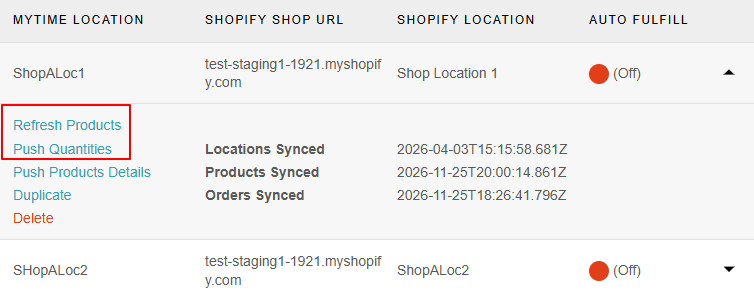
- Click Save
Open your Shopify store and verify that the product quantities for the selected location updated accurately.
Push Product Images and Descriptions (Optional)
You can also sync product photos and descriptions directly from MyTime to Shopify:
- In MyTime, navigate to POS > Inventory
- Click the downward arrow next to a product, and select "Edit Product Details"
- Upload your product image and enter a description
- Click Save
- Navigate to Business Setup > Settings > Partner Integrations
- Click Push Product Details
- Check your product listing in Shopify to verify that the photo and description appear.
Was this article helpful?
That’s Great!
Thank you for your feedback
Sorry! We couldn't be helpful
Thank you for your feedback
Feedback sent
We appreciate your effort and will try to fix the article
