The Walk-In Queue Maximum Wait Time feature allows you to set a limit on how long clients are willing to wait before being added to the walk-in queue. If the estimated wait time exceeds the set limit, clients will not be added to the list. This setting helps manage expectations and reduce frustration for both clients and staff during peak hours.
Things to know:
- The ability to configure the walk-in queue maximum wait time is controlled by the "Access Account Settings" access control setting.
- This setting is only visible once the "Enable Walk-In Queue Manager" option is enabled.
- The minimum allowed value is 0.5 hours (30 minutes).
- The maximum allowed value is 24 hours.
- You can increase the limit in 0.5-hour (30-minute) increments.
- Uncompleted appointments can be included in the calculation of estimated wait time. To enable this behavior, please contact MyTime Support at support@mytime.com.
- The setup option displayed in the top-right user menu depends on how you access the account and your assigned role:
- When navigating from the Parent Account (Location Management tab):
- Admin: Displays Business Setup when viewing the location account.
- Login As: Displays Location Setup when viewing the location account.
- When logged in directly at the Location Level:
- Location Owners & Location Managers: Display Location Setup.
- Service Providers & All Other Roles: Display Profile Setup.
Contents:
How to Set the Maximum Wait Time
- Navigate to Business Setup / Location Setup > Settings
- Scroll to the Calendar section
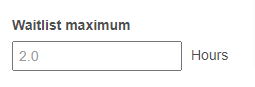
- Enter the desired wait time in the "Waitlist Maximum" field
- Click Save
Scenario
- The walk-in queue maximum is set to 2 hours
- The current time is 12:00 PM
- All staff members are unavailable for the next 2.5 hours
1. In-Store
If a staff member tries to add a client to the walk-in queue, the system will display the following error message: “Wait time exceeds the maximum limit for {Employee name}.”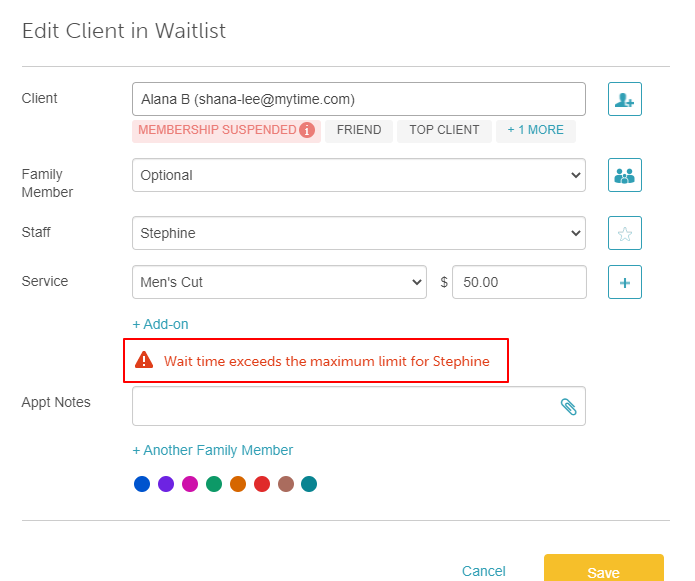
2. Booking Widget (Walk-In Waitlist)
If a client tries to join the walk-in queue online through the widget, they will see: “Sorry, the waitlist is currently full.”
3. Kiosk
If a client uses the kiosk to try and join the walk-in queue:
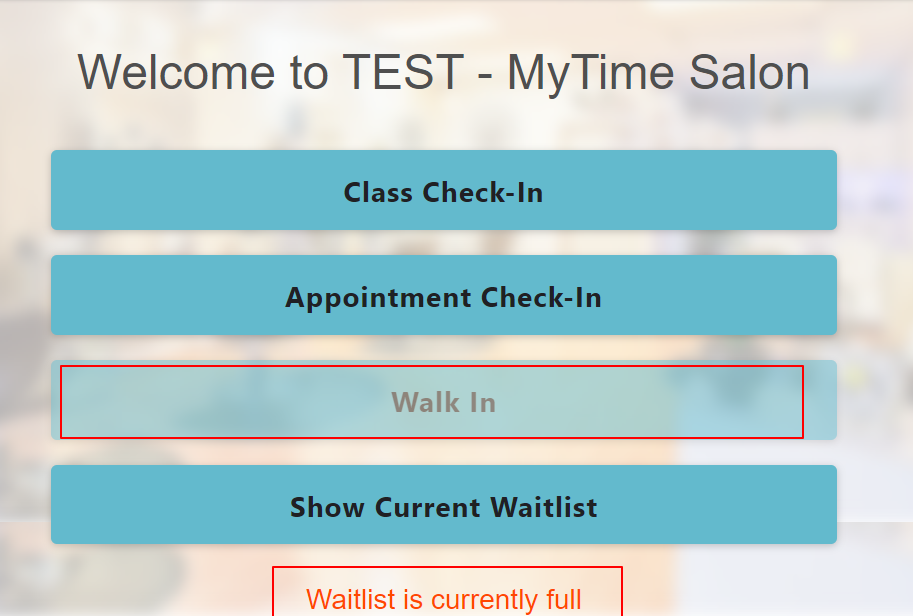
- The Walk-In option will be disabled
- An error message will display: “Waitlist is currently full.”
If you have any questions, please contact our Support Team at support@mytime.com.
Related Articles:
- Enabling Walk-In Queue
- Adding Clients to Walk-In Queue
- Adding Clients to Walk-In Queue on Scheduler App
- Walk-in Queue in Day View
- Online Walk-in Queue
Was this article helpful?
That’s Great!
Thank you for your feedback
Sorry! We couldn't be helpful
Thank you for your feedback
Feedback sent
We appreciate your effort and will try to fix the article