MyTime's walk-in queue feature allows you to keep a list of clients who are waiting for the next available appointment.
Things to know:
- The ability to enable the walk-in queue setting is governed by the "Accessing Account Settings" access control setting.
- By default, walk-in queue estimation will ignore appointments that are waiting for more than 15 minutes.
- All the waiting appointments that are ignored in the estimation will display ’N/A’. If you want the walk-in queue estimation to ignore appointments that have been waiting for more or less than 15 minutes, please contact our Customer Support Team at support@mytime.com or (385) 233-6964 to enable this on your behalf.
- You can set a restriction on how long the walk-in queue can expand; for example, if the wait time reaches x hours, clients will not be added to the list. Learn more here.
To enable the walk-in queue manager feature, simply:
- Navigate to Business Setup > Settings

- Scroll down to the Calendar section and locate the "Enable Walk-In Queue Manager" setting
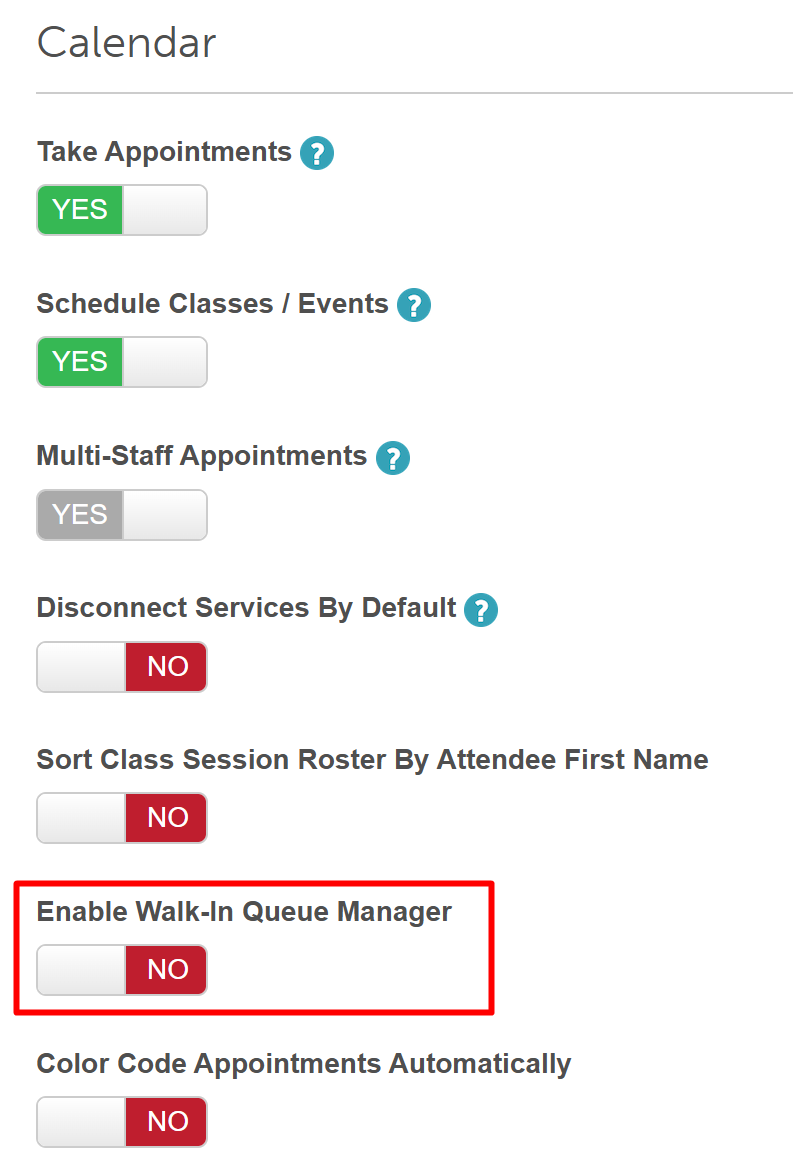
- Toggle the setting to “Yes”
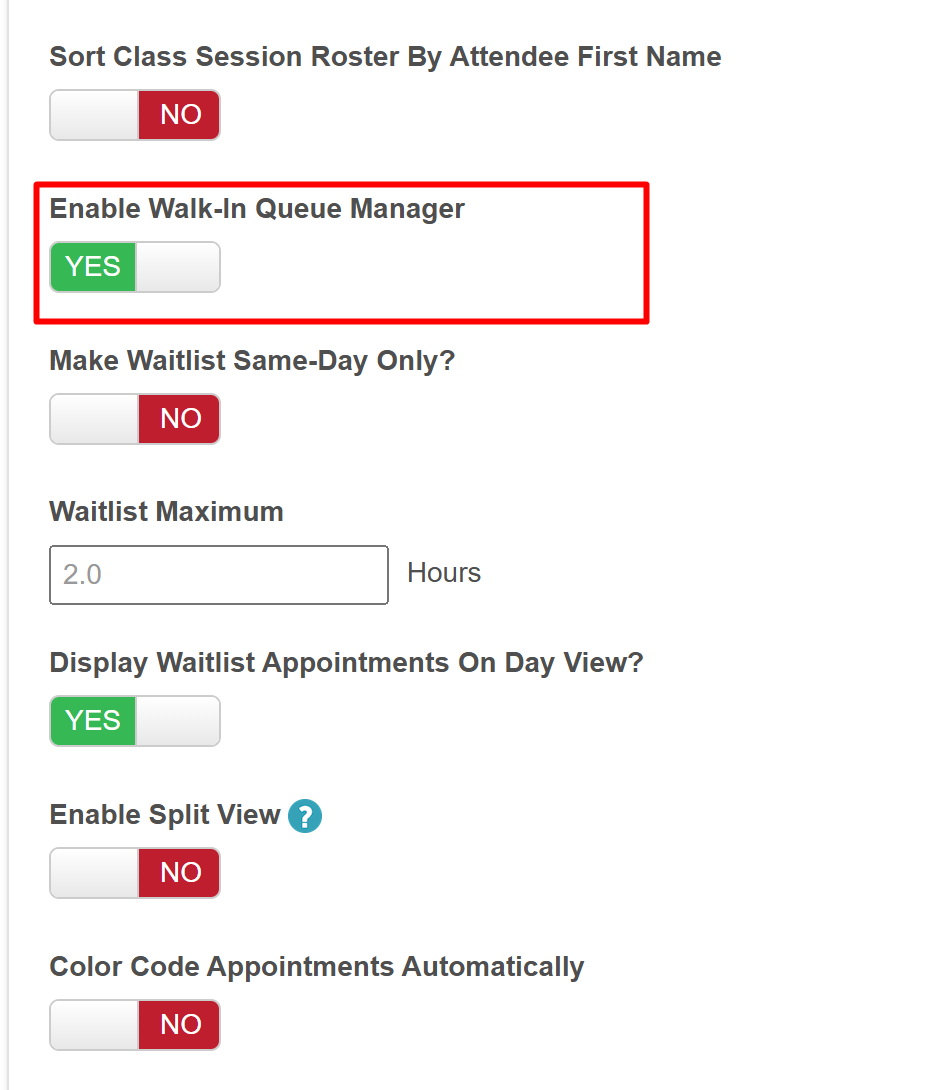
- Once you have enabled this setting, 4 additional settings will be exposed:
Settings Description Make waitlist same-day only?
When enabled, the system will look at the working hours to determine both the next available employee and the estimated wait time. If there aren't any slots available for the rest of the day, it returns N/A for the estimated wait time. Waitlist maximum
You can limit how long the walk-in queue can expand, i.e., if the wait time exceeds x hours, clients cannot be added to the list. The minimum and maximum values allowed are 0.5 hours (30 minutes) and 24 hours, respectively. Learn more here Display waitlist appointments on Day View?
Any client that is added to the walk-in queue will be shown as a striped block on the selected staff member’s schedule for the next available appointment slot. This will minimize the possibility of accidentally scheduling new appointments in front of clients who are waiting. Learn more here Enable Split View Split view displays your walk-in queue on the same screen as a list of in-service appointments so you can see the state of your store at a glance. This view is designed primarily for walk-in businesses. Learn more here - Once done, you are ready to begin using the walk-in queue.
Related Articles:
Walk-In Queue Maximum Wait Time
Adding Clients to Walk-In Queue
Adding Clients to Walk-In Queue on Scheduler App
Walk-in Queue/Appointment via Kiosk
Was this article helpful?
That’s Great!
Thank you for your feedback
Sorry! We couldn't be helpful
Thank you for your feedback
Feedback sent
We appreciate your effort and will try to fix the article