When a client purchases a gift card online, the recipient will receive an email with all the gift card details. The gift card can be redeemed in multiple ways online or in-store. In this article, we will explore redeeming gift cards on the guest app.
Things to know:
- A gift card code can be applied to any client's purchase, as long as they have the gift card code.
- When booking a service online that requires a deposit, clients can choose to pay a partial amount using a gift card or pay the full amount using any available method.
- Pay In Person
- If the gift card balance covers the full deposit: The client can enter their gift card code at checkout. The gift card will be applied to the deposit, and any remaining balance on the gift card can be used toward the service total when paying in-store. If needed, another payment method can be used to pay the remaining amount in person.
- If the gift card covers only part of the deposit: The system will apply the gift card for the available amount. The remaining portion of the deposit will be charged to the client’s credit card at checkout. The client can then pay any remaining service balance in person.
- Pay Online
- If the gift card covers the deposit and the remaining service balance: The entire amount will be paid using the gift card once it is applied at checkout.
- If the gift card covers only the deposit: The gift card will be applied to the deposit, and the credit card will be charged for the remaining service balance.
- If the gift card covers only part of the deposit: The system will apply the gift card to the portion it can cover. The client’s credit card will then be charged for the remainder of the deposit and any remaining service fees at checkout.
- This feature is controlled by the 'Enable Paying Deposit via Gift Card' setting, which can only be enabled by MyTime Support.
- To simplify the online checkout experience for your clients, you can choose to display separate input fields for gift cards and promo codes during redemption. This helps reduce confusion and makes the process more user-friendly. This feature is controlled by a hidden setting and can only be enabled by the MyTime team. To activate it, please contact support@mytime.com.
To redeem gift cards on the guest app:
1. Download the guest app from either the Google Play Store (for Android users) or the Apple Store (for iOS users)
2. Upon downloading, navigate to the home screen and tap on the account icon located in the top right corner, tap sign in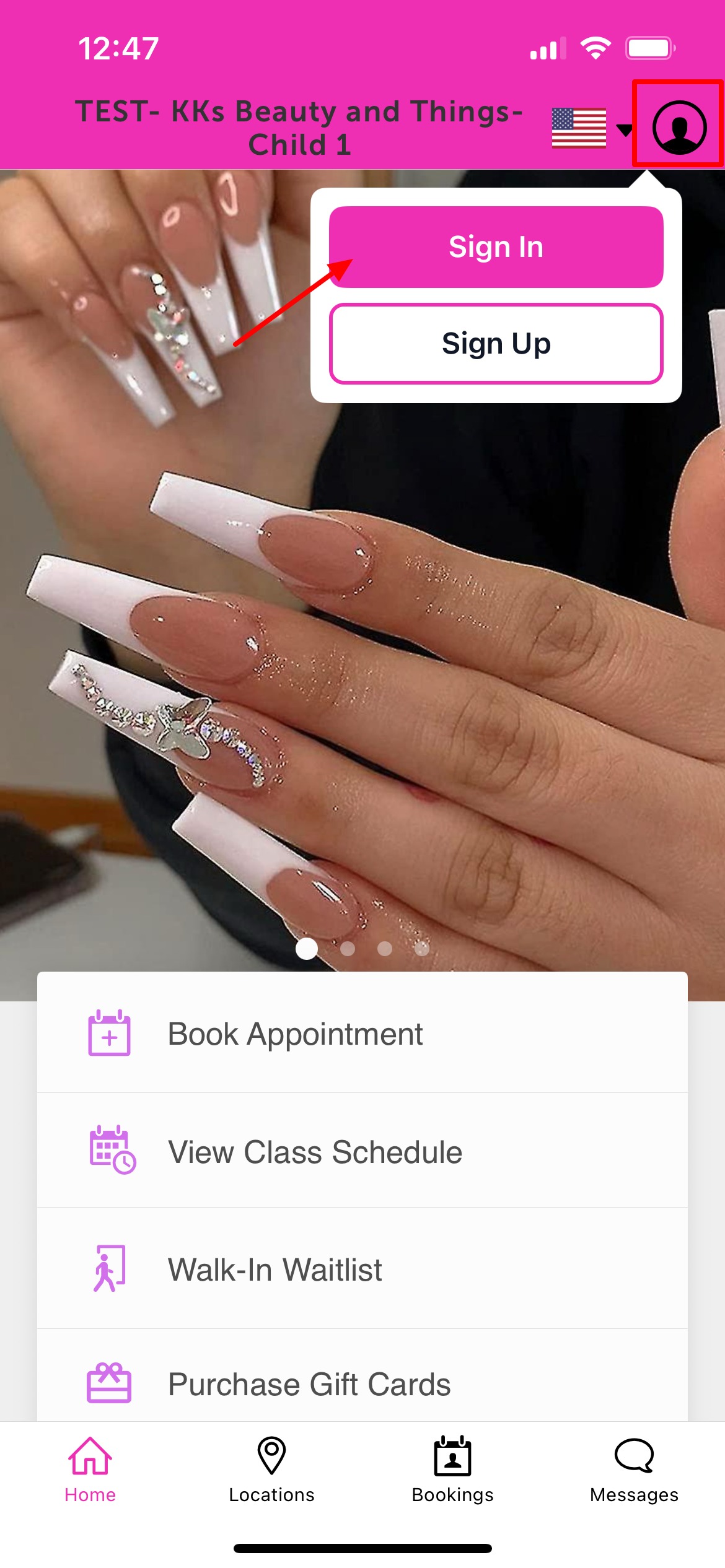 3. Choose their login method:
2. Upon downloading, navigate to the home screen and tap on the account icon located in the top right corner, tap sign in
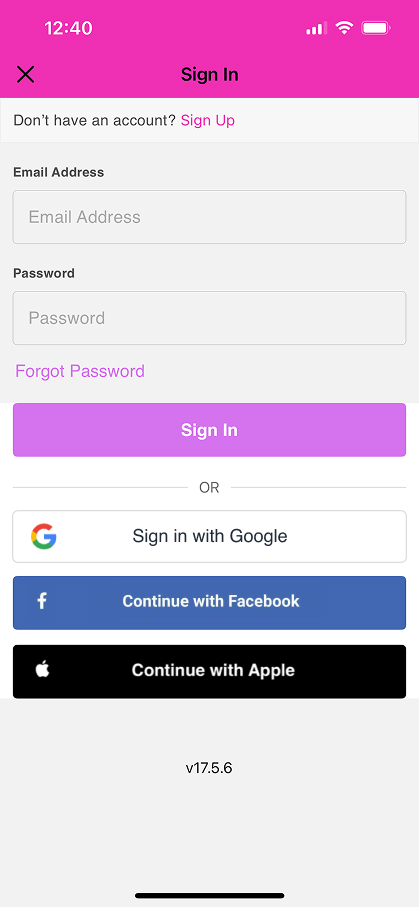
3. Choose their login method:- Standard: Enter their registered email address and password, then click 'Sign In'.
- Social Login: Select 'Continue with Google,' 'Continue with Apple,' or 'Continue with Facebook' to use their existing social media credentials.

5. Select the "Book Appointment" option

6. Add a service
7. Select date and time
The checkout page will appear

8. On the checkout page, they should enter the gift card code in the Apply Gift Card / Promo Code field
9. Select "Apply"

10. Select "Complete Booking"

Was this article helpful?
That’s Great!
Thank you for your feedback
Sorry! We couldn't be helpful
Thank you for your feedback
Feedback sent
We appreciate your effort and will try to fix the article