The Reconciliation Detail report lists every transaction in which reconciliation is owed because the stored value was purchased at one location but redeemed at another.
Things to know:
- This report is only available to accounts that have reconciliation enabled. For information on how to set up reconciliation, read more here.
- Reconciliation records are created each time a ticket is closed
- If a gift card, package, or membership was purchased at location A and used at location A, no reconciliation will take place.
- If a service is paid for partially in cash/card and partially in credits, we will only show the portion that was paid for with credits on the reconciliation report.
- If there is a refunded product or service, we will credit reconciliation in the period the refund happens and NOT the period in which the original transaction took place.
- The parent account can see transactions from all locations
- When viewing the report from the parent level, all amounts are black, and there is no total at the bottom of the report.
- The child accounts can only see transactions from locations where they are the source owner (where the membership/package/gift card was bought) or destination owner (where the membership/package/gift card was used).
- When viewing the report as a franchisee (child level), the amount columns will show which funds are incoming (black) or outgoing (red), and the total will correlate with the net deposit or payment for the same time period in the Reconciliation Settlement Report.
- When reconciling this report with the Reconciliation Settlement report, you must account for a specific date overlap and perform a three-step calculation to ensure your totals match your bank deposits perfectly.
- Understanding the Settlement Date Overlap: To ensure no transactions are missed due to late-night processing or timezone cut-offs, the Reconciliation Settlement report includes a one-day overlap with the previous period.
- The Logic: The start date of the current settlement period is always the final day of the previous period. Example: If you are reconciling the month of December, the report range will automatically be set to Nov 30th – Dec 31st.
- How to Reconcile the Totals: To find the final settled amount that should match your bank deposit, follow this manual workflow:
- Export the Data: Download your report as an Excel or CSV file.
- Summarize Locations: Calculate the grand total for the Purchase Location column and the Destination Location column separately.
- Calculate the Net Settlement: Use the following formula to find your final total: {Total Destination Location} - {Total Purchase Location} = {Final Settled Amount}
- To ensure financial accuracy and auditability across the platform, MyTime uses a standardized architecture to track memberships, packages, and gift cards. This unified system ensures revenue is recognized consistently, whether a client redeems a service or a prepaid item expires. This framework was specifically designed to keep financial systems aligned across reports, Reconciliation, Royalties, and POS Accounting, ensuring that all areas reflect the same financial reality when used together.
- Key Concepts:
- Revenue Cap: The maximum revenue that can be recognized for a prepaid item (the total amount paid).
- Usage Tracking: Each time a client redeems a credit or uses a gift card balance, the consumption is recorded in a central ledger.
- Breakage (Unused Revenue): When a prepaid item expires or is closed with a remaining balance, the unused value is recognized as breakage revenue.
- Central Ledger: The single source of truth used across reports, Royalties, Reconciliation, and POS Accounting to ensure consistency across the system.
- How Revenue Is Recognized: The system ensures revenue is not double-counted or missed: Total Revenue = Usage + Breakage (at Expiration)
- During the term: Revenue is recognized as the client uses credits or balance.
- At expiration: Any remaining value is automatically recognized as breakage revenue.
- Scenario Example
“Elite Yoga” Package – 5-Class Package sold for $100
1. Purchase
Total Revenue Cap: $100
Initial State: $0 used / $100 remaining
2. Active Consumption (Usage)
The client attends 3 classes:
Class 1: $20 recognized
Class 2: $20 recognized
Class 3: $20 recognized
Current Status: $60 used / $40 remaining
3. Expiration (Breakage)
The package expires with 2 unused classes ($40 value remaining).
The system detects expiration
A breakage event is automatically generated for $40
Final recognition: $100 total ($60 usage + $40 breakage)
- Key Concepts:
To access your Reconciliation Detail Report:
- Navigate to Dashboard
- Select the Reports tab
- Under the company section, select the Reconciliation Detail Report

When the report opens, once you've selected your desired filters, click on the UPDATE button to generate the data. On the top right of the report, you have the option to download the report as a CSV, PDF, or print version. 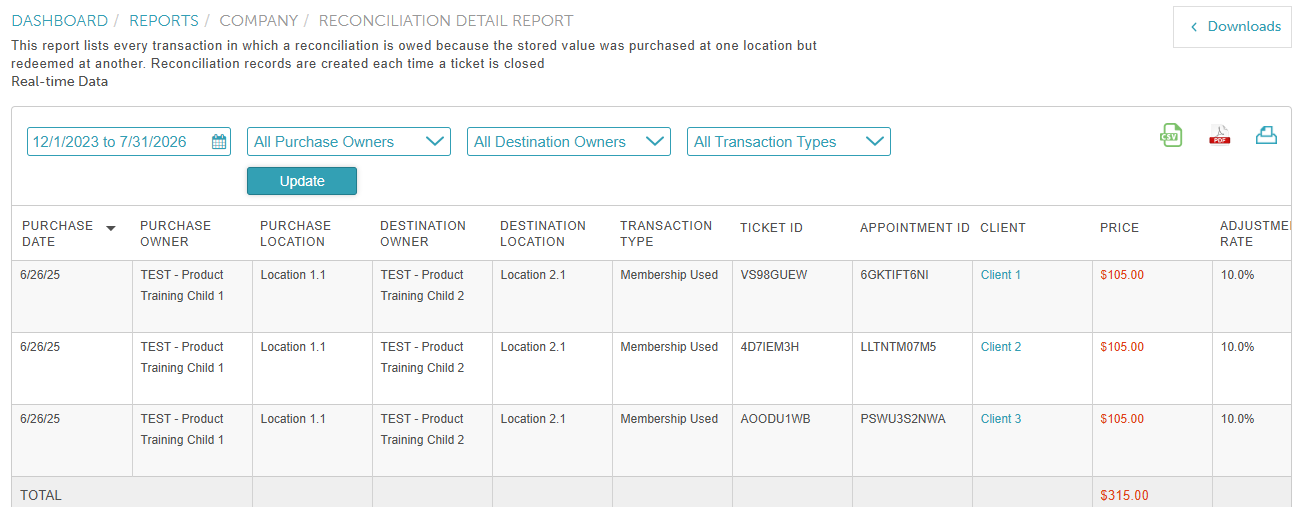
Report Filters
| Filter | Description |
| Date | The date the membership, gift card, or package was used/redeemed. |
| Purchase Owner | The location where the membership/package/gift card was purchased. |
| Destination Owner | The location where the membership/package/gift card was used/redeemed. |
| Transaction Type | Membership, Package, or Gift Card |
| Locations | View all locations or only locations that have ACH configured. |
Report Columns
| Column | Description |
| Purchase Date | The date the membership, gift card, or package was used/redeemed. |
| Purchase Owner | Franchise account name where the membership/package/gift card was purchased. |
| Purchase Location | Franchise location where the membership/package/gift card was purchased. |
| Destination Owner | Franchise account name where the membership/package/gift card was used/redeemed. |
| Destination Location | Franchise location where the membership/package/gift card was used/redeemed. |
| Transaction Type | Membership, Package, or Gift Card that was used to pay for the transaction. |
| Ticket ID | The ticket number associated with the transaction. If viewing the report from the parent account, this number will not be clickable. |
| Appointment ID | The number associated with the appointment. If viewing the report from the parent account, this number will not be clickable. |
| Client | The client associated with the appointment/ticket |
| Price | The price that was used for reconciliation |
| Adjustment Rate | The percentage of the service, product, or class value that should be transferred to the destination location from the location where the package, gift card, or membership was originally purchased. |
| Total | The total amount (price x adjustment rate) that will be transferred to the location where the package, gift card, or membership was originally purchased. |
| Settlement Status | The settlement will include everything that was reconciled since the last settlement was run (if a settlement exists), OR will get everything from the last week if a past settlement does not exist. |
For more information, contact us at support@mytime.com or (385) 233-6964.
Related Articles:
Was this article helpful?
That’s Great!
Thank you for your feedback
Sorry! We couldn't be helpful
Thank you for your feedback
Feedback sent
We appreciate your effort and will try to fix the article