Clients can interact with an AI Assistant directly inside your website chat widget to ask questions, explore services and pricing, check real-time availability, and book appointments or classes. The AI Assistant references your business’s services, classes, pricing, and live schedule to present open slots. Once a client selects a time, the AI generates a pre-filled Confirm & Pay (for appointments) or Enroll Now (for classes) link that takes them straight to checkout.
Things to know:
- The ability to configure the widget on your website is controlled by the “Accessing Website Tools” access setting.
- The chat widget is disabled by default. Once enabled, your express checkout page will update instantly; however, if you are using the standalone embed on your own website, you will need to re-embed the updated code snippet for the widget to appear.
- The widget is designed for maximum flexibility and can be implemented in several ways:
- Standalone Embed: Add the widget as a dedicated communication tool on any specific page of your website.
- Integrated Workflow: Incorporate the chat directly into your existing booking widget or express checkout flows to assist clients during the scheduling process.
- For details on how to configure your chat widget, learn here
- The ability to allow clients to use and book appointments through the booking widget is controlled by the Enable Client AI Assistant hidden setting that can only be enabled by the MyTime team. To enable this setting, please contact support@mytime.com.
- Lead vs. Client Profiles:
- Accounts with Lead Management: New profiles created via chat will appear in the Leads tab until they book their first appointment.
- Accounts without Lead Management: New profiles will be added directly to the Clients tab.
- Note: The system automatically checks for matching profiles to prevent duplicates.
- Automated Booking Workflow: The AI checks live availability, recommends open times, and generates a checkout link pre-populated with the chosen service, date, time, staff member, and price.
Staff Inbox Integration: Staff members can review full conversation threads in the Communicator Inbox.
To streamline staff workflows and prevent inbox clutter, client messages actively handled by the MyAI assistant do not trigger staff alerts or alter conversation statuses until staff intervention is required.
Communicator Inbox & Notifications:
AI labeling: Staff can review full chat transcripts in the Communicator Inbox, where automated AI responses are clearly labeled as
MyAI.Active AI behavior: While MyAI is actively managing a conversation, incoming client messages do not trigger notification sounds or preview popups, do not mark the thread as New, and do not move the conversation into the Open tab.
Staff escalation triggers: Standard notifications and inbox alerts resume—marking the thread as New and moving it to the Open tab—whenever:
A client requests a human agent in chat or clicks Talk to a person at the bottom of the widget. (If no staff are available, the message is saved for follow-up via phone or email.)
The AI cannot resolve a question or encounters an error.
Manual takeover: Staff can manually take over or end an AI session at any time. Note that manual takeover does not automatically change the thread's inbox status; staff can move it to the Open tab manually if follow-up is needed.
Clients can request a human agent directly in the chat or by clicking the Talk to a person button at the bottom of the widget. If the team is unavailable, their message is saved and they'll receive a callback or email response.
Contents:
How Clients Book Through the Chat Widget
Once your chat widget is configured and Enable Client AI Assistant is active, clients follow this flow:
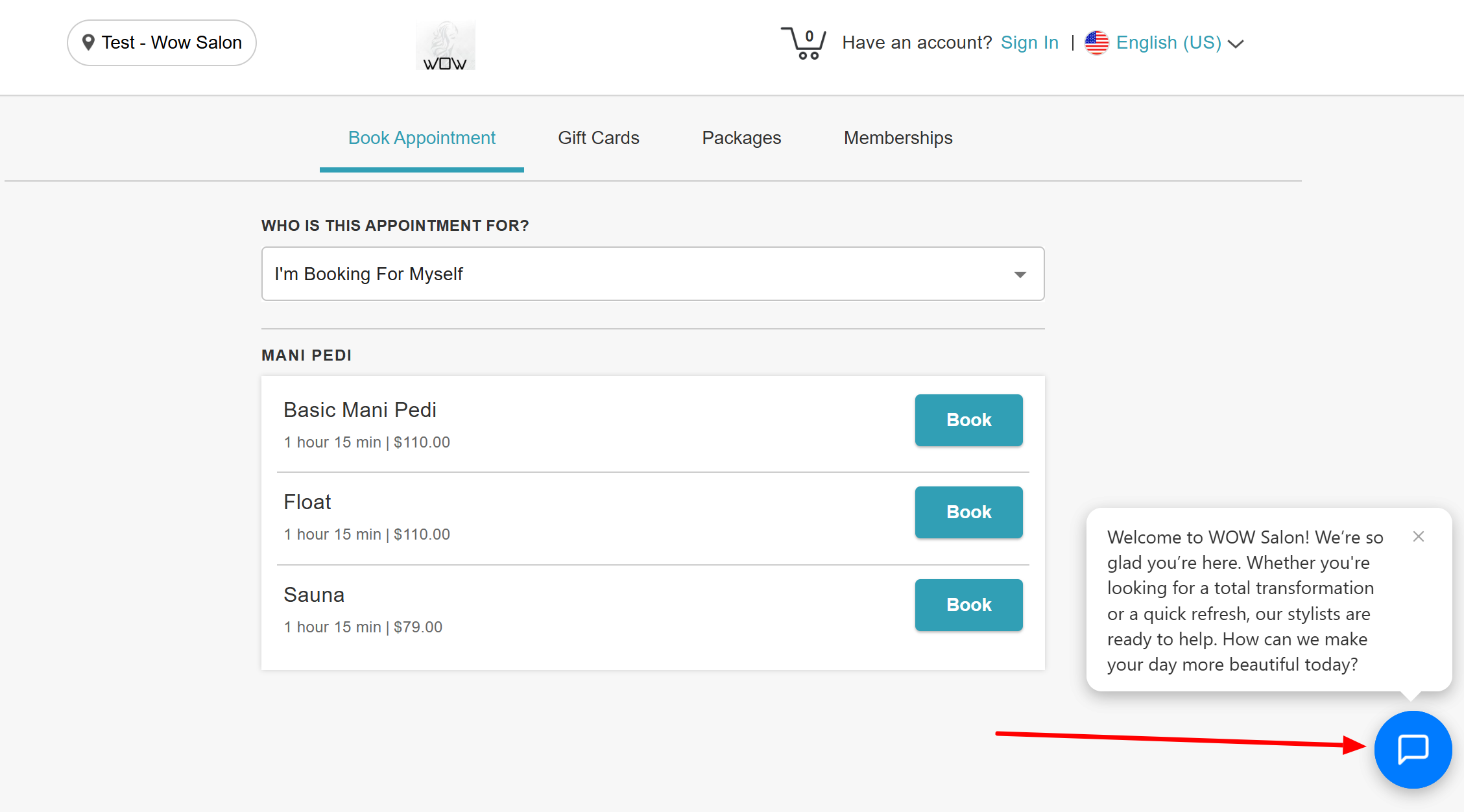
- Navigate to your website and find the chat icon in its designated position (e.g., the bottom-right corner). The configured welcome message will be floating above the chat icon
- Click the icon to open the chat window
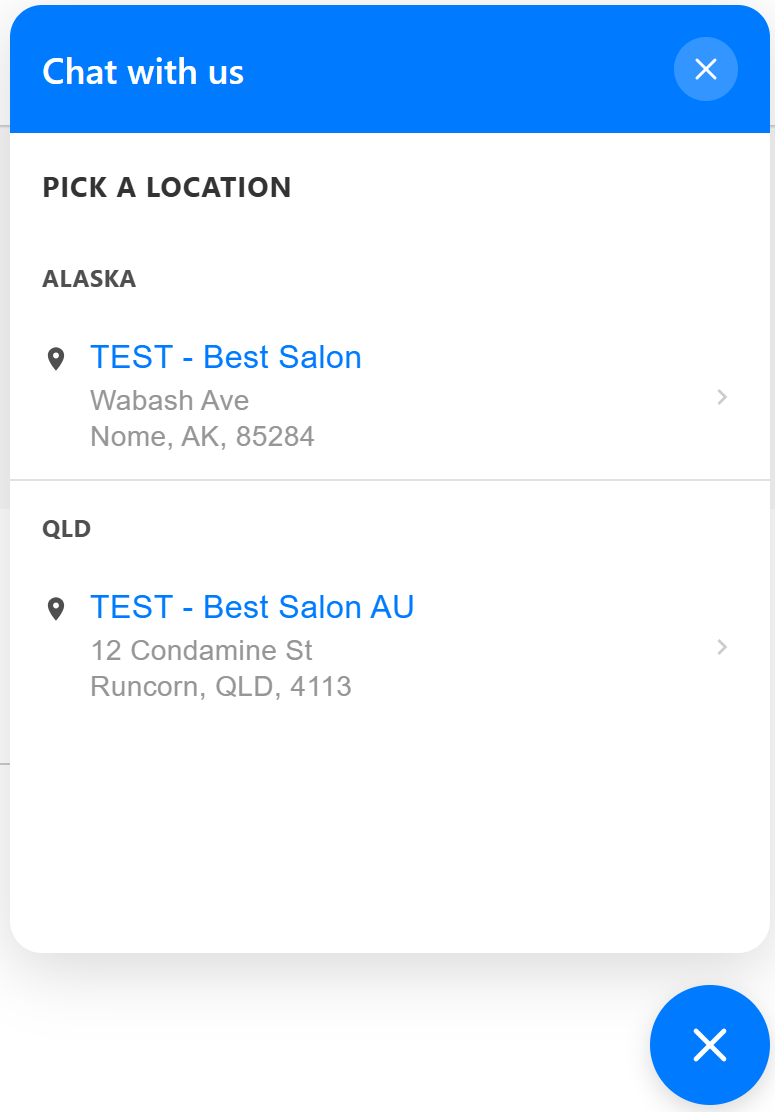
- If your business has multiple locations, the client will be prompted to choose the specific location they want to contact
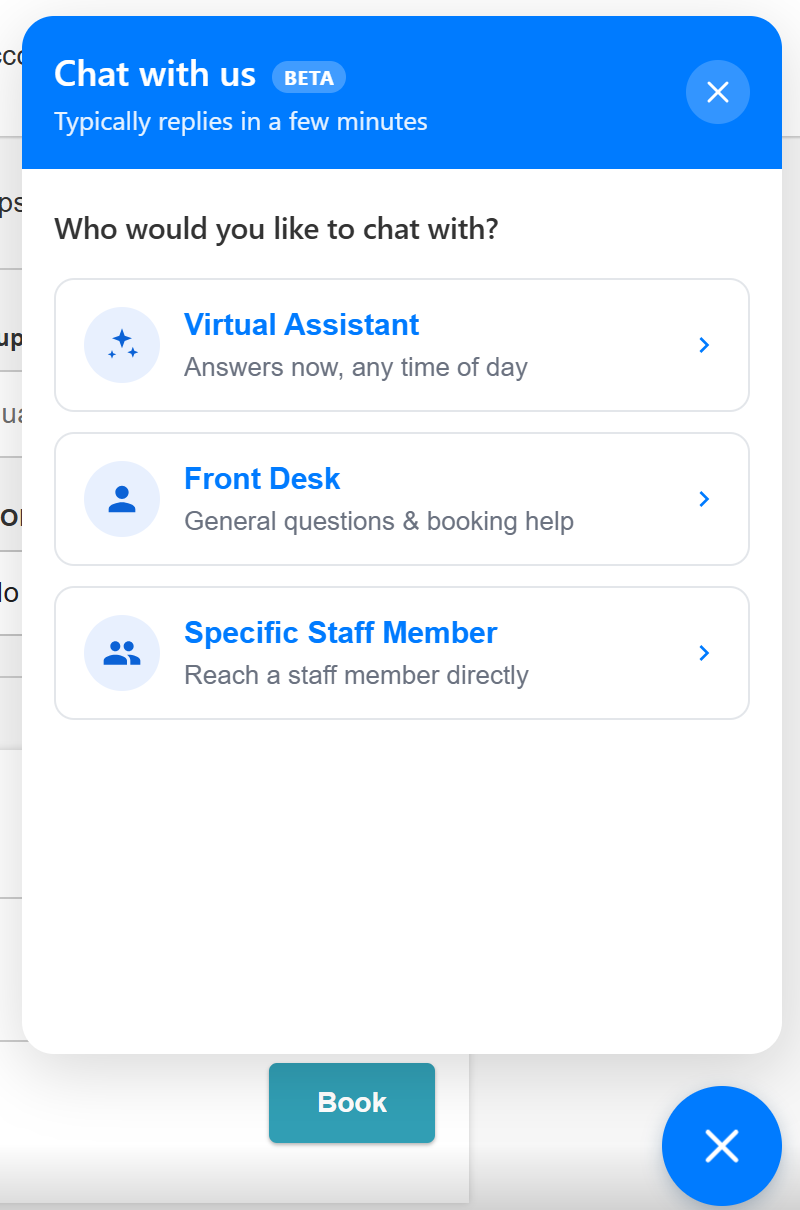
- Choose who to message:
- If 'Let clients message individual staff members' is enabled, they can choose between your virtual AI, the Front Desk (notifies all location staff in the central inbox), or a specific staff member (routes directly to that staff member's Communicator Inbox and device).
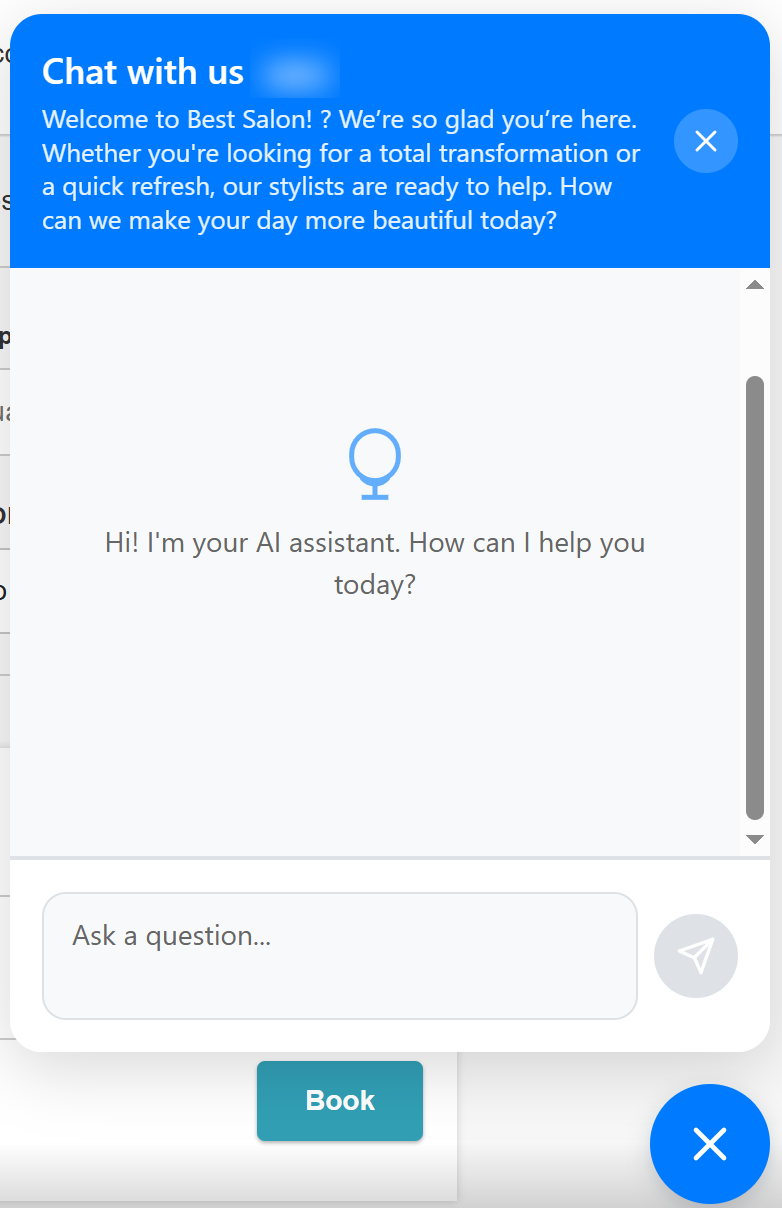
- If that setting is disabled, they will get the option to select if they wish to speak with your virtual AI.
- If 'Let clients message individual staff members' is enabled, they can choose between your virtual AI, the Front Desk (notifies all location staff in the central inbox), or a specific staff member (routes directly to that staff member's Communicator Inbox and device).
- Ask questions or state what they want to book
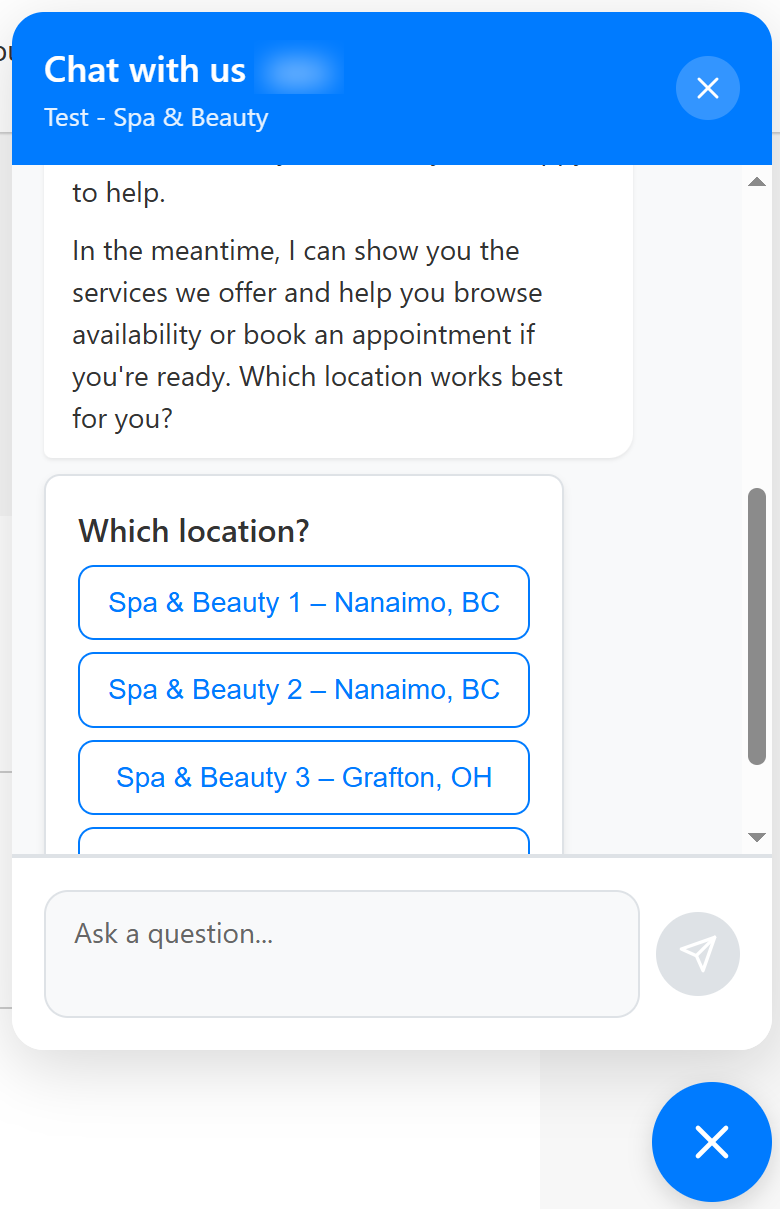
- The AI checks live availability based on their preferred location, service or class, and date/time, then presents open slots then prompt you to pay to complete the booking
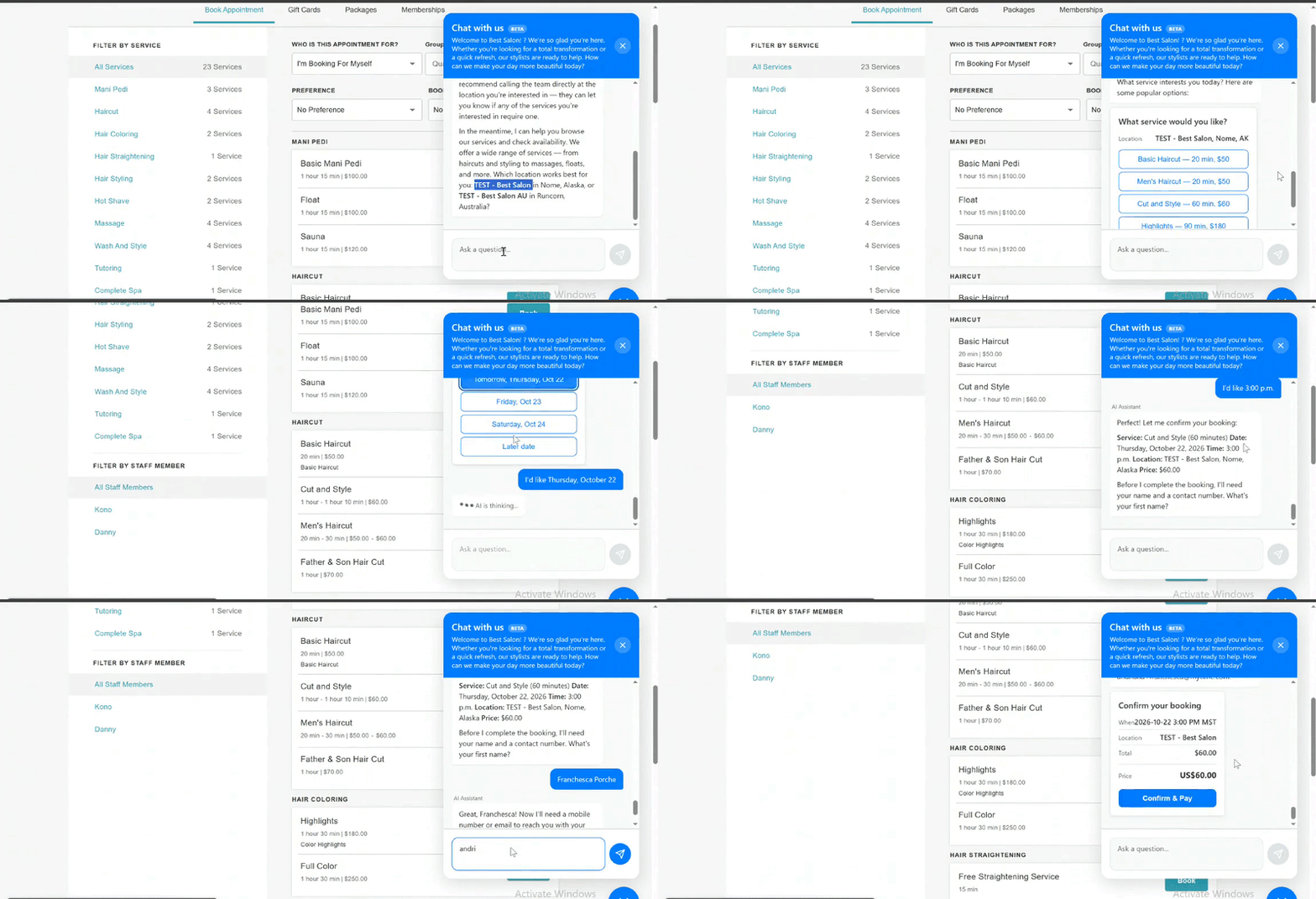
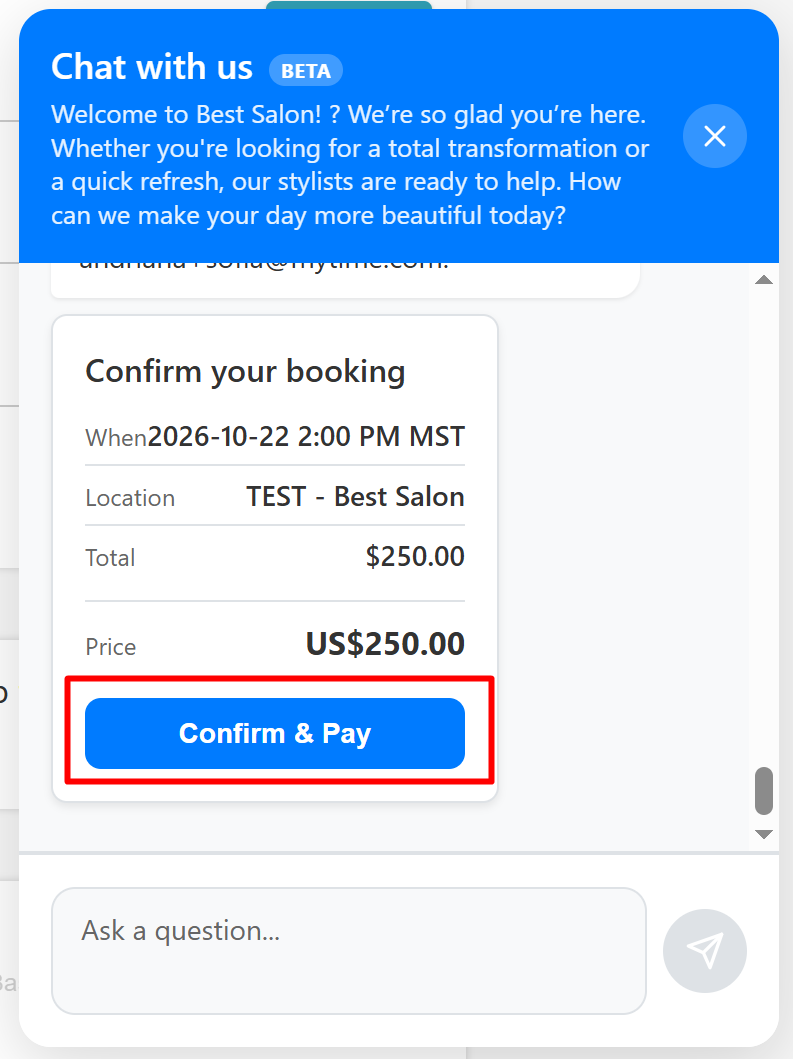
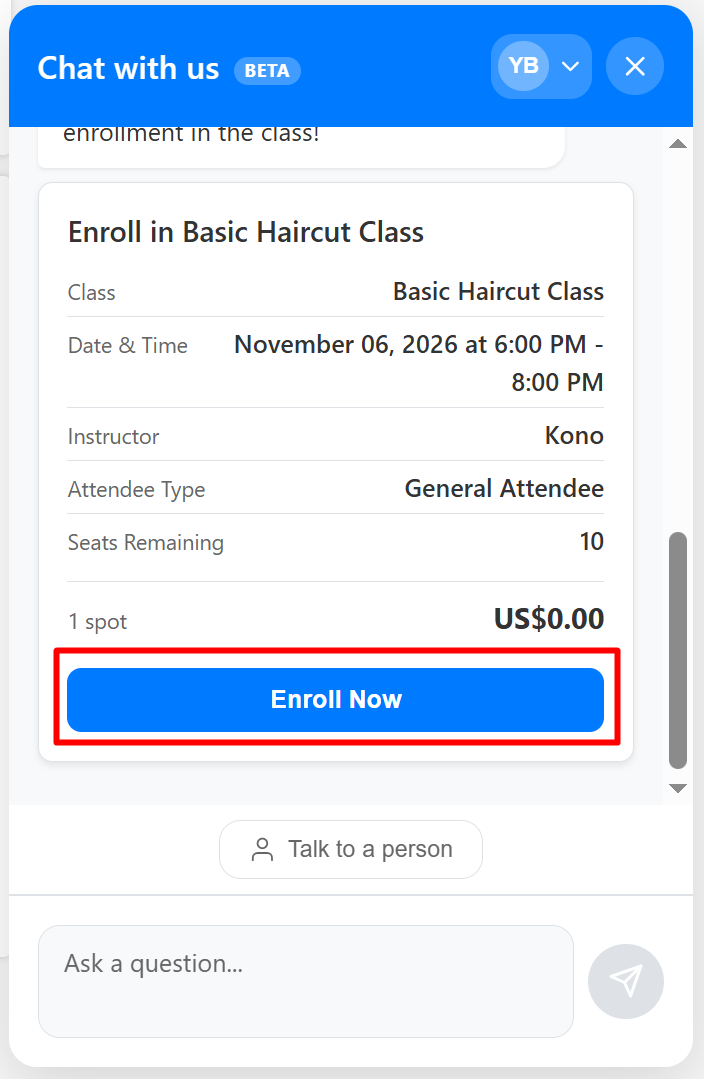
- After selecting an open slot, click the pre-populated Confirm & Pay (for appointments) or Enroll Now (for classes) link generated by the AI.
- Sign in to an existing account, or enter basic contact details to book as a guest without creating an account beforehand
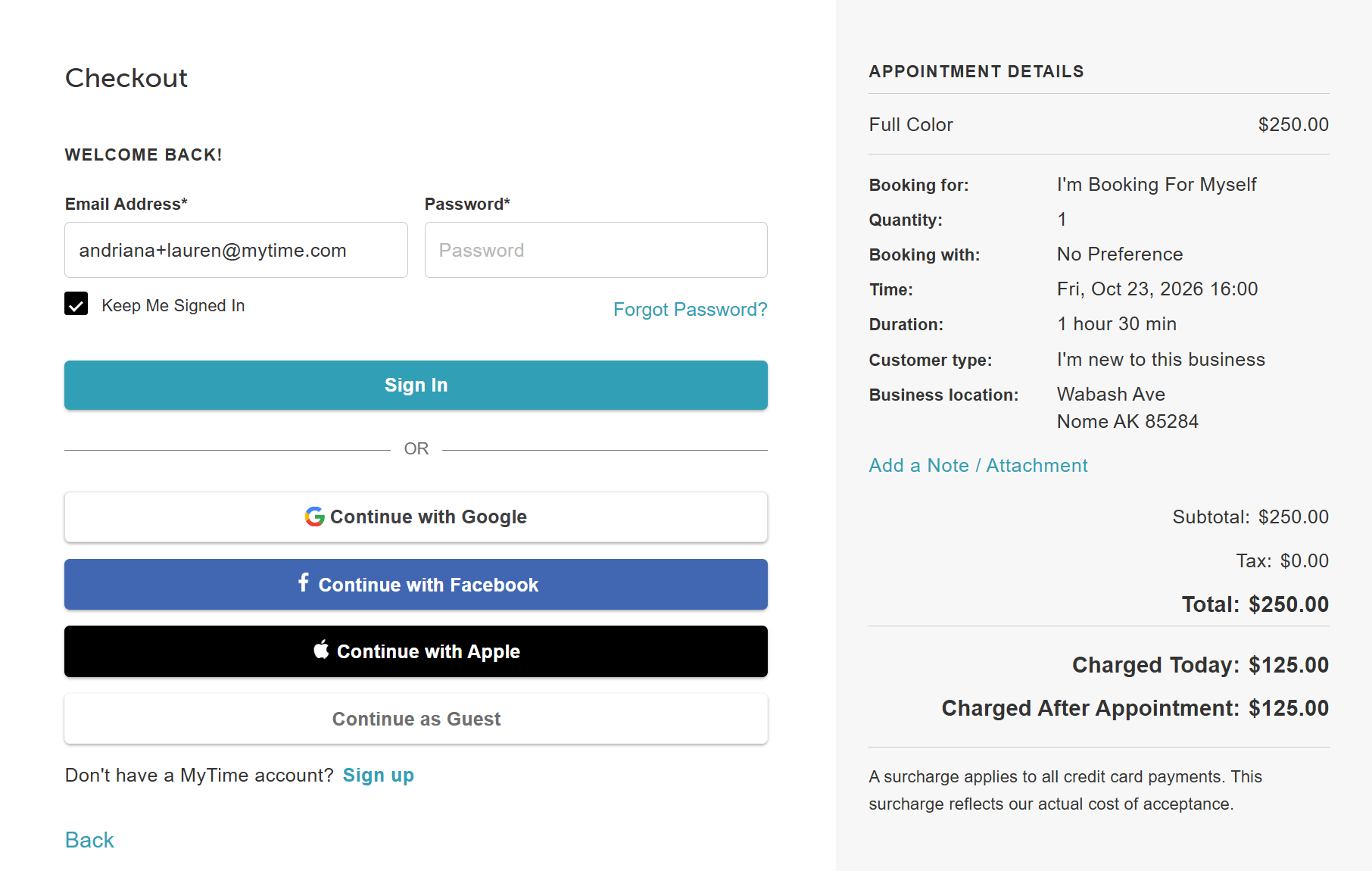
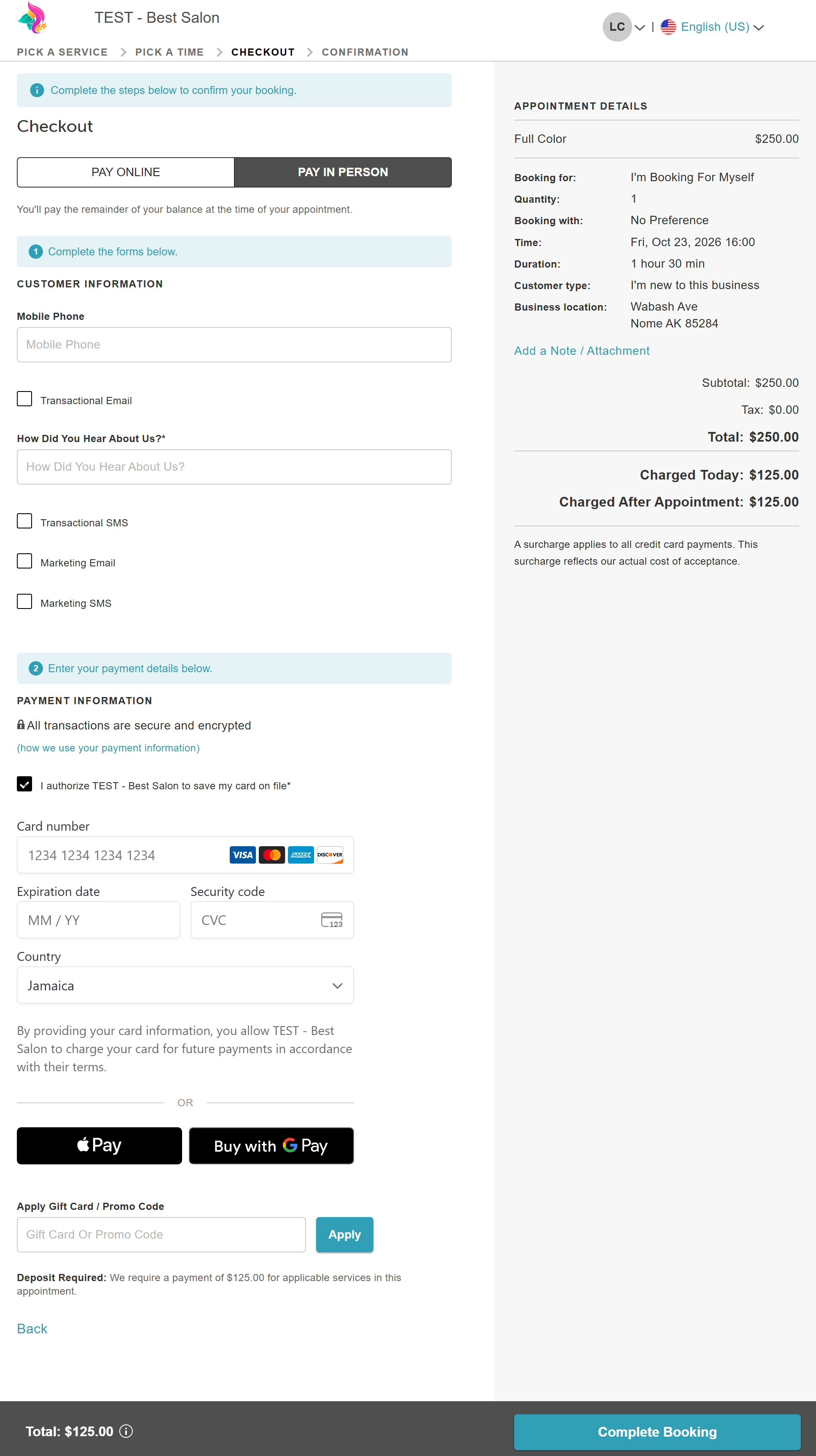
- Review the booking details, fill out any required intake forms, and submit payment on the checkout page
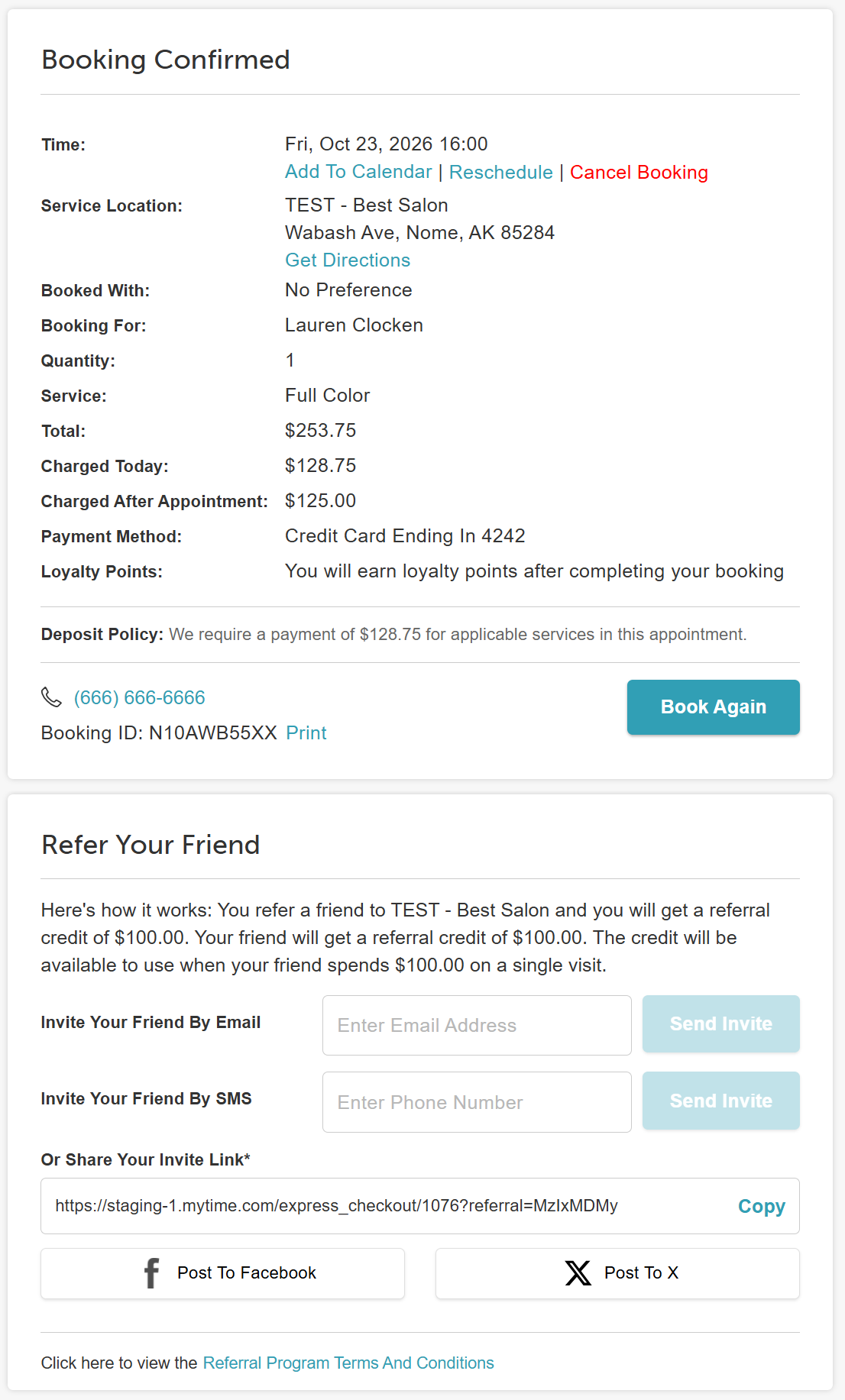
- The confirmation page will be displayed
FAQs
Q: What can I do using the website chat?
A: You can chat with our AI Assistant to ask general questions, explore available services and classes, check current pricing, view real-time appointment availability, and book your appointments or classes directly through the chat.
Q: How does the AI Assistant schedule my appointment or class?
A: The AI Assistant checks our live schedule based on your preferred location, service or class, and date/time. Once you choose an open slot, the assistant generates a pre-filled Confirm & Pay (for appointments) or Enroll Now (for classes) link that takes you straight to checkout with your selected service, staff member, time, and price already filled in.
Q: Can I choose which location or team member I want to book with?
A: Yes. If the business has multiple locations, you will be prompted to choose your preferred location. Depending on the business settings, you may also have the option to message the virtual AI, the front desk, or a specific staff member directly. During the AI Assistant chat, you can also request a specific staff member to book your appointment with.
Q: Do I need an account to book or ask questions in the chat?
A: No, you do not need an account beforehand.
- If you already have an account: You can sign in during checkout.
- If you are a new or guest user: You can enter your basic contact details and complete your booking as a guest without creating an account in advance.
Q: What happens once I click the booking link the AI sends?
A: Clicking Confirm & Pay or Enroll Now takes you to the checkout page. There, you will review your booking details, fill out any required intake forms, and enter your payment information to complete your reservation.
Q: Can I speak to a real person instead of the AI?
A: Yes. You can ask for a human representative at any point in the conversation, or simply click the Talk to a person button at the bottom of the chat widget.
A: If no staff members are currently available to take over the chat, your message is saved, and a team member will follow up with you by phone call or email.
Q: What happens if a client cancels mid-booking?
A: The booking isn't saved, the client can return anytime and start over. No partial bookings are held.
Q: Can the AI handle service questions?
A: Yes. The AI can answer questions about services, pricing, and policies, reference the business's published FAQs and company knowledge and direct clients to the business's phone number if a question can't be answered
Q: What if a booking needs approval?
A: Some businesses require staff to confirm bookings. In this case:
- The appointment shows as pending in the client's account
- The client receives a notification when the business approves it
- The client is never told the appointment is confirmed until staff approves it
Q: Can clients book for others?
A: Not directly through the chat. The AI handles bookings for:
- The client themselves
- Their pets or family members (if the business manages them)
For more information, contact us at support@mytime.com or (385) 233-6964.
Related Articles:
Was this article helpful?
That’s Great!
Thank you for your feedback
Sorry! We couldn't be helpful
Thank you for your feedback
Feedback sent
We appreciate your effort and will try to fix the article