The Package Activity Report provides a comprehensive view of all package-related activity, including purchases, credit usage, manual adjustments, and refunds. This article explains how to access and use the report.
Things to know:
- The ability to access this report is governed by the "Accessing Reports" access control settings
- This report is only available to businesses that offer packages.
- The report includes all historical data recorded in the package audit trail.
- If a package is purchased for a pet or family member, the report will display the client’s name rather than the pet or family member’s name.
- Rows are grouped by package purchase. If a client purchases the same package multiple times, each purchase appears as a separate summary row.
- Event-level details—such as ticket number, amount, quantity, event type, and location—are displayed directly in the summary row only when the package contains a single event.
- Examples:
- If a Massage Package contains only one event (a package purchased for $150 at the Downtown location), the summary row displays the ticket number, amount, quantity, event type, and location.
- If a Spa Package contains multiple events (for example, a package purchase, redemption, and adjustment), the summary row displays only package-level information. Expand the row to view the details of each event.
To access this report:
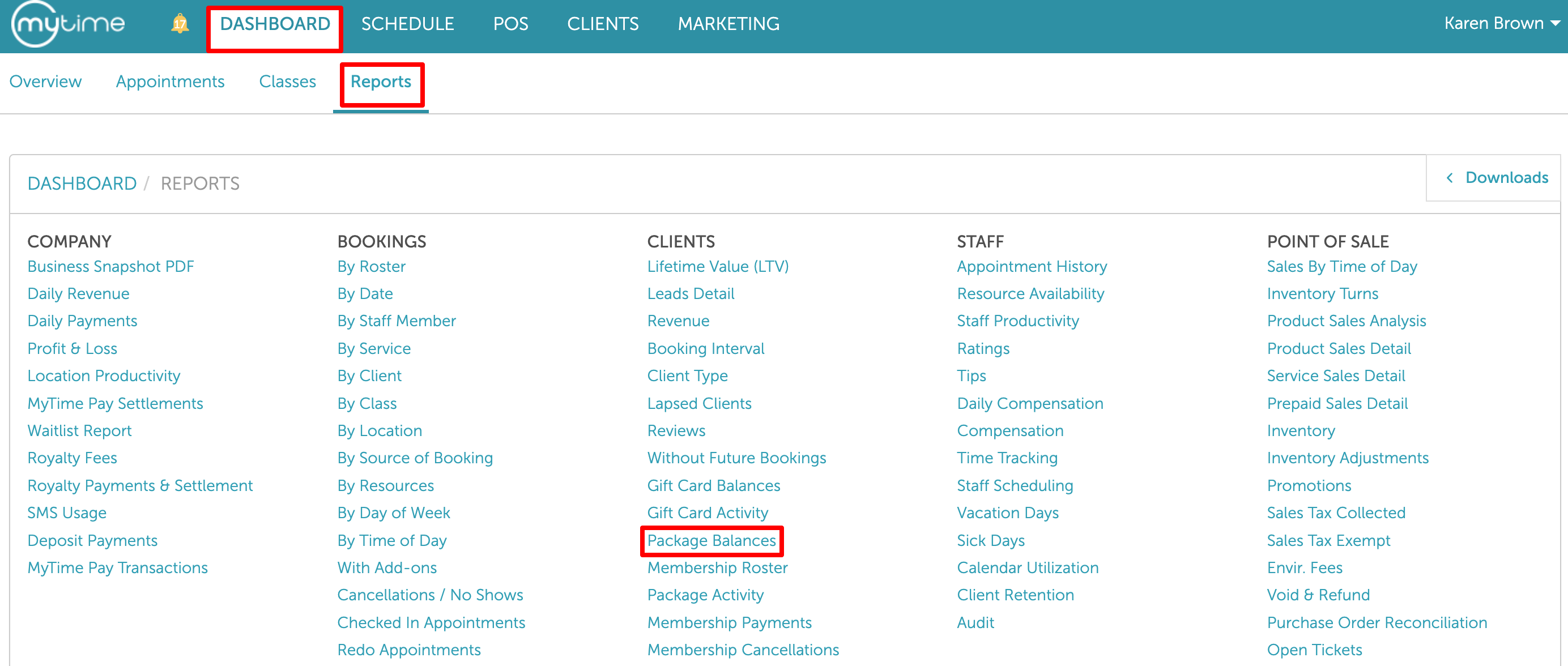
1. Navigate to Dashboard
2. Select the Reports tab
3. Under the Clients section, select the Package Activity report
4. When the report loads, you can filter by the location and date. In the upper right, you may search by client name
5. Select "Update" to generate data on the report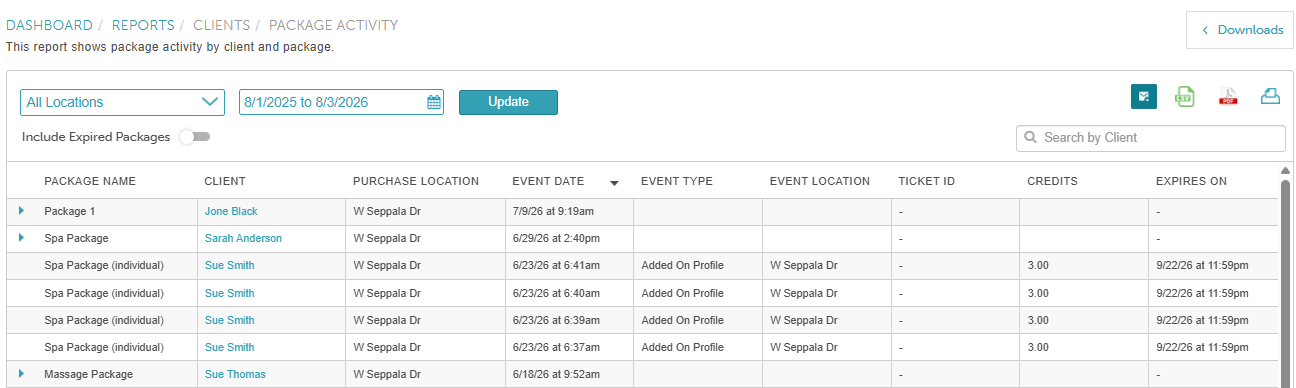
Report Filters
| Filters | Description |
| Location | The location where the package activity took place.
|
| Date | Display package activity within a specific date range |
| Include Expired Packages | This toggle is disabled by default.
|
Report Columns
| Columns | Description |
| Package Name | The name of the purchased package |
| Client | The name of the client associated with the package. This field is hyperlinked; clicking the link opens the client's profile. |
| Purchase Location | The location where the package was originally purchased |
| Event Date | The date and time when the activity occurred, such as when the package was purchased, used, adjusted, or added to the client’s profile. |
| Event type | The type of activity recorded:
|
| Event Location | The location where the activity took place |
| Ticket ID | The ticket number associated with the transaction. Clicking this link opens the ticket in MyTime POS |
| Credits | The number of credits affected by the event |
| Expires On | The date the package is set to expire |
For more information, contact us at support@mytime.com.
Related Articles:
Was this article helpful?
That’s Great!
Thank you for your feedback
Sorry! We couldn't be helpful
Thank you for your feedback
Feedback sent
We appreciate your effort and will try to fix the article