This guide will walk you through how to set up your Ingenico AXIUM terminal and get it ready to process payments with MyTime.
Because the AXIUM interface is consistent across devices, this guide applies to all supported models, including the DX5000, EX8000, RX5000, RX7000, and RX9000. While screen sizes and form factors may vary between models, the overall setup process and user experience remain the same.
By the end of this guide, your terminal will be fully configured and ready to take payments.
Instructions to use article templates
Create a step-by-step guide
Step 1: Connect your terminal to power & internet
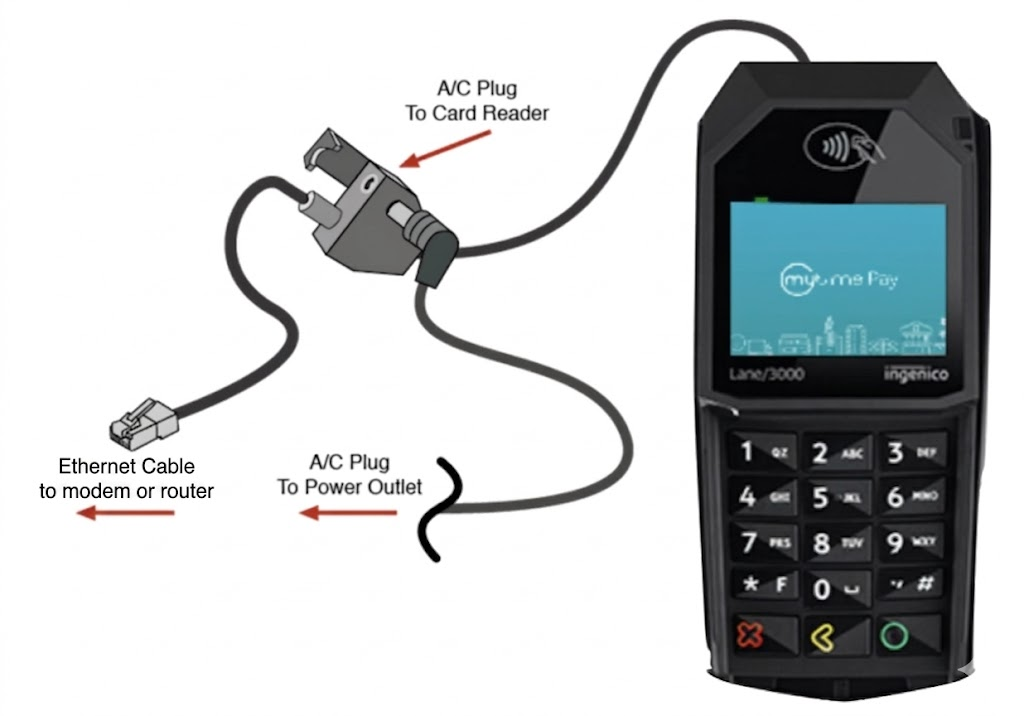
- Follow the instructions in the video above, or the visual aid below, to connect your reader to your network via an Ethernet connection.
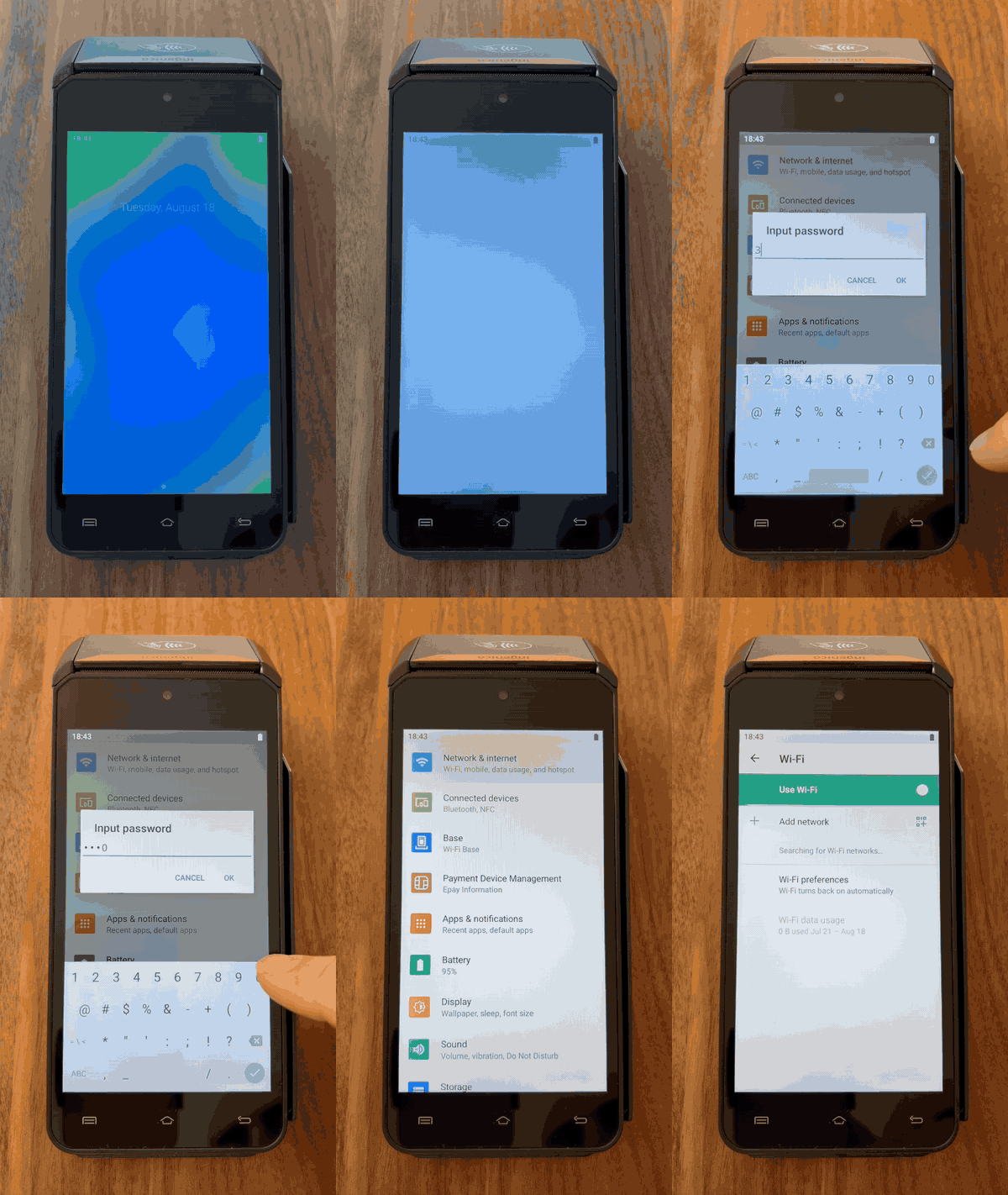
- If you are connecting via WiFi (WiFi models only) follow the video below to connect to WiFi - then refer to this article to complete the setup.
- The admin password is 350000
- Avoid altering additional settings in the admin menu. Most parameters are hardcoded and revert on reboot. Do not change the timezone from Eastern Time (ET), as doing so will cause your internet connection to stop working.
- If your Wi-Fi connection is stuck on "Saved", change your router's security setting from WPA3 to WPA2. Router menus vary, so contact your internet provider, reach out to a network admin, search online, or use an AI assistant and your router's model number for steps to update your WPA settings.
For Ethernet connected Terminals - connect the terminal to a modem or router. Do not plug it into your computer’s Ethernet port—your computer does not provide internet access to the terminal.
Step 2: Register the terminal to your MyTime account (This Lane Closed)
- Once connected and the reader has booted up, you will see the MyTimePay screen (as seen below). If you don't see a MyTime Pay screen (e.g., you see This Lane Closed) you need to register your reader to your MyTime account. Follow the video below or follow the steps in the link to register your reader. Return to this article after registration.
We attempt to pre-register all terminals before shipment. In rare cases, if your device ships before your merchant account is fully active, you will need to register the terminal yourself. See video above.
TIP: The terminal screen has a clear protective film that is very hard to see and often overlooked. Please remove it before use.
Step 3: Optional Counter Mount
- If you ordered a payment mount, see the video below on how to set that up
- ,If you did not order a mount and would like to click here!
Step 4: Run a test
- Click here to see how to run a test transaction and confirm your reader is functioning properly.
- The minimum transaction amount is $00.50
Was this article helpful?
That’s Great!
Thank you for your feedback
Sorry! We couldn't be helpful
Thank you for your feedback
Feedback sent
We appreciate your effort and will try to fix the article