You can collect signatures for membership agreements while processing membership purchases in the Scheduler App. This article explains how to generate and manage membership agreements in POS.
Things to Know:
- Membership agreements will only appear in POS if a membership intake form has been created and at least one membership has been assigned to it.
- If the “Prompt for membership agreement signature when selling memberships in POS” setting is enabled, staff will be prompted to collect a signature during the membership purchase.
- This prompt is optional and can be skipped if needed.
- The prompt appears after a client is added to the ticket along with a membership that has an associated membership agreement.
Follow the steps below to generate a membership agreement when processing a membership through the POS:
1. Launch the MyTime Scheduler app on your device
2. Choose your login method:
- Standard: Enter your registered email address and password, then tap 'Sign In'
- Social Login: Select 'Continue with Google' or 'Continue with Apple' to use your existing credentials for a faster login experience. For detailed instructions, learn more here
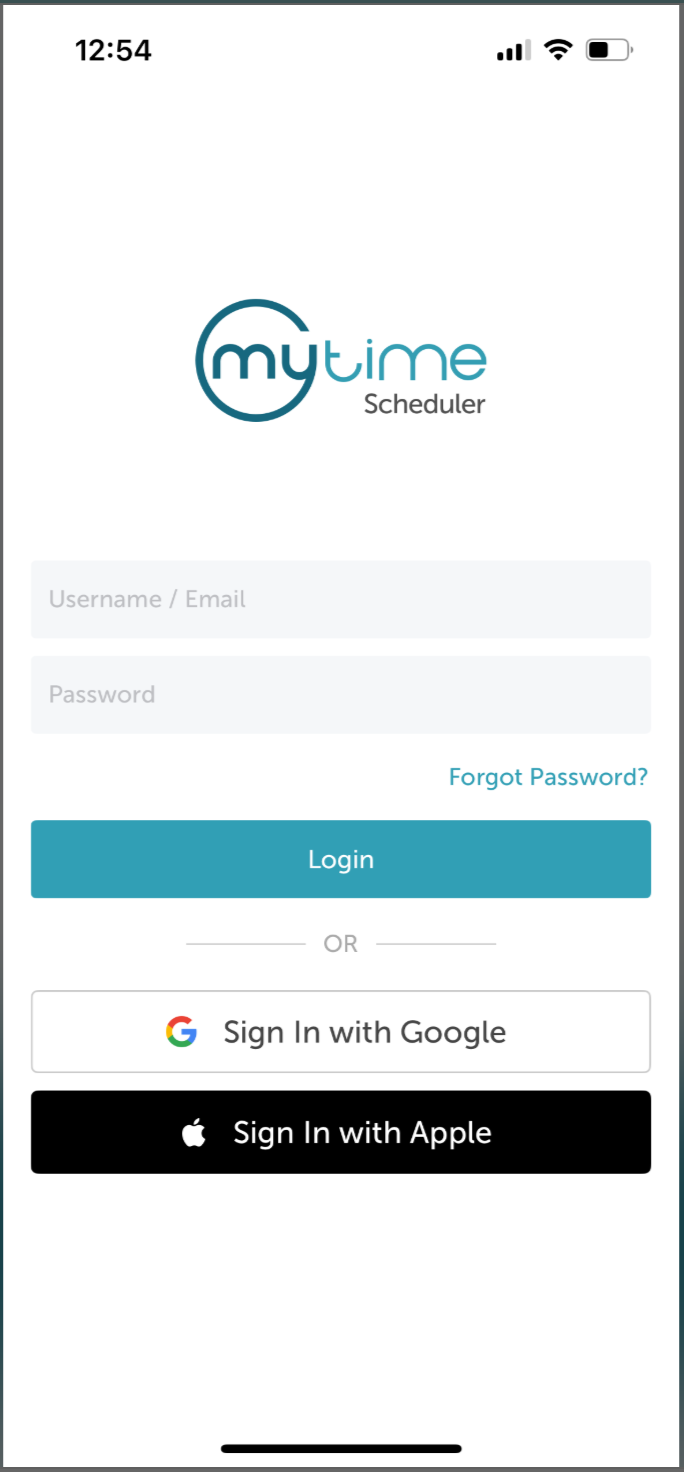
3. Once signed in, you will be directed to the schedule by default
4. Tap the POS icon 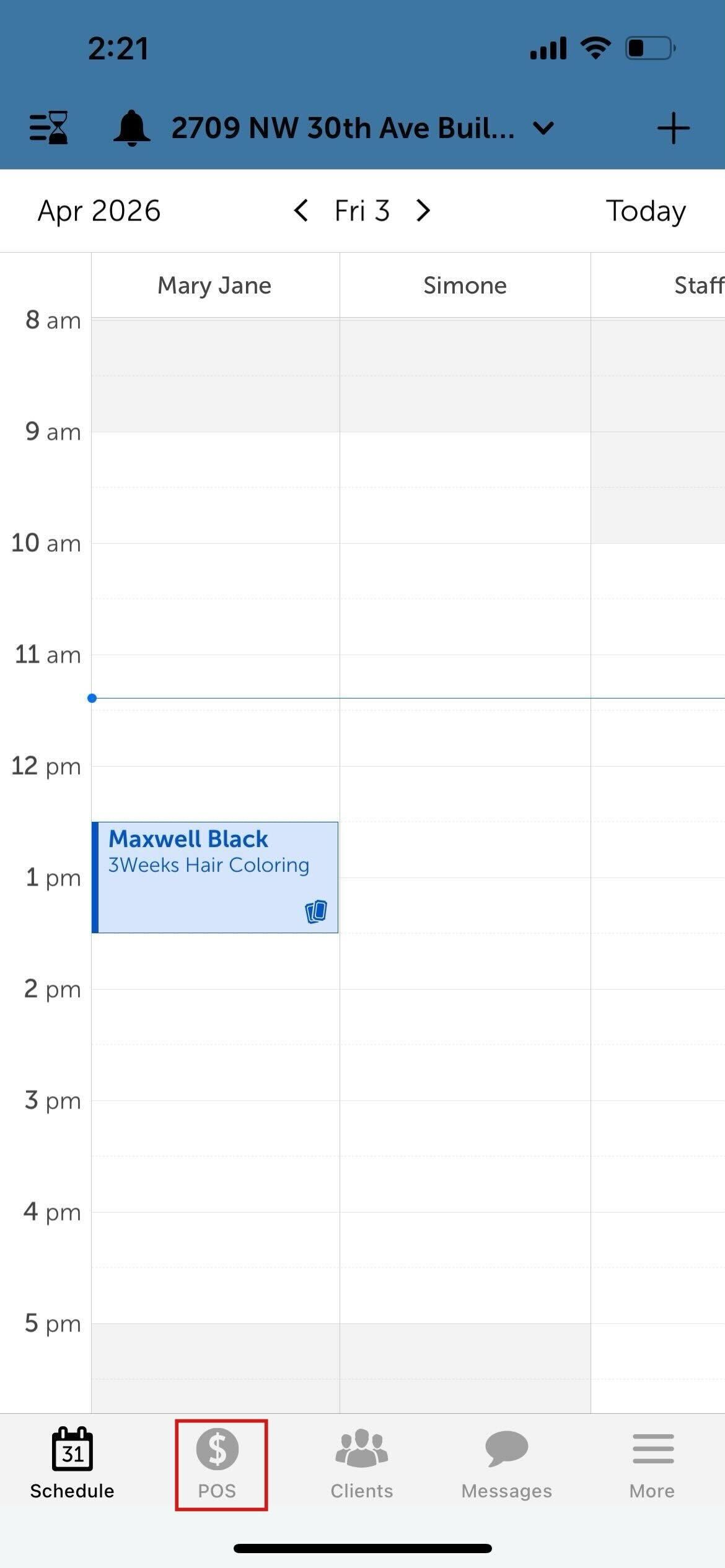
5. Select the client’s profile to attach them to the ticket
6. Tap the + Product option 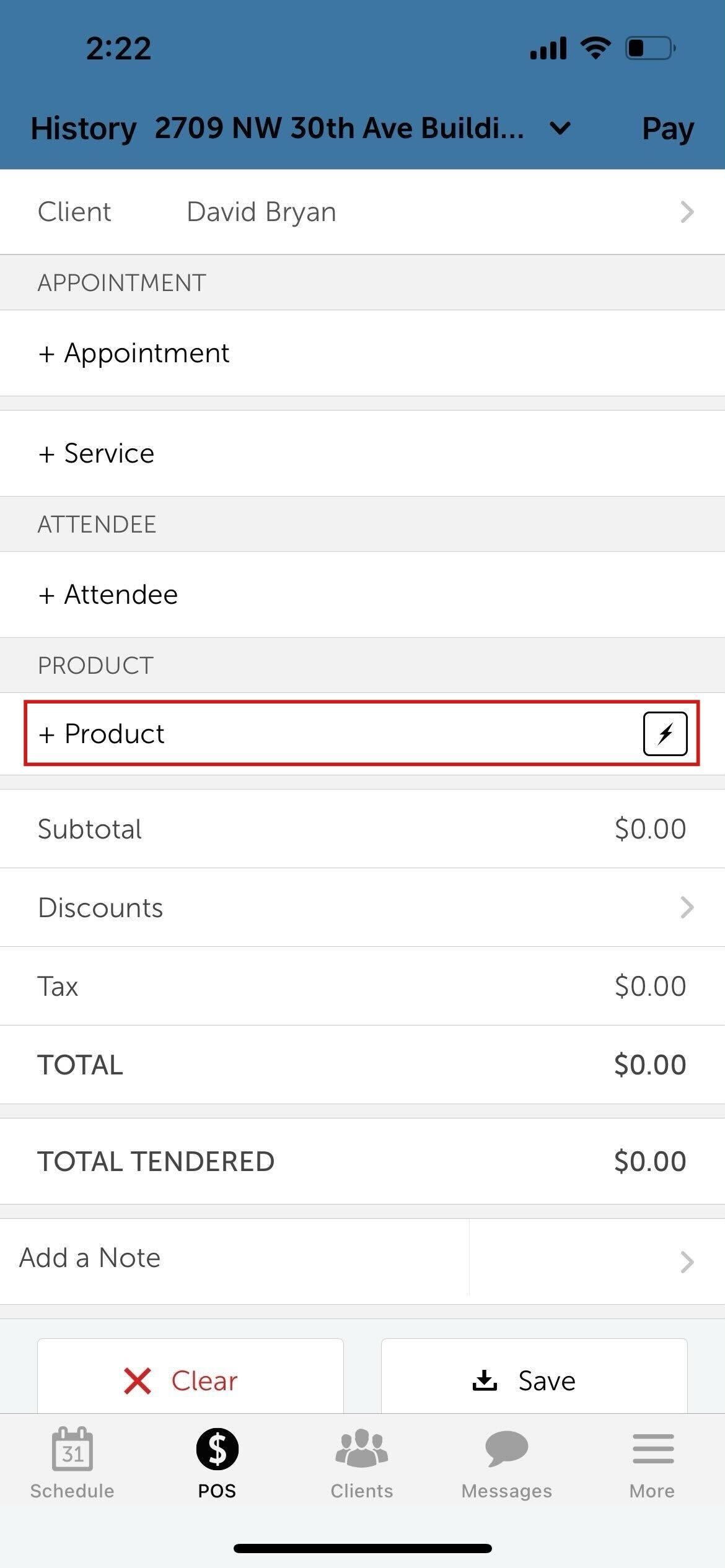
7. Select "Membership" 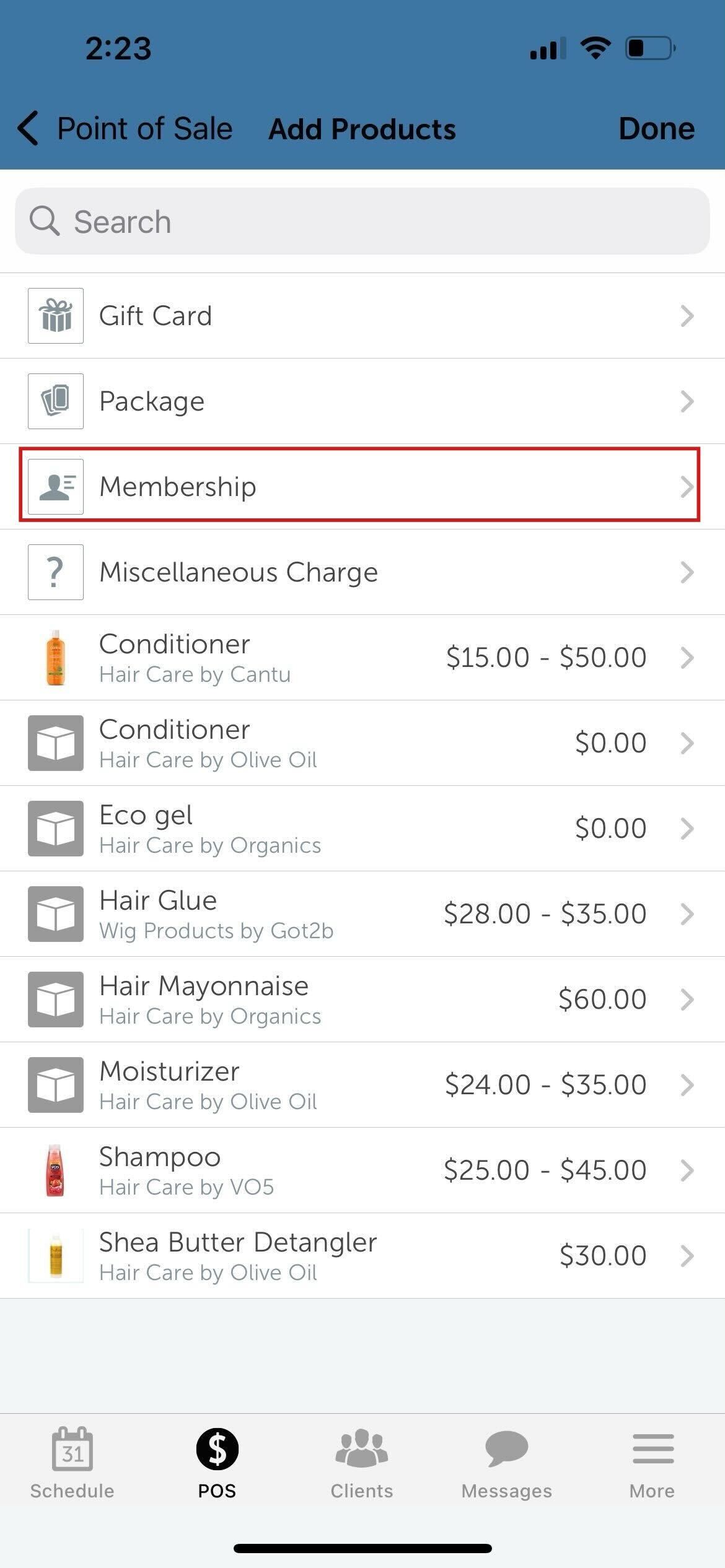
8. Select the desired membership
9. Tap "Add" at the top right of the screen
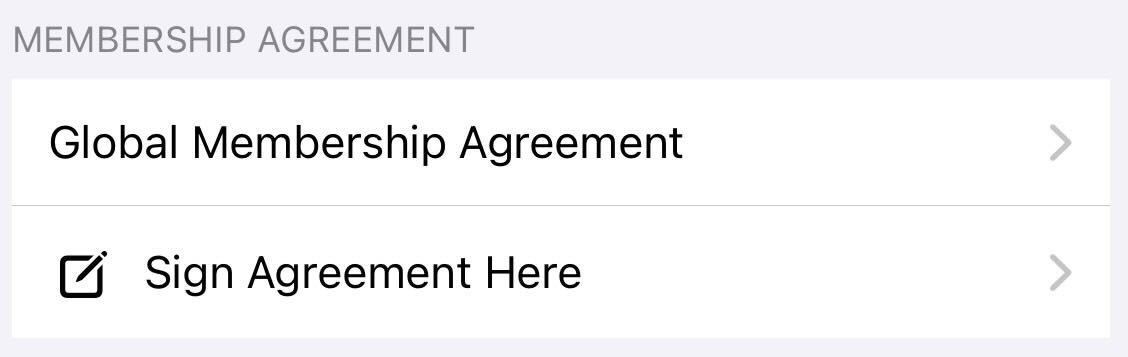
10. If Auto-Prompt is enabled: A Send Agreement window will appear automatically. Select the appropriate waiver and choose a signature method:
- Sign Agreement Here: Opens the document on the current device for the client to sign.
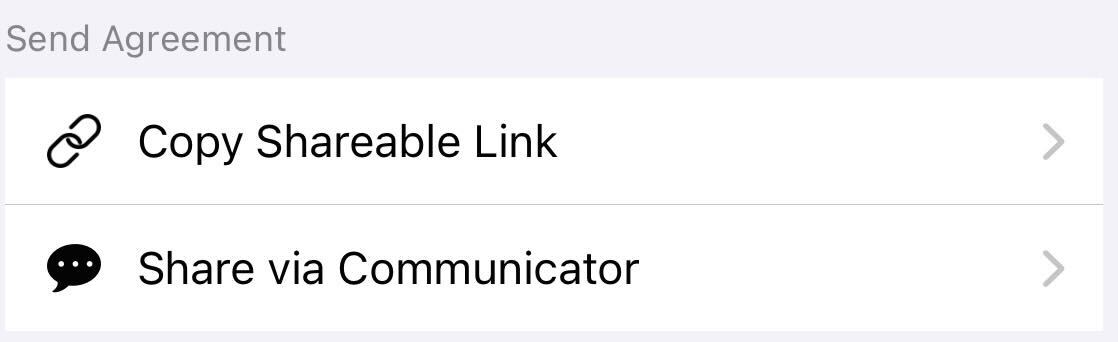
- Send Agreement: Choose how to deliver the agreement:
- Copy Shareable Link: Copies the link to your clipboard so it can be shared elsewhere.
- Share via Communicator: Sends the agreement link through the MyTime Communicator.
11. Once ready, tap “Pay” in the top-right corner.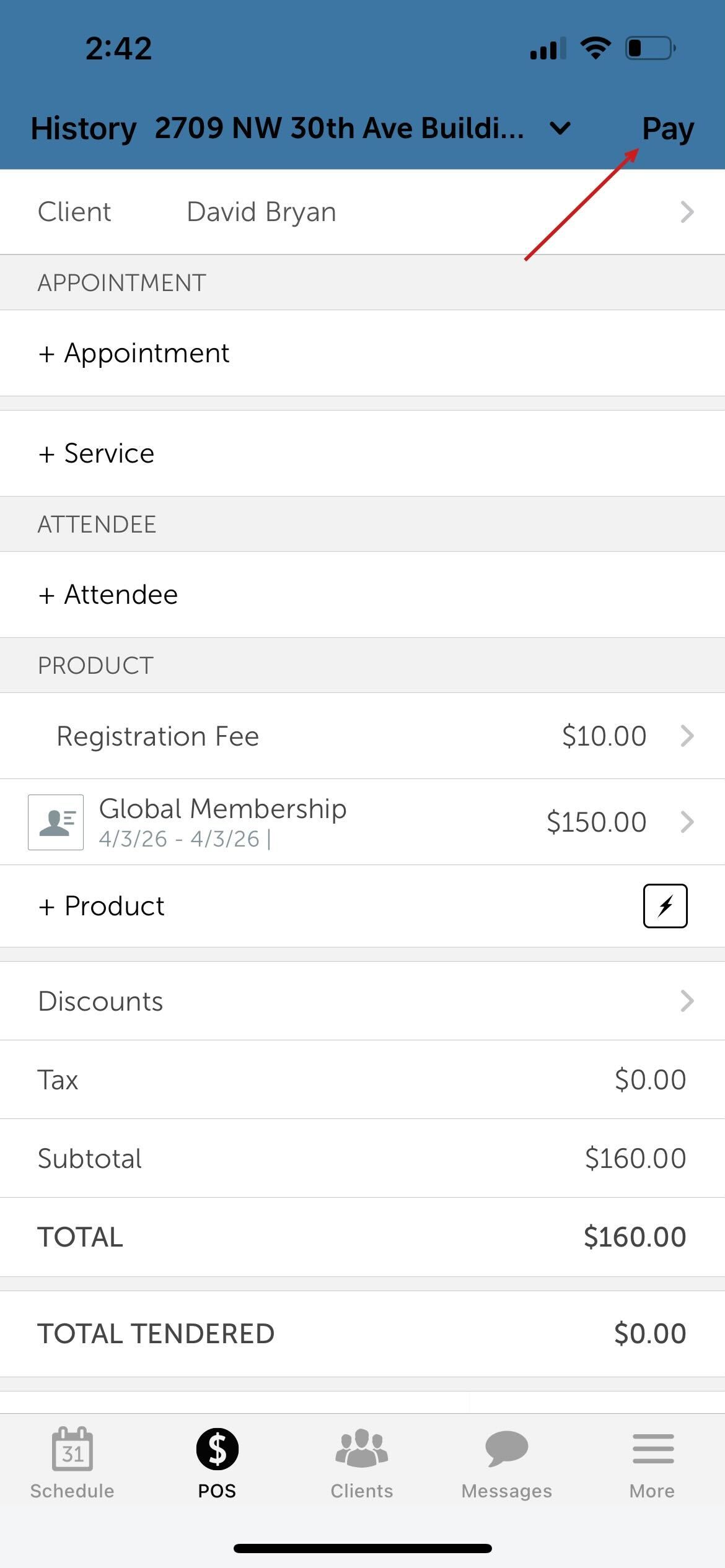
12. Complete the payment to finalize the checkout process.
For more information, contact us at support@mytime.com or (385) 233-6964.
Related Articles:
Generating Membership Agreements on Web
Installing MyTime on Scheduler App (Android and iOS)
Signing into MyTime on Scheduler App (Android and iOS)
Selling Memberships for Clients in POS on Scheduler App
Selling Memberships for Family Members in POS on Scheduler App
Was this article helpful?
That’s Great!
Thank you for your feedback
Sorry! We couldn't be helpful
Thank you for your feedback
Feedback sent
We appreciate your effort and will try to fix the article