Things to Know:
- The ability to find the next available date and time on the schedule is governed by the "Accessing Appointments" access control setting.
- This feature displays two hyperlinks on the appointment modal:
- Visual Booking: Clicking the hyperlink allows you to open your calendar and visually scan for an available time, which you can click to schedule the appointment.
- View Openings: Clicking the hyperlink allows you to automatically identify and display the next available date and time for the selected service or staff member. The "View Openings" hyperlink will become available after selecting a service on the appointment modal
- Available dates will appear in black with a green dot, while unavailable dates will be grayed out.
- The time picker will display only available time slots
Contents:
Visual Booking
To find the next available date and time on the scheduler app for appointments using the "Visual Booking" option:
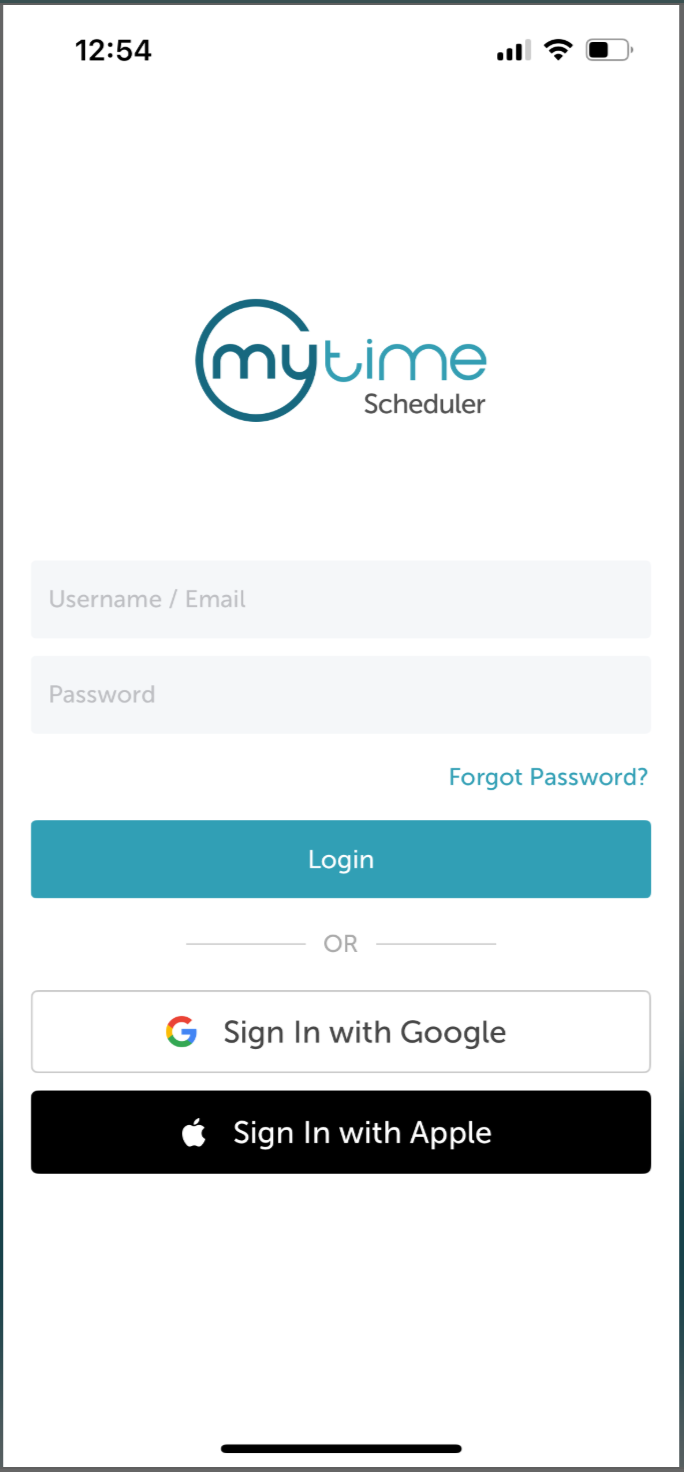
1. Launch the MyTime Scheduler app on your device
2. Choose your login method:
- Standard: Enter your registered email address and password, then tap 'Sign In'
- Social Login: Select 'Continue with Google' or 'Continue with Apple' to use your existing credentials for a faster login experience. For detailed instructions, learn more here
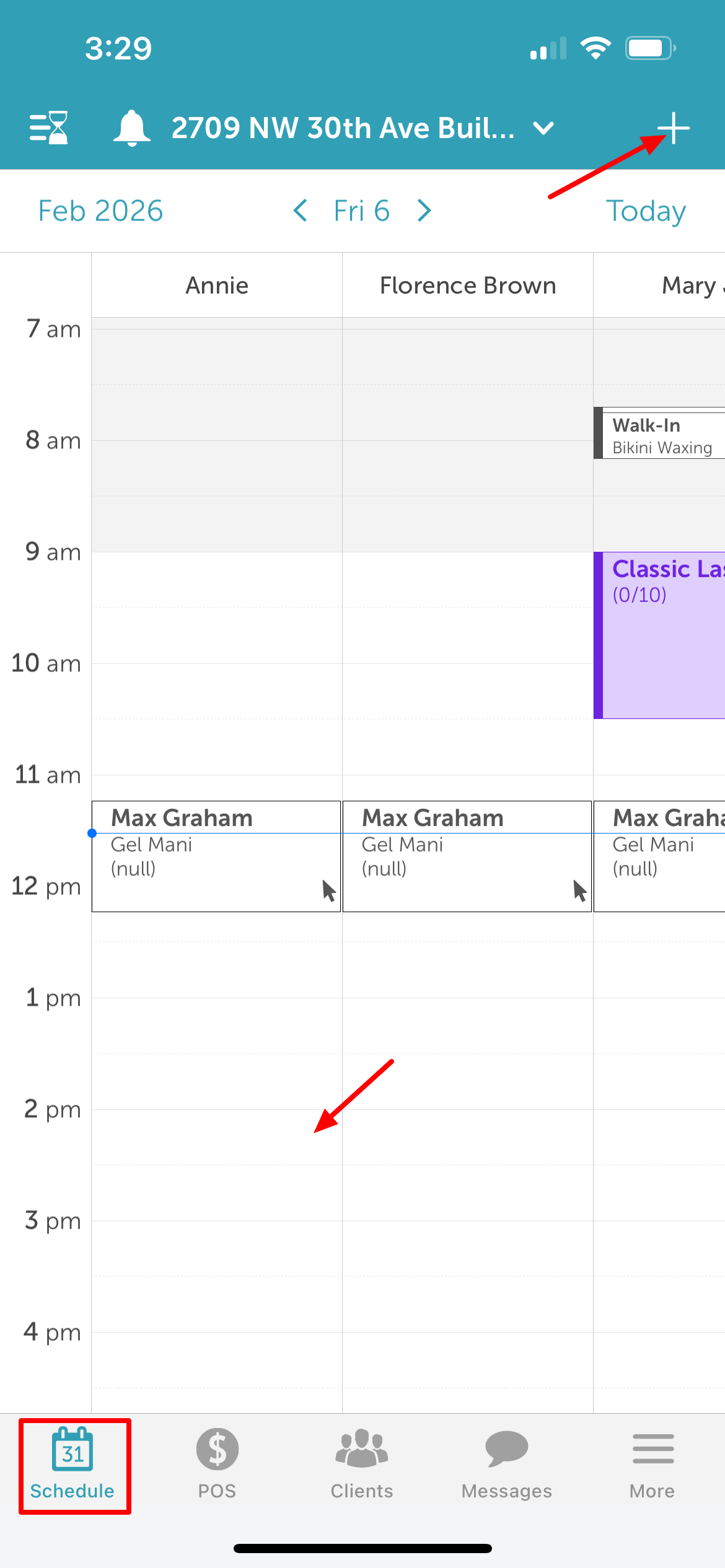
3. You will be directed to the Schedule screen by default
4. To create a new appointment:
- Tap an open time slot on the schedule, or
- Tap the “+” icon in the top-right corner to open the Appointment modal
5. Add a client.
6. Select a service 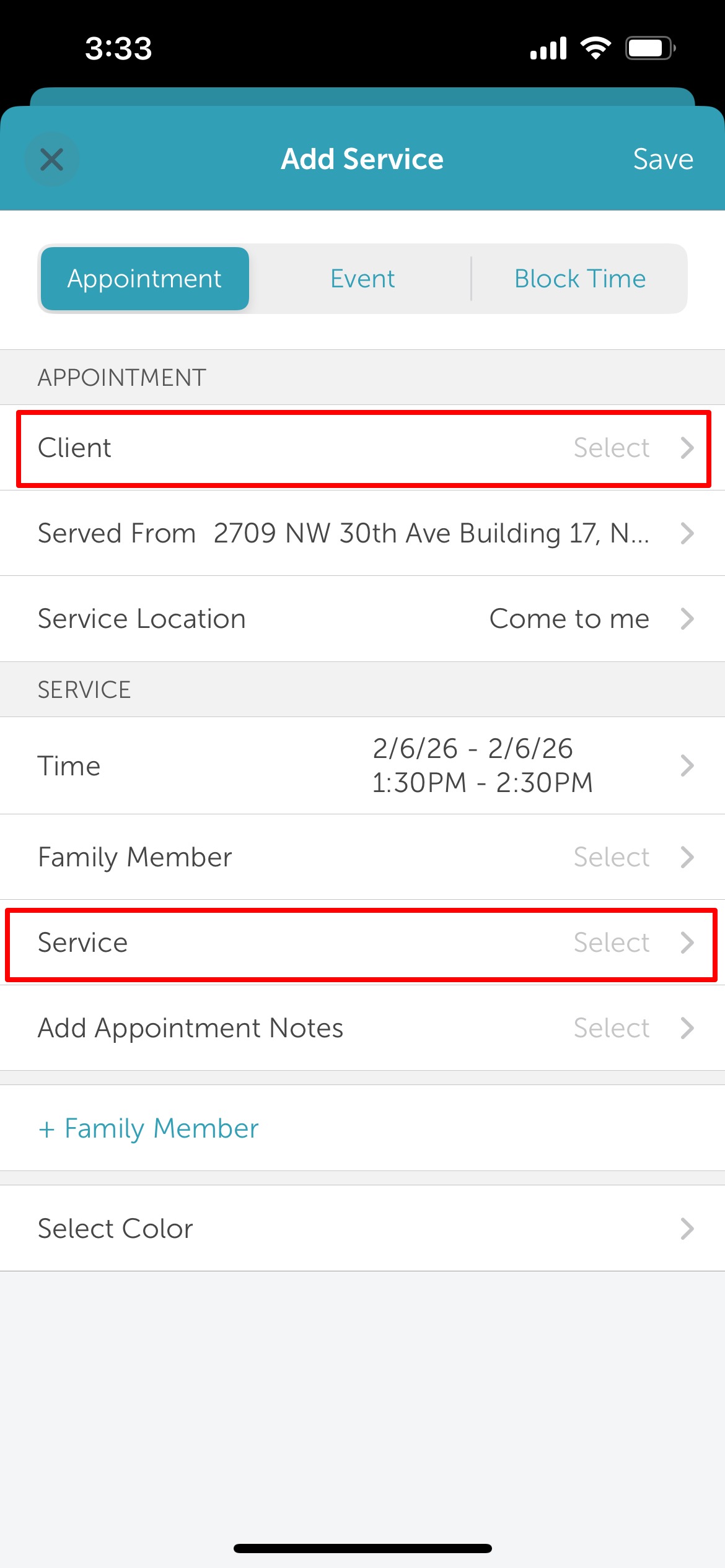
7. Select a staff member
8. Tap the 'Time' field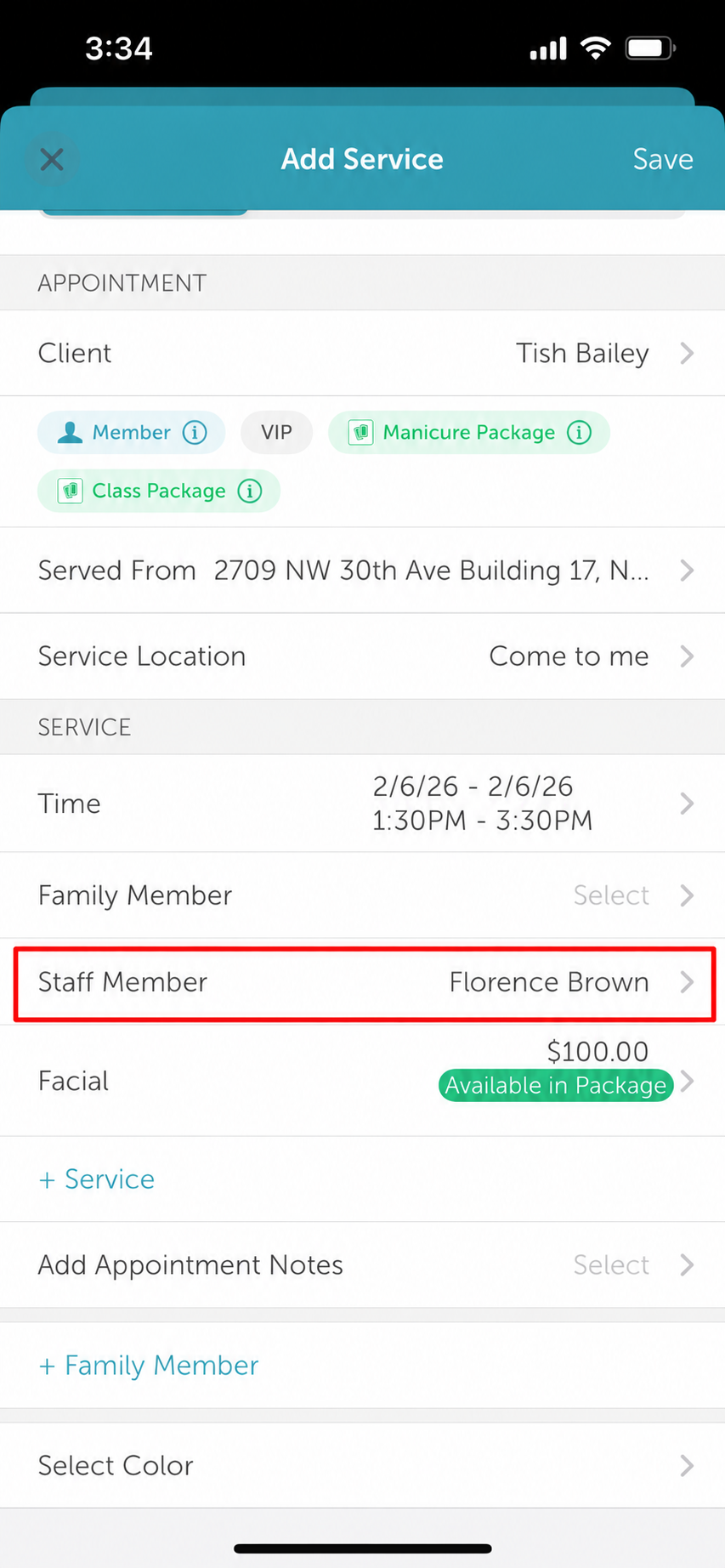
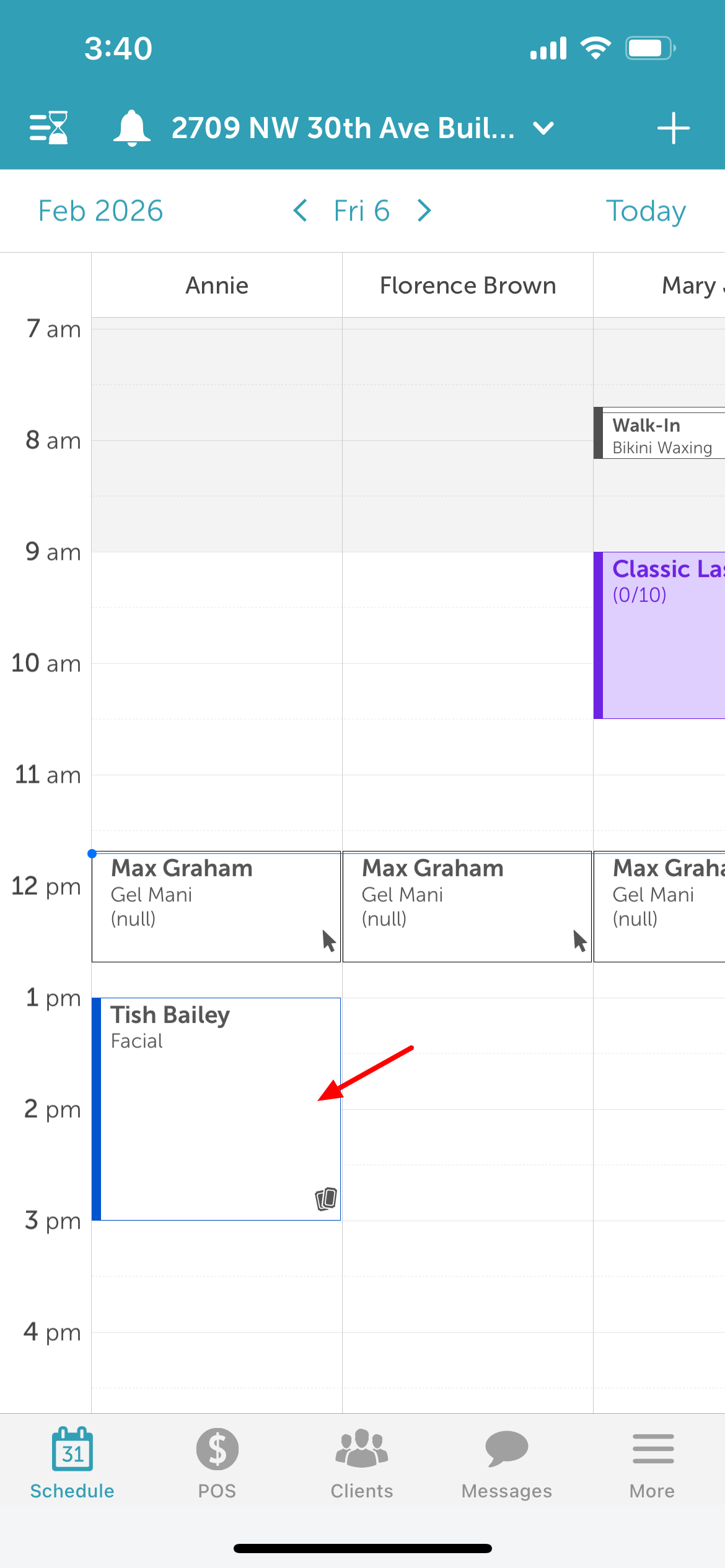
9. Tap 'Select Time Visually' 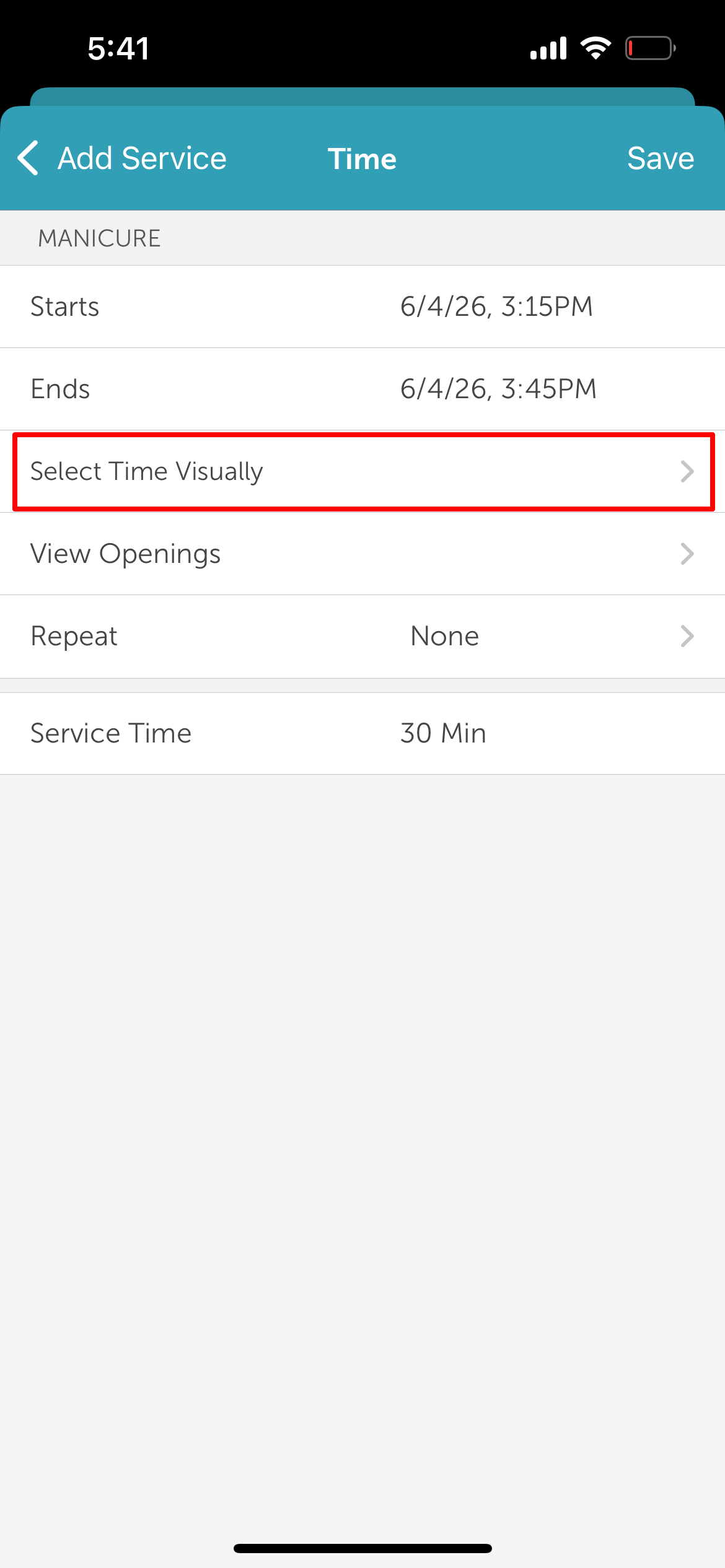
10. The schedule will open, allowing you to visually scan for an available date and time. Tap your desired time slot.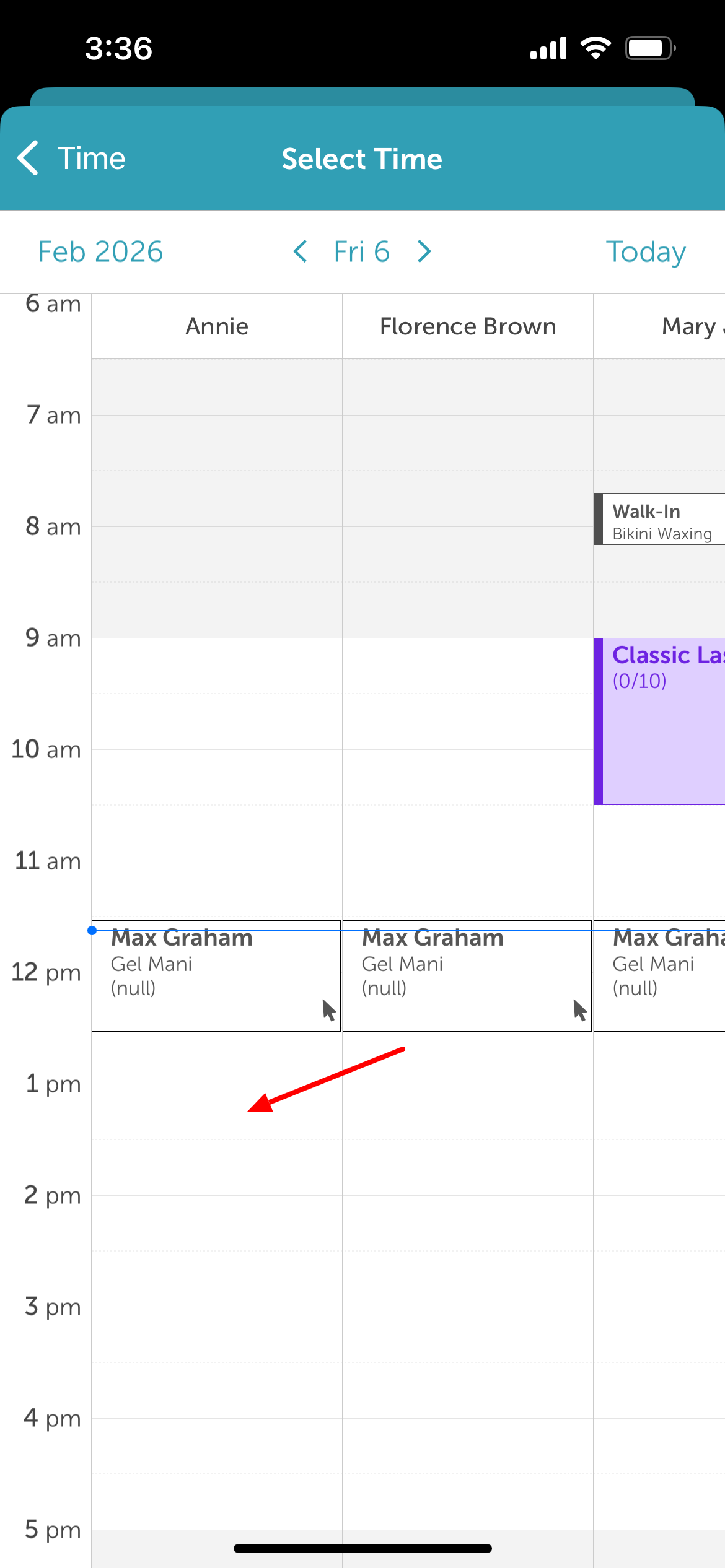
11. You will be redirected to the Time screen.
12. Tap 'Save' in the top right corner 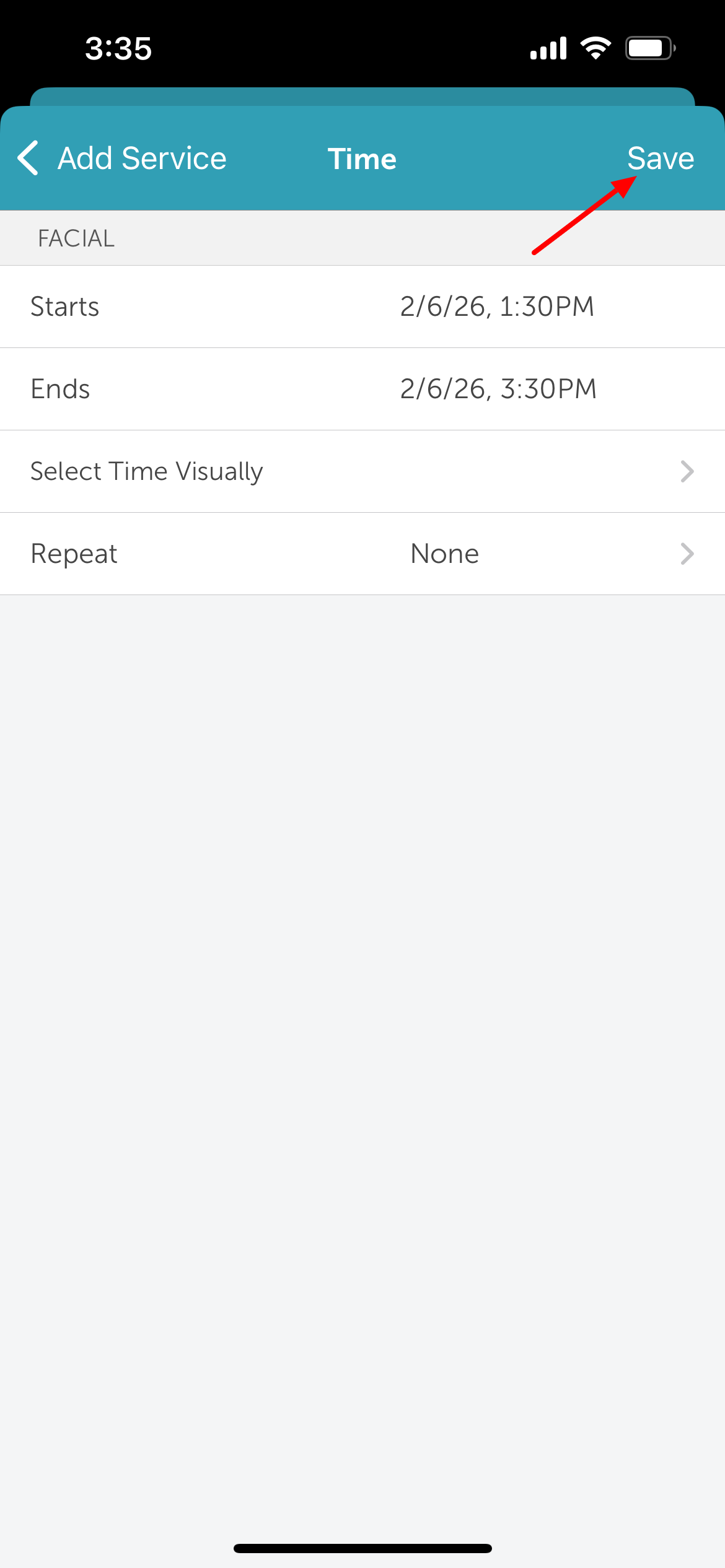
13. The appointment modal will reappear with the selected time and staff member
14. Tap Save again to complete the booking 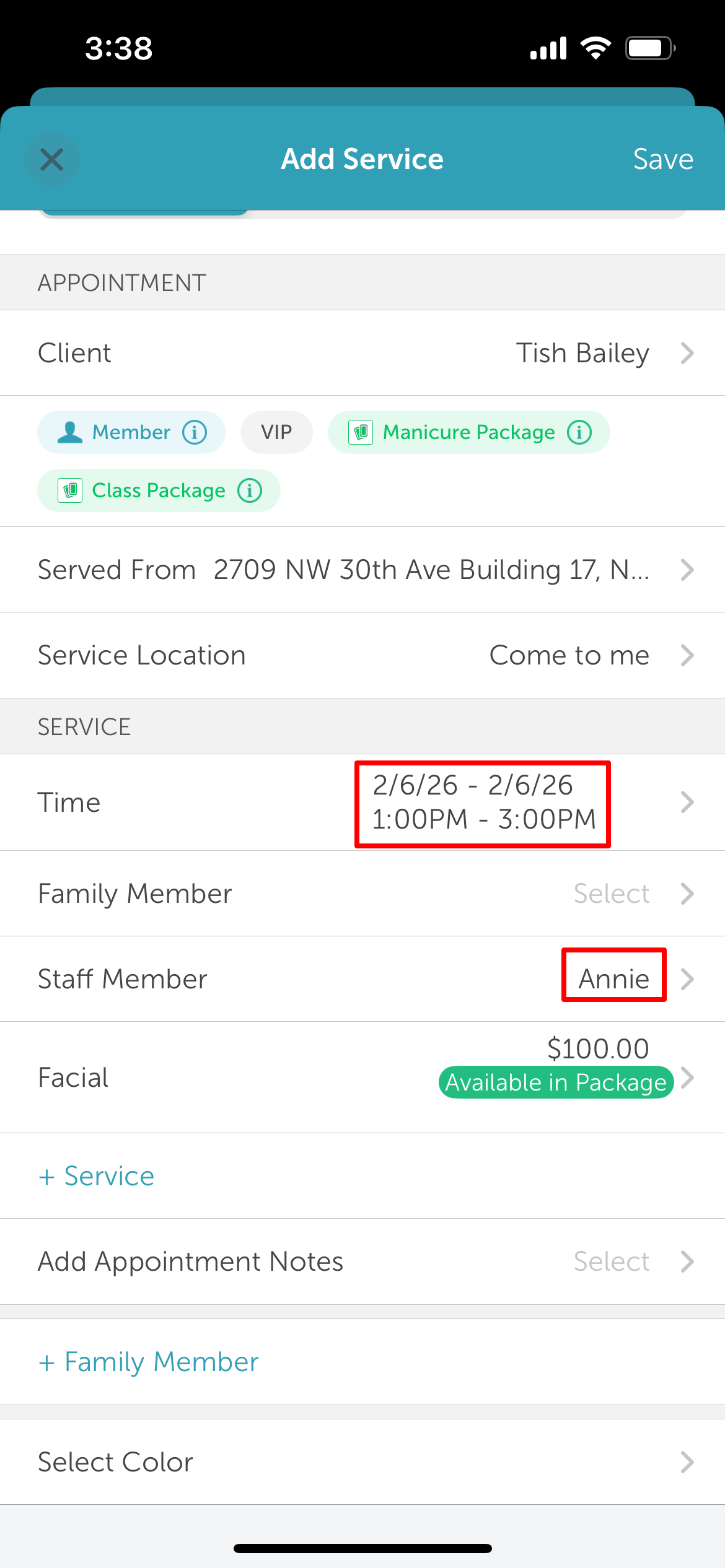
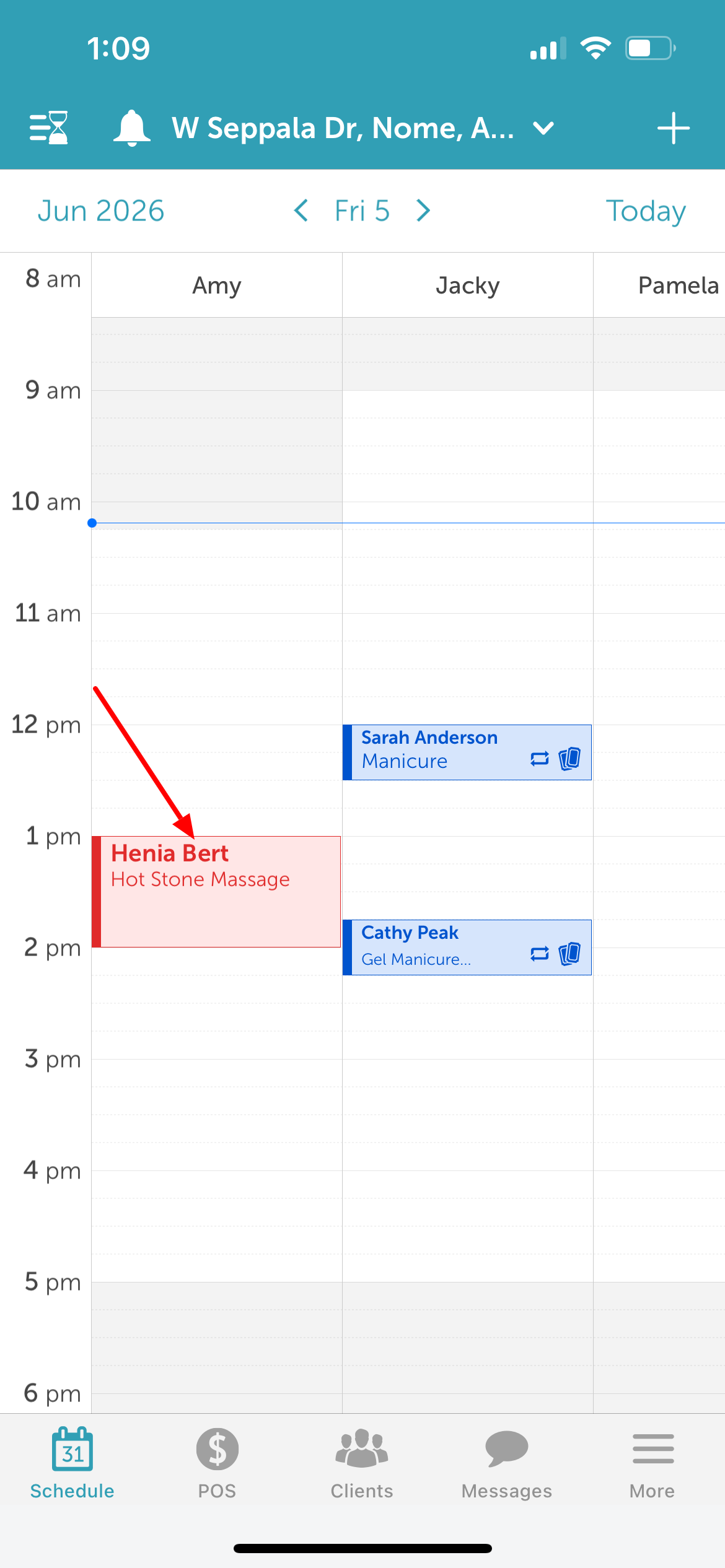
Once saved, the appointment will appear on the schedule at the selected date and time.
View Openings
To find the next available date and time in the Scheduler app using View Openings:
1. Once logged in, you will be directed to the Schedule screen by default
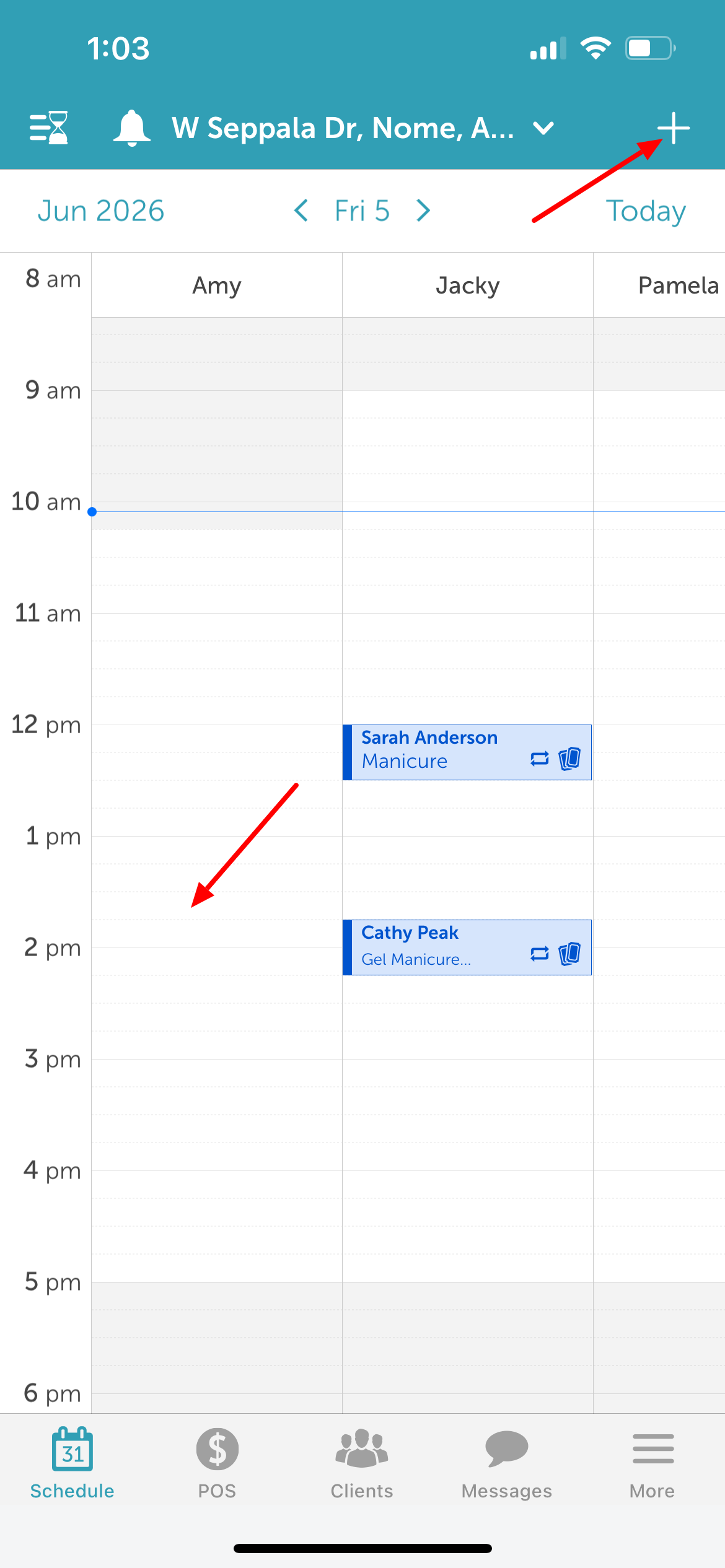
2. To create a new appointment, either:
- Tap an open time slot on the schedule, or
- Tap the “+” icon in the top-right corner to open the Appointment modal
3. Add a client.
4. Select a service
5. Select a staff member
6. Tap the 'Time' field 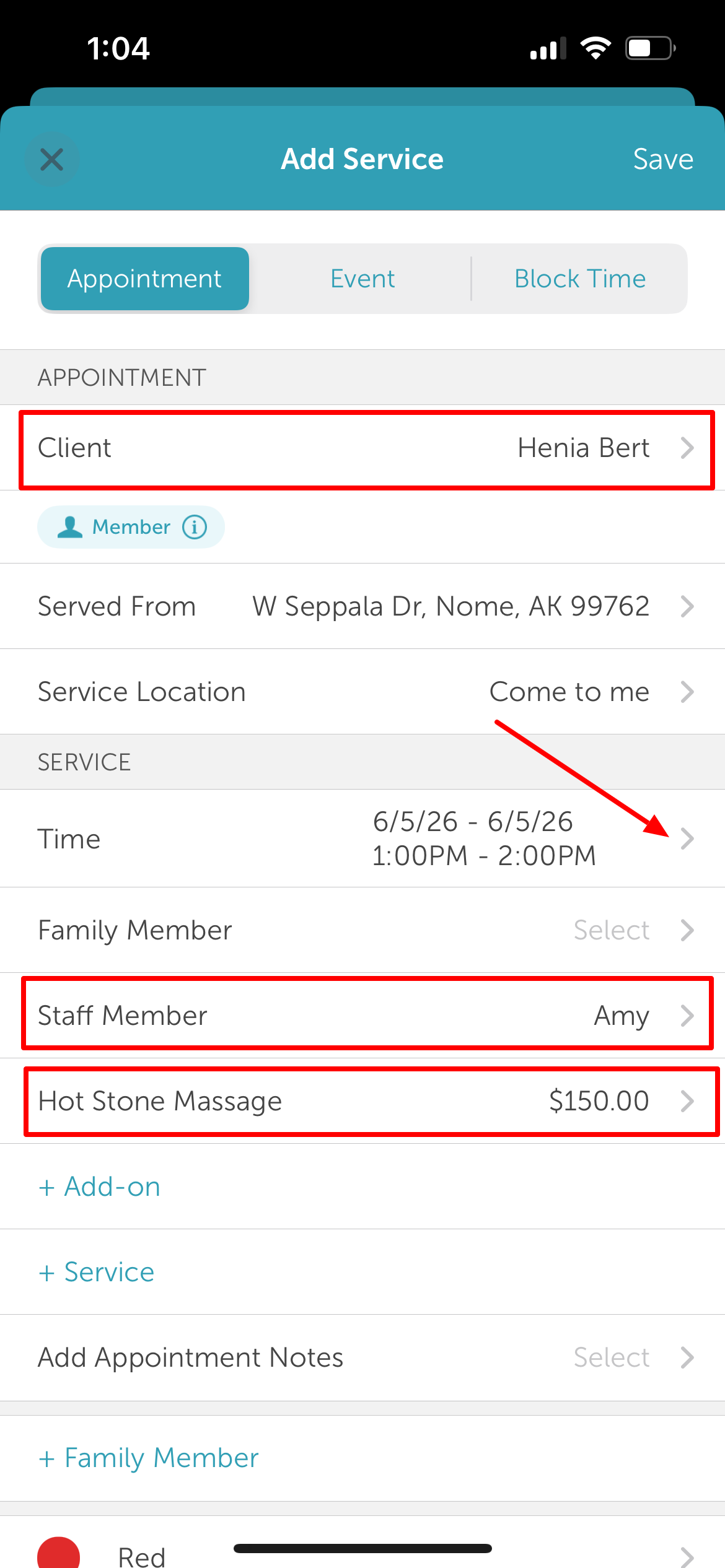
7. Tap 'View Openings' 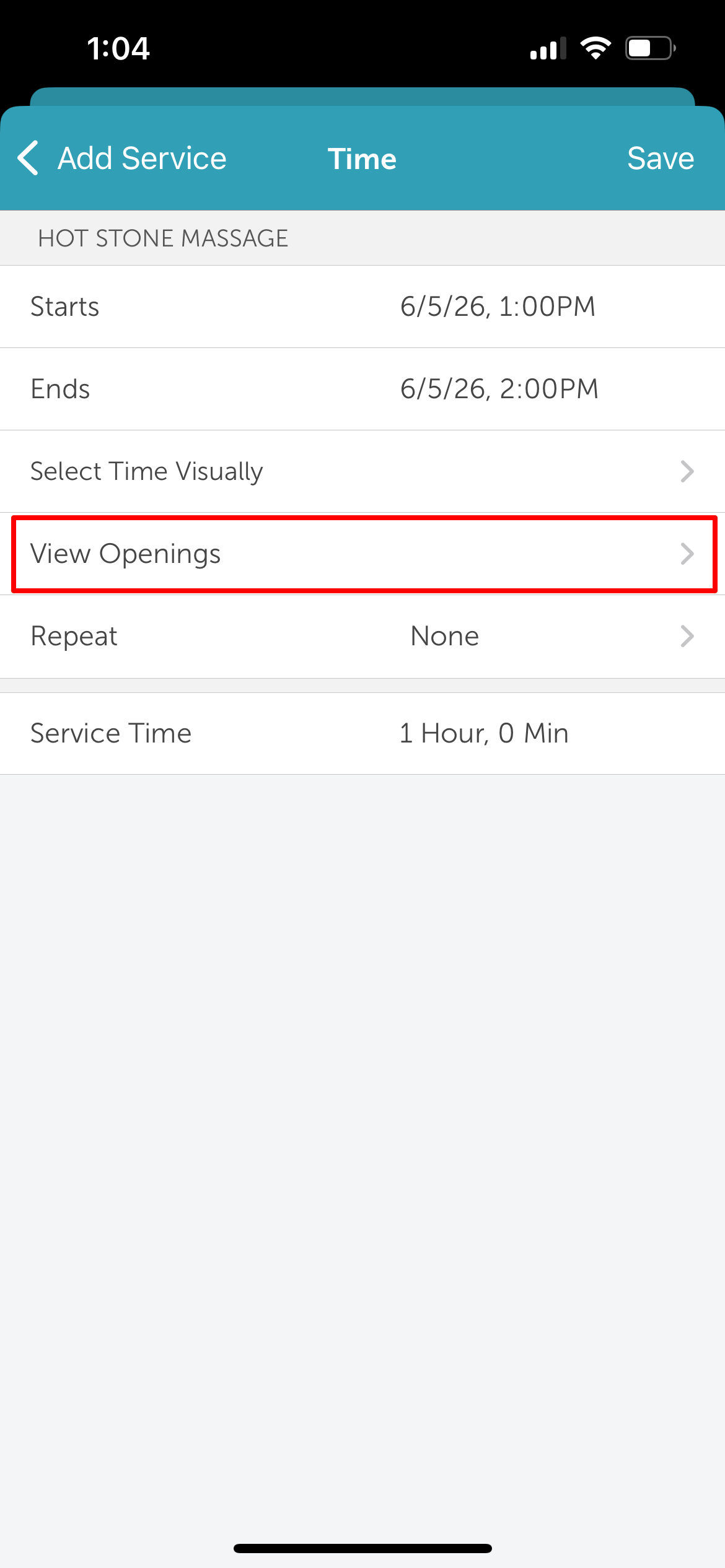
8. The "Find Available Date and Time" screen will appear. Select a date from the calendar and then choose a time from the time picker below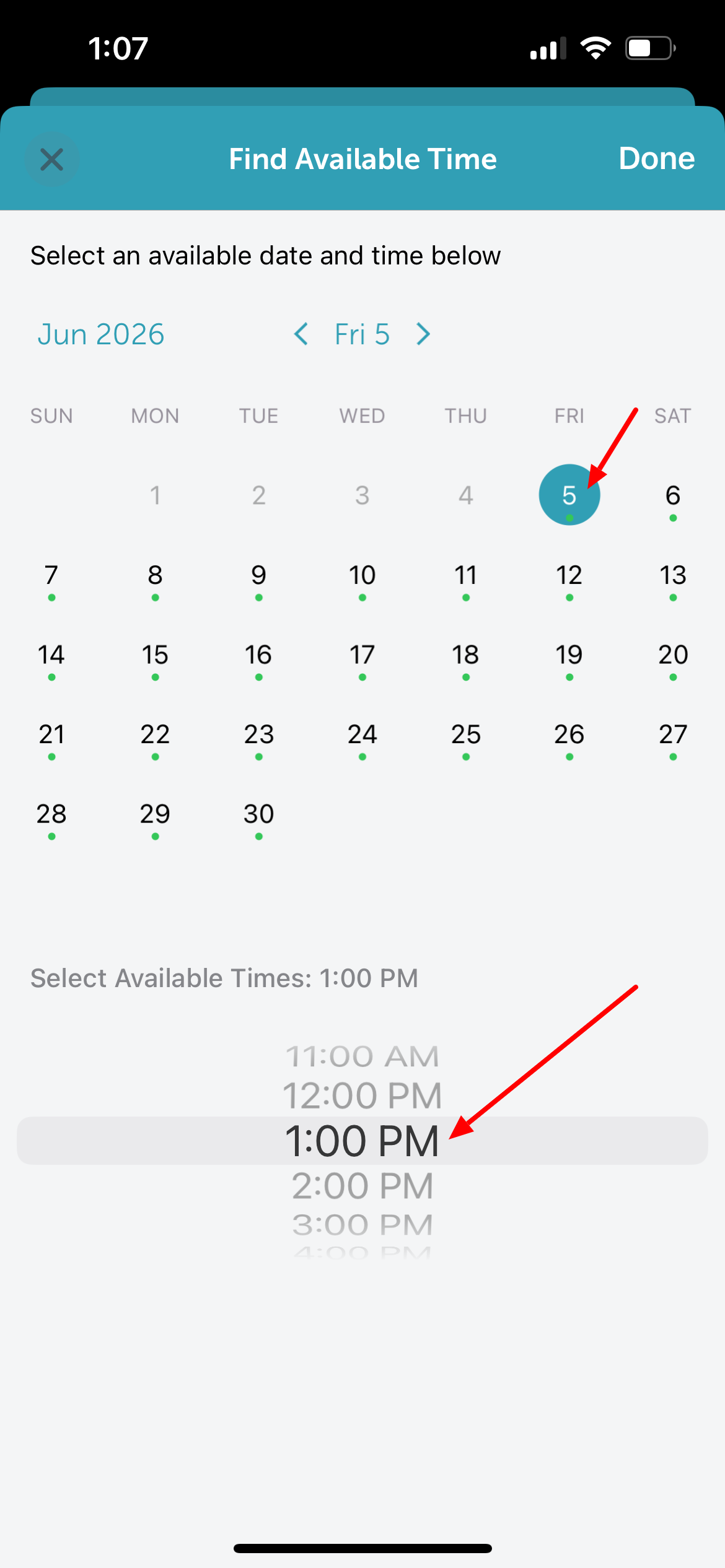
9. Tap "Done" in the top right of the screen to confirm your selection
10. Tap 'Save' in the top right corner of the appointment modal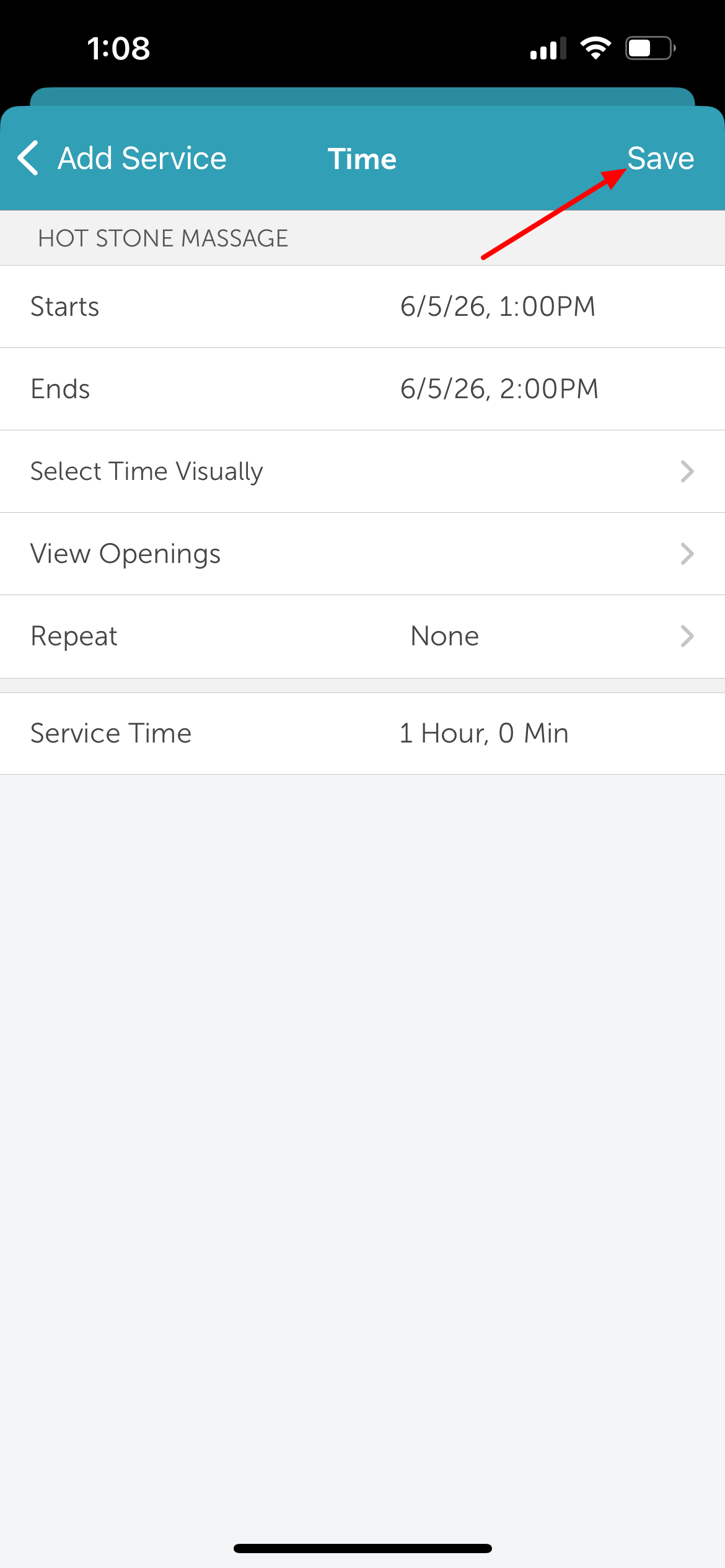
11. The appointment modal will reappear with the selected time
12. Tap 'Save' in the top right corner to complete booking 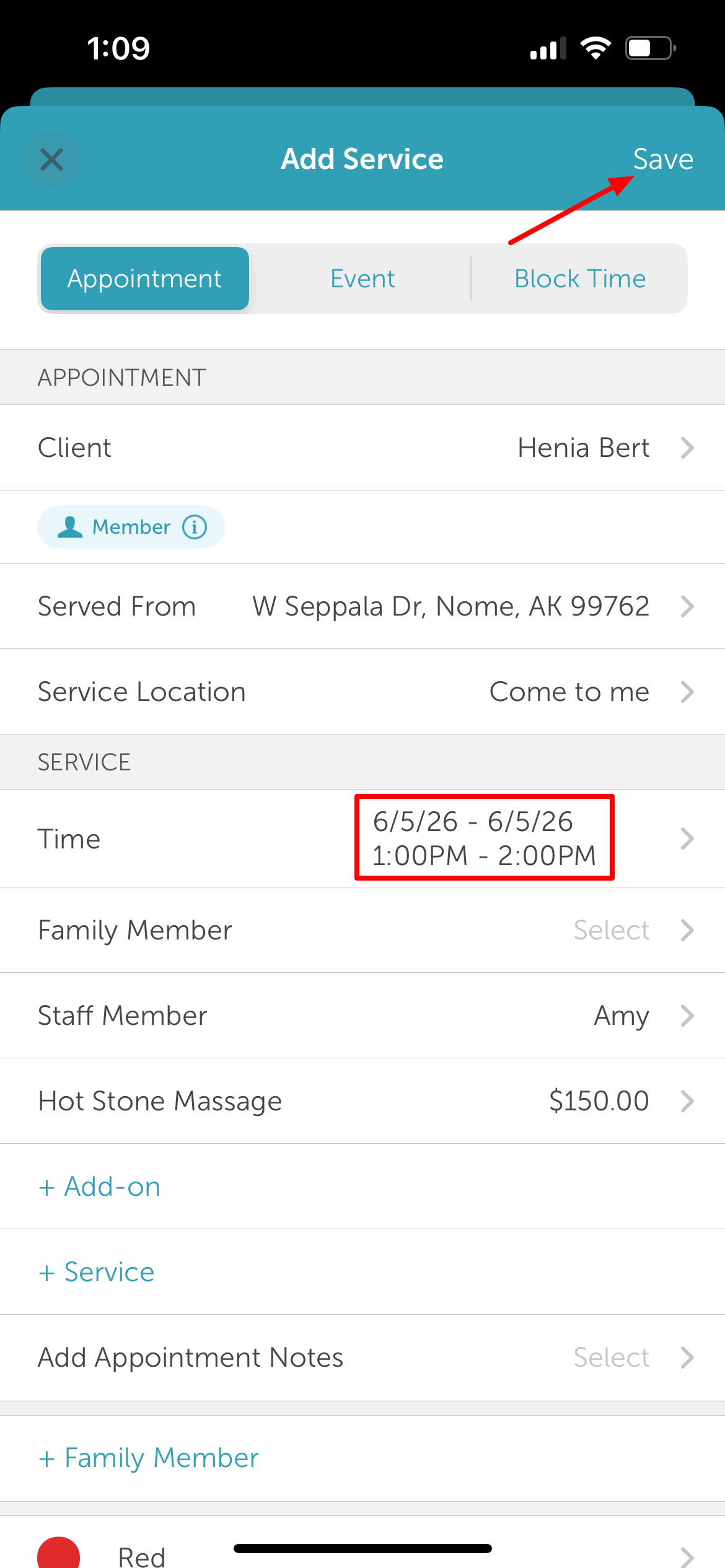
Once saved, the appointment will appear on the schedule at the selected date and time.
For more information, contact us at support@mytime.com.
Related Articles:
Installing MyTime on Scheduler App (Android and iOS)
Signing into MyTime on Scheduler App (Android and iOS)
Was this article helpful?
That’s Great!
Thank you for your feedback
Sorry! We couldn't be helpful
Thank you for your feedback
Feedback sent
We appreciate your effort and will try to fix the article