This article explains how to cancel recurring appointments in MyTime. It covers the difference between canceling a single occurrence versus deleting an entire recurring series, how past and future appointments are affected, and how cancellations appear in reports.
Things to know:
- The ability to cancel recurring appointments is controlled by the "Accessing Appointments" access control permission.
- Recurring appointments can be cancelled either from the Schedule or directly from the client’s profile.
- Cancelled recurring appointments will appear in the Cancellation/No Show Report just like any other cancelled appointment.
- Cancelled recurring appointments are immediately updated in both the client’s in-store profile and the My Account page in the client’s online experience.
- When a single appointment is canceled from a recurring series, that one appointment is removed from the series and marked as canceled on both the client’s in-store profile and the My Account page in the client’s online experience. The remaining appointments in the recurring series are unaffected and will continue as scheduled.
Contents:
- Cancelling a Single Appointment From a Recurring Series via Scheduler
- Cancelling All Appointments From a Recurring Series via Scheduler
- Cancelling a Single Appointment From a Recurring Series via Client Profile
- Cancelling All Appointments From a Recurring Series via Client Profile
Cancelling a Single Appointment From a Recurring Series via Scheduler
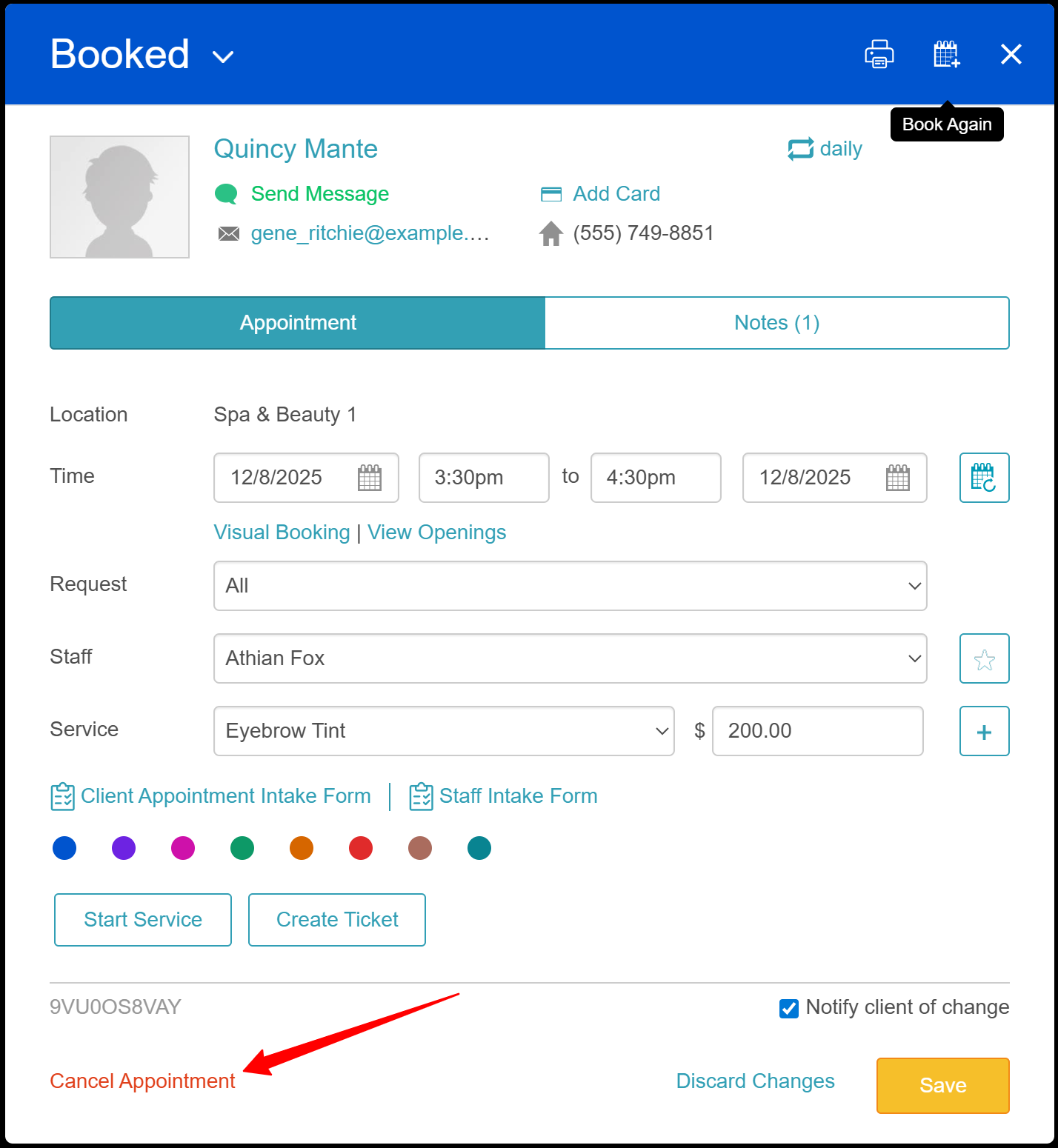
- Navigate to the schedule and locate the appointment you wish to cancel
- Click on the appointment
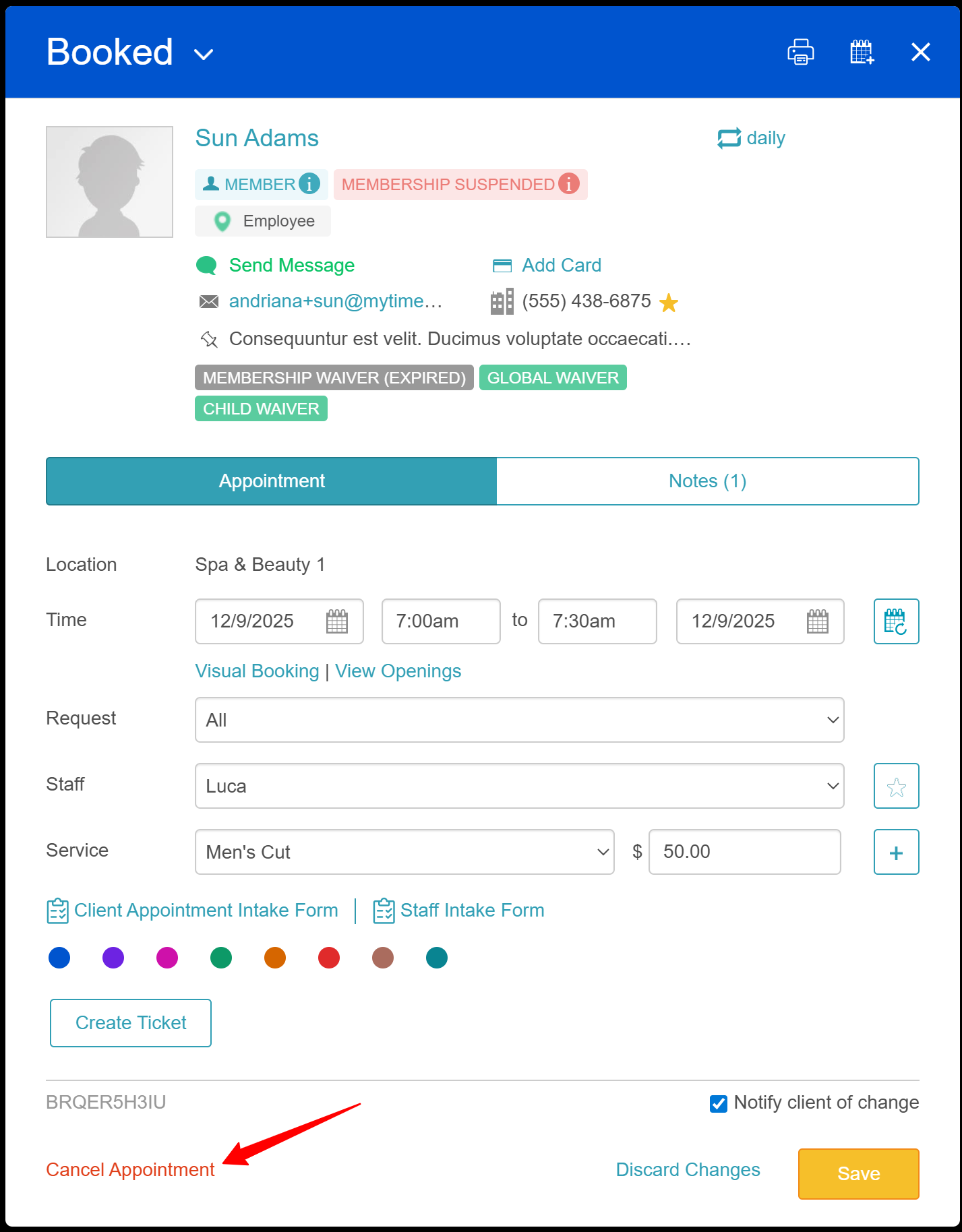
- Select the 'Cancel Appointment' link at the bottom left of the modal
- Select the 'Cancel just this appointment' option
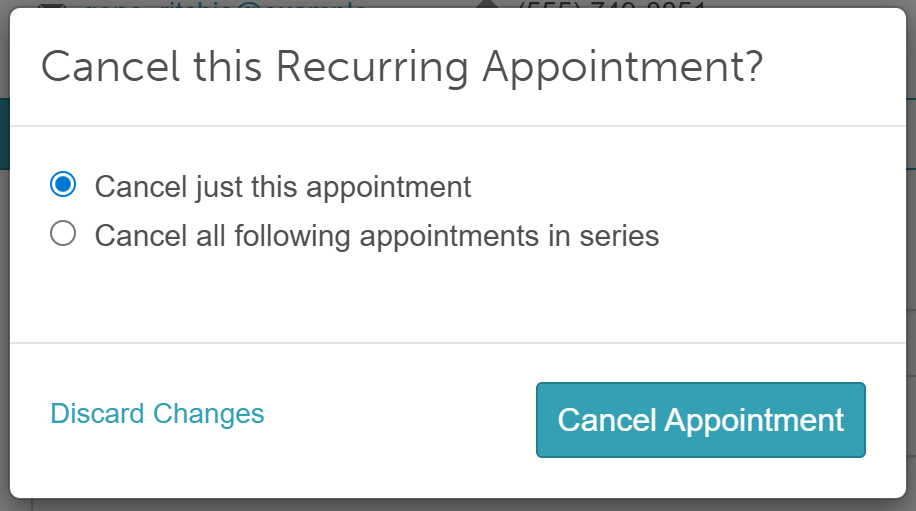
- Click "Cancel Appointment"
- If cancellation reasons are enabled, select a reason and click 'Cancel Appointment' again.
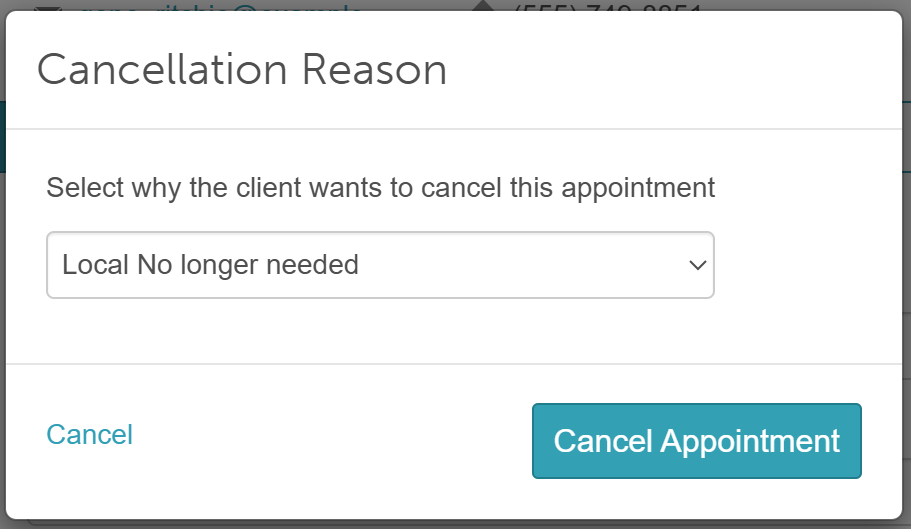
Only the selected appointment will be cancelled and removed from the schedule.
Cancelling All Appointments From a Recurring Series via Scheduler
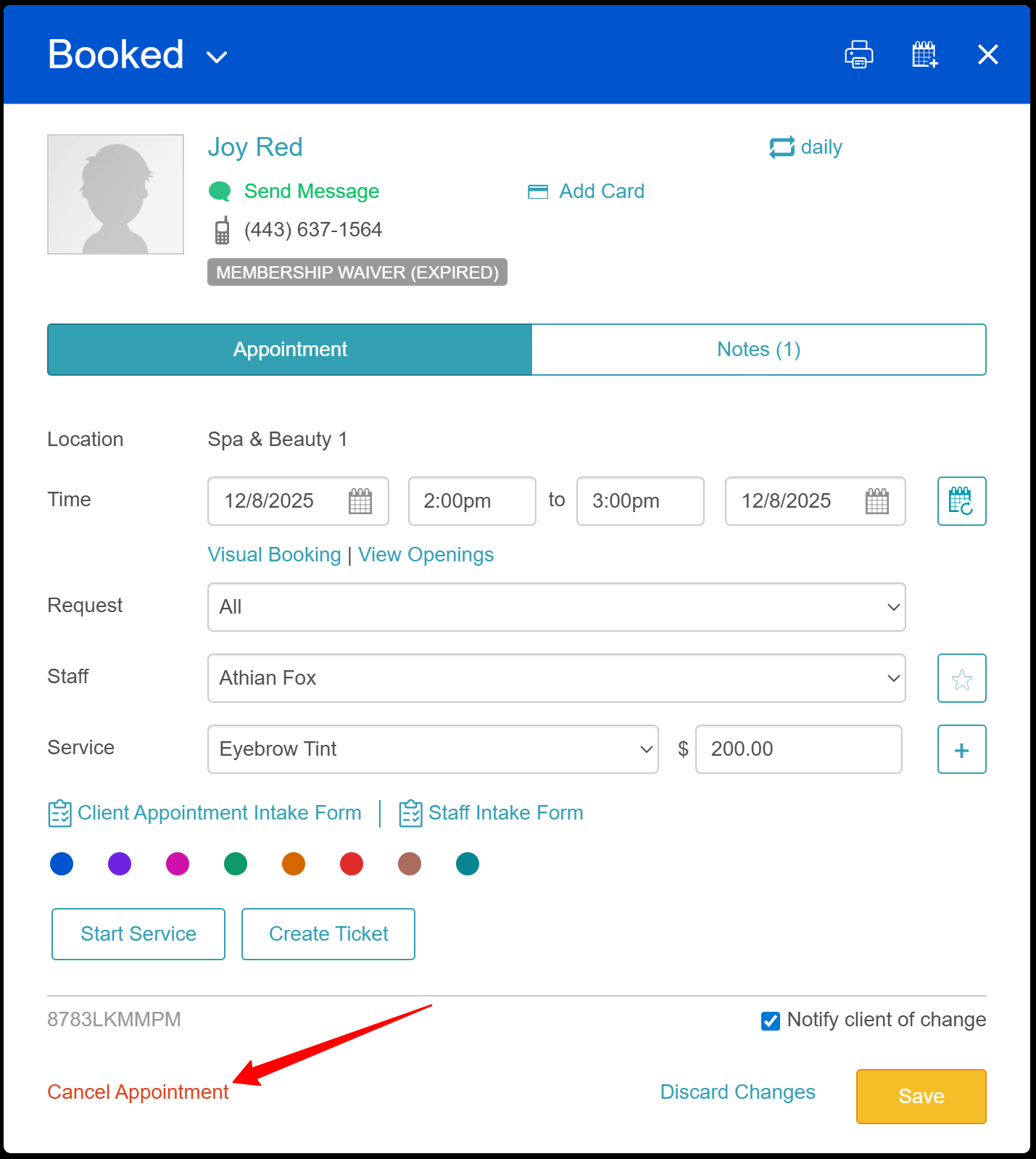
- Navigate to the schedule and locate the appointment you wish to cancel
- Click on the appointment
- Select the 'Cancel Appointment' link at the bottom left of the modal
- Choose 'Cancel all following appointments in series'
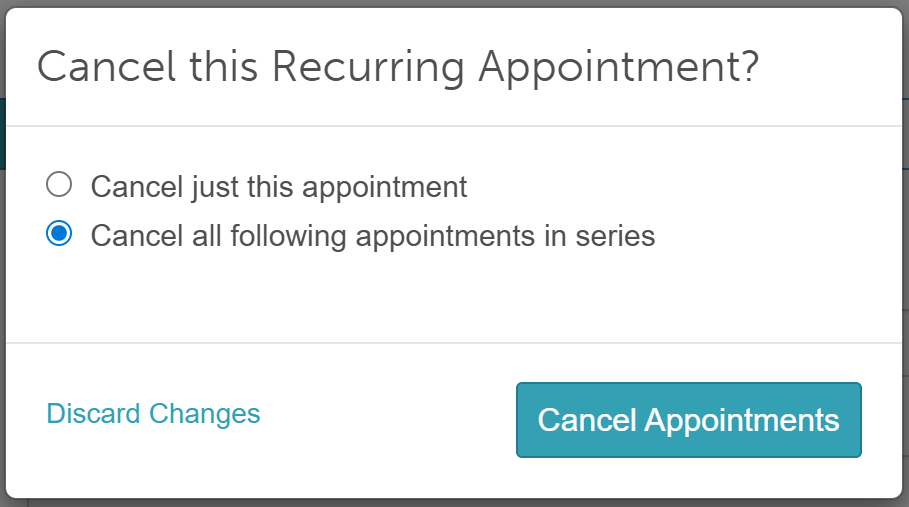
- Click "Cancel Appointments"
- If cancellation reasons are enabled, select a reason and click 'Cancel Appointment' again.
All future appointments in the recurring series will be cancelled and removed from the schedule.
Cancelling a Single Appointment From a Recurring Series via Client Profile
- Go to the Clients tab and open the client profile
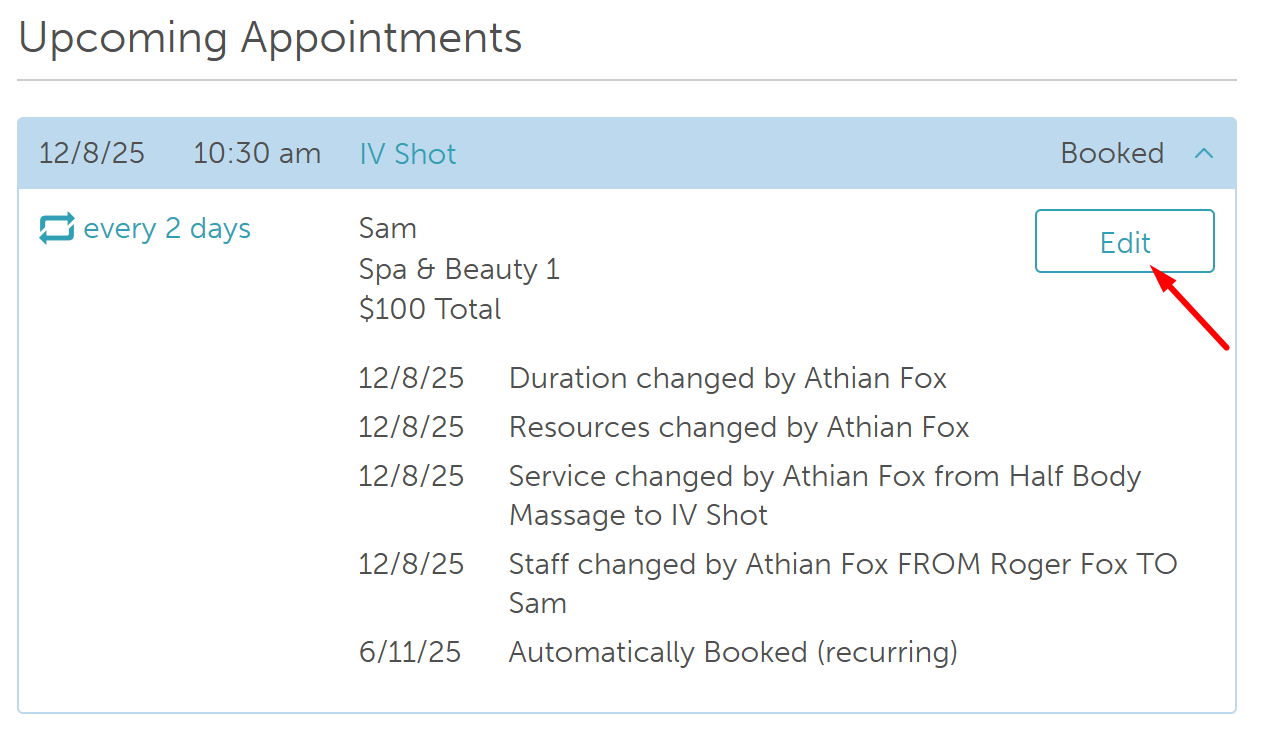
- Scroll to the Upcoming Appointments section and click the arrow to expand the appointment details

- Click 'Edit' to open the appointment modal
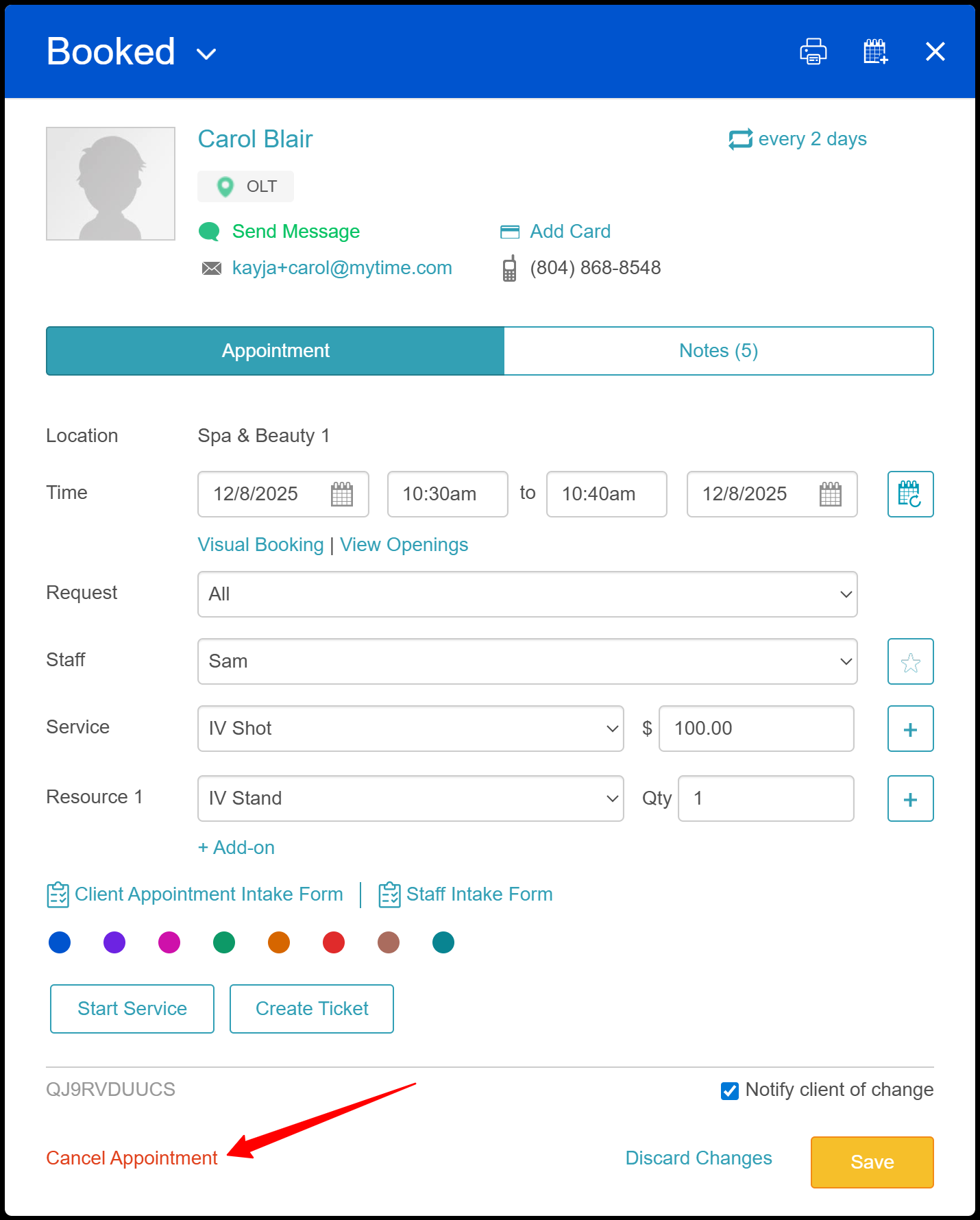
- Select the 'Cancel Appointment' link at the bottom left of the modal
- Choose 'Cancel just this appointment'
- Click "Cancel Appointment"
- If cancellation reasons are enabled, select a reason and click Cancel Appointment again.
Only that specific appointment will be marked as cancelled on the client profile and removed from the schedule.
Cancelling All Appointments From a Recurring Series via Client Profile
- Go to the Clients tab and open the client profile
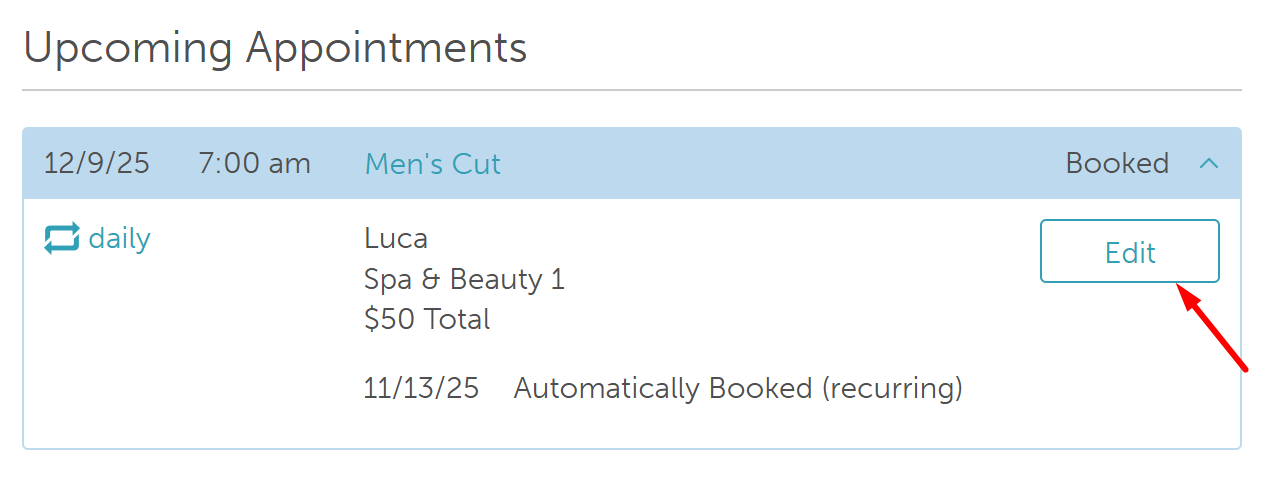
- Scroll to the 'Upcoming Appointments' section and click the arrow to expand the appointment details

- Click 'Edit' to open the appointment modal
- Select the 'Cancel Appointment' link at the bottom left of the modal
- Choose 'Cancel all following appointments in series'
- Click "Cancel Appointments"
- If cancellation reasons are enabled, select a reason and click Cancel Appointment.
All future appointments in the recurring series will be cancelled and removed from the schedule.
For more information, contact us at support@mytime.com or (385) 233-6964.
Related Articles:
Cancelling Recurring Appointments via Scheduler App
Scheduling Recurring Appointments
Scheduling Recurring Appointments on the Scheduler App
Was this article helpful?
That’s Great!
Thank you for your feedback
Sorry! We couldn't be helpful
Thank you for your feedback
Feedback sent
We appreciate your effort and will try to fix the article