At MyTime, you can mark a staff member as "preferred" on a client profile. This feature ensures that staff members are aware of the client's preferred choice when scheduling in-store appointments. In this article, we’ll outline the steps to mark a staff member as preferred in-store.
Things to know:
- The ability to mark a staff member as preferred on the client profile is controlled by the "Accessing Client Records" access control setting.
- You can set a preferred staff member on a client profile manually or let the system assign one automatically.
- Manual Assignments
- Staff can be set as the preferred staff member directly on the client's profile.
- Pet & Family Member Businesses Exception: Manual assignments cannot be set directly on the client profile; they must be assigned at the pet or family member level.
- Automatic Assignments
- New Clients: The staff member who creates the client profile is automatically assigned as their preferred staff member.
- First-Time Requests: Selecting a staff member as "Requested" on the appointment modal (using the star icon) sets them as the preferred staff member on the client profile, provided no staff member is currently assigned. This also applies when a client requests a specific staff member during online booking.
- Rule on Overrides
- Subsequent bookings with other staff members (even if marked "Requested") will not change the saved preference. All updates to an existing preferred staff member must be made manually on the client profile.
- Manual Assignments
- Having a preferred staff member saved on a client profile does not automatically assign online bookings to that staff member. Clients must select that staff member during online booking. If they do not select a specific staff member, the appointment will be distributed according to the round-robin assignment logic. Learn more here.
Contents
- Manually Marking a Staff Member as Preferred on a Client Profile
- Automatically Updating a Staff Member as Preferred on a Client Profile (In Store)
- Automatically Updating a Staff Member as Preferred on a Client Profile (Online
Manually Marking a Staff Member as Preferred on a Client Profile
To manually mark a staff member as preferred on a client profile, simply:
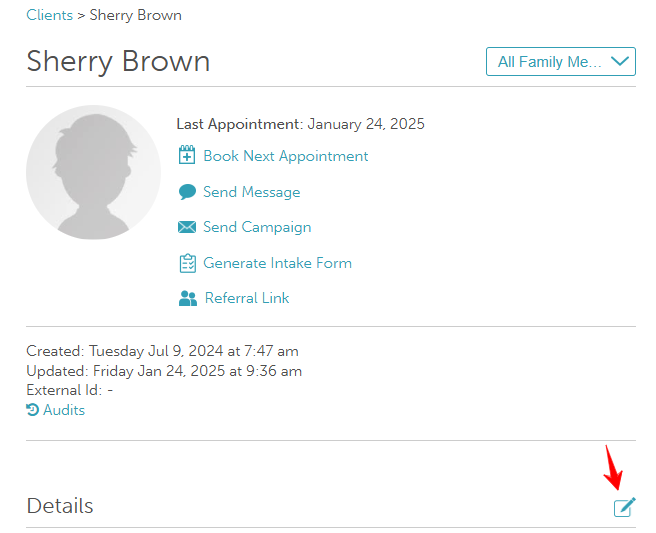
- Navigate to the Clients tab

- Select the desired client to open their profile
- Click on the "Edit" icon
- From the Preferred Staff drop-down menu, select the desired staff member
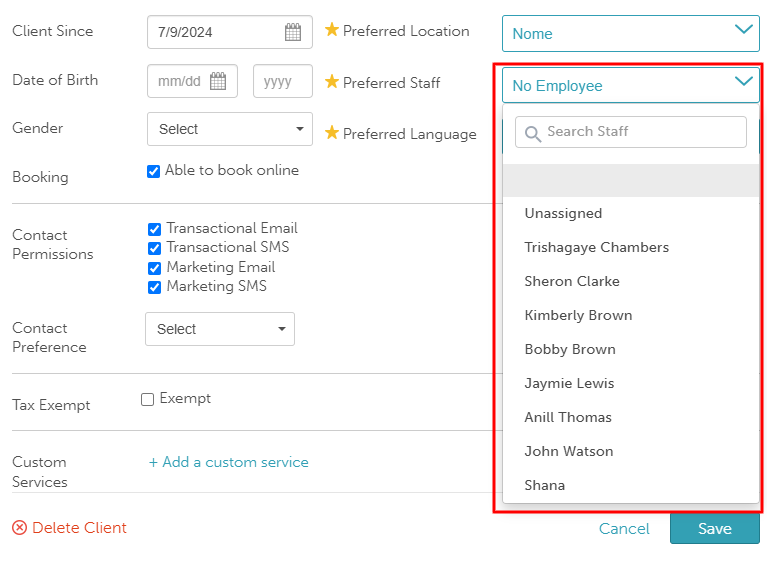
- Click "Save" to apply your changes
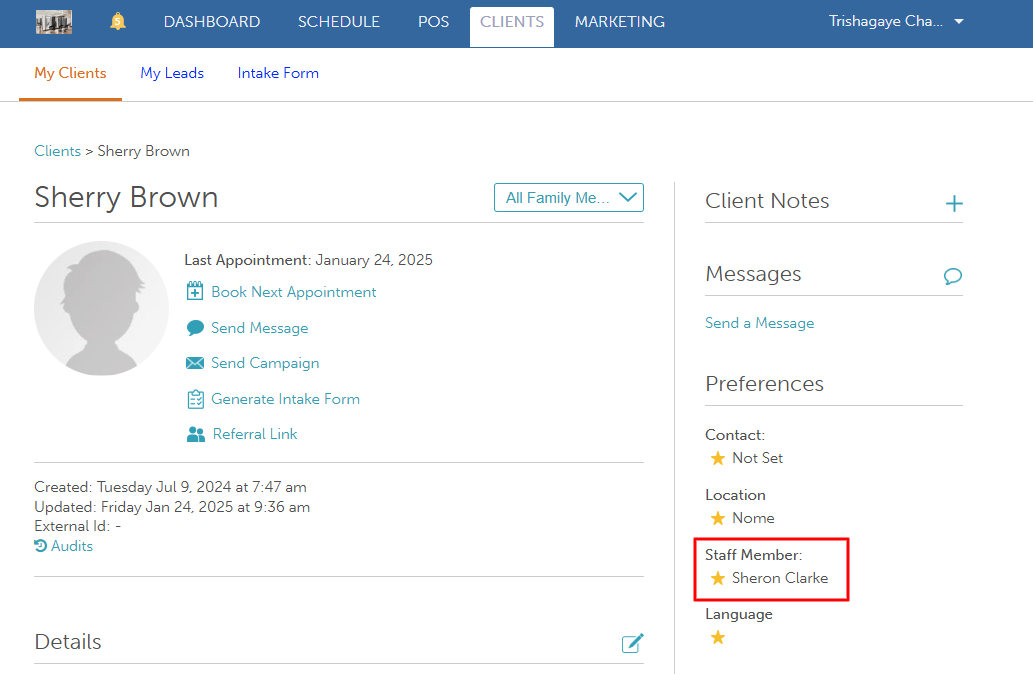
In the Preferences section of the client profile, the chosen staff member will be listed under "Preferred Staff Member."
Automatically Updating a Staff Member as Preferred on a Client Profile (In Store)
To auto-assign a Preferred staff member based on in-store booking behavior:
- Go to the Schedule
- Filter by location (if applicable)
- Click New Appointment, or select a time slot on the calendar
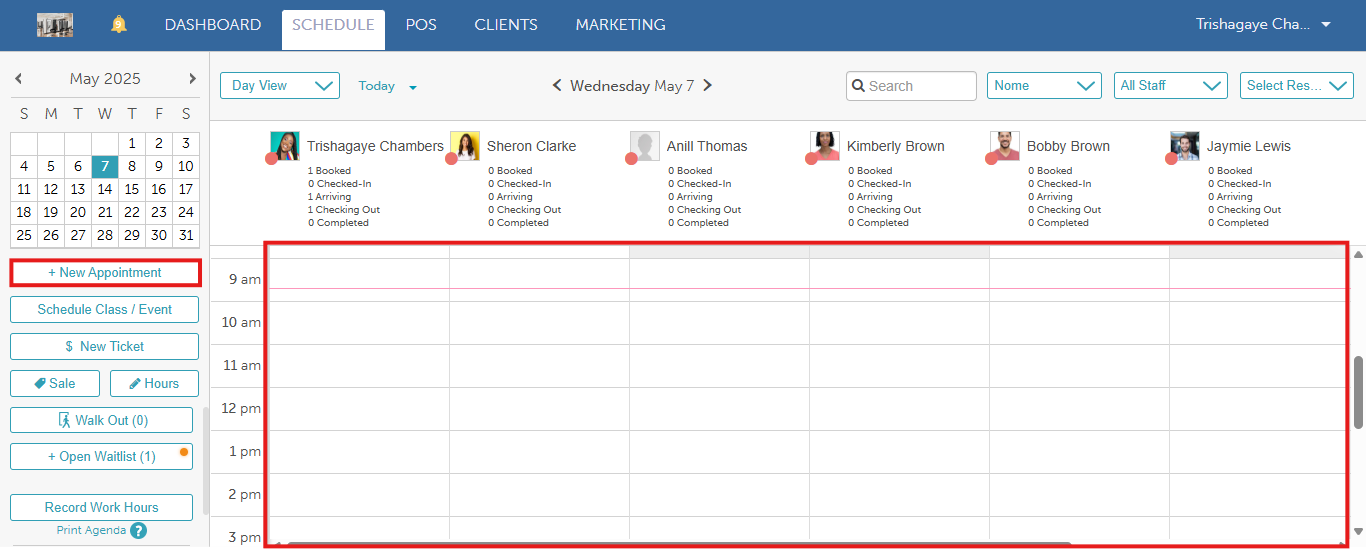
- Add a client
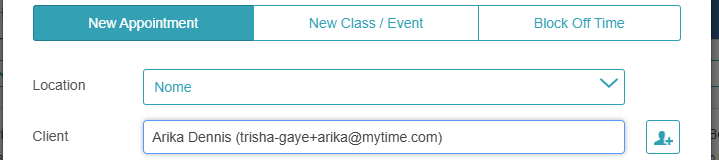
- Select a date, time, service, and staff member
- Click the star icon next to the staff member’s name to mark them as Requested
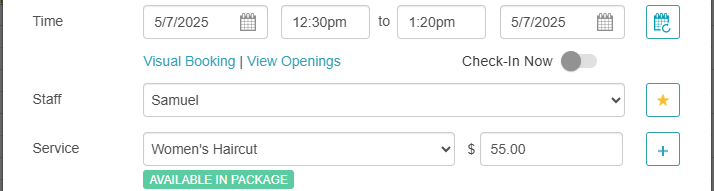
- Click Save
The selected staff member will be saved as Preferred on the client’s profile. 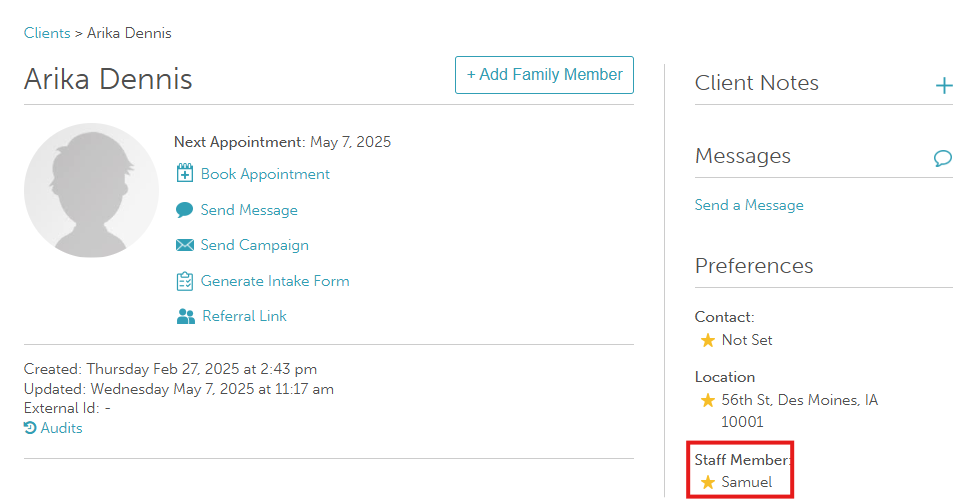
Automatically Updating a Staff Member as Preferred on a Client Profile (Online)
Clients can also trigger the Preferred staff designation when booking online:
- Visit the business’s booking page (via URL or embedded button)
- Sign in
- Choose a service (and optionally add another)
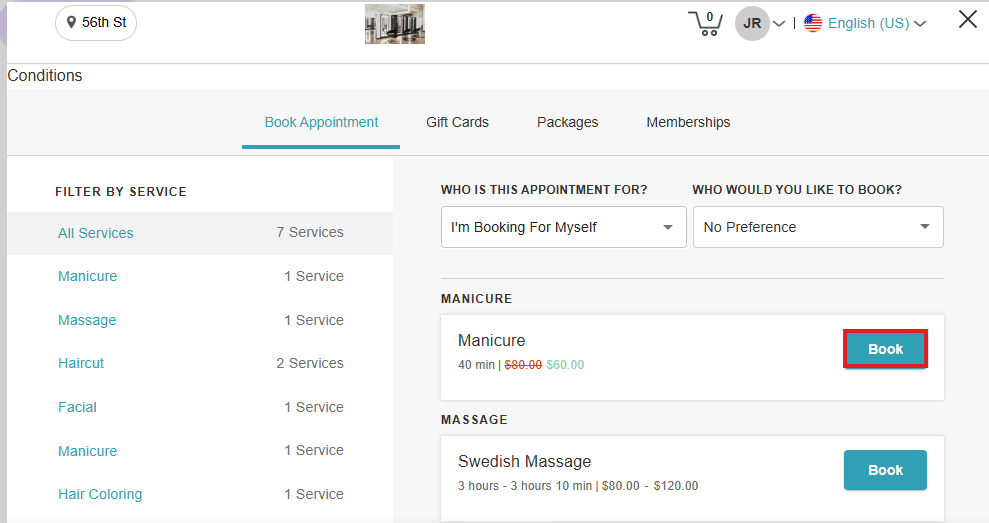
- Select a date, time, and specific staff member
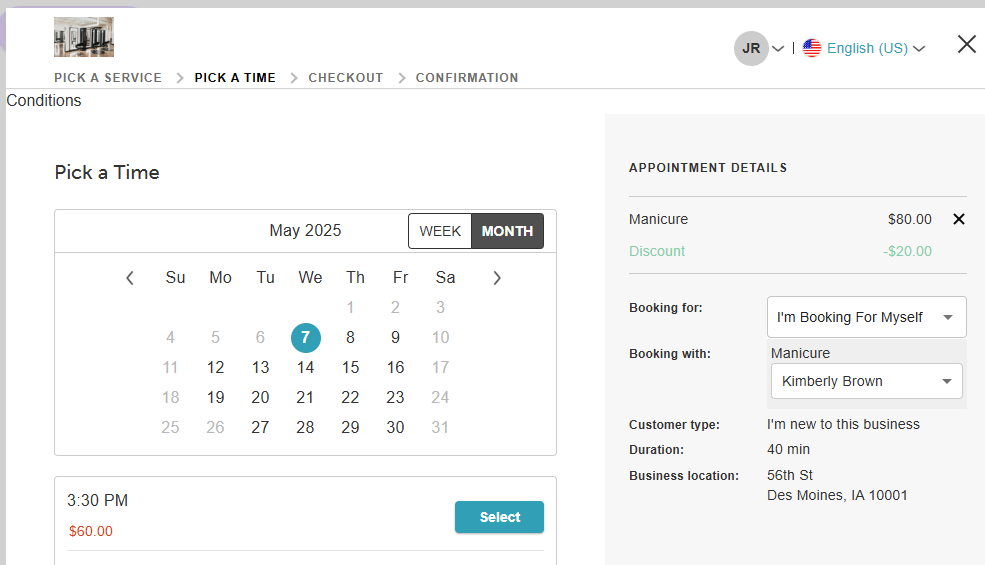
- Proceed to checkout and complete booking
The chosen staff member will be marked as Preferred on the client profile.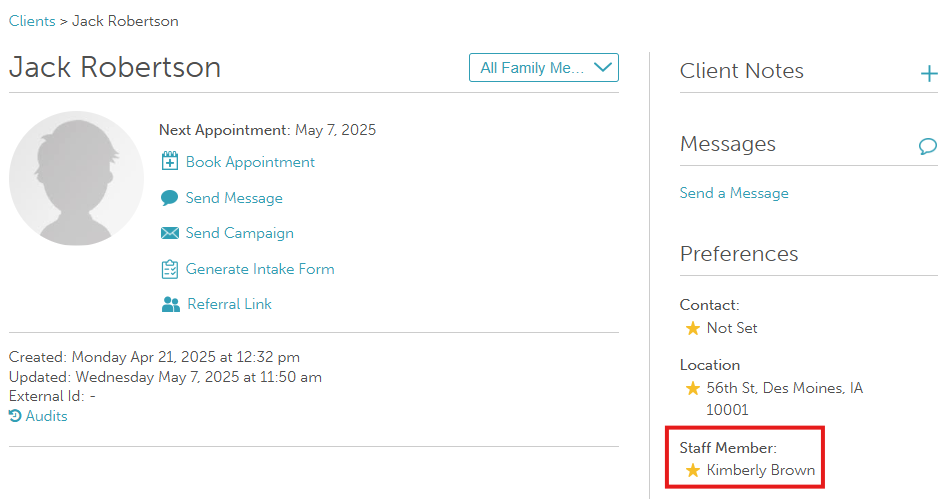
For more information, contact us at support@mytime.com.
Related Articles
Marking a Staff Member as Preferred on a Family Member Profile
Was this article helpful?
That’s Great!
Thank you for your feedback
Sorry! We couldn't be helpful
Thank you for your feedback
Feedback sent
We appreciate your effort and will try to fix the article