The AI Help Center Assistant allows you to instantly find answers to your questions, explore relevant help articles, or connect directly with the MyTime Support Team. This guide will walk you through how to access and effectively use the Support Center.
Contents:
- Access Support Center
- MyAI Help Center Assistant
- Article Feedback and Further Support
- Available Quick Actions
- Browse / Search Articles
Access Support Center
To access our support center:
- Open your web browser
- Go to help.mytime.com and press Enter
MyAI Help Center Assistant
To access and utilize the MyAI help center assistant:
- Click the chat bubble located at the bottom right corner of the page
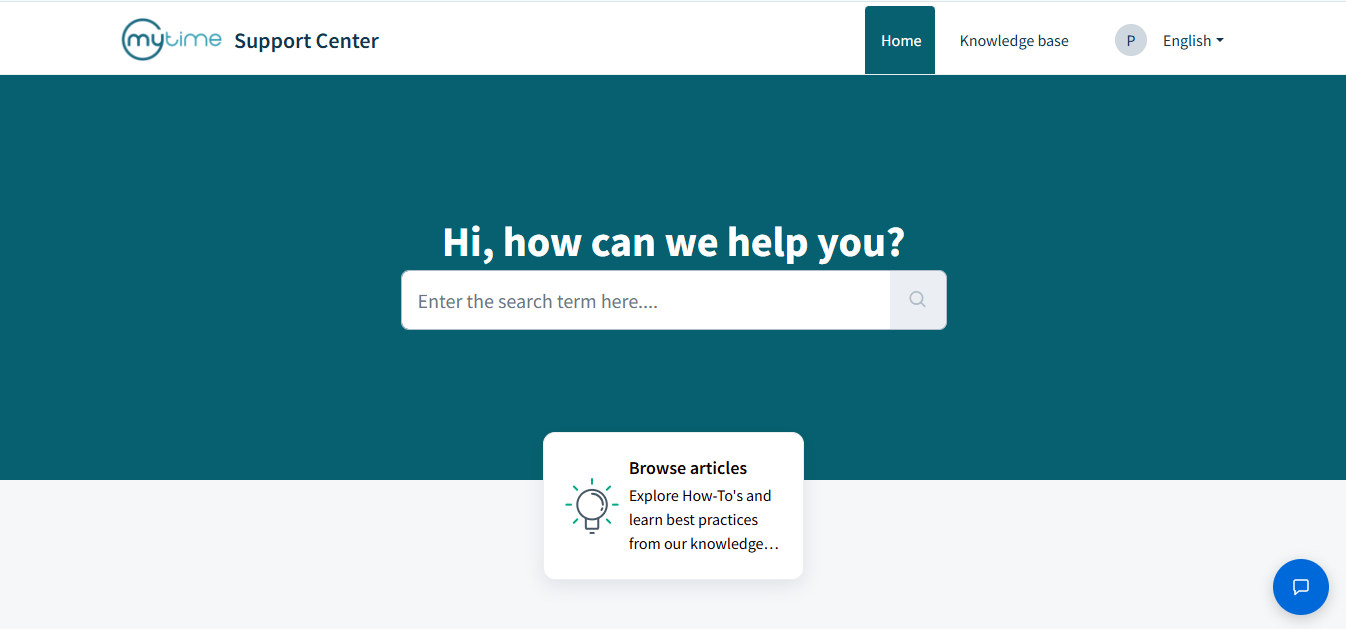
- In the chat window, type your question and press Enter
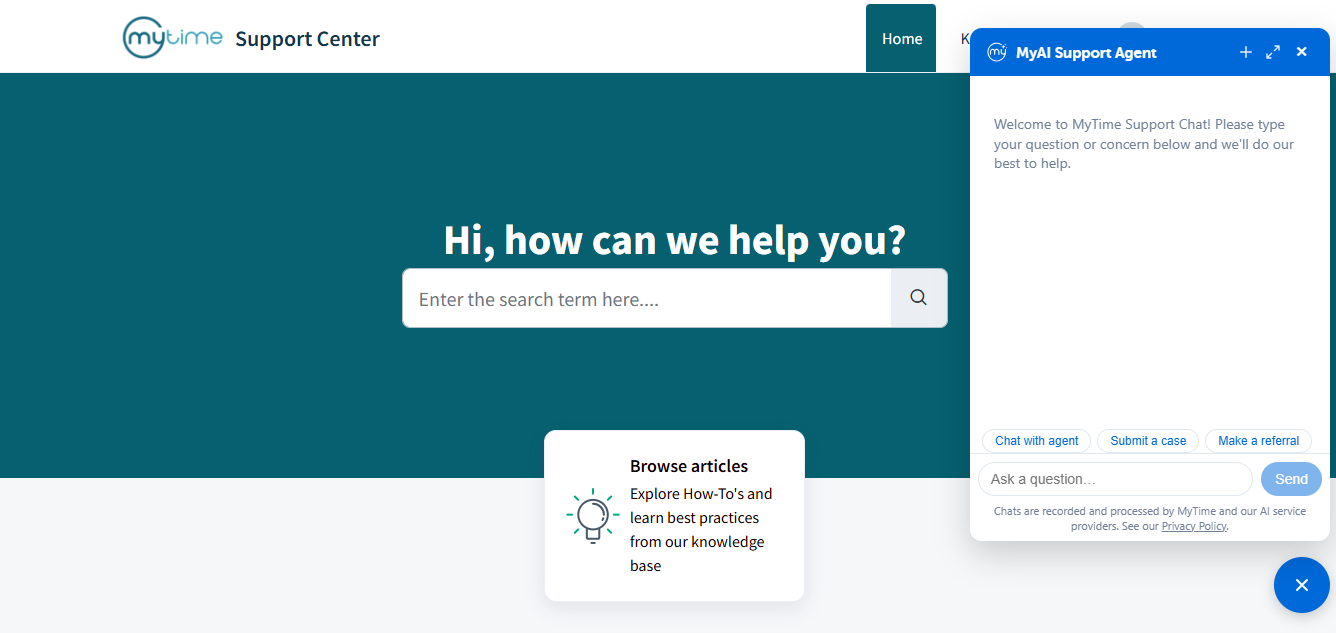
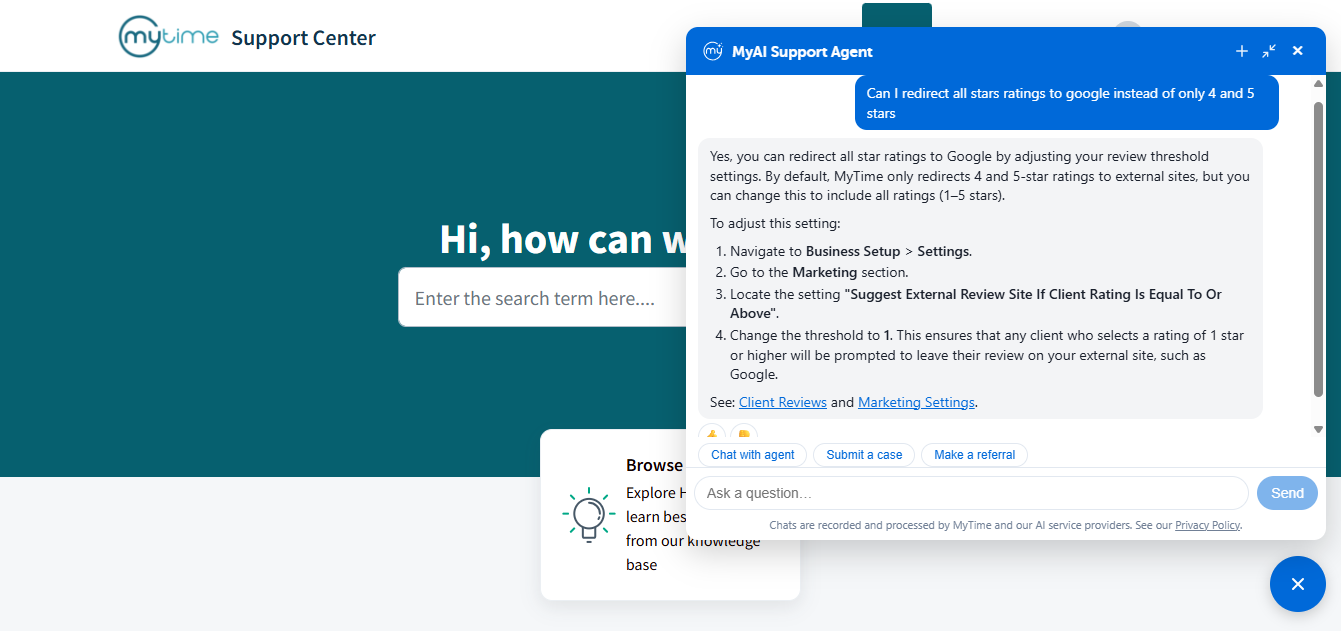
- The MyAI assistant will analyze your request and reply with a brief summary along with direct links to relevant help articles
Article Feedback and Further Support
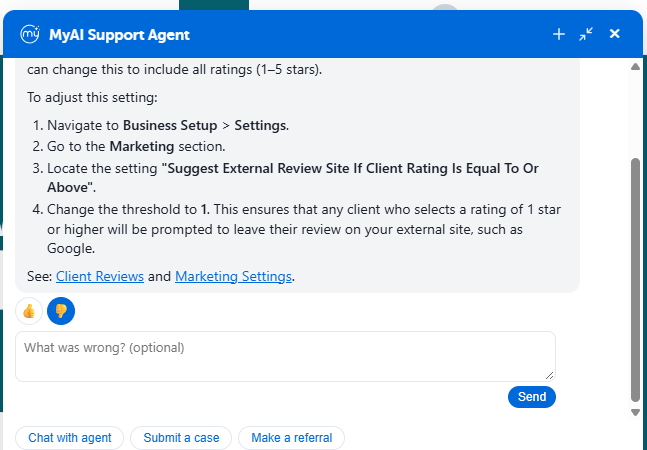
Was this response helpful?
- Yes: Type your next question in the message field below to keep chatting, or leave a Thumbs Up.
- No: Click the Thumbs Down icon and enter your feedback in the text box so we can improve future responses.
Available Quick Actions
Use the quick-action buttons above the message input to get support faster:
1. Submit a Case
Open a formal support ticket directly from the chat to report a technical issue or bug and track its resolution.
How to use:
- Click Submit a Case.
- Enter your email address.
- Review the Subject line (prefilled automatically from your chat).
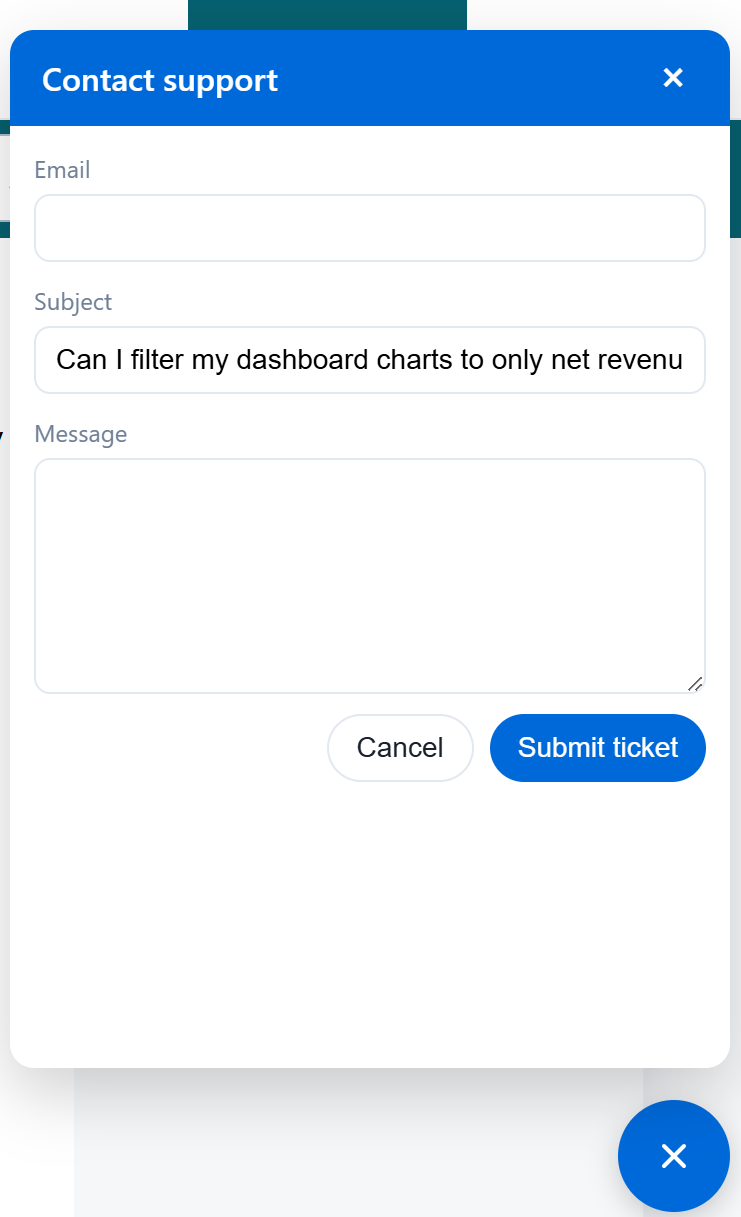
- Enter a detailed description of your issue or question.
- Click Submit ticket.
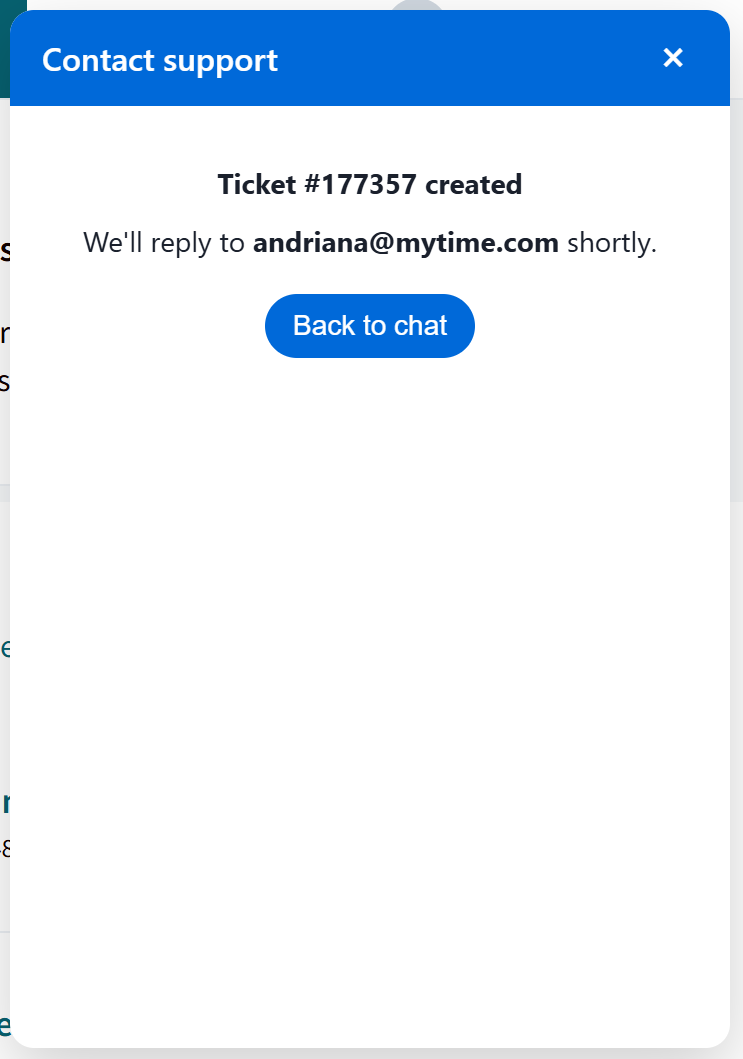
- You will see a modal with your assigned Ticket Number, followed by a confirmation email.
2. Chat with Agent
Connect with a live MyTime Support Team member for real-time assistance with immediate questions or complex issues.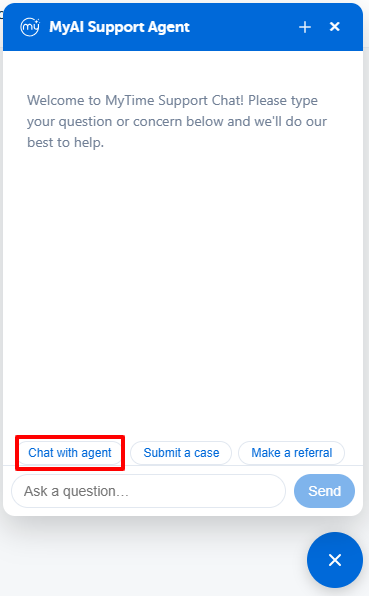
How to use: Click Chat with Agent to be routed to the next available representative.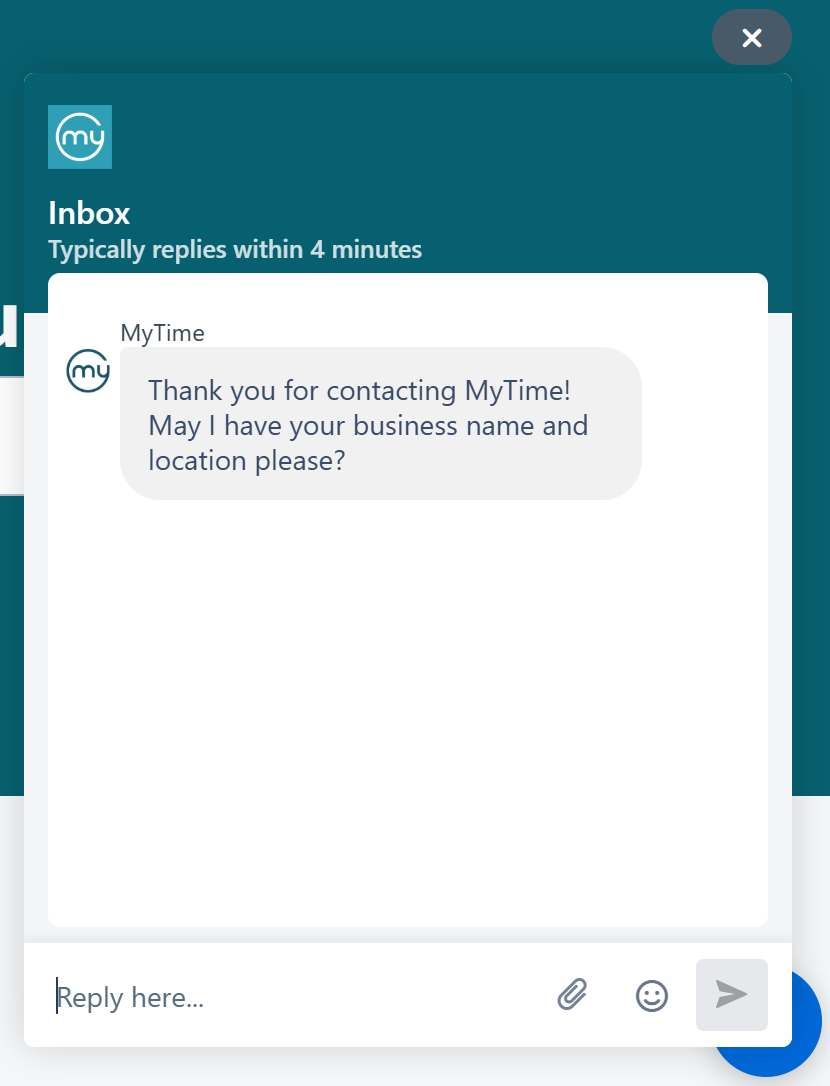
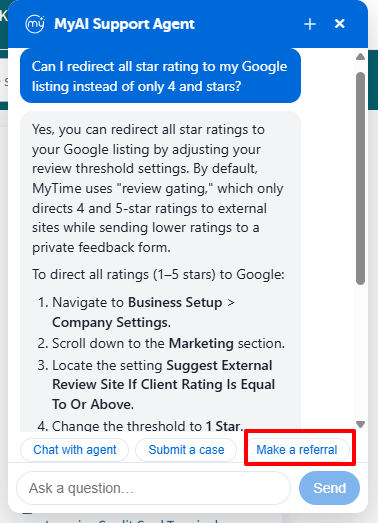
3. Make a Referral
Refer new businesses to MyTime right from the chat and earn $500 per location when they become a paying customer.
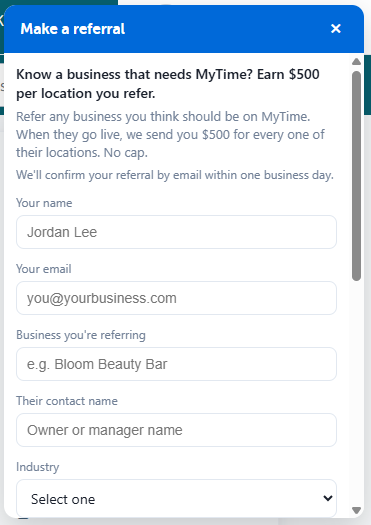
- Click Make a Referral to open the embedded form.
- Enter the business details (Industry, Number of Locations, Business Email, and Contact Name).
- View your potential earnings via the live reward preview (e.g., 2 locations = $1,000 potential reward).
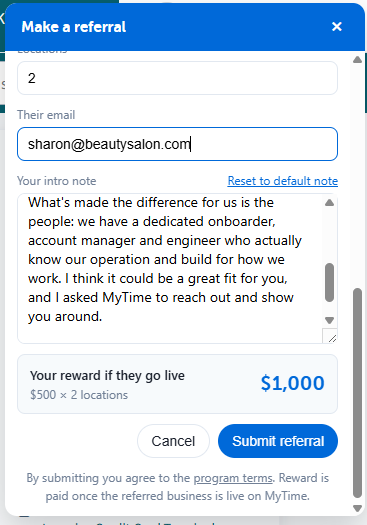
- Review the personalized, pre-filled introductory note.
- Click Submit referral.
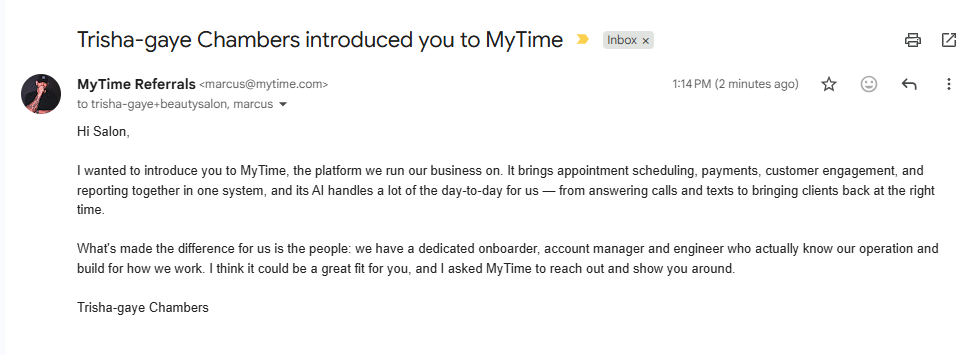
- An introductory email will be sent directly to your contact with your email set as the Reply-To. Our system automatically tracks their progress so you get paid when they sign up.
Browse / Search Articles
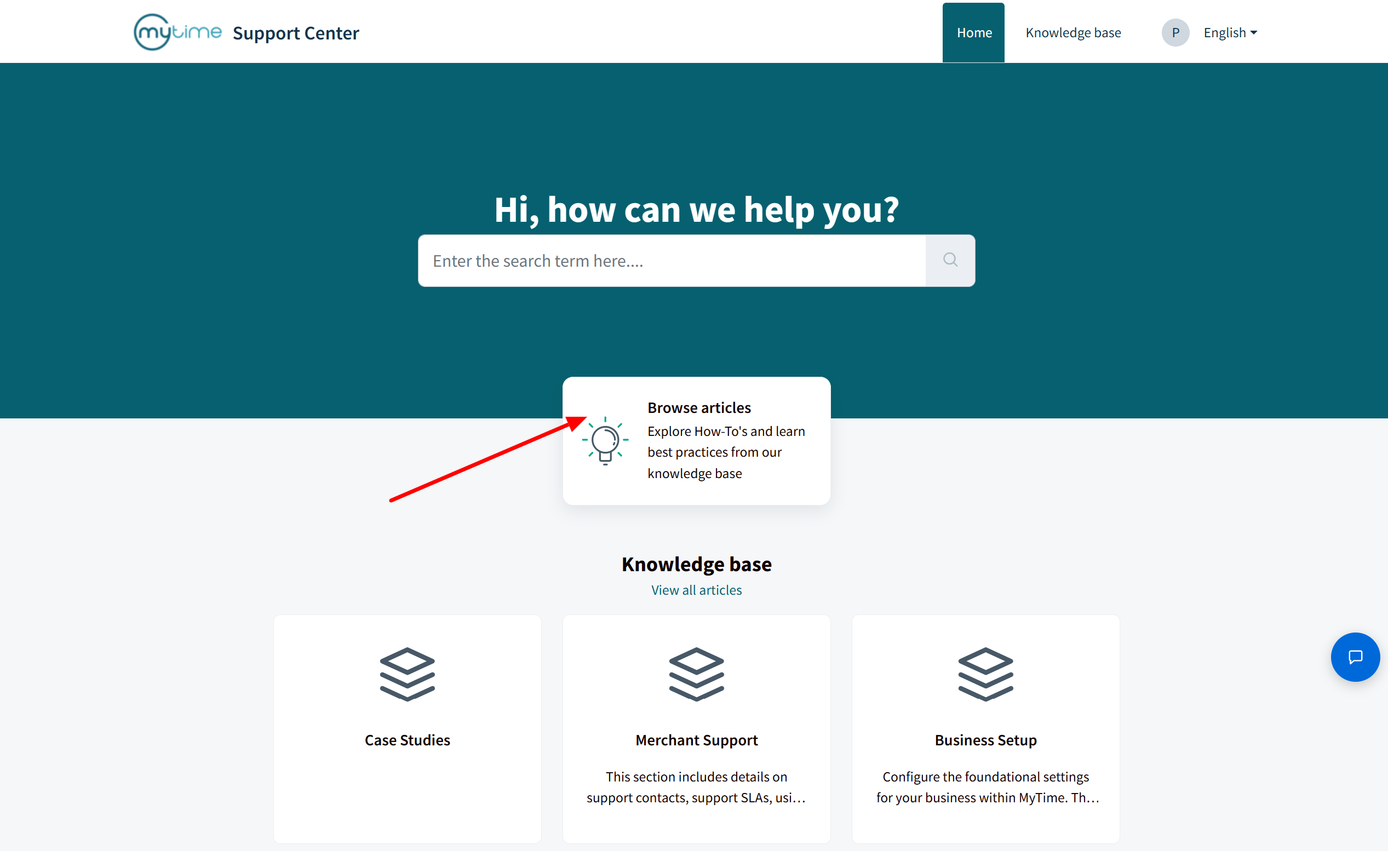
On the homepage, you can access articles in a few ways:
- Browse by Category: Click on the "Browse Articles" (in the middle of the page) option located in the middle of the page
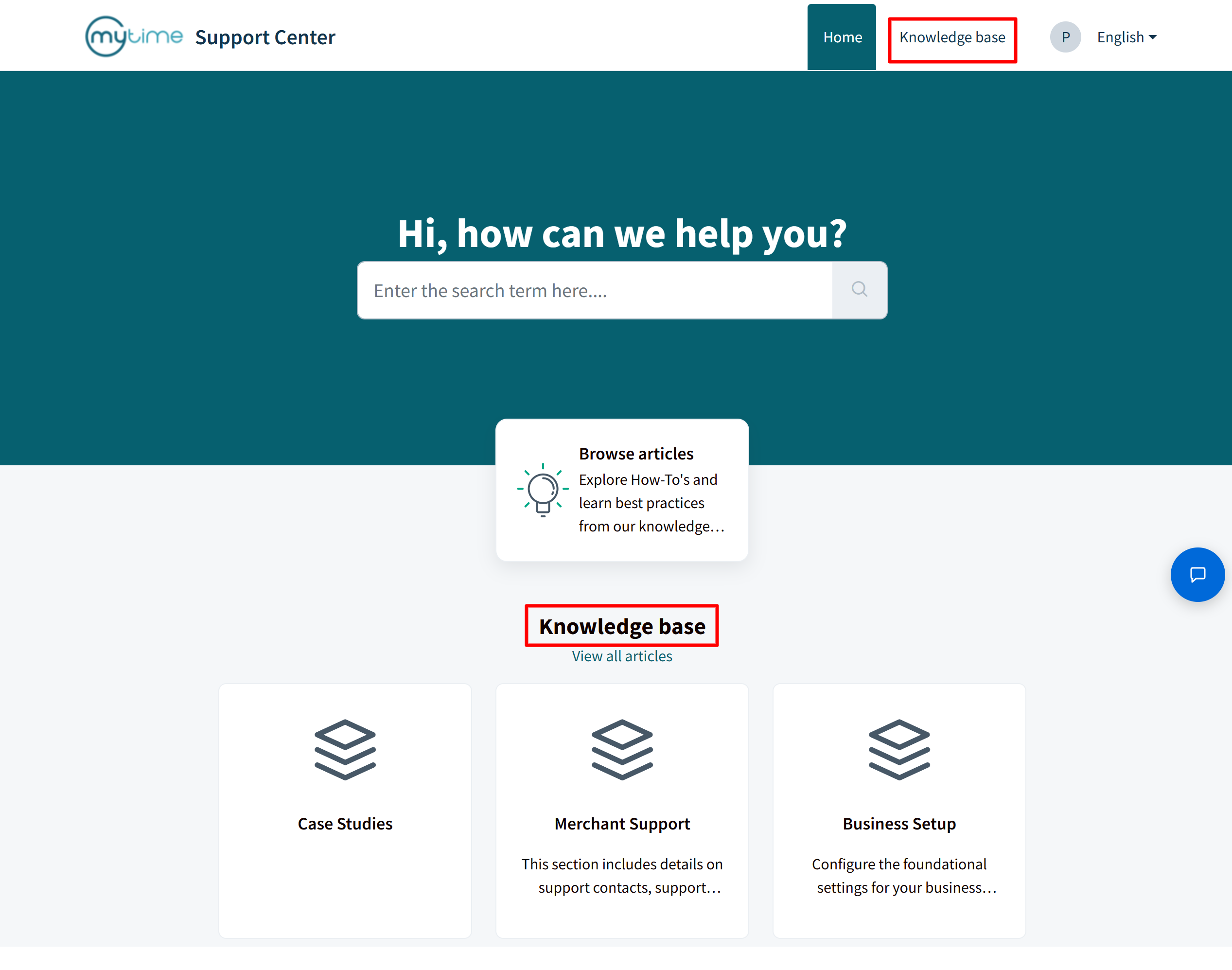
- Select the "Knowledge Base" option at the top-right corner or in the middle of the page
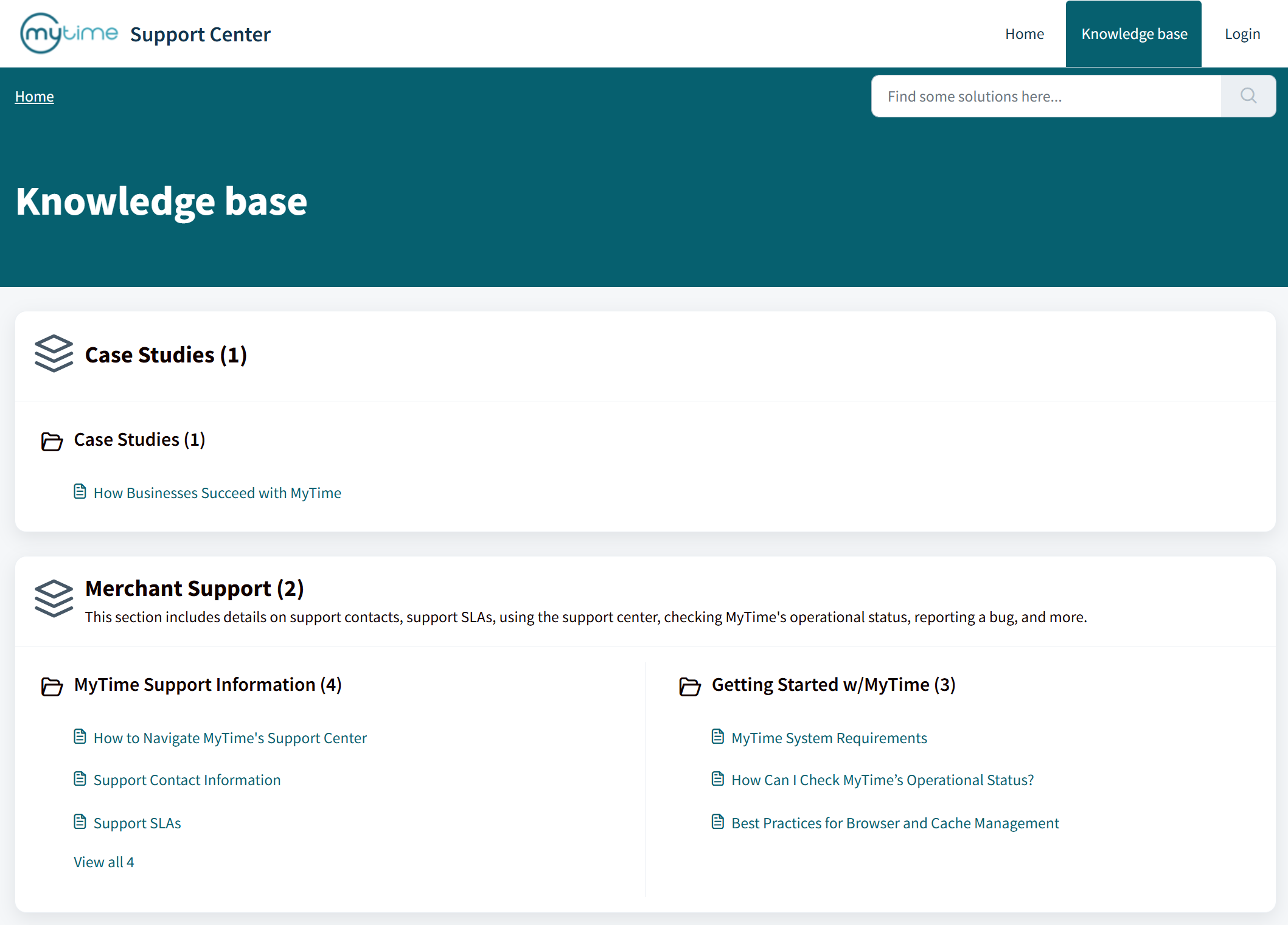
- From there, you can view articles by category or use the search bar to enter your query
For more information, contact us at support@mytime.com or (385) 233-6964.
Was this article helpful?
That’s Great!
Thank you for your feedback
Sorry! We couldn't be helpful
Thank you for your feedback
Feedback sent
We appreciate your effort and will try to fix the article